 MQTT Integration Guide
Use MaestroHub's MQTT connector to exchange real-time messages with PLC gateways, IoT devices, and event-driven services. This guide explains how to configure connections, design publish/subscribe functions, and orchestrate pipelines.
Overview
The MQTT connector delivers:
- MQTT v3.1, v3.1.1 and v5.0 support with QoS 0/1/2 and retained message control
- Publish and subscribe functions for bidirectional communication
- Security options including TLS, mutual authentication, and username/password logins
- Payload templating for JSON, binary buffers, or delimited text
Connection Configuration
Creating an MQTT Connection
Navigate to Connections → New Connection → MQTT and fill in these details:
MQTT Connection Creation Fields
1. Profile Information
| Field | Default | Description |
|---|---|---|
| Profile Name | - | A descriptive name for this connection profile (required, max 100 characters) |
| Description | - | Optional description for this MQTT connection |
2. MQTT Broker Configuration
| Field | Default | Description |
|---|---|---|
| Protocol | tcp | Connection protocol: tcp (mqtt://), ssl (mqtts://), ws (ws://), or wss (wss://) – required |
| Broker Hostname | - | MQTT broker hostname or IP address (e.g., broker.example.com) – required |
| Port | 1883 | MQTT broker port (1-65535), typically 1883 for plain and 8883 for TLS – required |
| MQTT Version | 3.1.1 | MQTT protocol version (3.1 / 3.1.1 / 5.0) – required |
| Client ID | - | Unique client identifier (max 65535 characters). Server generates if not specified |
| Keep Alive (sec) | 60 | Keep alive interval in seconds (0-65535) |
| Connection Timeout | 30s | How long to wait when connecting to the broker (1s-5m) |
| Write Timeout | 30s | How long each publish / subscribe / unsubscribe may wait for the broker's acknowledgement (1s-5m). Applies to every MQTT version (the v5 packet timeout). |
Protocol Options
3.1: Legacy MQTT version3.1.1: Recommended – most widely supported5.0: Latest – enhanced features and performance
3. Session Management
3a. For MQTT v3.1 and v3.1.1
| Field | Default | Description |
|---|---|---|
| Clean Session | true | Start with a clean session on connect |
3b. For MQTT v5.0
| Field | Default | Description |
|---|---|---|
| Clean Start | true | Start with a clean session on initial connection. Saved as the same setting as Clean Session. |
4. Basic Authentication
| Field | Default | Description |
|---|---|---|
| Username | - | MQTT broker username (optional) |
| Password | - | MQTT broker password (optional, but username is required if password is provided) |
5. TLS/SSL Settings
5a. TLS Configuration
| Field | Default | Description |
|---|---|---|
| Enable TLS/SSL | false | Use encrypted connection to the MQTT broker. Always on for the ssl and wss protocols; on with tcp, the connection uses ssl://. Not allowed with ws (plain WebSocket is never encrypted) — use wss instead. |
| Skip Certificate Verification | false | Skip SSL certificate verification (not recommended for production) |
5b. Certificate Verification Settings
(Only displayed when TLS is enabled and Certificate Verification is NOT skipped)
| Field | Default | Description |
|---|---|---|
| Server Name (SNI) | - | Server name for SNI verification (e.g., broker.example.com) |
5c. Client Certificates
(Only displayed when TLS is enabled and Certificate Verification is NOT skipped)
| Field | Default | Description |
|---|---|---|
| Client Certificate | - | Client certificate for mutual TLS authentication (PEM format) |
| Private Key | - | Private key for client certificate (PEM format) |
| CA Certificate | - | CA certificate for server verification (PEM format) |
6. Last Will and Testament (LWT)
| Field | Default | Description |
|---|---|---|
| Will Topic | - | Topic to publish the will message (e.g., clients/disconnected). Leave empty for no Last Will. |
| Will QoS | 0 | Quality of Service for will message (0 / 1 / 2) |
| Will Message | - | Message to publish on unexpected disconnect |
| Retain Will Message | false | Broker retains the last will message |
QoS Levels
- QoS 0: At most once – no confirmation
- QoS 1: At least once – confirmed delivery
- QoS 2: Exactly once – guaranteed single delivery
7. MQTT v3.1.1 Advanced Options
(Only displayed when MQTT Version = 3.1 or 3.1.1)
| Field | Default | Description |
|---|---|---|
| Ping Timeout | 10s | How long to wait for the broker's ping response before the connection is considered lost (1s-5m) |
Reconnection, subscription recovery and message acknowledgement are handled by the platform, so they are not configurable here.
8. MQTT v5.0 Enhanced Properties
(Only displayed when MQTT Version = 5.0)
These are sent to the broker in the CONNECT packet.
8a. Session & Flow Control
| Field | Default | Description |
|---|---|---|
| Session Expiry Interval (seconds) | - | How long session state persists after disconnect (0-4294967295, 0 = immediately expire) |
| Receive Maximum | - | Maximum number of QoS 1 and QoS 2 messages the broker may send before they are acknowledged (1-65535). Empty = broker default (65535) |
| Maximum Packet Size (bytes) | - | Largest packet this client accepts from the broker (1-268435455). Empty = no limit |
8b. Diagnostics
| Field | Default | Description |
|---|---|---|
| Request Problem Information | true | Ask the broker to include reason strings on failures |
8c. User Properties
| Field | Default | Description |
|---|---|---|
| User Properties | - | Custom key-value pairs sent with the connection (JSON format) |
Example User Properties
{"correlationId":"12345","origin":"edge-gateway"}– Identify related transactions{"tenant":"alpha","priority":"high"}– Route messages by tenant or priority
9. Connection Labels
| Field | Default | Description |
|---|---|---|
| Labels | - | Key-value pairs to categorize and organize this MQTT connection (max 10 labels) |
Example Labels
environment: production– Deployment environmentteam: iot– Responsible teamprotocol: mqtt– Connection protocolregion: us-east-1– Geographical region
- MQTT Version compatibility: Sections 7 (v3.1.1 Advanced Options) and 8 (v5.0 Enhanced Properties) appear based on the selected MQTT version.
- The
sslandwssprotocols always use TLS. - Authentication requires a username when a password is provided.
- TLS certificate fields are available only when TLS is enabled and certificate verification is not skipped.
- Clean Session and Clean Start represent the same behavior in v3.1.1 and v5.0, respectively.
- Timeouts accept a unit, e.g.
30sor2m.
Function Builder
Creating MQTT Functions
After the connection is configured:
- Open the connection and go to its Functions tab → New Function
- Choose Publish or Subscribe as the function type
- Define topic filters, QoS, retained settings, and payload templates
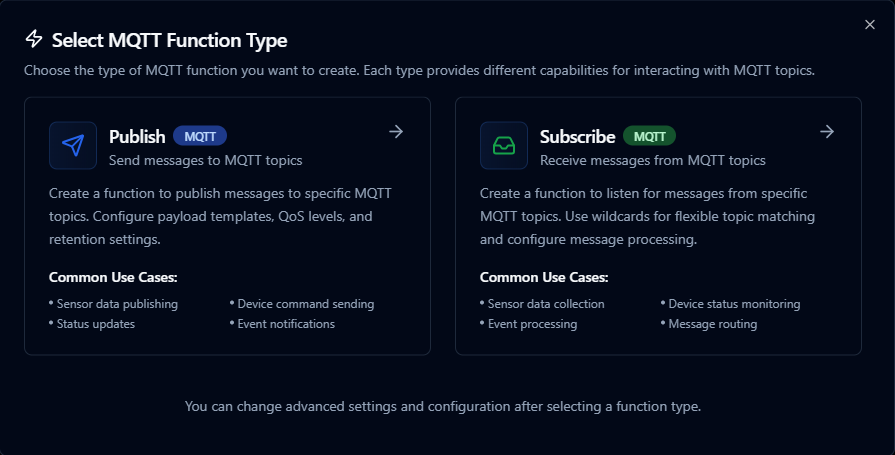
Design MQTT publish or subscribe functions with topic templates and payload mappings
Publish Function
Purpose: Send messages to MQTT topics. Create a function to publish messages to specific MQTT topics with configurable payload templates, QoS levels, and retention settings.
Configuration Fields
| Field | Type | Required | Default | Description |
|---|---|---|---|---|
| Topic Template | String | Yes | - | MQTT topic to publish to (supports parameters). Example: sensors/((deviceId))/temperature |
| Payload Template | String | Yes | - | Message payload template (supports parameters). Example: {"temperature": ((value)), "timestamp": "((now))"} |
| QoS Level | Number | No | 0 | Quality of Service level for published messages (0, 1, or 2) |
| Retained | Boolean | No | false | Whether messages should be retained by the broker |
| Content Type (v5.0) | String | No | - | MIME type of the message payload (MQTT v5.0). Example: application/json |
| Message Expiry (v5.0) | Number | No | - | Message expiry interval in seconds (1-4294967295) (MQTT v5.0) |
| Payload Format (v5.0) | Number | No | - | Payload format indicator: 0=bytes, 1=UTF-8 (MQTT v5.0) |
| Response Topic (v5.0) | String | No | - | Topic for response messages (MQTT v5.0) |
| Correlation Data (v5.0) | String | No | - | Request correlation identifier (MQTT v5.0) |
| Topic Alias (v5.0) | Number | No | - | Topic alias for compression (1-65535) (MQTT v5.0) |
| User Properties (v5.0) | Object | No | - | Custom key-value properties for the message (MQTT v5.0) |
Use Cases: Sensor data publishing, device command sending, status updates, event notifications
Subscribe Function
Purpose: Receive messages from MQTT topics. Create a function to listen for messages from specific MQTT topics with wildcard support for flexible topic matching.
Configuration Fields
| Field | Type | Required | Default | Description |
|---|---|---|---|---|
| Topic Filters | Array | Yes | ["sensors/+/data"] | MQTT topic patterns to subscribe to (supports wildcards + and #). Example: ["sensors/+/temperature", "devices/+/status"] |
| QoS Level | Number | No | 0 | Quality of Service level for subscription (0, 1, or 2) |
| No Local (v5.0) | Boolean | No | false | Don't receive messages published by this client (MQTT v5.0) |
| Retain as Published (v5.0) | Boolean | No | false | Preserve the original retain flag of messages (MQTT v5.0) |
| Retain Handling (v5.0) | Number | No | 0 | How to handle retained messages: 0=send, 1=send if new, 2=don't send (MQTT v5.0) |
| Subscription Identifier (v5.0) | Number | No | - | Unique identifier for this subscription (1-268435455) (MQTT v5.0) |
| User Properties (v5.0) | Object | No | - | Custom key-value properties for the subscription (MQTT v5.0) |
Use Cases: Sensor data collection, device status monitoring, event processing, message routing
To load-balance messages across several clients, write the shared subscription directly in the topic filter: $share/<group>/<topic>, e.g. $share/line-workers/sensors/+/data.
Using Parameters
MQTT functions support parameterized topics and payload values via the ((parameterName)) syntax.
| Configuration | Description | Example |
|---|---|---|
| Type | Validate incoming pipeline data | string, number, boolean, datetime, json, buffer |
| Required | Force topic fragments or payload fields | Required / Optional |
| Default Value | Provide fallback values | 'line-01', 0, '{}' |
| Description | Document intent for other authors | "Line identifier appended to the topic path" |
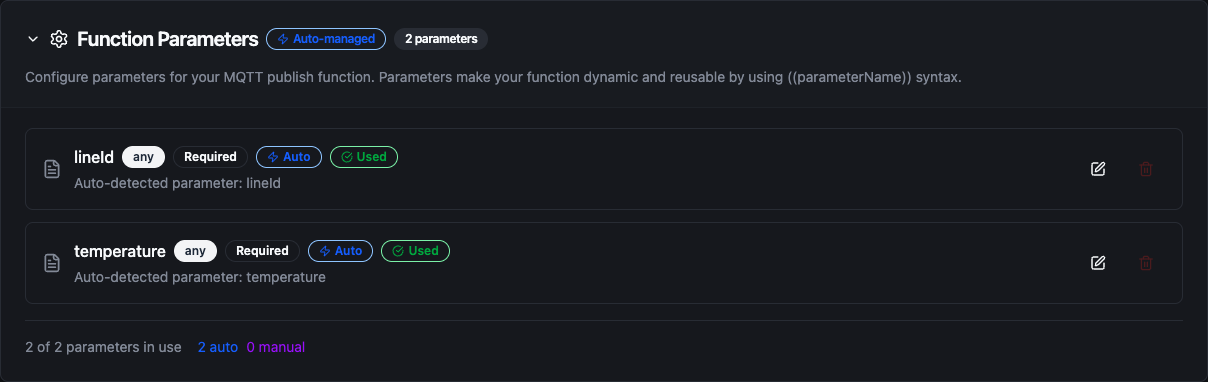
Configure parameter validation, defaults, and descriptions for MQTT topics and payloads
Discover Tab
The connection's Discover tab shows the topics carrying traffic on the broker, so you can create functions from them. It becomes usable once the connection is saved.
- Enter a Topic Pattern (default
#, all topics; for examplesensors/+/temperaturefor one branch), pick a QoS Level, and click Start Discovery. - Arriving topics build up in the Topic Tree. Select a topic to see its details and payload in Topic Details.
- Click Create Subscribe Function or Create Publish Function and confirm the function name. A Subscribe function subscribes to that topic at QoS 0. A Publish function publishes to it at QoS 0, not retained, with a payload template built from the topic's payload: each value in a JSON payload becomes a
((parameter)); any other payload becomes((payload)). A button reads Subscribe Function Exists / Publish Function Exists when the connection already has one for that topic. - Click Stop Discovery when you are done. A running session shows its idle timeout and maximum duration, and stops collecting new topics once it reaches its topic limit.
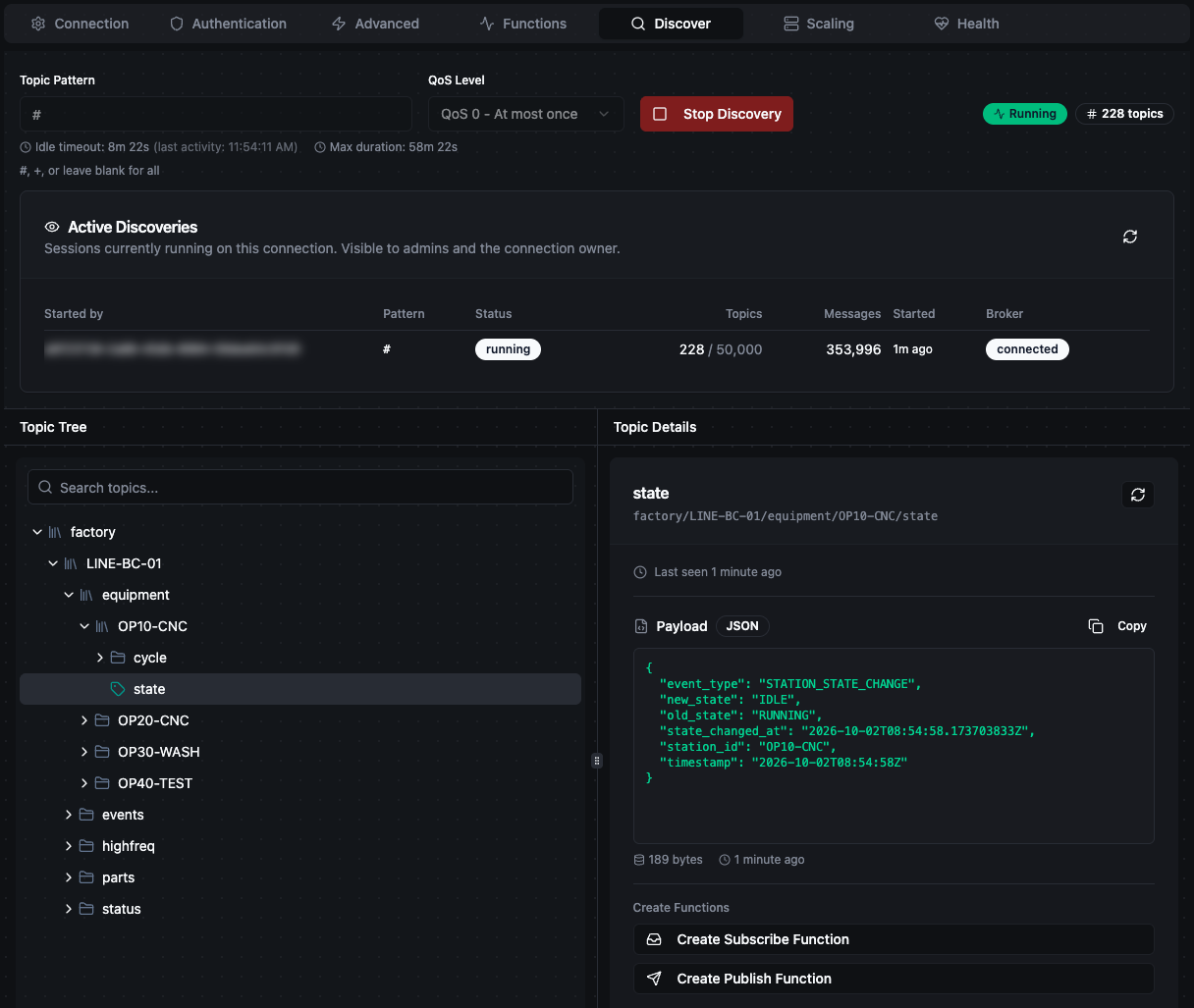
Discover tab with live topics in the Topic Tree and the selected topic's payload
Pipeline Integration
Use the MQTT connection functions you create here as nodes inside the Pipeline Designer to synchronize production data with the rest of your stack. Drag in the publish or subscribe node, bind its parameters to upstream node outputs or constants, and shape event-driven flows without leaving the designer.
If you are planning more complex orchestration, review the Connector Nodes page for patterns on where MQTT nodes fit best within broader orchestration strategies.
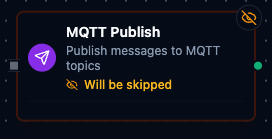
MQTT node with connection, function, and parameter mappings
Common Use Cases
Telemetry Distribution
Publish normalized sensor data to MQTT topics consumed by SCADA dashboards, analytics platforms, or digital twins.
Command Handling
Subscribe to command topics from enterprise systems and invoke PLC writes, REST calls, or script nodes in response.
Edge-to-Cloud Bridging
Bridge legacy PLC data into cloud IoT platforms by combining OPC UA/Modbus reads with MQTT publish steps.