 Azure Blob Storage Integration Guide
Use MaestroHub's Azure Blob Storage connector to manage blobs and containers in your Azure Storage accounts. This guide covers connection setup, function authoring, and pipeline integration.
Overview
The Azure Blob Storage connector provides:
- Five authentication methods — Shared Key, Connection String, and the Microsoft Entra ID methods: Service Principal, Managed Identity, and Default Credential Chain
- Full blob lifecycle — read, write, delete, and list blobs with support for Block, Append, and Page blob types
- Container management — create, delete, inspect, and list containers
- Reusable functions with template parameters for dynamic container names, blob paths, and content
- Secure credential handling with masked edits and encrypted storage
Connection Configuration
Creating an Azure Blob Storage Connection
From Connections → New Connection → Azure Blob Storage, configure the fields below.
Azure Blob Storage Connection Creation Fields
1. Profile Information
| Field | Default | Description |
|---|---|---|
| Profile Name | - | A descriptive name for this connection profile (required, max 100 characters) |
| Description | - | Optional description for this Azure Blob Storage connection |
2. Authentication
Select one of the supported authentication methods.
Shared Key
| Field | Default | Description |
|---|---|---|
| Account Name | - | Azure Storage account name (3–24 chars, lowercase alphanumeric) — required |
| Account Key | - | Storage account access key. Masked on edit; leave empty to keep stored value — required |
In the Azure Portal, navigate to your Storage Account → Access keys (under Security + networking). Copy the Storage account name and one of the Key values.
Connection String
| Field | Default | Description |
|---|---|---|
| Connection String | - | Full Azure Storage connection string (e.g., DefaultEndpointsProtocol=https;AccountName=...;AccountKey=...). Masked on edit; leave empty to keep stored value — required |
In the Azure Portal, navigate to your Storage Account → Access keys (under Security + networking). Copy the Connection string value under either key1 or key2.
Microsoft Entra ID (Service Principal, Managed Identity, Default Credential Chain)
Account Name is required for every Entra ID method. The remaining fields depend on the method:
| Field | Default | Description |
|---|---|---|
| Account Name | - | Azure Storage account name (3–24 chars, lowercase alphanumeric) — required |
| Tenant ID | - | Azure AD Directory (tenant) ID from your app registration — required for service_principal |
| Client ID | - | Application (client) ID from your app registration — required for service_principal; for managed_identity, the optional client ID of a user-assigned identity |
| Client Secret | - | Client secret value from Azure AD. Masked on edit; leave empty to keep stored value — required for service_principal |
The same three methods, with the same fields, are offered by every Azure connector (Azure Blob Storage, Event Hubs, OneLake):
service_principal— a registered Entra ID app with Tenant ID, Client ID, and Client Secret. The most portable choice.managed_identity— for MaestroHub running on Azure (VM, AKS, Container Apps). Uses the host's assigned identity; set only the optional Client ID for a user-assigned identity.default_credential— the Azure SDK default chain (env vars, workload identity, Azure CLI). Useful for local development.
Connections saved with the earlier oauth2 method name keep working: it is read as service_principal and stored under the new name the next time the connection is saved.
The steps below set up a service principal. For managed identity or the default chain, assign the same storage role (Step 3) to that identity instead.
To obtain the Tenant ID, Client ID, and Client Secret values for a service principal, you need to register an application in Azure AD and assign it storage permissions. Follow the steps below.
Step 1: Register an Application in Azure AD
- Open the Azure Portal App Registrations
- Click + New registration
- Enter an application name (e.g.,
MaestroHub Azure Blob Integration) - Under Supported account types, select:
- Accounts in this organizational directory only (single tenant) — recommended for most organizations
- OR Accounts in any organizational directory (multi-tenant) — if multiple tenants need access
- Leave Redirect URI blank (not needed for service principal authentication)
- Click Register
After registration, note the following values from the Overview page:
| Value | Where to Find |
|---|---|
| Tenant ID | Overview → Directory (tenant) ID |
| Client ID | Overview → Application (client) ID |
Step 2: Generate a Client Secret
- In the app registration, navigate to Certificates & secrets in the left sidebar
- Under Client secrets, click + New client secret
- Enter a description (e.g.,
MaestroHub Blob Storage Secret) - Select an expiration period:
- 6 months or 12 months (requires manual renewal)
- 24 months (recommended for production stability)
- Custom — set your own expiration date
- Click Add
- Important: Copy the Value immediately — you cannot view it again after leaving this page
When the client secret expires, the connection will stop working. Set a calendar reminder to rotate the secret before expiration and update it in MaestroHub.
Step 3: Assign Storage Permissions (IAM Role)
The service principal must have permission to access the Azure Storage account:
- Navigate to your Storage Account in the Azure Portal
- In the left sidebar, click Access Control (IAM)
- Click + Add → Add role assignment
- In the Role tab, search for and select one of the following roles:
| Role | Permissions | Recommended For |
|---|---|---|
| Storage Blob Data Contributor | Read, write, and delete blobs and containers | Most use cases — full blob and container management |
| Storage Blob Data Reader | Read-only access to blobs and containers | Read-only pipelines that only need to fetch data |
| Storage Blob Data Owner | Full access including managing POSIX permissions | Advanced scenarios requiring ownership and ACL management |
- Click Next, then in the Members tab:
- Select User, group, or service principal
- Click + Select members
- Search for your app registration name (e.g.,
MaestroHub Azure Blob Integration) - Select it and click Select
- Click Review + assign twice to confirm
Azure role assignments may take up to 5 minutes to propagate. If the connection test fails immediately after assigning a role, wait a few minutes and retry.
Step 4: Summary — Values for MaestroHub
Before filling in the service principal fields above, verify you have these values:
| Value | Where to Find |
|---|---|
| Account Name | Storage Account → Overview → Storage account name |
| Tenant ID | App Registration → Overview → Directory (tenant) ID |
| Client ID | App Registration → Overview → Application (client) ID |
| Client Secret | App Registration → Certificates & secrets → Client secret value (copied in Step 2) |
3. Advanced
| Field | Default | Description |
|---|---|---|
| Connect Timeout | 30s | How long connecting may take, including the check that lists one container (5s–300s). Each operation is bounded by its own Timeout. |
| Max File Size (MB) | 10 | Maximum file size in MB that can be read or written (1–124). Individual functions can override this value |
4. Connection Labels
| Field | Default | Description |
|---|---|---|
| Labels | - | Key‑value pairs to categorize and organize this connection (max 10 labels) |
Example Labels
environment: productionteam: data-platformstorage: azure-blobregion: westeurope
- Account Name validation: Must be 3–24 characters, lowercase letters and numbers only.
- Security: Credentials are encrypted and stored securely. They are never logged or displayed in plain text. On edit, leave secret fields empty to keep stored values.
Function Builder
Creating Azure Blob Storage Functions
After saving the connection:
- Open the connection and go to its Functions tab → New Function
- Choose the desired function type from Blob Operations or Container Operations
- Configure the operation-specific fields
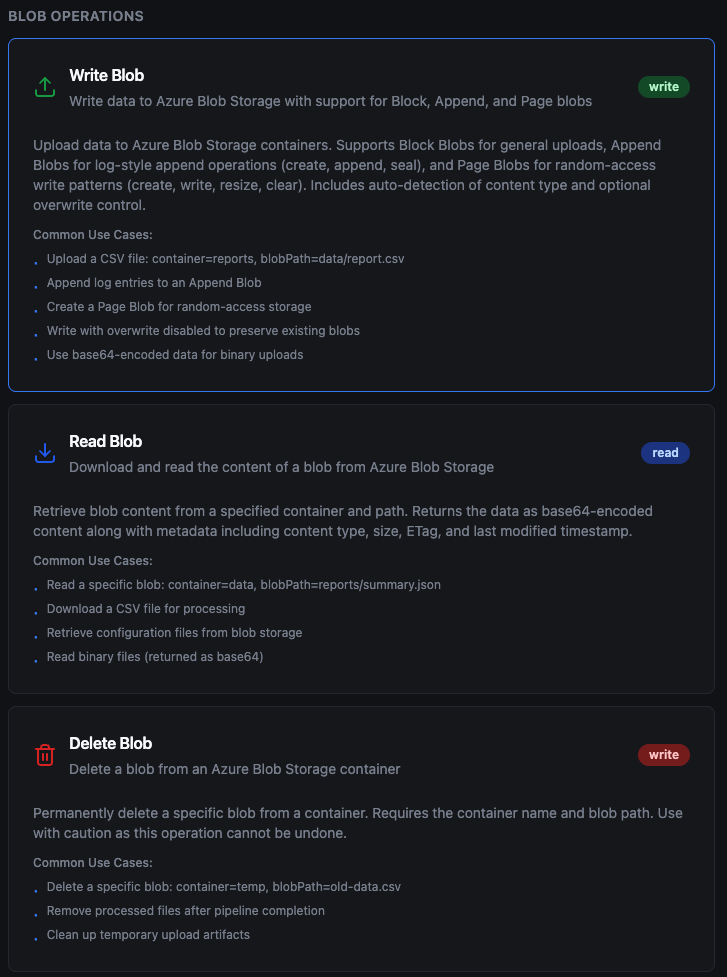
Function type selection
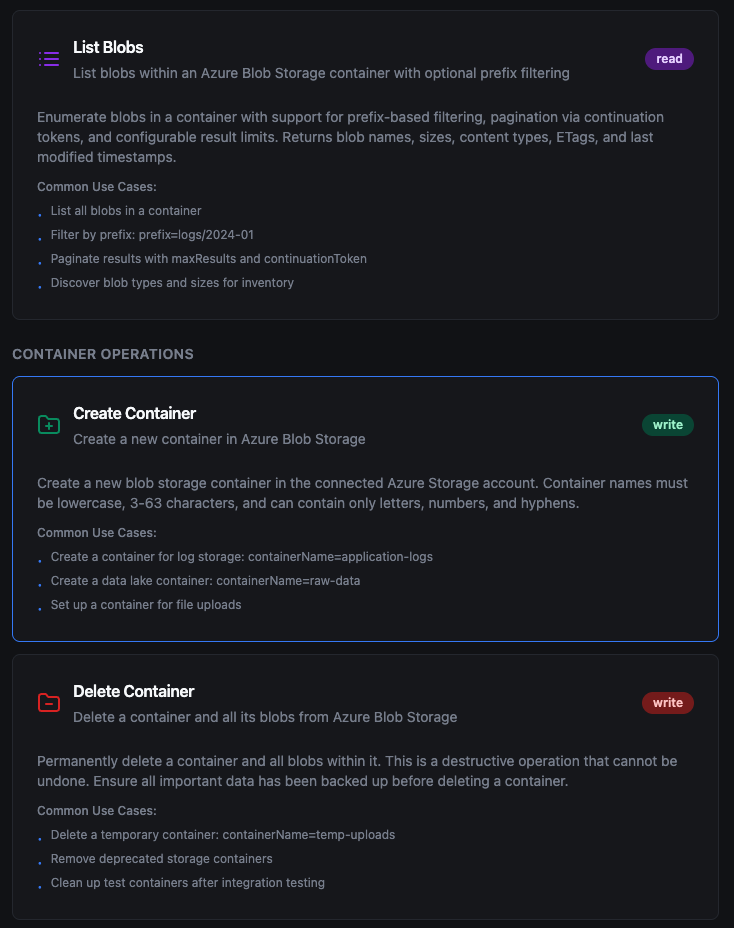
Function type selection
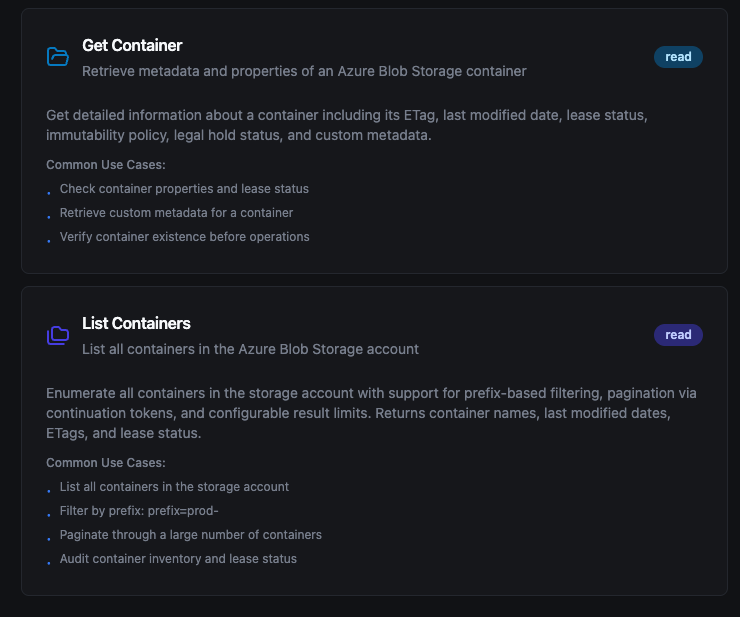
Function type selection
Blob Operations
Write Blob
Purpose: Upload data to Azure Blob Storage with support for Block, Append, and Page blob types.
The write behavior varies depending on the selected Blob Type:
| Blob Type | Behavior | Best For |
|---|---|---|
| BlockBlob | Always creates a new blob or overwrites the existing one entirely | General file uploads, documents, images, data exports |
| AppendBlob | Auto-creates the blob if it doesn't exist; if it exists, appends data to the end | Log files, audit trails, streaming telemetry data |
| PageBlob | Auto-creates the blob if it doesn't exist; writes data at the specified offset (default: 0) | Random-access patterns, VHDs (data and offset must be 512-byte aligned) |
- BlockBlob replaces the entire blob content on every write — there is no append or partial update.
- AppendBlob preserves existing content and adds new data at the end, making it ideal for continuous logging without re-uploading the full file.
- PageBlob requires both data size and offset to be multiples of 512 bytes. The connector validates this before executing.
Configuration Tab
| Field | Type | Required | Default | Description |
|---|---|---|---|---|
| Container Name | String | Yes | - | Name of the target container |
| Blob Path | String | Yes | - | Path/name of the blob within the container. Supports templates e.g., data/output_((date)).csv |
| Data | String | Yes | - | Content to write. Supports plain text and base64‑encoded data |
Advanced Tab
| Field | Type | Required | Default | Description |
|---|---|---|---|---|
| Timeout (s) | Number | No | 1800 | Operation timeout (1–3600) |
| Max File Size (MB) | Number | No | 10 | Maximum data size in MB for this write operation (1–124). Overrides the connection-level setting |
| Blob Type | Enum | No | BlockBlob | BlockBlob, AppendBlob, or PageBlob |
| Offset (bytes) | Number | No | 0 | Byte offset to write at for PageBlob (must be 512-byte aligned). Ignored for BlockBlob and AppendBlob |
| Access Tier | Enum | No | Default | Hot, Cool, Cold, or Archive for cost optimization |
| Content Type | String | No | auto‑detect | MIME type (auto‑detected from blob path if not specified) |
| Cache Control | String | No | - | Value for HTTP Cache-Control header |
| Content Encoding | String | No | - | Content encoding (e.g., gzip) |
| Content Language | String | No | - | Content language tag |
| Content MD5 | String | No | - | Base64‑encoded MD5 hash for integrity verification |
| Content CRC64 | String | No | - | Base64‑encoded CRC64 hash for integrity verification |
| Encryption Scope | String | No | - | Azure encryption scope name |
| Expiry Option | Enum | No | No expiry | RelativeToCreation, RelativeToNow, Absolute, or NeverExpire |
| Expiry Time | String | No | - | ISO 8601 datetime or milliseconds (depends on Expiry Option) |
| Immutability Policy Date | String | No | - | ISO 8601 datetime until which the blob is immutable |
| Immutability Policy Mode | Enum | No | No policy | Unlocked or Locked |
| Lease ID | String | No | - | Required if the blob has an active lease |
| Metadata | String | No | - | Custom key‑value metadata pairs (comma‑separated) |
| Tags | String | No | - | Blob index tags as key=value pairs (comma‑separated) |
Use Cases: Upload pipeline results, append log entries, store binary artifacts, write IoT telemetry data
Read Blob
Purpose: Download and read the content of a blob from Azure Blob Storage.
Configuration Tab
| Field | Type | Required | Default | Description |
|---|---|---|---|---|
| Container Name | String | Yes | - | Name of the container |
| Blob Path | String | Yes | - | Path/name of the blob to read |
Advanced Tab
| Field | Type | Required | Default | Description |
|---|---|---|---|---|
| Timeout (s) | Number | No | 1800 | Operation timeout (1–3600) |
| Max File Size (MB) | Number | No | 10 | Maximum blob size in MB allowed for download (1–124). Overrides the connection-level setting. The connector checks the blob size before downloading; if it exceeds this limit, the operation fails without transferring the data |
| Lease ID | String | No | - | Required if the blob has an active lease |
Use Cases: Retrieve configuration files, download reports for processing, read CSV/JSON data into pipelines
Delete Blob
Purpose: Permanently delete a specific blob from a container.
Configuration Tab
| Field | Type | Required | Default | Description |
|---|---|---|---|---|
| Container Name | String | Yes | - | Name of the container |
| Blob Path | String | Yes | - | Path/name of the blob to delete |
Advanced Tab
| Field | Type | Required | Default | Description |
|---|---|---|---|---|
| Timeout (s) | Number | No | 1800 | Operation timeout (1–3600) |
| Lease ID | String | No | - | Required if the blob has an active lease |
Blob deletion is permanent and cannot be undone. Ensure important data is backed up before deleting.
Use Cases: Remove processed files, clean up temporary artifacts, implement retention policies
List Blobs
Purpose: Enumerate blobs in a container with prefix filtering and pagination.
Configuration Tab
| Field | Type | Required | Default | Description |
|---|---|---|---|---|
| Container Name | String | Yes | - | Name of the container |
| Prefix | String | No | - | Filter blobs by name prefix (e.g., logs/2024-01) |
| Max Results | Number | No | 100 | Maximum blobs to return per page (1–5000) |
Advanced Tab
| Field | Type | Required | Default | Description |
|---|---|---|---|---|
| Timeout (s) | Number | No | 1800 | Operation timeout (1–3600) |
Use Cases: Inventory blob contents, discover files for batch processing, audit storage usage
Container Operations
Create Container
Purpose: Create a new container in the Azure Storage account.
Configuration Tab
| Field | Type | Required | Default | Description |
|---|---|---|---|---|
| Container Name | String | Yes | - | Name of the container to create (lowercase, 3–63 chars, letters, numbers, and hyphens) |
Advanced Tab
| Field | Type | Required | Default | Description |
|---|---|---|---|---|
| Timeout (s) | Number | No | 1800 | Operation timeout (1–3600) |
| Access Level | Enum | No | Private | Private (no anonymous access), Blob (public read for blobs), or Container (public read for container and blobs) |
Use Cases: Provision storage for new projects, set up data lake containers, create temporary upload areas
Delete Container
Purpose: Permanently delete a container and all its blobs.
Configuration Tab
| Field | Type | Required | Default | Description |
|---|---|---|---|---|
| Container Name | String | Yes | - | Name of the container to delete |
Advanced Tab
| Field | Type | Required | Default | Description |
|---|---|---|---|---|
| Timeout (s) | Number | No | 1800 | Operation timeout (1–3600) |
Container deletion removes the container and all blobs within it. This cannot be undone.
Use Cases: Remove deprecated containers, clean up after integration testing, implement lifecycle management
Get Container
Purpose: Retrieve metadata and properties of a container.
Configuration Tab
| Field | Type | Required | Default | Description |
|---|---|---|---|---|
| Container Name | String | Yes | - | Name of the container to inspect |
Advanced Tab
| Field | Type | Required | Default | Description |
|---|---|---|---|---|
| Timeout (s) | Number | No | 1800 | Operation timeout (1–3600) |
Use Cases: Check container existence before operations, retrieve custom metadata, verify lease status
List Containers
Purpose: Enumerate all containers in the storage account.
Configuration Tab
| Field | Type | Required | Default | Description |
|---|---|---|---|---|
| Prefix | String | No | - | Filter containers by name prefix (e.g., prod-) |
| Max Results | Number | No | 100 | Maximum containers to return per page (1–5000) |
Advanced Tab
| Field | Type | Required | Default | Description |
|---|---|---|---|---|
| Timeout (s) | Number | No | 1800 | Operation timeout (1–3600) |
Use Cases: Audit storage account inventory, discover containers by naming convention, monitor container count
Using Parameters
Use ((parameterName)) in container names, blob paths, or data content to expose parameters for validation and runtime binding.
| Configuration | Description | Example |
|---|---|---|
| Type | Validate incoming values | string, number, boolean, datetime, json, buffer |
| Required | Enforce presence | Required / Optional |
| Default Value | Provide fallbacks | 'reports', '{}', NOW() |
| Description | Document intent | "Container name for output", "Blob path with date suffix" |
Pipeline Integration
Use the Azure Blob Storage functions you configure here as nodes inside the Pipeline Designer. Drag in the blob or container operation node, bind parameters to upstream outputs or constants, and configure retries or error branches.
For broader orchestration patterns that mix Azure Blob Storage with SQL, REST, MQTT, or other connector steps, see the Connector Nodes page.
Common Use Cases
Data Lake Ingestion
Ingest CSV, JSON, or Parquet files from Azure Blob Storage into analytical stores or trigger downstream normalization pipelines.
IoT Telemetry Archival
Use Append Blobs to continuously append IoT sensor data and telemetry logs, then seal blobs at the end of each collection period.
Backup and Export
Store pipeline outputs, model artifacts, and generated reports in Azure Blob Storage with access tier management for cost optimization.