Troubleshooting Guide
This guide walks you through the monitoring and diagnostic tools available in MaestroHub. Whether you need to verify a new connection, investigate a pipeline failure, or track system health over time, the sections below explain where to look and what each page provides.
Start with the Overview
Navigation: Overview (sidebar), then open your organization
The Overview pages are the first screens you see after signing in, and the quickest way to find out whether something is wrong. For troubleshooting, three parts matter most.
Needs attention
Your organization's Overview opens with one sentence: either that nothing needs you, or how many things do. Below it, Needs attention lists every open problem in the organization, worst first: connections that are failing, dropped or struggling, pipeline runs that are failing, readings that stopped arriving, and data that could not be held for an unreachable destination. Each row says what happened, gives the fix on a second line, and links to the page where you can act on it.
Rows clear themselves when the problem goes away. There is nothing to tick off.
On the instance Overview (the Overview item in the sidebar), the same problems from every organization you can see are gathered into one list, ranked by severity. With several organizations, each one is a row sorted worst first, with a colored edge and a status word: red Down, amber Degraded, green Flowing, grey Not set up. Click a row to open its map of connections, pipelines and the Unified Namespace, with that organization's issues listed underneath.
Activity
The Activity section of the organization Overview shows four numbers — runs per minute, runs in progress, average runtime, and the success rate over the last 24 hours — and three charts on one shared time axis, in the order your data travels. Pick 15m, 1h or 24h. Hovering one chart shows the same minute on all three, so you can see whether pipeline failures lined up with connection errors or with a drop in stored messages.
| Chart | What it plots | What to look for |
|---|---|---|
| Connections | Messages moved per minute, with a strip showing when connections were down | Red marks under the chart are connector errors at that minute. |
| Pipelines | How long the slowest runs take (p95) | Red flags are failed runs. |
| Namespace | Messages stored per minute | Amber marks mean delivery was lagging or signals arrived late. |
When the success rate drops below 95%, it turns amber, and below 80% it turns red. It then links to the failed runs.
The in-memory · 24 h chip is a reminder that these charts live in MaestroHub's memory: a restart empties them, and they never hold more than 24 hours. When there is less history than the range you picked, a note above the charts says so.
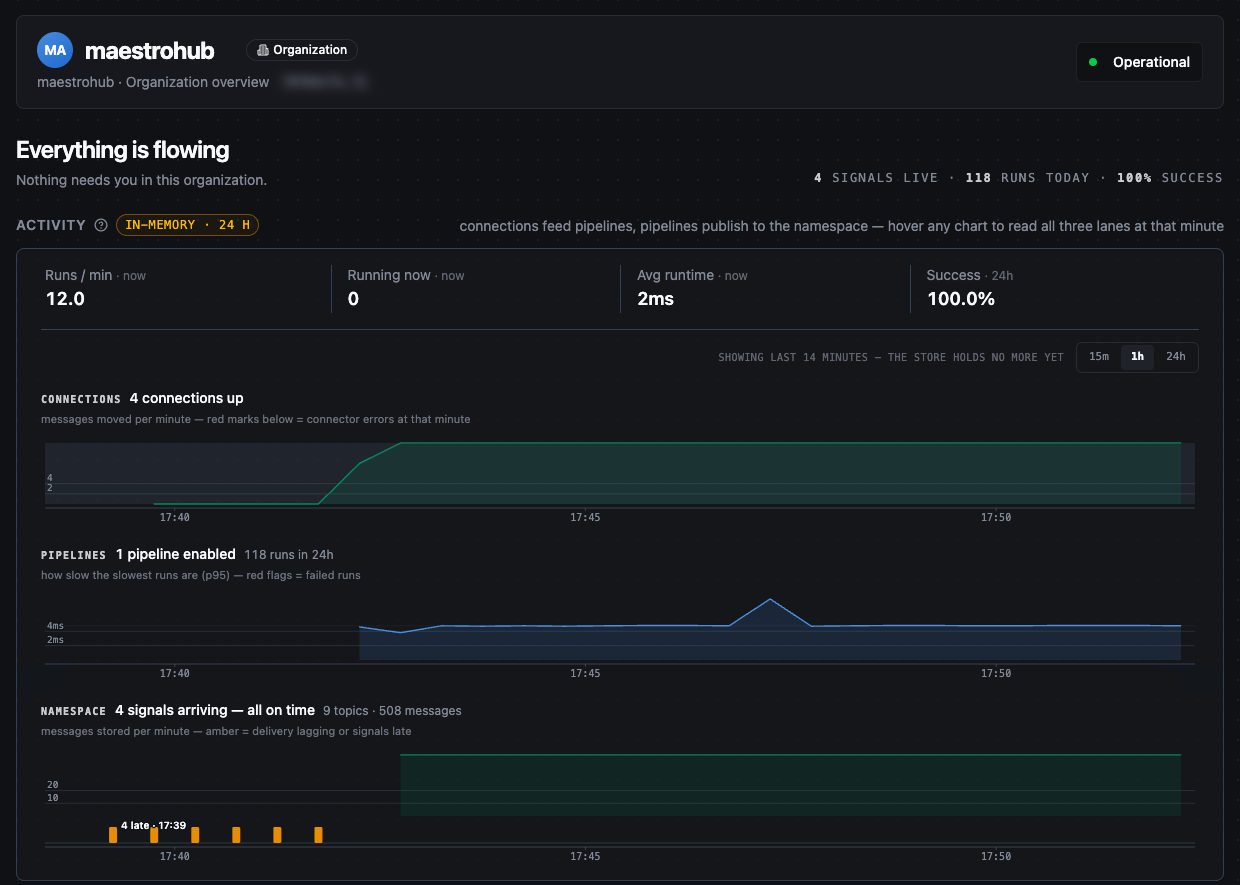
An organization Overview with nothing needing attention, and its Activity charts on the 1h range
Deployments whose monitoring runs on Prometheus (monitoring providerType: prometheus, as in the Enterprise deployment configurations) show a different organization Overview: a status bar sums up the cluster, connections, message broker, historian and services, and Connections, Pipelines and Unified Namespace cards take the place of Needs attention, Activity and Insights.
Insights
Insights lists parts of your setup worth a look, grouped by urgency: Now (silent breakage: something is likely failing without raising an error), Soon (structural risk) and Later (hygiene, such as a connection nothing uses). A disabled pipeline that other parts still depend on, or a dashboard that reads topics whose publishing pipelines are all disabled, shows up under Now. Click View on graph to open them in Dependencies.
MQTT broker and historian health
The health of the MQTT broker, the historian and MaestroHub's own resources is not on the Overview. It is on Admin → Monitor → Platform Health, which shows:
- Core services: MQTT Broker and Historian (when the Unified Namespace is licensed), Live Updates (the connection from your browser), and Fleet Manager (when this instance is linked to one). A service that is down shows what to check and a link to its settings.
- System Resources: CPU, memory and disk usage. On a Kubernetes deployment, cluster and node figures come first and this section, renamed Application Process, covers the MaestroHub process itself.
- Workload & Messaging: the execution queue, communication between MaestroHub's modules, and the JavaScript program cache.
The instance Overview also shows a one-line platform status at the top that links to Platform Health. Both need the monitoring.metrics:read permission.
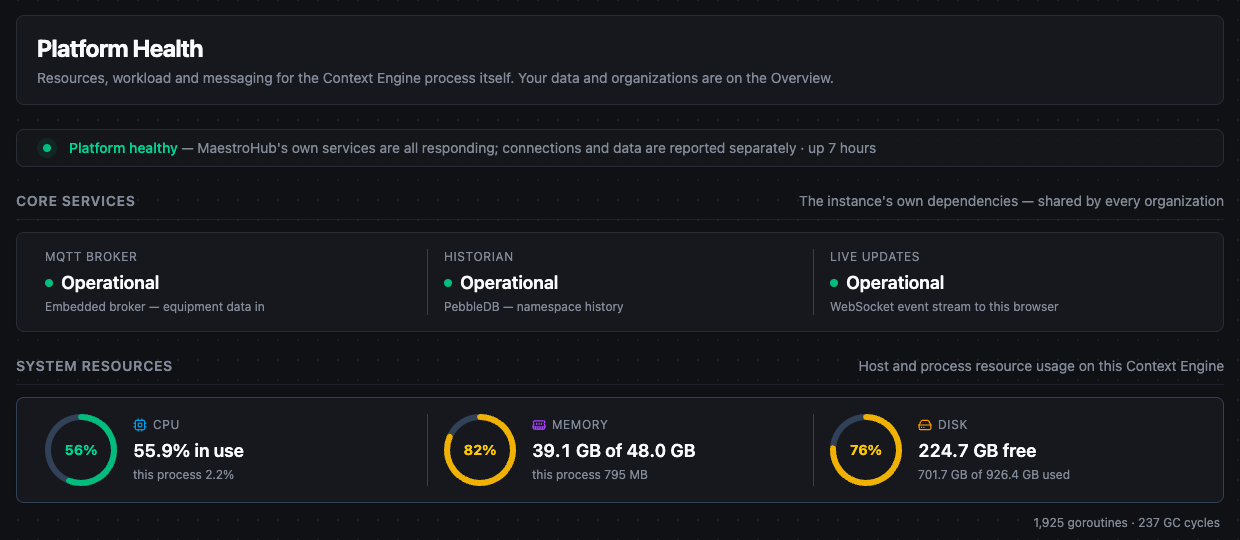
Admin › Monitor › Platform Health: core services and system resources
System Logs
Navigation: Admin → Monitor → Logs
Overview
The System Logs page gives you centralized access to log records from all MaestroHub backend services. Use it to verify operations, diagnose errors, trace execution flows, and monitor service health.
Reading logs needs the log:read permission, which only platform administrators hold by default. A custom role that grants it within an organization sees only that organization's lines; the page then says that platform-wide lines (startup and system services) and other organizations' lines are left out.
The badges next to Refresh show whether the log store is reachable (Healthy or Unhealthy) and which store the page reads.
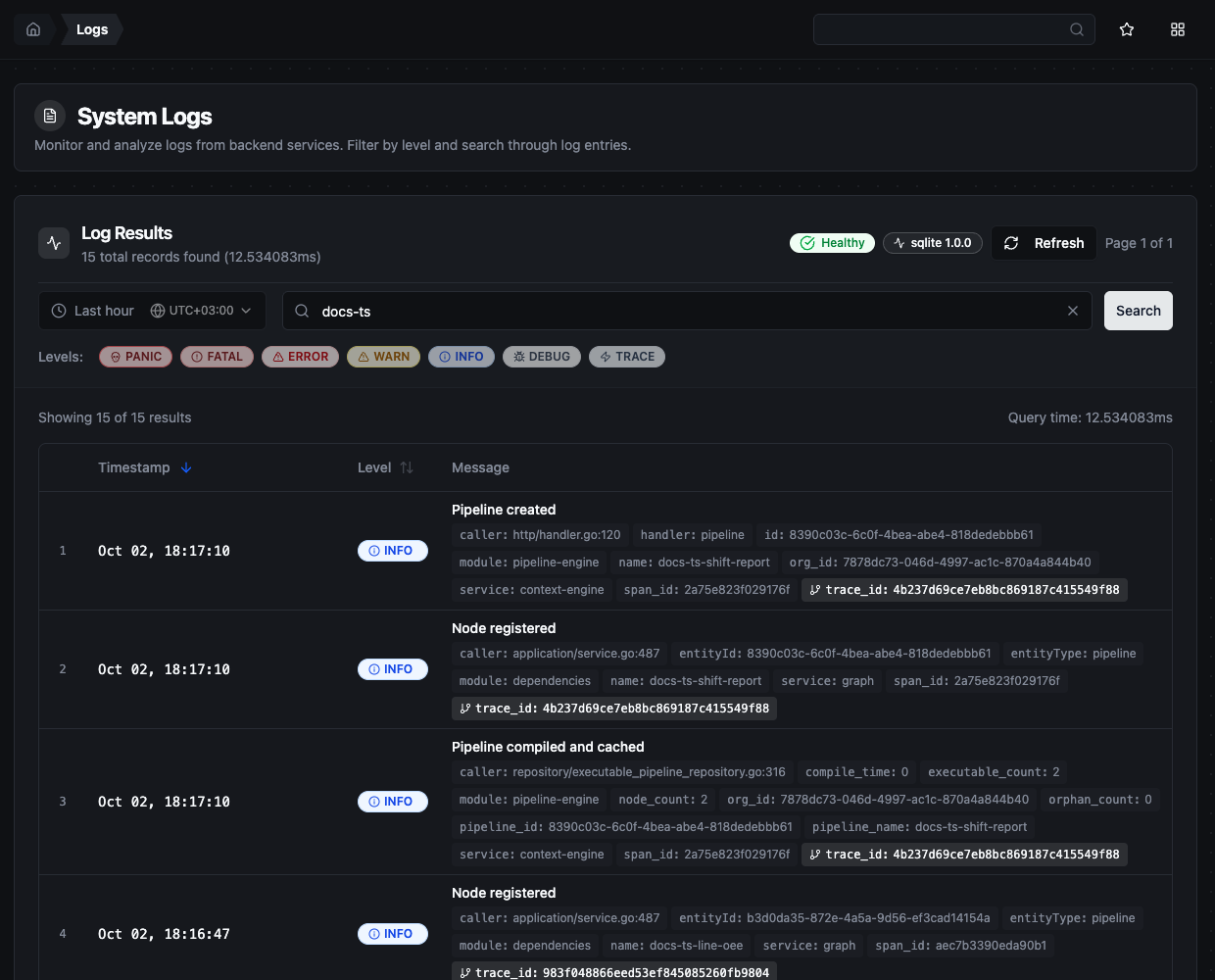
System Logs searched for a pipeline name, with time range, search, level filter chips, and results.
When the deployment stores its logs in Elasticsearch (modules.logs.provider: elasticsearch), the page is a log explorer instead, with Application and Access views, service and level filters in a sidebar, a volume chart, and live tail. The rest of this section describes the default page.
Time Range
Every log query requires a time range. The page opens on Last hour. Presets are available for quick selection, or you can define a custom window.
| Preset | When to Use |
|---|---|
| Last 15 minutes | Quick check for recent activity or to verify an operation you just performed. |
| Last hour | Standard troubleshooting starting point when you are not sure when the issue occurred. |
| Last 6 hours | Investigating intermittent or recurring problems that do not appear in shorter windows. |
| Last 24 hours | Full-day analysis for pattern recognition or investigating issues reported hours ago. |
| Custom range | Specify exact start and end date/time for precise investigation. |
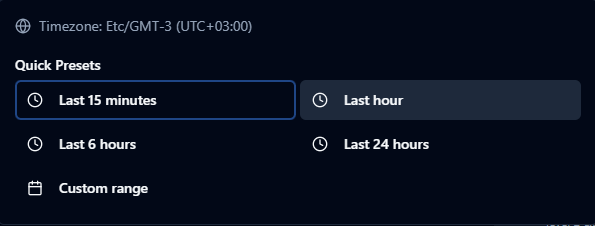
Time range presets and custom range picker for filtering logs.
The custom range picker includes a calendar for date selection, hour/minute/second fields, quick-set buttons (00:00:00, 12:00:00, 23:59:59), and timezone display with UTC offset.
The page does not refresh by itself, and a preset's window is fixed at the moment you pick it: Refresh runs the same window again. To include lines written since, pick the preset again.
Search
The search bar matches text anywhere in a log line, including its context tags, so you can paste a pipeline name, an execution ID or a connection ID to find every line about it. Type a keyword or phrase and press Enter or Search. Search is case-insensitive and works together with level filters and the selected time range — all criteria apply simultaneously. Clear the search with the X button to reset results.
Level Filter Chips
Below the search bar, clickable level chips filter logs by severity. Multiple levels can be selected at the same time. When no level is selected, all levels are shown. Clear removes the level filter and the search.

Level chips: PANIC, FATAL, ERROR, WARN, INFO, DEBUG, and TRACE.
| Level | Description | When to Focus |
|---|---|---|
| PANIC | System-wide failure that may cause the service to become unresponsive. | Immediate investigation. Rare but critical. |
| FATAL | Critical failure that stops a service component. | Immediate investigation. Check whether the affected function is required for your workflow. |
| ERROR | Operation failures — failed connections, execution errors, timeouts. | Primary troubleshooting level. Start here when diagnosing issues. |
| WARN | Potential problems — retry attempts, deprecation warnings, approaching limits. | Monitor regularly. Warnings often precede errors. |
| INFO | Normal operations — successful connections, completed executions, status updates. | Use to confirm expected behaviour. |
| DEBUG | Detailed internal diagnostics — request/response payloads, intermediate steps. | Deep troubleshooting when ERROR and WARN lack context. |
| TRACE | Step-by-step execution traces at the lowest level. | Specific deep investigations only. Very high volume. |
Log Table
| Column | Description |
|---|---|
| Timestamp | When the event occurred, in MMM DD, HH:mm:ss.SSS format. Sortable. |
| Level | Severity badge with color coding. Sortable. |
| Message | Primary log content describing what happened. |
Below the message, each line shows its context as tags. Which tags appear depends on the service that wrote the line, and some modules spell the same field differently (for example pipeline_id and pipelineId). Common ones:
| Tag | Purpose |
|---|---|
service / module | The part of MaestroHub that wrote the line. |
caller | The source file and line that wrote it. |
connectionId | Identify the connection involved. |
pipeline_id / pipeline_name | Identify the pipeline involved. |
execution_id | Trace a single pipeline execution end-to-end. |
node_id | Identify the specific node that produced the log. |
error | Detailed error description or stack trace. |
trace_id / span_id | Correlate the lines written while handling one request. |
Click a trace_id tag to show only the lines of that trace. This filter is not shown on the page; to remove it, select any level chip and then Clear.
Pagination
| Setting | Value |
|---|---|
| Page size options | 50, 100 (default), 250, 500 records per page |
| Maximum result window | 10,000 records — the header says the results are limited to the first 10,000, and when you reach that point an orange "10K limit reached" badge appears and further pagination is disabled |
If you hit the 10,000 record limit, narrow the time range, add level filters, or use specific search terms to reduce the result set.
Pipeline Troubleshooting
MaestroHub provides several tools for monitoring and debugging pipelines: in the Pipeline Designer, an Execution History sidebar, an Execution Replay mode and a Pipeline Metrics panel; and the Execution History page for runs across all pipelines.
Execution History Sidebar
Navigation: Pipeline Designer → History (toolbar)
Click History in the pipeline toolbar to open a sidebar on the right showing the executions of the current pipeline. The sidebar auto-refreshes every 10 seconds with a visible countdown. Loading more entries pauses the auto-refresh; click the refresh button to start it again.
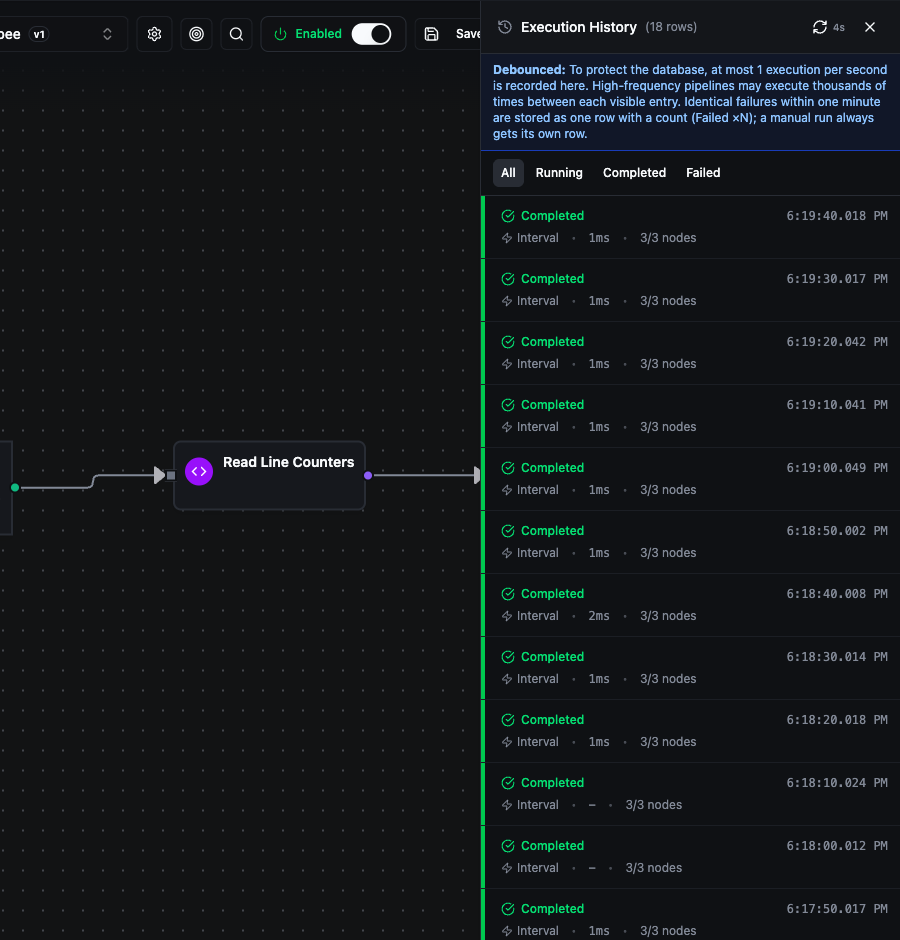
Execution History sidebar showing recent pipeline runs with status, trigger type, duration, and node counts.
Not every run gets a row. A note at the top of the sidebar says why:
- At most one execution per second is recorded for a pipeline, whatever its Execution History Detail setting. A pipeline that runs many times a second shows only a sample of its runs; Pipeline Metrics still count every run.
- Identical failures within one minute — the same node failing with the same error — are stored as one row with a count, Failed ×N. Hover the row for the first and last time. A manual run always gets its own row.
- With Execution History Detail set to None, only failed runs are recorded.
Filters: Use the status tabs (All, Running, Completed, Failed) to narrow the list. Failed also lists runs that completed with errors — a node failed but the pipeline was set to continue — shown with a yellow Partial stripe.
Each execution row shows:
- Status indicator — colored stripe on the left (green = Completed, red = Failed, blue = Running, yellow = Partial (completed with errors), gray = Queued, orange = Cancelled)
- Time — when the execution started, with full date in tooltip
- Trigger type — an icon and the trigger's name, such as Manual, Interval, Cron, Webhook or MQTT
- Duration — total execution time; "Running..." animation for active executions
- Node statistics —
X/Y nodescompleted out of the nodes in the pipeline, with failed count in red if any. A run can run fewer nodes than the pipeline has (for example, when a Buffer node is still collecting).—/Ymeans per-node results were not recorded at this run's detail level. - Error preview — first 60 characters of the error message for failed executions
- Progress bar — for running executions, how many of the pipeline's nodes have completed
To open a run in Execution Replay, hover its row and click the View on Canvas icon, or click the row to select it and then View Execution on Canvas at the bottom of the sidebar. The sidebar loads 30 executions by default; click Load More to fetch additional entries.
Execution Replay
Open a run from the sidebar, or click View on Canvas on the Execution History page, to enter Execution Replay mode. The canvas shows each node's result from that run, and a panel below the canvas shows the details.
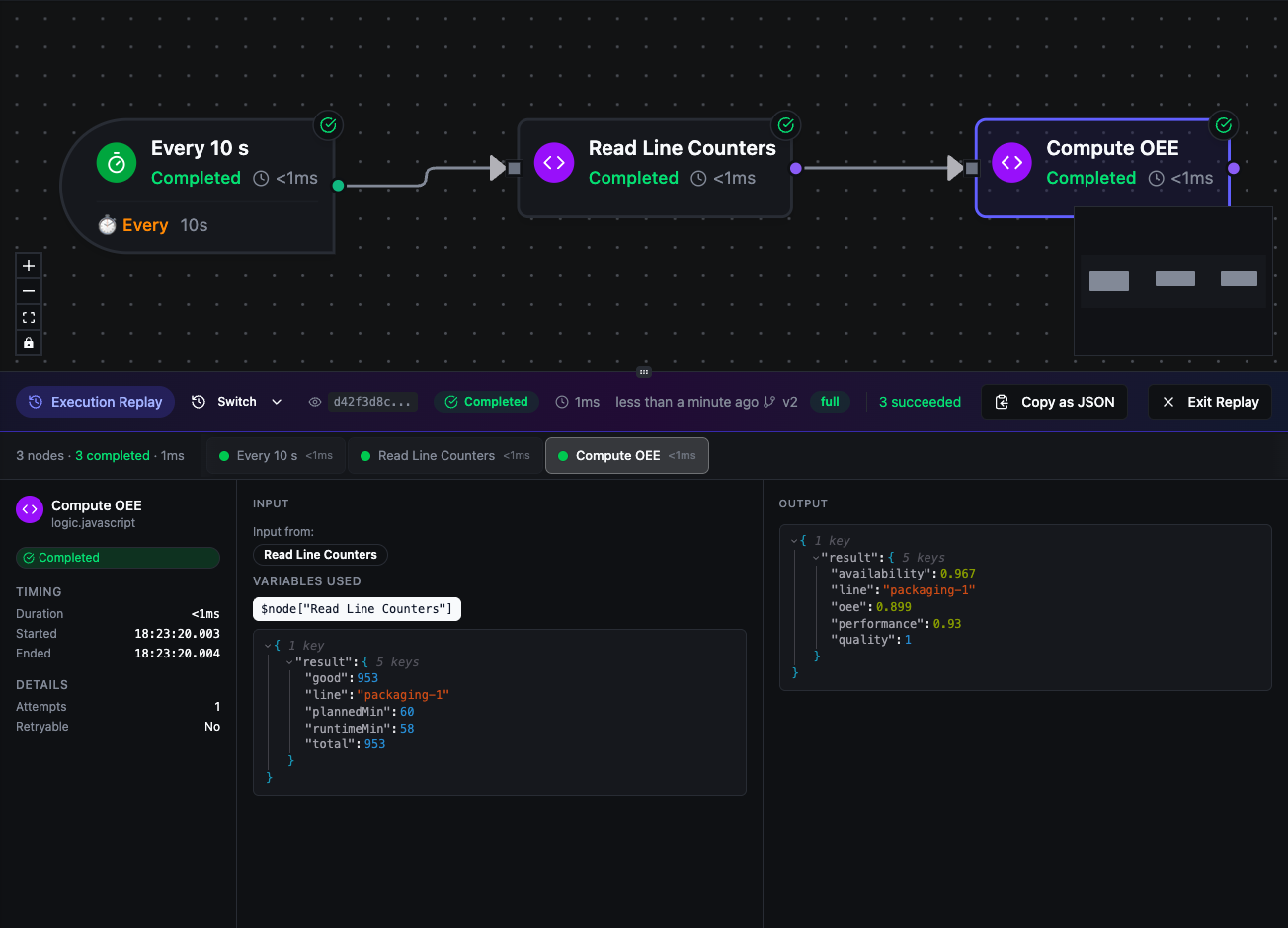
Execution Replay: node results on the canvas, and the selected node's details, input and output in the panel below.
Replay header shows the Execution ID (hover for the full ID), status badge, duration, start time, pipeline version, the run's detail level (minimal, standard or full; hover it to see which data the run kept), and how many nodes succeeded and failed. Switch opens the sidebar to pick another run, Copy as JSON copies the whole run, and Exit Replay returns to normal editing mode.
Node tabs below the header list every node that ran, with a summary of how many completed and failed and the total duration. Click a tab, or a node on the canvas, to inspect it; the left and right arrow keys move between tabs.
Node details shows three columns:
- Status and details — the node's status; its duration, start and end time; the number of attempts and whether the error was retryable; the output port it took, and the number of iterations for a node inside a For-Each loop (see Watching a Loop Run)
- Input — the data the node received, the nodes it came from, and the variables it used
- Output — the data the node produced, or the error when it failed. For a trigger node, Use as Test Data keeps its output as the trigger's test data.
When a run was recorded without per-node results (detail level None or Minimal), the panel says so and shows the run's error; raise Execution History Detail in the pipeline's settings to see which node failed. Input and output data are kept only at Full.
If the execution ran on an older pipeline version, a yellow warning banner indicates how many nodes were added or removed since then. A Failed ×N row opens its first run, and a banner says how many more times it repeated and shows the last error.
Shareable URL — when you enter Replay mode, the URL updates with ?execution={id}. Share this URL and the recipient will open the same execution in Replay mode.
Pipeline Metrics Panel
Navigation: Pipeline Designer → ⋯ More actions → Metrics
The metrics panel shows performance statistics for the current pipeline, below the toolbar. The panel auto-refreshes every 5 seconds.

Pipeline Metrics panel with success rate, success and failed counts, total runs, and average time.
| Metric | Description |
|---|---|
| Success Rate | Percentage of successful executions (green ≥95%, yellow ≥80%, red below 80%). |
| Success / Failed | Counts of successful and failed executions. |
| Total Runs | Total number of executions. |
| Avg Time | Average execution duration. |
The counts start from zero when MaestroHub restarts. Unlike the execution history, they include every run, not only the recorded ones.
All Executions View
Navigation: Orchestrate → Execution History
The Execution History page shows a table of the executions of every pipeline in the organization. Use this when you need to search across pipelines or do not know which pipeline produced a specific execution. The columns, filters and actions are described in Execution History on the Pipelines page.
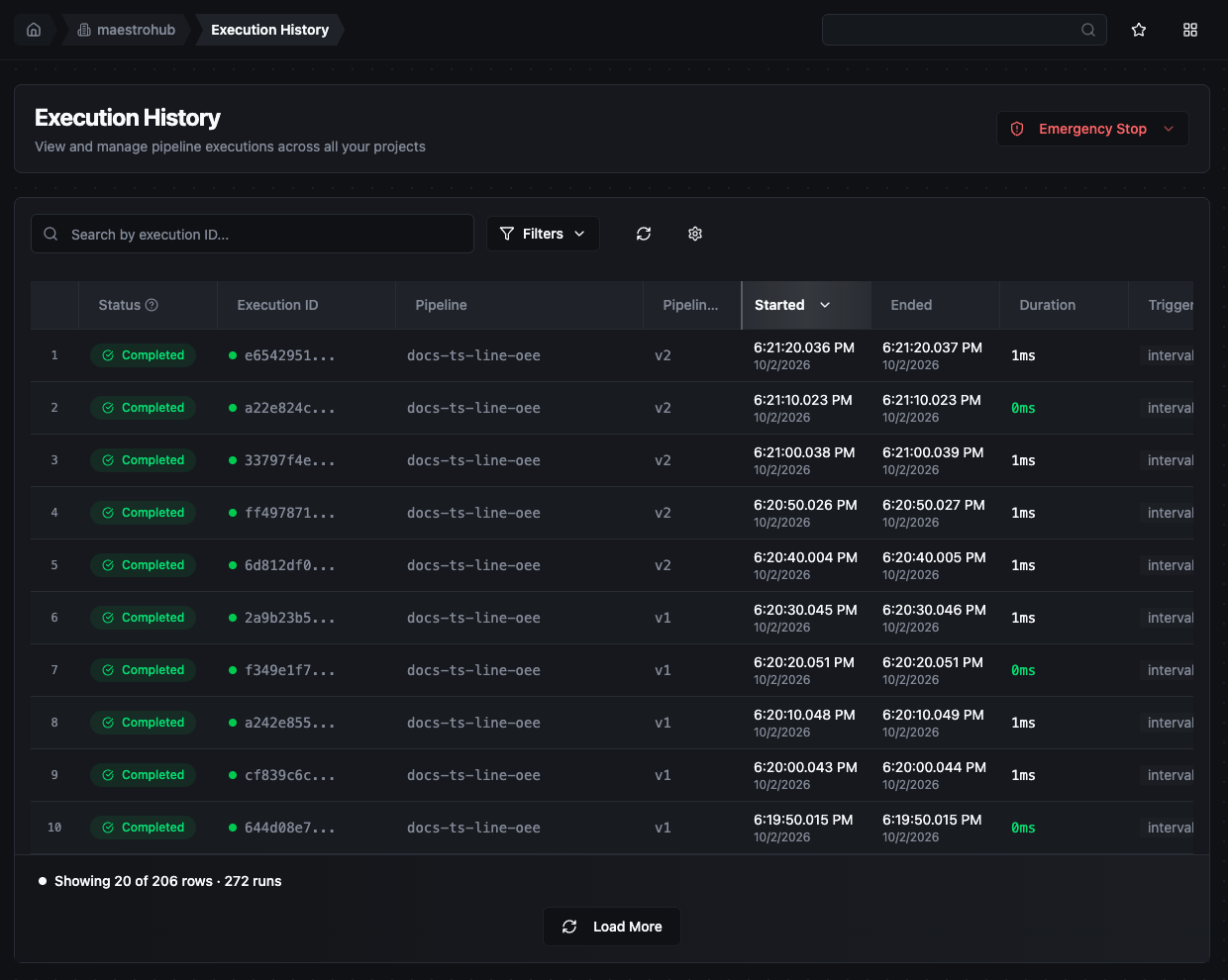
Execution History table with search, filters, and sortable columns.
For troubleshooting:
- Search by execution ID to find a run you saw in System Logs (the
execution_idtag), and copy an ID from the Execution ID column to search the logs for it. - The Status filter's Failed or Completed with Errors option lists every run in which a node failed.
- View on Canvas opens a run in Execution Replay, Retry reruns a failed run with the same inputs, and Cancel stops a running one.
- Emergency Stop stops pending or running pipelines for the whole organization; see Emergency Stop.
Runs are kept for 24 hours by default and then deleted, together with their node results and data. Metrics are not affected. The retention is set with modules.pipelineEngine.executionRepository.sqlite.retention in the configuration.
Pipeline Advanced Settings
Navigation: the settings (gear) button in the Pipeline Designer toolbar, or Edit in the pipeline's ⋯ menu on the Pipelines page; then the Advanced tab
The Edit Pipeline → Advanced tab contains settings that affect troubleshooting and execution behaviour.
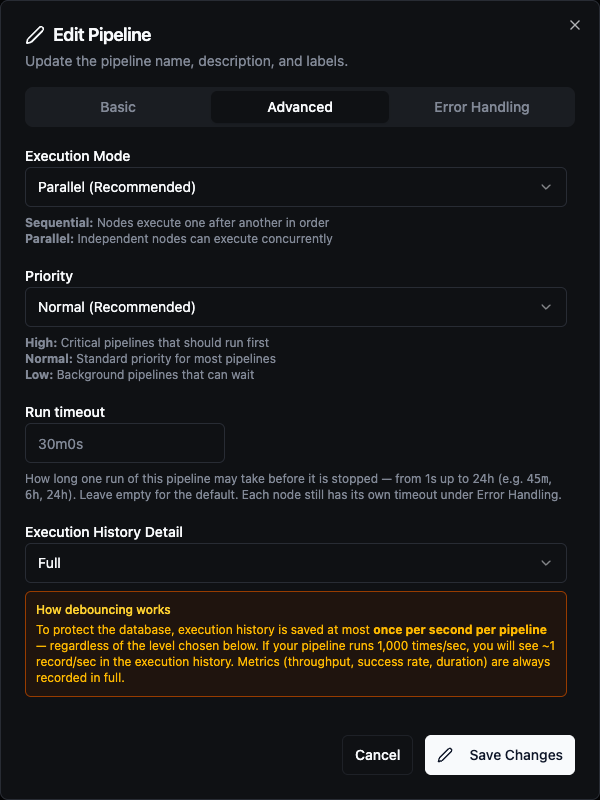
Advanced pipeline settings: Execution Mode, Priority, Run timeout, and Execution History Detail.
Execution Mode — Parallel (default, recommended): independent nodes run concurrently. Sequential: nodes run one after another in order.
Priority — High: critical pipelines execute first. Normal (default): standard priority. Low: background pipelines that can wait.
Run timeout — how long one run may take before it is stopped, from 1s to 24h; empty means the default, 30 minutes. See Setting a pipeline's run timeout.
Execution History Detail — controls how much data is captured during execution:
| Level | What is Recorded | Use Case |
|---|---|---|
| None | No execution history. Failed runs are still recorded, without per-node results. | High-frequency pipelines where metrics are enough. |
| Minimal | Execution status, duration and error message. No per-node results. | Production pipelines where you only need to know if it ran. Fastest performance, least storage. |
| Standard (default) | Status + per-node results (status, timing, errors). | Recommended for debugging. Shows which node failed without storing full payloads. |
| Full | Everything including node input/output data. | Complete debug capability. Uses more storage. Recommended for development and testing. |
Whatever the level, at most one execution per second is recorded for a pipeline.
Changing this setting only affects new executions. Previous executions retain whatever detail level was active when they ran.
Error Handling tab — the default timeout, retries and On Error behaviour for every node in the pipeline. See Error Handling.
Connection Status
Navigation: Connect → Connections
Overview
The Status column in the connections table shows the current state of every configured connection. MaestroHub watches each connection, reconnects it automatically when the link drops, and paces the attempts with a circuit breaker. Status data refreshes every 10 seconds.
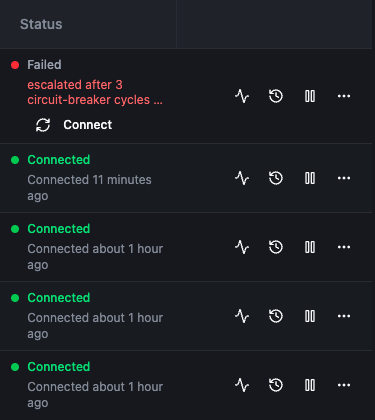
Status column with one Failed connection, its error and the Connect button, and four Connected ones.
Connection States
What each state means is explained in Connection Statuses. In the Status column:
| State | Indicator | What the column shows |
|---|---|---|
| Connected | Green dot | "Connected X ago" with elapsed time. |
| Idle | Gray dot | Registered but not started, or stopped. A Connect button appears inline. |
| Connecting | Yellow pulsing dot | "Establishing connection..." during the first attempt. If it persists beyond 30 seconds, investigate network or configuration issues. |
| Reconnecting | Blue pulsing dot | The retry count (e.g. "Retry #3") and the last error. |
| Disconnected | Gray dot | The link was lost; MaestroHub keeps retrying. Shows the error and a Connect button. |
| Failed | Red dot | Reconnection kept failing (three circuit-breaker cycles), or the error is one retrying cannot fix, such as rejected credentials or certificates, which fails the connection at once. MaestroHub keeps retrying. Shows the error and a Connect button. |
| Suspended | Amber dot | Paused by an operator, with the reason, and a Resume button. A connection suspended by maintenance mode reads Suspended — organization in maintenance and resumes when maintenance ends. |
A connection that runs on several replicas shows Degraded (some replicas connected, others not) or Degraded capacity (fewer replicas than requested), with the replica count and the reason.
Error Messages
When a connection is in a problematic state, the error message appears directly below the status indicator. Common patterns: connection refused (service not running), timeout (network latency or firewall), authentication failure (wrong credentials), TLS/SSL errors (certificate issues), DNS resolution failure (bad hostname). To check whether the server can reach the host and port at all, use Network Diagnostics on the Connections page (see Network Diagnostics).
Circuit Breaker
Each connection's reconnection attempts are paced by a circuit breaker, so that a system that is down is not flooded with attempts.
| State | Meaning |
|---|---|
| Closed | Normal operation. Failures are counted. |
| Open | After 5 consecutive failures, attempts stop for 30 seconds. Each time it opens again, the wait doubles, up to 5 minutes. |
| Half-Open | After the wait, a test attempt is allowed. Success closes the breaker; failure opens it again. |
After the breaker has opened three times in a row, the connection becomes Failed. Retries continue at the breaker's pace, and the first successful attempt returns the connection to Connected. Resume on a suspended connection resets the breaker and starts the connection straight away.
Connection Actions
| Action | Where | Available When | What It Does |
|---|---|---|---|
| Connect | Status column | Failed, Idle, Disconnected | Stops and restarts the connection (the same as Force Reconnect). |
| Resume | Status column, or the Resume icon | Suspended | Resumes the connection. |
| Suspend | Suspend icon | Connected, Connecting, Reconnecting, Disconnected, Failed | Pauses the connection and stops reconnection attempts; you can give a reason. See Connection Suspension. |
| Force Reconnect | ⋯ menu | Failed, Suspended, Idle, Disconnected | Full stop and restart of the connection. Use after configuration changes. |
| Test connection | Test icon | All states | One-time connectivity test without affecting the running connection. |
| View status history | History icon | All states | Opens the connection's Health tab. |
The Connect, Resume, Suspend and Force Reconnect actions are shown only to users allowed to start or change the connection.
Connection Health Dashboard
Navigation: Connect → Connection Health (or Status History on the Connections page)
The Connection Health dashboard shows how reliable your connections have been over a period. While the connections table shows current status, this dashboard reveals patterns over time: the connection that keeps dropping out, not only the one that is down now.
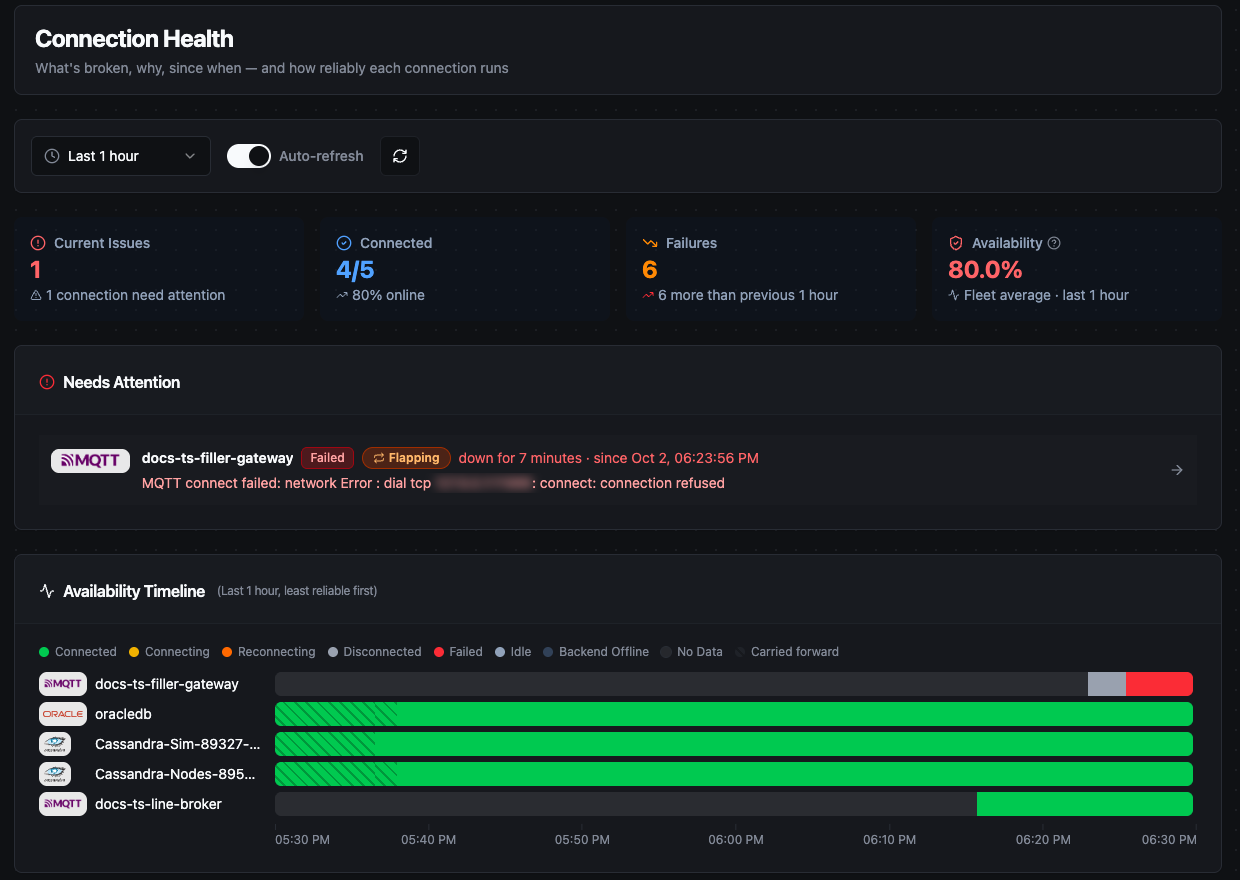
Connection Health for the last hour: statistics, one failing connection under Needs Attention, and the Availability Timeline.
Time range options: Last 10 minutes, 1 hour, 6 hours, 24 hours (default), 3 days, or 7 days (maximum).
Auto-refresh: On by default: the current states refresh every 10 seconds, and the history and statistics every 15 to 30 seconds. Turn it off when analysing a specific point in time. The time range and auto-refresh setting are kept in the URL.
Statistics cards:
| Metric | Description |
|---|---|
| Current Issues | Connections not in Connected or Idle state right now. |
| Connected | Connected connections out of all connections, with percentage. |
| Failures | Failure events in the selected period, compared with the period of the same length before it. |
| Availability | Average uptime of all connections over the period (green 99% or better, orange 95% to 99%, red below 95%). It is a plain average, so a connection nobody uses counts as much as your busiest one. |
Needs Attention lists every connection that is not working now, worst first, plus connections that are Flapping — repeatedly dropping and coming back — even while they are up. Each row shows the state, how long the connection has been down, and the last error.
Availability Timeline has one bar per connection on a shared time axis, least reliable first. Gaps that line up across several bars usually point to the network or MaestroHub itself rather than the individual devices.
Top Failure Reasons groups the period's errors by message, with the number of times each occurred and the connections that reported it.
Recent State Changes shows the 50 most recent state transitions with connection name, connector logo, state transition badges (e.g. Connected → Disconnected), relative timestamp, and error message when applicable.
Connection Reliability ranks connections least reliable first, with a search box. Columns: connection, current status, uptime (green ≥99%, yellow 95–99%, red below 95%), failures, outages, longest outage, average recovery time, and last error. A failure is one thing going wrong; an outage is a stretch of time the connection was unusable, so one outage can contain many failures.
Click any connection on the dashboard to open its Health tab.
Per-Connection Health Tab
Navigation: Connect → Select Connection → Edit → Health tab
Each connection has a dedicated Health tab with detailed historical statistics and a visual timeline. View System Dashboard opens the Connection Health dashboard.
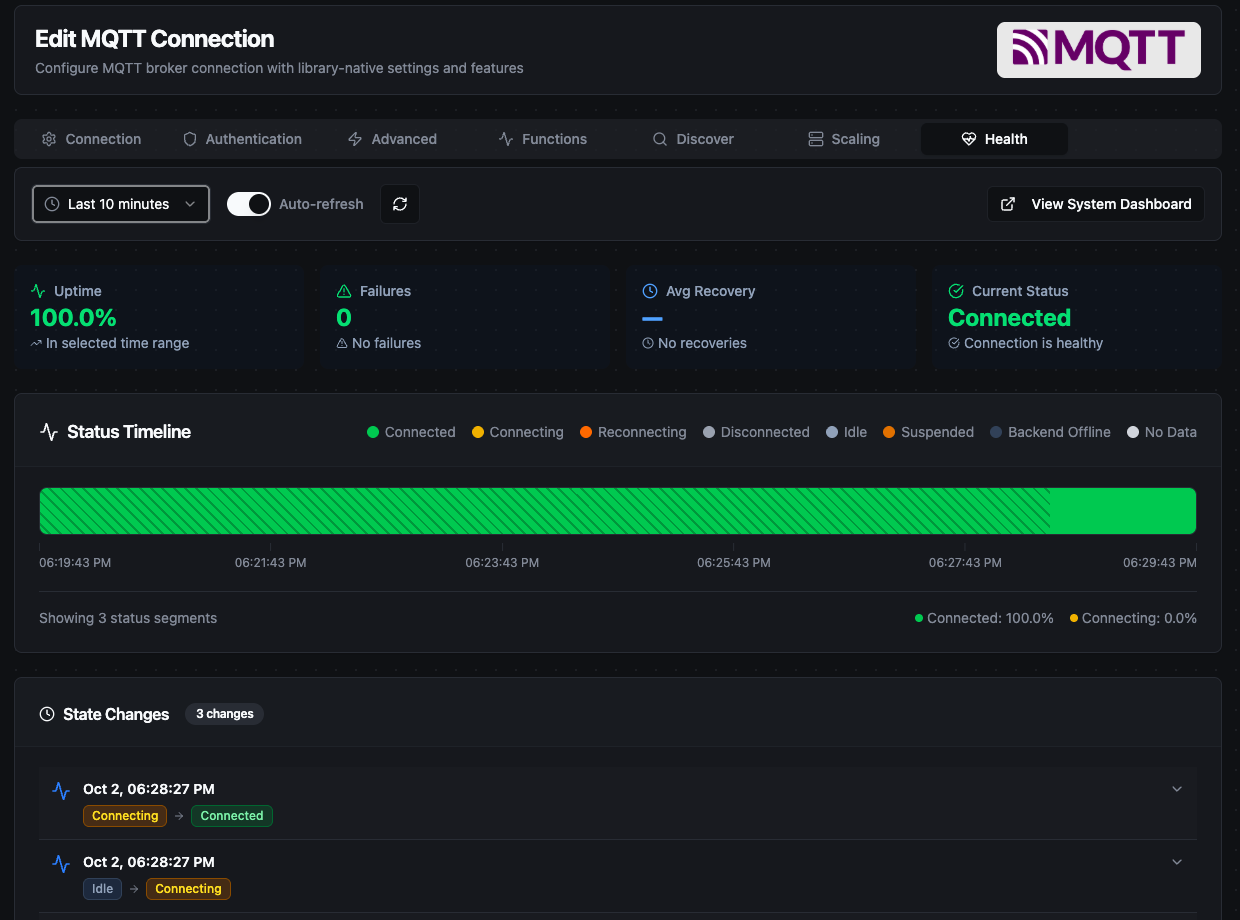
Health tab for an MQTT connection over the last 10 minutes: statistics, status timeline, and state changes.
Statistics: Uptime percentage, failure count and average recovery time for the selected time range, and the current live status.
Status Timeline: A color-coded bar spanning the selected period shows when the connection was in each state (green = Connected, yellow = Connecting, orange = Reconnecting, gray = Disconnected or Idle, amber = Suspended). No Data marks time before the history starts, Backend Offline marks time MaestroHub was not running, and a striped segment is a state carried forward with no new event, or one that differs from the live status.
State Changes: Scrollable list of up to 50 events showing state transitions with timestamps, error messages, and duration since the previous change.
For a connection that runs on several replicas, the tab also lists the replica slots, and you can show the timeline and events for one slot.
Connection Limits
| Limit | Value |
|---|---|
| State history kept | 7 days |
| Maximum history range | 7 days |
| Recent state changes (dashboard) | 50 events |
| State changes (Health tab) | 50 events |