FTP / SFTP Integration Guide
Transfer files securely between MaestroHub and remote servers using the FTP/SFTP connector. This guide covers connection configuration, function setup, and pipeline integration for reliable file transfer workflows.
Overview
With the FTP/SFTP connector you gain:
- Dual protocol support — FTP (plain or TLS-encrypted) and SFTP (SSH-based) through a unified interface
- Complete file operations — Upload, download, list, delete, and rename files on remote servers
- Scoped access — Every operation stays inside the connection's Base Path; a path that resolves outside it is refused
- Flexible authentication — Username/password for both protocols, SSH key authentication for SFTP
- TLS/SSL encryption — Secure FTP connections with FTPS support
- Passive mode — FTP data connections always use passive mode (EPSV, falling back to PASV), which works through firewalls and NAT
- Dynamic paths — Parameter templates for runtime-configurable file paths
Connection Configuration
Creating an FTP/SFTP Connection
Navigate to Connections → New Connection → FTP / SFTP and configure the following settings. The form is organized into tabs: Connection, Security, Functions, Scaling, and Health. Scaling and Health become available once the connection is saved.
1. Profile Information
| Field | Default | Description |
|---|---|---|
| Profile Name | — | A descriptive name for this connection profile (required, max 100 characters). Must be unique across all connections. |
| Description | — | Optional description for this FTP/SFTP connection |
2. Connection Settings
| Field | Default | Description |
|---|---|---|
| Host | localhost | FTP/SFTP server hostname or IP address (required) |
| Port | 21 | Server port — standard ports are 21 for FTP and 22 for SFTP (1–65,535) |
| Protocol | ftp | File transfer protocol: FTP or SFTP (required) |
| Base Path | / | The directory every file operation is confined to. A relative path resolves against it; an absolute path must lie inside it. |
| Connect Timeout | 30s | How long to wait when establishing a connection (1s–5m). |
With Base Path /uploads, the paths reports/day.csv and /uploads/reports/day.csv name the same file. A path that resolves outside /uploads — /etc/passwd, ../other/day.csv, or / — is refused with an … is outside base directory error, whichever operation uses it. With the default Base Path /, every absolute path on the server is in scope.
3. Authentication (Security tab)
| Field | Default | Description |
|---|---|---|
| Username | — | Username for authentication. Leave empty for anonymous FTP access. |
| Password | — | Password for authentication (stored securely as a secret) |
| Private Key (PEM) | — | SFTP only. PEM-encoded SSH private key for key-based authentication (stored securely as a secret). Used instead of password when provided. |
For SFTP connections, you can authenticate using either a password or an SSH private key. Key-based authentication is recommended for automated systems and improved security.
4. TLS Settings (Security tab, FTP only)
(SFTP inherently uses SSH encryption)
| Field | Default | Description |
|---|---|---|
| Enable TLS | false | Use TLS/SSL encryption for FTP connections (FTPS). Provides encrypted data transfer over FTP. |
| Skip Certificate Verification | false | Skip TLS certificate verification. Not recommended for production environments. Shown when TLS is enabled. |
5. Host Key Verification (Security tab, SFTP only)
Host key verification checks the SFTP server's identity before any credentials are sent.
| Field | Default | Description |
|---|---|---|
| Verification Mode | Strict | Strict accepts only a server whose host key matches the fingerprint or the known_hosts file below. Insecure — skip verification accepts any host key, which leaves the connection open to man-in-the-middle attacks. |
| Host Key Fingerprint (SHA256) | — | Strict mode. Pins the connection to one host key, e.g. SHA256:abc123…. Get it on the server with ssh-keygen -lf /etc/ssh/ssh_host_*_key.pub. Takes precedence over known_hosts. |
| known_hosts Path | — | Strict mode. Path to an OpenSSH-format known_hosts file on the host running the connector. Used when no fingerprint is set. |
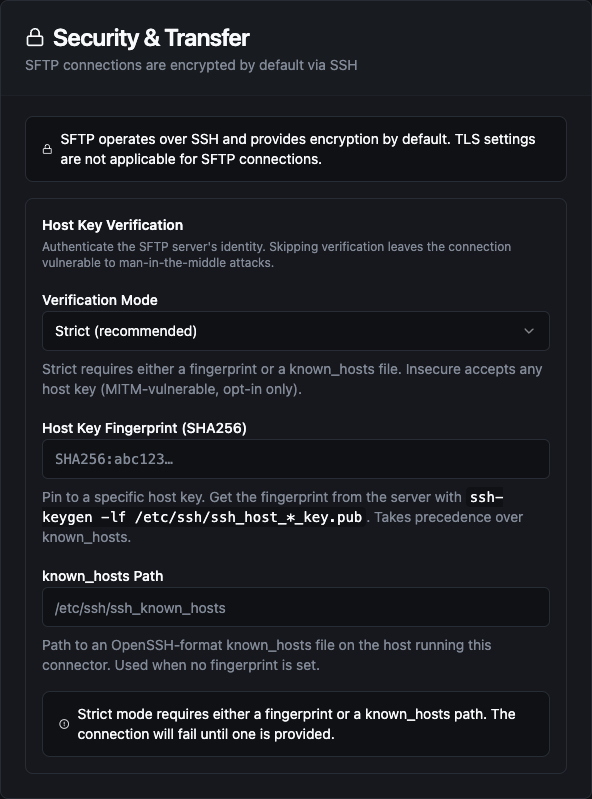
Security tab with SFTP selected, showing Host Key Verification
Strict is the default. With neither a fingerprint nor a known_hosts path set, an SFTP connection fails until you provide one.
6. Connection Labels
| Field | Default | Description |
|---|---|---|
| Labels | — | Key-value pairs to categorize and organize this connection (max 10 labels) |
Example Labels
environment: production— Deployment environmentpurpose: data-export— Connection purposepartner: acme-corp— External partner identifierregion: us-east— Geographic region
- FTP — Use for legacy systems, internal networks, or when SSH is not available. Enable TLS for encrypted transfers.
- SFTP — Preferred for internet-facing connections. Provides built-in encryption via SSH. Supports key-based authentication for automation.
Function Builder
Creating FTP/SFTP Functions
After the connection is saved:
- Open the connection and navigate to the Functions tab
- Click New Function to open the function type selection dialog
- Choose from: Upload, Download, List, Delete, or Rename
- Fill in the Basic tab (name, description, labels) and the Configuration tab (paths, patterns)
- Use the Test button to validate the function against the live server
Each function has two configuration tabs:
- Basic — Function name (required, max 100 characters, must be unique within the connection), optional description, and labels
- Configuration — Function-specific parameters (remote paths, content, patterns)
Every path below follows the Base Path rules: relative to the Base Path, or absolute inside it.
Upload (ftp.upload)
Purpose: Upload file content to the remote FTP/SFTP server. Use this to export data, transfer reports, or deploy configuration files.
Configuration Fields
| Field | Type | Required | Default | Description |
|---|---|---|---|---|
| Remote Path | String | Yes | — | Destination file path on the remote server. Supports ((placeholder)) syntax. |
| Content | String | Yes | — | File content to upload. Supports ((placeholder)) syntax for dynamic content. |
| Create Directories | Boolean | No | true | Automatically create parent directories if they don't exist on the remote server. Not applied when Append to File is on. |
| Append to File | Boolean | No | false | Add the content to the end of the file instead of overwriting it. A file that doesn't exist yet is created. |
| Add Newline | Boolean | No | true | Shown when Append to File is on. Puts a newline before the appended content. On SFTP the newline is skipped when the file is new or empty. |
Use Cases
- Export CSV data to partner SFTP servers
- Transfer log files to archive servers
- Deploy configuration files to remote systems
- Send report files to external stakeholders
Example Configuration
Remote Path: reports/((date))/sales_report.csv
Content: ((csvData))
Create Directories: true
Download (ftp.download)
Purpose: Download file content from the remote FTP/SFTP server. Returns the file content as text or base64-encoded binary data.
Configuration Fields
| Field | Type | Required | Default | Description |
|---|---|---|---|---|
| Remote Path | String | Yes | — | Source file path on the remote server. Supports ((placeholder)) syntax. |
Use Cases
- Fetch data files for processing in pipelines
- Import CSV or Excel data from partner systems
- Retrieve configuration files from remote servers
- Download reports for analysis
Example Configuration
Remote Path: exports/((fileName))
List (ftp.list)
Purpose: List files and directories on the remote FTP/SFTP server. Returns file metadata including names, sizes, modification times, and directory flags.
Configuration Fields
| Field | Type | Required | Default | Description |
|---|---|---|---|---|
| Remote Path | String | No | — | Directory path to list on the remote server. Leave empty to list the Base Path itself. Supports ((placeholder)) syntax. |
| Pattern | String | No | — | Glob pattern to filter results (e.g., *.csv, report_*.txt). Leave empty to list all files. |
Use Cases
- Check for new files to process
- Inventory remote directory contents
- Monitor file availability before download
- Find files matching specific patterns
Example Configuration
Remote Path: incoming/data
Pattern: *.csv
Output Fields
| Field | Type | Description |
|---|---|---|
name | string | File or directory name |
size | number | File size in bytes |
modifiedAt | string | Last modification timestamp (ISO 8601) |
isDir | boolean | true if the entry is a directory |
Delete (ftp.delete)
Purpose: Delete a file on the remote FTP/SFTP server. Use this to clean up processed files or remove temporary data. Deleting a path that does not exist fails with file does not exist rather than reporting success, so a mistyped path is visible.
Configuration Fields
| Field | Type | Required | Default | Description |
|---|---|---|---|---|
| Remote Path | String | Yes | — | File path to delete on the remote server. Supports ((placeholder)) syntax. |
Use Cases
- Clean up files after successful processing
- Remove temporary or staging files
- Archive management workflows
- Automated file rotation
Example Configuration
Remote Path: incoming/processed/((fileName))
Rename (ftp.rename)
Purpose: Rename or move a file on the remote FTP/SFTP server. Use this to promote a finished upload out of a staging folder, or to archive a file once it has been processed.
Configuration Fields
| Field | Type | Required | Default | Description |
|---|---|---|---|---|
| Source Path | String | Yes | — | Current path of the file. Supports ((placeholder)) syntax. |
| Destination Path | String | Yes | — | New path of the file. Supports ((placeholder)) syntax. |
| Overwrite | Boolean | No | false | Replace a file that already exists at the destination. When off, such a rename fails with destination file already exists and both files are left as they were. |
Use Cases
- Move processed files into an archive folder
- Hand off a file atomically: upload it as
report.csv.tmp, then rename it toreport.csv— with Overwrite on when each run replaces the previousreport.csv - Rename files to mark them as processed
Example Configuration
Source Path: incoming/((fileName))
Destination Path: archive/((fileName))
Overwrite: false
Using Parameters
Parameter placeholders ((parameterName)) can be used in path and content fields to make functions dynamic at execution time.
| Configuration | Description | Example |
|---|---|---|
| Type | Validate expected value type | string, number |
| Required | Force critical inputs | Required / Optional |
| Default Value | Provide safe fallbacks | data, report.csv |
| Description | Document purpose | "Target filename for the export" |
Testing Functions
Every FTP/SFTP function can be tested before saving using the built-in Test dialog:
- Click the Test button in the function form
- The dialog shows an Execution Overview with the current configuration
- Override any parameter values in the Test Parameters section
- Click Execute Test to run the function against the live server
- View the result in the integrated JSON viewer, including execution duration and timestamp
Pipeline Integration
Use FTP/SFTP connection functions as nodes in the Pipeline Designer to integrate file transfers into your automation workflows. The connector provides five node types:
| Node | Category | Purpose |
|---|---|---|
| FTP Upload | Storage | Upload files to remote servers |
| FTP Download | Storage | Download files from remote servers |
| FTP List | Storage | List files and directories |
| FTP Delete | Storage | Delete files on remote servers |
| FTP Rename | Storage | Rename or move files on remote servers |
Drag the appropriate node into your pipeline, select your connection and function, bind parameters to upstream outputs or constants, and configure retry behavior as needed.
Common Use Cases
Partner Data Exchange
Transfer files to and from partner SFTP servers on a scheduled basis:
[Schedule Trigger] → [Transform Data] → [FTP Upload]
File-Based Data Import
Download and process incoming data files:
[FTP List] → [For Each] → [FTP Download] → [File Extractor] → [Process]
Automated Cleanup
Remove processed files after successful pipeline execution:
[Process File] → [FTP Delete] → [Log Success]
Report Distribution
Generate reports and distribute them to multiple destinations:
[Generate Report] → [FTP Upload (Partner A)] → [FTP Upload (Partner B)]
Troubleshooting
Connection Issues
| Symptom | Possible Cause | Solution |
|---|---|---|
| Connection timeout | Server unreachable | Verify hostname, port, and network connectivity. Check firewall rules. |
| Authentication failed | Invalid credentials | Verify username and password. For SFTP, check SSH key format (must be PEM-encoded). |
| Connection refused | Wrong port | Confirm port (21 for FTP, 22 for SFTP). Check if server is running. |
| Data connection fails after login | Firewall blocking the passive data ports | FTP always uses passive mode; allow the server's passive port range through the firewall. |
| TLS handshake failed | Certificate issues | Check server certificate validity. Use "Skip Certificate Verification" only for testing. |
Function Issues
| Symptom | Possible Cause | Solution |
|---|---|---|
| File not found | Incorrect path | Verify the file path exists. A relative path resolves against the Base Path. |
… path is outside base directory | The path resolves outside the connection's Base Path | Use a path relative to the Base Path, or an absolute path inside it. Check for .. segments, and for an absolute path that was meant as a relative one. |
destination file already exists | A rename targets a file that already exists and Overwrite is off | Turn on Overwrite to replace that file, or rename to a different destination. |
| Permission denied | Insufficient access | Verify the user has read/write permissions for the target directory. |
| Upload failed | Directory doesn't exist | Enable "Create Directories" option or ensure parent directories exist. |
| List returns empty | Wrong pattern | Check glob pattern syntax. Try listing without a pattern first. |
| Delete failed | File in use or locked | Verify the file is not being accessed by another process. |
SFTP-Specific Issues
| Symptom | Possible Cause | Solution |
|---|---|---|
| Invalid key format | Wrong key encoding | Ensure the SSH private key is PEM-encoded (begins with -----BEGIN). |
| Host key verification failed | Unknown server | Add the server's host key to known hosts or verify server identity. |
| Key passphrase required | Encrypted key | Use an unencrypted private key or decrypt before adding to the connection. |
Use the Test Connection button after configuring your connection to verify connectivity before creating functions. The test validates authentication and basic server access.