 AWS IoT SiteWise Integration Guide
Connect MaestroHub to AWS IoT SiteWise for industrial data ingestion, real-time property reads, and asset hierarchy exploration. This guide covers connection setup, function authoring, and pipeline integration.
Overview
The AWS IoT SiteWise connector provides:
- Batch data ingestion via
BatchPutAssetPropertyValuewith automatic chunking (up to 10 entries per API call) - Real-time reads to fetch the latest VQT (Value, Quality, Timestamp) for any asset property
- Asset hierarchy browsing to discover models, assets, and properties interactively
- Zero-touch auto-modeling to create asset models and assets on the fly from property aliases
- Store & Forward support to buffer failed writes and retry when connectivity is restored, once you turn it on for the connection
- Schema hints to enforce data types and prevent type inference ambiguity
Combine SiteWise writes with MQTT triggers, OPC UA reads, or Modbus polling to bridge shop-floor signals into a cloud-native asset model.
Connection Configuration
Creating an AWS IoT SiteWise Connection
From Connections -> New Connection -> AWS IoT SiteWise, configure the fields below.
SiteWise Connection Creation Fields
1. Profile Information
| Field | Default | Description |
|---|---|---|
| Profile Name | - | A descriptive name for this connection profile (required, max 100 characters) |
| Description | - | Optional description for this SiteWise connection |
2. SiteWise Configuration
| Field | Default | Description |
|---|---|---|
| Region | us-east-1 | AWS region where your SiteWise resources are located - required. Select from the dropdown or choose Custom Region for non-standard regions (e.g., us-gov-west-1). |
| Custom Endpoint | - | Optional endpoint URL for VPC endpoints or SiteWise Edge gateways. Leave empty for standard AWS SiteWise. Example: https://data.iotsitewise.us-east-1.amazonaws.com |
If using AWS IoT SiteWise Edge for on-premises data collection, provide the Edge gateway endpoint URL in the Custom Endpoint field. This allows MaestroHub to communicate directly with the local gateway instead of routing through the AWS cloud.
3. Authentication
| Field | Default | Description |
|---|---|---|
| Access Key ID | - | AWS access key ID. Leave empty to use IAM roles or the default credential chain (recommended for EC2/EKS/ECS). Masked on edit; leave empty to keep stored value. |
| Secret Access Key | - | AWS secret access key. Required if Access Key ID is provided. Masked on edit; leave empty to keep stored value. |
Validation Rules
- Both Access Key ID and Secret Access Key must be provided together, or both left empty.
- When both are empty, the connector uses the AWS default credential chain (environment variables, shared credential files, or instance metadata).
For production deployments on EC2, ECS, or EKS, leave credentials empty and use IAM roles. The default credential chain automatically discovers credentials without storing secrets in MaestroHub.
4. Advanced Settings
| Field | Default | Description |
|---|---|---|
| Connection Timeout (seconds) | 30 | Timeout for connection validation (5-300 seconds) |
| Default Batch Size | 10 | Entries per BatchPutAssetPropertyValue API call (1-10). AWS enforces a hard limit of 10 entries per call. |
5. Store & Forward
Store & Forward is not a setting on the SiteWise connection form. SiteWise writes can be buffered, but buffering is off by default: until you turn it on for this connection, a write that fails is not buffered or retried later.
To buffer failed writes, turn Store & Forward on for this connection under Orchestrate → Store & Forward, then choose a delivery mode on each pipeline node that writes to SiteWise. See Store & Forward for how buffering, retries, and limits work.
6. Connection Labels
| Field | Default | Description |
|---|---|---|
| Labels | - | Key-value pairs to categorize and organize this connection (max 10 labels) |
Example Labels
environment: productionteam: iot-platformservice: sitewiseregion: eu-west-1
- Credentials: Both Access Key ID and Secret Access Key must be provided together, or leave both empty to use IAM roles.
- Security: Credentials are encrypted and stored securely. They are never logged or displayed in plain text.
- Batch Size: The AWS
BatchPutAssetPropertyValueAPI enforces a hard limit of 10 entries per call. The connector automatically chunks larger payloads. - Store & Forward: Failed writes are not buffered unless Store & Forward is turned on for this connection under Orchestrate → Store & Forward.
- Region: Select a standard AWS region or enter a custom region string for AWS GovCloud or other partitions.
Function Builder
Creating SiteWise Functions
After saving the connection, create reusable SiteWise functions:
- Open the Functions tab on your connection
- Click New Function
- Choose the function type: Write, Read Latest Value, or Browse Asset Hierarchy
- Configure the function parameters
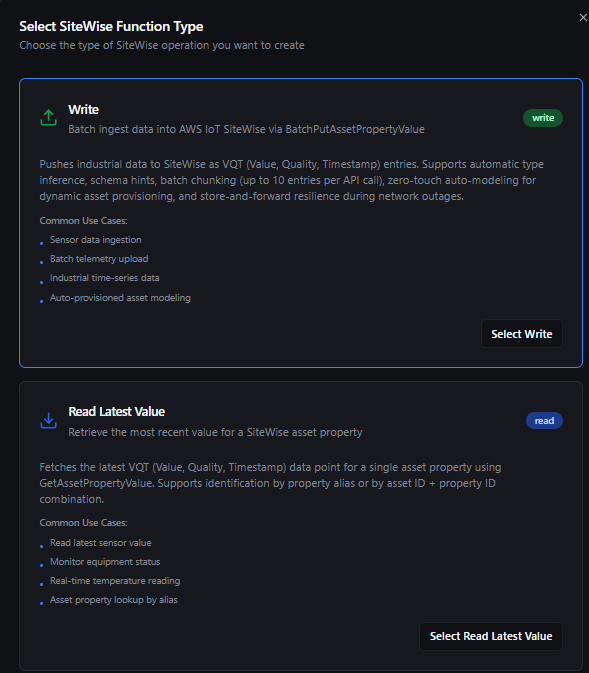
Select from Write, Read, and Browse function types for SiteWise operations
Write Function
Purpose: Batch ingest data into AWS IoT SiteWise via BatchPutAssetPropertyValue. Pushes industrial data as VQT (Value, Quality, Timestamp) entries with automatic type inference, batch chunking, and optional auto-modeling.
Configuration Fields
| Field | Type | Required | Default | Description |
|---|---|---|---|---|
| Function Name | String | Yes | - | Unique name for this function (max 100 characters) |
| Description | String | No | - | Optional description |
| Property Alias | String | Yes | - | SiteWise property alias prefix. Each field in the data payload is appended as /{fieldName}. Supports ((parameter)) syntax. Example: /turbine/001 |
| Data | String | Yes | - | JSON payload to write. Each key becomes a separate property write. Supports ((parameter)) syntax. Example: {"temperature": 25.5, "status": "running"} |
Write Options
| Field | Type | Required | Default | Description |
|---|---|---|---|---|
| Quality | Enum | No | GOOD | Data quality flag: GOOD, BAD, or UNCERTAIN |
| Batch Size | Number | No | 10 | Entries per API call (1-10, AWS hard limit) |
| Enable Partial Entry Processing | Boolean | No | true | When enabled, the write continues even if some entries fail within a batch. Failed entries are reported in the output. |
| Auto-Create Model & Asset | Boolean | No | false | Automatically create the asset model and asset if they don't exist. The model name is derived from the property alias path. |
| Schema Hints | String (JSON) | No | - | Type hints to override automatic type inference. Format: {"fieldName": "DOUBLE"}. Supported types: DOUBLE, INTEGER, STRING, BOOLEAN. |
How Property Alias Composition Works
The write function constructs per-field aliases by appending each data key to the property alias prefix:
Property Alias: /factory/turbine-001
Data:           {"temperature": 25.5, "rpm": 1200}

Resulting writes:
  /factory/turbine-001/temperature → 25.5 (DOUBLE)
  /factory/turbine-001/rpm         → 1200 (INTEGER)
How Auto-Create Model & Asset Works
When enabled, the connector automatically provisions SiteWise resources if they don't exist:
- Derives model name from the property alias path (all segments except the last, joined with hyphens)
/company/turbine/7-> model name:company-turbine-7
- Creates the asset model with measurement properties matching the first data row's field names and types
- Creates an asset named
{modelName}-assetfrom the new model - Sets property aliases on each property in the format
{aliasPrefix}/{propertyName} - Both model and asset are polled until they reach
ACTIVEstate
Auto-modeling is designed for rapid prototyping and development. In production environments, pre-create your models and assets in AWS IoT SiteWise and use explicit property aliases instead.
How Schema Hints Work
By default, the connector infers SiteWise data types from Go/JSON types:
| Input Type | Inferred SiteWise Type |
|---|---|
Float with decimal (e.g., 25.5) | DOUBLE |
Whole number (e.g., 1200) | INTEGER |
Boolean (true/false) | BOOLEAN |
String (e.g., "running") | STRING |
Schema hints override this inference when the automatic type is incorrect. For example, a temperature value of 25 (no decimal) would be inferred as INTEGER, but you can force it to DOUBLE:
{"temperature": "DOUBLE", "count": "INTEGER"}
Write Example
Function Configuration:
- Property Alias:
/factory/motor-001 - Data:
{"temperature": ((temp)), "rpm": ((speed)), "status": "running"} - Schema Hints:
{"temperature": "DOUBLE"}
Runtime parameters:
temp=72.5speed=1500
Result: Three VQT entries are written to SiteWise:
/factory/motor-001/temperature->72.5(DOUBLE)/factory/motor-001/rpm->1500(INTEGER)/factory/motor-001/status->"running"(STRING)
Read Latest Value Function
Purpose: Retrieve the most recent VQT (Value, Quality, Timestamp) data point for a single SiteWise asset property using GetAssetPropertyValue.
Configuration Fields
| Field | Type | Required | Default | Description |
|---|---|---|---|---|
| Function Name | String | Yes | - | Unique name for this function (max 100 characters) |
| Description | String | No | - | Optional description |
| Property Alias | String | Conditional | - | SiteWise property alias (e.g., /turbine/001/temperature). Either this or both Asset ID + Property ID must be provided. |
| Asset ID | String | Conditional | - | SiteWise asset UUID. Must be paired with Property ID. |
| Property ID | String | Conditional | - | SiteWise property UUID. Must be paired with Asset ID. |
Validation Rules
You must provide one of:
- Property Alias alone, OR
- Both Asset ID and Property ID together
Providing only one of Asset ID or Property ID is not allowed.
Read Example
By Property Alias:
- Property Alias:
/factory/motor-001/temperature
By Asset ID + Property ID:
- Asset ID:
a1b2c3d4-5678-90ab-cdef-111111111111 - Property ID:
p1p2p3p4-5678-90ab-cdef-222222222222
Browse Asset Hierarchy Function
Purpose: Navigate the SiteWise asset hierarchy to discover asset models, assets, child assets, and properties. Supports lazy-loaded pagination for large hierarchies.
Configuration Fields
| Field | Type | Required | Default | Description |
|---|---|---|---|---|
| Function Name | String | Yes | - | Unique name for this function (max 100 characters) |
| Description | String | No | - | Optional description |
| Node Type | Enum | No | root | Level to browse: root (list models), model (list assets in a model), asset (list properties and child assets) |
| Identifier | String | Conditional | - | Required when Node Type is model (model ID) or asset (asset ID). Not required for root. |
| Max Results | Number | No | 50 | Maximum results per page (1-250) |
| Continuation Point | String | No | - | Opaque pagination token from a previous browse response |
Browse Hierarchy
The browse operation navigates a three-level hierarchy:
Root (List Asset Models)
  |
  +-- Asset Model: "TurbineModel"
  |     |
  |     +-- Asset: "Turbine-001"
  |     |     +-- Property: temperature (DOUBLE)
  |     |     +-- Property: rpm (INTEGER)
  |     |     +-- Property: status (STRING)
  |     |     +-- Child Asset: "Sensor-001"
  |     |           +-- Property: value (DOUBLE)
  |     |
  |     +-- Asset: "Turbine-002"
  |           +-- Property: temperature (DOUBLE)
  |           +-- Property: rpm (INTEGER)
  |
  +-- Asset Model: "SensorModel"
        |
        +-- Asset: "Sensor-001"
              +-- Property: value (DOUBLE)
              +-- Property: unit (STRING)
| Node Type | API Used | Returns |
|---|---|---|
root | ListAssetModels | All asset models as top-level nodes |
model | ListAssets + DescribeAssetModel | All assets instantiated from the specified model |
asset | ListAssociatedAssets + DescribeAsset | Child assets (via hierarchies) and properties with data types and aliases |
Using Parameters
Parameters follow the ((parameterName)) syntax and appear in the function editor panel.
| Configuration | Description | Example |
|---|---|---|
| Type | Coerce runtime values into correct types | string, number, boolean, json |
| Required | Enforce presence of the parameter | Required / Optional |
| Default Value | Provide fallback values for unattended runs | 25.0, "GOOD", {} |
| Description | Help field to capture purpose | "Motor temperature in Celsius" |
Asset Browser
The Asset Browser tab provides an interactive visual interface to explore your SiteWise asset hierarchy without writing browse functions. It is available on existing connections after saving.
How to Use
- Navigate to your SiteWise connection and open the Asset Browser tab
- The left panel displays your asset models as expandable tree nodes
- Click a model to expand and see its assets
- Click an asset to expand and see its properties and child assets
- Select any node to view details in the right panel
Tree Hierarchy
The tree displays nodes with visual indicators:
| Icon | Node Type | Description |
|---|---|---|
| Database | Asset Model | Top-level model definition |
| Box | Asset | Instance of a model |
| Tag | Property | Measurement property with data type and alias |
Node Details Panel
When you select a node, the right panel shows:
- Identifier - the SiteWise resource UUID
- Description - model or asset description, or property alias
- Data Type - for properties:
Double,Integer,String, orBoolean - Node Type -
Asset Model,Asset, orProperty - Children Loaded - count of loaded child nodes
Features
- Lazy loading - children are fetched on first expand, not upfront
- Pagination - "Load more" buttons appear when a node has more children than the page size
- Search filter - filter nodes by name, description, or identifier
- Resizable panels - drag the divider to resize the tree and details panels
- Resizable height - drag the bottom edge to adjust the browser height
- Caching - browse results are cached to avoid redundant API calls
Pipeline Integration
Use the SiteWise connection functions you create here as nodes inside the Pipeline Designer to coordinate industrial data with the rest of your production flow.
Connector Nodes
Drag in the read, write, or browse node, bind its parameters to upstream outputs or constants, and tune retries or error branches.
For broader orchestration patterns that mix SiteWise with MQTT, SQL, or REST steps, see the Connector Nodes page.
For detailed node configuration including output structures and expressions, see the SiteWise Nodes documentation.
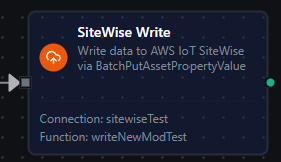
SiteWise node with function selection, connection, and parameter bindings
Common Use Cases
Industrial Data Ingestion
Ingest sensor telemetry from OPC UA, Modbus, or MQTT sources into SiteWise asset models. Use the Write function to push VQT entries with automatic type inference and batch chunking for high-throughput ingestion.
Real-Time Equipment Monitoring
Read the latest values from SiteWise asset properties to monitor equipment health in pipelines. Combine with condition nodes to trigger alerts when values exceed thresholds.
Asset Discovery and Catalog Building
Use the Browse function or Asset Browser to discover available models, assets, and properties. Build tag catalogs for onboarding new equipment or validating existing configurations.
Dynamic Asset Provisioning
Enable Auto-Create Model & Asset on Write functions to automatically provision SiteWise resources when new equipment comes online. The connector derives model names from property alias paths and creates assets with the correct property definitions.
Cloud-Edge Data Bridging
Use SiteWise Edge with a custom endpoint to collect data at the edge, then use MaestroHub pipelines to read, transform, and forward data to cloud SiteWise or other destinations.