 Microsoft Teams Integration Guide
Integrate Microsoft Teams with MaestroHub to send automated notifications, alerts, and production updates directly to your team channels. This comprehensive guide covers everything from Azure AD app registration to sending messages in your pipelines.
Overview
The Microsoft Teams connector enables you to:
- Send channel messages to notify teams about production events, alerts, and workflow updates
- Authenticate via OAuth 2.0 with secure, user-delegated permissions through Microsoft Graph API
- List teams and channels programmatically to dynamically route messages
- Automate notifications for quality issues, machine status changes, work order updates, and more
The MS Teams connector uses Microsoft Graph API with OAuth 2.0 delegated permissions. This means the connection authenticates as a specific user who must have access to the teams and channels where messages will be sent.
Prerequisites
Before creating a Microsoft Teams connection in MaestroHub, you need to:
- Azure Account: Have access to Microsoft Azure Portal
- Azure AD Tenant: Have an Azure Active Directory tenant (organization directory)
- App Registration Permissions: Ability to register applications in Azure AD (admin privileges may be required)
- Microsoft Teams Access: The user who authenticates must be a member of the Teams where messages will be sent
In enterprise environments with Microsoft Entra ID (Azure AD), you may need administrator approval to grant API permissions to your application. Contact your IT administrator if you encounter permission request errors during authentication.
Azure AD Application Setup
Step 1: Register an Application and Configure Redirect URI
Register an application in Azure AD and configure the OAuth callback URL:
-
Click + New registration
-
Enter an application name (e.g.,
MaestroHub MS Teams Integration) -
Under Supported account types, select:
- Accounts in this organizational directory only (single tenant) - Recommended for most organizations
- OR Accounts in any organizational directory (multi-tenant) - If multiple tenants need access
-
Under Redirect URI (optional):
- Select a platform: Choose Web from the dropdown
- Redirect URI: Copy the URI from MaestroHub's MS Teams connection creation page and paste it here
Getting the Redirect URI from MaestroHub- Open MaestroHub and navigate to Connections → New Connection → Microsoft Teams
- In the connection form, you'll see the Redirect URI field (auto-populated)
- Copy this URI value (e.g.,
https://your-domain.com/connect/msteams/oauth/callback) - Paste it into the Azure AD registration form
-
Click Register
After registration, you'll see the application's Overview page.
Step 2: Generate Client Secret
Create a client secret for secure authentication:
- Navigate to Certificates & secrets in the left sidebar
- Under Client secrets, click + New client secret
- Enter a description (e.g.,
MaestroHub Secret) - Select an expiration period:
- 6 months or 12 months (requires manual renewal)
- 24 months (recommended for production stability)
- Custom - set your own expiration date
- Click Add
- Important: Copy the Value immediately - you cannot view it again after leaving this page
Step 3: Configure API Permissions
Grant the application permissions to access Microsoft Graph API on behalf of users:
- Navigate to API permissions in the left sidebar
- Click + Add a permission
- Select Microsoft Graph
- Choose Delegated permissions (not Application permissions)
- Add the following permissions:
Required Permissions
| Permission | Type | Purpose |
|---|---|---|
User.Read | Delegated | Sign in and read user profile (always required for OAuth) |
ChannelMessage.Send | Delegated | Send messages to team channels |
When you grant any delegated permission, the offline_access scope is implicitly granted, allowing MaestroHub to obtain refresh tokens for long-lived access to resources on your behalf.
Optional Permissions (Recommended)
| Permission | Type | Purpose |
|---|---|---|
Team.ReadBasic.All | Delegated | List teams for dropdown selection in UI |
Channel.ReadBasic.All | Delegated | List channels for dropdown selection in UI |
- Without optional permissions: You can still send messages by manually entering Team ID and Channel ID
- With optional permissions: MaestroHub can populate dropdown lists of teams and channels for easier configuration
- After adding permissions, click Grant admin consent for [Your Organization]
- This step requires Azure AD administrator privileges
- Without admin consent, users will see a consent prompt when authenticating
- In enterprise environments, this is typically required
If you see an error "Need admin approval" during authentication, an administrator must grant consent for the application. See the Microsoft documentation on admin consent.
Step 4: Summary - Information for MaestroHub
Before proceeding to MaestroHub, verify you have these values from Azure AD:
| Value | Where to Find |
|---|---|
| Tenant ID | App registration → Overview → Directory (tenant) ID |
| Client ID | App registration → Overview → Application (client) ID |
| Client Secret | App registration → Certificates & secrets → Client secret value |
| Redirect URI | App registration → Authentication → Web redirect URI |
You're now ready to create a Microsoft Teams connection in MaestroHub!
Connection Configuration
Creating a Microsoft Teams Connection
Navigate to Connections → New Connection → Microsoft Teams and configure the following:
Microsoft Teams Connection Creation Fields
1. Profile Information
| Field | Default | Description |
|---|---|---|
| Profile Name | - | A descriptive name for this connection profile (required, max 100 characters) |
| Description | - | Optional description for this MS Teams connection |
2. Azure AD OAuth Configuration
| Field | Default | Description |
|---|---|---|
| Tenant ID | - | Azure AD tenant (directory) ID from your app registration - required |
| Client ID | - | Application (client) ID from your app registration - required |
| Client Secret | - | Client secret value from Azure AD (required, stored encrypted) |
| Redirect URI | {origin}/connect/msteams/oauth/callback | Read-only. The OAuth callback URL this MaestroHub instance uses; register it in the Azure AD app. It is not saved with the connection |
Important Configuration Notes
- Tenant ID: Found in Azure AD app registration → Overview → Directory (tenant) ID
- Client ID: Found in Azure AD app registration → Overview → Application (client) ID
- Client Secret: Created in Azure AD app registration → Certificates & secrets
- Redirect URI: Must exactly match the redirect URI configured in your Azure AD app registration
3. OAuth Authentication Flow
After filling in the Azure AD configuration, you must authenticate:
- Click Connect with Microsoft button in the Security tab
- A popup window opens, redirecting you to Microsoft login
- Sign in with a Microsoft account that:
- Belongs to the Azure AD tenant
- Has access to Teams where you want to send messages
- Has permissions granted for the scopes requested
- Approve the permission consent (if admin consent wasn't granted)
- Upon success, the popup closes and MaestroHub receives OAuth tokens
OAuth Token Management
- Access Token: Short-lived token (typically 1 hour) for API calls - stored encrypted
- Refresh Token: Long-lived token to renew access tokens - stored encrypted
- Token Expiry: Automatically tracked; MaestroHub refreshes the access token with the refresh token about five minutes before it expires
- Re-authentication: Needed if the stored refresh token expires or is revoked, or permissions change. Refreshed tokens are kept in memory only, so after a restart the connection starts again from the refresh token stored when it was last authorized
4. Connection Labels
| Field | Default | Description |
|---|---|---|
| Labels | - | Key-value pairs to categorize and organize this MS Teams connection (max 10 labels) |
Example Labels
env: prod– Environmentteam: operations– Responsible teampurpose: alerts– Connection purpose
Function Builder
Creating Microsoft Teams Functions
Once you have a connection established, you can create reusable messaging functions:
- Open the connection and go to its Functions tab → New Function
- Select Microsoft Teams as the function type
- Choose the function operation (Send Message to Channel, Get Teams, Get Channels)
- Configure function parameters
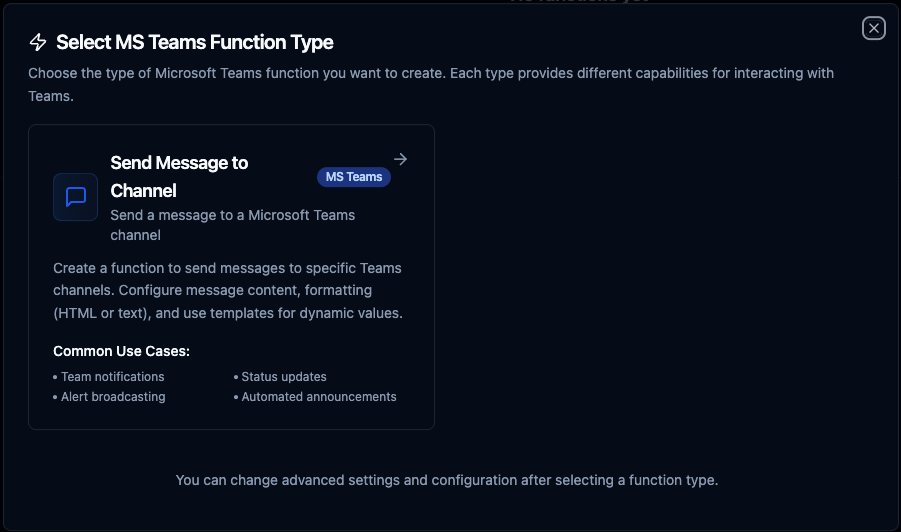
Create reusable MS Teams functions for messaging and team management
Send Message to Channel Function
Purpose: Send a text or HTML message to a specific Microsoft Teams channel. Ideal for automated notifications, alerts, production updates, and workflow status messages.
Configuration Fields
| Field | Type | Required | Default | Description |
|---|---|---|---|---|
| Function Name | String | Yes | - | Descriptive name for this function (e.g., "Production Alert Notification") |
| Team ID | String | Yes | - | Microsoft Teams team ID where the channel exists. Supports parameters: ((teamId)) |
| Channel ID | String | Yes | - | Microsoft Teams channel ID where the message will be sent. Supports parameters: ((channelId)) |
| Content | String | Yes | - | Message content to send. Supports parameters: ((message)) or ((alertDetails)) |
| Content Type | String | No | text | Message format: text (plain text) or html (HTML formatted) |
Content Type Options
text: Plain text messages (simple, no formatting)html: HTML formatted messages (rich formatting with tags like<b>,<i>,<br>,<a>)
Pipeline Integration
Use the Microsoft Teams functions you create here as nodes inside the Pipeline Designer to send notifications and integrate team collaboration into your automation workflows. Drag function nodes onto the canvas, bind parameters to upstream outputs or constants, and route messages based on your business logic.
For end-to-end orchestration ideas, such as combining MS Teams notifications with database queries, MQTT events, REST API calls, or OPC UA data, explore the Connector Nodes page.
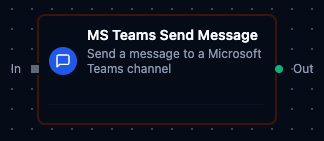
MS Teams function node in the pipeline designer with connection, function, and parameter configuration
Common Use Cases
Production Line Alert Notification
Scenario: Notify the production team immediately when a machine fault is detected.
Pipeline Flow:
- OPC UA Read node monitors machine status tag
- Filter node detects status = "fault"
- MS Teams Send Message node sends alert to "Production Alerts" channel
Function Configuration:
Function: Send Message to Channel
Team ID: ((productionTeamId))
Channel ID: ((alertsChannelId))
Content: ⚠️ <b>Machine Fault Detected</b><br>
         Machine: ((machineName))<br>
         Status: ((status))<br>
         Error Code: ((errorCode))<br>
         Action Required: Immediate inspection
Content Type: html
Pipeline Parameters (from Filter node output):
{
  "productionTeamId": "a1b2c3d4-1234-5678-90ab-cdef12345678",
  "alertsChannelId": "19:abc123def456@thread.tacv2",
  "machineName": "Press-03",
  "status": "fault",
  "errorCode": "E102 - Hydraulic Pressure Low"
}