 SMTP Integration Guide
Send emails directly from your pipelines using the SMTP connector. This guide covers connection setup, email function configuration, and pipeline integration.
Overview
The SMTP connector provides:
- Multiple recipients with To, CC, and BCC support
- HTML and plain text email bodies with templating
- File attachments using Base64‑encoded content
- Template parameters for dynamic email content
- TLS/SSL encryption with optional certificate configuration
- Popular provider presets for Gmail, Office365, SendGrid, Amazon SES, and more
Connection Configuration
Creating an SMTP Connection
From Connections → New Connection → SMTP, configure the fields below.
SMTP Connection Creation Fields
1. Profile Information
| Field | Default | Description |
|---|---|---|
| Profile Name | - | A descriptive name for this connection profile (required, max 100 characters) |
| Description | - | Optional description for this SMTP connection |
2. SMTP Server Configuration
Provider Preset
A quick‑fill dropdown to auto‑populate host and port for popular email providers:
| Preset | Host | Default Port |
|---|---|---|
| Custom SMTP Server | (user specified) | 587 |
| Gmail | smtp.gmail.com | 587 |
| Microsoft 365 / Outlook | smtp.office365.com | 587 |
| Yahoo Mail | smtp.mail.yahoo.com | 587 |
| SendGrid | smtp.sendgrid.net | 587 |
| Mailgun | smtp.mailgun.org | 587 |
| Amazon SES (us-east-1) | email-smtp.us-east-1.amazonaws.com | 587 |
| Amazon SES (eu-west-1) | email-smtp.eu-west-1.amazonaws.com | 587 |
| MailHog (Local Testing) | localhost | 1025 |
Server Fields
| Field | Default | Description |
|---|---|---|
| Host | - | SMTP server hostname or IP address (e.g., smtp.example.com) – required |
| Port | 587 | SMTP port: 25 (Legacy), 465 (SMTPS/Implicit TLS), 587 (Submission – recommended), 1025 (Testing), 2525 (Alternative) – required |
| From Email | - | Sender email address (e.g., noreply@example.com) – required |
| From Name | - | Display name for the sender (e.g., MaestroHub Notifications). Max 100 characters |
3. Authentication
| Field | Default | Description |
|---|---|---|
| Username | - | SMTP authentication username. Often your email address. For SendGrid, use apikey – required |
| Password | - | SMTP password or App Password (for services with 2FA). Stored securely – required |
- Gmail/Office365/Yahoo: If 2‑Factor Authentication is enabled, use an App Password instead of your regular account password.
- SendGrid: Use
apikeyas the username and your SendGrid API key as the password. - Amazon SES: Use IAM SMTP credentials (not AWS access keys).
4. TLS/SSL Settings
4a. TLS Configuration
There is no TLS on/off switch. Port 465 (or Force Implicit TLS) uses implicit TLS; on any other port the connection is upgraded with STARTTLS whenever the server offers it. The settings below apply in both cases. A server that does not offer STARTTLS on a non-465 port is used without encryption.
| Field | Default | Description |
|---|---|---|
| Skip TLS Verification | false | Skip certificate verification. Only enable for self‑signed certificates or testing |
| Force Implicit TLS | false | Use implicit TLS on a port other than 465 (advanced configuration) |
| TLS Server Name | - | Override hostname for certificate verification (advanced) |
4b. Certificates (Optional)
| Field | Default | Description |
|---|---|---|
| CA Certificate | - | Custom CA certificate for private/enterprise Certificate Authorities. PEM format |
| Client Certificate | - | Client certificate for mTLS (mutual TLS) authentication. PEM format |
| Client Private Key | - | Private key for the client certificate. PEM format. Both certificate and key must be provided for mTLS |
5. Advanced Settings
| Field | Default | Description |
|---|---|---|
| Connect Timeout | 30s | How long a connection attempt may take (1 s – 5 min). A single dial is also capped at 10 seconds by the mail library |
6. Connection Labels
| Field | Default | Description |
|---|---|---|
| Labels | - | Key‑value pairs to categorize and organize this SMTP connection (max 10 labels) |
Example Labels
environment: productionservice: notificationsteam: platform
- Required Fields: Profile Name, Host, Port, From Email, Username, and Password must be filled.
- Port 465: Always uses implicit TLS.
- Security: Credentials are stored encrypted and masked on edit. Leave fields empty to keep stored values.
- Provider Presets: Selecting a preset auto‑populates Host and Port with recommended values.
Function Builder
Creating SMTP Functions
After saving the connection:
- Open the connection and go to its Functions tab → New Function
- Choose Send Email as the function type
- Configure recipients, content, and attachments
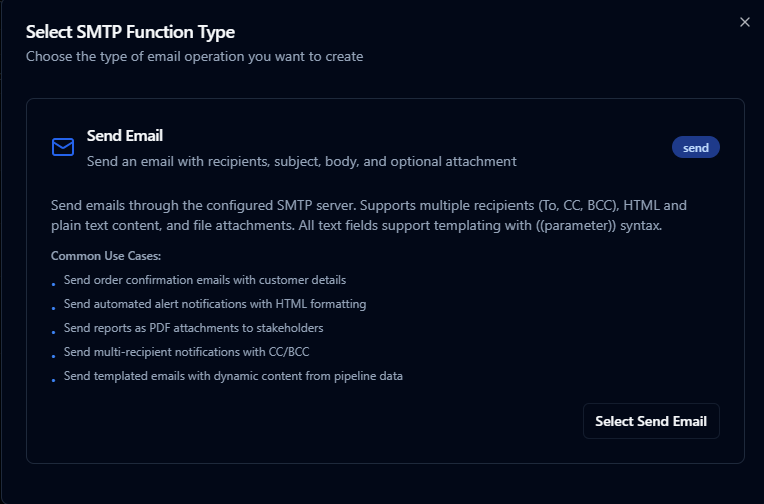
Design reusable email functions with dynamic content and attachments
Send Email
Purpose: Send emails with dynamic content, multiple recipients, and optional attachments from your pipelines.
Configuration Fields
Function Information
| Field | Type | Required | Default | Description |
|---|---|---|---|---|
| Function Name | String | Yes | - | A descriptive name for this email function (e.g., Send Order Confirmation). Max 100 characters |
| Description | String | No | - | Optional description of what this email function does |
| Labels | Key-Value | No | - | Optional labels for categorizing the function |
Recipients Configuration
| Field | Type | Required | Default | Description |
|---|---|---|---|---|
| To | Array | Yes | - | Primary recipient email addresses. At least one recipient is required |
| CC | Array | No | [] | Carbon copy recipients |
| BCC | Array | No | [] | Blind carbon copy recipients |
The To, CC, and BCC fields do not support templating. Email addresses must be explicitly provided.
Email Content
| Field | Type | Required | Default | Description |
|---|---|---|---|---|
| Subject | String | Yes | - | Email subject line. Supports ((parameterName)) syntax for dynamic content |
| Body (Plain Text) | String | Conditional | - | Plain text version of the email body. At least one of Body Text or Body HTML is required |
| Body (HTML) | String | Conditional | - | HTML version of the email body. At least one of Body Text or Body HTML is required |
You can provide both plain text and HTML bodies. Email clients will display HTML if supported, otherwise fall back to plain text.
Attachments
| Field | Type | Required | Default | Description |
|---|---|---|---|---|
| Filename | String | Conditional | - | Attachment filename (e.g., report.pdf). Required if attachment data is provided |
| MIME Type | Dropdown | No | application/octet-stream | Content type of the attachment |
| Attachment Data (Base64) | String | No | - | Base64‑encoded file content. Supports templating |
Available MIME Types
| MIME Type | Description |
|---|---|
application/pdf | PDF Document (.pdf) |
application/zip | ZIP Archive (.zip) |
application/json | JSON File (.json) |
application/xml | XML File (.xml) |
application/vnd.openxmlformats-officedocument.spreadsheetml.sheet | Excel Spreadsheet (.xlsx) |
application/vnd.openxmlformats-officedocument.wordprocessingml.document | Word Document (.docx) |
image/png | PNG Image (.png) |
image/jpeg | JPEG Image (.jpg) |
text/plain | Plain Text (.txt) |
text/csv | CSV File (.csv) |
text/html | HTML File (.html) |
application/octet-stream | Binary Data (default) |
| Custom | Enter any custom MIME type |
Advanced Options
| Field | Type | Required | Default | Description |
|---|---|---|---|---|
| Timeout | Duration | No | 30m | Bound on this single send, as a duration such as 30s or 5m (1 s – 1 h) |
Use Cases: Send order confirmations, alert notifications, scheduled reports with attachments, welcome emails
Using Parameters
Use ((parameterName)) in supported fields to create dynamic, reusable email functions with content injected at runtime from your pipeline data.
| Field | Supports Templating |
|---|---|
| To / CC / BCC | ❌ |
| Subject | ✅ |
| Body (Plain Text) | ✅ |
| Body (HTML) | ✅ |
| Attachment Filename | ✅ |
| Attachment Data | ✅ |
| Configuration | Description | Example |
|---|---|---|
| Type | Validate incoming values | string, number, boolean, datetime, json, buffer |
| Required | Enforce presence | Required / Optional |
| Default Value | Provide fallbacks | 'Customer', '{}' |
| Description | Document intent | "Customer name for greeting", "Order ID for subject line" |
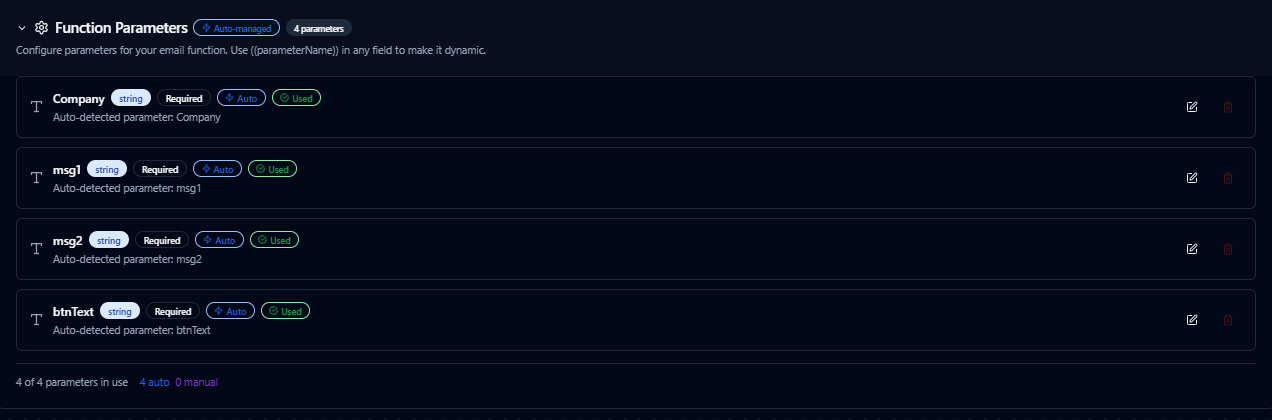
Parameter validation, defaults, and helper text for dynamic email content
Pipeline Integration
Use the SMTP send email functions you configure here as nodes inside the Pipeline Designer to send notifications, alerts, and reports as part of your automation workflows. Drag in the send email node, bind parameters to upstream outputs or constants, and configure retry behavior for delivery guarantees.
For broader orchestration patterns that combine email notifications with SQL, REST, MQTT, or file operations, see the Connector Nodes page.
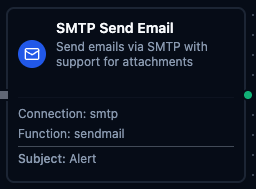
SMTP send email node with connection, function, and parameter bindings
Common Use Cases
Order Confirmation Emails
Send dynamic order confirmations with customer details and order information.
Subject with Templating:
Order Confirmation #((orderId))
Body HTML with Templating:
<html>
<body>
  <h1>Hello ((customerName))</h1>
  <p>Thank you for your order #<strong>((orderId))</strong>.</p>
  <p>We will notify you when your order ships.</p>
</body>
</html>
Pipeline Integration: Connect after order processing nodes to send confirmations automatically.
Alert Notifications
Send real-time alerts when pipeline conditions trigger thresholds.
Subject with Templating:
⚠️ Alert: ((alertType)) on ((machineName))
Body Text with Templating:
Machine: ((machineName))
Alert Type: ((alertType))
Value: ((currentValue))
Threshold: ((threshold))
Time: ((timestamp))

Please investigate immediately.
Pipeline Integration: Trigger from condition nodes that monitor sensor data or system metrics.
Scheduled Reports with Attachments
Distribute generated reports as email attachments on a schedule.
Configuration:
- Attachment Filename:
report_((date)).pdf - Attachment Data:
((reportBase64)) - MIME Type:
application/pdf
Pipeline Integration: Schedule via cron triggers, generate report content upstream, then send via SMTP node.
Welcome Emails
Send personalized welcome messages when new users are created.
Subject:
Welcome to ((companyName)), ((firstName))!
Body HTML with Templating:
<html>
<body>
  <h1>Welcome, ((firstName)) ((lastName))!</h1>
  <p>Your account has been successfully created.</p>
  <p>Username: <strong>((email))</strong></p>
  <p>Get started by visiting our <a href="((portalUrl))">portal</a>.</p>
</body>
</html>
Pipeline Integration: Connect after user creation workflows or registration webhooks.
Provider-Specific Notes
Gmail
- Port: 587
- Password: An App Password, not your Google account password. App Passwords require 2-Step Verification on the Google account
Microsoft 365 / Outlook
- Port: 587
- Requires App Password if 2FA is enabled
- Modern authentication may require OAuth setup
SendGrid
- Port: 587
- Username:
apikey - Password: Your SendGrid API key
Amazon SES
- Use the region‑specific endpoint (e.g.,
email-smtp.us-east-1.amazonaws.com) - Port: 587
- Use IAM SMTP credentials (not AWS access keys)
- Verify sender email/domain in SES console
Mailgun
- Port: 587
- Use your Mailgun SMTP credentials from the dashboard
MailHog (Local Testing)
- Port: 1025
- No authentication required
- Useful for local development and testing
Troubleshooting
Common Issues
| Issue | Possible Cause | Solution |
|---|---|---|
| Connection timeout | Firewall blocking port | Check firewall rules, try port 587 or 2525 |
| Authentication failed | Wrong credentials | Verify username/password, use App Password for 2FA accounts |
| TLS handshake failed | Certificate issues | Enable "Skip TLS Verification" for self‑signed certs (testing only) |
| Email not received | Spam filter | Check spam folder, verify sender domain SPF/DKIM records |
| Port 465 not working | The server does not accept implicit TLS on port 465, or the network blocks the port | Port 465 always uses implicit TLS. Confirm the provider supports SMTPS on 465 and the port is open; otherwise use port 587, which upgrades with STARTTLS |
Testing Your Connection
- Configure all required fields
- Click Test Connection to verify SMTP server connectivity
- Create a Send Email function
- Use Test Function to send a test email
Debugging Tips
- Start with MailHog for local testing before configuring production SMTP
- Use port 587 (Submission) for most providers
- Always use TLS for production environments
- Check your email provider's SMTP documentation for specific requirements