Microsoft Fabric (OneLake) Integration Guide
Connect to Microsoft Fabric OneLake to land OT and pipeline data directly into a Fabric lakehouse. This guide covers connection setup, function configuration, and pipeline integration.
Overview
Microsoft Fabric OneLake is Fabric's unified, tenant-wide data lake, exposed over an ADLS Gen2–compatible DFS endpoint at onelake.dfs.fabric.microsoft.com. This connector reads and writes files directly into a OneLake workspace and lakehouse using Microsoft Entra ID authentication. It provides:
- File read/write into a lakehouse under
Files/orTables/ - Directory operations — list paths (with recursion and pagination) and create directories
- Path deletion for files and directories (optionally recursive)
- Entra ID authentication via service principal, managed identity, or the default credential chain
- Scope-aware paths — a configurable default scope (
FilesorTables) applied to relative paths - Operational limits for file size and operation timeout
OneLake is the storage layer beneath every Fabric workload, and this connector writes files to it — it does not run SQL, manage Fabric items, or create tables.
Files landed under Files/ are accessible from the lakehouse's unmanaged area. Tables/ is different: Fabric lists a folder there as a queryable table only when it is a Delta table — Parquet data files plus a _delta_log/ commit. A bare .parquet file written under Tables/ lands in the lakehouse's unidentified area and is not queryable by Lakehouse, Warehouse, or Power BI Direct Lake.
To get a real table, write the file under Files/ and let Fabric convert it: right-click the file → Load to Tables, run a Fabric notebook, or call the Fabric Load Table REST API (which you can drive from a REST connection using webtoken auth against Entra ID). See Landing OT data as a Fabric table below.
Connection Configuration
Creating a Microsoft Fabric (OneLake) Connection
From Connections → New Connection → Microsoft Fabric (OneLake), configure the fields below.
1. Profile Information
| Field | Default | Description |
|---|---|---|
| Profile Name | - | A descriptive name for this connection profile (required, max 100 characters) |
| Description | - | Optional description for this OneLake connection |
2. Authentication
| Field | Default | Description |
|---|---|---|
| Authentication Method | service_principal | How to authenticate with Microsoft Entra ID: default_credential, service_principal, or managed_identity |
| Workspace | - | Fabric workspace ID (GUID) or workspace name (required) |
| Lakehouse | - | Lakehouse ID (GUID) or name within the workspace, without the .Lakehouse suffix (required) |
| Default Scope | Files | Default lakehouse scope applied to relative paths that don't start with Tables/ or Files/ |
| Tenant ID | - | Microsoft Entra ID (Azure AD) tenant (directory) ID |
| Client ID | - | Registered application (client) ID in Entra ID. For managed_identity, the optional client ID of a user-assigned identity |
| Client Secret | - | Client secret for the registered Entra ID application (service principal only). Masked on edit |
service_principal— a registered Entra ID app with Tenant ID, Client ID, and Client Secret. The most portable choice; grant the app Contributor (or a OneLake data role) on the target workspace.managed_identity— for MaestroHub running on Azure (VM, AKS, Container Apps). Uses the host's assigned identity; set only the optional Client ID for a user-assigned identity.default_credential— the Azure SDK default chain (env vars, workload identity, Azure CLI). Useful for local development.
3. Advanced
| Field | Default | Description |
|---|---|---|
| Timeout (seconds) | 30 | Timeout for OneLake operations (5–300) |
| Max File Size (MB) | 25 | Maximum file size that can be read or written (1–124) |
- Required fields: Profile Name, Workspace, and Lakehouse. Authentication Method defaults to
service_principal, which additionally needs Tenant ID, Client ID, and Client Secret. - Paths: A path may begin with
Tables/orFiles/. If it does not, the Default Scope is prepended — e.g. with the defaultFiles, a path ofreports/day.csvresolves toFiles/reports/day.csv. - Security: The Client Secret is encrypted and stored securely, masked on edit. Leave it empty to keep the stored value.
Function Builder
Creating OneLake Functions
After saving the connection:
- Open the connection and go to its Functions tab → New Function
- Choose one of the OneLake function types (Write File, Read File, List Paths, Create Directory, Delete Path)
- Configure the path and options
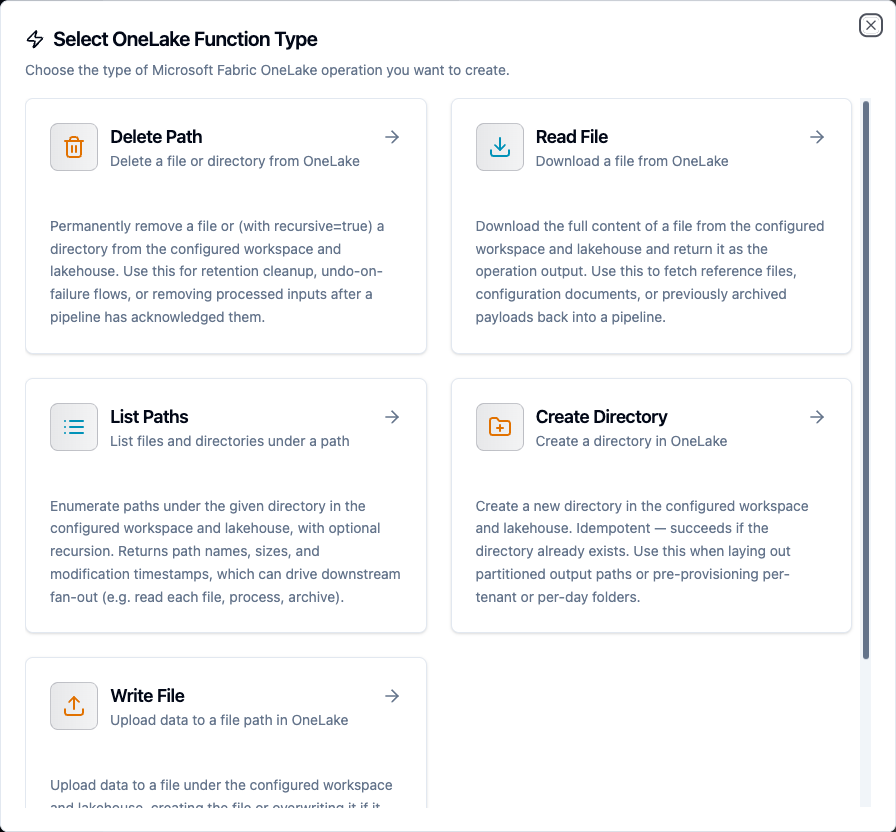
Choose from Write File, Read File, List Paths, Create Directory, and Delete Path operations
Write File Function
Purpose: Upload data to a file under the configured workspace and lakehouse, creating the file or overwriting it if it already exists. Use this to land OT payloads, snapshots, or processed pipeline output into Files/ or Tables/.
Configuration Fields
| Field | Type | Required | Default | Description |
|---|---|---|---|---|
| Path | String | Yes | - | File path relative to the lakehouse. May start with Tables/ or Files/, otherwise the default scope is applied. Supports ((param)) templating |
| Data | String | No | - | Content to write. Supports templating |
| Input Format | String | No | text | How Data is interpreted: text uploads the string verbatim as UTF-8 bytes; base64 strict-decodes it first. Binary formats such as Parquet require base64 |
| Content Type | String | No | auto | MIME type of the file content. Auto-detected from the extension if omitted |
| Max File Size (MB) | Number | No | connection default | Override the max file size limit (1–124) |
| Timeout (ms) | Number | No | 1800000 | Operation timeout (1000–3600000) |
Example Configuration
{
  "path": "Files/snapshots/((day)).json",
  "data": "((payload))"
}
Response Format
{
  "path": "Files/snapshots/2026-06-03.json",
  "bytesWritten": 2048,
  "contentType": "application/json"
}
Data is a string, so binary content reaches this function base64-encoded — that is what the Convert to File node emits for Parquet and Excel. You must set Input Format to base64 for those payloads. Left on text, the connector uploads the base64 characters themselves and produces a file no Parquet reader can open.
Invalid base64 under base64 fails the call rather than silently writing the literal text, and the Max File Size limit is measured on the decoded bytes.
Example — writing Parquet
{
  "path": "Files/staging/readings_((day)).parquet",
  "data": "((parquetPayload))",
  "inputFormat": "base64"
}
Use Cases:
- Land OT payloads and snapshots into
Files/ - Write a Parquet or CSV file under
Files/for Fabric to load into a table - Archive processed pipeline output to a lakehouse
Read File Function
Purpose: Download the full content of a file from the configured workspace and lakehouse and return it as the operation output.
Configuration Fields
| Field | Type | Required | Default | Description |
|---|---|---|---|---|
| Path | String | Yes | - | File path relative to the lakehouse. Supports ((param)) templating |
| Max File Size (MB) | Number | No | connection default | Override the max file size limit (1–124) |
| Timeout (ms) | Number | No | 1800000 | Operation timeout (1000–3600000) |
Response Format
{
  "data": "id,value\n1,42\n",
  "metadata": {
    "path": "Files/reference/lookup.csv",
    "fileName": "lookup.csv",
    "sizeBytes": 15,
    "encoding": "text"
  }
}
encoding is text for text content types and base64 for binary; data is decoded accordingly.
Use Cases:
- Fetch reference files or lookup tables into a pipeline
- Read a JSON configuration blob from
Files/config.json - Re-hydrate a previously archived payload
List Paths Function
Purpose: Enumerate paths under a directory in the configured workspace and lakehouse, with optional recursion. Returns path names, sizes, and modification timestamps to drive downstream fan-out.
Configuration Fields
| Field | Type | Required | Default | Description |
|---|---|---|---|---|
| Path | String | No | lakehouse root | Directory path to list, relative to the lakehouse. Empty lists the lakehouse root. Supports templating |
| Recursive | Boolean | No | false | Recurse into subdirectories |
| Max Results | Number | No | 100 | Maximum number of paths to return per page (1–1240) |
| Continuation Token | String | No | - | Token from a previous list operation for pagination |
| Timeout (ms) | Number | No | 1800000 | Operation timeout (1000–3600000) |
Response Format
{
  "path": "Tables/sensor_readings",
  "paths": [
    {
      "name": "Tables/sensor_readings/data.parquet",
      "isDirectory": false,
      "contentLength": 20480,
      "lastModified": "Tue, 03 Jun 2026 08:00:00 GMT",
      "etag": "0x8D..."
    }
  ],
  "count": 1,
  "continuationToken": "..."
}
continuationToken is present only when more pages remain.
Use Cases:
- List all Parquet files under
Tables/sensor_readings/ - Discover files to fan out a read-process-archive loop
- Paginate a large directory with the continuation token
Create Directory Function
Purpose: Create a new directory in the configured workspace and lakehouse. Idempotent — succeeds if the directory already exists. Use this when laying out partitioned output paths or pre-provisioning per-tenant or per-day folders.
Configuration Fields
| Field | Type | Required | Default | Description |
|---|---|---|---|---|
| Path | String | Yes | - | Directory path to create, relative to the lakehouse. Supports templating |
| Timeout (ms) | Number | No | 1800000 | Operation timeout (1000–3600000) |
Response Format
{
  "path": "Files/daily/2026-06-03"
}
Use Cases:
- Create
Files/daily/((day))/before writing day-partitioned files - Pre-provision per-tenant folders
Delete Path Function
Purpose: Permanently remove a file or (with recursive) a directory from the configured workspace and lakehouse. Use this for retention cleanup, undo-on-failure flows, or removing processed inputs.
Configuration Fields
| Field | Type | Required | Default | Description |
|---|---|---|---|---|
| Path | String | Yes | - | Path to delete, relative to the lakehouse. Supports templating |
| Recursive | Boolean | No | false | Delete directory contents recursively |
| Timeout (ms) | Number | No | 1800000 | Operation timeout (1000–3600000) |
Response Format
{
  "path": "Files/staging/processed.json",
  "kind": "file"
}
Use Cases:
- Delete a processed file after archival
- Clean up a staging directory recursively
Using Parameters
Use ((parameterName)) in paths, data, and other templated fields to expose parameters for validation and runtime binding.
| Configuration | Description | Example |
|---|---|---|
| Type | Validate incoming values | string, number, boolean, datetime, json, buffer |
| Required | Enforce presence | Required / Optional |
| Default Value | Provide fallbacks | 'Files/', '{}' |
| Description | Document intent | "Partition day (YYYY-MM-DD)", "Payload JSON" |
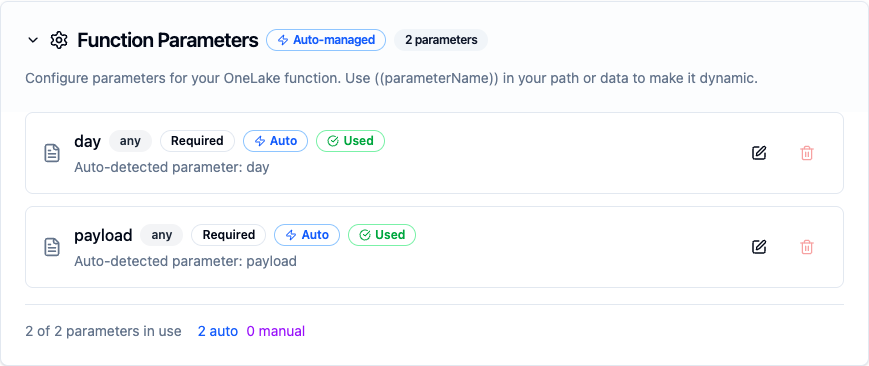
Parameters detected from paths and payloads are configured with type, requiredness, and defaults
All five OneLake function types accept ((parameter)) templating — OneLake is an on-demand storage connector with no trigger/consume function, so every operation can be templated and bound to upstream pipeline values.
Pipeline Integration
Use the OneLake functions you configure here as nodes inside the Pipeline Designer to land and read lakehouse files. Drag in a Write File, Read File, List Paths, Create Directory, or Delete Path node, bind parameters to upstream outputs or constants, and tune retries or error branches.
For broader orchestration patterns that combine OneLake with SQL, REST, or MQTT steps, see the Connector Nodes page and the Microsoft Fabric (OneLake) node reference.
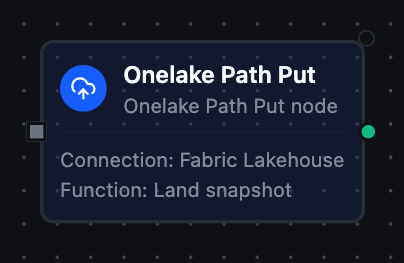
OneLake Write File node with connection, function, and parameter bindings
Common Use Cases
Landing OT Data as a Fabric Table
Fabric needs a Delta table, and this connector writes files — so the pipeline lands the file and Fabric does the conversion:
- Convert to File node, format
parquet(orcsv) — turns pipeline rows into file bytes. Parquet output is base64-encoded. - OneLake Write File node →
Files/staging/readings_((day)).parquet, with Input Format set tobase64. - Convert to a table in Fabric — right-click the file → Load to Tables, a notebook, or the Fabric Load Table REST API called from a REST connection.
Once loaded, the table is queryable by Lakehouse, Warehouse, and Power BI Direct Lake. Writing the Parquet file directly under Tables/ skips step 3 but does not produce a table — see the note at the top of this page.
Reading a Lakehouse File Back
OneLake Read File returns binary files (including .parquet) base64-encoded, with metadata.encoding set to base64. Feed that straight into a File Extractor node with format parquet to get rows back into the pipeline.
Day-Partitioned Archival
Create a Files/daily/((day))/ directory, then write the day's snapshots into it for a partitioned archive.
Read-Process-Archive
List files under a staging prefix, read and process each, then delete the processed inputs — all within one pipeline.