 AWS Lambda Integration Guide
Use MaestroHub's AWS Lambda connector to invoke Lambda functions from pipelines — call serverless transforms, enrichments, and ML inference inline, or fire asynchronous events for background processing.
Overview
The AWS Lambda connector provides:
- Synchronous invocation with response payload (
Invoke, RequestResponse type) - Asynchronous invocation for fire-and-forget delivery (
Invoke Async, Event type) - Function discovery via
List Functions - Dry Run permission probe to validate IAM/parameters without executing
- Tail log capture — last 4 KB of CloudWatch logs returned with the result
- Default credential chain support when running on AWS infrastructure
- Custom endpoint for LocalStack and AWS-compatible services
Prerequisites
Before configuring the connector you need:
- An AWS account with at least one Lambda function deployed.
- IAM credentials with
lambda:InvokeFunction,lambda:ListFunctions, andlambda:GetAccountSettings. If you don't have these yet, follow the AWS Lambda IAM Setup guide to create a least-privilege user and access key, then come back here.
If MaestroHub itself runs on AWS (EC2/ECS/EKS), you can skip the access key entirely and let the connector use the default credential chain.
Connection Configuration
Creating an AWS Lambda Connection
From Connections → New Connection → AWS Lambda, configure the fields below.
The connection form is split across five tabs: Connection, Authentication, Advanced, Functions, and Health. The Health tab activates after the connection has been saved.
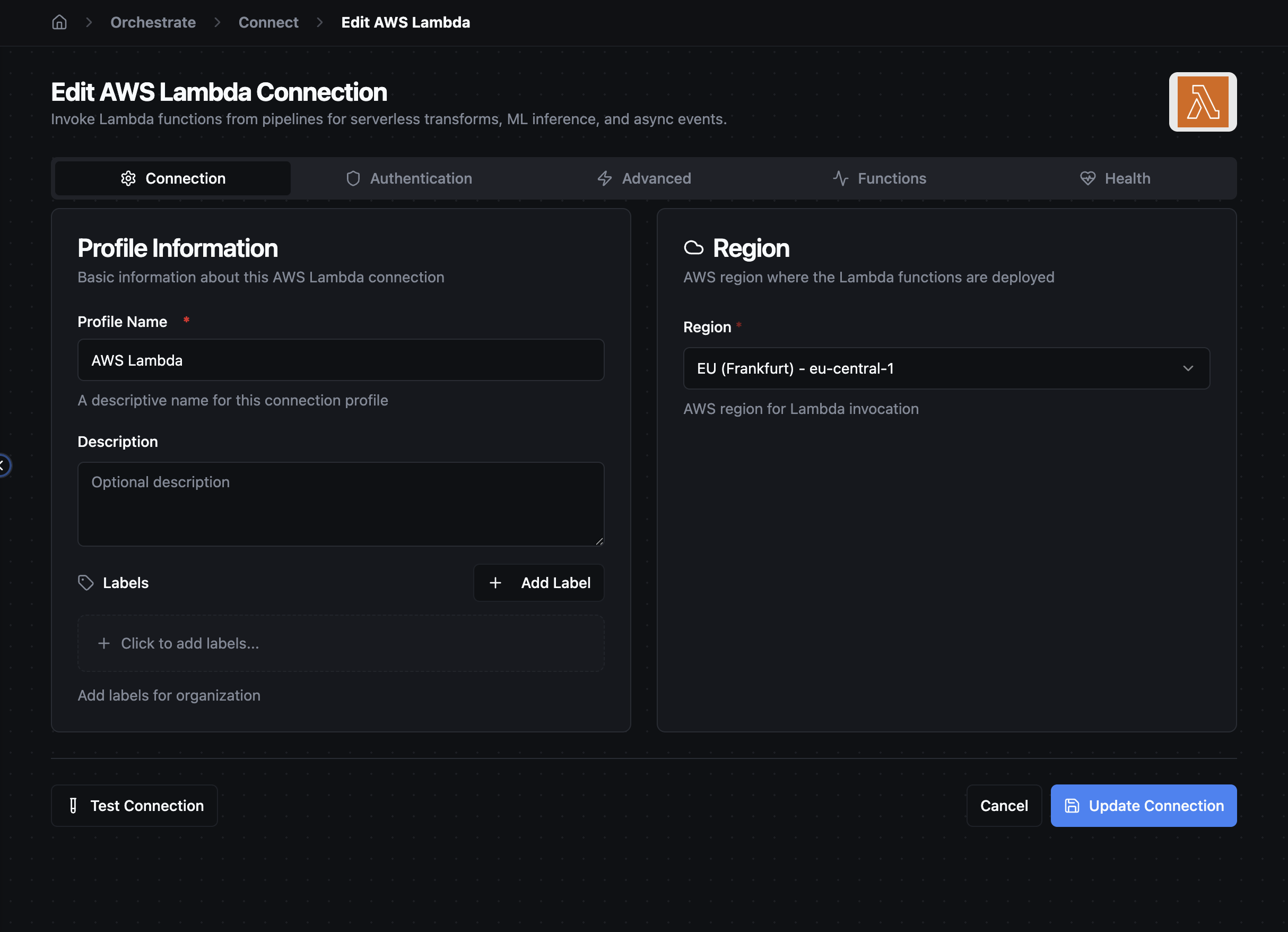
AWS Lambda Connection Creation Fields
1. Profile Information
| Field | Default | Description |
|---|---|---|
| Profile Name | - | A descriptive name for this connection profile (required, max 100 characters) |
| Description | - | Optional description |
2. Region
| Field | Default | Description |
|---|---|---|
| Region | us-east-1 | AWS region where the Lambda functions are deployed (required). Pick from the dropdown or choose Custom Region… for non-standard partitions or LocalStack |
3. Authentication
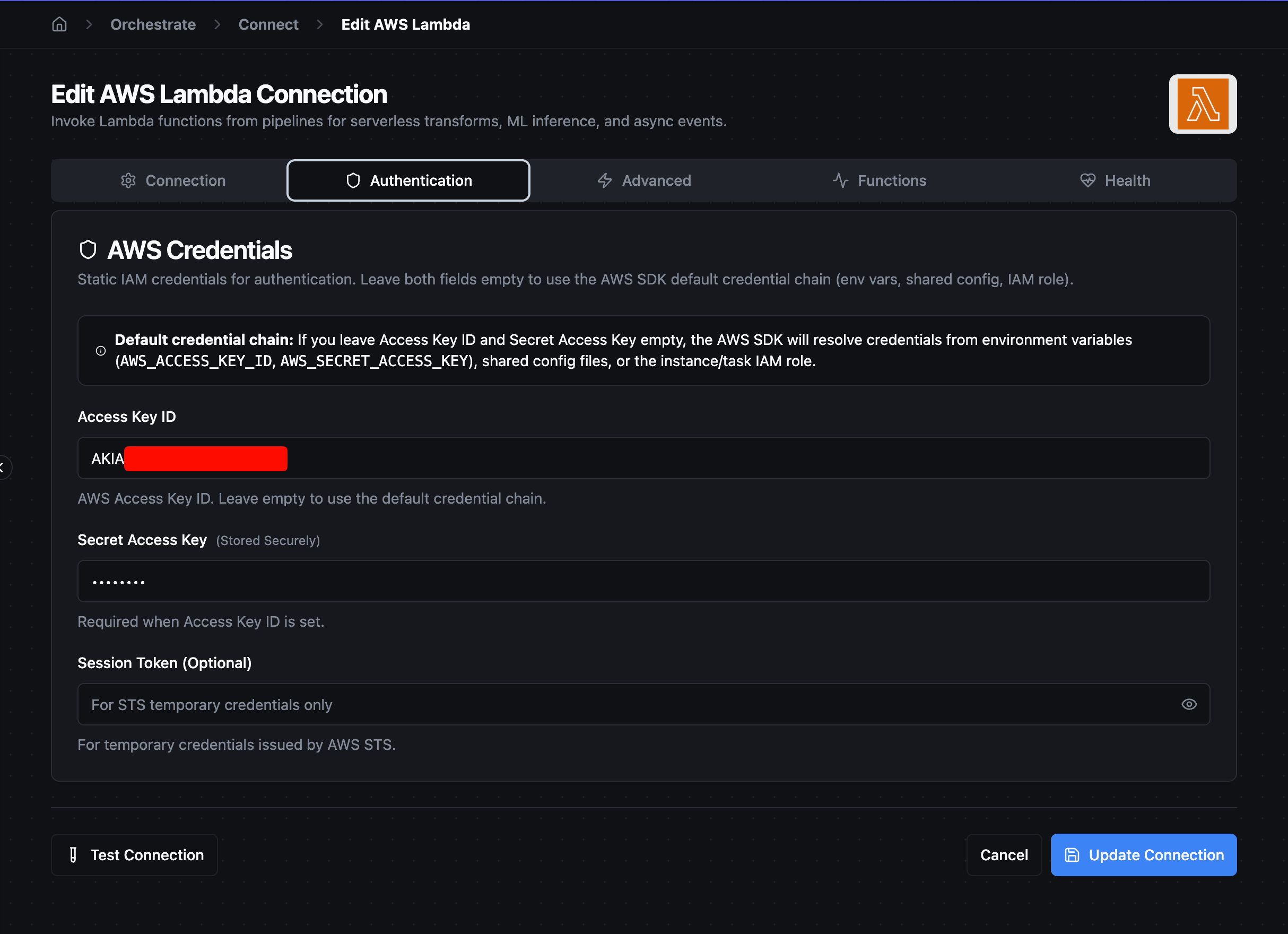
Open the Authentication tab and paste the credentials from the IAM setup guide:
| Field | Default | Description |
|---|---|---|
| Access Key ID | - | AWS Access Key ID. Leave empty to use the default credential chain |
| Secret Access Key | - | AWS Secret Access Key. Required when Access Key ID is set. Masked on edit; leave empty to keep stored value |
| Session Token | - | Optional STS session token for temporary credentials. Masked on edit |
Access Key ID and Secret Access Key must be set together or both empty. Setting only one is rejected at validation time.
4. Advanced
| Field | Default | Description |
|---|---|---|
| Custom Endpoint | - | Custom Lambda endpoint URL (e.g., http://localhost:4566 for LocalStack). Leave empty for AWS Lambda |
| Request Timeout (seconds) | 60 | Upper bound on every Lambda call on this connection, including invocations and the connect check (1-3600s). A function's Timeout Override can shorten it, not extend it. Lambda's hard maximum is 900s (15 min) |
Default credential chain
When both Access Key ID and Secret Access Key are left empty, the AWS SDK resolves credentials from its default chain in this order:
- Environment variables (
AWS_ACCESS_KEY_ID,AWS_SECRET_ACCESS_KEY,AWS_SESSION_TOKEN) - Shared config files (
~/.aws/credentials,~/.aws/config) - EC2 instance / ECS task / EKS pod IAM role
This is the recommended setup when MaestroHub itself runs on AWS — attach an IAM role to the host/task, leave the connector's credential fields empty, and AWS handles credential rotation automatically.
Account boundary
When no custom endpoint is set, the connector talks to AWS's regional Lambda endpoint and the account boundary comes from the credentials. The Access Key ID is bound to a single AWS account; AWS scopes every call accordingly. The Region field only selects which regional endpoint receives the call — it does not affect which account you're in.
To list functions across multiple accounts, create a separate MaestroHub connection per account.
Function Configuration
The AWS Lambda connector exposes three function types.
Invoke (synchronous)
Calls the Lambda with InvocationType=RequestResponse, waits for the response, and returns the decoded payload.
| Field | Default | Description |
|---|---|---|
| Function Name or ARN | - | Function name (my-fn), partial ARN (123456789012:function:my-fn), or full ARN. Required. Supports template parameters |
| Qualifier | - | Version number or alias (e.g., 1, PROD). Leave empty for $LATEST |
| Payload | {} | JSON event payload sent to the function. Required. Must be valid JSON. Supports template parameters |
| Log Type | None | Set to Tail to capture the last 4 KB of CloudWatch logs in result.metadata.logs |
| Client Context | - | Optional base64-encoded client context object |
| Dry Run | false | Validate IAM permissions and parameters without invoking the function. Useful as a permission probe |
| Timeout Override (seconds) | - | Per-invoke timeout override (1-3600s). Leave empty or set to 0 to use the connection-level default |
Invoke Async (fire-and-forget)
Calls the Lambda with InvocationType=Event. AWS queues the request and returns 202 Accepted immediately; the function executes asynchronously.
| Field | Default | Description |
|---|---|---|
| Function Name or ARN | - | Same as Invoke |
| Qualifier | - | Same as Invoke |
| Payload | {} | Same as Invoke |
| Client Context | - | Optional base64-encoded client context object |
| Timeout Override (seconds) | - | Per-invoke timeout override. Async only waits for the queue acknowledgment, so this is typically short |
Async invocations don't return a payload — the result data contains only {statusCode: 202}.
List Functions
Returns Lambda function metadata visible to the configured credentials. Useful for discovery pipelines.
| Field | Default | Description |
|---|---|---|
| Marker | - | Pagination marker from a previous nextMarker response |
| Max Items | 50 | Maximum functions per page (1-10000) |
| Function Version | ALL | ALL returns every published version; unqualified returns only the latest |
The result includes functions[] (array entries with functionName, functionArn, runtime, role, handler, version, description, plus lastModified, timeout, and memorySize when available), count, and nextMarker when more pages exist.
Result Shape
A pipeline reads a node's output as {result, _metadata}: the connector's returned data is result, and execution facts (success, functionId, durationMs, timestamp) live in _metadata. The AWS-side detail the connector records alongside the call — functionName, executedVersion, the tail log, the FunctionError category — rides the connector's own metadata, which the execute RPC does not deliver to a pipeline (#5019). It reaches the operator through Execution History and the connector's test dialog, not through an expression.
Invoke (success)
// $node["Route Order"].result
{
  "statusCode": 200,
  "payload": { /* decoded JSON response from the Lambda */ }
}
payload is the function's response decoded from JSON, the raw string when the response was not JSON, or null when the function returned nothing.
Invoke (function error)
When the Lambda function code throws, AWS returns HTTP 200 with a FunctionError field. The connector translates that into a failed node, so your pipeline's error-handling branch fires as expected — you don't need to inspect status codes manually. A failed node writes no output, so there is no result to read on that path; the AWS error category and the function's error payload appear in the failure message and in Execution History.
Invoke Async (success)
// $node["Fire Reprocess"].result
{ "statusCode": 202 }
AWS answers an asynchronous invocation with 202 Accepted and no body, so the function's own output is never available on this node. Use the synchronous Invoke node when a downstream node needs the result.
List Functions (success)
// $node["Discover Functions"].result
{
  "functions": [
    {
      "functionName": "order-router",
      "functionArn": "arn:aws:lambda:eu-west-1:123456789012:function:order-router",
      "runtime": "python3.12",
      "role": "arn:aws:iam::123456789012:role/lambda-exec",
      "handler": "app.handler",
      "version": "$LATEST",
      "description": "Routes shop-floor orders",
      "lastModified": "2026-08-14T09:12:33.000+0000",
      "timeout": 30,
      "memorySize": 512
    }
  ],
  "count": 1,
  "nextMarker": "eyJNYXJrZXIiOiBudWxsfQ=="
}
lastModified, timeout and memorySize are present only when AWS returned them; nextMarker only when more functions remain.
Pipeline Integration
The connector exposes three connected node types in the pipeline editor:
connected.awslambda.invoke— synchronous invocationconnected.awslambda.invoke_async— async invocationconnected.awslambda.list_functions— function discovery
All three live under the API category in the node sidebar.
Testing the Connection
After saving the connection, click Test Connection to verify the credentials and region. Internally this calls lambda:GetAccountSettings, which is the cheapest way to confirm:
- The Access Key ID + Secret Access Key are valid
- The IAM principal has the required permissions
- The region is reachable
If the test fails, the most common causes are:
| Error | Cause |
|---|---|
no valid credential sources | Both credential fields empty and no default chain available |
AccessDeniedException on GetAccountSettings | IAM policy missing lambda:GetAccountSettings |
InvalidSignatureException | Wrong secret access key (typo or extra whitespace) |
UnrecognizedClientException | Wrong Access Key ID, or key was deleted/disabled |
Common Issues
ResourceNotFoundException on Invoke
The function name doesn't exist in the configured region. AWS Lambda is regional — us-east-1 and us-west-2 are different namespaces. Verify the function ARN's region matches the connection's Region field.
Function returns "execution failed" red card
The Lambda code itself threw an exception. Open the function's CloudWatch log group, or set Log Type = Tail on the function to surface the last 4 KB of logs in the connector's execution record. Note that the tail log is not readable from a pipeline expression (#5019).
Async invocations succeed but the function never runs
Check the function's CloudWatch logs and the configured async event destination (DLQ, EventBridge). Async failures don't surface in MaestroHub — AWS handles retries and dead-letter routing on its side.
Credentials work in AWS CLI but not in MaestroHub
If the CLI uses a profile, MaestroHub doesn't read shared profiles directly. Either copy the access key + secret from ~/.aws/credentials into the connection form, or run MaestroHub on a host with the right environment variables / IAM role.