AWS Lambda IAM Setup
This guide walks through creating a dedicated AWS IAM user, attaching a least-privilege policy, and generating the access key + secret used by the AWS Lambda connector.
If you already have credentials with lambda:InvokeFunction, lambda:ListFunctions, and lambda:GetAccountSettings, you can skip this guide and head straight to the connection form.
Prerequisites
- An AWS account with at least one Lambda function deployed.
- IAM permission to create policies, users, and access keys (typically a console admin).
1. Create the IAM policy
Open the AWS console → IAM → Policies → Create policy. Switch to the JSON tab and paste:
{
  "Version": "2012-10-17",
  "Statement": [
    {
      "Effect": "Allow",
      "Action": [
        "lambda:InvokeFunction",
        "lambda:GetAccountSettings",
        "lambda:ListFunctions"
      ],
      "Resource": "*"
    }
  ]
}
These three actions cover everything the connector needs:
| Action | Used for |
|---|---|
lambda:GetAccountSettings | Connection health check (Ping) and Test Connection |
lambda:InvokeFunction | Sync invoke, async invoke, and Dry Run |
lambda:ListFunctions | The List Functions smart function |
Resource for productionThe example above grants access to all Lambda functions in the account. For production, replace "Resource": "*" with the specific function ARN(s) you want MaestroHub to invoke, e.g. "arn:aws:lambda:us-east-1:123456789012:function:my-fn". lambda:GetAccountSettings and lambda:ListFunctions are account-level and require "*", so keep them in a separate statement when scoping lambda:InvokeFunction.
Click Next, name the policy MaestroHubLambdaPolicy, then Create policy.
2. Create the IAM user
Go to IAM → Users → Create user. Name the user something memorable like MaestrohubLambdaInvoker and leave "Provide user access to the AWS Management Console" unchecked, because this user only needs programmatic access.
3. Attach the policy
On the Set permissions step, choose Attach policies directly:
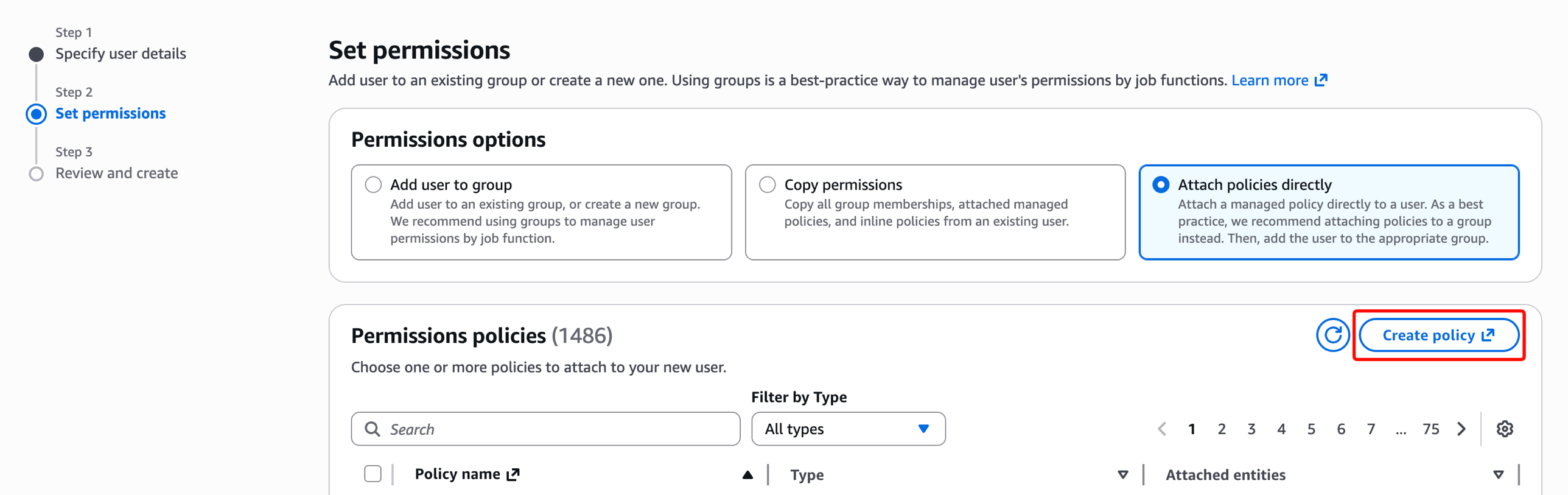
Search for MaestroHub, tick MaestroHubLambdaPolicy, click Next, then Create user.
4. Create the access key
Click into the new user, open the Security credentials tab:
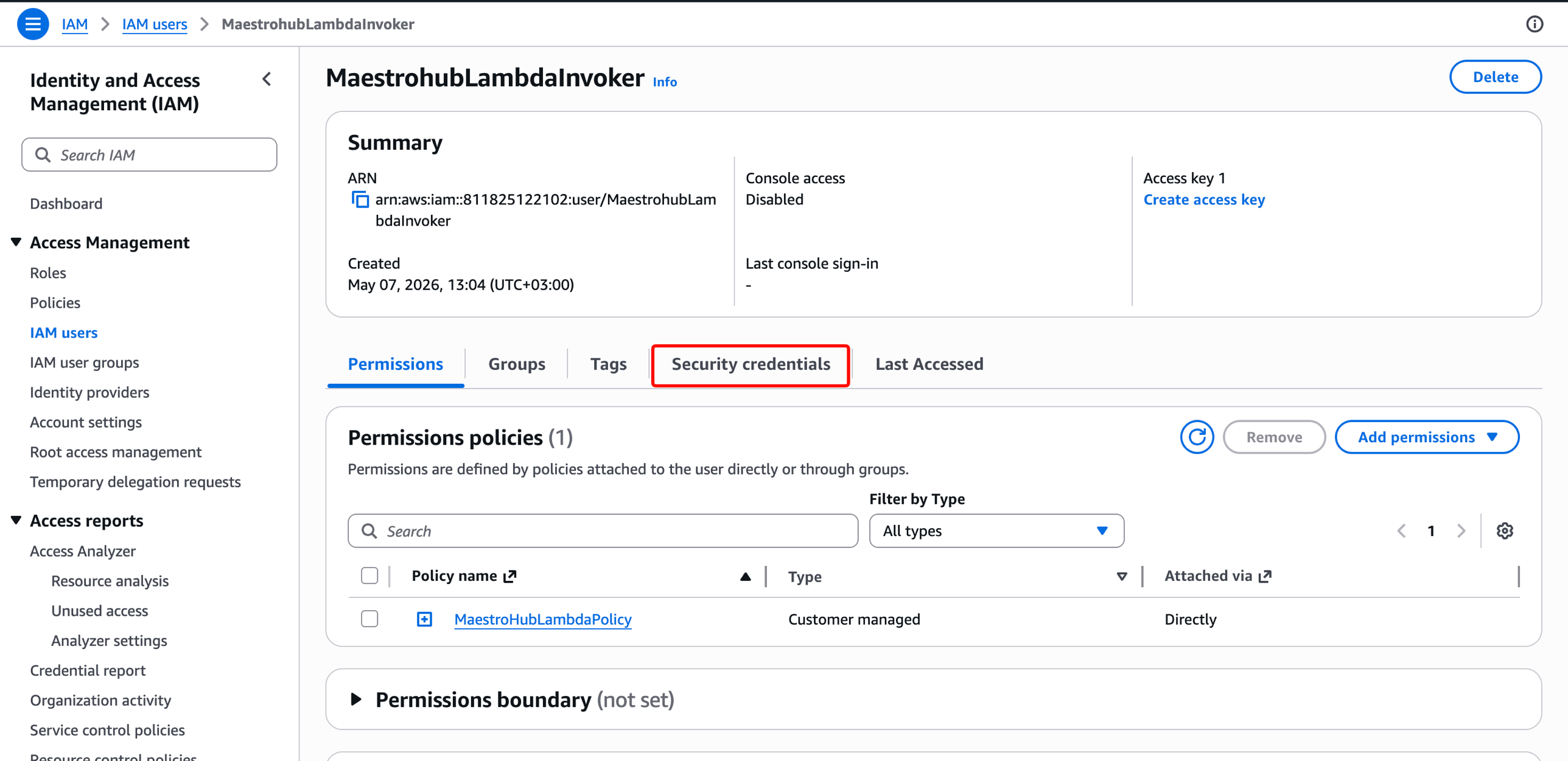
Scroll to Access keys and click Create access key. On the use-case selector, choose Application running outside AWS:
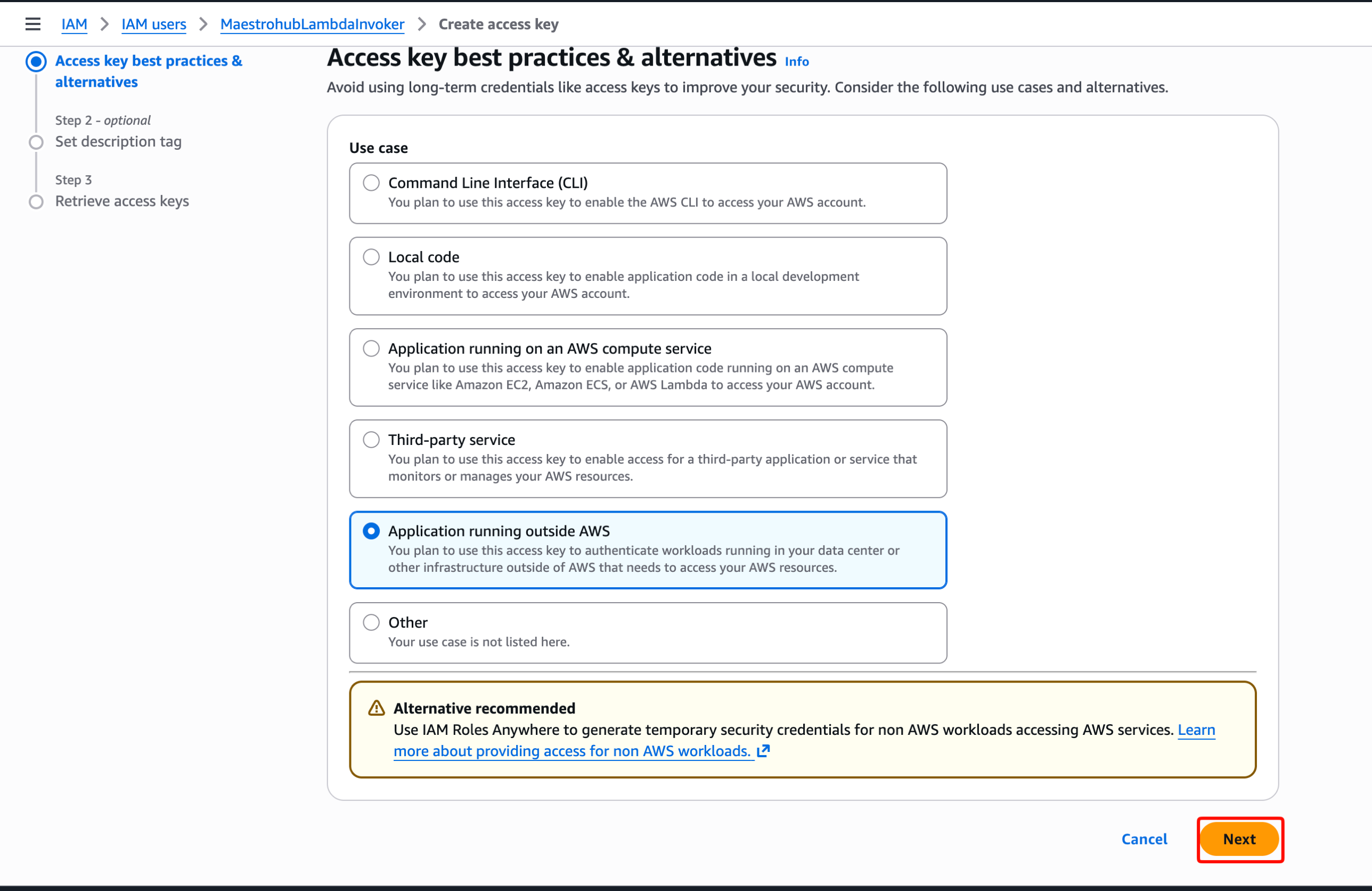
AWS suggests IAM Roles Anywhere for non-AWS workloads. That's a valid hardening path, but for a typical MaestroHub deployment a long-lived access key is the standard choice. If you're running MaestroHub on AWS (EC2/ECS/EKS), prefer attaching an IAM role to the workload and leaving the credential fields empty in MaestroHub; see the default credential chain section.
Click Next through the description tag, then on the final screen copy both the Access Key ID and the Secret Access Key:
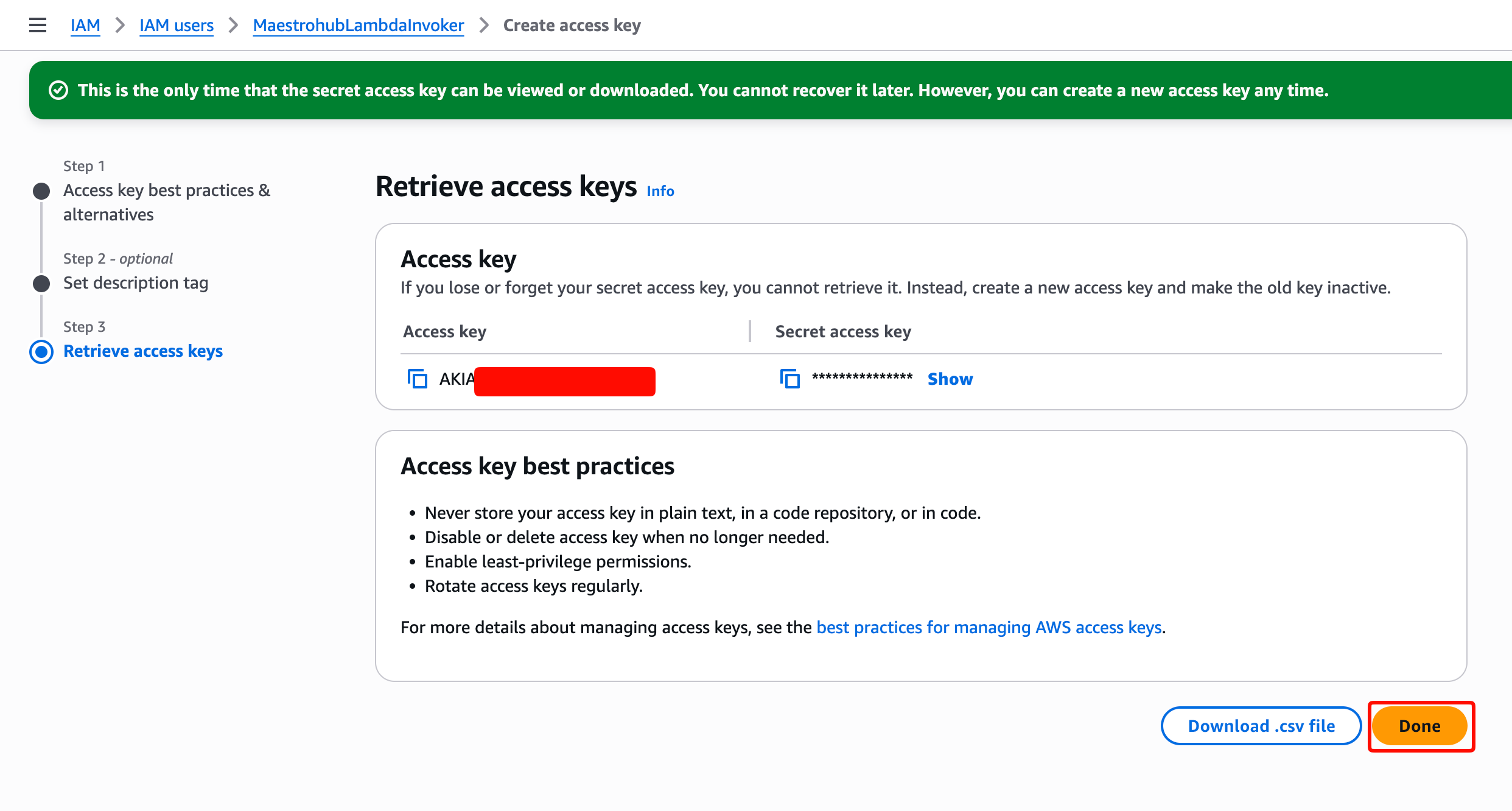
The secret access key is shown only once. If you close this page without copying it, you'll need to create a new access key.
You now have everything you need to fill in the connector form:
- Access Key ID:
AKIA… - Secret Access Key: copy the value before leaving the page
- Region: wherever your Lambda function is deployed (e.g.,
us-east-1)
Next steps
Head to AWS Lambda Connection Configuration to plug these credentials into MaestroHub.