 Beckhoff TwinCAT Integration Guide
Talk directly to Beckhoff TwinCAT 2 and TwinCAT 3 PLC runtimes using MaestroHub's TwinCAT connector, which speaks ADS (Automation Device Specification) — Beckhoff's native protocol — over AMS/TCP. This guide covers connection setup and AMS routing, the symbolic addressing model, authoring read/write/struct functions, the symbolic tag map, server-pushed device notifications, and how the matching nodes slot into the Pipeline Designer.
Overview
The TwinCAT connector provides:
- Symbolic read/write — address variables by their PLC symbol path (
MAIN.fbMotor.Speed), not by raw memory offsets - Typed values —
BOOL, integer types (BYTE/SINT/USINT/INT/UINT/DINT/UDINT/WORD/DWORD),REAL/LREALfloats, andSTRING/WSTRING - Struct read/write — read a whole struct decoded field-by-field, or write selected members atomically with field-merge (
autoFill) - Array access — read a 1-D scalar array variable as a list in a single round-trip
- Full symbol browsing — upload and search the PLC's symbol table from the tag picker
- Batched sum-up reads — read many symbols in one ADS request instead of one round-trip per tag
- Server-pushed device notifications — the PLC pushes a new sample on-change or on a cycle, eliminating polling (used as a pipeline trigger)
- Symbolic tag mapping — map friendly names to symbol paths
- Automatic reconnection — transparent teardown-and-reconnect with a configurable retry budget
The connector targets the TwinCAT PLC runtime over AMS/TCP (port 48898):
- TwinCAT 3 (TC3) — select TwinCAT Version
TC3(default AMS port851) - TwinCAT 2 (TC2) — select TwinCAT Version
TC2(default AMS port801)
Both versions share the same symbol and STRING handling. Plain ADS (securityMode: none) is supported today; Secure ADS (TLS/PSK on port 8016) arrives in a future release.
How ADS Connections Work
ADS is not a simple host:port socket protocol — it routes messages between AMS devices, each identified by a 6-byte AmsNetId (written as six dotted octets, e.g. 192.168.1.10.1.1) and an AmsPort (the runtime task). The transport (AMS/TCP) runs on port 48898, but the actual addressing is by AmsNetId + AmsPort.
Two things must line up for a connection to succeed:
- The target — the PLC's
Address(IP/host, used to open the AMS/TCP socket on port 48898), itsTarget AmsNetId, and theAMS Portof the runtime you want (851 for a TC3 PLC task, 801 for TC2). - The route — the PLC must have a route that trusts this host's AmsNetId (
Local AmsNetId). Without that route the PLC silently refuses the connection. This is the single most common setup problem.
ADS connections are gated by a route on the PLC side. Before the connection can work, add a route on the PLC that trusts this host's Local AmsNetId:
- TwinCAT 3: TwinCAT XAE / System Manager → Routes, or edit
StaticRoutes.xml - TwinCAT 2: TwinCAT System Manager → Route settings
Without the route, Test Connection fails — usually as a timeout or an AMS router error, not an obvious "access denied". The connector turns this failure into an actionable message telling you exactly which AmsNetId to add. Confirm a runtime is actually listening on the chosen AMS Port too.
Connection Configuration
Creating a TwinCAT Connection
Navigate to Connections → New Connection → Beckhoff TwinCAT and configure the form. The form is organized into six tabs: Connection, Advanced, Tag Map, Functions, Scaling, and Health. The Functions, Scaling, and Health tabs unlock after the connection is saved.
1. Profile Information
| Field | Default | Description |
|---|---|---|
| Profile Name | — | A descriptive name for this connection profile (required, max 100 characters). Must be unique across all connections. |
| Description | — | Optional description for this TwinCAT connection |
| Labels | — | Key-value pairs to categorize and organize the connection (max 10 labels) |
Example Labels
environment: production— Deployment environmentline: line-1— Production lineplc-version: TC3— TwinCAT versionarea: packaging— Plant area
2. ADS Connection Settings
| Field | Default | Description |
|---|---|---|
| Address | — | Target PLC IP or hostname (required). The AMS/TCP router port 48898 is used to open the socket. |
| Target AmsNetId | — | 6-byte AMS Net ID of the PLC, written as six dotted octets (required). Often the IP with .1.1 appended, e.g. 192.168.1.10.1.1. |
| AMS Port | 851 | The runtime port: 851 = TC3 PLC task 1, 801 = TC2 PLC, 852/853 = further TC3 tasks (1–65535). |
| Local AmsNetId | — | This host's AMS Net ID (six dotted octets). Must be added as a trusted route on the PLC or the connection fails. Leave blank to let the runtime use a default. |
| TwinCAT Version | TC3 | TC2 or TC3. Selecting a version sets the standard AMS Port for you (801 for TC2, 851 for TC3) only when the port is still at the other version's default — it never clobbers a port you typed for a non-standard task. |
The TwinCAT Version field is a convenience that picks the standard runtime port. Override the AMS Port directly when you need a non-default PLC task:
851— TC3 PLC task 1 (the default)852,853, … — further TC3 PLC tasks801— TC2 PLC runtime
If reads fail immediately after connecting, an AMS Port pointed at the wrong task (or no task) is a common cause.
3. Advanced — Local Port, Timing & Retries
The Advanced tab tunes the local ADS port, transport timing, and the retry policy.
| Field | Default | Description |
|---|---|---|
| Local AMS Port | 0 | Local ADS port (0–65535). 0 = auto-assign. |
| Request Timeout (ms) | 5000 | Per-request transport timeout (0–60,000 ms) |
| Retries | 2 | Number of retries on a transport-level failure (0–10) |
| Retry Delay (ms) | 500 | Delay between retry attempts (0–60,000 ms) |
On a transport error (socket closed, dial failure, timeout) the connector tears down the session and reconnects on the next attempt, within the configured Retries budget separated by Retry Delay. An ADS device code (the PLC answered with an error — e.g. "symbol not found") is not retried; it is surfaced immediately as a failed result, because retrying a bad request would only repeat the same error.
4. Tag Map
The Tag Map tab attaches an optional symbolic alias list — see Symbolic Tag Map below. It is entirely optional; every operation can always reference a raw PLC symbol path.
Testing the Connection
Click Test Connection at the bottom of the form. The probe opens the AMS/TCP socket and issues an ADS Read State round-trip as its health check, then reports a latency in milliseconds. A non-zero ADS code still counts as success — the PLC answered, so the wire is alive — only a transport failure (no socket, no route, no runtime) fails the probe.
If the probe fails because of a missing route or a timeout, the connector returns a specific message telling you to add a route on the PLC trusting this host's Local AmsNetId and to confirm a runtime is listening on the chosen AMS Port. Use this before saving to catch a wrong address, AmsNetId, AMS Port, or a missing route early.
Symbolic Addressing
TwinCAT variables are addressed by their symbol path — the fully-qualified name from your PLC program — not by a memory address. Examples:
| Symbol Path | What it refers to |
|---|---|
MAIN.fbMotor.Speed | The Speed member of the fbMotor function-block instance in program MAIN |
GVL.bEStop | The bEStop variable in a Global Variable List |
MAIN.stStatus | A whole struct variable |
MAIN.aTemperatures | An array variable |
Internally each symbol is resolved to a handle and read/written by handle. Handles are valid for the lifetime of one session and are re-resolved automatically after a reconnect or a PLC program download — you never manage them yourself.
Symbol Browser
The function form includes a Symbol Browser in the right sidebar to help you discover symbol paths without leaving MaestroHub:
- Click Browse to upload the PLC's symbol table (via the internal
twincat.list.symbolsoperation). A real PLC can expose tens of thousands of symbols, so the list is virtualized for responsiveness. - The search box filters the list by a case-insensitive substring of the symbol path.
- Each row shows the symbol's type and size; click a row to drop the symbol path straight into the form field (or add it as a data point on a block read).
- The refresh button re-uploads the table — useful after a PLC program download changes the symbols.
Supported Data Types
Each value is interpreted as a data type on top of the raw ADS byte access. All scalars are little-endian. When you leave Data Type blank, the connector uses the type recorded in the uploaded symbol table; set it explicitly to override.
| Data Type | Bytes | Value Shape | Example |
|---|---|---|---|
BOOL | 1 | boolean | true / false |
BYTE | 1 | unsigned 8-bit (0–255) | 200 |
SINT | 1 | signed 8-bit (−128 to 127) | -5 |
USINT | 1 | unsigned 8-bit (0–255) | 200 |
INT | 2 | signed 16-bit (−32,768 to 32,767) | -100 |
UINT | 2 | unsigned 16-bit (0–65,535) | 1234 |
WORD | 2 | unsigned 16-bit | 0x04D2 → 1234 |
DINT | 4 | signed 32-bit | -70000 |
UDINT | 4 | unsigned 32-bit | 70000 |
DWORD | 4 | unsigned 32-bit | 70000 |
REAL | 4 | IEEE 754 single-precision float | 3.14 |
LREAL | 8 | IEEE 754 double-precision float | 3.141592653589793 |
STRING | capacity | text, null-terminated, fixed capacity | Hello |
WSTRING | capacity | text (UTF-16LE), null-terminated, fixed capacity | Hello |
For STRING and WSTRING, the capacity is taken from the symbol's own byte size in the PLC symbol table (e.g. a STRING(80) is 81 bytes including the null terminator). Reads decode up to the first null; writes are truncated to fit and zero-padded to the full capacity so the whole PLC variable is overwritten. You don't set a length manually — the symbol table is authoritative.
When you leave Data Type blank, the connector also decodes the wider IEC types it finds in the symbol table — LINT/ULINT (signed/unsigned 64-bit), LWORD (unsigned 64-bit), and TIME (a DWORD of milliseconds). The explicit Data Type dropdown lists the common set above; for these wider types, leave the override blank and let the symbol table drive decoding.
Arrays
A plain Read Symbol on a 1-D array of a scalar type (e.g. ARRAY [0..9] OF REAL) reads the whole array in one round-trip and returns its elements as a list. Multi-dimensional arrays, arrays of arrays, and arrays of structs are not decoded — they return a clear "not supported — read elements individually" error rather than wrong data. To read one element, address it directly (e.g. MAIN.aTemperatures[3]).
Symbolic Tag Map
The tag map lets functions reference a friendly name (e.g. MotorSpeed) instead of a raw symbol path (MAIN.fbMotor.Speed). It is optional — operations can always use raw symbol paths.
Open the connection → Tag Map tab. Each tag maps a name to a symbol path and an optional data type:
| Field | Required | Description |
|---|---|---|
| Name | Yes | Friendly tag name. Must be unique within the connection — duplicates are rejected. |
| Symbol | Yes | The PLC symbol path the tag resolves to (e.g. MAIN.fbMotor.Speed) |
| Data Type | No | Optional override; leave as Auto to use the type from the symbol table |
Add a tag by filling the Name / Symbol / Data Type row and clicking the + button. Existing tags are listed below with a remove action.
Anywhere a function asks for a Symbol / Tag, you can type either a raw symbol path (MAIN.fbMotor.Speed) or a tag name (MotorSpeed). The connector resolves the tag to its underlying symbol path and data type at execution time. Re-pointing a tag to a different symbol is a one-line change in the tag map rather than an edit to every function.
Function Builder
Creating TwinCAT Functions
After the connection is saved:
- Open the connection and navigate to the Functions tab
- Click New Function to open the function type selection dialog
- Choose a function type (grouped into Read, Write, and Trigger)
- Fill the Basic fields (name, description, labels) and the Configuration fields (operation-specific parameters), using the Symbol Browser to pick paths
- Use the Test Function button to validate the function against the live PLC before saving (except for Device Notification, which is validated by enabling its pipeline)
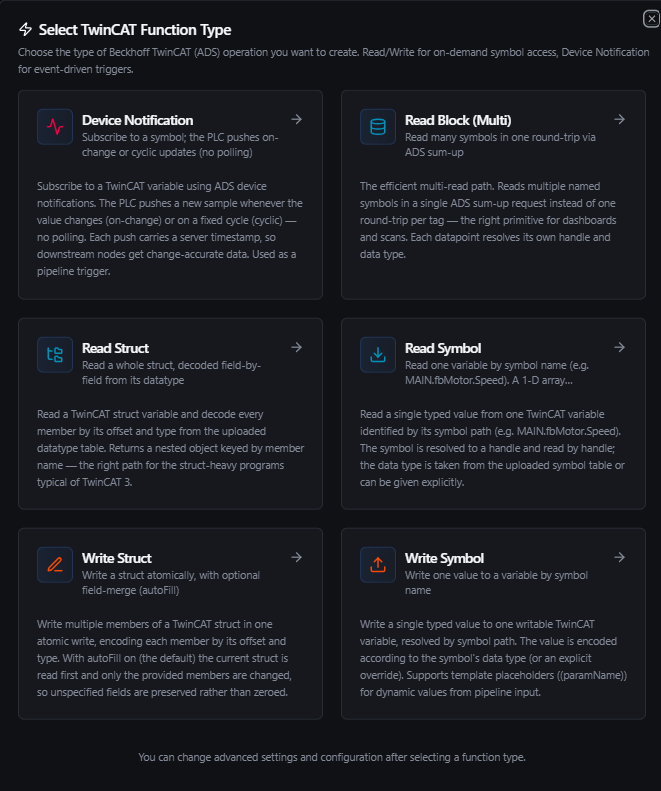
Pick a TwinCAT function type: Read Symbol, Read Block, Read Struct, Write Symbol, Write Struct, or Device Notification
Read Symbol (twincat.read.symbol)
Purpose: Read a single typed value from one TwinCAT variable identified by its symbol path. If the symbol is a 1-D scalar array, its elements are returned as a list (see Arrays).
Configuration Fields
| Field | Type | Required | Default | Description |
|---|---|---|---|---|
| Symbol / Tag | String | Yes | — | PLC symbol path (MAIN.fbMotor.Speed) or a tag-map alias. Supports ((paramName)) templates. |
| Data Type | Select | No | (from symbol table) | Override how to decode the value. Leave blank to use the type recorded in the symbol table. |
Use Cases: Process-variable monitoring, reading a setpoint, checking an E-stop or status flag, reading an array of values.
Example Output
{
  "symbol": "MAIN.fbMotor.Speed",
  "dataType": "LREAL",
  "value": 72.5
}
Read Block (Multi) (twincat.read.block)
Purpose: The efficient multi-read path. Reads multiple named symbols in a single ADS sum-up request instead of one round-trip per tag — the right primitive for dashboards and scans. Each datapoint resolves its own handle and data type; a single bad symbol fails only its own entry, not the whole batch.
Configuration Fields
| Field | Type | Required | Description |
|---|---|---|---|
| Data Points | Array | Yes | One or more symbols to read in a single coalesced operation |
Each data point
| Field | Type | Required | Description |
|---|---|---|---|
name | String | Yes | Output key for this point in the result map |
symbol | String | Yes | PLC symbol path or tag-map alias |
dataType | Select | No | Optional override; blank = use the symbol table type |
Use Cases: Dashboard snapshots, periodic historian logging, reading a block of process values from one program in one efficient call.
Example — Data Points
| name | symbol | dataType |
|---|---|---|
speed | MAIN.fbMotor.Speed | LREAL |
running | MAIN.fbMotor.bRunning | BOOL |
count | MAIN.nPartCount | DINT |
estop | GVL.bEStop | BOOL |
Example Output
{
  "values": {
    "speed": 72.5,
    "running": true,
    "count": 100000,
    "estop": false
  }
}
If any point fails to resolve or decode, the result also includes an errors map keyed by the failing point's name; the points that succeeded are still returned under values:
{
  "values": { "speed": 72.5, "count": 100000 },
  "errors": { "estop": "symbol not found" }
}
Read Struct (twincat.read.struct)
Purpose: Read a whole struct variable and decode every scalar member by its offset and type from the uploaded symbol table. Returns a nested object keyed by member name — the right path for the struct-heavy programs typical of TwinCAT 3. The struct's byte blob is read in one round-trip, then sliced member-by-member; nested structs become nested objects.
Configuration Fields
| Field | Type | Required | Description |
|---|---|---|---|
| Struct Symbol | String | Yes | PLC symbol path of a struct variable (MAIN.stStatus) or a tag-map alias. Supports ((paramName)) templates. |
Use Cases: Reading a machine-status struct, a recipe struct, or any composite type as a single nested object.
Example Output
{
  "symbol": "MAIN.stStatus",
  "dataType": "ST_Status",
  "value": {
    "running": true,
    "speed": 72.5,
    "mode": 2,
    "fault": { "code": 0, "active": false }
  }
}
A plain Read Symbol on a struct returns an error directing you to Read Struct (a struct has no single scalar value). Use Read Struct for any composite type; use Read Symbol for scalars and 1-D scalar arrays.
Write Symbol (twincat.write.symbol)
Purpose: Write a single typed value to one writable TwinCAT variable, resolved by symbol path. The value is encoded according to the symbol's data type (or an explicit override). Writing to a read-only variable is rejected by the PLC with a clear ADS code, surfaced as a failed result.
Configuration Fields
| Field | Type | Required | Default | Description |
|---|---|---|---|---|
| Symbol / Tag | String | Yes | — | Writable PLC symbol path (MAIN.fSetpoint) or a tag-map alias. Supports ((paramName)) templates. |
| Value | Text | Yes | — | Value to write, parsed according to the data type. Supports ((paramName)) templates — see Using Parameters. |
| Data Type | Select | No | (from symbol table) | Override how to encode the value. Leave blank to use the symbol table type. |
Value parsing by type
| Data Type | Accepted Value | Notes |
|---|---|---|
BOOL | true, false, 1, 0, on, off, yes, no | Case-insensitive |
BYTE / USINT / UINT / WORD / UDINT / DWORD | 1234 | Unsigned; rejects negatives |
SINT / INT / DINT | -100 | Signed |
REAL / LREAL | 3.14 | IEEE 754 float |
STRING / WSTRING | Hello | Encoded to the symbol's capacity, null-terminated |
Use Cases: Setpoint updates, recipe download, setting a command/start flag, mode changes.
Example Output
{
  "symbol": "MAIN.fSetpoint",
  "dataType": "LREAL",
  "value": "42.5"
}
Always implement validation and safety checks before writing to industrial equipment. A setpoint or command flag can move a motor, valve, or actuator immediately. Gate writes behind a Condition node that bounds the value, or behind an explicit operator action. A plain Write Symbol on a struct is rejected — use Write Struct.
Write Struct (twincat.write.struct)
Purpose: Write multiple members of a TwinCAT struct in one atomic write, encoding each member by its offset and type. With autoFill on (the default) the current struct is read first and only the provided members are changed, so unspecified fields are preserved rather than zeroed.
Configuration Fields
| Field | Type | Required | Default | Description |
|---|---|---|---|---|
| Struct Symbol | String | Yes | — | PLC symbol path of a struct variable (MAIN.stConfig) or a tag-map alias. Supports ((paramName)) templates. |
| Fields | Object | Yes | — | A JSON object of { memberName: value } to write. Members not listed are preserved when autoFill is on. Supports ((paramName)) templates. |
| Auto-fill (read-merge-write) | Boolean | No | true | When on, the current struct is read and the provided fields are merged so unspecified members are preserved. When off, all unspecified members are written as zero. |
The Fields editor is a JSON object — for example:
{
  "setpoint": 42.5,
  "enabled": true,
  "mode": 2
}
Use Cases: Updating a few fields of a config or recipe struct without disturbing the rest, downloading a complete struct.
Example Output
{
  "symbol": "MAIN.stConfig",
  "written": ["setpoint", "enabled", "mode"],
  "autoFill": true
}
With autoFill = false, every member you do not include in Fields is written as zero — the whole struct is overwritten. Leave autoFill on (the default) unless you intend to reset the entire struct. Nested-struct and array members cannot be written as a single field; write their individual scalar members instead.
Device Notification (twincat.notify)
Purpose: Subscribe to a TwinCAT variable using ADS device notifications. The PLC pushes a new sample whenever the value changes (on-change) or on a fixed cycle (cyclic) — no polling. Each push carries a server timestamp. This function type is a pipeline trigger: see Pipeline Integration and the TwinCAT Trigger node.
Configuration Fields
| Field | Type | Required | Default | Description |
|---|---|---|---|---|
| Symbol / Tag | String | Yes | — | PLC symbol path to monitor (MAIN.bAlarm) or a tag-map alias |
| Data Type | Select | No | (from symbol table) | Override how to decode each sample |
| Mode | Select | No | onChange | onChange = push only when the value changes; cyclic = push every cycle time |
| Cycle Time (ms) | Number | No | 1000 | Sampling cycle for cyclic mode, and the server's change-check interval for onChange (0–3,600,000 ms). 0 = server default. |
| Max Delay (ms) | Number | No | 0 | Maximum time the server batches samples before pushing (0–3,600,000 ms). 0 = no batching (push immediately). |
Use Cases: Trigger a pipeline whenever an alarm flag changes; receive a temperature every 500 ms (cyclic); event-driven telemetry without polling.
In onChange mode the PLC itself only pushes when the value actually changes (checked every Cycle Time). There is no extra deduplication in MaestroHub — every delivered sample is a real change with its own server timestamp. This mirrors the OPC UA subscription model, not the always-fire CANopen TPDO model.
Using Parameters
The Value field on Write Symbol (and the symbol/fields fields) supports parameter placeholders using ((parameterName)) syntax. Parameters are detected automatically as you type and surface in the Function Parameters block. Use parameters to make a single function reusable across multiple pipeline contexts.
| Configuration | Description | Example |
|---|---|---|
| Type | Validate the expected value type | number, boolean, string |
| Required | Force critical inputs | Required / Optional |
| Default Value | Provide safe fallbacks for unattended runs | 0, false, 100.0 |
| Description | Document the parameter's purpose | "Target temperature setpoint in °C" |
Example
- Function type: Write Symbol
- Symbol:
MAIN.fSetpoint - Data Type:
LREAL - Value:
((targetTemp))
At pipeline execution the runtime substitutes ((targetTemp)) with the value bound on the node and writes it to MAIN.fSetpoint.
Testing Functions
Read Symbol, Read Block, Read Struct, Write Symbol, and Write Struct functions can be tested before saving using the Test Function button:
- Click Test Function on the function form
- The dialog shows an execution overview with the resolved configuration
- If the function references
((paramName))templates, you are prompted for values - Click Execute Test to run the function against the live PLC
- The result — decoded value(s), any ADS device error, and execution timing — renders in the dialog
You do not need to save the function to test it. Device Notification functions are not tested this way — they are validated by enabling the pipeline that uses them.
Pipeline Integration
Use the TwinCAT functions you configure here as nodes inside the Pipeline Designer. Reads, writes, and struct operations are exposed as matching connector nodes, and Device Notification functions drive the TwinCAT trigger node:
- TwinCAT Read Symbol (
connected.twincat.read.symbol) — executes atwincat.read.symbolfunction - TwinCAT Read Block (
connected.twincat.read.block) — executes atwincat.read.blocksum-up function - TwinCAT Read Struct (
connected.twincat.read.struct) — executes atwincat.read.structfunction - TwinCAT Write Symbol (
connected.twincat.write.symbol) — executes atwincat.write.symbolfunction - TwinCAT Write Struct (
connected.twincat.write.struct) — executes atwincat.write.structfunction - TwinCAT Trigger (
trigger.twincat) — starts a pipeline on each ADS device notification from atwincat.notifyfunction
For node-level details (full parameter reference, input/output schema, execution settings), see the Beckhoff TwinCAT Nodes and TwinCAT Trigger pages.
For orchestration strategies that mix TwinCAT with other data sources, see the Connector Nodes page.
Common Use Cases
Process Monitoring to a Historian or UNS
Author a Read Block function covering your line's key symbols (speeds, counts, levels, status flags), drive it from a Schedule trigger, and route the decoded map to a historian, MQTT topic, or the Unified Namespace. The sum-up read keeps the round-trip count to one even for dozens of symbols.
Event-Driven Alarms and Telemetry
Author a Device Notification function on an alarm flag (onChange) or a process value (cyclic), then use the TwinCAT Trigger node to start a pipeline on each push — no polling interval, latency bounded by the PLC's check cycle.
Setpoint and Recipe Download
Receive setpoints from an upstream MES or operator UI, then issue parameterized Write Symbol functions (Value: ((setpoint))), or a Write Struct to update several recipe fields atomically. Validate every value with a Condition node before the write reaches the PLC.
Symbolic Tag Standardization
Build a tag map once (or browse the symbol table to discover paths), then author every function against friendly names. Re-pointing a tag to a different symbol is a one-line change in the tag map rather than an edit to every function.
Troubleshooting
Connection Issues
| Symptom | Possible Cause | Solution |
|---|---|---|
| Test Connection fails with a route / timeout message | The PLC has no route trusting this host's AmsNetId | Add a route on the PLC (TwinCAT System Manager → Routes, or StaticRoutes.xml) for this host's Local AmsNetId, then retest. |
| Test Connection times out immediately | Wrong Address, nothing listening on AMS/TCP port 48898, or a firewall | Confirm the PLC IP/host, that port 48898 is reachable from the connector host, and that the TwinCAT system is running. |
| Connects, but every read fails right away | Wrong AMS Port — pointed at a task with no runtime | Use 851 for a TC3 PLC task (or 852/853 for further tasks), 801 for TC2. Confirm the runtime is in Run mode. |
symbol not found style error | The symbol path is wrong, or the program was downloaded and the cached table is stale | Use the Symbol Browser (click Refresh after a program download) to confirm the exact path. Symbol paths are case-insensitive but must otherwise match. |
Read / Write Issues
| Symptom | Possible Cause | Solution |
|---|---|---|
symbol … has compound type … — use read.struct | Tried to Read Symbol on a struct | Use Read Struct for composite types. |
| A struct read/write rejects a member as "compound" | A member is itself a nested struct or array | Read or write the member's individual scalar fields instead of the whole nested member. |
| Write rejected with an ADS device code | The target variable is read-only, or the value is out of range/wrong type | Confirm the variable is writable and the value parses for its data type. |
multi-dimensional arrays are not supported / arrays of … not supported | Read Symbol on a multi-dim array or array of structs | Address individual elements (e.g. MAIN.aData[3]) or read scalar members individually. |
A STRING reads back truncated | The written string exceeded the symbol's capacity | The capacity is the PLC STRING(N) size; shorten the value or enlarge the PLC variable. |
| Notifications stop / "dropping notification samples" warning | The downstream consumer can't keep up with the sample rate | Increase Cycle Time, reduce the number of subscribed symbols, or buffer downstream with an Aggregator node. |
Use the Test Function button on the connection page to validate every read/write/struct function against the live PLC before wiring it into a pipeline. It is the fastest way to catch a wrong symbol path, wrong data type, or a read-only target. Use the Symbol Browser to confirm exact paths and types.