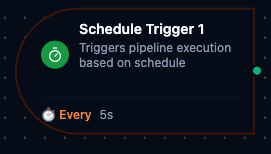
Schedule trigger node
Schedule Trigger Node
Overview
The Schedule Trigger Node automatically initiates MaestroHub pipelines on a recurring cadence. It supports both advanced cron expressions and fixed intervals (milliseconds, seconds, minutes, or hours), giving you the flexibility to automate routine jobs, align pipelines with regional business hours, or capture near real-time telemetry—all without manual intervention.
Core Functionality
What It Does
1. Recurring Pipeline Automation Start pipelines on predictable schedules—from hourly refreshes to monthly closing tasks—without relying on user actions.
2. Cron-Based Precision
Use six-field cron expressions (including seconds) or cron macros (@daily, @hourly, etc.) to model complex timing scenarios. Powered by robfig/cron/v3 with seconds support.
3. Multi-Unit Intervals Trigger pipelines at millisecond precision (100–900 ms), or every N seconds, minutes, or hours for any whole N from 1. The pipeline fires exactly that far apart: 90 seconds is every 90 seconds, 7 minutes is every 7 minutes, 6 hours is every 6 hours. Millisecond intervals use a dedicated high-precision ticker scheduler with drift compensation; second, minute, and hour intervals run on a fixed-period timer.
4. Timezone Awareness Execute cron schedules in any IANA-recognized timezone so that business processes align with local hours and daylight-saving changes.
5. Custom Output Payloads Attach JSON data to each trigger event. The output data merges with the schedule metadata, making it available to all downstream nodes.
Configuration Options
Basic Information
| Field | Type | Description |
|---|---|---|
| Node Label | String (Required) | Display name for the node on the pipeline canvas. Must be non-empty (trimmed). |
| Description | String (Optional) | Explains the intent of the automated workflow. |
Parameters
The schedule configuration is organized across two tabs in the UI: Parameters and Settings.
| Parameter | Type | Default | Required | Constraints | Description |
|---|---|---|---|---|---|
| Schedule Type | select | "interval" | Yes | cron / interval | Schedule mode selection. |
| Cron Expression | string | "0 0 0 * * *" | If cron | 6-field format (see Cron Reference) or macros (@daily, @hourly) | Cron expression including the seconds field. |
| Timezone | string | "UTC" | If cron | IANA timezone names (searchable selector with 50+ timezones) | Timezone for cron expression evaluation. |
| Interval | number | 5 | If interval | See Interval Constraints | Time between trigger firings. |
| Interval Unit | select | "seconds" | If interval | milliseconds / seconds / minutes / hours | Unit for the interval value. |
| Enabled | boolean | true | No | -- | Enable/disable the schedule. |
| Output Data | JSON / null | null | No | Valid JSON or plain string | Custom data payload included on each trigger event. |
Interval Constraints
Allowed ranges depend on the selected Interval Unit:
| Unit | Allowed Values | Input Control | Scheduler |
|---|---|---|---|
| milliseconds | 100, 200, 300, 400, 500, 600, 700, 800, 900 | Dropdown selector | TickerScheduler (high-precision, drift-compensated) |
| seconds | Any whole number from 1 (e.g. 60, 90) | Numeric input | Fixed-period timer |
| minutes | Any whole number from 1 (e.g. 15, 30) | Numeric input | Fixed-period timer |
| hours | Any whole number from 1 (e.g. 1, 6, 24) | Numeric input | Fixed-period timer |
Second, minute, and hour intervals fire exactly one period apart, on the multiples of the period counted in UTC: 30 minutes fires at :00 and :30 of every hour, 1 hour on the hour, 6 hours at 00:00, 06:00, 12:00, and 18:00 UTC. A restart keeps that rhythm instead of starting a new one. For schedules tied to a local clock or calendar (every weekday at 09:00 Berlin time, the first of the month), use a cron expression.
When switching from cron to interval mode, the UI defaults to 100 milliseconds. When switching from interval to cron, it defaults to 0 0 0 * * * (daily at midnight).
Settings
Description
A free-text area for documenting the node's purpose and behavior. Notes entered here are saved with the pipeline and visible to all team members.
Execution Settings
| Setting | Options | Default | Description |
|---|---|---|---|
| Timeout (seconds) | number | Pipeline default | Maximum execution time for this node (1--600). Leave empty for pipeline default. |
| Retry on Timeout | Pipeline Default / Enabled / Disabled | Pipeline Default | Whether to retry the node if it times out. |
| Retry on Fail | Pipeline Default / Enabled / Disabled | Pipeline Default | Whether to retry on failure. When Enabled, shows Advanced Retry Configuration. |
| On Error | Pipeline Default / Stop Pipeline / Continue Execution | Pipeline Default | Behavior when node fails after all retries. |
Advanced Retry Configuration (visible when Retry on Fail = Enabled)
| Field | Type | Default | Range | Description |
|---|---|---|---|---|
| Max Attempts | number | 3 | 1--10 | Maximum retry attempts. |
| Initial Delay (ms) | number | 1000 | 100--30,000 | Wait before first retry. |
| Max Delay (ms) | number | 120000 | 1,000--300,000 | Upper bound for backoff delay. |
| Multiplier | number | 2.0 | 1.0--5.0 | Exponential backoff multiplier. |
| Jitter Factor | number | 0.1 | 0--0.5 | Random jitter (+-percentage). |
Output Data Structure
When the schedule fires, the trigger node produces a structured output with two top-level keys: _metadata and result. The output varies slightly depending on the schedule type.
Cron Trigger Output
{
  "_metadata": {
    "type": "cron_trigger",
    "scheduledTime": "2026-02-11T09:00:00Z",
    "cronExpr": "0 0 9 * * *",
    "timezone": "UTC"
  },
  "result": {}
}
| Field | Type | Description |
|---|---|---|
_metadata.type | string | Always "cron_trigger" for cron schedules. |
_metadata.scheduledTime | string | ISO 8601 timestamp of the scheduled firing time. |
_metadata.cronExpr | string | The cron expression that triggered the execution. |
_metadata.timezone | string | IANA timezone used for evaluation. |
result | any | An empty object by default; the Output Data value when configured. |
Interval Trigger Output
{
  "_metadata": {
    "type": "interval_trigger",
    "scheduledTime": "2026-02-11T14:30:00.500Z",
    "interval": 500,
    "intervalUnit": "milliseconds"
  },
  "result": {}
}
| Field | Type | Description |
|---|---|---|
_metadata.type | string | Always "interval_trigger" for interval schedules. |
_metadata.scheduledTime | string | ISO 8601 timestamp of the trigger firing time. |
_metadata.interval | number | The interval value. |
_metadata.intervalUnit | string | The interval unit ("milliseconds", "seconds", "minutes", or "hours"). |
result | any | An empty object by default; the Output Data value when configured. |
Output Data
When you configure Output Data, it is delivered as result — it does not merge into the top level. For example, if Output Data is {"triggeredBy": "schedule", "region": "us-east"}, the downstream output becomes:
{
  "_metadata": {
    "type": "cron_trigger",
    "scheduledTime": "2026-02-11T09:00:00Z",
    "cronExpr": "0 0 9 * * *",
    "timezone": "UTC",
    "timestamp": "2026-02-11T09:00:00.004Z"
  },
  "result": {
    "triggeredBy": "schedule",
    "region": "us-east"
  }
}
Read it as $trigger.result.triggeredBy and $trigger.result.region.
Referencing in Downstream Nodes
Use expressions to access schedule data in subsequent nodes:
$trigger._metadata.type--"cron_trigger"or"interval_trigger"$trigger._metadata.scheduledTime-- when the schedule fired$trigger._metadata.cronExpr-- cron expression (cron mode only)$trigger._metadata.timezone-- timezone (cron mode only)$trigger._metadata.interval-- interval value (interval mode only)$trigger._metadata.intervalUnit-- interval unit (interval mode only)$trigger.result.triggeredBy-- custom field from Output Data (if configured)
Testing with the Fire Button
The designer's Fire action (the rocket on the node) starts a real run without waiting for the schedule, and the run carries the same envelope a real tick does, so an expression that reads $trigger._metadata.scheduledTime, cronExpr or interval behaves the same from the rocket, from Test Node, and from the schedule itself:
_metadata.typeis"cron_trigger"or"interval_trigger"per the node's schedule type, withcronExprandtimezone, orintervalandintervalUnit, copied from the node's configuration.scheduledTimeis the moment of the click -- a fire has no scheduled instant.- The run also carries the manual fire's provenance --
nodeId,nodeType,userId,triggeredAt-- so a downstream node can tell a Fire run from a tick by itsuserId. resultis the node's Output Data, exactly as on a tick, or{}when none is configured. Test Data is used only by Test Node.
The execution itself is recorded with trigger type manual, like every run started from the designer, and it is never deduplicated against a real tick in the same minute.
Validation Rules
The Schedule Trigger Node enforces validation at both the frontend (UI) and backend levels.
Node Configuration Validation
Label Requirements
- Must not be empty
- Must not contain only whitespace
- Error: "Node name is required"
Schedule Type Validation
- Must be either
cronorinterval - Error: "Schedule type must be either 'cron' or 'interval'"
Cron Mode Validation (scheduleType = "cron")
- Cron expression is required and must not be empty
- Must contain six space-separated fields (or be a valid macro like
@daily) - Supports cron macros:
@daily,@hourly,@weekly, etc. - Syntax validation deferred to the cron library at runtime
- Errors:
- "Cron expression is required for cron schedule type"
- "Cron expression must have exactly 6 fields (second minute hour day month day-of-week)"
Interval Mode Validation (scheduleType = "interval")
Validation depends on the selected Interval Unit:
| Unit | Constraint | Error |
|---|---|---|
| milliseconds | Must be one of: 100, 200, 300, 400, 500, 600, 700, 800, 900 | "interval must be one of 100, 200, 300, 400, 500, 600, 700, 800, 900 when intervalUnit is milliseconds (got …)" |
| seconds, minutes, hours | Any whole number from 1 | "interval is required when scheduleType is "interval" and must be greater than 0" |
Additional rules:
- Interval value is required and must be a whole number greater than 0 (a fraction such as 1.5 is refused)
- Interval unit is required and must be one of
milliseconds,seconds,minutes, orhours - Cron expression is ignored in interval mode
- Errors:
- "interval must be a whole number (got 1.5)"
- "intervalUnit is required when scheduleType is "interval" — one of milliseconds, seconds, minutes, hours"
- "intervalUnit must be one of: milliseconds, seconds, minutes, hours (got …)"
Timezone Validation
- Must be a string if provided
- Error: "Timezone must be a valid string"
Usage Examples
Daily Report Generation (Cron)
Key configuration
- Label: Daily Report Generator
- Description: Runs every day at 09:00 local time
- Parameters: cron schedule (
0 0 9 * * *), timezoneAmerica/New_York, schedule enabled - Output data:
{"type": "daily", "recipients": ["admin@company.com", "manager@company.com"], "format": "pdf"} - Settings: retry disabled, on error
stop
Downstream usage: $trigger._metadata.cronExpr for audit logging, $trigger._metadata.type to identify the report type, $trigger.result.recipients for the mailing list.
15-Minute Health Monitoring (Cron)
Key configuration
- Label: System Health Monitor
- Description: Checks critical services every 15 minutes
- Parameters: cron schedule (
0 */15 * * * *), timezoneUTC, schedule enabled - Output data:
{"checkType": "health", "targets": ["api", "database", "cache"], "alertThreshold": 90} - Settings: retry enabled, on error
continue
Downstream usage: $trigger.result.targets to iterate over services, $trigger.result.alertThreshold to set the failure threshold.
High-Frequency Sensor Collection (Interval - Milliseconds)
Key configuration
- Label: IoT Sensor Data Collector
- Description: Captures readings every 500 milliseconds
- Parameters: interval
500ms, schedule enabled - Output data:
{"sensorGroup": "temperature-monitors", "metrics": ["temperature", "humidity", "pressure"]} - Settings: retry disabled, on error
stop
Downstream usage: $trigger._metadata.interval to verify tick rate, $trigger.result.sensorGroup to identify the sensor cluster.
Every-5-Seconds Queue Processor (Interval - Seconds)
Key configuration
- Label: Queue Processor
- Description: Drains the outbound message queue every 5 seconds
- Parameters: interval
5seconds, schedule enabled - Output data:
{"queue": "outbound-messages", "batchSize": 50} - Settings: retry enabled, on error
continue
Downstream usage: $trigger.result.queue to select the target queue, $trigger.result.batchSize to limit processing.
Weekly Data Cleanup (Cron)
Key configuration
- Label: Weekly Data Cleanup
- Description: Purges stale data every Sunday at midnight
- Parameters: cron schedule (
0 0 0 * * SUN), timezoneAmerica/New_York, schedule enabled - Output data:
{"cleanupType": "weekly", "retentionDays": 90, "targets": ["logs", "temp_files", "cache"]} - Settings: retry enabled, on error
stop
Downstream usage: $trigger.result.retentionDays to calculate the cutoff date, $trigger.result.targets to iterate over cleanup targets.
Temporarily Disabled Schedule (Cron)
Key configuration
- Label: Disabled Weekend Notification
- Description: Weekend notifications (currently paused for summer)
- Parameters: cron schedule (
0 0 10 * * SAT,SUN), timezoneAsia/Tokyo, schedule disabled - Output data:
{"notificationType": "weekend-summary", "recipients": ["team@company.jp"]} - Settings: retry disabled, on error
stop
Downstream usage: Pipeline will not execute until Enabled is toggled back on.
Best Practices
Choosing the Right Schedule Type
Use Cron When
- Jobs rely on specific days, hours, or weekdays
- Timezone alignment and daylight-saving adjustments matter
- You need readable patterns like "every weekday at 09:00"
Use Interval When
- You want a fixed rhythm, from sub-second to every few hours
- Workloads are timezone-agnostic
- Near real-time monitoring or ingestion is required
Avoid
- Intervals for calendar or local-time schedules (use cron for "every day at 09:00 Berlin time")
- Cron schedules for sub-second timings (cron minimum resolution is 1 second)
Cron Expression Reference
Always provide six fields: second minute hour day month day-of-week
| Field | Range | Special Characters |
|---|---|---|
| Second | 0-59 | *, ,, -, / |
| Minute | 0-59 | *, ,, -, / |
| Hour | 0-23 | *, ,, -, / |
| Day of Month | 1-31 | *, ,, -, /, ? |
| Month | 1-12 | *, ,, -, / |
| Day of Week | 0-7 (0 and 7 = Sunday) | *, ,, -, /, ? |
Common Examples (also available as click-to-apply presets in the UI)
| Expression | Description |
|---|---|
0 0 0 * * * | Daily at midnight |
0 */15 * * * * | Every 15 minutes |
0 0 9 * * MON | Mondays at 9 AM |
0 30 14 * * FRI | Fridays at 2:30 PM |
0 0 */2 * * * | Every 2 hours |
0 0 0 1 * * | First day of every month |
30 0 0 * * * | Daily at 12:00:30 AM |
@daily | Daily at midnight (macro) |
@hourly | Every hour (macro) |
- Prefer macros for readable daily or hourly schedules
- Document business meaning for complex expressions
- Remember to add the leading seconds field when converting from traditional five-field cron tools
Managing Timezones
- Explicitly set the timezone instead of relying on
UTC - Use full IANA identifiers (e.g.,
America/New_York, notEST) - Consider daylight-saving transitions when scheduling jobs around local midnight
- For multi-region operations, deploy dedicated nodes per region
- The timezone selector in the UI supports 50+ timezones grouped by region (UTC, North America, Europe, Asia-Pacific, South America, Africa) with search and UTC offset display
Working with Intervals
- Start with higher intervals in testing, then tighten as needed
- Monitor infrastructure load; sub-second triggers can create backpressure
- Avoid 100ms intervals in production without robust throughput handling
- Millisecond intervals use a dedicated TickerScheduler with drift compensation for precision
- Second, minute, and hour intervals run on a fixed-period timer: each fire is exactly one interval after the last
Interval Guidance
| Interval | Example Use Case | Risk Guidance |
|---|---|---|
| 100--200 ms | Real-time monitoring | High load: reserve for short-lived bursts only. |
| 300--500 ms | Frequent data collection | Elevated load: monitor worker utilization closely. |
| 600--900 ms | Regular heartbeat checks | Moderate load: safe default for most workloads. |
| 1--5 seconds | Queue draining, polling | Low load: suitable for most production workloads. |
| 5--30 seconds | Periodic syncs, light ETL | Minimal load: broadly safe. |
| 1 minute and longer | Batch processing, reports | Negligible load: use for non-urgent periodic tasks. |
Designing Output Payloads
- Keep payloads concise and structured
- Include metadata such as
scheduleType,expression, ortimezonefor downstream routing - Document downstream expectations to avoid schema drift
- Avoid bloated payloads that slow downstream processing
- Remember: Output Data is delivered as
result— read it as$trigger.result.<field>
Enable vs. Disable
- Use
enabled: falsefor temporary pauses (maintenance, seasonal shutdowns) - Document the reason in the Settings description note
- Delete the node only when the schedule is no longer needed
Error Handling
- Enable retries for critical cron jobs where transient failures occur
- Combine retries with monitoring to avoid silent failures
- Keep retries disabled for high-frequency interval schedules to prevent overload
Configuration reference
The fields below are generated from the node's config contract, so they match what the pipeline validator enforces and what the designer's form offers.
trigger.schedule
| Field | Type | Required | Default | Values | Description |
|---|---|---|---|---|---|
scheduleType | string | yes | — | cron, interval | How the schedule is expressed: cron runs cronExpression in timezone; interval runs every interval intervalUnit. Required — a schedule without it never fires |
cronExpression | string | no | — | — | cron mode: when to fire, as a standard 5-field crontab (minute hour day month weekday, e.g. "0 9 * * MON-FRI"), a 6-field form with a leading seconds field ("0 0 9 * * *"), or a descriptor such as @hourly, @daily or "@every 30m". Required when scheduleType is cron |
timezone | string | no | UTC | — | cron mode: IANA time zone name the cron expression is meant to run in, e.g. America/New_York or Europe/Berlin; default UTC. Carried into $trigger._metadata.timezone |
interval | integer | no | — | — | interval mode: how often to fire, as a whole number of intervalUnit; the pipeline fires exactly that far apart. Allowed: 100, 200, … 900 for milliseconds; any whole number from 1 for seconds, minutes and hours (e.g. 90 seconds, 30 minutes, 6 hours). Required when scheduleType is interval |
intervalUnit | string | no | — | milliseconds, seconds, minutes, hours | interval mode: the unit of interval — milliseconds, seconds, minutes or hours. Required when scheduleType is interval |
enabled | boolean | no | true | — | false pauses this schedule without deleting it: the scheduler does not register it and it never fires. Default true |
outputData | any | no | — | — | Payload the pipeline starts with on every fire: any JSON value, read downstream as $trigger.result. Empty means the run starts with no payload |
testData | any | no | — | — | Payload used instead of outputData when the node is run in the designer's sandbox (Test), so a schedule can be exercised with realistic data without changing what production emits |