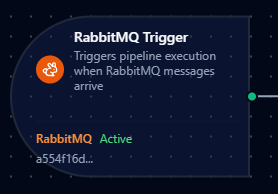
RabbitMQ trigger node
RabbitMQ Trigger Node
Overview
The RabbitMQ Trigger Node automatically initiates MaestroHub pipelines when messages arrive on subscribed RabbitMQ queues. Incoming messages start new pipeline executions, enabling fully event-driven automation. To send RabbitMQ messages from inside a pipeline, use the RabbitMQ Publish node.
Core Functionality
What It Does
RabbitMQ Trigger enables real-time, event-driven pipeline execution by:
1. Event-Driven Pipeline Execution Start pipelines automatically when RabbitMQ messages arrive, without manual intervention or polling. Perfect for task processing, event handling, and real-time data flows.
2. Automatic Subscription Management Queue subscriptions are created and cleaned up automatically—no manual subscription management required.
3. Message Payload Passthrough
Incoming RabbitMQ message payloads are passed directly to the pipeline, along with message metadata (routing key, exchange, headers), making them available to all downstream nodes via the $trigger variable.
Reconnection Handling
MaestroHub automatically handles connection disruptions to ensure reliable message delivery.
Automatic Recovery
When a RabbitMQ connection is lost and restored:
- Connection Lost: The system detects the disconnection automatically
- Channel Recovery: If only the AMQP channel fails (not the connection), it is automatically recreated without a full reconnect
- Connection Restored: Queue subscriptions are automatically re-established within seconds
- Transparent Recovery: Pipelines continue to receive messages once the connection is restored—no manual intervention required
What This Means for Your Workflows
| Scenario | Behavior |
|---|---|
| Brief network interruption | Automatic resubscription after reconnection |
| AMQP channel error | Channel automatically recreated from the existing connection |
| Broker restart | Subscriptions automatically restored when broker comes back online |
| MaestroHub restart | All triggers for enabled pipelines are restored on startup |
To minimize message loss during brief outages, configure your RabbitMQ queues as durable and enable message persistence (delivery mode 2) on the publisher side. With Auto Acknowledge disabled, unacknowledged messages are returned to the queue when the consumer disconnects.
Configuration Options
Basic Information
| Field | Type | Description |
|---|---|---|
| Node Label | String (Required) | Display name for the node on the pipeline canvas |
| Description | String (Optional) | Explains what this trigger initiates |
Parameters
| Parameter | Type | Default | Required | Constraints | Description |
|---|---|---|---|---|---|
| Connection ID | string | "" | Yes | -- | RabbitMQ connection profile to use. |
| Function ID | string | "" | Yes | -- | Consume function within the connection. |
| Trigger Mode | select | "always" | No | always / onChange | always: Trigger on every message. onChange: Only trigger when payload differs. |
| Enabled | boolean | true | No | -- | Enable/disable the trigger. |
| Dedup Max Keys | number | 1000 | If onChange | 1–10,000 | Maximum tracked message hashes for change detection. Uses LRU eviction when the limit is reached. |
The selected function must be a RabbitMQ Consume function type. Publish functions cannot be used with RabbitMQ Trigger nodes.
Settings
Description
A free-text area for documenting the node's purpose and behavior. Notes entered here are saved with the pipeline and visible to all team members.
Execution Settings
| Setting | Options | Default | Description |
|---|---|---|---|
| Timeout (seconds) | number | Pipeline default | Maximum execution time for this node (1–600). Leave empty for pipeline default. |
| Retry on Timeout | Pipeline Default / Enabled / Disabled | Pipeline Default | Whether to retry the node if it times out. |
| Retry on Fail | Pipeline Default / Enabled / Disabled | Pipeline Default | Whether to retry on failure. When Enabled, shows Advanced Retry Configuration. |
| On Error | Pipeline Default / Stop Pipeline / Continue Execution | Pipeline Default | Behavior when node fails after all retries. |
Advanced Retry Configuration (visible when Retry on Fail = Enabled)
| Field | Type | Default | Range | Description |
|---|---|---|---|---|
| Max Attempts | number | 3 | 1–10 | Maximum retry attempts. |
| Initial Delay (ms) | number | 1000 | 100–30,000 | Wait before first retry. |
| Max Delay (ms) | number | 120000 | 1,000–300,000 | Upper bound for backoff delay. |
| Multiplier | number | 2.0 | 1.0–5.0 | Exponential backoff multiplier. |
| Jitter Factor | number | 0.1 | 0–0.5 | Random jitter (+-percentage). |
Output Data Structure
When a RabbitMQ message triggers pipeline execution, the following data is available to downstream nodes via the $trigger variable.
Output Format
{
  "_metadata": {
    "type": "rabbitmq_trigger",
    "connectionId": "bf29be94-fc0a-4dc4-8e5c-092f1b74eb4b",
    "functionId": "aef374c3-aa2b-454e-aabc-5657faac5950",
    "queue": "task-queue",
    "exchange": "amq.topic",
    "routingKey": "tasks.new",
    "redelivered": "true",
    "contentType": "application/json",
    "timestamp": "2026-02-13T10:30:00Z"
  },
  "result": {
    "taskId": "abc-123",
    "action": "process",
    "priority": 5
  }
}
Accessing Message Data
In downstream nodes, use the $trigger variable to access the trigger output:
| Field | Expression | Description |
|---|---|---|
| Message Payload | $trigger.result | The parsed RabbitMQ message content (JSON object or raw value) |
| Queue Name | $trigger._metadata.queue | The queue the message was consumed from |
| Exchange | $trigger._metadata.exchange | The exchange the message was published to |
| Routing Key | $trigger._metadata.routingKey | The routing key of the message |
| Content Type | $trigger._metadata.contentType | MIME type of the message payload |
| Redelivered | $trigger._metadata.redelivered | "true" when the broker has delivered this message before |
| Connection ID | $trigger._metadata.connectionId | The RabbitMQ connection profile used |
| Function ID | $trigger._metadata.functionId | The RabbitMQ Consume function that received the message |
| Trigger Type | $trigger._metadata.type | Always rabbitmq_trigger |
| Timestamp | $trigger._metadata.timestamp | When the message was received |
If your RabbitMQ messages contain JSON, access nested fields directly:
$trigger.result.taskId— Access a specific field$trigger.result— Access the entire message object
Validation Rules
The RabbitMQ Trigger Node enforces these validation requirements:
Parameter Validation
Connection ID
- Must be provided and non-empty
- Must reference a valid RabbitMQ connection profile
- Error: "connectionId is required"
Function ID
- Must be provided and non-empty
- Must reference a valid RabbitMQ Consume function
- Function must belong to the specified connection
- Error: "functionId is required"
Enabled Flag
- Must be a boolean if provided
- Error: "enabled must be a boolean"
Settings Validation
On Error
- Must be one of:
pipelineDefault,stopPipeline,continueExecution - Error: "onError must be a valid error handling option"
Usage Examples
Task Queue Processing
Scenario: Process incoming work items from a task queue in real-time.
Configuration:
- Label: Task Queue Processor
- Connection: Production RabbitMQ Broker
- Function: Consume from
task-queuewith Auto Acknowledge disabled - Trigger Mode: always
- Enabled: true
Downstream Processing:
- Parse JSON payload to extract task details
- Route to appropriate processing node based on task type
- Update task status in database
- Publish result to response queue
Event-Driven Order Processing
Scenario: Automatically process orders published to a topic exchange.
Configuration:
- Label: Order Event Handler
- Connection: Enterprise RabbitMQ
- Function: Consume from
orders.processingqueue (bound toorderstopic exchange with routing keyorders.new.*) - Trigger Mode: always
- Enabled: true
Downstream Processing:
- Validate order structure
- Check inventory availability
- Process payment
- Send confirmation notification
- Publish order status update
Sensor Data Deduplication
Scenario: Ingest sensor readings but only trigger processing when values change.
Configuration:
- Label: Sensor Change Detector
- Connection: IoT RabbitMQ Broker
- Function: Consume from
sensor-readingsqueue - Trigger Mode: onChange
- Dedup Max Keys: 5000
- Enabled: true
Downstream Processing:
- Extract sensor ID and reading value
- Store changed readings in time-series database
- Evaluate alert thresholds
- Publish alerts for abnormal values
Best Practices
Connection Health Monitoring
- Configure your RabbitMQ connection with appropriate Heartbeat intervals (default: 60 seconds) for your network
- Monitor connection status through MaestroHub's connection health dashboard
- MaestroHub automatically recovers from both channel-level and connection-level failures
Designing for Reliability
| Practice | Rationale |
|---|---|
| Disable Auto Acknowledge for critical messages | Ensures messages are re-queued if processing fails |
| Use durable queues and persistent messages | Messages survive broker restarts |
| Set an appropriate Prefetch Count | Controls throughput vs. memory; start with 1 for reliability, increase for throughput |
| Use exclusive consumers sparingly | Prevents competing consumers—only use when single-consumer semantics are required |
Error Handling Strategies
For Critical Workflows:
- Set On Error to
stopPipeline - Monitor pipeline execution failures
- Implement alerting for stopped pipelines
For Best-Effort Processing:
- Set On Error to
continueExecution - Log failed messages for later analysis
- Ensure downstream nodes handle partial failures gracefully
Performance Considerations
| Scenario | Recommendation |
|---|---|
| High message volume | Increase prefetch count; use competing consumers with multiple pipeline instances |
| Large payloads | Ensure adequate memory for payload processing; consider chunking large messages |
| Burst traffic | RabbitMQ queues naturally buffer bursts; monitor queue depth |
| Multiple pipelines on same queue | RabbitMQ distributes messages round-robin across consumers automatically |
Enable vs. Disable
- Use the trigger's Enabled parameter to temporarily pause message processing without changing pipeline state
- Disable triggers during maintenance windows to prevent message processing
- Document the reason for disabled triggers in the node's Description field