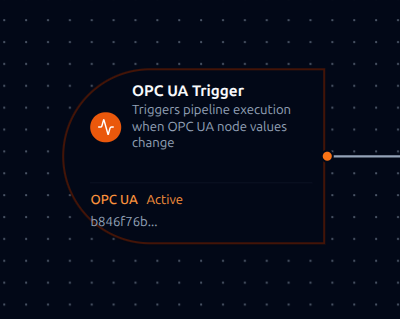
OPC UA trigger node
OPC UA Trigger Node
Overview
The OPC UA Trigger Node automatically initiates MaestroHub pipelines when monitored OPC UA node values change. Unlike the OPC UA Read connector node which reads values within an already-running pipeline, the OPC UA Trigger starts new pipeline executions in response to value changes—enabling fully event-driven automation without polling.
Core Functionality
What It Does
1. Event-Driven Pipeline Execution Start pipelines automatically when OPC UA node values change, without manual intervention or polling. Perfect for equipment monitoring, alarm processing, and real-time production data flows.
2. Automatic Subscription Management Subscriptions and monitored items are created and cleaned up automatically—no manual OPC UA subscription management required. The system handles connection lifecycle and resubscription after reconnections.
3. Rich Value Change Data Each value change notification includes the node value, data type, source and server timestamps, status code, and full node identification—all passed directly to downstream nodes.
4. Multi-Pipeline Support Multiple pipelines can subscribe to the same connection and monitor function. Each data change event is dispatched to all matching pipeline triggers.
How OPC UA Monitoring Works
OPC UA monitoring is fundamentally different from read operations:
| Aspect | Read Operation | Monitor (Subscription) |
|---|---|---|
| Model | Request-response (pull) | Event-driven (push) |
| Execution | One-time value retrieval | Continuous streaming |
| Lifecycle | Stateless | Stateful subscription |
| Use Case | On-demand data access | Real-time change detection |
When you configure an OPC UA Trigger:
- MaestroHub creates a Subscription on the OPC UA server with the configured publishing interval
- Monitored Items are registered for each configured node with individual sampling intervals, queue sizes, and discard policies
- The server samples nodes at the configured sampling interval
- Value changes are queued and published at the publishing interval
- Each notification triggers a new pipeline execution with the changed value data
This push-based model is optimized for low-latency, continuous telemetry in industrial environments.
Reconnection Handling
MaestroHub automatically handles connection disruptions to ensure reliable monitoring.
Automatic Recovery
When an OPC UA connection is lost and restored:
- Connection Lost: The system detects the disconnection automatically
- Connection Restored: Subscriptions and monitored items are automatically recreated
- Transparent Recovery: Pipelines continue to receive value changes once the connection is restored—no manual intervention required
What This Means for Your Workflows
| Scenario | Behavior |
|---|---|
| Brief network interruption | Automatic resubscription after reconnection |
| OPC UA server restart | Subscriptions automatically restored when server comes back online |
| Session timeout | New session established with all monitors restored |
| MaestroHub restart | All triggers for enabled pipelines are restored on startup |
To minimize data loss during brief outages, configure your Monitor function with appropriate Queue Size settings. Larger queues buffer more notifications but use more server memory.
Configuration Options
Basic Information
| Field | Type | Description |
|---|---|---|
| Node Label | String (Required) | Display name for the node on the pipeline canvas. Must be non-empty (trimmed). |
| Description | String (Optional) | Explains what this trigger initiates. |
Parameters
The trigger configuration is organized across two tabs in the UI: Parameters and Settings.
| Parameter | Type | Default | Required | Description |
|---|---|---|---|---|
| Connection | Connection ID | "" | Yes | The OPC UA connection profile to use for subscribing. Filtered to OPC UA connections only. |
| Monitor Function | Function ID | "" | Yes | The OPC UA Monitor function that defines nodes and subscription settings. Filtered to monitor function types. |
| Enabled | boolean | true | No | When disabled, the subscription is not created even if the pipeline is enabled. |
The selected function must be an OPC UA Monitor function type (opcua.monitor). Read, Write, and Browse functions cannot be used with OPC UA Trigger nodes.
Monitor Function Configuration
The Monitor function (configured separately in the Connectors module) controls the OPC UA subscription parameters:
| Setting | Description | Default |
|---|---|---|
| Nodes | Array of OPC UA nodes to monitor (namespace index + identifier) | -- |
| Publishing Interval | How often the server sends notifications (ms) | 1000 |
| Sampling Interval | Per-node sampling rate (ms) | 1000 |
| Queue Size | Per-node notification buffer size | 10 |
| Discard Oldest | Drop oldest notifications when queue is full | true |
Settings
Description
A free-text area for documenting the node's purpose and behavior. Notes entered here are saved with the pipeline and visible to all team members.
Execution Settings
| Setting | Options | Default | Description |
|---|---|---|---|
| Timeout (seconds) | number | Pipeline default | Maximum execution time for this node (1--600). Leave empty for pipeline default. |
| Retry on Timeout | Pipeline Default / Enabled / Disabled | Pipeline Default | Whether to retry the node if it times out. |
| Retry on Fail | Pipeline Default / Enabled / Disabled | Pipeline Default | Whether to retry on failure. When Enabled, shows Advanced Retry Configuration. |
| On Error | Pipeline Default / Stop Pipeline / Continue Execution | Pipeline Default | Behavior when node fails after all retries. |
Advanced Retry Configuration (visible when Retry on Fail = Enabled)
| Field | Type | Default | Range | Description |
|---|---|---|---|---|
| Max Attempts | number | 3 | 1--10 | Maximum retry attempts. |
| Initial Delay (ms) | number | 1000 | 100--30,000 | Wait before first retry. |
| Max Delay (ms) | number | 120000 | 1,000--300,000 | Upper bound for backoff delay. |
| Multiplier | number | 2.0 | 1.0--5.0 | Exponential backoff multiplier. |
| Jitter Factor | number | 0.1 | 0--0.5 | Random jitter (+-percentage). |
Output Data Structure
When an OPC UA node value changes and triggers pipeline execution, the trigger produces a structured output with two top-level keys: _metadata and result.
Unlike the debounced OPC DA and Ignition triggers, each OPC UA value change notification produces one event per monitored item. The OPC UA server's publishing interval controls how notifications are batched.
Output Format
{
  "_metadata": {
    "connectionId": "bf29be94-fc0a-4dc4-8e5c-092f1b74eb4b",
    "functionId": "aef374c3-aa2b-454e-aabc-5657faac5950",
    "timestamp": "2024-01-01T00:00:45.123456789Z",
    "protocol": "opcua",
    "nodeId": "ns=2;i=1001",
    "namespaceIndex": "2",
    "identifier": "i=1001",
    "sourceTimestamp": "2024-01-15T10:30:45.123456789Z",
    "serverTimestamp": "2024-01-15T10:30:45.123456789Z",
    "statusCode": "0x00000000",
    "quality": "good",
    "unit": "°C"
  },
  "result": {
    "value": 42.5,
    "sourceTimestamp": "2024-01-15T10:30:45.123456789Z",
    "serverTimestamp": "2024-01-15T10:30:45.123456789Z",
    "statusCode": "0x00000000",
    "dataType": "Double"
  }
}
_metadata Fields
| Field | Type | Description |
|---|---|---|
connectionId | string | The OPC UA connection profile ID. |
functionId | string | The Monitor function ID. |
timestamp | number | Unix timestamp (seconds) when the event was received. |
protocol | string | Always "opcua". |
nodeId | string | Full OPC UA node identifier (e.g., "ns=2;i=1001", "ns=3;s=Temperature"). |
namespaceIndex | string | Namespace index of the monitored node. |
identifier | string | Node identifier string (e.g., "i=1001", "s=Temperature", "g=<guid>", "b=0x1234"). |
sourceTimestamp | string | ISO 8601 (RFC 3339 nanoseconds) — when the value was sampled at the source. |
serverTimestamp | string | ISO 8601 (RFC 3339 nanoseconds) — when the OPC UA server processed the notification. |
statusCode | string | OPC UA status code as hex string (e.g., "0x00000000" = Good). |
quality | string | The protocol-neutral verdict derived from the status code: good, uncertain or bad. |
unit | string | The node's engineering unit as the server spells it ("°C", "bar"), from its EngineeringUnits property, read once when the node is subscribed. Present only when the node declares one — absent means the device made no statement, not "unitless". |
result Fields
| Field | Type | Description |
|---|---|---|
value | any | The current value of the monitored node. Type matches the OPC UA data type. |
sourceTimestamp | string | ISO 8601 — when the value was sampled at the source. |
serverTimestamp | string | ISO 8601 — when the OPC UA server processed the notification. |
statusCode | string | OPC UA status code as hex string. |
dataType | string | OPC UA data type name (see Supported Data Types). |
Supported Data Types
The dataType field reflects the OPC UA node's data type:
| Data Type | Example Value |
|---|---|
Boolean | true |
SByte, Byte | 127, 255 |
Int16, UInt16 | 32000, 65000 |
Int32, UInt32 | 2147483647, 4294967295 |
Int64, UInt64 | 9223372036854775807 |
Float, Double | 3.14, 42.5 |
String | "Running" |
DateTime | "2024-01-15T10:30:00Z" |
Guid | "09087e75-8e5e-499b-954f-f2a9603db28a" |
ByteString | "0x1234" |
NodeId | "ns=2;i=1001" |
Node Identifier Formats
OPC UA nodes are identified by namespace index and identifier type:
| Type | Format | Example |
|---|---|---|
| Numeric | i=<number> | ns=2;i=2258 |
| String | s=<string> | ns=3;s=Temperature |
| GUID | g=<guid> | ns=4;g=09087e75-8e5e-499b-954f-f2a9603db28a |
| ByteString | b=0x<hex> | ns=5;b=0x1234 |
Referencing in Downstream Nodes
Use expressions to access value change data in subsequent nodes:
$trigger.result.value-- the current value of the monitored node$trigger.result.dataType-- the OPC UA data type name$trigger.result.statusCode-- quality status code$trigger._metadata.nodeId-- full node identifier (e.g.,"ns=2;i=1001")$trigger._metadata.identifier-- short identifier (e.g.,"i=1001")$trigger._metadata.sourceTimestamp-- when the value was sampled$trigger._metadata.connectionId-- connection profile used$trigger._metadata.functionId-- monitor function used
Validation Rules
Parameter Validation
Node Label
- Must not be empty
- Must not consist only of whitespace
- Error: "Node name is required"
Connection ID
- Must be provided and non-empty
- Must reference a valid OPC UA connection profile
- Error: "OPC UA connection is required"
Function ID
- Must be provided and non-empty
- Must reference a valid OPC UA Monitor function
- Function must belong to the specified connection
- Error: "monitor function is required"
Enabled Flag
- Must be a boolean if provided
- Error: "Enabled must be a boolean value"
Usage Examples
Real-Time Temperature Monitoring
Key configuration
- Label: Equipment Temperature Monitor
- Connection: Factory OPC UA Server
- Function: Monitor function subscribing to temperature nodes (
ns=2;i=1001) with 100ms publishing interval - Enabled: true
- Settings: on error
stop
Downstream usage: $trigger.result.value for the temperature reading, $trigger.result.dataType to confirm it's a Double, $trigger._metadata.sourceTimestamp for the sample time.
Production Counter Tracking
Key configuration
- Label: Production Counter Tracker
- Connection: PLC OPC UA Server
- Function: Monitor function for counter nodes with queue size of 50 to capture all increments
- Enabled: true
- Settings: retry disabled, on error
stop
Downstream usage: $trigger.result.value for the counter value, calculate production rate from consecutive values using $trigger._metadata.sourceTimestamp.
Alarm Condition Processing
Key configuration
- Label: Equipment Alarm Handler
- Connection: SCADA OPC UA Server
- Function: Monitor function for alarm nodes with sampling interval of 0 (fastest possible)
- Enabled: true
- Settings: on error
stop
Downstream usage: $trigger.result.value for alarm state, $trigger._metadata.nodeId to identify which alarm fired, $trigger.result.statusCode to verify data quality.
Multi-Node Quality Monitoring
Key configuration
- Label: Quality Parameter Monitor
- Connection: Quality System OPC UA Server
- Function: Monitor function with nodes for temperature, pressure, flow rate, and vibration
- Enabled: true
- Settings: retry disabled, on error
continue
Downstream usage: $trigger._metadata.identifier to determine which parameter changed (e.g., "i=1001" = temperature, "i=1002" = pressure), then route to the appropriate quality check logic.
Best Practices
Subscription Configuration
- Configure your Monitor function with appropriate Publishing Interval for your use case (100–1000ms typical)
- Set Sampling Interval equal to or faster than publishing interval for critical nodes
- Use Queue Size > 1 for nodes where every change must be captured
- Enable Discard Oldest = true to always see the most recent value
Designing for Reliability
| Practice | Rationale |
|---|---|
| Use appropriate Queue Size | Larger queues buffer notifications during network hiccups |
| Set Discard Oldest = true | Ensures you always see the most recent value |
| Keep monitored node count reasonable | Each node adds server-side sampling overhead |
| Group related nodes in one function | Reduces subscription overhead while maintaining logical grouping |
Error Handling Strategies
For Critical Workflows:
- Set On Error to
stopPipeline - Monitor pipeline execution failures
- Implement alerting for stopped pipelines
For Best-Effort Processing:
- Set On Error to
continueExecution - Log failed executions for later analysis
- Ensure downstream nodes handle partial failures gracefully
Performance Considerations
| Scenario | Recommendation |
|---|---|
| High-frequency changes | Increase publishing interval to batch notifications; use larger queue sizes |
| Many monitored nodes | Split across multiple Monitor functions; consider sampling intervals |
| Critical real-time data | Use sampling interval of 0; minimize publishing interval |
| Resource-constrained OPC UA servers | Reduce number of monitored items; increase sampling intervals |
Status Code Interpretation
OPC UA status codes are returned as hex strings. Common values:
| Status Code | Meaning |
|---|---|
0x00000000 | Good — value is reliable |
0x40000000 | Uncertain — value may not be accurate |
0x80000000 | Bad — value is not usable |
Always check $trigger.result.statusCode before processing values in critical workflows.
Enable vs. Disable
- Use the trigger's Enabled parameter to temporarily pause monitoring without changing pipeline state
- Disable triggers during maintenance windows to prevent processing stale reconnection data
- Document the reason for disabled triggers in the node's Notes field