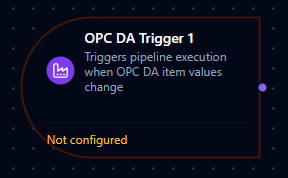
OPC DA trigger node
OPC DA Trigger Node
Overview
The OPC DA Trigger Node automatically initiates MaestroHub pipelines when OPC DA item values change. Unlike polling-based approaches, this trigger provides real-time event-driven automation with intelligent debouncing—multiple rapid item changes within 100ms are aggregated into a single pipeline execution with the latest values for all affected items.
Core Functionality
What It Does
1. Event-Driven Pipeline Execution Start pipelines automatically when OPC DA item values change, without manual intervention or polling. Perfect for legacy system integration, process monitoring, and real-time data flows.
2. Intelligent Debouncing Multiple item changes within a 100ms window are automatically aggregated into a single event, preventing excessive pipeline executions while ensuring you receive the latest values for all changed items.
3. Automatic Subscription Management Subscriptions are created and cleaned up automatically—no manual subscription management required. The system handles connection lifecycle and resubscription after reconnections.
4. Aggregated Item Data
All item values that changed during the debounce window are provided in a single values array, making it easy to process multiple related item changes together.
Debounce Behavior
How Debouncing Works
The OPC DA Trigger uses a 100ms fixed debounce window to aggregate rapid item changes:
- First Change: When the first item value change occurs, a 100ms timer starts
- Subsequent Changes: Any additional item changes within this window update the buffer with the latest values (per tag path)
- Timer Expires: After 100ms, the trigger fires once with an array containing the latest values for all items that changed
- Next Window: The process repeats for the next set of changes
Each function has its own independent debounce buffer.
Benefits of Debouncing
| Scenario | Without Debouncing | With Debouncing |
|---|---|---|
| 10 rapid item changes | 10 separate pipeline executions | 1 pipeline execution with all 10 item values |
| Burst updates | Pipeline overload, potential queueing | Smooth processing with aggregated data |
| Related item changes | Process items individually, lose context | Process all related changes together |
The 100ms debounce window is fixed and cannot be configured. This value provides an optimal balance between responsiveness and aggregation for most industrial automation scenarios.
Reconnection Handling
MaestroHub automatically handles connection disruptions to ensure reliable item monitoring. Reconnection is managed by the supervisor's ReconnectWorker—not inside the protocol client.
Automatic Recovery
When an OPC DA connection is lost and restored:
- Connection Lost: The system detects the disconnection automatically
- Connection Restored: Subscriptions are automatically re-established via
resubscribeAll() - Transparent Recovery: Pipelines continue to receive item changes once the connection is restored—no manual intervention required
What This Means for Your Workflows
| Scenario | Behavior |
|---|---|
| Brief network interruption | Automatic resubscription after reconnection |
| OPC DA server restart | Subscriptions automatically restored when server comes back online |
| MaestroHub restart | All triggers for enabled pipelines are restored on startup |
While the trigger automatically reconnects, item changes that occur during the disconnection period may be missed. For critical data, consider implementing a complementary polling mechanism or configuring appropriate deadband and update rate settings in your OPC DA subscription.
Configuration Options
Basic Information
| Field | Type | Description |
|---|---|---|
| Node Label | String (Required) | Display name for the node on the pipeline canvas. Must be non-empty (trimmed). |
| Description | String (Optional) | Explains what this trigger monitors and initiates. |
Parameters
The trigger configuration is organized across two tabs in the UI: Parameters and Settings.
| Parameter | Type | Default | Required | Description |
|---|---|---|---|---|
| Connection | Connection ID | "" | Yes | OPC DA connection profile. Filtered to OPC DA connections only. |
| Function | Function ID | "" | Yes | Subscribe function within the connection. Filtered to subscribe function types. |
| Enabled | boolean | true | No | Enable/disable the trigger. |
The selected function must be an OPC DA Subscribe function type. Read, write, or browse functions cannot be used with OPC DA Trigger nodes.
Subscribe Function Configuration
The Subscribe function (configured separately in the Connectors module) controls the OPC DA subscription parameters:
| Setting | Description | Default |
|---|---|---|
| Tags | Array of OPC DA item paths to subscribe to | -- |
| Update Rate (ms) | How often the server checks for changes | 1000 |
| Deadband (%) | Minimum change percentage to trigger a notification | 0.0 |
Settings
Description
A free-text area for documenting the node's purpose and behavior. Notes entered here are saved with the pipeline and visible to all team members.
Execution Settings
| Setting | Options | Default | Description |
|---|---|---|---|
| Timeout (seconds) | number | Pipeline default | Maximum execution time for this node (1--600). Leave empty for pipeline default. |
| Retry on Timeout | Pipeline Default / Enabled / Disabled | Pipeline Default | Whether to retry the node if it times out. |
| Retry on Fail | Pipeline Default / Enabled / Disabled | Pipeline Default | Whether to retry on failure. When Enabled, shows Advanced Retry Configuration. |
| On Error | Pipeline Default / Stop Pipeline / Continue Execution | Pipeline Default | Behavior when node fails after all retries. |
Advanced Retry Configuration (visible when Retry on Fail = Enabled)
| Field | Type | Default | Range | Description |
|---|---|---|---|---|
| Max Attempts | number | 3 | 1--10 | Maximum retry attempts. |
| Initial Delay (ms) | number | 1000 | 100--30,000 | Wait before first retry. |
| Max Delay (ms) | number | 120000 | 1,000--300,000 | Upper bound for backoff delay. |
| Multiplier | number | 2.0 | 1.0--5.0 | Exponential backoff multiplier. |
| Jitter Factor | number | 0.1 | 0--0.5 | Random jitter (+-percentage). |
Output Data Structure
When OPC DA item changes trigger pipeline execution, the trigger produces a structured output with two top-level keys: _metadata and result. The result contains a values array with all item values that changed during the 100ms debounce window.
Output Format
{
  "_metadata": {
    "connectionId": "bf29be94-fc0a-4dc4-8e5c-092f1b74eb4b",
    "functionId": "aef374c3-aa2b-454e-aabc-5657faac5950",
    "timestamp": "2024-01-01T00:00:00.123Z",
    "protocol": "opcda",
    "eventType": "DATA_CHANGE",
    "tagCount": "2"
  },
  "result": {
    "values": [
      {
        "path": "Channel1.Device1.Temperature",
        "value": 78.5,
        "quality": "Good",
        "timestamp": "2024-01-15T10:30:00.123Z"
      },
      {
        "path": "Channel1.Device1.Pressure",
        "value": 145.2,
        "quality": "Good",
        "timestamp": "2024-01-15T10:30:00.150Z"
      }
    ]
  }
}
_metadata Fields
| Field | Type | Description |
|---|---|---|
connectionId | string | The OPC DA connection profile ID. |
functionId | string | The Subscribe function ID. |
timestamp | number | Unix timestamp (seconds) when the event was received. |
protocol | string | Always "opcda". |
eventType | string | Always "DATA_CHANGE". |
tagCount | string | Number of items in the values array (as string). |
result.values[] Fields
Each entry in the values array represents one item that changed:
| Field | Type | Description |
|---|---|---|
path | string | Full OPC DA item path (e.g., "Channel1.Device1.Temperature"). |
value | any | The current value of the item. Type depends on the OPC DA item data type. |
quality | string | Quality indicator string (e.g., "Good", "Bad", "Uncertain"). |
timestamp | string | ISO 8601 timestamp when the value changed. |
Referencing in Downstream Nodes
Use expressions to access item data in subsequent nodes:
$trigger.result.values-- array of all changed item values$trigger.result.values[0].path-- item path of the first changed item$trigger.result.values[0].value-- value of the first changed item$trigger.result.values[0].quality-- quality string of the first item$trigger.result.values[0].timestamp-- when the first item changed$trigger._metadata.connectionId-- connection profile used$trigger._metadata.functionId-- subscribe function used$trigger._metadata.tagCount-- number of items that changed$trigger._metadata.protocol-- always"opcda"
Validation Rules
Parameter Validation
Node Label
- Must not be empty
- Must not consist only of whitespace
- Error: "Node name is required"
Connection ID
- Must be provided and non-empty
- Must reference a valid OPC DA connection profile
- Error: "Connection is required"
Function ID
- Must be provided and non-empty
- Must reference a valid OPC DA Subscribe function
- Function must belong to the specified connection
- Error: "Subscribe Function is required"
Enabled Flag
- Must be a boolean if provided
- Error: "Enabled must be a boolean value"
Usage Examples
Legacy PLC Monitoring
Key configuration
- Label: Legacy PLC Monitor
- Connection: Plant Floor OPC DA Server
- Function: Subscribe to
Channel1.Device1.Temperature,Channel1.Device1.Pressure - Enabled: true
- Settings: retry disabled, on error
stop
Downstream usage: $trigger.result.values to iterate all changed items, $trigger.result.values[0].value for the latest reading, $trigger.result.values[0].quality to verify data quality.
Process Control Integration
Key configuration
- Label: DCS Setpoint Monitor
- Connection: DCS OPC DA Server
- Function: Subscribe to
DCS.Unit1.Setpoints.*(all setpoints for Unit 1) - Enabled: true
- Settings: retry enabled, on error
stop
Downstream usage: Extract setpoint name from $trigger.result.values[0].path, validate range, then forward to modern PLC via OPC UA. Use $trigger._metadata.tagCount to check how many setpoints changed simultaneously.
Alarm State Tracking
Key configuration
- Label: Legacy Alarm Monitor
- Connection: SCADA OPC DA Server
- Function: Subscribe to
Alarms.*.*(all alarm items) - Enabled: true
- Settings: on error
continue
Downstream usage: Filter $trigger.result.values for alarm state changes, map to modern alarm format, and update centralized alarm database.
Multi-Item Batch Processing
Key configuration
- Label: Batch Recipe Monitor
- Connection: Recipe System OPC DA
- Function: Subscribe to
Recipe.Active.*(all active recipe parameters) - Enabled: true
- Settings: retry enabled, on error
stop
Downstream usage: The debounce window ensures all related recipe parameter changes arrive in a single $trigger.result.values array. Validate the complete configuration before applying changes.