Functions
Overview
Functions is your organization's shared library of JavaScript functions. You write a function once, give it a name and parameters, prove it with test cases, and then call it by name from the JavaScript code of any pipeline.
Every save publishes a new version of the function. A pipeline never follows "the latest" version on its own: when you save a pipeline, it pins the exact version of each function it calls. Publishing a new version therefore never changes how an already-saved pipeline behaves. A pipeline moves to the new version only when someone updates its pin and saves it.
Navigation Path: Orchestrate > Functions
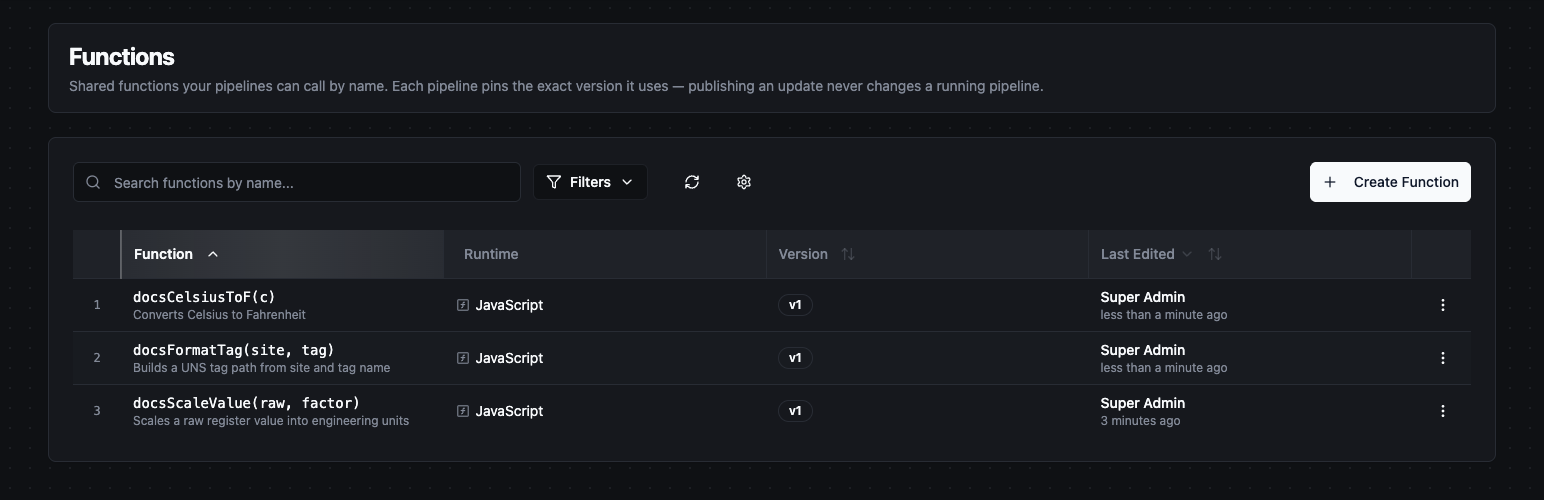
The organization's shared functions with their signature, runtime and version
What a function is
A function has four parts:
| Part | What it is |
|---|---|
| Runtime | The language the function runs in. JavaScript is the only runtime available today. Python and Expression are listed as Coming soon and cannot be selected. The runtime is fixed when the function is created. |
| Name | The name pipelines call the function by, for example formatTag. |
| Parameters | The function's inputs, in order. Each has a name and an optional description. |
| Function body | The JavaScript statements inside the function. Use return to produce the result. |
You write only the body. The editor builds the signature from the name and the parameters and shows it above the body as a read-only line, for example:
function formatTag(area, line, tag) {
  return `${area}/${line}/${tag}`.toLowerCase();
}
A function is pure: its only inputs are its parameters. Pipeline context variables such as $input, $node and $trigger are not available inside a function, and a body that refers to one is refused on save. Pass the values in as parameters instead.
Creating a function
- Go to Orchestrate > Functions and click Create Function.
- Under Function Information, keep the JavaScript runtime, enter a Name, and optionally a Description and Function Labels. The description is shown in the function list and in the code editor's autocomplete.
- Under Function Body, click Add Parameter for each input, then write the body.
- Optionally add test cases under Tests and click Run all (see Testing a function).
- Click Create Function. The function is saved as v1.
Naming rules
The name is a JavaScript identifier, so it must:
- contain only letters, digits and underscores, and not start with a digit (
$is not allowed); - not be a JavaScript reserved word or a standard built-in such as
Math,JSON,DateorparseInt; - be unique in the organization.
Parameter names follow the same rules and must be unique within the function.
Testing a function
The Tests panel sits next to the body, so you can fix a failing case without leaving the code.
Each test case has:
| Field | What to enter |
|---|---|
| Name | Optional label. Defaults to Case 1, Case 2, … |
| Arguments | A JSON array, one element per parameter in order, for example ["Packaging", "L2", "Speed"]. |
| Expected output | Optional JSON. Leave it empty to run the case without a check. |
Click Run all to run every case against the code currently in the editor, including unsaved changes. Each case shows one of these results:
| Result | Meaning |
|---|---|
| Passed | The function returned the expected output. |
| Failed | The function returned something else. The expected and actual values are shown side by side. |
| Error | The function threw an error. The error message is shown. |
| Ran | The case has no expected output. The returned value is shown. |
Test cases are saved with the function and are part of its version history.
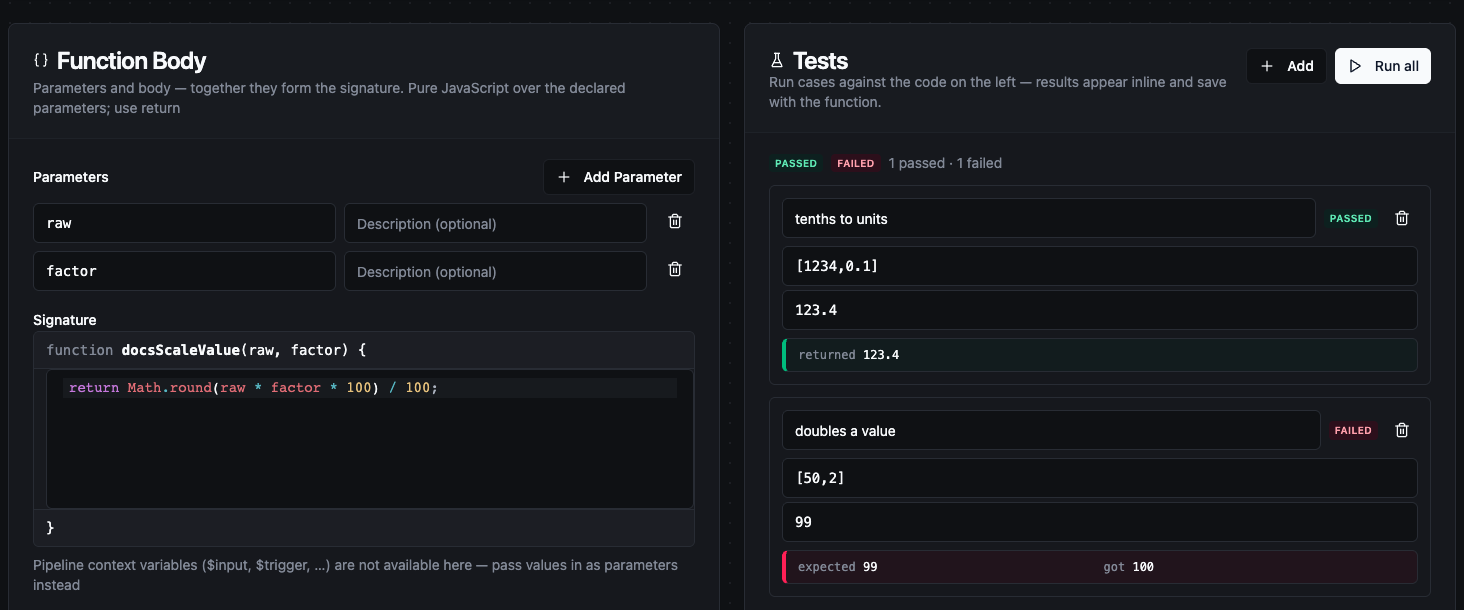
Function body and signature beside its tests after Run all: one passed, one failed
Publishing new versions
Open a function from the list and click Update Function to save your changes. Any change publishes a new version — the name, description, labels, parameters, body or test cases. The version number appears next to the function's name, and the editor confirms with Published vN. If nothing changed, the editor tells you the function is still at its current version.
When editing an existing function you can add a Change note. It is shown on the version history entry that the save creates.
If someone else published a version after you opened the editor, your save is refused. Reload the function to see the latest version, then apply your change again.
Version history and restore
Click Version history at the bottom of the editor to list every version, view its full code, and compare it with the version before it.
To go back to an older version, select it and click Restore as new version. The old content is published as a new version; the history is never rewritten. Pipelines pinned to any version keep running what they pinned.
Used By
The Used By tab of a function lists every pipeline that calls it, with the version each pipeline pins. When a pipeline pins an older version, the tab also shows the latest version number. The tab is available once the function has been created.
Calling a function from a pipeline
Functions can be called from:
- the code of a JavaScript node;
- the field expressions of a Build Payload node.
Call the function by its name, like any JavaScript function. There is no import or prefix:
const t = $input[0].result;
return { topic: formatTag(t.area, t.line, t.tag), value: t.value };
The code editor in these nodes autocompletes function names and shows each function's parameters.
The pipeline finds the functions you use by looking for their names in your code. Write the name literally: a name that appears only inside a string or a comment is not counted, and a name built at run time (for example globalThis["format" + "Tag"]) is not detected, so that function is not pinned and the call fails at run time.
A function can call other functions from the library. A pipeline that calls the first function also pins the ones it calls.
Version pinning
The pins are worked out every time the pipeline is saved:
- A function the pipeline calls for the first time is pinned at its latest version.
- A function that is already pinned stays at its pinned version, even when newer versions exist. There are no silent upgrades.
- A function the pipeline no longer calls is removed from the pins.
Because pins are set on save, a pipeline that calls a function must be saved after the function exists. A cloned pipeline keeps the pins of the pipeline it was cloned from, and restoring an older pipeline version restores the pins that version had.
A live run always uses the pinned versions. Test Node runs in the designer use the latest version of every function, so a test can behave differently from a live run when a newer version has been published.
Updating a pipeline to a newer version
- Open the pipeline in the designer.
- Click ⋯ More actions → Functions (N). This item appears only when the pipeline pins at least one function.
- The Functions in use dialog lists each pinned function with its pinned version and either up to date or vN available.
- Click a function to see the code the pipeline runs now and, when a newer version exists, the code of the latest version.
- Click Update pin to vN & save.
The pin change is saved straight away as a new pipeline version, so it appears in the pipeline's version history and can be reverted like any other change. The button is disabled if you cannot update the pipeline.
Deleting a function
Open the row's ⋮ menu and choose Delete. A function that any pipeline still calls cannot be deleted. The error lists those pipelines so you can remove the calls first.
Permissions
| Action | Permission |
|---|---|
| Open Orchestrate > Functions and view functions, versions and Used By | global_function:read |
| Create a function (Create Function) | global_function:create |
| Save changes and restore an older version | global_function:update |
| Delete a function | global_function:delete |
| Run test cases (Run all) | global_function:test |
| Update a pipeline's pin from the designer | Permission to update that pipeline |
Without global_function:update, the row action reads View and the editor is read-only.
Among the built-in roles, Organization Administrator, Automate Admin and Data Engineer hold all five global_function permissions. Member, Plant Operator, Automate Editor and Automate Viewer can read functions, which is what the JavaScript editor's autocomplete needs. See Users & Roles.
Related
- JavaScript node — where most functions are called.
- Build Payload node — its field expressions can call functions too.
- Pipeline Version History — every pin change is a pipeline version.