Users & Roles
The Identity & Access module provides two tabs — Users and Roles — for managing user accounts and controlling what each person can do on the platform.
Users
User List
Navigate to Identity & Access → Users to see every user account in the system.
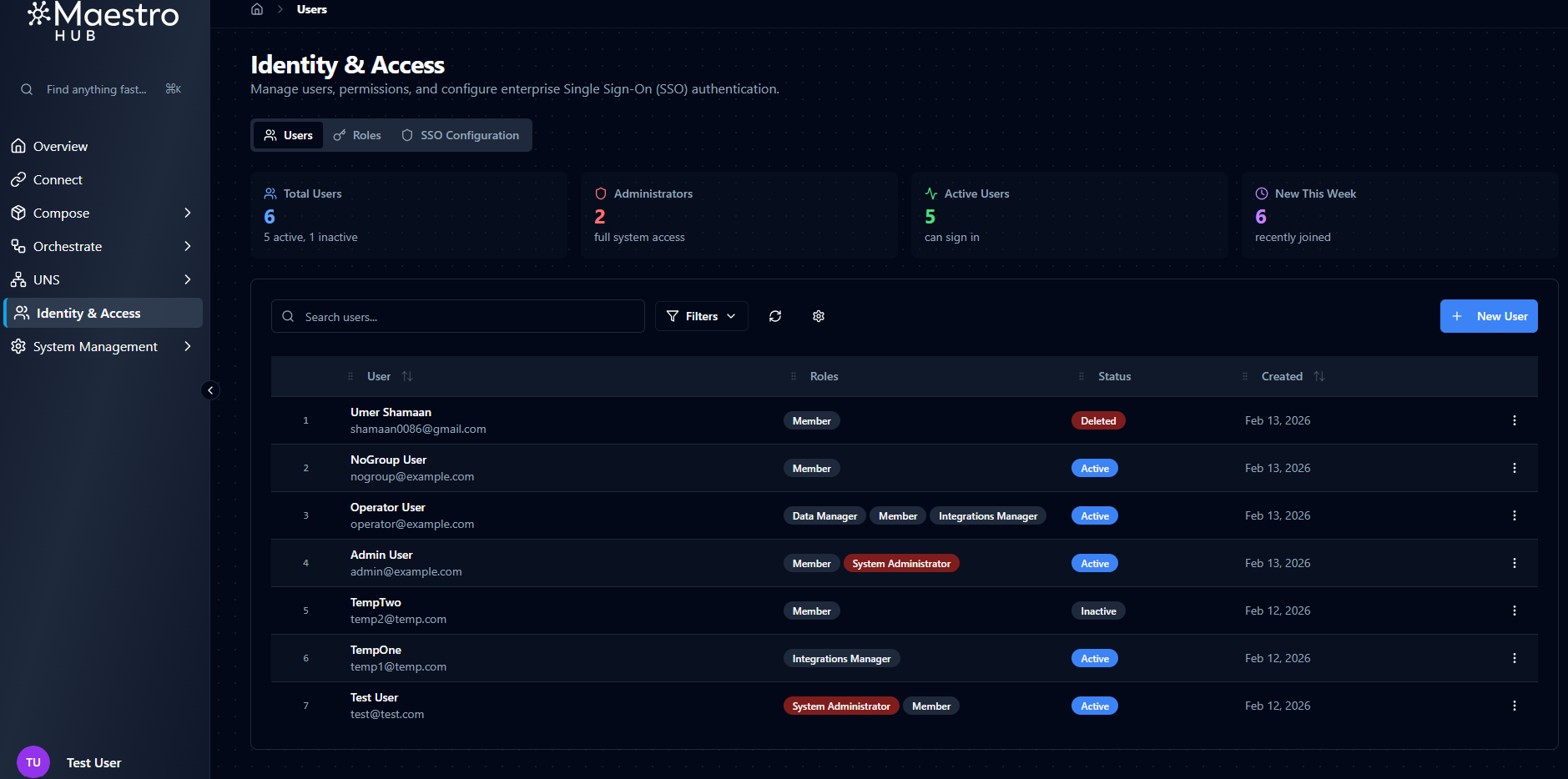
Four overview cards appear at the top of the page:
| Card | Description |
|---|---|
| Total Users | Total number of non-deleted user accounts |
| Administrators | Number of users with the System Administrator role (visible only when RBAC is enabled) |
| Active Users | Number of accounts with Active status |
| New This Week | Users created in the last seven days |
Below the cards, a table lists all users with the following columns:
| Column | Description |
|---|---|
| User | Avatar, full name, and email address |
| Roles | Assigned role badges (visible only when RBAC is enabled) |
| Status | Active, Inactive, or Deleted |
| Created | Account creation date |
| Actions | Row action menu |
Search, Filters, and Sorting
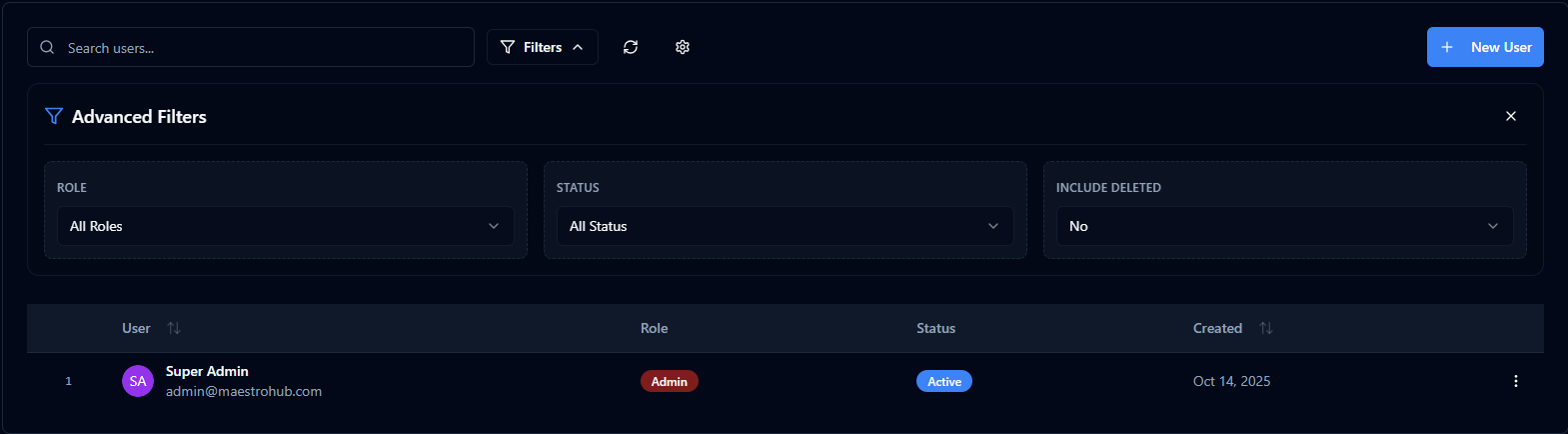
Use the controls above the table to narrow down the user list:
- Search — Filter by name or email address in real time.
- Status filter — Show
All,Active, orInactiveusers. - Include Deleted — Toggle to surface soft-deleted accounts alongside active ones.
- Sort — Order the list by Name, Email, Created Date, or Last Login (ascending or descending).
- Table Settings — Customize column visibility, column order, column widths, and page size.
Creating a New User
Click New User to open the creation form. The form is split into two columns: Basic Information on the left and Security on the right.
| Field | Type | Required | Description |
|---|---|---|---|
| First Name | Text | Yes | Minimum 2 characters. Accepts Unicode letters, spaces, dots, and hyphens. |
| Last Name | Text | No | Same character rules as First Name. |
| Yes | Must be a valid email format (max 254 characters). The system checks uniqueness in real time — a duplicate email is rejected. Email cannot be changed after creation. | ||
| Password | Password | Yes | Minimum 8 characters. Must contain at least one uppercase letter, one lowercase letter, and one number. A strength indicator shows Weak / Fair / Good / Strong feedback as you type. Only shown when creating a user — not displayed when editing. |
There is no role field on the create-user form. Roles are managed separately through the Manage Roles dialog after the user has been created. When RBAC is disabled, all users have full access regardless of role assignments.
Editing a User
Click a user's name or select Edit from the row action menu to open the edit form. The same fields are shown with two differences:
- Email is displayed but disabled — it cannot be changed after creation.
- Password is not displayed. Use the separate password-reset flow if needed.
When RBAC is enabled, an Assigned Roles section appears below the form fields, showing the user's current roles and a Manage Roles button to open the role-assignment dialog.
Managing User Status
The row action menu on each user provides the following actions:
| Action | Description |
|---|---|
| Edit | Open the user edit form |
| Manage Roles | Open the role-assignment dialog (RBAC only) |
| Activate / Deactivate | Toggle the user between Active and Inactive status |
| Delete | Soft-delete the user account |
- You cannot delete your own account.
- You cannot change your own status (activate/deactivate).
- Deactivating a user immediately invalidates all of their active sessions.
- Deleting a user invalidates all of their active sessions and marks the account as
Deleted.
Restoring Deleted Users
Soft-deleted users can be brought back:
- Enable the Include Deleted toggle in the user list.
- Find the deleted user — they appear with a
Deletedstatus badge. - Select Restore from the row action menu.
Restored users return with Active status and all their previous profile details intact.
Roles
Overview
The Roles tab is only visible when RBAC is enabled for your organization.
Role-Based Access Control requires the access_control license feature. The
advanced_access_control feature unlocks the extended catalog and the
governance capabilities listed below. (Licenses issued with the older
basic_rbac / enterprise_rbac feature names continue to work — they resolve
to the current names automatically.) SSO-based role mapping additionally
requires an active SSO license feature.
RBAC has three levels:
| RBAC Level | Behavior |
|---|---|
| None | RBAC is disabled. All authenticated users have unrestricted access to every feature. Reserved for community builds. |
Basic (access_control) | The nine persona roles below. Every API request is checked against the caller's role permissions. |
Advanced (advanced_access_control) | Adds the granular feature roles, custom roles, groups, and the governance capabilities listed below — relationship-based access control (per-topic and per-branch grants that follow your namespace tree) and attribute-based controls (time-bound grants; time-window and group-scoped conditions, applied by stewards through the deny and approval flows). |
Persona Roles (Basic)
Basic RBAC is persona-based: you assign people a role that matches their job, and each persona carries a fixed, pre-composed permission set.
| Role | Display Name | Description |
|---|---|---|
System.Admin | System Administrator | Unrestricted access to everything, across every organization. The only role that can read deployment logs and manage the license. |
Organization.Admin | Organization Administrator | Full operational control inside their organization — connections, pipelines, topics, dashboards — plus reading the organization's audit log. Does not manage users or identity (see Identity Administrator). |
Organization.Member | Member | The lightweight default: read the common surface, create own dashboards, subscribe to UNS data. Cannot publish, build, or manage anything shared. |
Identity.Admin | Identity Administrator | Manages users, identity providers, OAuth2 clients, roles, and groups. |
Security.Admin | Security Administrator | Identity administration plus audit-log read and export — the governance counterpart to Identity Administrator. |
Persona.DataEngineer | Data Engineer | Builds the platform end-to-end: connections, functions, pipelines, topics, dashboards. |
Persona.PlantOperator | Plant Operator | Operates what engineers built: runs pipelines, tests connections, publishes data. |
Persona.Analyst | Analyst | Read-and-analyze: browses data, builds own dashboards. |
Data.StreamViewer | Data Stream Viewer | Read-only live access to UNS topics — subscribe and read history, publish nothing. Intended for read-only MQTT consumers. |
Advanced Catalog
advanced_access_control adds four more personas and the granular feature
roles, for a total of 26 built-in roles:
Personas: Compliance.Auditor (Compliance Auditor — pure read-side
auditing, separated from identity administration), and the Fleet triad
(Fleet.Admin / Fleet.Editor / Fleet.Viewer) on Fleet Manager
deployments.
Feature roles follow an Admin / Editor / Viewer pattern per feature area, for composing access finer than a job title:
| Area | Roles | Scope |
|---|---|---|
| Connect | Connect Admin, Connect Editor, Connect Viewer, Connect Read Executor | Connections and functions |
| Automate | Automate Admin, Automate Editor, Automate Viewer | Pipelines |
| Data | Data Admin, Data Editor, Data Viewer | UNS topics and dashboards |
| Apps | Apps Admin, Apps Editor, Apps Viewer | App Studio apps (App Studio is coming soon, not part of release 3.0) |
Admin = full control of the area. Editor = view plus runtime actions (run, test, publish) without create/edit/delete. Viewer = read-only. Connect Read Executor = execute read-effect functions only.
What Advanced Access Control unlocks beyond roles
The extended catalog is only part of the feature. Advanced Access Control also enables:
- UNS topic-level authoring. Role permissions are enforced on every API request and on the UNS data plane on both tiers — and any per-topic grant or deny that exists is always honored, so changing the license never widens access. What Advanced unlocks is creating per-topic governance: topic sharing, subtree grants, and per-topic permissions on the broker and historian paths. On Basic none of these objects can be authored, so in practice access is governed by roles alone.
- Custom roles — admin-assembled permission bundles. A custom role granting function execution can narrow it to specific operation effects (read, stream, discover, write, delete, invoke) — e.g. a "PLC Read-Only Operator" that browses tags and tails streams but can never write, delete, or invoke arbitrary code. The built-in Connect.ReadExecutor ships this shape ready-made for the observational triple.
- Groups — nested, IdP-mappable subject groups.
- Sharing governance — topic stewardship, deny rules, and the request-access → approve workflow.
- Time-bound grants — shares, role assignments, and group memberships with an expiry. On Basic these are refused (the expiry sweeper only runs with Advanced enabled, so an accepted expiry could not be honored).
- Per-resource ownership enforcement — "creators manage what they created" checks on individual resources.
Upgrading from 2.6.x: what changes for access control
Access control is enforced the same way after the upgrade; what changes is what a few reads answer, what stays open after a revoke, and one step to run once.
- Run the ownership backfill after the upgrade, once per organization. Under Identity & Access → Migrations, run Dry-run, then Apply. The upgrade keeps every resource's owner it can place. The few it cannot — an owner who belongs to several organizations and never shared the resource — are parked and counted in the dry-run as restored from upgrade; Apply hands them back to the owner they had, in the organization the resource belongs to. Until Apply runs, such a resource has no owner. A user who belongs to several organizations is the case the migration cannot place on its own: every resource they own and never shared — in each of their organizations, including the one it always lived in — is parked at upgrade, and its owner loses update, run, delete and share on it until that organization's administrator runs the backfill. The Migrations tab's dry-run counts these as restored from upgrade; they do not appear in the adoption inbox, which lists departures, not parkings. The upgrade rehearsal exercises exactly this shape (a member and an engineer in two organizations) and requires every answer back after the backfill.
- Members no longer see the user list.
user:readis not part of the Organization.Member baseline any more; pickers show display names without it. Where a team needs the directory, assign a role that carriesuser:read. - Reads answer for the organization you are acting in. A role's
holders, a user's permissions and roles, a permission's holders and a
subject's effective permissions are scoped to the organization of the
request. A platform administrator may ask for platform scope
(
domain=*); anyone else asking for another organization is refused. The adoption queue (orphaned and unclaimed resources) and the migration history requireorg:update. - Revocation reaches what is already open. A revoked personal
access token, a suspended agent, a disabled OAuth2 client and a denied
browser stream are refused on their next request rather than when a
cache expires. A live browser stream stops within about a second:
modules.uns.config.wsRevocationFastPathis on by default (set it tofalseto fall back to thewsRevocationSLAbound, 60 seconds). Open browser tabs refresh their permission map on their own when a role, share, deny or group changes; a revoked control disappears without a reload. - Custom roles keep their parents by identity, not by name. A parent role deleted and re-created under the same name is a different role: children that pointed at the old one do not inherit from the new one until you edit them and declare it. Deleting a parent that other roles depend on is refused unless you force it, and force prunes the reference from the children.
- Secrets are write-only, for every role. The
secret:*verbs a 2.6.x Data Engineer held (secret:read,secret:update) no longer exist: no endpoint ever checked them, and the vocabulary was removed with the 2026-Q3 consolidation. A stored credential is rotated by updating its connection (connection:update) and is returned masked on every read — nobody, the platform administrator included, can reveal one through the API. The upgrade rehearsal lists this as a decision that flips; it is a dead verb disappearing, not a capability the persona loses. - Split (Enterprise) deployments. The standalone WebSocket service
runs the same revocation fast path as the single binary: a revoke on
any replica purges its delivery gate within about a second and open
tabs receive
permissions.changed. ItsunsRevocationSLA(the safety-net bound) defaults to 60 seconds andunsRevocationFastPathto on; the service's health payload reports the path underrevocationFastPath— live with the replica id, or the reason it is not.
Viewing Roles
Navigate to Identity & Access → Roles to see the role list. The page shows a stat card with the total number of roles and a search bar to filter by name.
Each role displays its name, display name, and a tier badge. Roles that require Advanced Access Control are shown with a lock badge when the current license is Basic.
Click a role to open its detail view, which shows:
- Header — Role name, display name, description, and tier badge.
- Permissions — Grouped by entity, showing which actions are granted.
- Users — A list of users who currently have this role assigned.
Assigning Roles to Users
You can access the Manage User Roles dialog in two ways:
- Click Manage Roles in the user edit form (under Assigned Roles).
- Select Manage Roles from the row action menu in the user list.
The dialog shows:
- User info — The user's name and email at the top.
- Add Role — A dropdown to select and assign a new role. Only roles available at your current RBAC level are shown.
- Current Roles — A list of the user's assigned roles with assignment date and who assigned them.
Each role entry has a Remove button to unassign it from the user.