SSO Providers
The SSO Configuration tab in the Identity & Access module allows you to configure Single Sign-On providers for enterprise authentication. Users can authenticate through external identity providers instead of managing passwords locally.
SSO configuration requires the SSO feature to be enabled in your license. When SSO is not licensed:
- The SSO configuration tab displays an informational screen and no providers can be created or managed.
- The login page does not display any SSO provider buttons, even if providers were previously configured.
- SSO authentication attempts are rejected by the backend with a
403status. - Existing provider configurations are preserved and become functional again if the SSO feature is re-enabled.
Supported Provider Types
MaestroHub supports three SSO protocols:
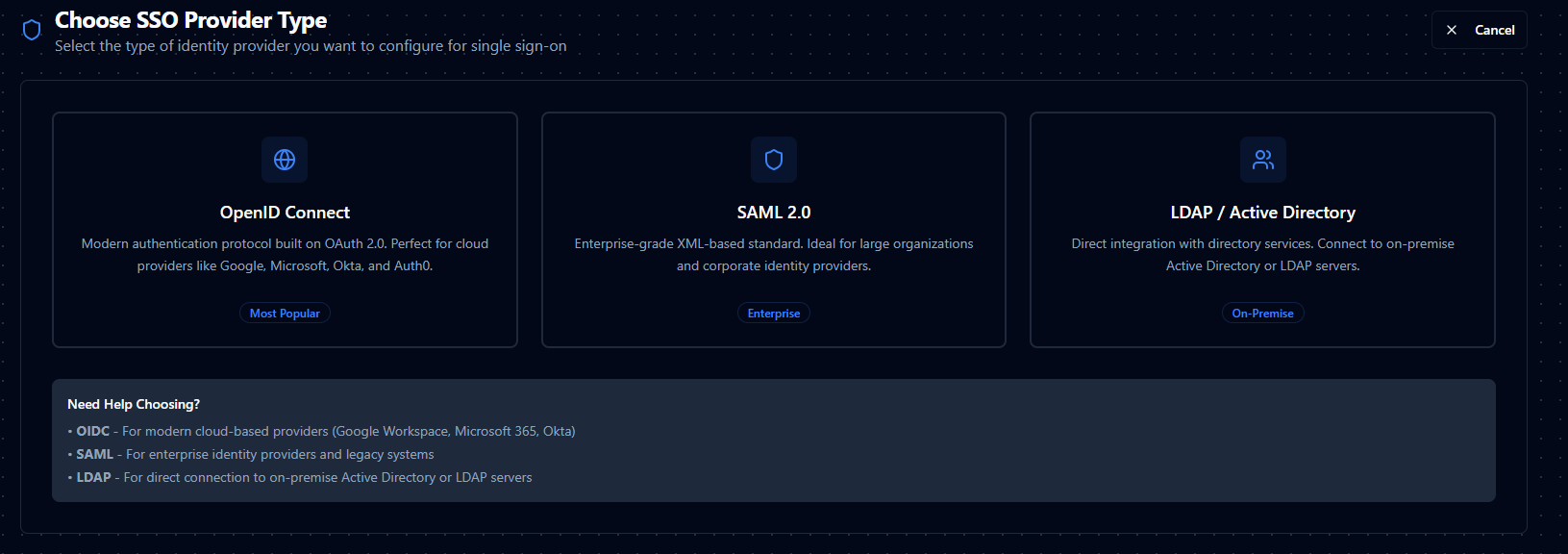
| Protocol | Best For | Details |
|---|---|---|
| OpenID Connect (OIDC) | Cloud identity providers — Google, Microsoft, Okta, Auth0 | OIDC Configuration Guide |
| SAML 2.0 | Enterprise identity providers — large organizations, corporate SSO | SAML Configuration Guide |
| LDAP / Active Directory | On-premise directory services — Active Directory, OpenLDAP | LDAP Configuration Guide |
Provider List
Navigate to Identity & Access → SSO Configuration to see all configured providers. This tab is visible only to users with the System Administrator role.
Five stat cards appear at the top:
| Card | Description |
|---|---|
| Total Providers | Total count with number of enabled providers |
| OIDC Providers | Count of OpenID Connect providers |
| SAML Providers | Count of SAML 2.0 providers |
| LDAP Providers | Count of LDAP/AD providers |
| System Status | Overall health indicator |
The table lists all providers with the following columns:
| Column | Description |
|---|---|
| Provider | Icon, name (clickable), and slug |
| Type | Badge showing OIDC, SAML, or LDAP |
| Status | Enabled or Disabled |
| Created By | User who created the provider and when |
| Updated By | User who last modified the provider and when |
| Actions | Edit, Test Connection, Delete |
Use the controls above the table to filter by type (OIDC, SAML, LDAP), status (Enabled, Disabled), or search by name. Sort by any column.
Creating a Provider
- Click Add Provider.
- Select the provider type: OpenID Connect, SAML 2.0, or LDAP/Active Directory.
- Fill in the configuration form — see the individual provider guides linked above for field details.
- Use Test Connection to verify the configuration before saving.
- Click Create to save the provider.
Common Fields (All Providers)
Every provider shares these base fields:
| Field | Type | Required | Description |
|---|---|---|---|
| Provider Name | Text | Yes | Display name (min 2 characters). Shown to users on the login page. |
| Slug | Text | Yes | URL-friendly identifier. Auto-generated from the name. Lowercase letters, numbers, and hyphens only. Cannot be changed after creation. |
| Description | Textarea | No | Optional note about the provider's purpose or intended user group. |
| Priority | Number | No | Display order on the login page. Lower numbers appear first. Default: 0. |
| Enable Provider | Switch | No | Whether users can authenticate with this provider. Default: enabled. Only shown when editing. |
Testing a Provider
You can test provider connectivity in two ways:
From the configuration form:
- Fill in the required fields.
- Click Test Connection at the bottom of the form.
- The system verifies connectivity and displays a success or error message.
From the provider list:
- Click the actions menu on any provider row.
- Select Test Connection.
- The test runs against the saved configuration.
What each test does:
- OIDC — Fetches the OpenID Connect Discovery Document from the issuer URL.
- SAML — Fetches and validates the IdP metadata (URL or XML).
- LDAP — Connects to the LDAP server and performs a service account bind.
Managing Providers
Enable / Disable
Edit a provider and toggle the Enable Provider switch. Disabled providers remain fully configured but do not appear on the login page.
Delete
- Click the actions menu on the provider row and select Delete.
- Type the provider name to confirm.
- Click Delete Provider.
Deleting a provider is permanent. Users who previously authenticated with this provider will lose their SSO access. Consider disabling the provider first to test the impact.
Role Mapping
All three provider types support optional role mapping — automatically assigning MaestroHub roles to users based on their group memberships in the identity provider.
| Field | Description |
|---|---|
| Enable Role Mapping | Toggle to activate role mapping for this provider. |
| Role Claim | The claim or attribute that contains groups/roles. Default varies by provider type. |
| Default Role | Role assigned when no mapping matches. Default: Member. |
| Strict Enrollment | When enabled, users whose groups don't match any mapping are blocked from logging in. |
| Mappings | Key-value pairs mapping IdP group names to MaestroHub roles. |
Role mapping behavior:
- The system reads the user's groups from the configured claim/attribute.
- Each group is checked against the mappings table.
- All matched roles are assigned to the user.
- If no mapping matches, the Default Role is assigned.
- If Strict Enrollment is enabled and no mapping matches, authentication is rejected.
For detailed field references, see the individual provider guides: