Azure Service Bus Integration Guide
Connect to Azure Service Bus to exchange messages with ERP, MES and other enterprise systems through queues and topics. This guide covers connection setup, each function type, and pipeline integration.
Overview
Azure Service Bus is Microsoft's managed message broker for reliable delivery between applications. A queue hands each message to one receiver; a topic copies each message to all of its subscriptions, and each subscription behaves like a queue. The connector provides:
- Send one message to a queue or topic, now or scheduled for a later time, with message ID, correlation ID, subject, session ID, time to live and application properties
- Send Batch to send an array of messages in as few round trips as the size limits allow
- Receive messages from a queue or topic subscription, removing them
- Peek messages without locking or removing them, including the dead-letter queue
- List Entities to see the namespace's queues, topics and subscriptions
- Consume, a pipeline trigger that starts a run for each arriving message, completing it once MaestroHub has stored it for the run
- Session-enabled queues and subscriptions
- SAS connection string or Microsoft Entra ID authentication, over AMQP (port 5671) or AMQP over WebSockets (port 443)
Connection Configuration
Creating an Azure Service Bus Connection
Navigate to Connections → New Connection → Azure Service Bus and configure the following. One connection serves the whole namespace: queues, topics and subscriptions are chosen on each function.
Azure Service Bus Connection Creation Fields
1. Profile Information
| Field | Default | Description |
|---|---|---|
| Profile Name | - | A descriptive name for this connection profile (required, max 100 characters) |
| Description | - | Optional description for this Service Bus connection |
2. Service Bus Namespace
| Field | Default | Description |
|---|---|---|
| Authentication Method | connection_string | connection_string (SAS), or a Microsoft Entra ID method: service_principal, managed_identity, default_credential |
| Connection String | - | SAS connection string for the namespace (secret), from Shared access policies in the Azure portal — required for connection_string. Masked on edit; leave empty to keep the stored value |
| Namespace Host | - | Fully qualified namespace, a bare host such as my-namespace.servicebus.windows.net — required for the Entra ID methods |
| Tenant ID | - | Microsoft Entra ID tenant (directory) ID — required for service_principal |
| Client ID | - | Application (client) ID — required for service_principal; for managed_identity, the optional client ID of a user-assigned identity |
| Client Secret | - | Client secret of the service principal (secret) — required for service_principal. Masked on edit |
A namespace-level SAS connection string looks like:
Endpoint=sb://<namespace>.servicebus.windows.net/;SharedAccessKeyName=<policy>;SharedAccessKey=<key>
A string copied from a single queue or topic ends in ;EntityPath=<name>. Such a key is valid only for that entity: the connection check uses that entity (a Send-only or Listen-only key both pass), and a function naming another entity is refused with a message saying the key is scoped elsewhere.
The same three methods, with the same fields, are offered by every Azure connector:
service_principal— a registered Entra ID app with Tenant ID, Client ID, and Client Secret. Grant it Azure Service Bus Data Sender and/or Data Receiver on the namespace or entity.managed_identity— for MaestroHub running on Azure (VM, AKS, Container Apps). Uses the host's assigned identity; set only the optional Client ID for a user-assigned identity.default_credential— the Azure SDK default chain (environment variables, workload identity, Azure CLI). Useful for local development.
3. Advanced
| Field | Default | Description |
|---|---|---|
| Transport | amqp | amqp connects on port 5671. websockets carries AMQP over port 443 for networks that allow only HTTPS out, and honours HTTPS_PROXY |
| Connect Timeout | 30s | How long the connection check (dial, TLS, authentication and one link) may take |
| Management Endpoint | - | Only for List Entities against the local Service Bus emulator, whose management API listens on its own port over HTTP (for example http://localhost:5300). Leave empty for Azure |
Test Connection opens the AMQP connection, authenticates, and attaches one receiver link. It succeeds when Service Bus accepts the credentials, even though the probe names a queue that does not exist — Service Bus only answers "not found" after it has accepted the token. A wrong key, an unreachable host or a blocked port fails with a message that says which.
4. Connection Labels
| Field | Default | Description |
|---|---|---|
| Labels | - | Key-value pairs to categorize and organize this connection (max 10 labels) |
- Required Fields: Profile Name, plus the Connection String (
connection_string) or the Namespace Host (Entra ID methods;service_principalalso needs Tenant ID, Client ID, and Client Secret). - Scaling: Consume is
shared. Service Bus gives each message (or each session) to one receiver, so several instances share a queue or subscription as competing consumers. - Local emulator: Microsoft's Service Bus emulator works with a connection string ending in
UseDevelopmentEmulator=true, for exampleEndpoint=sb://localhost:5672;SharedAccessKeyName=RootManageSharedAccessKey;SharedAccessKey=SAS_KEY_VALUE;UseDevelopmentEmulator=true;.
Function Builder
Creating Azure Service Bus Functions
Once you have a connection established, you can create reusable functions:
- Open the connection and go to Functions → New Function
- Select the desired function type
- Name the function and fill in its configuration
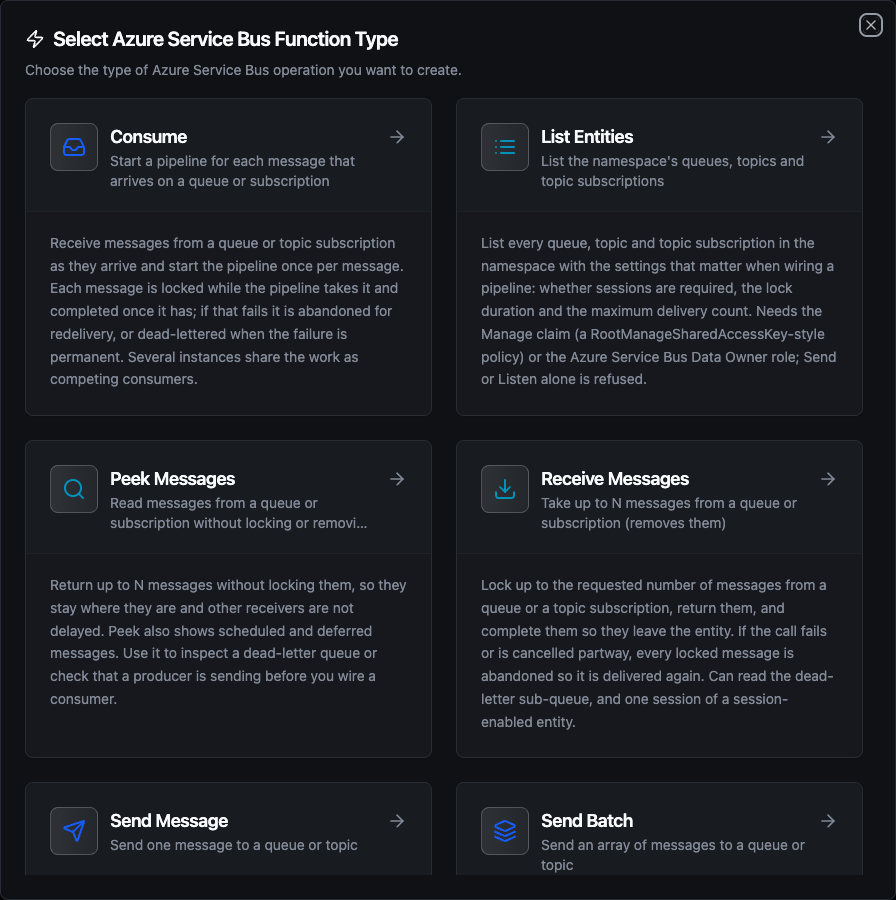
Select from six Service Bus function types: Consume, List Entities, Peek Messages, Receive Messages, Send Message, and Send Batch
Send Message Function
Purpose: Send one message to a queue or topic. Set Scheduled Enqueue Time to have Service Bus hold the message until then.
Configuration Fields
| Field | Type | Required | Default | Description |
|---|---|---|---|---|
| Queue or Topic | String | Yes | - | Name of the queue or topic to send to. Supports template parameters. |
| Payload | String | Yes | - | Message body (JSON or text). Supports template parameters. |
| Content Type | String | No | - | MIME type stamped on the message, e.g. application/json |
| Subject | String | No | - | Application label; subscription rules can filter on it |
| Message ID | String | No | Generated | With duplicate detection on the entity, a second send with the same ID is dropped |
| Correlation ID | String | No | - | Links a reply to its request, or groups related messages |
| Session ID | String | No | - | Required for session-enabled entities. Messages with the same session ID are received in order |
| Partition Key | String | No | - | Partitioned entities only. Must equal Session ID when both are set |
| Reply To | String | No | - | Queue or topic the receiver should answer to |
| Time to Live | Duration | No | Entity default | How long the message stays available (10m, 24h), up to a year. Service Bus caps it at the entity's own default |
| Scheduled Enqueue Time | String | No | - | RFC 3339 time (2026-10-01T06:00:00Z) at which the message becomes visible |
| Application Properties | JSON | No | - | Custom properties as a JSON object; subscription rules can filter on them |
| Timeout | Duration | No | 30m | Bound on this single send |
Every text field accepts ((parameter)) templates.
When a message has no Message ID, a send that store-and-forward replays after an outage reuses the ID of the original attempt. On an entity with duplicate detection turned on, Service Bus then drops the second copy. Set a Message ID yourself (a work order number, say) when the business key should decide what counts as a duplicate.
Example Configuration
// Queue or Topic
work-orders

// Payload
{"order": "((orderId))", "line": ((line)), "quantity": ((quantity))}

// Message ID
((orderId))

// Application Properties
{"plant": "izmir-1"}
Use Cases:
- Hand finished work orders to an ERP integration queue
- Publish line events to a topic that several systems subscribe to
- Schedule a reminder message for the start of the next shift
Send Batch Function
Purpose: Send an array of messages to one queue or topic. Each element becomes one message. Service Bus caps a batch at the entity's maximum message size (256 KB on Standard, 1 MB on Premium), so a large array goes out as several batches, in order. If one fails, the error says how many messages went out before it.
Configuration Fields
| Field | Type | Required | Default | Description |
|---|---|---|---|---|
| Queue or Topic | String | Yes | - | Name of the queue or topic to send to |
| Messages | JSON | Yes | - | Array of message bodies. A string element is sent as-is; any other element is sent as JSON |
| Content Type | String | No | - | MIME type stamped on every message |
| Subject | String | No | - | Subject stamped on every message |
| Session ID | String | No | - | Stamped on every message. Required for session-enabled entities |
| Application Properties | JSON | No | - | Custom properties stamped on every message |
| Timeout | Duration | No | 30m | Bound on the whole send |
Example Configuration
// Messages
[{"line": 3, "oee": ((oee3))}, {"line": 4, "oee": ((oee4))}]
Use Cases:
- Forward a scheduled pipeline's collected readings in one call
- Fan a list of work items onto a worker queue
Receive Messages Function
Purpose: Take up to N messages from a queue or topic subscription. The messages are locked, returned, and completed, so they leave the entity. If the call fails or is cancelled partway, every locked message is abandoned and delivered again.
Configuration Fields
| Field | Type | Required | Default | Description |
|---|---|---|---|---|
| Queue or Topic | String | Yes | - | The queue, or the topic whose subscription you name below |
| Subscription | String | No | - | Topic subscription to read. Leave empty for a queue |
| Sub-queue | Select | No | none | none reads the entity; deadLetter reads its dead-letter queue; transferDeadLetter reads messages that failed to forward |
| Session ID | String | No | - | Session-enabled entities only: the session to read. Required for them |
| Max Messages | Number | No | 10 | At most this many messages per call (1–500) |
| Wait Time | Duration | No | 5s | How long to wait for the first message. An empty entity returns an empty list, not an error. 0s listens for about a second |
| Timeout | Duration | No | - | Optional bound on the call. Keep it above Wait Time |
Use Peek Messages to look at a queue without changing it. A dead-letter queue keeps its messages until something receives them, so Receive on deadLetter is how a pipeline clears one after handling it.
Use Cases:
- Drain a queue every five minutes from a scheduled pipeline
- Collect dead-lettered messages for a nightly report
Peek Messages Function
Purpose: Read up to N messages without locking them, so they stay where they are and other receivers are not delayed. Peek also shows scheduled and deferred messages.
Configuration Fields
| Field | Type | Required | Default | Description |
|---|---|---|---|---|
| Queue or Topic | String | Yes | - | The queue, or the topic whose subscription you name below |
| Subscription | String | No | - | Topic subscription to read |
| Sub-queue | Select | No | none | none, deadLetter or transferDeadLetter |
| Session ID | String | No | - | Session-enabled entities only: the session to read |
| Max Messages | Number | No | 10 | At most this many messages (1–250) |
| From Sequence Number | Number | No | Oldest | Start at this sequence number. Supports template parameters |
| Timeout | Duration | No | 30m | Bound on this single call |
Use Cases:
- Inspect a dead-letter queue without draining it
- Check that a producer is sending before you wire a consumer
List Entities Function
Purpose: List every queue, topic and topic subscription in the namespace, with whether sessions are required, the lock duration and the maximum delivery count.
Configuration Fields
| Field | Type | Required | Default | Description |
|---|---|---|---|---|
| Max Items | Number | No | 500 | Stop after this many queues and this many topics (1–5000). Subscriptions are listed for each returned topic |
| Timeout | Duration | No | 30m | Bound on this single call |
Listing uses the Service Bus management API. It needs a policy with the Manage claim (such as RootManageSharedAccessKey) or the Azure Service Bus Data Owner role. A key with only Send or Listen is refused with a message saying so. Against the local emulator, set Management Endpoint on the connection.
Consume Function
Purpose: Start a pipeline for each message that arrives on a queue or topic subscription. Consume functions are used by the Azure Service Bus Trigger node.
Configuration Fields
| Field | Type | Required | Default | Description |
|---|---|---|---|---|
| Queue or Topic | String | Yes | - | The queue, or the topic whose subscription you name below |
| Subscription | String | No | - | Topic subscription to consume |
| Sub-queue | Select | No | none | none consumes the entity; deadLetter consumes its dead-letter queue |
| Session-enabled Entity | Boolean | No | false | Turn on when the queue or subscription requires sessions. Sessions are taken one at a time, and each session's messages arrive in order |
| Max Messages per Receive | Number | No | 10 | How many messages one receive may lock at once (1–100) |
How messages are settled
| When MaestroHub takes the message in | What happens to the message |
|---|---|
| It is stored for the pipeline run | Completed — it leaves the entity, before the run starts |
| MaestroHub cannot take it in right now | Abandoned — delivered again at once; Service Bus moves it to the dead-letter queue after the entity's maximum delivery count |
| The failure is permanent | Dead-lettered with reason MaestroHubPipelineRejected and the error as its description |
The run's outcome does not settle the message: a run that fails after the message was completed does not return it to the queue or dead-letter it. Use Retry on Fail on the nodes that can fail transiently and a Pipeline Event trigger on failed runs to catch the rest.
Using Parameters
The ((parameterName)) syntax creates dynamic, reusable functions. Parameters are detected from your configuration fields and can be configured with:
| Configuration | Description | Example |
|---|---|---|
| Type | Data type validation | string, number, boolean, datetime, json, buffer |
| Required | Make parameters mandatory or optional | Required / Optional |
| Default Value | Fallback value if not provided | 0, {}, line-3 |
| Description | Help text for users | "Work order number", "Production line" |
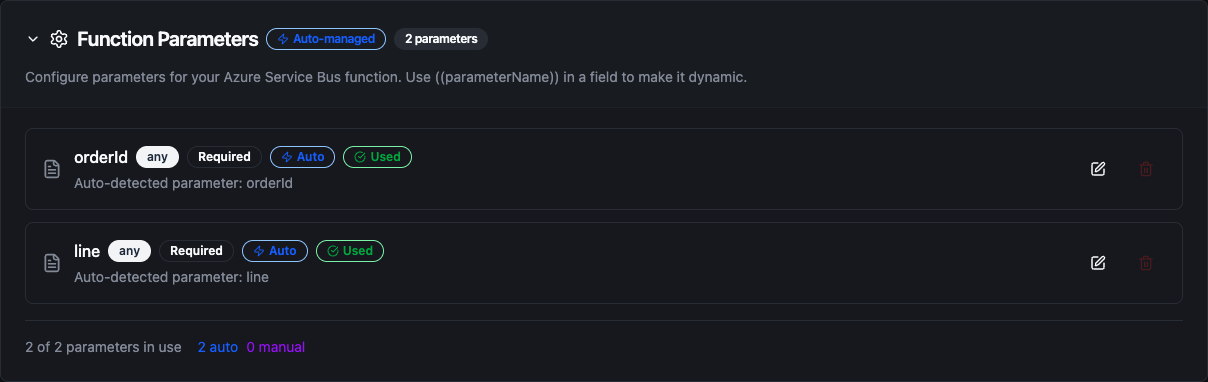
Parameters detected from a Send Message function's payload and message ID
Template parameters are available for Send Message, Send Batch, Receive Messages and Peek Messages. List Entities takes no parameters, and Consume functions start pipelines, so there is no upstream data for a template to read.
Pipeline Integration
Use the Service Bus functions you create here as nodes in the Pipeline Designer. Place the node, pick the connection and function, bind its parameters to upstream outputs or constants, and configure error handling as needed.
Common patterns include:
- Collect → Send: read production counts from a PLC and send a work-order update to an ERP queue
- Consume → Process → Send: take messages from a topic subscription, transform them, and forward them to another queue
- Consume → Store: write arriving messages to the UNS, PostgreSQL or InfluxDB
- Schedule → Receive → Report: drain a dead-letter queue on a schedule and alert on what it held
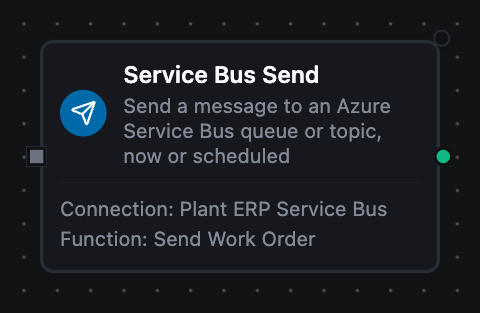
Service Bus Send node on the pipeline canvas
See the Azure Service Bus nodes and the Azure Service Bus Trigger for what each node delivers to the steps after it.
Common Use Cases
Work Orders from ERP to the Line
Scenario: The ERP posts released work orders to a work-orders queue. Each one should start a pipeline that looks up the recipe and writes setpoints to the line's PLC.
Consume Configuration:
- Queue or Topic:
work-orders
Pipeline Integration: An Azure Service Bus Trigger on the Consume function, then a database lookup and an OPC UA write. The message is completed once MaestroHub has it, so give the OPC UA write Retry on Fail for a PLC that is briefly offline, and alert on failed runs with a Pipeline Event trigger.
Production Events to Several Systems
Scenario: The MES and a quality system both want each line's OEE every hour. Publish once to a topic; each system reads its own subscription.
Send Batch Configuration:
- Queue or Topic:
line-events - Messages:
((readings)) - Subject:
oee.hourly
Pipeline Integration: A schedule trigger, a read group across the lines, a transform that builds the array, then Send Batch.
Ordered Updates per Machine
Scenario: Status changes for each press must be processed in the order they happened, while different presses may be processed side by side.
Send Configuration:
- Queue or Topic:
press-status(session-enabled) - Session ID:
((pressId))
Consume Configuration:
- Queue or Topic:
press-status - Session-enabled Entity: on
Pipeline Integration: Each press's messages share a session, so the trigger receives them in order. Several MaestroHub instances can consume the same queue; each takes different sessions.
Dead-Letter Watch
Scenario: Alert a maintenance channel whenever a message lands in a queue's dead-letter queue, with the reason Service Bus recorded.
Consume Configuration:
- Queue or Topic:
work-orders - Sub-queue:
deadLetter
Pipeline Integration: The trigger's _metadata carries deadLetterReason and deadLetterErrorDescription; send them to MS Teams or email.