 SAP Event Mesh Integration Guide
Use MaestroHub's SAP Event Mesh connector to consume SAP business events — "sales order created", "outbound delivery changed", "goods movement posted" — the moment SAP records them, and drive a pipeline from each one. Events are delivered as CloudEvents 1.0 over a durable AMQP 1.0 queue (the default) or a lightweight MQTT 3.1.1 topic. This guide covers the SAP-side prerequisites, the connection and function configuration, the event payload shape, and how the trigger drives your pipelines.
Overview
The SAP Event Mesh connector is a consume-only, event-driven source. It does not send events; it subscribes and turns each incoming business event into a pipeline run. It delivers:
- SAP business events as CloudEvents 1.0 — both binary and structured content modes are normalized to one payload + metadata shape
- Durable AMQP 1.0 over WebSocket (default) — events are held in a broker queue while the connector is offline and replayed on reconnect, so nothing is silently lost
- MQTT 3.1.1 over WebSocket — a lightweight, best-effort alternative (topic-based, lossy across disconnects)
- OAuth2 client-credentials authentication — the token is presented as a bearer token in the WebSocket handshake, exactly as SAP Event Mesh requires
- At-least-once delivery — each event is settled (acknowledged) only after your pipeline has durably captured it
- Paste-service-key setup — auto-fills the endpoint and OAuth fields straight from the Event Mesh service key
- TLS / mTLS with custom certificates for self-signed or on-premise brokers
- Works beyond BTP — the same connector reaches SAP Advanced Event Mesh (Solace) and generic AMQP 1.0 / MQTT brokers
This connector subscribes to events; it has no publish/send function. It is always the first node in a pipeline (a trigger). To send data to SAP, use the appropriate outbound connector (e.g. REST/OData) downstream.
Prerequisites
Getting events to actually flow requires configuration on both the SAP side and the MaestroHub side. The connector assumes the SAP-side plumbing already exists — it will not create queues or subscriptions for you. Work through this checklist before creating the connection.
1. An SAP Event Mesh instance and a service key
You need a provisioned SAP Event Mesh (BTP "Enterprise Messaging") service instance with a message client, and a service key (service binding) for it. The service key is JSON containing a messaging array — one entry per protocol (amqp10ws, mqtt311ws, httprest) — each with its own OAuth2 credentials (oa2.clientid, oa2.clientsecret, oa2.tokenendpoint) and a WebSocket uri.
Read the oa2 block and uri from the messaging[] entry whose protocol matches your chosen transport (amqp10ws for AMQP, mqtt311ws for MQTT) — not a shared block. MaestroHub's paste service key helper does this automatically.
2. A durable queue
In the SAP Event Mesh dashboard (your message client → Queues), create a queue. Its name must follow the namespace pattern declared in your service instance descriptor, e.g. default/myorg.com/integration/MYQUEUE. This fully-qualified name is what you will enter as the connector's Queue or Topic.
The connector never auto-creates queues. If you point it at a queue that does not exist, SAP returns amqp:not-found and the connector reports a permanent error telling you to create the queue first. Create the queue in SAP before saving the subscribe function.
3. A queue subscription (topic → queue binding)
A queue only retains events for topics it is subscribed to. In the dashboard, open your queue's Actions → Queue Subscriptions and add a subscription for the business-event topic(s) you care about. This binding is what causes SAP to deliver (and retain) matching events into the durable queue while the connector is offline.
4. Event publishing from S/4HANA (Enterprise Event Enablement)
For business events to reach the Event Mesh instance at all, the SAP source system must be configured to publish them:
- S/4HANA Cloud: use the Enterprise Event Enablement — Configure Channel Binding app to create a channel bound to your Event Mesh instance, then add the outbound topic bindings for the events you want (e.g.
BusinessPartner,SalesOrder). Your Event Mesh queue subscription uses the topic form<Topic Space>/ce/<Outbound Topic Binding>. - S/4HANA on-premise / Private Cloud Edition: install and configure the Event Enablement Add-on and its channel to the Event Mesh instance.
Consult SAP's Enterprise Event Enablement documentation for the exact steps for your release. Once a business event is activated and its topic is bound to your queue, it will appear in MaestroHub as soon as SAP records the underlying change.
5. Network reachability
The connector dials the Event Mesh WebSocket endpoint on port 443 (wss://…) and fetches OAuth tokens from the token endpoint (also HTTPS). Make sure the MaestroHub host can reach both.
The same connector works against SAP Advanced Event Mesh (Solace) — which defaults to basic username/password auth — and against generic AMQP 1.0 / MQTT brokers. See Authentication modes and SASL & protocol options.
Connection Configuration
Creating a SAP Event Mesh Connection
Navigate to Connections → New Connection → SAP Event Mesh. The form is organized into tabs: Connection, Security, Advanced, Functions, Scaling, and Health.
1. Profile Information (Connection tab)
| Field | Default | Description |
|---|---|---|
| Profile Name | - | A descriptive name for this connection profile (required, max 100 characters) |
| Description | - | Optional description for this connection |
| Labels | - | Key-value pairs to organize this connection (max 10 labels), e.g. env: prod, system: S4HANA |
2. Broker Endpoint (Connection tab)
| Field | Type | Default | Required | Validation | Description |
|---|---|---|---|---|---|
| Transport | Select | amqp | Yes | amqp / mqtt | amqp = durable queue, guaranteed delivery (recommended). mqtt = topic-only, best-effort, lossy across disconnect. |
| Endpoint URL | String | - | Yes | Scheme ws/wss/amqp/amqps | The WebSocket endpoint from the service key. For AMQP use the …/protocols/amqp10ws URL; for MQTT use …/protocols/mqtt311ws. |
| Connect Timeout (s) | Number | 30 | No | 1–300 | Maximum time to wait for the WebSocket + AMQP handshake to complete. |
The form and backend both reject a mismatch: selecting mqtt with an amqp10ws URL (or amqp with an mqtt311ws URL) is a configuration error. Pick the endpoint whose path matches the transport.
Example endpoints
# AMQP 1.0 (durable, recommended)
wss://<instance>.<region>.a.eventmesh.integration.cloud.sap/protocols/amqp10ws

# MQTT 3.1.1 (best-effort)
wss://<instance>.<region>.a.eventmesh.integration.cloud.sap/protocols/mqtt311ws
The host shape varies by tenant vintage — never hardcode it; copy the full uri from your service key.
Quick setup — paste the service key
Rather than hand-copying five fields out of nested JSON, paste the entire Event Mesh service-key JSON into the Quick setup card and click Auto-fill fields (or Upload JSON). MaestroHub reads the messaging[] entry matching your selected transport and fills Endpoint URL, OAuth2 Token URL, Client ID, and Client Secret, and switches auth mode to OAuth2. Nothing is sent until you save.
The helper fills fields for the currently selected transport (amqp or mqtt). Choose the transport before pasting so it reads the matching messaging[] entry.
3. Security tab
Authentication
| Field | Type | Default | Description |
|---|---|---|---|
| Authentication | Select | oauth2 | oauth2 = client-credentials (SAP Event Mesh). basic = username/password (Advanced Event Mesh / generic brokers). anonymous = test brokers only. |
OAuth2 client-credentials (the SAP Event Mesh default) reveals:
| Field | Type | Required | Description |
|---|---|---|---|
| OAuth2 Token URL | String | Yes | oa2.tokenendpoint from the service key, e.g. https://<subdomain>.authentication.<region>.hana.ondemand.com/oauth/token |
| OAuth2 Client ID | String | Yes | oa2.clientid from the service key |
| OAuth2 Client Secret | Password | Yes | oa2.clientsecret from the service key (stored encrypted; shown masked after save) |
| OAuth2 Scopes | String | No | Optional space-separated scopes. Rarely needed for Event Mesh — leave empty unless your instance requires explicit scopes. |
Basic reveals Username and Password (used by Advanced Event Mesh and generic brokers). Anonymous requires no credentials and is only for brokers that permit unauthenticated connections.
The connector fetches an OAuth2 token via HTTP Basic auth + grant_type=client_credentials, then injects it as an Authorization: Bearer <token> header on the WebSocket handshake. Because the token lives in the handshake, a token refresh is a new connection — the connector's reconnect machinery handles token expiry automatically by re-dialing with a fresh token.
TLS / mTLS
| Field | Type | Default | Description |
|---|---|---|---|
| Verify TLS Certificate | Boolean | true | Verify the broker's TLS certificate. Disable only for a self-signed test broker. |
| TLS Server Name (SNI) | String | - | Optional server name for SNI / certificate verification; defaults to the endpoint host. |
| CA Certificate (PEM) | Textarea/Upload | - | Optional custom CA to verify a self-signed broker's server certificate. Leave empty to verify against the system trust store. |
| Client Certificate (PEM) | Textarea/Upload | - | Optional client certificate for mutual TLS (used with SASL external). Stored encrypted. |
| Client Key (PEM) | Textarea/Upload | - | Optional client private key for mutual TLS. Stored encrypted. |
For SAP Event Mesh, TLS is standard server-auth against public CAs — leave Verify TLS on and the certificate fields empty. The CA / client-cert fields exist for on-premise or self-signed brokers.
4. Advanced / Protocol options tab
The defaults are correct for SAP Event Mesh; change these only for generic brokers.
| Field | Type | Default | Description |
|---|---|---|---|
| Bearer token in WebSocket header | Boolean | true | Inject the OAuth token as Authorization: Bearer on the WebSocket handshake. SAP Event Mesh requires this. Requires OAuth2 authentication (there is no token to inject otherwise). |
| SASL Mechanism | Select | anonymous | anonymous = SAP Event Mesh (identity is carried by the bearer header). plain = brokers that authenticate at the SASL layer — required for basic authentication over AMQP, since the username and password travel only in SASL PLAIN. external = mTLS client-certificate auth. AMQP only; not shown for MQTT, which has no SASL layer. |
The transport is inferred from the endpoint scheme (ws/wss → WebSocket; amqp/amqps → raw TCP). This single configuration surface serves SAP Event Mesh (bearer + SASL anonymous), Advanced Event Mesh (basic or OAuth), and generic AMQP 1.0 brokers such as Apache Artemis — without per-vendor branches.
5. Scaling tab (after saving)
Scaling is transport-dependent and available after the connection is saved:
- AMQP →
Shared(competing consumers). Multiple replicas can consume from the same durable queue and load-balance events between them, with at-least-once delivery. - MQTT 3.1.1 →
Exclusive(single instance). MQTT 3.1.1 has no shared subscriptions, so every replica would receive every message — the connector therefore runs single-instance.
6. Health tab (after saving)
Once saved, the Health tab shows live connection status and history. The connector's health check (Ping) verifies the live AMQP link/session — not just a TCP socket — so a "healthy" status means the subscription path is actually alive.
- Required fields: Profile Name and Endpoint URL. OAuth2 mode additionally requires Token URL, Client ID, and Client Secret; Basic mode requires Username and Password.
- Secret fields (client secret, password, client cert/key) are stored encrypted and shown masked after saving — leave them empty on edit to keep the stored value.
- Delivery is at-least-once — design downstream pipelines to be idempotent (see Delivery semantics).
Function Builder
Creating a Subscribe Function
SAP Event Mesh exposes a single, trigger-only operation: Subscribe to Business Events. After the connection is saved:
- Open the connection and go to the Functions tab → New Function
- The function type is Subscribe (the only option)
- Configure the queue/topic and prefetch
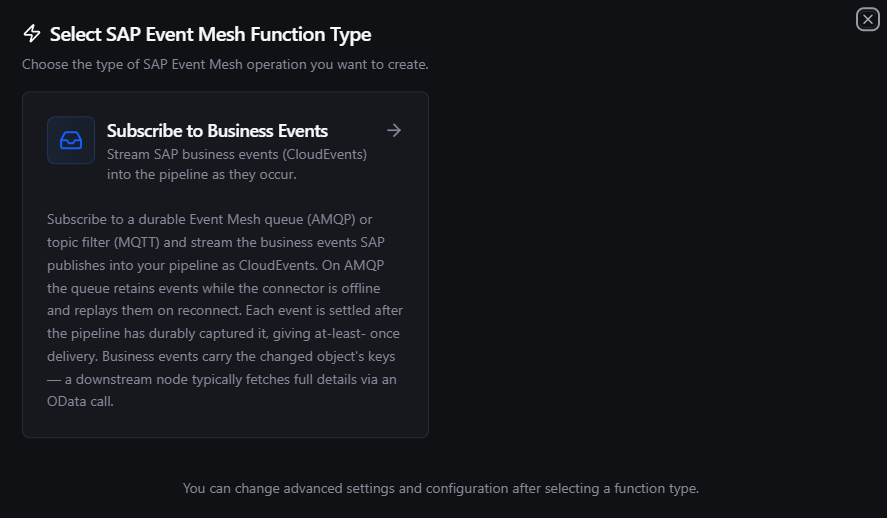
Create a Subscribe function pointing at a durable queue (AMQP) or topic filter (MQTT)
Subscribe Function
Purpose: Stream SAP business events from a durable queue (AMQP) or topic filter (MQTT) into a pipeline as they occur. Used as a trigger — the pipeline runs once per event.
Configuration Fields
| Field | Type | Required | Default | Validation | Description |
|---|---|---|---|---|---|
| Queue or Topic | String | Yes | - | Non-empty | AMQP: the fully-qualified durable queue name, e.g. default/myorg.com/integration/MYQUEUE. MQTT: the topic filter. |
| Prefetch | Number | No | 10 | 1–256 | AMQP only: receiver-link credit — how many unsettled messages to hold in flight at once. Ignored for MQTT, where flow control is governed by the broker. |
queue: prefixFor AMQP, enter the fully-qualified queue name only (starting with your namespace). The connector automatically prepends the load-bearing queue: prefix to build the receiver-link source address (queue:default/myorg.com/integration/MYQUEUE). A missing/misformatted prefix is the single most common Event Mesh AMQP failure — letting the connector handle it avoids that. If you already prefixed with queue: or topic:, the connector leaves it as-is.
A subscribe function is a trigger — there is nothing to invoke on demand; it fires only when SAP pushes an event. To dry-run the flow, add it to a pipeline via the SAP Event Mesh Trigger node and use the node's Test Data (see the SAP Event Mesh Trigger node guide).
The Event Payload
Every business event is normalized to a CloudEvents 1.0 envelope as the trigger payload, plus a flat metadata map that downstream nodes can route on without re-parsing.
Payload — the CloudEvents envelope
The pipeline trigger payload ($trigger.result) is the full CloudEvents envelope. For a "Sales Order created" event it looks like:
{
  "specversion": "1.0",
  "id": "b7f3a1e2-0c4d-4f8a-9b2e-1a2b3c4d5e6f",
  "type": "sap.s4.beh.salesorder.v1.SalesOrder.Created.v1",
  "source": "/default/sap.s4.beh/244572008",
  "subject": "0000012345",
  "time": "2026-07-28T09:15:42Z",
  "datacontenttype": "application/json",
  "data": {
    "SalesOrder": "0000012345"
  }
}
The business object's keys live under data. SAP business events are lightweight notifications — they carry the changed object's keys, not the full record. A downstream node typically fetches full details via an OData call using data.SalesOrder.
Metadata
The event's identity attributes are also surfaced as string metadata under _metadata, so you can route or filter without parsing the payload:
| Metadata key | Example | Meaning |
|---|---|---|
_metadata.protocol | sap_eventmesh | Always set — identifies the source connector. |
_metadata.id | b7f3a1e2-… | CloudEvents id — the idempotency key (see below). |
_metadata.type | sap.s4.beh.salesorder.v1.SalesOrder.Created.v1 | The business event type. Route on this to branch per event. |
_metadata.source | /default/sap.s4.beh/244572008 | The emitting system/context. |
_metadata.subject | 0000012345 | The affected object instance. |
_metadata.time | 2026-07-28T09:15:42Z | Event timestamp (RFC 3339). |
_metadata.datacontenttype | application/json | Content type of data. |
_metadata.specversion | 1.0 | CloudEvents spec version. |
Empty attributes are omitted; protocol and specversion are always present.
SAP may deliver a CloudEvent in binary mode (attributes in AMQP application-properties, body = data) or structured mode (the whole envelope as a JSON body). The connector normalizes both to the identical envelope + metadata shape above, so your pipeline never has to care which mode was used. A message that is not a recognizable CloudEvent is still delivered (its bytes become data) rather than dropped.
Example event types
Common S/4HANA business event type strings follow SAP's grammar sap.s4.beh.<object>.v1.<Object>.<Verb>.v1:
type | data (keys only) |
|---|---|
sap.s4.beh.businesspartner.v1.BusinessPartner.Created.v1 | {"BusinessPartner":"1000667"} |
sap.s4.beh.businesspartner.v1.BusinessPartner.Changed.v1 | {"BusinessPartner":"1000667"} |
sap.s4.beh.salesorder.v1.SalesOrder.Created.v1 | {"SalesOrder":"0000012345"} |
sap.s4.beh.outbounddelivery.v1.OutboundDelivery.Created.v1 | {"OutboundDelivery":"0080000123"} |
sap.s4.beh.materialdocument.v1.MaterialDocument.Created.v1 | {"MaterialDocument":"4900000123","MaterialDocumentYear":"2026"} |
The exact set available to you depends on which events you activated in Enterprise Event Enablement.
Delivery semantics
- At-least-once. Each event is settled (acknowledged) only after your pipeline has durably captured it. A crash between receipt and capture results in redelivery, not loss.
- Make pipelines idempotent. Because redelivery is possible, use the CloudEvents
id(_metadata.id) as an idempotency key — e.g. skip processing if you have already seen thatid. - Settlement maps the pipeline outcome (AMQP):
- Success → the event is accepted and removed from the queue.
- Transient failure (broker backpressure, reconnect, timeout) → the event is released for redelivery.
- Permanent failure (bad queue, unauthorized, malformed) → the event is dead-lettered (marked delivery-failed / undeliverable-here) so a poison message can't block the queue forever.
- Durable replay (AMQP). While the connector is offline, SAP retains events in the subscribed queue and replays them on reconnect. MQTT does not retain across disconnects — events published while an MQTT subscriber is offline are lost.
Error handling & remediation
The connector classifies AMQP 1.0 condition strings and OAuth token failures into transient (retried automatically) vs permanent (needs a fix) outcomes:
| Symptom / condition | Class | What to do |
|---|---|---|
amqp:not-found | Permanent | The queue doesn't exist — create it in the Event Mesh dashboard first (Prerequisites step 2). |
amqp:unauthorized-access | Permanent | The token, scope, or queue permission is wrong. Check the OAuth credentials and that the client is authorized for the queue. |
amqp:precondition-failed | Permanent | The queue is configured incompatibly. Review the queue settings. |
| OAuth token endpoint returns 401 / 403 | Permanent | Bad client_id / client_secret / scope. Re-copy them from the service key (oa2 block). |
amqp:resource-limit-exceeded, amqp:resource-locked | Transient | Broker backpressure or a held lock — the connector retries automatically. |
| Connection dropped / link detached | Transient | The connector's health + reconnect workers re-dial (with a fresh token) automatically. |
Pipeline Integration
The subscribe function drives a pipeline through the SAP Event Mesh Trigger node. Drag the trigger onto the canvas as the pipeline's entry point, bind it to this connection and subscribe function, and build the downstream flow.
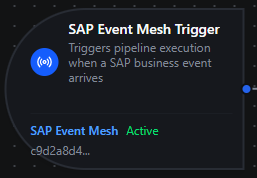
SAP Event Mesh trigger node as the entry point of an event-driven pipeline
Common patterns:
- Event → Enrich → Store: react to
SalesOrder.Created, fetch the full order via an OData/REST call using$trigger.result.data.SalesOrder, and write it to the UNS, PostgreSQL, or InfluxDB. - Event → Branch → Act: route on
$trigger.result.type(or_metadata.type) to run different logic per event type. - Event → Notify: send an MS Teams or SMTP notification when a critical business event arrives.
For details of the trigger node — trigger modes, change detection, retries, and validation — see the SAP Event Mesh Trigger node guide. For broader orchestration patterns, see the Connector Nodes page.
Common Use Cases
Near-real-time order fulfillment
Scenario: React the instant SAP records a sales order so the warehouse and downstream systems act without polling lag.
Subscribe Configuration:
- Queue or Topic:
default/myorg.com/integration/SALESORDERS - Prefetch:
10
Pipeline: SalesOrder.Created → fetch order details via OData using $trigger.result.data.SalesOrder → publish to the UNS / notify the MES.
Goods movement to the line
Scenario: Trigger a line-side action whenever SAP posts a material document (goods movement).
Subscribe Configuration:
- Queue or Topic:
default/myorg.com/integration/MATERIALDOCS
Pipeline: MaterialDocument.Created → branch on movement type → update the machine program or a dashboard.
Outbound delivery orchestration
Scenario: Kick off shipping orchestration when an outbound delivery is created or changed.
Subscribe Configuration:
- Queue or Topic:
default/myorg.com/integration/DELIVERIES
Pipeline: OutboundDelivery.Created → enrich with delivery details → notify the carrier and update tracking.
Master-data synchronization
Scenario: Keep an external system's business-partner records in sync with SAP.
Subscribe Configuration:
- Queue or Topic:
default/myorg.com/integration/BUSINESSPARTNERS
Pipeline: BusinessPartner.Created / BusinessPartner.Changed → fetch the partner via OData → upsert into the target system, using _metadata.id to dedupe redeliveries.