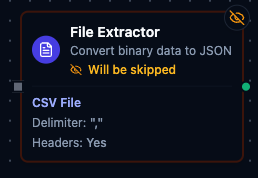
File Extractor node
File Extractor Node
Overview
- Type:
transform.file.extractor - Display Name: File Extractor
- Category: transform
- Execution:
supportsExecution: true - I/O Handles:
- Input:
In(left) - Output:
Out(right)
- Input:
Purpose: Convert binary file data to JSON by extracting and parsing data from CSV, Excel, and Parquet files with advanced filtering, column selection/mapping, and row manipulation.
Configuration Reference
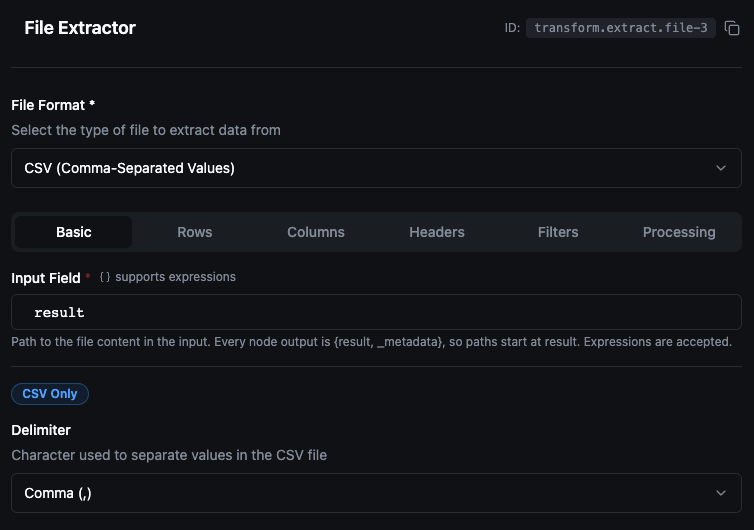
Basic
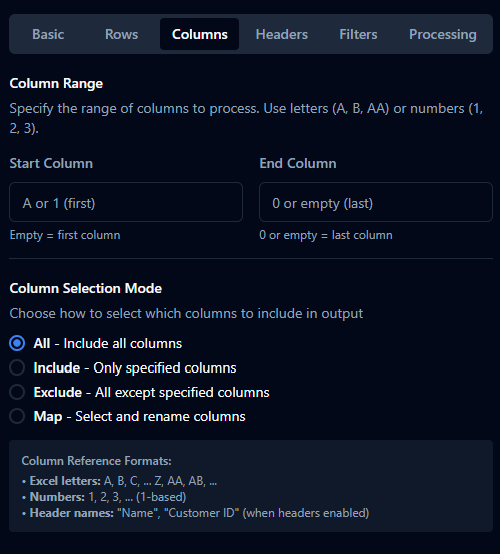
Columns
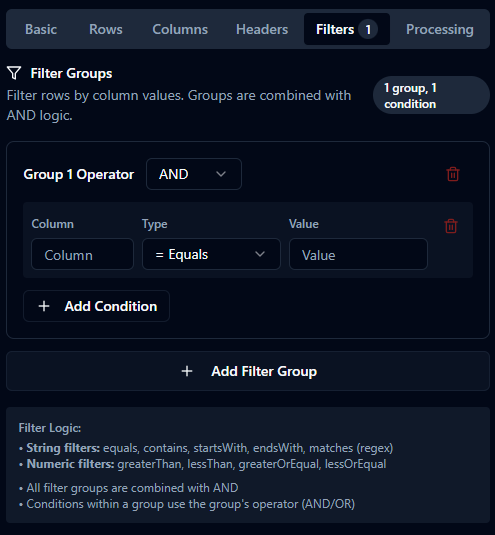
Filters, Rows, Processing
Basic Configuration
| Parameter | Type | Default | Required | Description |
|---|---|---|---|---|
| File Format | select | "CSV" | Yes | CSV / Excel / Parquet. |
| Input Field | string | "result" | Yes | Dot path to the file content inside the node input. Every node output is {result, _metadata}, so paths start at result — a Fetch node puts the content at result.data. |
CSV-Specific
| Parameter | Type | Default | Required | Description |
|---|---|---|---|---|
| Delimiter | string (1 char) | "," | Yes (CSV) | Character to separate values. One of , ; \t ` |
Excel-Specific
| Parameter | Type | Default | Required | Description |
|---|---|---|---|---|
| Sheet Name | string | "" | No | Target sheet; empty = first sheet. |
Parquet-Specific
Parquet has no extra parameters — it is self-describing, so column names and types come from the file itself.
That changes the meaning of a few shared options:
| Option | Behaviour with Parquet |
|---|---|
| Has Headers, Header Search, Normalize Headers | Not applicable. Headers always come from the file schema. The Headers tab explains this in place of the controls. |
| Delimiter, Sheet Name | Not applicable. If set, they are listed in metadata.ignoredOptions rather than silently dropped. |
| Start Row / End Row | 1-based indices into the data rows. There is no header row to count, unlike CSV. |
| Column Range, Column Mode, Filters, Max Rows | Work exactly as they do for CSV — cells are delivered as strings. |
Two extra metadata fields are returned:
| Field | Description |
|---|---|
columnTypes | Map of column name → source type (string, int64, float64, bool, timestamp). The only place the file's real types survive, since cells are strings. |
sourceRows | Row count declared in the file footer, before any row-range or cap trimming. |
Types outside that vocabulary — decimals, dates, binary, nested structs — are read and rendered as strings; binary columns come back base64-encoded. NULL becomes an empty cell. Timestamps are rendered RFC 3339 in UTC.
A Parquet extract materializes at most 1,000,000 rows. Parquet is compressed, so the file-size limit says nothing about row count and an unbounded read of a lakehouse file can exhaust memory. When the cap trips, metadata.truncated is true and metadata.sourceRows reports what the file actually holds — compare the two rather than assuming the extract is complete.
Feed this node base64-encoded file content — what a Convert to File node emits for Parquet, and what storage connectors return when reading a .parquet file. If an upstream write stored the base64 text instead of the decoded bytes, the extract fails with a parse error rather than returning zero rows.
Row Selection
| Parameter | Type | Default | Visible When | Description |
|---|---|---|---|---|
| Range Mode | select | "auto" | Excel only | auto / manual / headerSearch. |
| Start Row | number (min 1) | 1 | CSV always, Excel manual | 1-based physical row where the table starts. With Has Headers on, this is the header row and data begins on the next row. With Has Headers off, this is the first data row. |
| End Row | number | 0 | CSV always, Excel manual | 1-based physical row of the last row to include. 0 = read to end of file. If non-zero, must be >= startRow. |
| Max Rows | number | 0 | Always | 0 = unlimited. Applied after filters. |
Notes:
- Range Mode
auto: detects data region automatically (Excel). OnlymaxRowsapplies. - Range Mode
manual: enablesstartRow,endRow, and column ranges (Excel). - Range Mode
headerSearch: header row found by text search; see Header Configuration. When used,startRowis ignored for locating the header — the matched row wins. - For files with decorative preamble rows (title banners, metadata lines above the real column header), set Start Row to the row that contains the column header. The node will pick that row as the header and read data from the next row onward.
Column Selection
Column Range (CSV and Excel manual mode)
| Parameter | Type | Default | Description |
|---|---|---|---|
| Start Column | string | "" | A/1/AA or header name; empty = first column. |
| End Column | string | "" | A/1/AA/header name; 0 or empty = last column. |
Column Selection Mode
| Parameter | Type | Default | Description |
|---|---|---|---|
| Column Mode | select | "all" | all / include / exclude / map. |
| Columns | array | [] | Used when columnMode is not all. Each entry: { column: string; rename?: string }. |
- include: only listed columns.
- exclude: all except listed.
- map: select and optionally rename.
Header Configuration
| Parameter | Type | Default | Visible When | Description |
|---|---|---|---|---|
| Has Headers | boolean | true | Always | First row contains header names. |
| Include Headers | boolean | true | Has Headers | Include the header row in output metadata. |
| Normalize Headers | boolean | true | Has Headers | Trim whitespace; handle duplicates with suffix _2, _3, ... |
| Header Search Text | string | "" | Has Headers | Optional for CSV/Excel auto/manual; required for Excel headerSearch. Takes precedence over Start Row when set. |
| Header Search Match | select | "contains" | Has Headers | contains (substring, case-insensitive) or exact (whole cell, case-insensitive, whitespace-trimmed). Use exact when the search term also appears inside a longer title row. |
| Header Search Column | string | "" | When search text set | Optional column limit (A/1/header). |
Filtering
filterGroups: { op: 'AND'|'OR', conditions: FilterCondition[] }[]
FilterCondition: { column: string, type: FilterType, value: string }
- String:
equals|contains|startsWith|endsWith|matches - Numeric:
greaterThan|lessThan|greaterOrEqual|lessOrEqual
Notes:
- All groups combine with AND.
- Column names are case-insensitive.
- Missing columns treated as empty strings.
matchesuses regex; invalid patterns rejected.- Numeric types require numeric
value(commas allowed; stripped).
Processing Options
| Parameter | Type | Default | Visible When | Description |
|---|---|---|---|---|
| Trim Whitespace | boolean | true | Always | Trim surrounding whitespace per value. |
| Skip Empty Rows | boolean | true | Always | Skip rows with no meaningful content. |
| Preserve Types | boolean | true | Excel only | Keep numbers/booleans typed; dates as ISO strings. |
Settings
| Setting | Options | Default | Description |
|---|---|---|---|
| Timeout (seconds) | number | Pipeline default | Maximum execution time for this node (1--600). |
| Retry on Timeout | Pipeline Default / Enabled / Disabled | Pipeline Default | Whether to retry on timeout. |
| Retry on Fail | Pipeline Default / Enabled / Disabled | Pipeline Default | Whether to retry on failure. When Enabled, shows Advanced Retry Configuration. |
| On Error | Pipeline Default / Stop Pipeline / Continue Execution | Pipeline Default | Behavior when node fails after all retries. |
Advanced Retry Configuration
Only visible when Retry on Fail is set to Enabled.
| Field | Type | Default | Range | Description |
|---|---|---|---|---|
| Max Attempts | number | 3 | 1--10 | Maximum retry attempts. |
| Initial Delay (ms) | number | 1000 | 100--30,000 | Wait before first retry. |
| Max Delay (ms) | number | 120000 | 1,000--300,000 | Upper bound for backoff delay. |
| Multiplier | number | 2.0 | 1.0--5.0 | Exponential backoff multiplier. |
| Jitter Factor | number | 0.1 | 0--0.5 | Random jitter. |
Output Format
Example output:
{
  "success": true,
  "rows": [
    { "Name": "John", "Age": 30, "Status": "Active" },
    { "Name": "Jane", "Age": 25, "Status": "Active" }
  ],
  "metadata": {
    "totalRows": 100,
    "filteredRows": 2,
    "returnedRows": 2,
    "headers": ["Name", "Age", "Status"],
    "format": "csv",
    "sheetName": "Sheet1"
  }
}
Error Packet
{
  "success": false,
  "error": "Sheet 'Data' not found in workbook",
  "errorType": "SheetNotFound"
}
Common errors: Invalid format; missing file data; invalid base64; invalid file; sheet not found; invalid column reference; header not found; invalid filter.
Validation Rules
label: required (non-empty)fileFormat: must beCSV|Excel|ParquetinputField: required (non-empty)- CSV:
delimiterrequired (exactly 1 char) - Excel:
rangeModeinauto|manual|headerSearch - Excel header search:
headerSearchTextrequired whenrangeMode==='headerSearch' headerSearchMatch: one ofcontains|exact(defaults tocontainswhen unset)startRow: ≥ 1 when provided;endRow: 0 or ≥startRow;maxRows: ≥ 0columnMode: one ofall|include|exclude|map;columnsrequired when mode ≠allfilterGroups: each group hasopinAND|ORand at least one condition; types valid; regex validated; numeric values parseable
Using with Local File "Fetch"
This node consumes file content produced earlier in the pipeline.
- Local File connection → Function: Fetch Local File
- Connect the function node’s output to the File Extractor’s input.
- Set
inputFieldtoresult.data— where every Fetch node (Local File, SMB, S3, …) puts the content.
Examples
- CSV:
inputField: 'result.data',fileFormat: 'CSV',delimiter: ',',hasHeaders: true,columnMode: 'include',columns: [{ column: 'Date' }, { column: 'Total' }] - Excel:
inputField: 'result.data',fileFormat: 'Excel',sheetName: 'Summary',rangeMode: 'headerSearch',headerSearchText: 'Customer ID',columnMode: 'map',columns: [{ column: 'A', rename: 'id' }, { column: 'CustomerName', rename: 'name' }]
Common Use Cases
- Simple CSV import with headers (all defaults)
- Excel sheet extraction with mapped columns (use Map mode)
- Filtered data with row limit (combine filters + maxRows)
- Excel with variable header position (use Header Search)
- Files with a decorative preamble above the real column header (set Start Row to the header row — the node treats it as the header when Has Headers is on)
- Title rows that contain the same words as the real header (use Header Search Match = exact so substrings inside the title don't mis-match)
Tips & Troubleshooting
- Use Header Search for variable report layouts.
- For exports with banner/title rows above the column header, set Start Row to the header row — no need to use Header Search.
- If Header Search picks up a title row that contains the same term, switch Header Search Match to
exactfor a whole-cell match. - Enable Trim Whitespace to avoid subtle mismatches.
- Start with small
maxRowsduring testing. - Use Column Mapping to standardize names.
- Enable Skip Empty Rows to clean output.
- Preserve Types (Excel) to maintain numeric/boolean fidelity.
- Test regex patterns before production.
Version History
Version 1.1
- Start Row and End Row are now 1-based physical row positions. With Has Headers on, Start Row is the header row (data starts on the next row); previously the header was always taken from row 1 and Start Row offset the data after it. Files that depend on the previous off-by-header data offset should drop Start Row by 1 when Has Headers is on.
- End Row is now the 1-based physical position of the last row to include (inclusive of the header row when Has Headers is on). Pipelines with
EndRow > 0and Has Headers on will return one fewer row at the tail than before — bump End Row by 1 to preserve the prior row count. - Added Header Search Match (
contains|exact) so a substring likeNamedoesn't match a longer title row containing the same word.
Version 1.0 - Initial unified node release
- CSV, Excel, and Parquet file support
- Advanced filtering
- Column selection and mapping
- Header search capability
- Excel range modes (auto/manual/headerSearch)
Configuration reference
The fields below are generated from the node's config contract, so they match what the pipeline validator enforces and what the designer's form offers.
transform.extract.file
| Field | Type | Required | Default | Values | Description |
|---|---|---|---|---|---|
format | string | no | csv | csv, excel, parquet | File format of the bytes at inputField: csv (text), excel (.xlsx workbook) or parquet (columnar) |
inputField | string | no | result | accepts an expression | Dot path to the file content inside the node input — every node output is {result, _metadata}, so paths start at result, e.g. result or result.fileData — base64 text, a data: URL or a file path as produced by a Fetch node; the execution fails when the path is missing |
startRow | integer | no | 1 | at least 1 | 1-based physical row where the table starts; with hasHeaders this is the header row and data begins on the next one. Ignored when headerSearchText is set. For parquet it counts data rows |
endRow | integer | no | 0 | at least 0 | 1-based physical row of the last row to include; 0 reads to the end of the file. Must not be below startRow |
maxRows | integer | no | 0 | at least 0 | Maximum number of rows to return after filtering; 0 means unlimited |
startColumn | string | no | — | — | columnMode all only: first column to keep — a header name, an Excel letter (A, AA) or a 1-based number; empty keeps from the first column |
endColumn | string | no | — | — | columnMode all only: last column to keep — a header name, an Excel letter or a 1-based number; empty or 0 keeps to the last column |
columnMode | string | no | all | all, include, exclude, map | all keeps every column (optionally bounded by startColumn/endColumn); include keeps only the listed columns in the listed order; exclude drops the listed columns; map keeps the listed columns and renames them |
columns | object[] | no | — | — | Column references used by include, exclude and map — at least one is required in those modes. A reference that matches no column is reported in the output's unresolvedColumns |
hasHeaders | boolean | no | true | — | true reads column names from the table's first row; false names them _column_1, _column_2, … and treats the first row as data. Parquet always takes names from the file schema |
includeHeaders | boolean | no | true | — | Accepted but has no effect: the column names are always reported in the output's headers |
normalizeHeaders | boolean | no | true | — | Trim whitespace around column names; duplicates are always suffixed _2, _3, … so no row key is silently overwritten |
headerSearchText | string | no | — | — | Text that identifies the header row; when set the table starts at the first row containing it (case-insensitive) and startRow is ignored. Required when rangeMode is headerSearch. Ignored for parquet |
headerSearchColumn | string | no | — | — | Limit the header search to one column — an Excel letter or a 1-based number; empty searches every cell of each row |
headerSearchMatch | string | no | contains | contains, exact | How headerSearchText is matched: contains is a case-insensitive substring match; exact requires the whole trimmed cell to equal it (use it when the text also appears inside a longer title row) |
filterGroups | object[] | no | — | — | Row filters; every group must match (groups combine with AND), and within a group its op decides whether all or any of its conditions must match |
trimWhitespace | boolean | no | true | — | Trim whitespace around every cell value |
skipEmptyRows | boolean | no | true | — | Drop rows whose cells are all empty |
delimiter | string | no | , | — | csv only: the field separator, exactly one character — e.g. "," ";" "|" or a real tab character |
sheetName | string | no | — | — | excel only: worksheet to read; empty reads the first sheet |
rangeMode | string | no | auto | auto, manual, headerSearch | excel only, designer setting: auto starts at the first row, manual uses startRow/endRow, headerSearch locates the table by headerSearchText (required in that mode). The extractor itself follows headerSearchText when set, else startRow |
preserveTypes | boolean | no | true | — | Accepted but has no effect: every cell is delivered as text |