Sharing
Give someone access to one resource without giving them a role for the whole workspace.
- Shareable
- Connections · pipelines · functions · topics · dashboards · library panels · apps
- Needs
- share on the resource
- Licence feature
- Advanced Access Control
A share gives a person, a group, an API client, an agent or everyone holding a role some verbs on one resource: read a connection, run a pipeline, publish under a topic branch. Shares only add access; they never take away what a role gives. To take access away, unshare or write a deny rule.
What you can share
| Resource | Verbs you can share |
|---|---|
| Connection | read, create, update, delete, share, test, start, stop, clone |
| Pipeline | read, create, update, delete, share, test, run, retry, cancel, clone |
| Function | read, execute |
| Topic | read, create, update, delete, share, publish, subscribe |
| Dashboard, library panel | read, create, update, delete, share |
| App (App Studio, Beta) | read, create, update, delete, share, run, publish, clone |
A function's update and delete come with managing its connection, so a function shares only read and execute. Transfer (handing over ownership) is never shared; it has its own action, see Ownership.
Who may share
You share a resource when you hold share on it:
- Its owner. The person or group that owns a connection, pipeline, dashboard or app holds
shareon it. - A steward, for topics in their branch. See Stewardship.
- A role that grants
share, such as Workspace Administrator. - Someone it was shared to with
share.
Two rules limit what you share:
- You can only share what you hold. Every verb you tick must be one you hold on the resource, and you must also hold
read. A Plant Operator who may run a pipeline can sharerun, but notupdate. - Only people share. An API client, an agent or a pipeline is refused with sharing and stewardship require a person; machine credentials can't grant access, even when its role grants
share. Theshareverb itself cannot be shared to one.
A share to a person needs them to be a member of the workspace.
Share a resource
The Share dialog opens from the resource's menu:
| Resource | Where |
|---|---|
| Connection | Connect, the row's ⋮ menu, Share |
| Pipeline | Orchestrate → Pipelines, the row's ⋮ menu, Share |
| Function | The function's page, Share; or on a connection's Functions tab, Share Functions for every function of the connection |
| Topic | Data Explorer, right-click the topic, Share… |
| Dashboard | Open the dashboard, the Share access button |
| App | Apps, the app's ⋯ menu, Share |
The menu item is shown only to people who may share the resource.
- Under Share with, pick a user, a group, an API client, an agent or a role.
- For a topic, choose the scope: This topic + subtree (the default) or This topic only.
- Tick the verbs to give. read is ticked to start with.
- Optionally set Expires at, between five minutes and one year from now. See Time-bound access.
- Click Grant share.
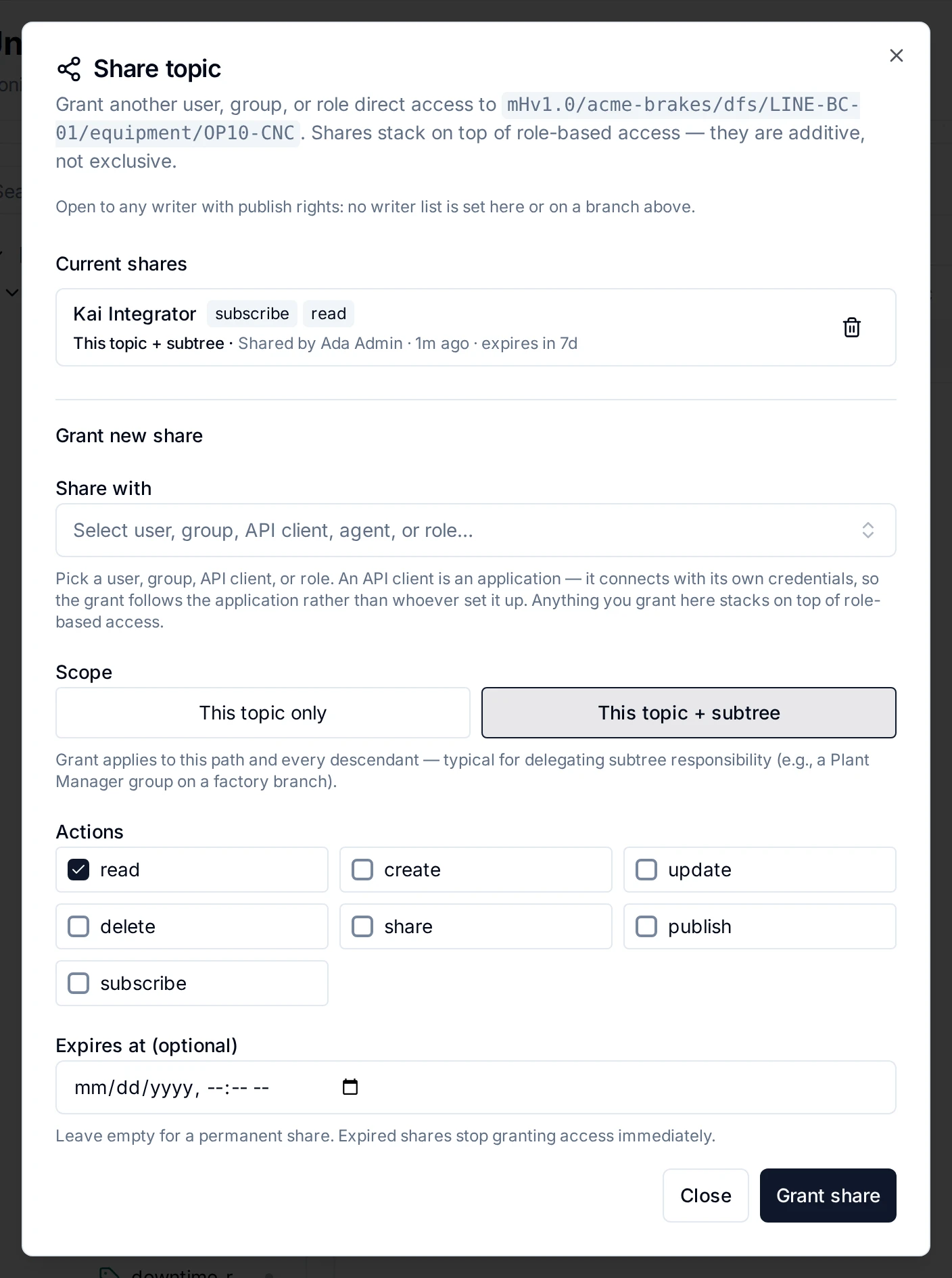
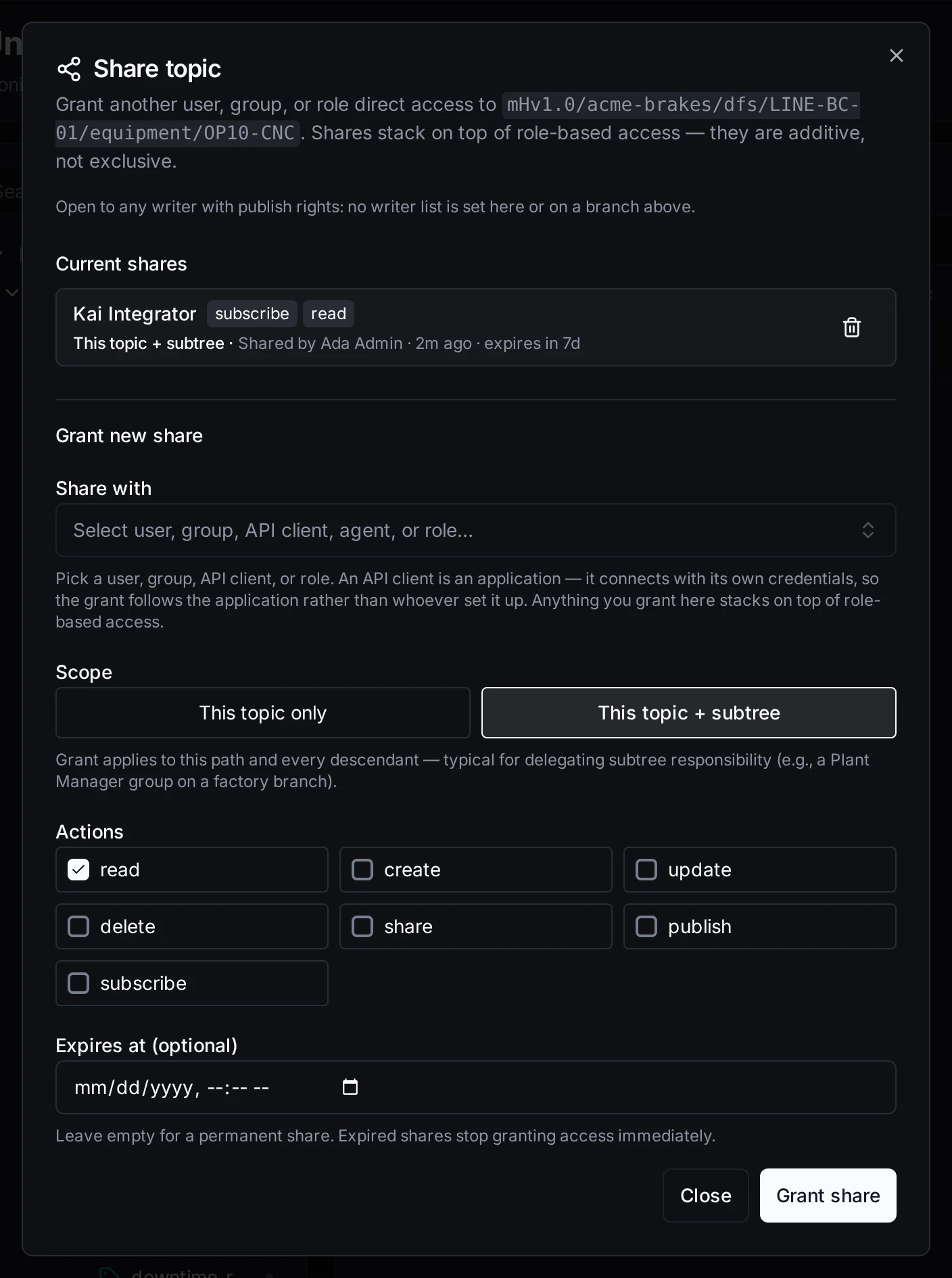
Sharing a branch of the namespace: the current shares, then the form for a new one
The Current shares list at the top shows every share on the resource: who it is for, which verbs, who shared it, when, and when it expires. On a topic, a share made on a branch above shows as managed on that branch; you change it there.
When the resource uses other resources (a dashboard reads topics, a pipeline calls functions), the dialog lists them and offers read-only shares of them to the same person, so the share works when they open it.
Topics: this topic or the subtree
A share on a branch with This topic + subtree reaches every topic under it, including topics created there later. This topic only reaches the one topic; the topics under it are not affected. A share is kept on the topic's identity, so renaming the topic or its branch keeps the share.
Granting publish on a topic does not get past a branch's writer list: if the branch admits only listed writers, the person must be listed too. The dialog shows the branch's writers as a reminder. See Stewardship.
Share many topics at once
In the Data Explorer, select several topics (right-click a topic, Select, or the row checkboxes), then click Share in the bar that appears. The dialog grants or revokes the same share on every selected topic, up to 50 at a time, and lists the result for each one. A topic you may not share comes back as No permission; the others are still shared.
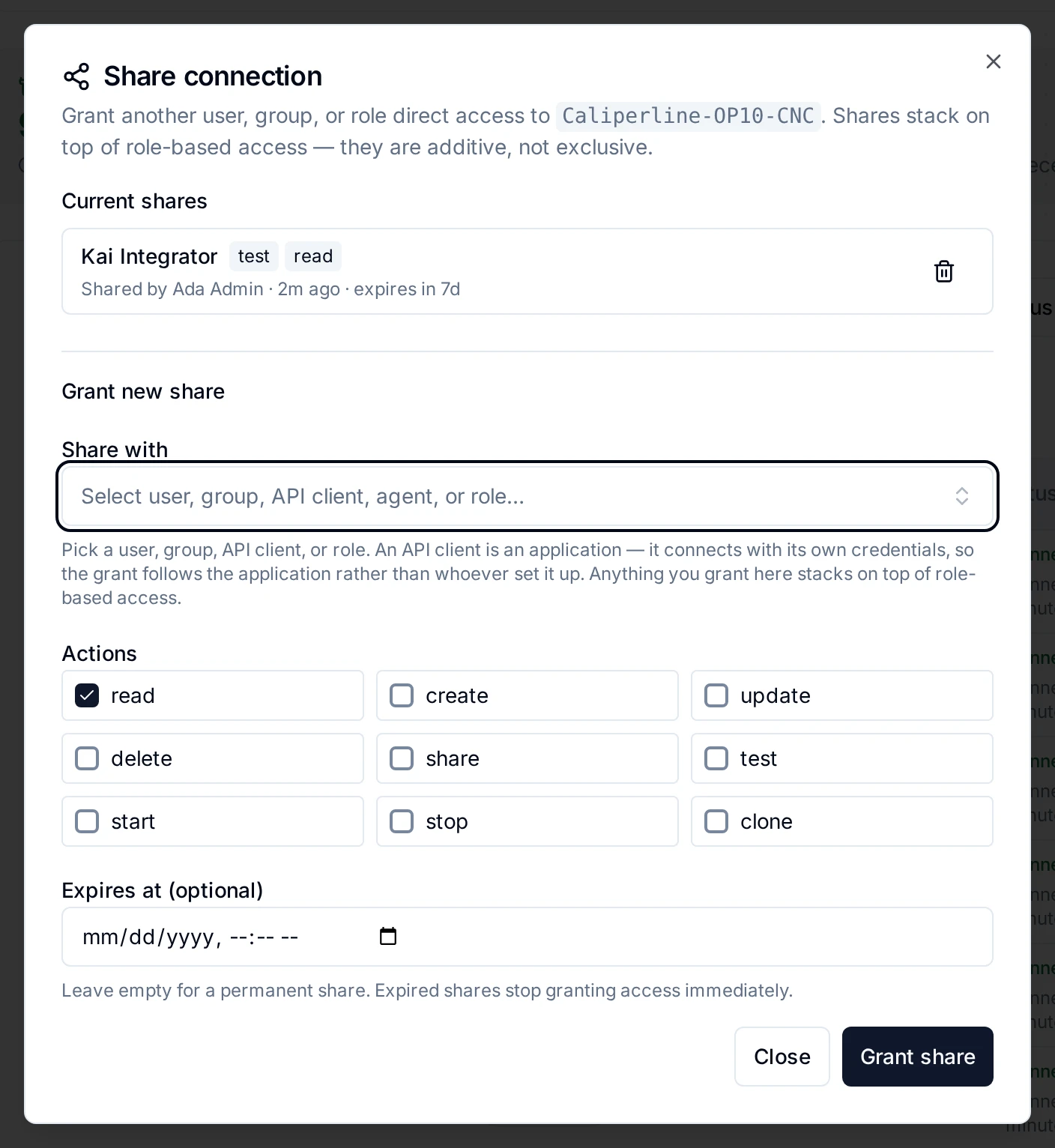
The same dialog shares a connection, a pipeline, a dashboard or an app
Revoke a share
Open the Share dialog and click the revoke icon on the row. A person who holds both a This topic only and a This topic + subtree share has two rows; each is revoked on its own. Revoking needs share on the resource and works on every licence, including after a downgrade.
Shares with a condition
Through the API a topic share can also carry a condition, an expression evaluated on each request, for example request.time_of_day >= 6 && request.time_of_day < 14 for the early shift. The fields a condition can use are request.time_of_day (hour, 0 to 23), request.day_of_week (0 is Sunday) and subject.groups (the requester's groups). The hour is read in UTC, not in the plant's time zone. The Share dialog does not set a condition; an approved access request can.
Where to see your shares
My Access → Shared with me lists what was shared with you directly, and Shared by me what you shared. A share to a group you are in gives you its access but is listed under the group, not on your Shared with me tab. See Seeing who has access.
Without the licence
Creating a share needs Advanced Access Control. Without it, the Share item still opens the dialog, captioned as remove only: the shares that exist are listed and can be revoked, and they keep granting access. See Licence changes.