System Administrators
System Administrator (System.Admin) is the platform-wide administrator role. A System Administrator has unrestricted access to every workspace, every resource and every action on the installation, including the license, upgrades, logs and the creation of workspaces.
The System Administrators tab is the only place in the UI where this role is granted or revoked.
Open Admin → Identity & Access → Users & Roles and select the System Administrators tab.
Who sees this tab
Only System Administrators. The tab needs the platform:grant_admin permission, which no other built-in role has, and the Access Control license feature. Everyone else doesn't see the tab.
The list is the same in every workspace: System Administrator is granted at platform level, not per workspace.
Why only here
System Administrator is not a workspace role, so the usual role pickers can't grant it:
- In a user's Manage Roles dialog it is shown greyed out, with a note that it is granted at platform scope and that a system administrator manages it under Identity & Access → System Administrators.
- Single sign-on can't grant it. In an SSO provider's role mapping, System Administrator is listed under Not available for mapping. Sign-in through OIDC, SAML or LDAP never makes anyone a System Administrator; grant it here after the person has signed in once.
- It can't be assigned to a group, and a custom role can't include the permissions only a System Administrator has.
The first System Administrator is the account created during initial setup.
The list
The tab lists every System Administrator with their name and email, a You badge on your own row, and who granted the role and when (Granted by <name> · <date>, the first account's row names the setup process instead, Granted by system:auth-admin-bootstrap).
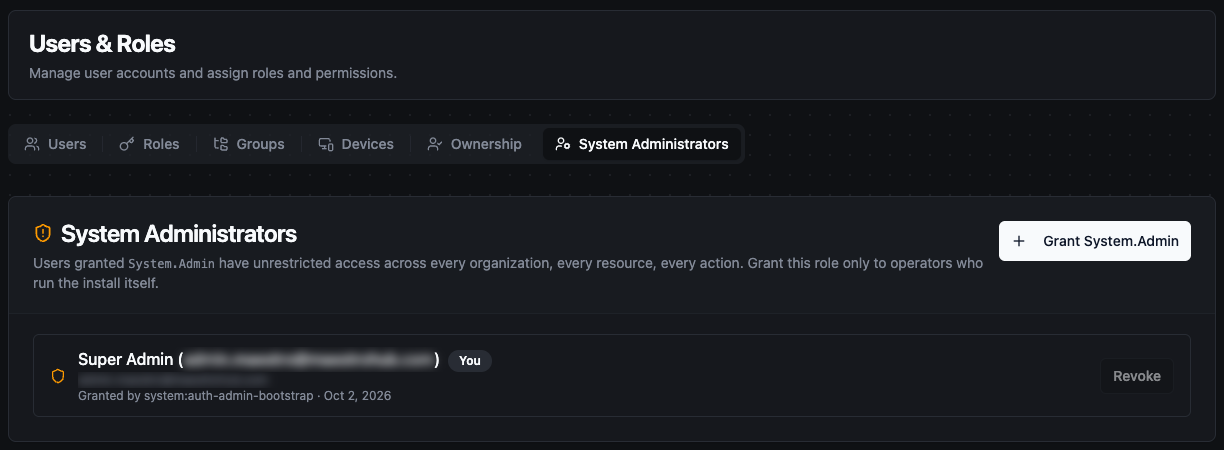
The System Administrators tab
Grant System.Admin
- Click Grant System.Admin.
- Under Recipient, search by name or email and pick the user. Users who are already System Administrators are not listed.
- Click Grant platform-wide access.
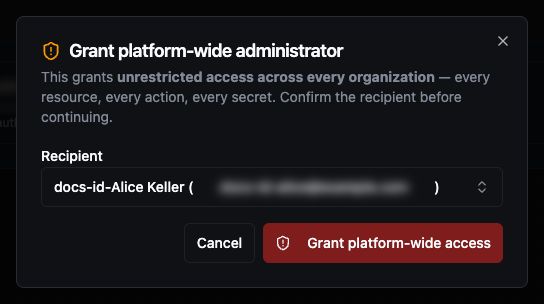
Granting System.Admin: pick the recipient, then confirm
The user gets unrestricted access to every workspace at once. Grant this role only to the people who run the installation itself. For someone who administers one workspace, assign Workspace Administrator in that workspace instead.
The recipient list loads up to 1,000 users. On a larger installation, a user beyond that can't be picked here.
Revoke System.Admin
- Click Revoke on the person's row.
- Confirm Revoke.
The person loses platform-wide access immediately. Roles they hold in individual workspaces are not affected.
You can revoke your own System Administrator role, as long as someone else still has it. The dialog warns you when you are about to remove your own role.
Last-admin protection
MaestroHub always keeps at least one System Administrator:
- When you are the only one, your Revoke button is greyed out, with the reason You are the last system administrator. Grant System.Admin to another user before removing yourself.
- The server refuses to remove the last System Administrator by any route, including the API, with the error cannot remove the last System Administrator.
To hand the role over to someone else, grant it to them first, then revoke your own.
Keep at least two System Administrators, so that one person being unavailable never locks you out of the license, upgrades and workspace management. If every System Administrator loses their password, see Password Reset for the break-glass reset.