Custom Roles
When none of the built-in roles fits a job, you can build your own role for your workspace: pick exactly the permissions it grants, inherit from existing roles, or both. A custom role is assigned like any other role, to users or to groups.
Custom roles need the Advanced Access Control (advanced_access_control) license feature. Without it, the Create role button and the role editor are not available.
Built-in roles and custom roles
| Built-in roles | Custom roles | |
|---|---|---|
| Defined by | MaestroHub. They are the same in every workspace. | You. Each one exists only in the workspace where you created it. |
| Can be edited or deleted | No. Edit role and Delete role are greyed out in the menu, with the reason. | Yes |
| Where they can be assigned | Depends on the role. System Administrator is platform-wide and the Fleet roles are fleet-wide. All others are workspace roles. | Only inside their own workspace |
The built-in roles are described in Users & Roles.
A custom role always works inside one workspace. It can't be granted platform-wide, and it can't include the permissions that only a System Administrator can have: the permissions on license, upgrade, telemetry, pat, debug, fleet_client, uns_settings and maestro_settings. The catalog shows those rows greyed out, with the reason.
Who can create and edit roles
You need role:create to create a role, role:update to edit one and role:delete to delete one. Workspace Administrator, Identity Administrator, Security Administrator, Connect Admin, Automate Admin, Data Admin and Apps Admin have them.
You can only grant what you hold yourself. Every permission in the role, and everything a parent role passes on, must be a permission you have in this workspace. Permissions you don't have are greyed out in the catalog, with the tooltip You don't hold this permission yourself, so you can't grant it. The same rule applies when you edit a role: if the role already has a permission you don't hold, you can't save changes to it. Ask an administrator who holds that permission.
Create a role
Open Admin → Identity & Access → Users & Roles, select the Roles tab and click Create role. The editor opens at /<workspace-slug>/identity-access/roles/new and has three tabs.
To start from an existing role instead, open that role's ⋮ menu and choose Duplicate as custom. The editor opens with the source role's display name (with "(copy)" added), description and permissions already filled in. The name is left empty, and inheritance is not copied.
Basics
| Field | Description |
|---|---|
| Name | Required. The role's identifier, for example Plant.OnCallEngineer. 2 to 128 characters: letters, digits, dots, underscores and hyphens, starting with a letter. It must be unique in the workspace. |
| Display name | Optional. The name people see in role pickers. If you leave it empty, the name is shown. |
| Description | Optional. What the role is for and who should have it. |
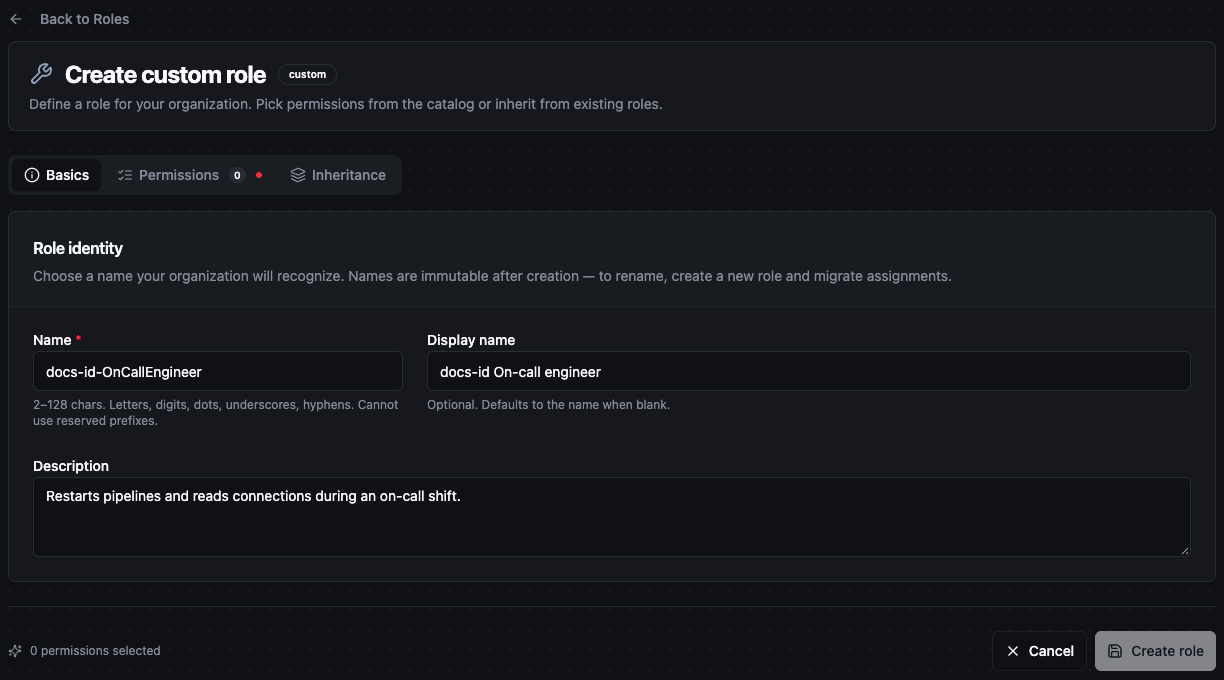
The Basics tab of the role editor
The name can't be changed after the role is created. Choose it carefully. To rename a role later, create a new one, move the assignments to it and delete the old one. The display name and description can be edited at any time.
Some names are reserved for built-in roles and are refused:
- Names that start with
System.,Workspace.,Connect.,Automate.,Data.,Secret.,Fleet.,Persona.,Identity.,Security.,Compliance.orLogging. - The exact names
Member,DataEngineer,PlantOperator,Analyst,SecurityAdmin,ComplianceAuditor, and the name of any built-in role
Permissions
The Permissions tab lists the whole permission catalog, grouped by feature area and then by resource type. Tick the actions the role should allow.
- Use the search box to find a permission, for example
publishorpipeline:run. - Use All / Low / Medium / High to show only permissions of one sensitivity. High-sensitivity actions are marked so you see the security impact while you choose.
- Permissions the role gets through inheritance are ticked, greyed out and marked inherited.
- When you tick
function:execute, an Execute effects row appears. All six effects (read, write, stream, discover, delete, invoke) are allowed by default. Untick effects to narrow what holders may execute, for example only read and stream for a read-only operator. At least one effect must stay ticked.
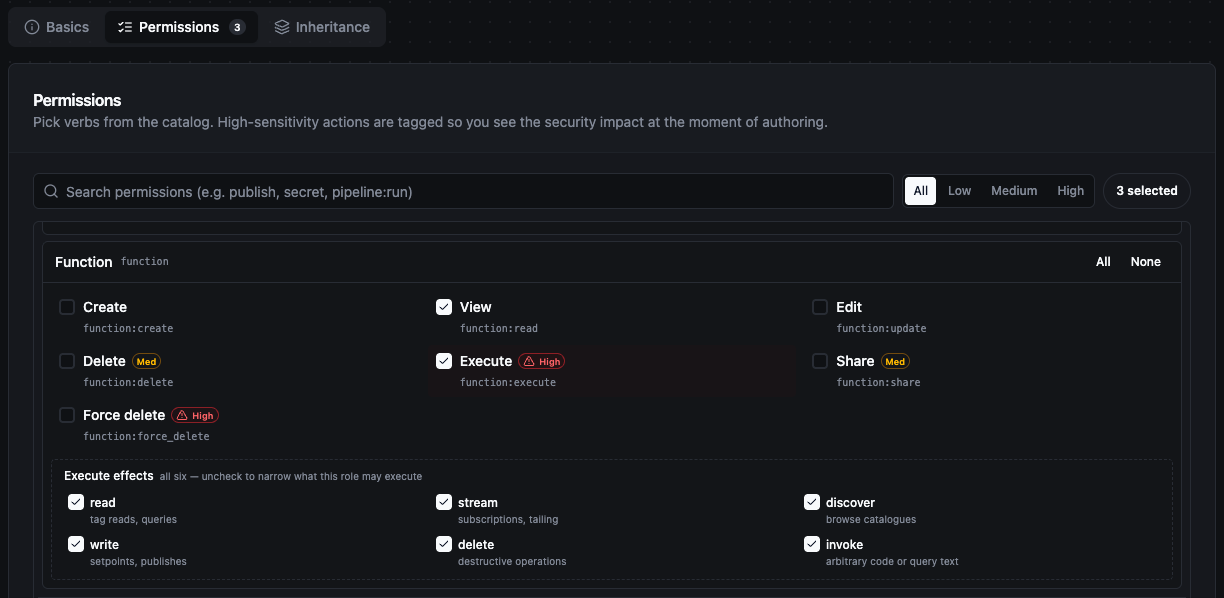
Ticking function:execute shows the Execute effects row
If a role narrows execute effects and includes connection:create, its holders still get full execute on the connections they create themselves, because an owner's rights on a resource are not narrowed by effect. The editor shows a warning when you combine the two.
A role must grant something: tick at least one permission, or inherit from at least one role. Until then Create role stays disabled and the Permissions tab shows a red dot.
If you edit an older role, the tab can show two notices above the catalog:
- Permissions declared by no active module. The role lists a permission that no module in this installation provides. It grants nothing here. Remove it with ×, or keep it if the same role is used where that module exists.
- Platform-only permissions. The role lists a permission that only a System Administrator can have. It grants nothing in a workspace role, and saving removes it.
Inheritance
The Inheritance tab lets you build the role on top of existing roles. Tick one or more parent roles on the left. The Inherited preview on the right lists what the selected parents grant.
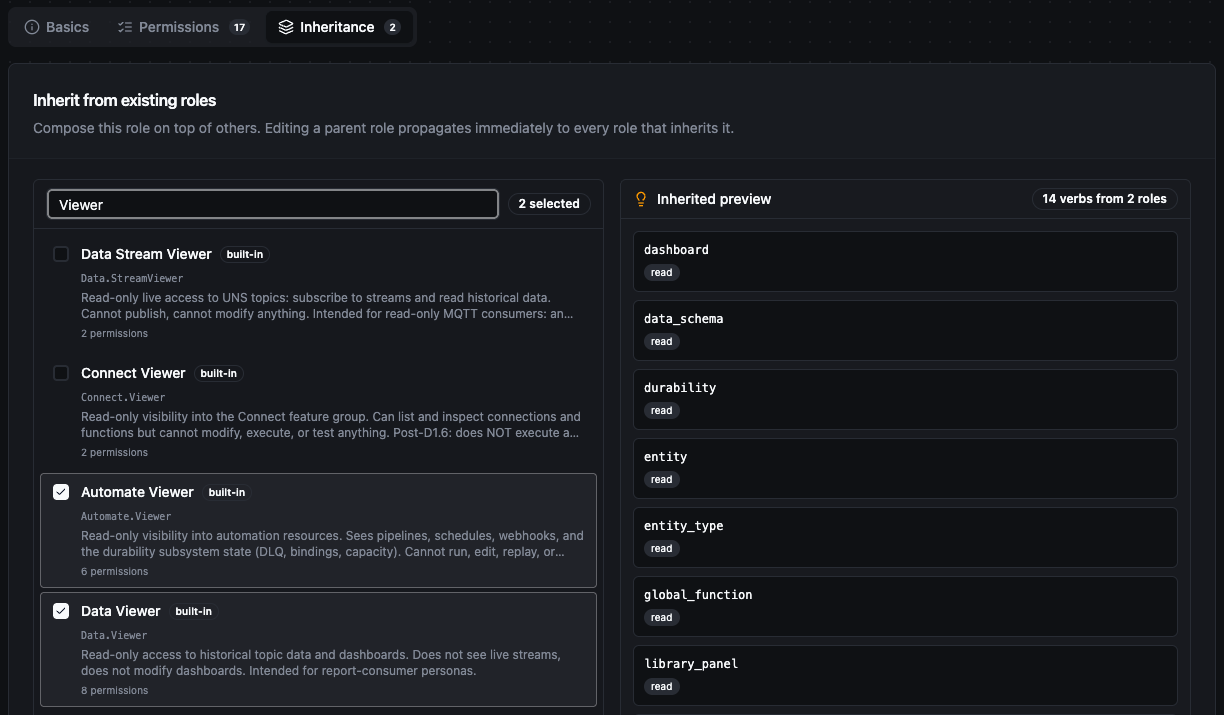
Two parent roles selected, with the Inherited preview on the right
How inheritance works:
- The role grants its own permissions plus everything its parents grant. Permissions only add up. A child can't take away a permission a parent grants.
- Inheritance stays live. When a parent changes, every role that inherits from it changes at the same moment, and so does everyone who holds those roles. This includes built-in parents: if a MaestroHub upgrade changes a built-in role, the custom roles that inherit from it change too.
- Duplicating is a snapshot, inheriting is a link. Duplicate as custom copies the permissions once; later changes to the source don't reach the copy. Choose inheritance when you want the role to follow its parent, and duplication when you want it fixed.
- Chains add up. If a parent inherits from another role, your role gets that role's permissions too. A chain can be at most 10 levels deep, and a role can't end up inheriting from itself.
- You can build a role from parents only. A role with no permissions of its own and one or more parents is valid.
The Inherited preview and the permission count show only what the selected parents grant themselves. When a parent is a custom role that inherits from other roles, those further permissions apply too, but they are not listed in the preview.
Click Create role to save. The role is available in role pickers at once.
Edit a role
On the Roles tab, open a custom role's ⋮ menu and choose Edit role. You can change the display name, description, permissions and parents, but not the name.
If the role is assigned, a banner says how many users hold it. Saving takes effect immediately for every holder, and for every role that inherits from this one.
Built-in roles can't be edited. Use Duplicate as custom and change the copy.
Delete a role
Open the custom role's ⋮ menu and choose Delete role.
- If nobody holds the role and no other role inherits from it, confirm and it is deleted.
- If the role is assigned, or other roles inherit from it, a second dialog says how many assignments and which roles are affected. Type the role's name to confirm Revoke and delete. This removes the role from everyone who holds it, and removes it from the parents of the roles that inherit from it. Those roles then grant only what they grant on their own.
Deleting can't be undone. A new role created later with the same name is a different role: roles that inherited from the old one don't inherit from the new one until you add it as a parent again.
Assign a custom role
Assign it like any built-in role: to a user from Manage Roles (see Assigning Roles to Users), or to a group from the group's Roles tab (see Groups).