Ownership
Every resource in a workspace (a connection, a pipeline, a dashboard and so on) has an owner: the user or group who created it, or who it was transferred to. The owner can manage the resource. The Ownership tab is where an administrator makes sure every resource keeps an owner who can act for it, especially when people leave.
Open Admin → Identity & Access → Users & Roles and select the Ownership tab. The tab has three parts:
- Designated fallback owner: who receives a deleted user's resources.
- Adoption inbox: resources that could not be handed to anyone automatically.
- Resources that need an owner: resources owned by the system, by an empty group, or by a user who can't sign in.
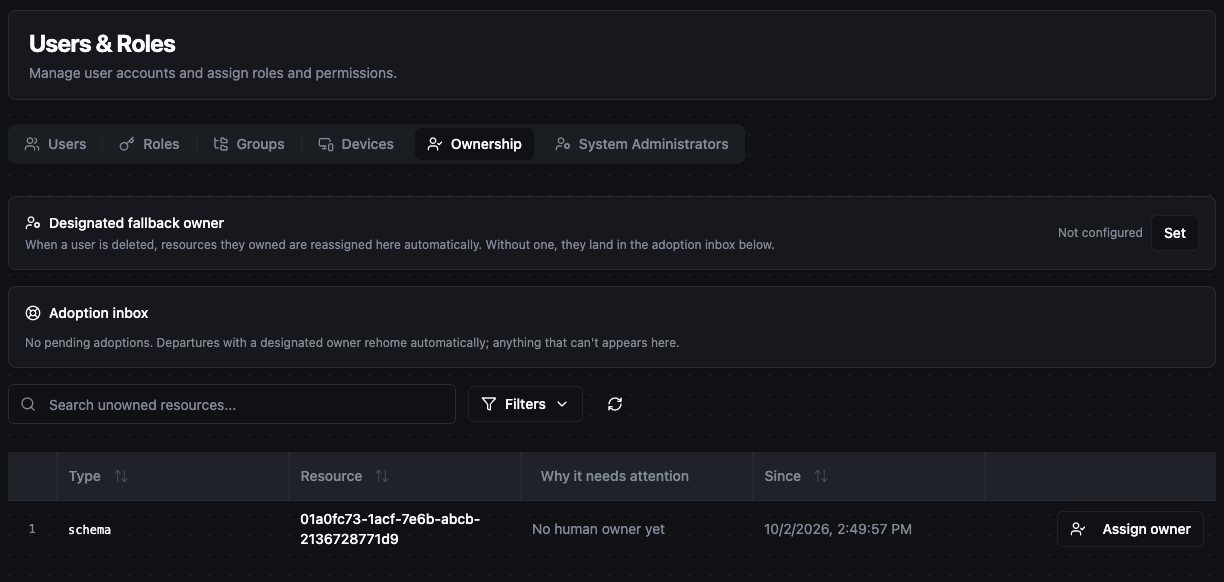
The Ownership tab: fallback owner, adoption inbox and resources that need an owner
Set the designated fallback owner first. Without it, MaestroHub hands a deleted user's resources to a workspace administrator it picks for you, as described below.
Permissions
| Action | Permission |
|---|---|
| See the tab | workspace:read and access to Users & Roles (role:read) |
| See the adoption inbox and the resources that need an owner | workspace:update |
| Set, change or clear the designated fallback owner | workspace:update |
| Adopt a resource, or assign an owner to one | <type>:transfer for that resource type, for example pipeline:transfer |
Among the built-in roles, Workspace Administrator (and System Administrator) have workspace:update and the transfer permissions. Identity Administrator and Security Administrator do not have workspace:update: they can open the tab but get an error instead of the two lists, and can't change the fallback owner. Buttons you can't use are greyed out, and hovering them shows the permission you are missing.
What happens to a deleted user's resources
When you delete a user (see Managing User Status), MaestroHub does two things in every workspace the user belonged to:
-
It withdraws what the user held. Their role assignments and everything shared with them are revoked at once.
-
It hands over what the user owned. For each workspace, it looks for a new owner in this order and gives all the user's resources in that workspace to the first one it finds:
- the workspace's designated fallback owner, if one is set;
- otherwise an Workspace Administrator of that workspace (the first one found, not the deleted user);
- otherwise a System Administrator.
If none of these exists, or the transfer fails, the resources go to the adoption inbox.
In practice, a workspace without a designated fallback owner gets the deleted user's resources assigned to one of its Workspace Administrators (or to a System Administrator if it has none), and you don't choose which one. Set a fallback owner so the resources go somewhere you decided.
Resources that change owner this way keep working. Only their owner changes, and the change is recorded in the audit trail.
Restoring a deleted user does not give anything back. It restores the login only. When you restore a user, MaestroHub shows what was revoked and where each resource went, so you can re-assign roles and transfer resources back yourself.
Deactivating a user is different from deleting one: a deactivated user keeps their resources. Those resources are listed under Resources that need an owner until you transfer them or reactivate the user.
Designated fallback owner
The Designated fallback owner card shows the current fallback owner, or Not configured.
To set it:
- Click Set (or Change when one is already set).
- Pick a user or a group from this workspace.
- Click Save.
To remove it, click Clear. Departures then fall back to a Workspace Administrator, as described above.
A group is a good choice: a team survives people leaving, where a single person may be the next to go. The group must belong to this workspace and must have at least one member, otherwise saving is refused.
Each workspace has its own fallback owner. If the fallback owner is the user being deleted, MaestroHub skips them and moves on to a Workspace Administrator.
Adoption inbox
The Adoption inbox lists resources whose owner was deleted and that could not be handed to anyone. A badge shows how many are waiting. When it is empty, it reads No pending adoptions.
Each row shows the resource type and ID, the user who left it behind, the reason and how long ago it happened:
| Reason | Meaning |
|---|---|
| No designated owner was configured | Neither a fallback owner nor an administrator could be found for the workspace. |
| Automatic reassignment failed | MaestroHub found a new owner but the transfer failed. |
To adopt a resource:
- Click Adopt… on its row.
- Choose the new owner: a user who is a member of this workspace, or a group in this workspace that has at least one member.
- Click Adopt.
The new owner gets full owner rights on the resource, and the row leaves the inbox.
Until a resource is adopted, its owner of record is the deleted user, so nobody has owner rights on it. People who reach it through their roles or shares keep that access.
Resources that need an owner
The table below the inbox lists resources that have an owner on paper but nobody who can act for them. The Why it needs attention column gives the reason:
| Reason | Meaning |
|---|---|
| No human owner yet | The system owns the resource, because it was created without a user: by a seed, an import or a migration. |
| Empty group: <name> | The resource belongs to a group that has no members left. |
| Owner cannot act: <name> | The owner's account is not active (for example deactivated). |
Click Assign owner on a row to transfer the resource to a user or group. The row disappears once the new owner is set. You can also fix an empty group by adding members to it, or an inactive owner by reactivating the account.
When nothing needs attention, the section reads Every resource has a reachable owner.
Related
- Groups: a group can own resources. A group that owns resources can't be deleted until they are transferred.
- Users & Roles: deleting, deactivating and restoring users.