Maestro, the AI assistant
Beta, early access on request: Maestro works with your permissions and changes nothing without your yes. Ask about your plant in plain words, have a problem explained and fixed, and let Maestro build and maintain pipelines and dashboards.
- Status
- Beta: available on request (early access)
- Where
- The Maestro button on every page, Second Brain in the rail, and a panel in the pipeline designer, dashboards and App Studio
- Needs
- A licence that carries Maestro, and an AI provider set up once by a system administrator
- Acts as
- You: your permissions, your workspace
Maestro is in release 3.0 as Beta. It is not turned on by default. To use it, ask MaestroHub for early access: you get a licence that carries Maestro. A system administrator then connects an AI provider under Second Brain → Providers. Names and steps may still change while Maestro is in Beta.
Maestro is the assistant inside MaestroHub. You describe what you need in your own words, and Maestro looks things up, builds, tests and changes things in the platform for you. Every action runs with your own permissions, and nothing changes until you say yes.
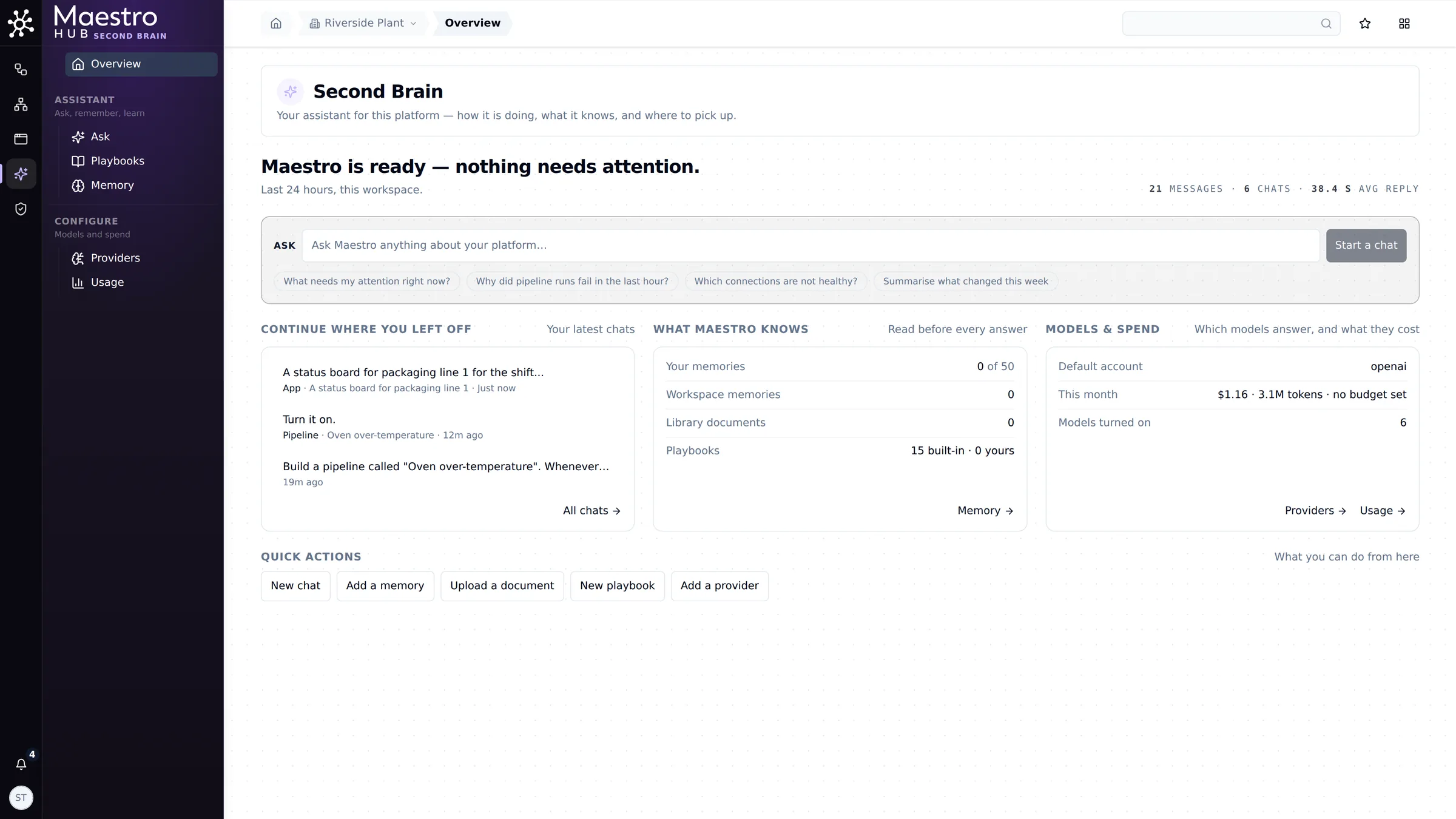
Second Brain → Overview: how Maestro is doing, what it knows, and where to pick up
What Maestro can do
- Answer questions about live data. "What is the oven temperature on line 1?" "Which connections are not healthy?" Maestro reads the topics, connections and pipelines you can see and answers with the figures it found.
- Help on any page. The Maestro button in the top bar, or Ctrl+J (⌘J on a Mac), opens a chat wherever you are, and Maestro is told which page that is. See Ask about this page.
- Explain and fix a problem. Explain & fix on a failed run, a broken connection or a warning asks Maestro what went wrong, with the details already filled in. See Explain & fix.
- Look before you ask. With proactive investigations on, Maestro investigates a new problem on its own, read-only and within a monthly cap, and puts its finding on the problem's card. See Problems Maestro already looked at.
- Draft a form for you. Draft it for me on a new connection, a function or a contract turns one sentence into a checked draft that you review and save. See Draft it for me.
- Build pipelines. Describe the rule in plain words ("when the oven goes above 195 °C, publish an alarm"). Maestro picks the nodes, writes the configuration, checks the draft, runs a dry run on sample values and saves it. See Build and maintain a pipeline.
- Maintain pipelines. Change a limit, add a step, rename a node, switch a trigger, turn a pipeline on or off, or find out why a run failed. Maestro edits the saved pipeline in place and tells you what changed.
- Build apps in App Studio. Describe a screen for the shop floor. Maestro writes the app against your real topics while you watch the live preview, and a person approves the release. App Studio is in release 3.0 as Beta, a paid add-on. Without Maestro, App Studio still works: your own AI client builds the app over MCP. See Build an app.
- Find problems, then show them. Ask why a line misses its target. Maestro reads the history and names the cause with numbers. It can then build a live 3D model of the line that shows the problem as it happens. See Model a line in 3D.
- Build dashboards. From the dashboard view, Maestro adds and arranges panels for the topics you name.
- Work with connections and data. List functions, look up topics and their schemas, and read history and aggregates.
- Remember what matters. Maestro can keep facts about you or your workspace in Memory, and asks before it saves one.
How you stay in control
- It acts as you. Maestro uses your permissions in your workspace, nothing more. If you cannot publish to a topic, neither can Maestro when it works for you.
- It asks before it changes anything. Before any action that creates, updates, runs or publishes, Maestro shows a Confirm to proceed card that says exactly what it will do, for example pipelines · create · Oven over-temperature. Nothing happens until you click Confirm. One yes covers that reply. Deletions and other actions you cannot undo always need their own yes, every time.
- It asks when it is not sure. When there is a real choice to make, Maestro shows the options and recommends one. You pick, or you type your own answer.
- Checks are free. Reading data, checking a draft and dry runs need no confirmation, because they change nothing.
- You can stop it. Stop (or Esc) ends a reply at any point.
- Releases still need a person. An app Maestro builds goes live only when someone approves the release.
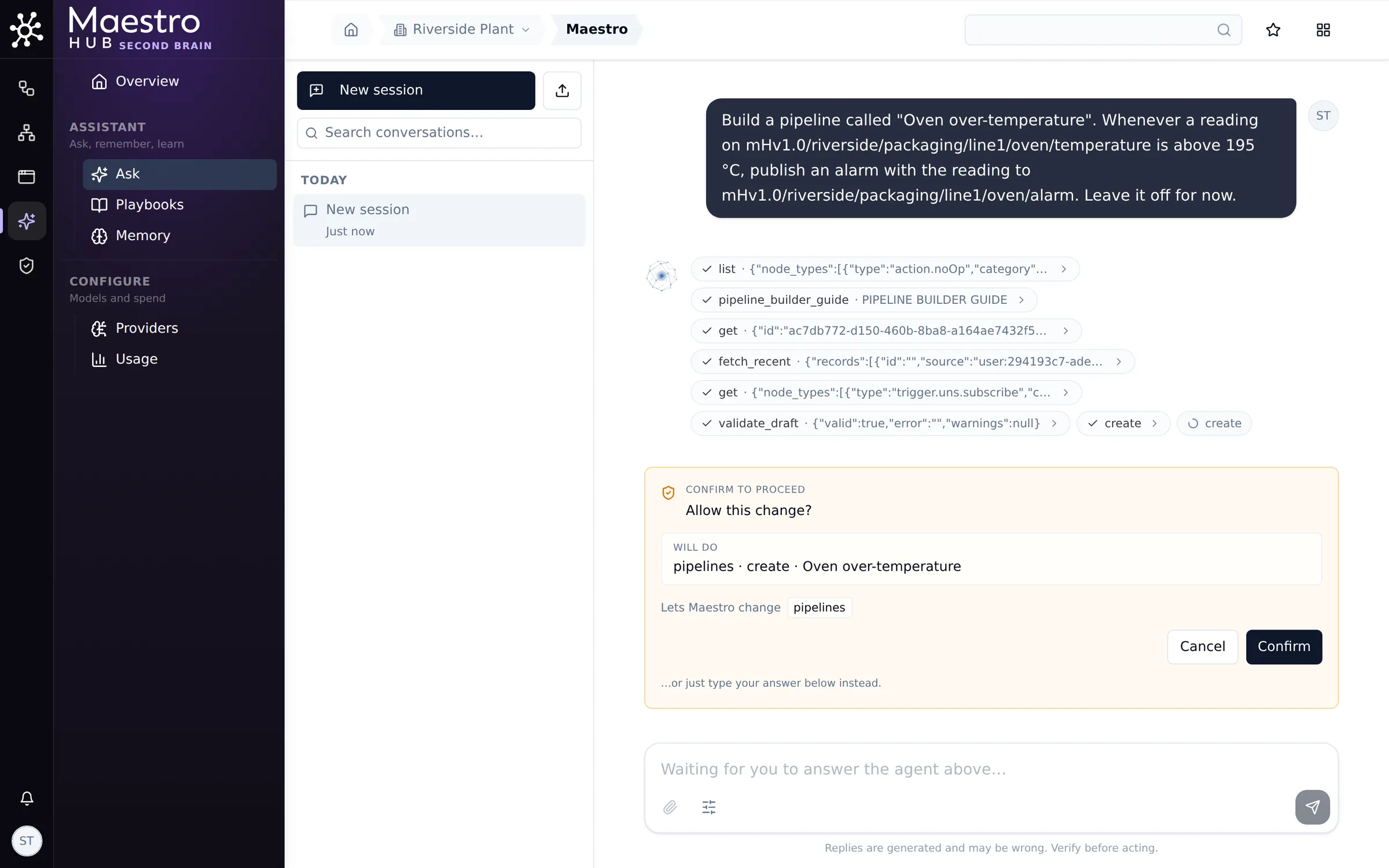
Maestro shows exactly what it is about to change, and waits for your yes
Before you start
- Your licence must carry Maestro. In 3.0 Maestro is Beta: ask MaestroHub for early access. Without it, every Maestro button and page stays hidden.
- A system administrator connects an AI provider and turns on models under Second Brain → Providers. Providers can be OpenAI, Anthropic, or any OpenAI-compatible endpoint. The setup applies to every workspace on the deployment.
- Choose the model with care. Cheap models answer simple questions well, but building pipelines and apps needs a stronger one. See Choosing a model.
- You need permission to use Maestro. Every workspace member has it by default, and a workspace can withhold it with a custom role.
- A workspace administrator can set a monthly token budget for the workspace under Second Brain → Usage, and can switch Maestro off there for that workspace.
In this section
- Where Maestro works: every page and panel Maestro appears on, and what each one is for.
- Ask about this page: the drawer tells Maestro where you are; chats and spend by page.
- Explain & fix: ask why something failed, from the row that shows it.
- Problems Maestro already looked at: let Maestro investigate a new problem before anyone asks, read-only and capped.
- Draft it for me: one sentence becomes a checked draft of a form.
- Build and maintain a pipeline: a recorded session, from a sentence to a running, tested pipeline, then a change a week later.
- Build an app: a recorded session in App Studio, from a description to an approved live app.
- Model a line in 3D: Maestro finds why a line misses its target, then builds a live 3D model of the line that shows the warning sign.
- Choosing a model: which models suit which work, from measured results.