Use case: build an app
Maestro and App Studio are in Beta: describe a screen for the shop floor, watch Maestro build it against your live topics, fix what you see, and approve the release.
- Goal
- A live shift board for packaging line 1
- Models
- gpt-5-mini, and gpt-5 for one fix
- Code written by hand
- None
- Goes live
- Only when a person approves the release
App Studio is in release 3.0 as Beta: a paid add-on that no edition includes by default. A licence or a trial licence that includes the app_studio feature switches it on. The module is on by default, so the licence decides. Maestro is a separate Beta, early access on request: ask MaestroHub for a licence that carries it, and a system administrator then connects an AI provider under Second Brain → Providers. This page needs both. With App Studio and without Maestro, the builder opens on its Build with your AI client panel instead: see Prompting apps. This page records a session on a development build, so names and steps may change while both are in Beta.
This walkthrough records one real session in the Riverside Plant workspace. Packaging line 1 publishes its oven temperature, filler count and pressure, and the state of its oven, filler and capper. The shift supervisor wants all of that on one screen.
What it saves you:
- No code. Nobody wrote code or a manifest, or looked up a topic path.
- Plain words. The supervisor described the board, looked at the live preview, said what was wrong, and approved the release.
- Checked before release. The app asks only for permission to read topics, and the release dialog says so before anyone approves it.
1. Describe the app
Open App Studio → New App and describe the screen in a sentence or two. Say who it is for and what it should show:
A status board for packaging line 1 for the shift supervisor: the oven temperature as a gauge with the 200 °C alarm limit, the filler count and pressure, and the state of the oven, filler and capper.
Then click Build here.
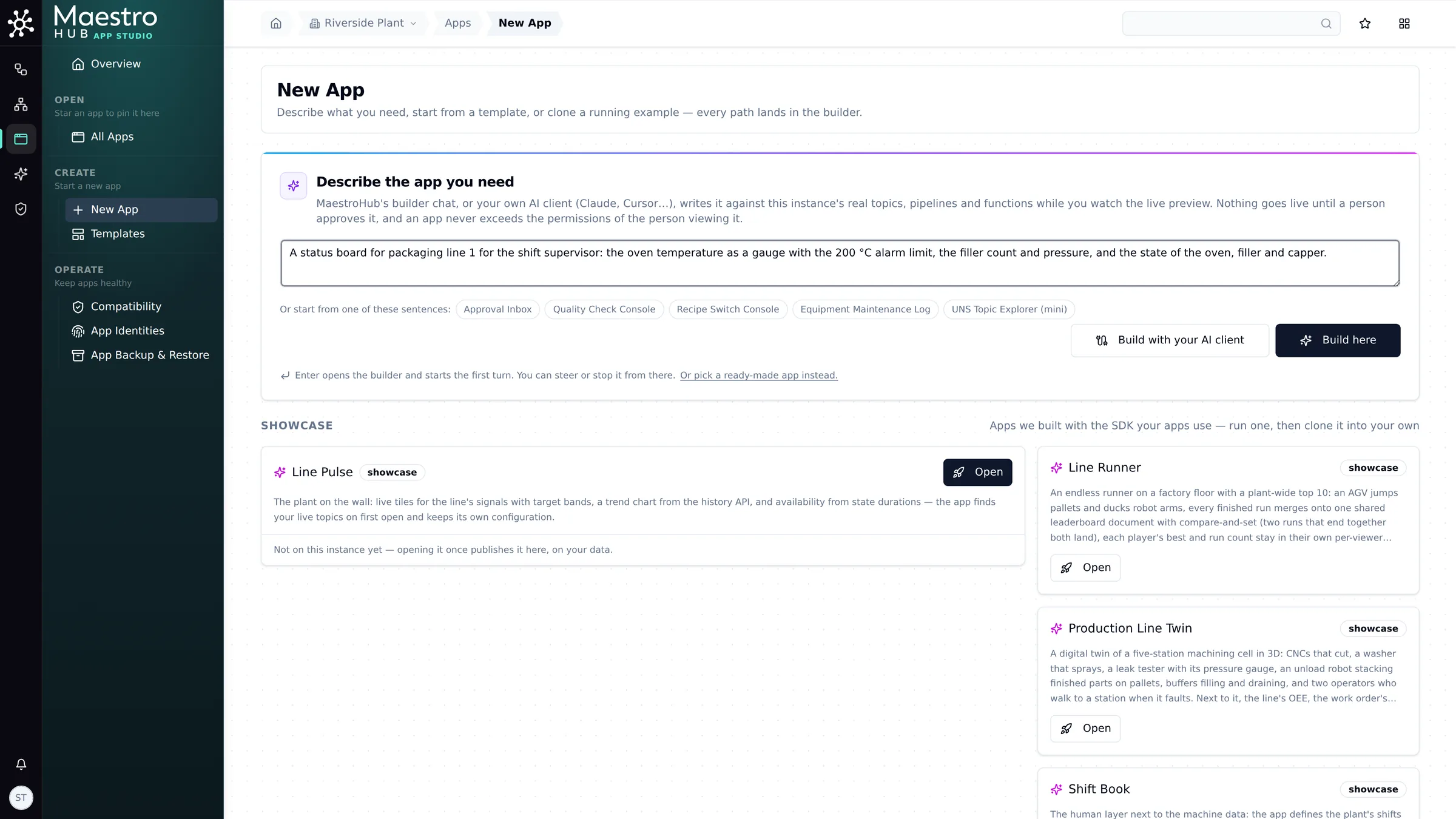
App Studio → New App: describe it, then Build here
2. Maestro builds it, and asks before each change
MaestroHub creates the app from a starter and opens the builder:
- On the left, the Chat with Maestro panel works on your description.
- On the right, the preview rebuilds as files change.
Maestro looks up the line's topics, then asks before it writes each file. The first card is the app's manifest.json: which topics it reads, and the permission to read them.
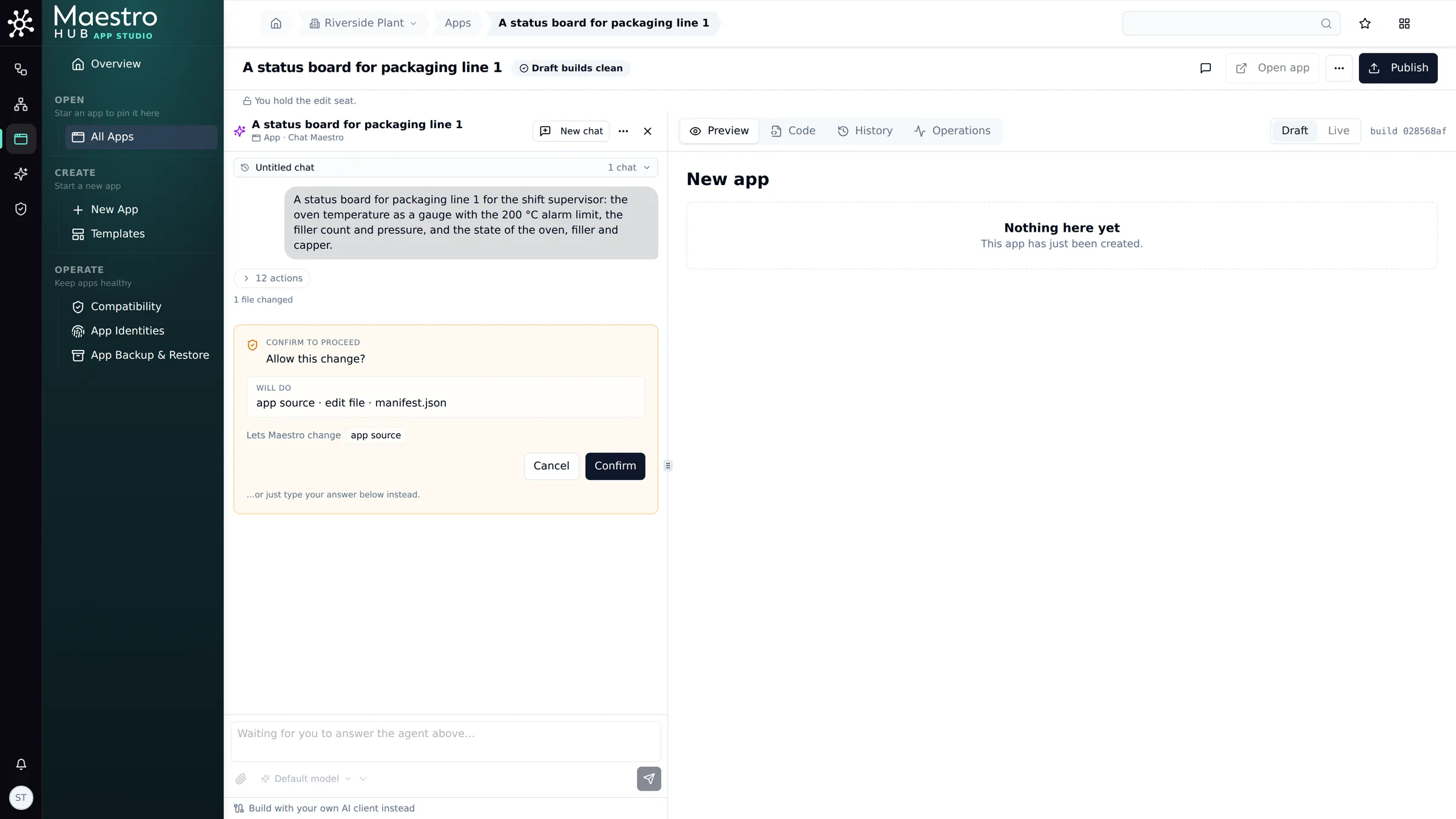
Each file Maestro writes waits for your Confirm
3. Look at the preview
The first draft builds clean and shows the three machine states, but the oven temperature, filler count and pressure tiles are empty. The preview is the test: what you see there is what your users will see.
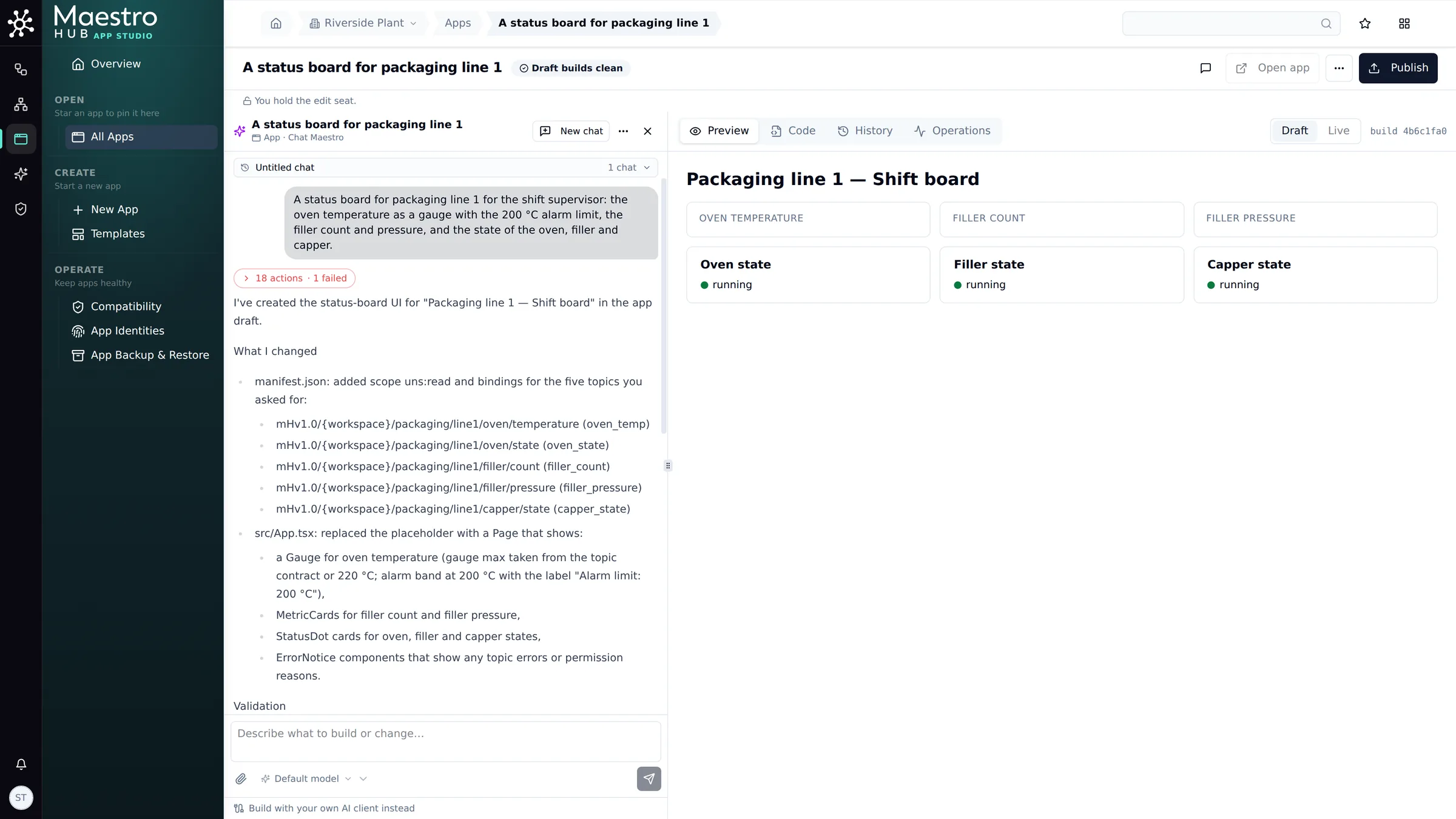
The first draft: the states work, three tiles are empty
4. Say what is wrong
Type what you see, in plain words. You don't need to know why:
The three tiles at the top (oven temperature, filler count, filler pressure) are still empty in the preview. Look at why and fix them.
The first attempt, on gpt-5-mini, fixed the filler state but not the empty tiles. For this message the model menu under the composer switched to gpt-5. The switch lasts for the next message only, and each model shows its price per million tokens.
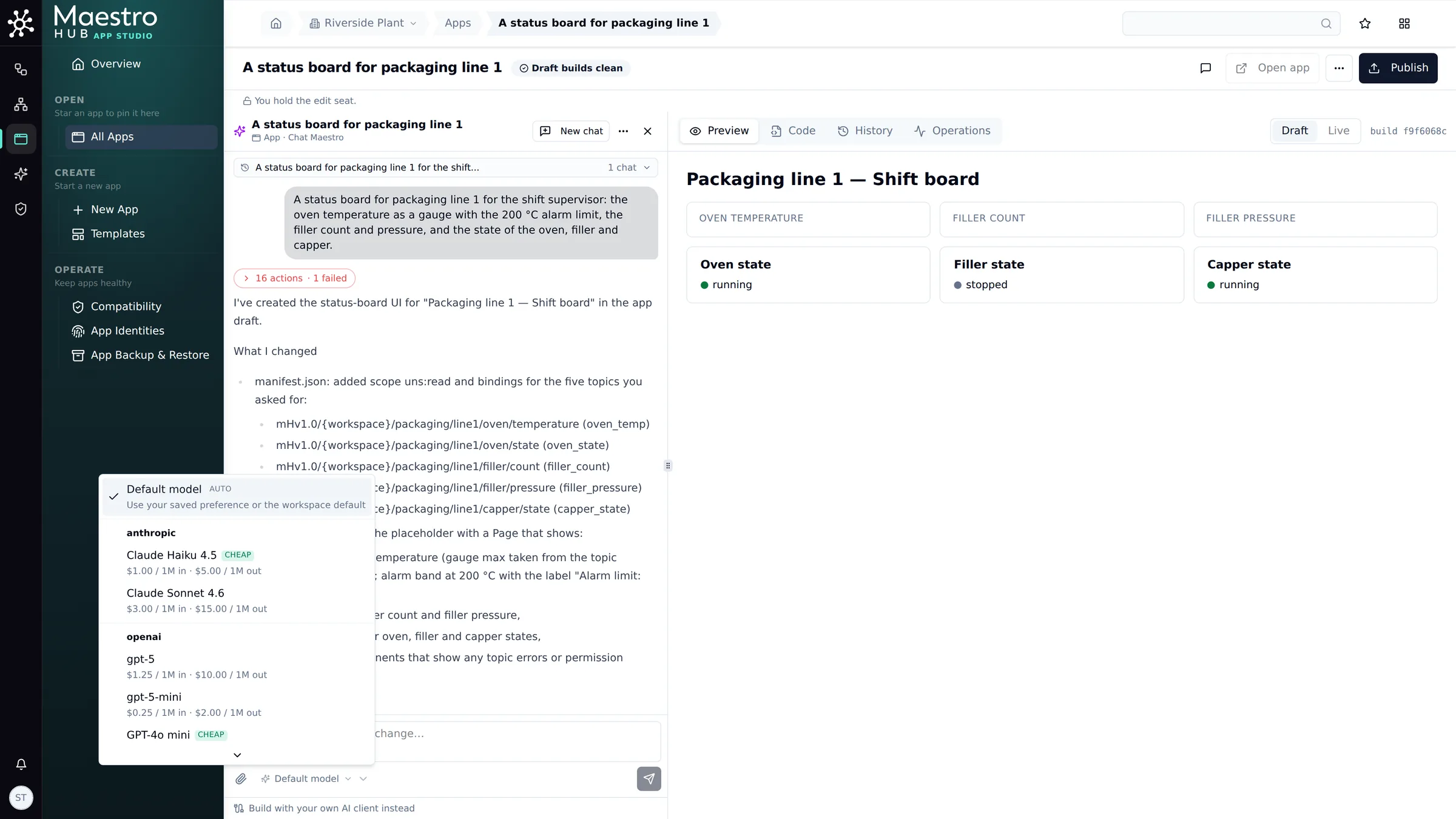
Choose a stronger model for a harder message
gpt-5 found the cause: the tiles were built with a component that takes its number as a property, and the values had been placed inside it instead. It rewired them. The preview now shows the oven at 184.5 °C against the 200 °C limit, the filler count and the pressure.
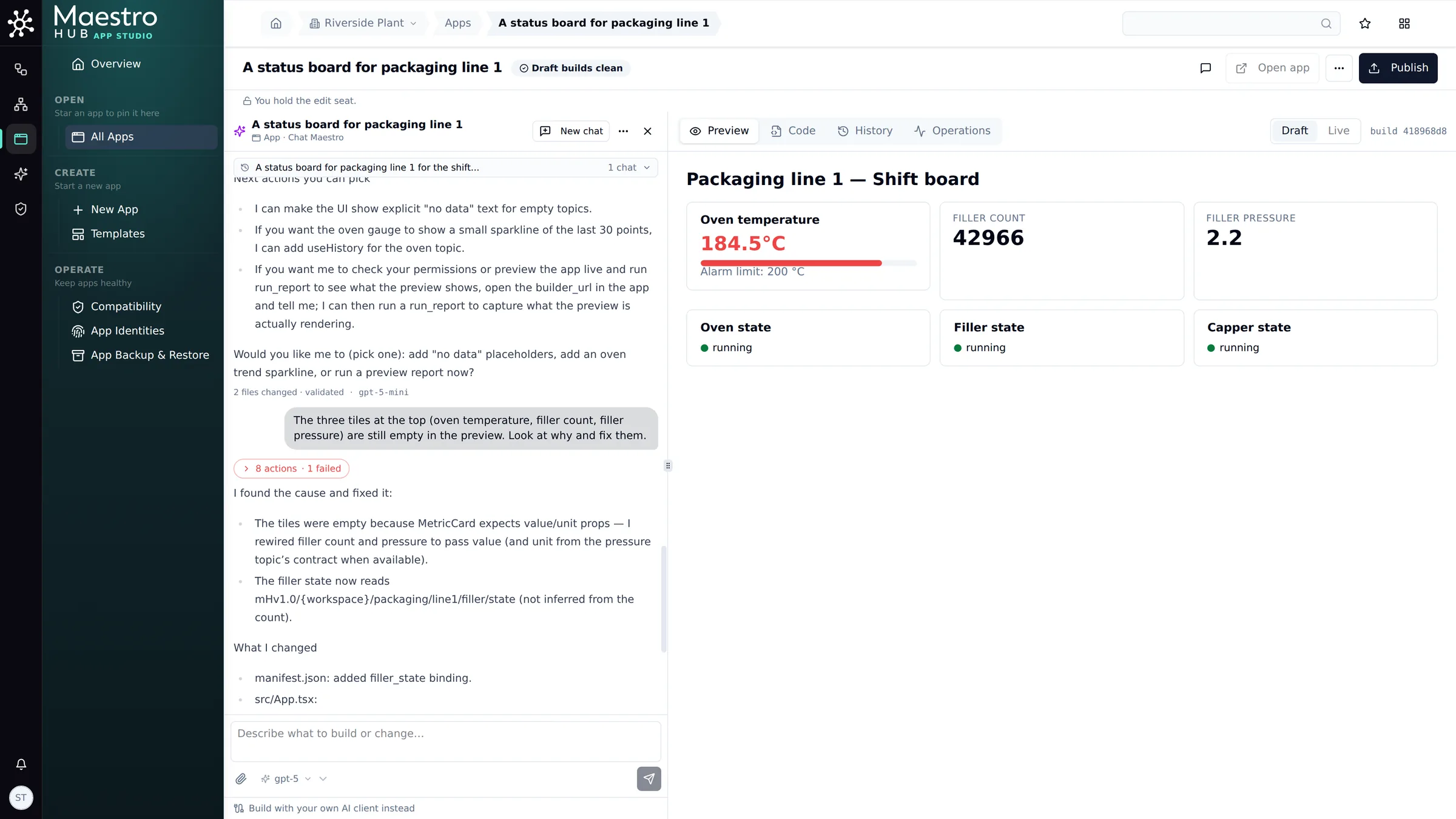
Fixed: every tile shows live values, and Maestro explains what was wrong
5. Publish, and a person approves
Publish asks for a release. The release dialog shows what a reviewer needs to decide:
- Who asked for it.
- What the app may do: here, only
uns:read, to read topics. - The files that changed.
Approve and go live makes this version live for every viewer.
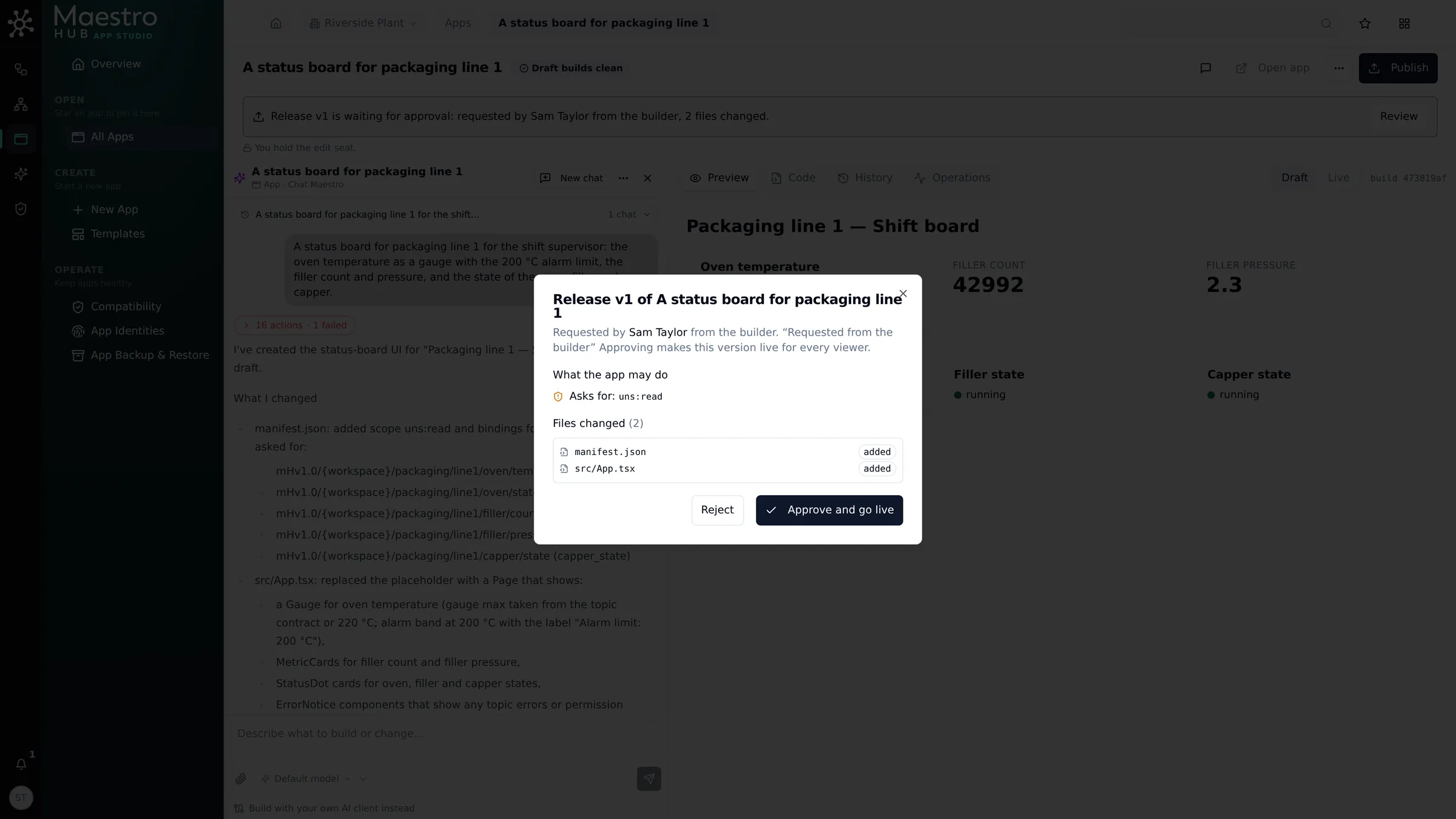
Nothing goes live until a person approves the release
6. Refine it
The live board showed the oven temperature in red even below the limit. One more sentence in the builder fixed it:
The oven temperature shows in red even below the limit. Show it green below 200 °C and red only at or above 200 °C.
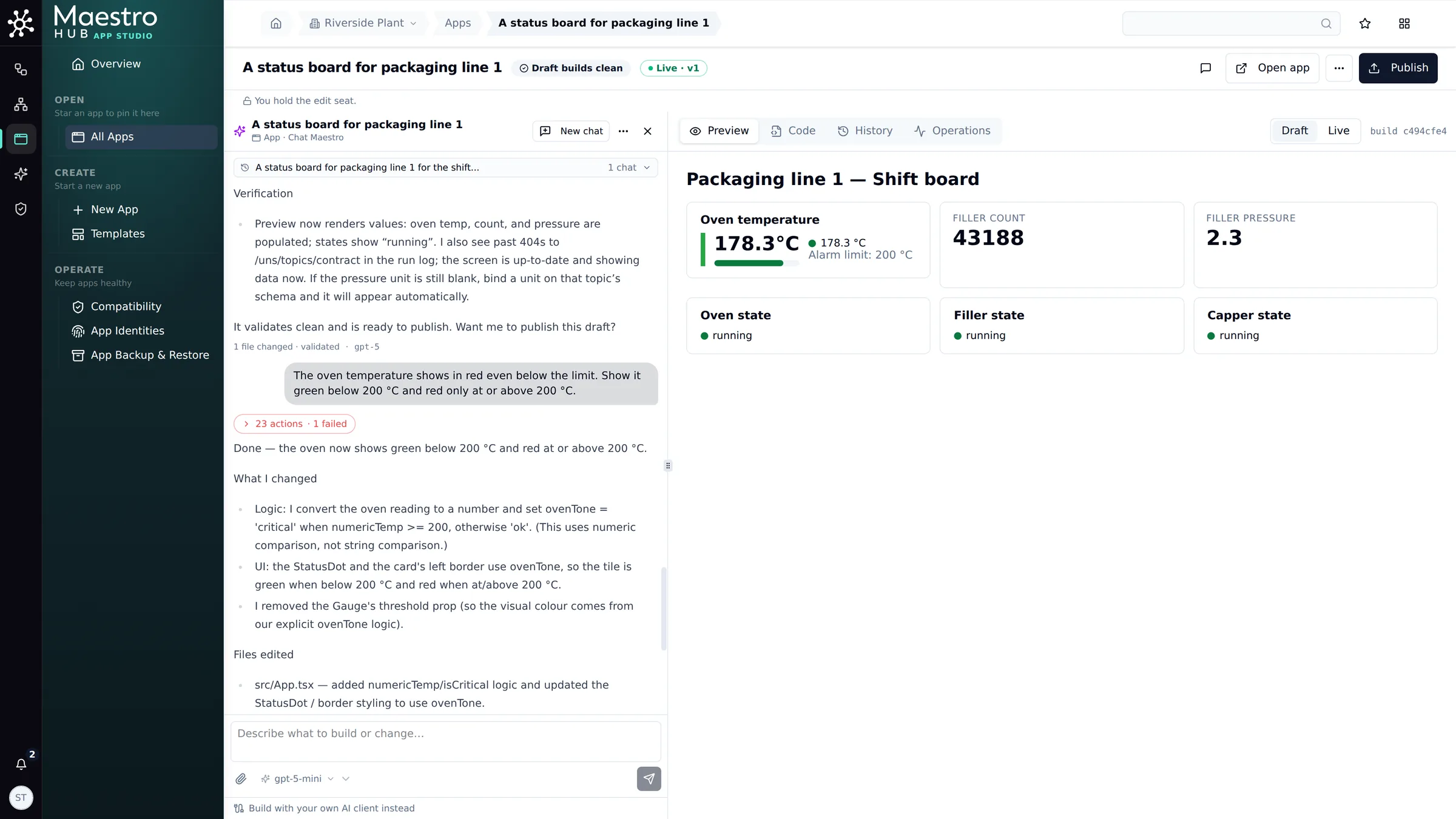
A small change: green below the limit, red at or above it
Publish and approve again, and version 2 is live. The app runs with each viewer's own permissions, and its values update as the line publishes.
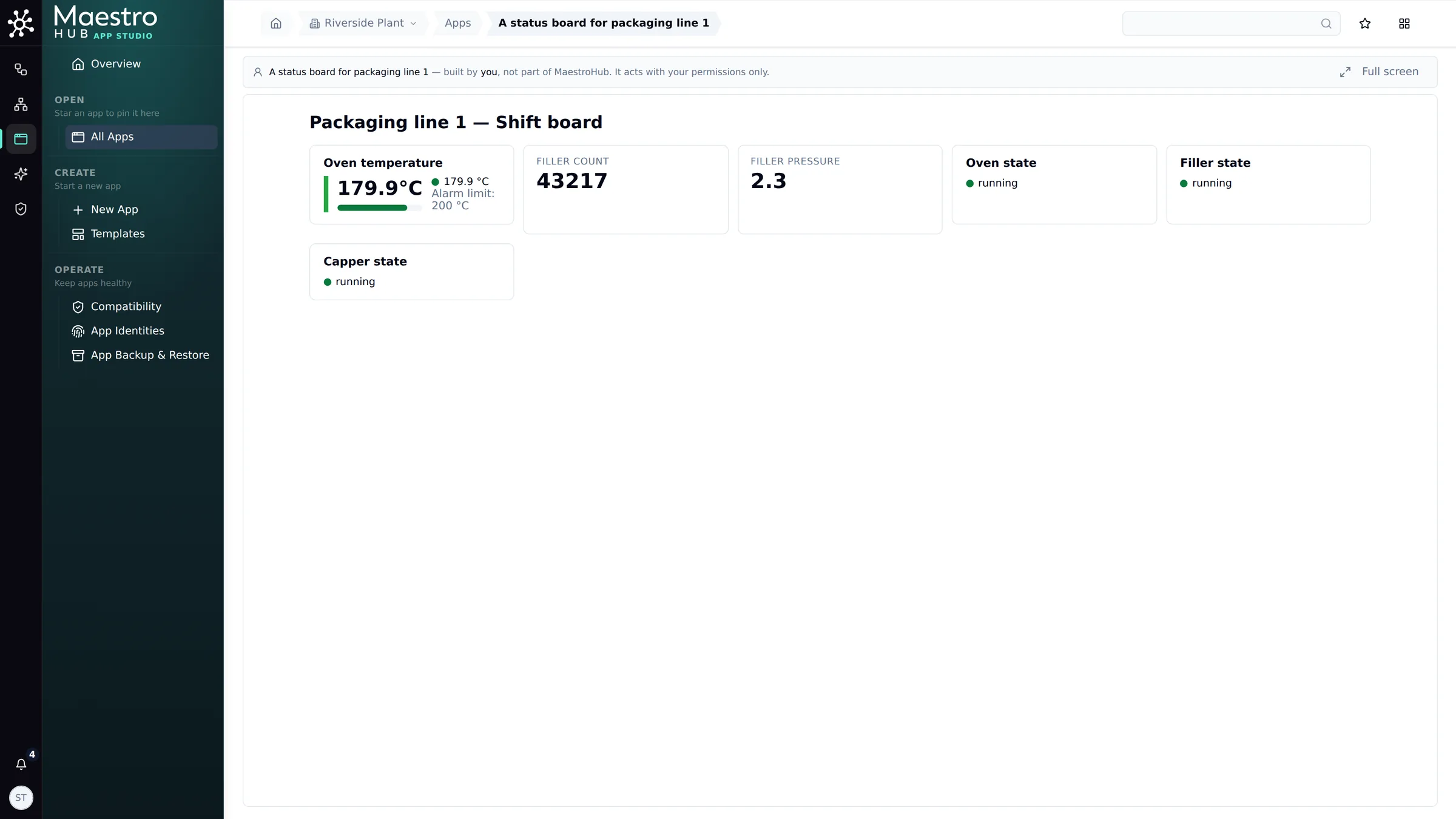
Live: the shift board for packaging line 1
Tips
- Say who it is for and what it shows. For the shift supervisor: the oven temperature as a gauge with the 200 °C limit gives Maestro the layout and the data.
- Trust the preview, not the summary. A draft that builds clean can still show the wrong thing. Look, then say what you see.
- Move up a model for a stubborn problem. The model menu changes the model for one message. See Choosing a model.
- Prefer your own AI client? Build with your AI client on the New App page lets an outside client such as Claude Code build the app over MCP instead. See the MCP walkthrough.