Draft it for me
Beta, early access on request: write one sentence, and Maestro fills in the form. The module checks the draft first, and nothing is saved until you save.
- Where
- New connection · new function · Quick Add · global function · contract
- You write
- One sentence
- Never drafted
- Passwords, tokens and keys
- Saved
- Only when you save
Draft it for me is part of Maestro, which is in release 3.0 as Beta and is not turned on by default. To use it, ask MaestroHub for early access: you get a licence that carries Maestro. A system administrator then connects an AI provider under Second Brain → Providers.
An empty form asks you to know every field before you start. Draft it for me lets you start from what you want instead, in your own words, and leaves the review and the save to you.
Where you find it
- A new connection, once you have chosen the connection type.
- A new function on a connection, once you have chosen the function type, on every connector.
- Quick Add on a connection's functions, as Draft rows from a tag list (S7, Modbus, OPC UA and EtherNet/IP). See A tag list into Quick Add.
- A global function.
- A contract.
- The Knowledge Graph's Ask page. The Knowledge Graph is coming soon: it is in development and testing and is not part of release 3.0.
For one function, use the function's own form; for many tags at once, use Quick Add.
How it works
- Click Draft it for me and write one sentence. On a new OPC UA connection, for example: The server at 10.0.4.20 on port 4840, no security, for packaging line 1.
- Check the model and its price. The dialog names the model Maestro will use and what it costs. Click Draft with model to go on.
- Maestro drafts once. It writes one draft from your sentence; there is no chat.
- The module checks the draft before it reaches the form (see below). What does not pass is left out.
- The form is filled. A notice above it says which model drafted it, what Maestro assumed, and what the check left out of the draft.
- You review and save. Nothing is saved until you click the form's own save button. Draft again asks for another draft.
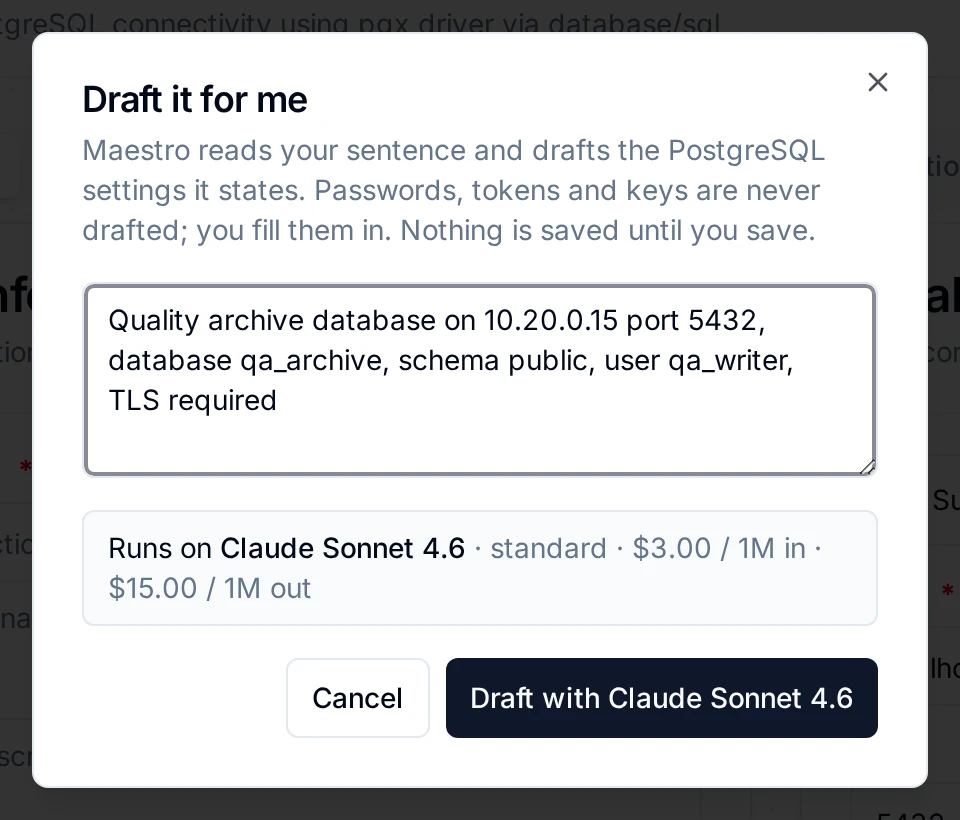
Draft it for me on a new PostgreSQL connection: one sentence, and the model it runs on
What checks the draft
Each module checks a draft with the same rules it uses for your own input:
| Draft | Checked by |
|---|---|
| Connection settings | The connector's own rules for its settings |
| A function on a connection | The connector's own rules for that function; in a list (data points, nodes, tags), only the keys the connector reads |
| Quick Add rows | The table's columns and the function and data types it offers; then the table's own row checks, as for an imported CSV |
| A global function | Running the function's test cases |
| A contract | The contract checks |
| A Knowledge Graph question | The query parser, with its cost estimate |
A new function
On a connection's Functions tab, click New Function and choose the function type; Draft it for me sits above the form. Describe the read or write in your own words, for example spindle speed and spindle load, two holding registers from 100, unsigned 16-bit. Maestro fills the form's settings, a list of points or tags included; anything the connector does not read is left out and named. The form stays a new function until you click Create Function.
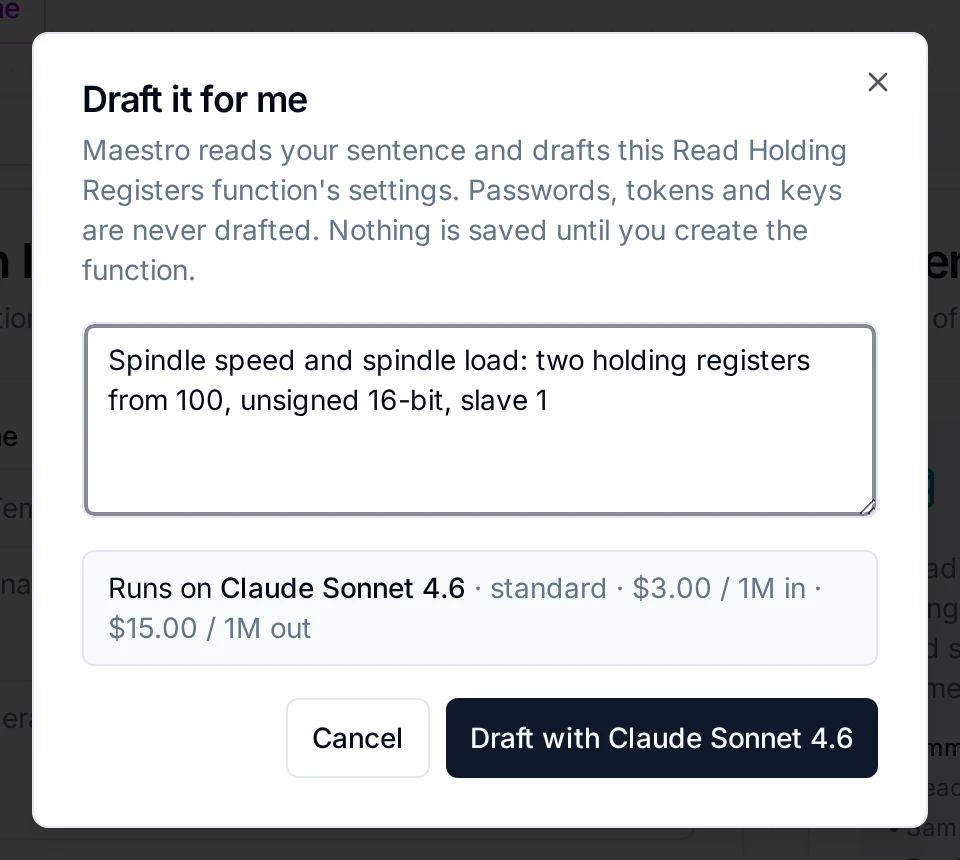
Draft it for me on a new function: describe the read, and Maestro fills the function's settings
A tag list into Quick Add
Quick Add creates many functions on a connection at once. Draft rows from a tag list fills its table for you.
- Open Quick Add on the connection's Functions tab and click Draft rows from a tag list.
- Paste what you have: a table copied from the PLC export or a manual, a plain list, or a sentence such as DB1: motor temperature REAL at 10, pressure REAL at 14, running BIT 18.0. Up to 20,000 characters.
- Maestro writes one row per tag in the table's own columns, the same rows an imported CSV gives. It never invents an address: what your text does not say stays empty.
- The rows are checked before they reach the table. A row with a function or data type the table does not offer, or with nothing in its required cells, is left out and named in the notice. A draft holds at most 1,000 rows.
- The table groups them as usual. On S7, reads that share a name and a data block become one function with many points.
- You review, test and create. Nothing is created until you click Create N Functions.
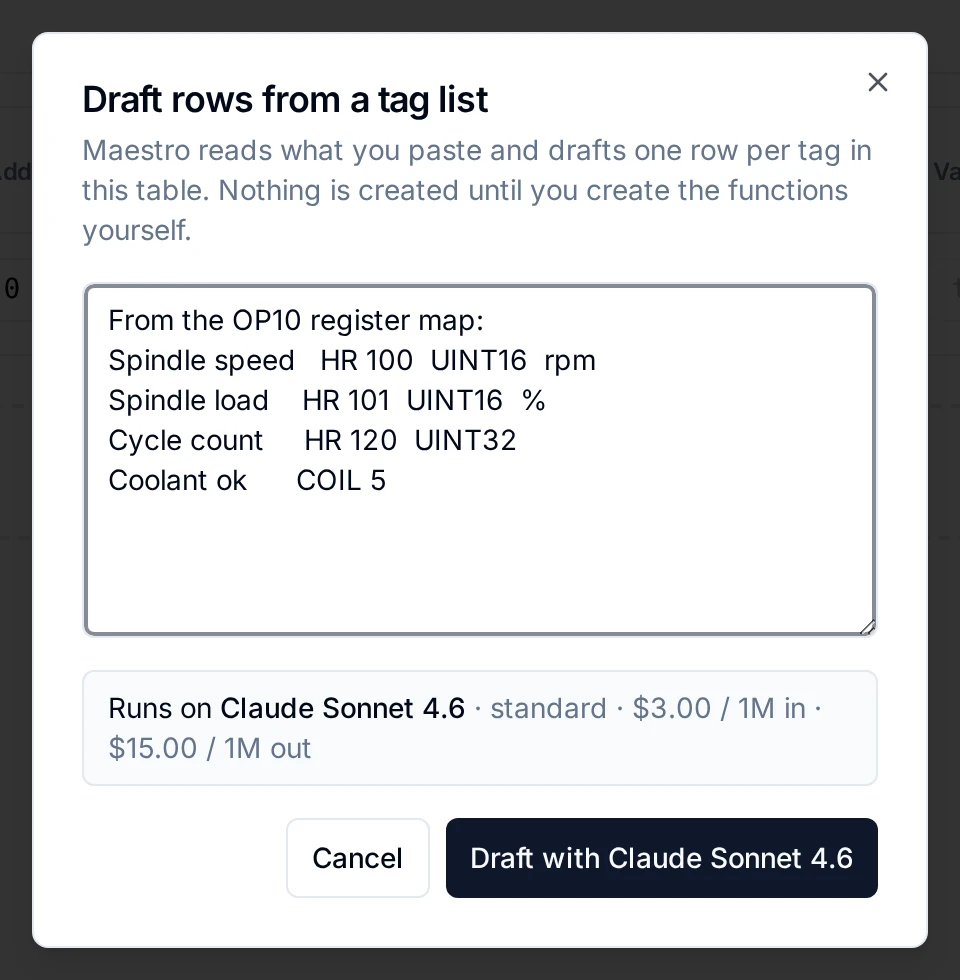
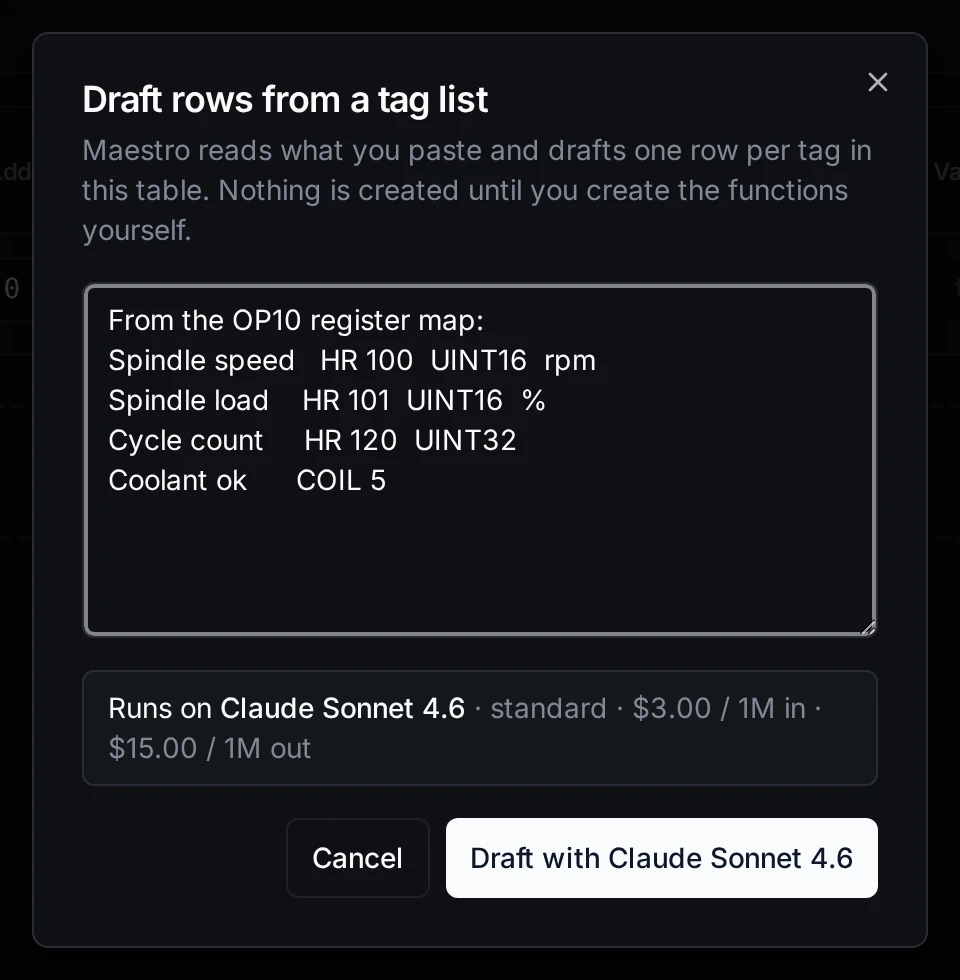
Draft rows from a tag list: paste a register map as it is, and Maestro writes the Quick Add rows
What Maestro never drafts
Passwords, tokens and keys. Maestro leaves every secret field empty, and you type them in yourself. Leave them out of your sentence too.
When you don't see the button
The button is hidden when your licence has no Maestro, or when your role does not include permission to chat with Maestro. See Where Maestro works.