Where Maestro works
Beta, early access on request: a Maestro button on every page, buttons where something went wrong or a form is empty, a home of its own in Second Brain, and a chat panel inside the screens where you build.
- On every page
- The Maestro button, or Ctrl+J (⌘J on a Mac)
- On the spot
- Explain & fix · Draft it for me
- Home
- Second Brain, in the rail
- Panels
- Pipeline designer · dashboard view · App Studio builder
Maestro is in release 3.0 as Beta and is not turned on by default. To use it, ask MaestroHub for early access: you get a licence that carries Maestro. A system administrator then connects an AI provider under Second Brain → Providers. Names and steps may still change while Maestro is in Beta.
You meet Maestro in four places:
- On every page, behind the Maestro button in the top bar and Ctrl+J, for a question about whatever you are looking at. Maestro is told which page that is; see Ask about this page.
- On the spot: Explain & fix where something went wrong, and Draft it for me on a form you are about to fill in.
- In Second Brain, its own area in the rail, for open questions and work across the platform.
- In a Chat with Maestro panel beside a pipeline, a dashboard or an app. That panel's conversation is about the thing open next to it.
You see none of them when your licence has no Maestro, or when your role does not let you chat with Maestro.
| Page | Where | What it is for | Who can open it |
|---|---|---|---|
| Maestro button | The top bar of every page, or Ctrl+J | A general chat on the right, or the page's own panel | Everyone who can use Maestro |
| Explain & fix | Rows and cards that show a problem | A new chat that asks what went wrong and proposes a fix | Everyone who can use Maestro and see the problem |
| What Maestro found | Under a problem's card on the Overview, when proactive investigations are on | What Maestro found when it looked at the problem on its own | Everyone who can use Maestro and see the problem |
| Draft it for me | New connection, global function, contract | A checked first draft of the form | Everyone who can use Maestro and fill in that form |
| Overview | Second Brain → Overview | How Maestro is doing, an Ask box, recent chats, what it knows, models and spend | Everyone who can use Maestro |
| Ask | Second Brain → Ask | Full conversations with Maestro, and your chat history by the page each chat started on | Everyone who can use Maestro |
| Playbooks | Second Brain → Playbooks | Focused tool sets and instructions for a kind of task | Everyone sees them; workspace administrators edit |
| Memory | Second Brain → Memory | Facts Maestro keeps about you, your workspace, and a document library | Everyone; workspace administrators edit workspace facts |
| Providers | Second Brain → Providers | AI providers and the model catalog | System administrators |
| Usage | Second Brain → Usage | Chat volume, reply health, spend per pipeline and per page, the workspace's spend controls, and proactive investigations | Workspace administrators |
| Chat with Maestro panel | Pipeline designer, dashboard view, App Studio builder | A conversation about the pipeline, dashboard or app that is open | Everyone who can use Maestro and open that page |
On every page
The Maestro button sits in the top bar of every page that has one. Ctrl+J (⌘J on a Mac) does the same on every page, including the pipeline designer. Press it again, or click the button again, to close the chat.


The Maestro button in the top bar, beside favorite pages and apps
Where it opens
- On most pages, a general chat opens on the right, beside the page you are on. A general chat belongs to no pipeline, dashboard or app.
- On the pipeline designer and a dashboard, it opens that page's own Chat with Maestro panel instead, bound to that pipeline or dashboard. There is one Maestro on screen, never two. The App Studio builder works the same way; App Studio is in release 3.0 as Beta, a paid add-on.
What the general chat shows
- The page you are on, as a chip above the message box: it is sent with your message, and you can remove it. See Ask about this page.
- Starter questions for the page, where Maestro has the tools to answer them.
- Every chat you have, the same list as Second Brain → Ask.
- Which chats belong to something: a chat that belongs to a pipeline, a dashboard or an app is named as such in the list.
- Your last general chat, reopened, so you pick up where you left off.
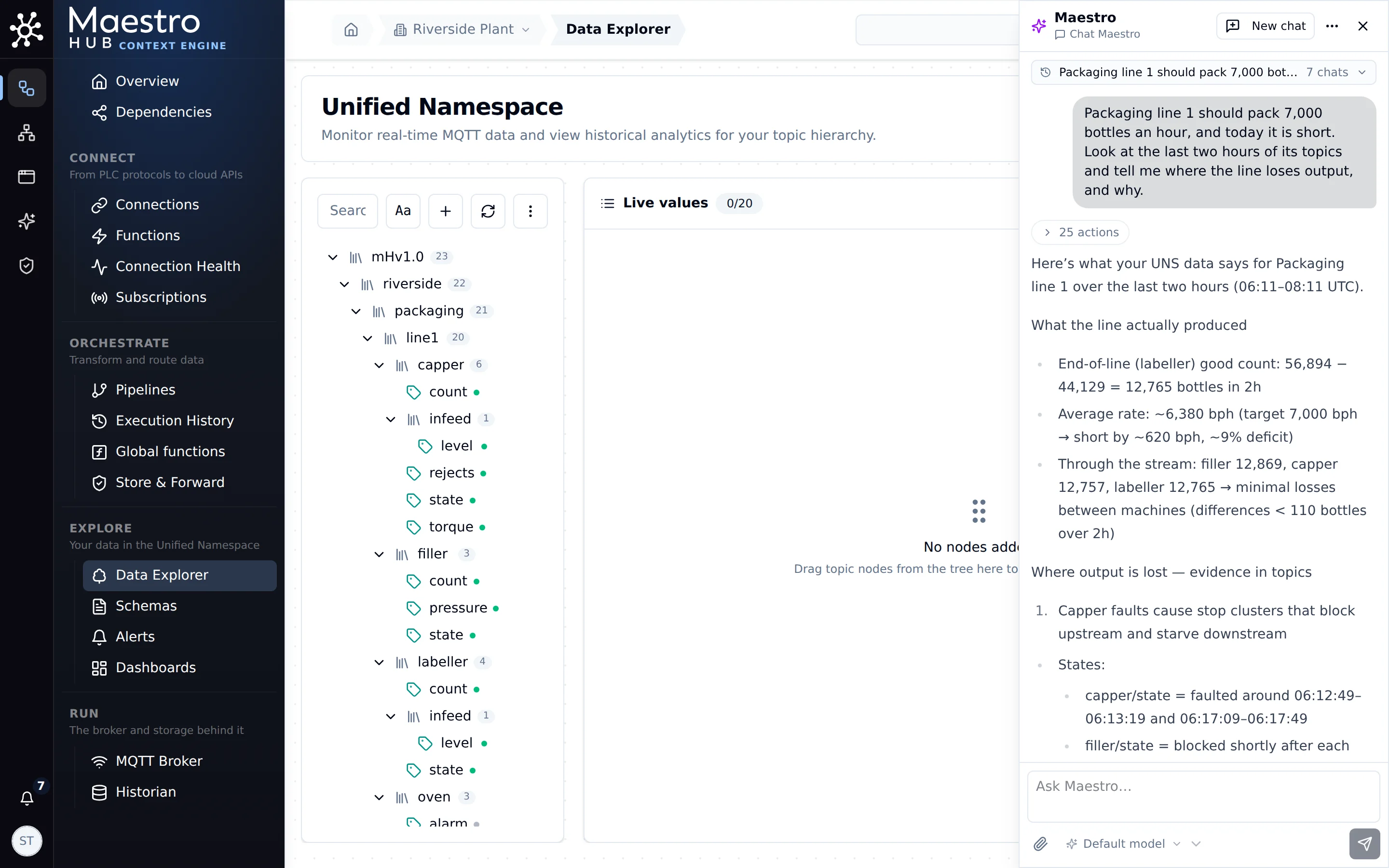
Ctrl/Cmd + J on the Data Explorer: the drawer continues the latest chat beside the topics it talks about
When you don't see it: the button is hidden, and the shortcut does nothing, when your licence has no Maestro or your role does not include permission to chat with Maestro. Both also need a workspace to be selected.
Explain & fix and Draft it for me
Two purple buttons bring Maestro to the spot where you need it:
- Explain & fix sits beside a problem: a failed run, a broken connection, a warning on the workspace Overview. It starts a new chat that already holds what you see. See Explain & fix.
- Draft it for me sits on an empty form: a new connection, a function, a contract. One sentence becomes a checked draft that you review and save. See Draft it for me.
Overview
Second Brain → Overview says in one sentence whether Maestro is ready and whether anything needs attention.
- Ask box: type a question and Start a chat, or pick a suggestion such as Which connections are not healthy?
- Continue where you left off: your latest chats.
- What Maestro knows: your memories, workspace memories, library documents and playbooks.
- Models & spend: the default provider account, this month's tokens and cost, and how many models are on.
- Quick actions: start a chat, add a memory, upload a document, create a playbook, or add a provider.
Ask
Second Brain → Ask is the full chat page. Start with New session, or pick a suggestion.
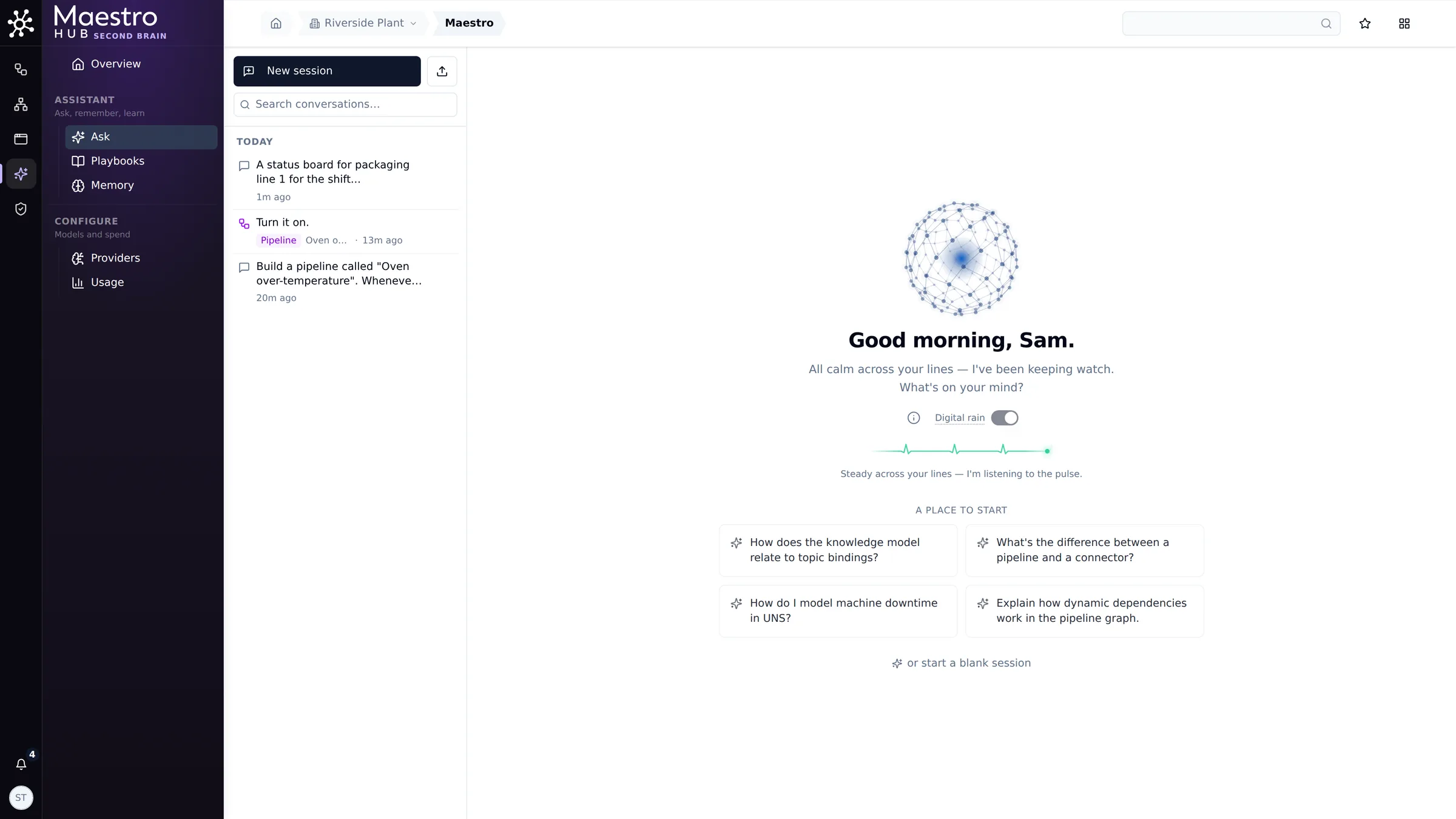
Second Brain → Ask: your chats on the left, a new one in the middle
Writing a message
- Composer: Enter sends, Shift + Enter starts a new line. Ctrl/Cmd + K jumps to the composer, and the up arrow brings back your last message.
- Attachments: the paperclip attaches text, logs, CSV, JSON, YAML, code, PDF and Word files. The default limits are 5 files per message and 1 MB per file.
- Model: the model menu under the composer chooses the model for the next message. Default model uses your saved preference, or the workspace default.
While Maestro works
- Tool chips: each step shows as a chip, for example validate_draft. Click one to see what Maestro sent and what came back.
- Visuals: some answers come with a picture. A pipeline answer shows its nodes with an Open in designer link; others show a chart, a table or a dashboard preview.
- Stop: the Stop button, or Esc, ends a reply at any point.
Cards that need your answer
- Confirm to proceed: Maestro will make a change only after you click Confirm. The card names the change.
- A search of every workspace's logs asks too. Maestro reads logs from the chat's own workspace without asking. To read every workspace's logs it shows a Confirm to proceed card first, which says so. Cancel stops the search, and Maestro is told you said no. Clicking Confirm does not grant access: only someone who may read every workspace's logs gets them. Today that is System Administrators.
- Only that card counts. A yes to another card does not let Maestro search every workspace, even a card Maestro wrote itself that mentions logs. The search still stops on its own card.
- One yes covers the reply. Further searches of every workspace in the same reply run without asking again. Your next message starts over.
- A pipeline's AI agent can't do it. Nobody is there to say yes, so the search is refused and the agent is told why, even when the run acts as a System Administrator.
- Your choice: Maestro sets out the options and recommends one.
- Form: Maestro asks for a few values at once.
- Typing instead: you can always type your answer instead of using the card.
After a reply
- Tokens and cost: each reply shows what it used.
- Reply actions: copy any reply, regenerate the last one, rate it with thumbs up or down, or edit your last message.
- Your chats: the list on the left groups chats by day. Search, rename, pin, export (Markdown or JSON), import or delete them there.
- An imported chat is history only. Its cards can't be answered, and no yes in it counts here. If Maestro needs your yes again, it shows a new card.
- A reload doesn't stop Maestro. A reply keeps running on the server if you reload the page; the page picks it up again.
The Chat with Maestro panel
In the pipeline designer, the dashboard view and the App Studio builder, a Maestro handle on the edge of the canvas opens a chat panel; Ctrl+J and the top-bar Maestro button open the same panel. Its conversation belongs to the pipeline, dashboard or app that is open.
- It works on what is open. Maestro may change only that pipeline, dashboard or app from this panel, not its neighbours.
- The handle hides while you work on a node. It is hidden while a node is selected, and in history or replay views.
- More actions: New chat starts over, and More actions exports the chat or opens it in Second Brain.
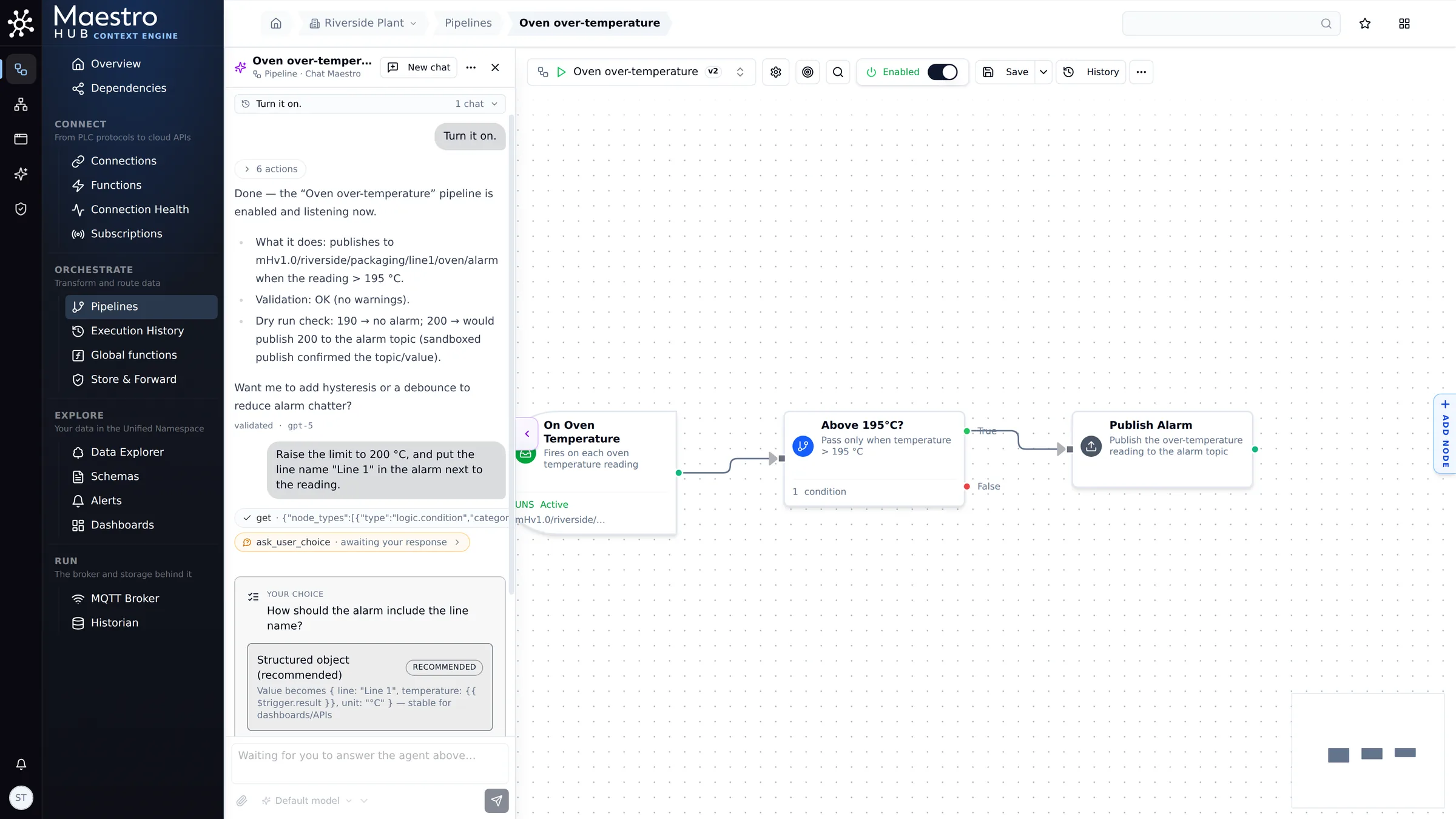
In the designer, the panel is about this pipeline: here Maestro asks how to shape the alarm
In App Studio, which is in release 3.0 as Beta (a paid add-on), Build here on the New App page starts the builder with Maestro already working on your description. The builder's panel writes the app's files while the preview on the right rebuilds. For a whole session, see Build an app.
Playbooks
A playbook gives Maestro a focused set of tools and instructions for one kind of task, such as the Pipeline Assistant or the App Studio Builder.
- Defaults: MaestroHub ships 15 default playbooks. They are read-only; duplicate one to customise it.
- Your own: workspace administrators can create playbooks with a name, a description, the tools they allow, and extra instructions.
- Picking one: in the composer's settings, choose a playbook for a chat, or leave All tools.
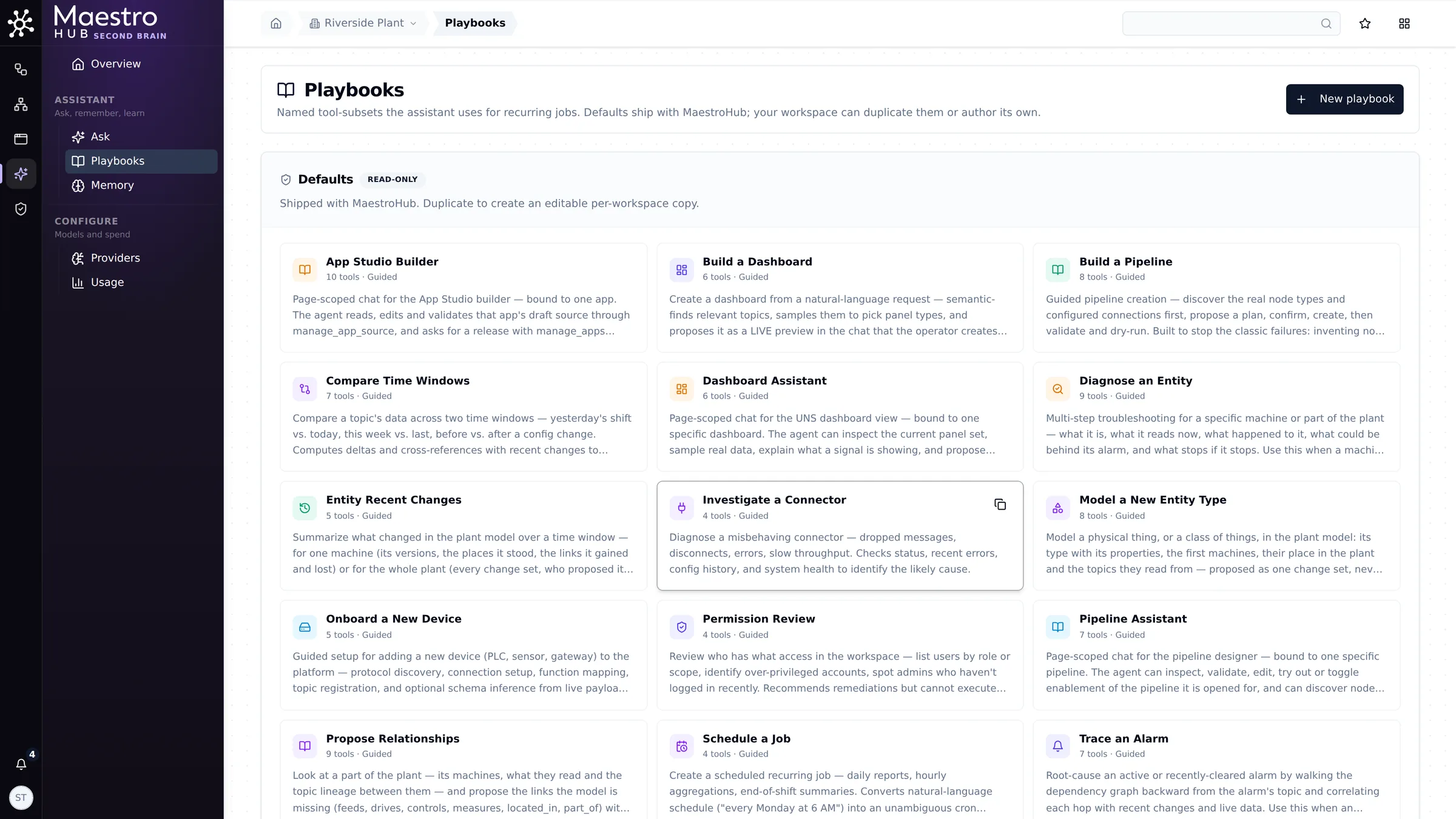
Second Brain → Playbooks
Memory
Second Brain → Memory has three tabs:
- My memory: facts only you see, which Maestro reads at the start of every chat, for example I look after packaging line 1. Add them yourself, or tell Maestro in a chat; it asks before it saves anything.
- Workspace: facts every member's chats start with. Everyone can read them, and workspace administrators edit them.
- Library: documents Maestro can search and cite by page, such as manuals and procedures. Workspace administrators upload them.
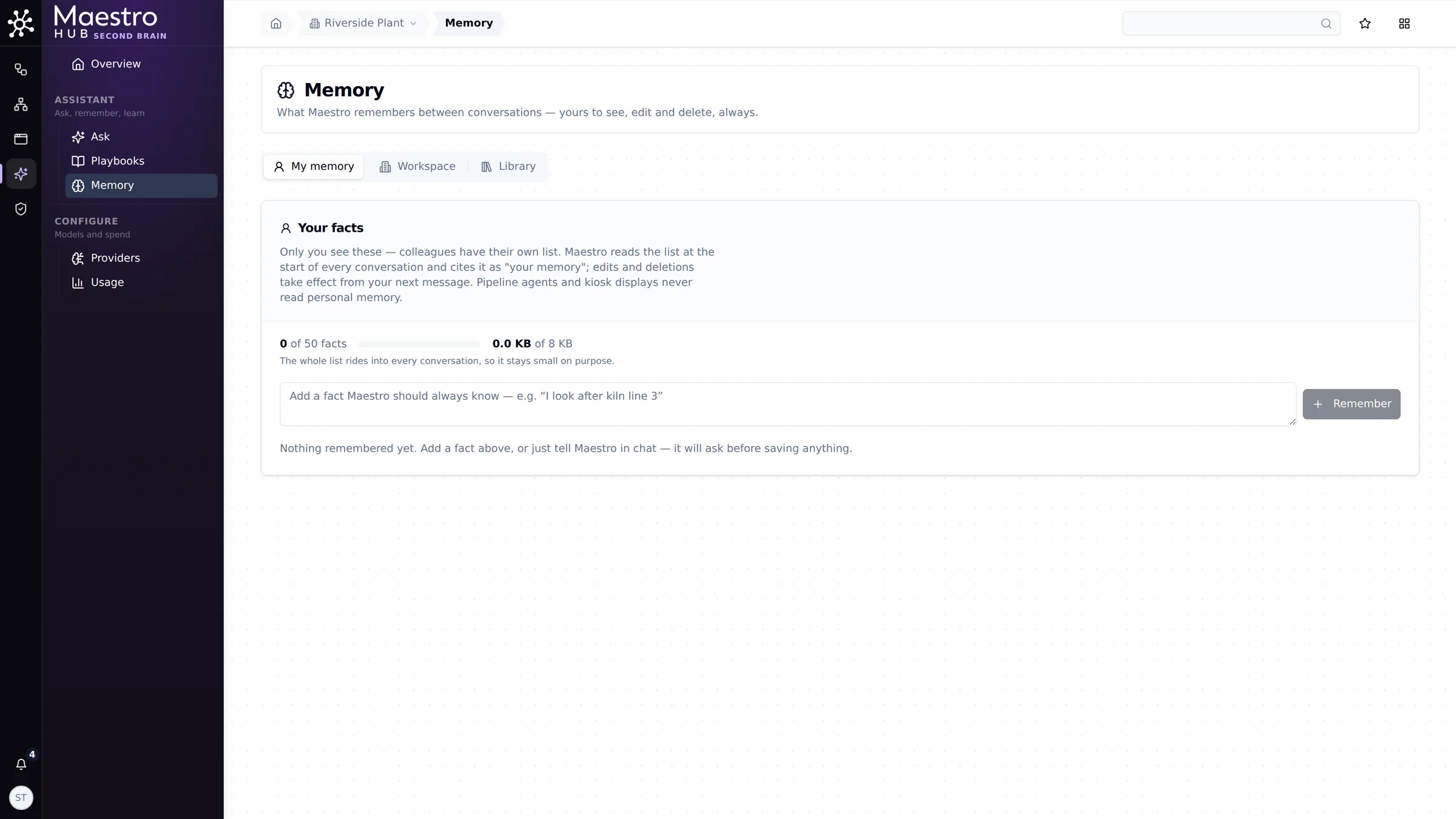
Second Brain → Memory: yours to see, edit and delete
Providers
Second Brain → Providers is where a system administrator connects AI providers and curates the models people can pick. It applies to every workspace on the deployment.
- AI providers: Connect a provider with an API key. Choose OpenAI, Anthropic, or any OpenAI-compatible endpoint (Azure OpenAI, a local server). Test connection checks it, and Import models lists the models the account offers.
- Model catalog: turn models on and off, set their prices for the cost figures, and probe each one to confirm it can use Maestro's tools.
- Built-in models: the catalog starts with the two OpenAI models Maestro has been tested on: gpt-5-mini, the default, and gpt-5 for the hardest work. Add any other model, and every Anthropic or other provider's model, with Import models. See Choosing a model.
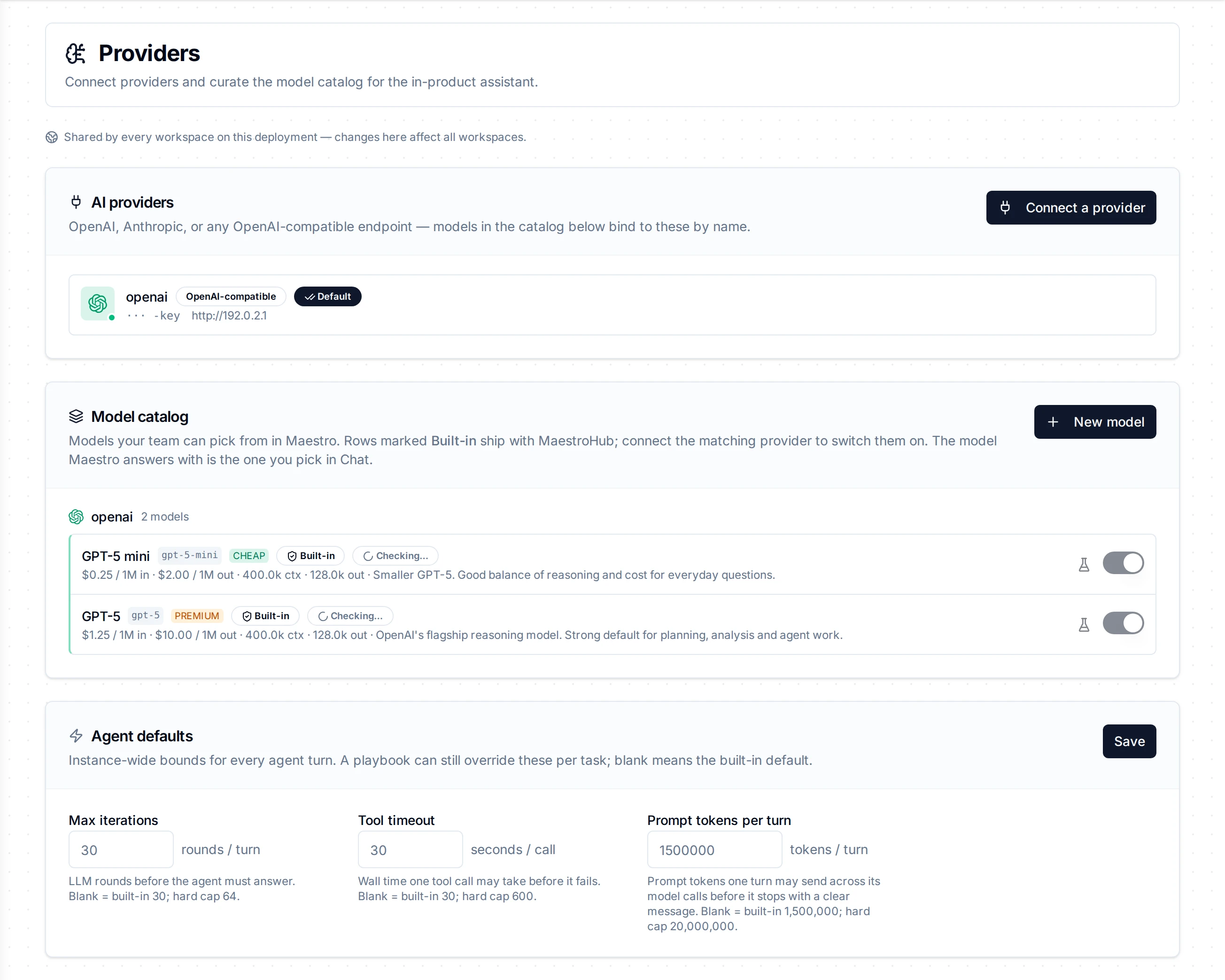
Second Brain → Providers: one OpenAI account, and the built-in models people can pick
Usage
Second Brain → Usage shows chat volume, reply health and latency, and the tokens used per model. Below the charts, Spend controls for this workspace holds the workspace's settings:
- Enable Maestro for this workspace.
- Ask before the assistant changes something: on by default. When it is off, creates, updates, runs and publishes no longer ask. Deletions always ask, and so does a search of every workspace's logs.
- A monthly token budget, and a fallback provider account.
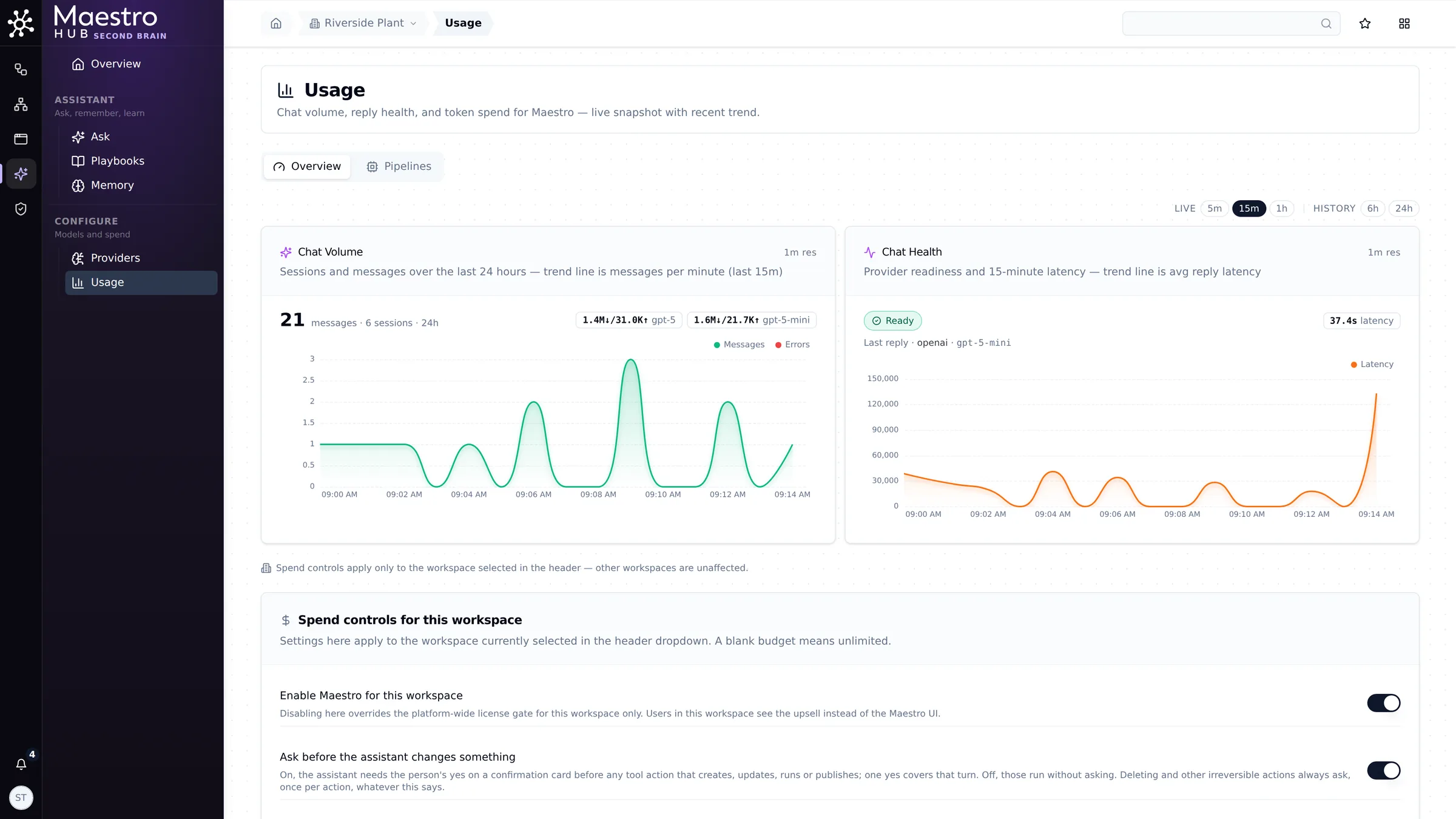
Second Brain → Usage, with the workspace's spend controls