Use case: model a line in 3D
Maestro is Beta; the 3D model is built in App Studio, also Beta. Ask Maestro why a line misses its target, then have it build a live 3D model of the line that shows the problem as it happens.
- Goal
- See where packaging line 1 loses output, live
- Model
- gpt-5 (OpenAI)
- 3D modelling or code by hand
- None
- Goes live
- Only when a person approves the release
App Studio, which builds the 3D model, is in release 3.0 as Beta: a paid add-on that no edition includes by default. A licence or a trial licence that includes the app_studio feature switches it on. The module is on by default, so the licence decides. Maestro is a separate Beta, early access on request: ask MaestroHub for a licence that carries it, and a system administrator then connects an AI provider under Second Brain → Providers. This page needs both. This page records a session on a development build, so names and steps may change while both are in Beta.
This walkthrough records one session in the Riverside Plant workspace. Its packaging line 1 is a simulated line, so the figures are made up, but every step and every answer on this page is what Maestro really did.
The line runs in this order:
- A filler.
- An infeed buffer, then a capper.
- A second infeed buffer, then a labeller.
- Pallets of finished bottles.
Each machine publishes its state and its count, and the capper also publishes its torque. The line should pack 7,000 bottles an hour, and it doesn't.
What it saves you:
- The diagnosis. Maestro read two hours of the line's history and found the cause, with numbers, before anyone opened a chart.
- The 3D model. Nobody drew a machine, placed a camera, wrote three.js or looked up a topic path. App Studio's scene kit draws the line, and Maestro binds each part of it to the right topic.
- The screen. The finished app shows the warning sign the diagnosis found, live, to everyone on the line.
Part 1: find where the line loses output
1. Ask the question
Open Second Brain → Ask and start a New session. Say what is wrong in the words you would use with a colleague:
Packaging line 1 should pack 7,000 bottles an hour, and today it is short. Look at the last two hours of its topics and tell me where the line loses output, and why.
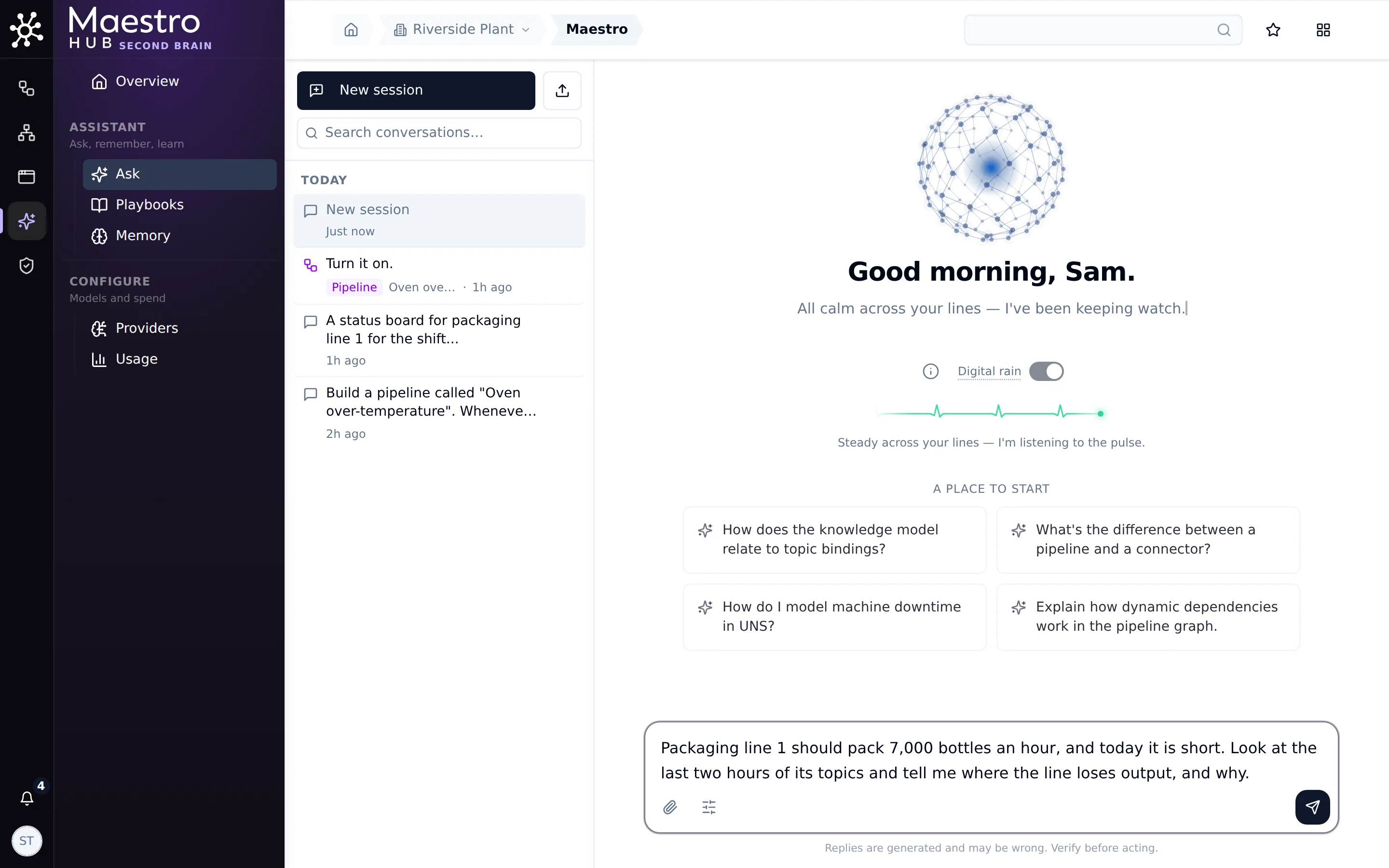
One question, in plain words, with the target and the time window
2. Maestro reads the history and answers with numbers
Maestro found the line's topics, then read their history and counted:
- Output: 12,765 bottles in two hours, about 6,380 an hour. That is about 620 an hour short of target, or 9%.
- Between machines: filler, capper and labeller counts differ by fewer than 110 bottles. Little is lost in transfer.
- The cause: the capper stops with short faults. During each one, the filler shows blocked and the labeller shows starved.
- Rejects: 112 in two hours, under 1%, too few to explain the gap.
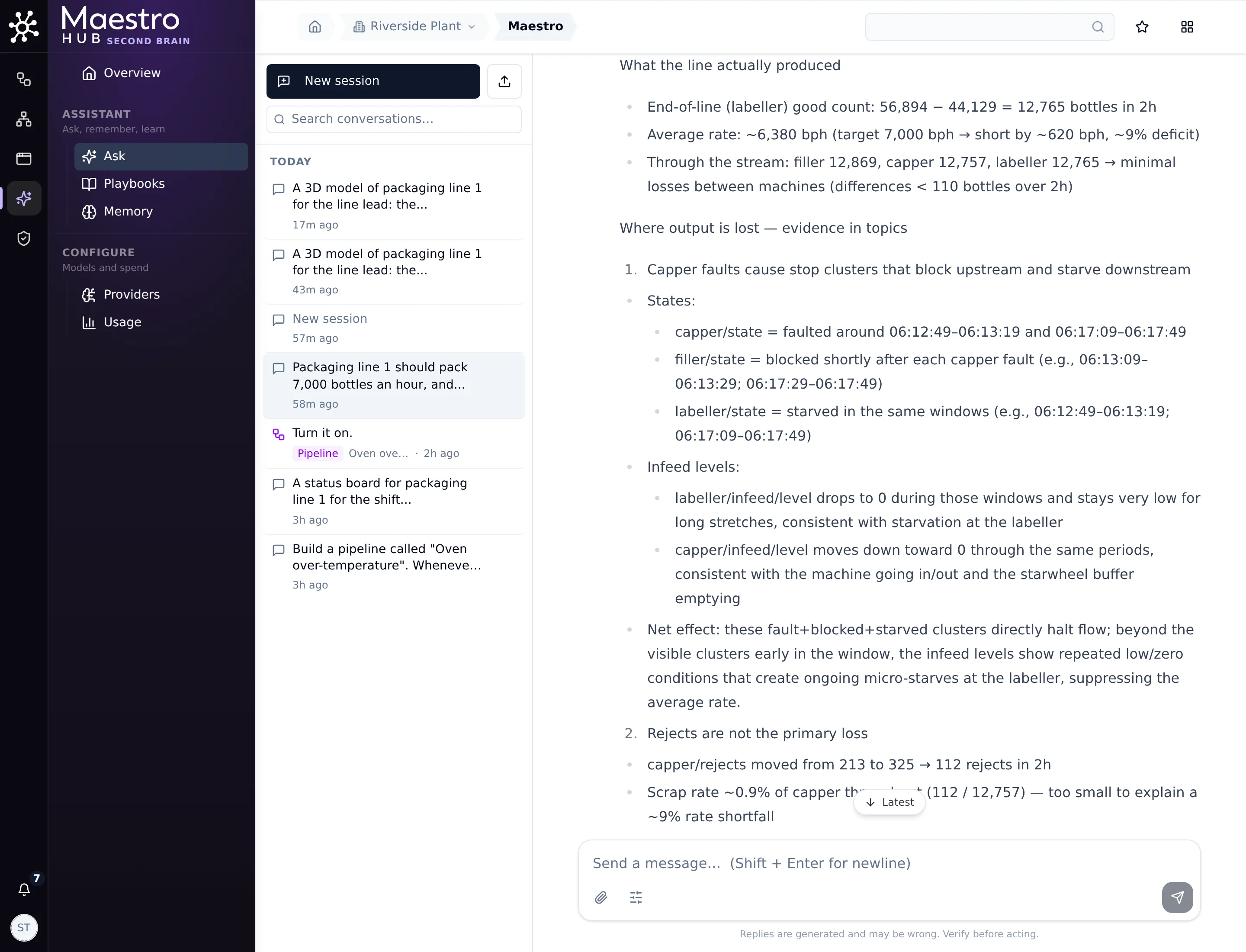
The answer names the machine, the windows, and what it costs
3. Ask for the warning sign
A fault you can see coming is a fault you can prevent. Ask a follow-up:
Look at the capper torque in the minute before each capper fault, compared with normal running. Is there a warning sign before it jams? And is the labeller's empty infeed a problem in itself?
Maestro found the warning sign:
- Before each jam: the capper's torque climbs from about 1.8 Nm to about 2.4 Nm in the minute before it stops. In normal running it stays flat at about 1.8 Nm.
- Its suggested rule: warn when torque stays above about 2.2 Nm while the capper is running. It also suggests checking the chuck and the cap feed.
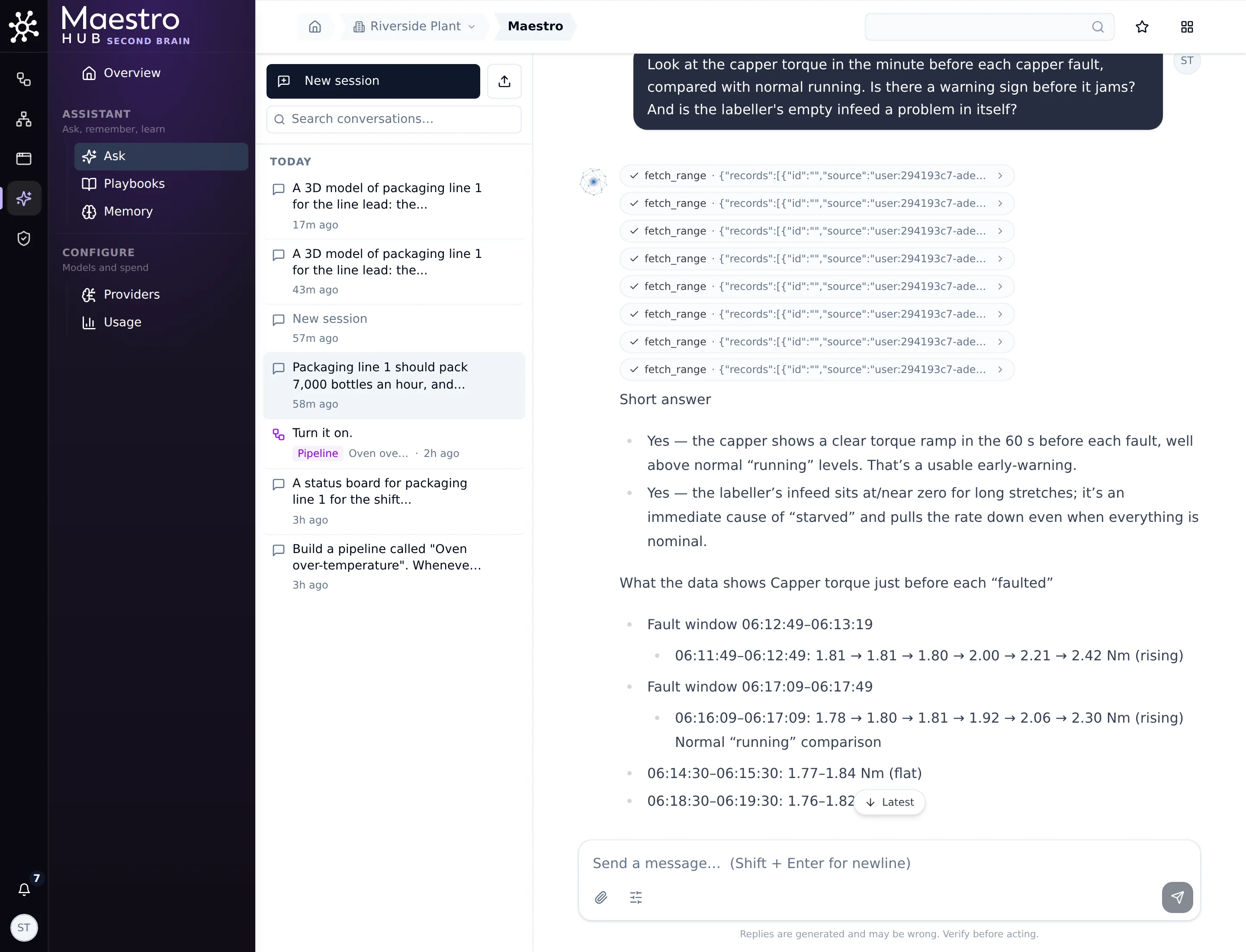
The torque climbs in the minute before each jam: a warning sign worth showing on the line
Check the reasoning, not only the numbers. Maestro also said the labeller's empty infeed pulls the rate down. It doesn't. The labeller runs faster than the capper that feeds it, so its infeed is always close to empty, and it only stops when the capper does. The numbers Maestro quoted were right; that conclusion was not. Every reply says so at the bottom: Replies are generated and may be wrong.
Part 2: model the line in 3D
4. Describe the model
Open App Studio → New App and describe the line the way you see it: the machines in order, what sits between them, and the numbers that matter. Use what Part 1 taught you:
A 3D model of packaging line 1 for the line lead: the filler, capper and labeller in flow order, each showing its live state, the infeed buffers before the capper and the labeller, and finished bottles stacking on pallets after the labeller. Beside it, bottles per hour against the 7,000 target, and the capper torque with a warning when it climbs above 2.2 Nm.
Then click Build here.
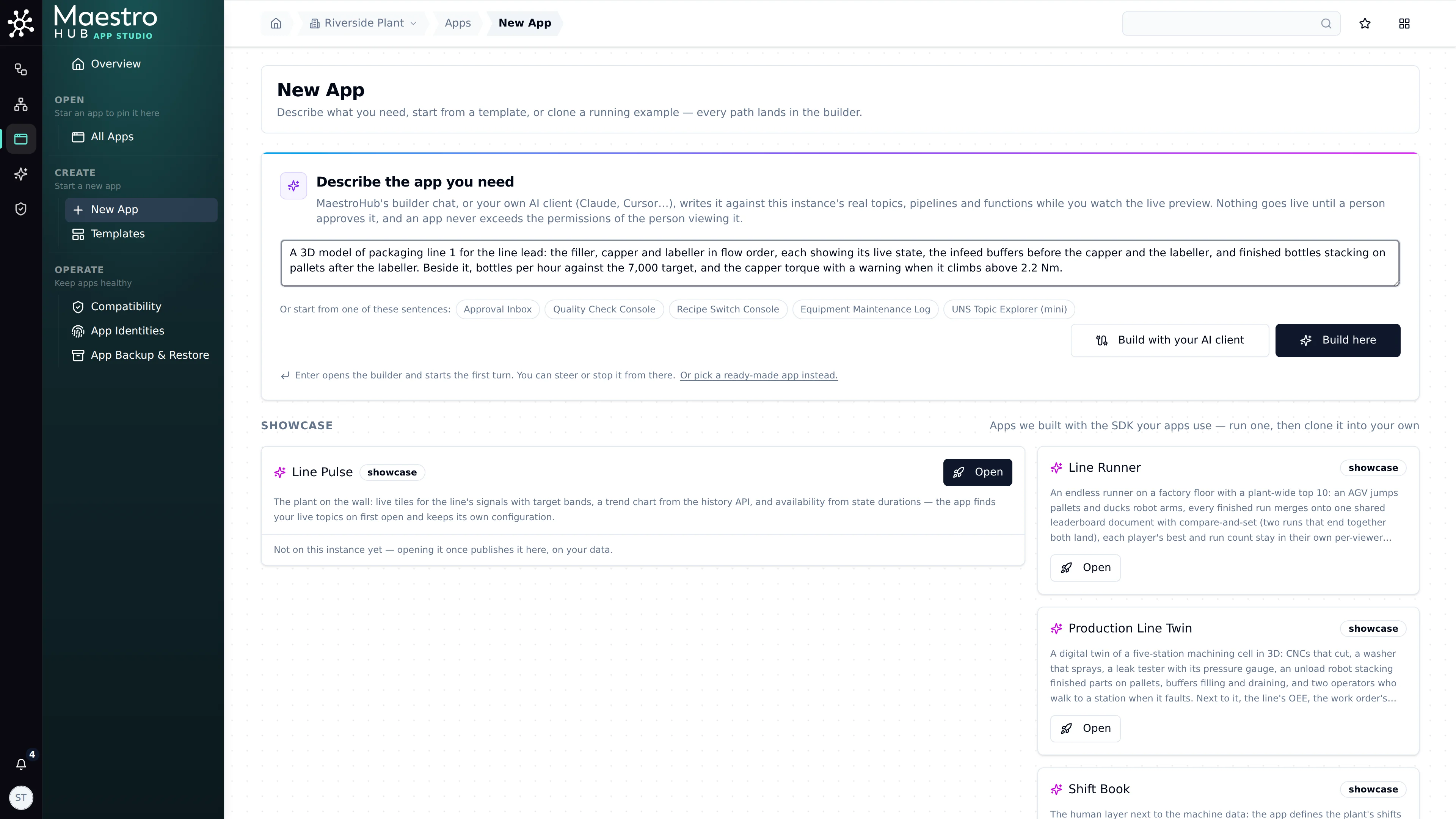
App Studio → New App: the machines, what sits between them, and the numbers
5. Maestro asks before it writes
Maestro looks up the line's topics and works out where each machine, buffer and pallet goes. Before it writes the scene, it asks. The card names the change: app source · edit scene.
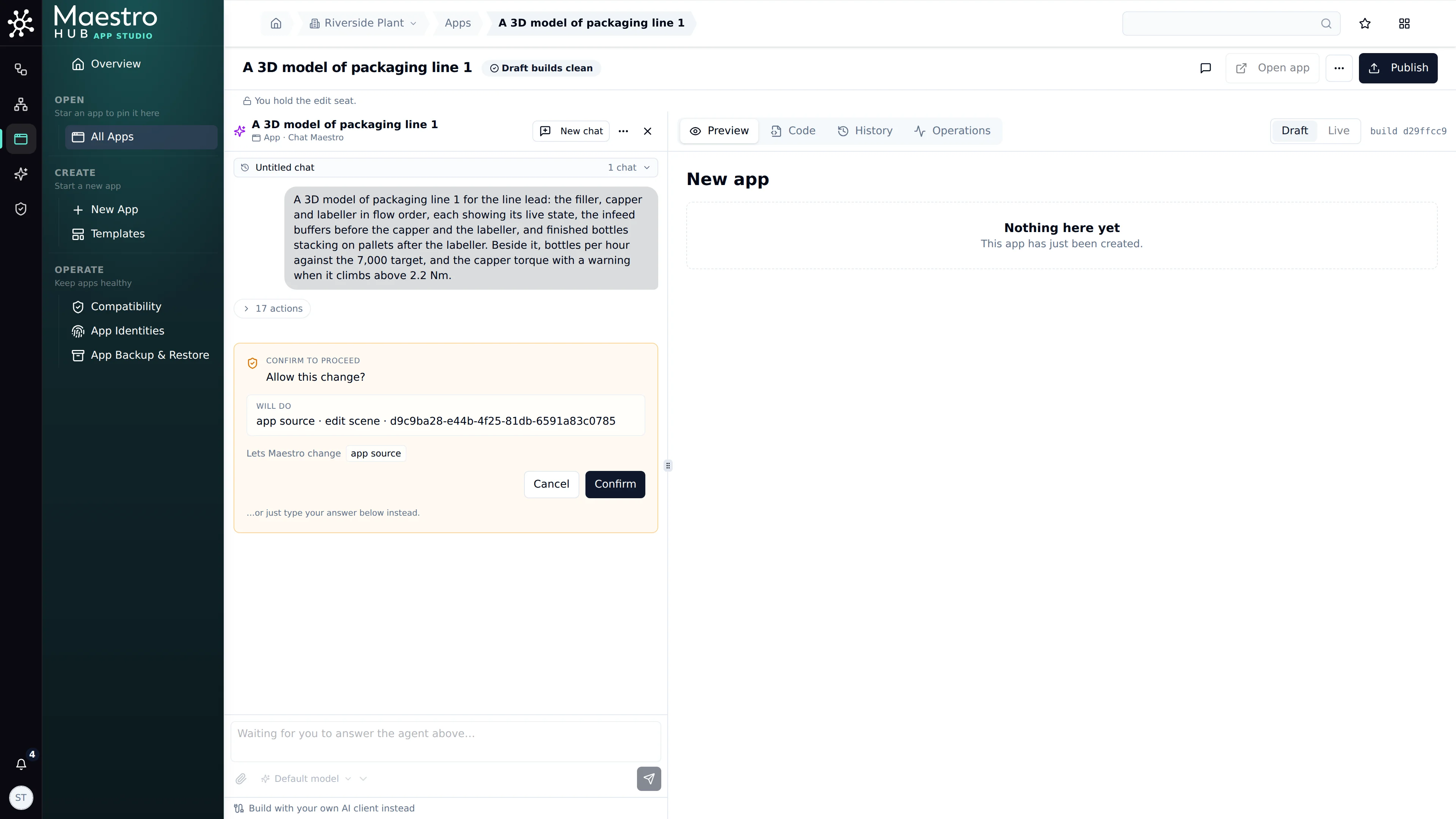
Nothing is written until you click Confirm
6. The first draft is already live
The preview shows the line in 3D: the three machines with stack lights, bottles queuing on the infeed buffers, and pallets filling at the end. Each part follows its topic.
This draft happened to catch a jam as it happened:
- Capper: label and stack light red (faulted).
- Labeller: amber (starved).
- Torque tile: 2.58 Nm, with Warning: torque above 2.2 Nm.
You can turn the view with the mouse, and the KPI panel beside it shows bottles per hour against the target.
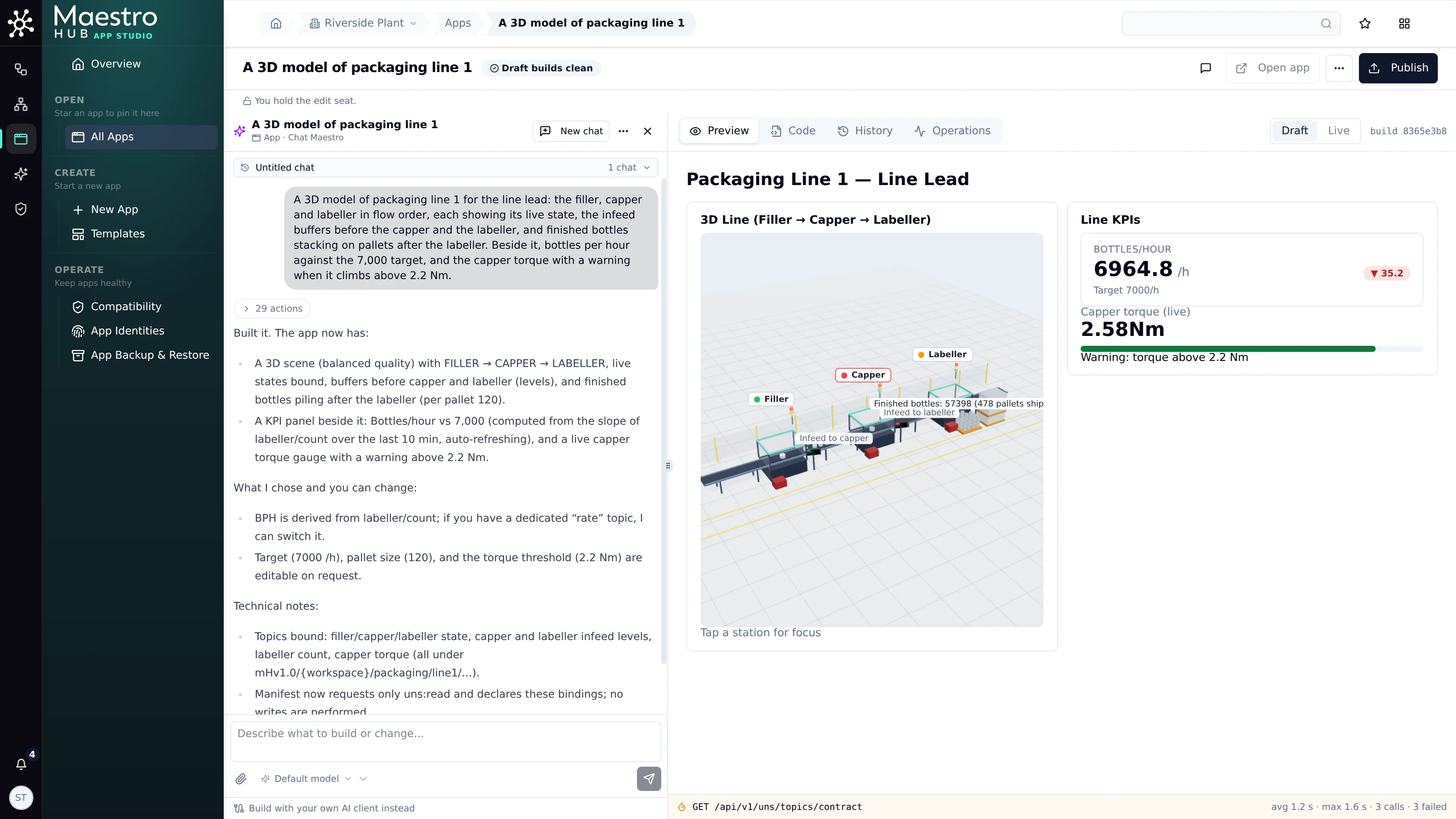
The first draft, live: the capper has jammed, and the torque warning is up
7. Say what to change
Two things could be better. The labels crowd each other, because the 3D view shares the page with the numbers. And the torque bar stays green even while it warns. Say so, in one message:
Give the 3D line the full width of the page, with the numbers in a row above it, so its labels have room. When the torque warns, show it in amber, not green. And measure bottles per hour over the last 30 minutes, the way the 7,000 target is meant.
Maestro reworks the layout, changes the warning colour and the rate window, checks the draft again, and asks before it saves the change.
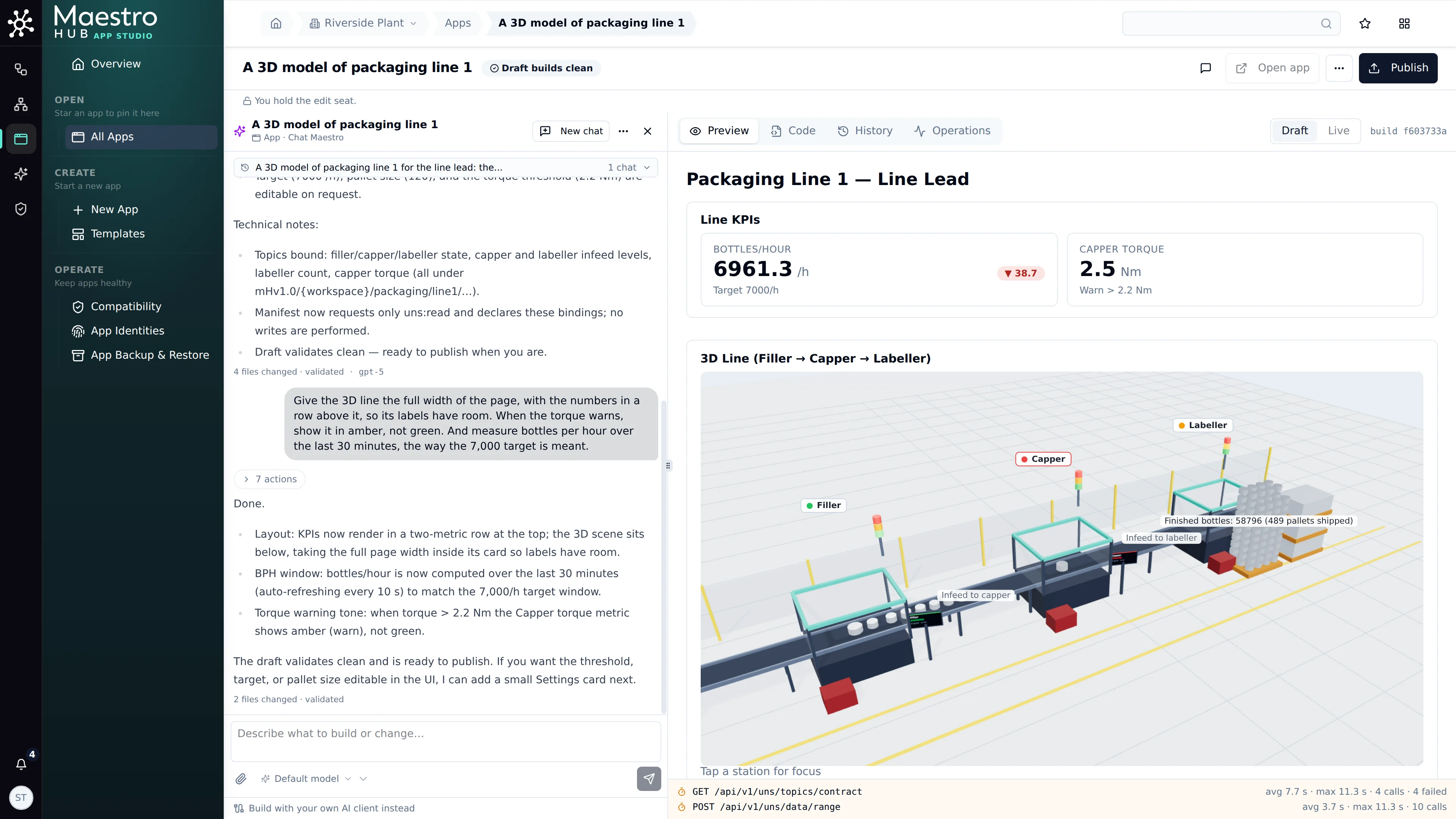
The line gets the full width, and the numbers sit in a row above it
8. Publish, and a person approves
Publish asks for a release. The release dialog shows what a reviewer needs to decide:
- Who asked for it.
- What the app may do: only
uns:read, to read topics. - The five files Maestro wrote.
Approve and go live makes it live for every viewer.
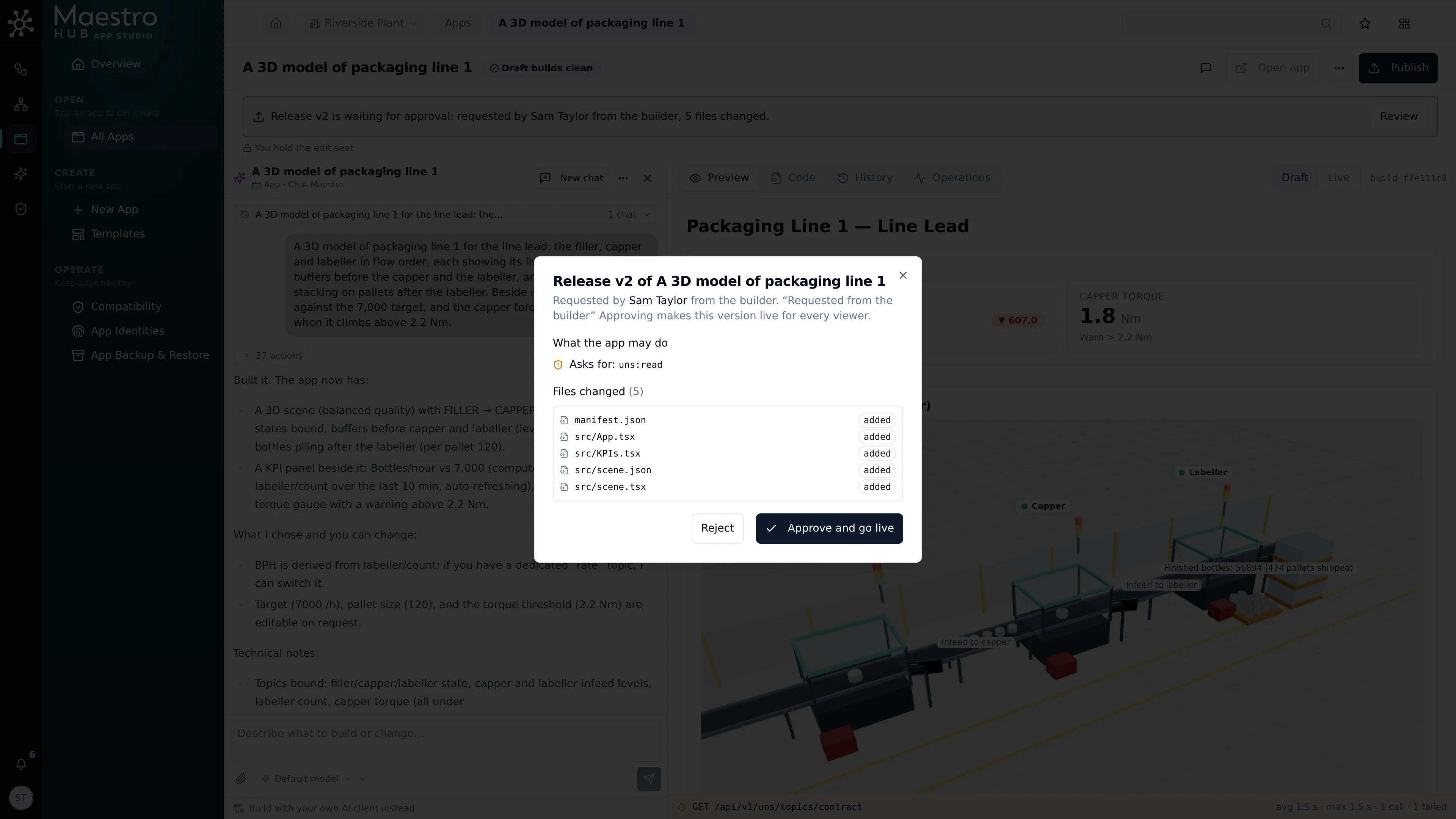
Nothing goes live until a person approves the release
The result
The app runs with each viewer's own permissions, and moves as the line publishes. When the capper jams, everyone watching sees it:
- Capper: turns red.
- Capper infeed: fills with bottles.
- Labeller: goes amber.
- Torque tile: turns amber above 2.2 Nm.
Bottles per hour stays amber while the line is under target.
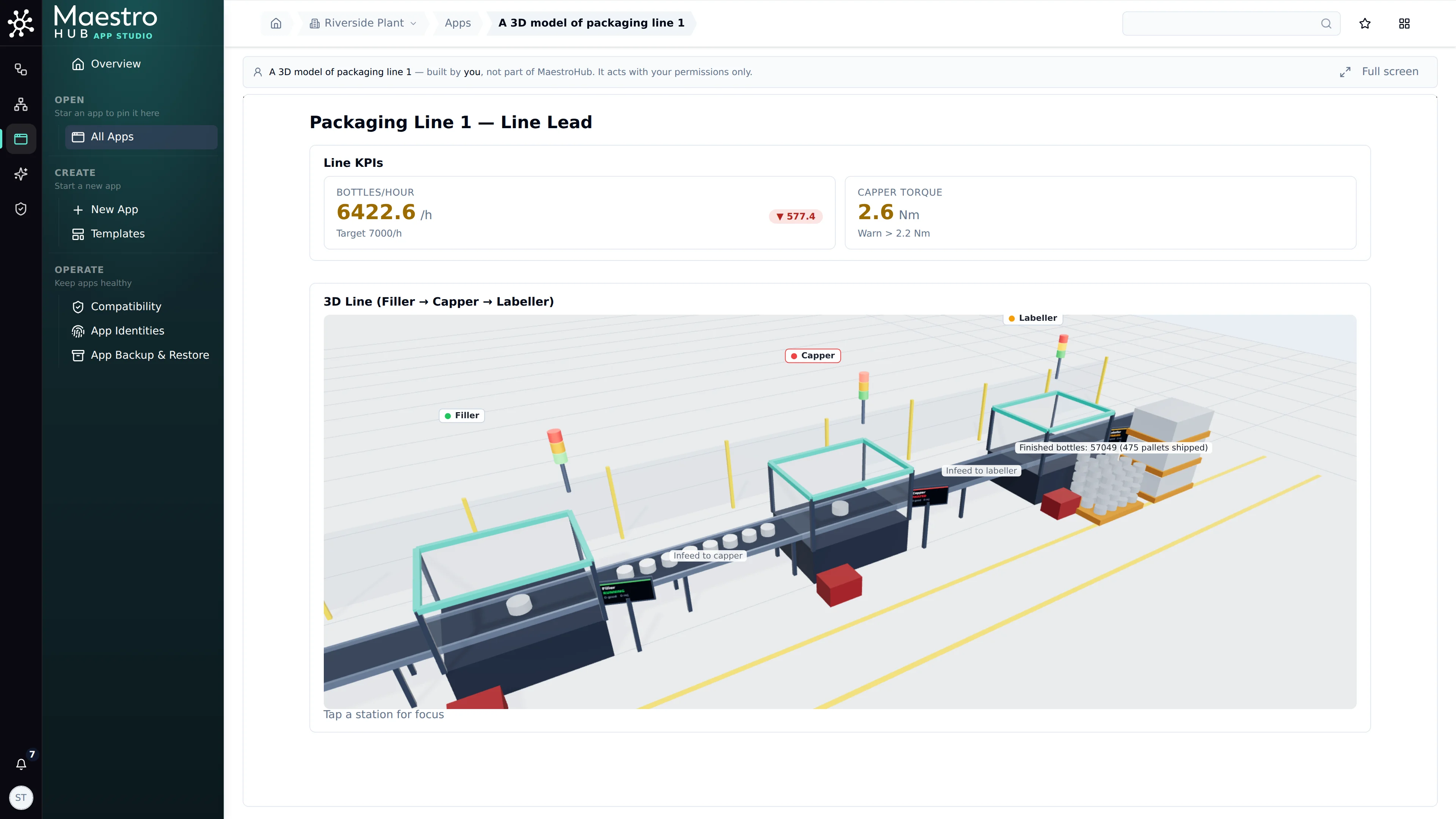
Live: the capper has jammed, and the line shows it
The 3D view follows each viewer's light or dark theme. This shot, in dark, shows the moment Part 1 found. The torque has climbed to 2.4 Nm and turned amber, while the capper is still green and running. The jam hasn't happened yet, and the line lead can see it coming.
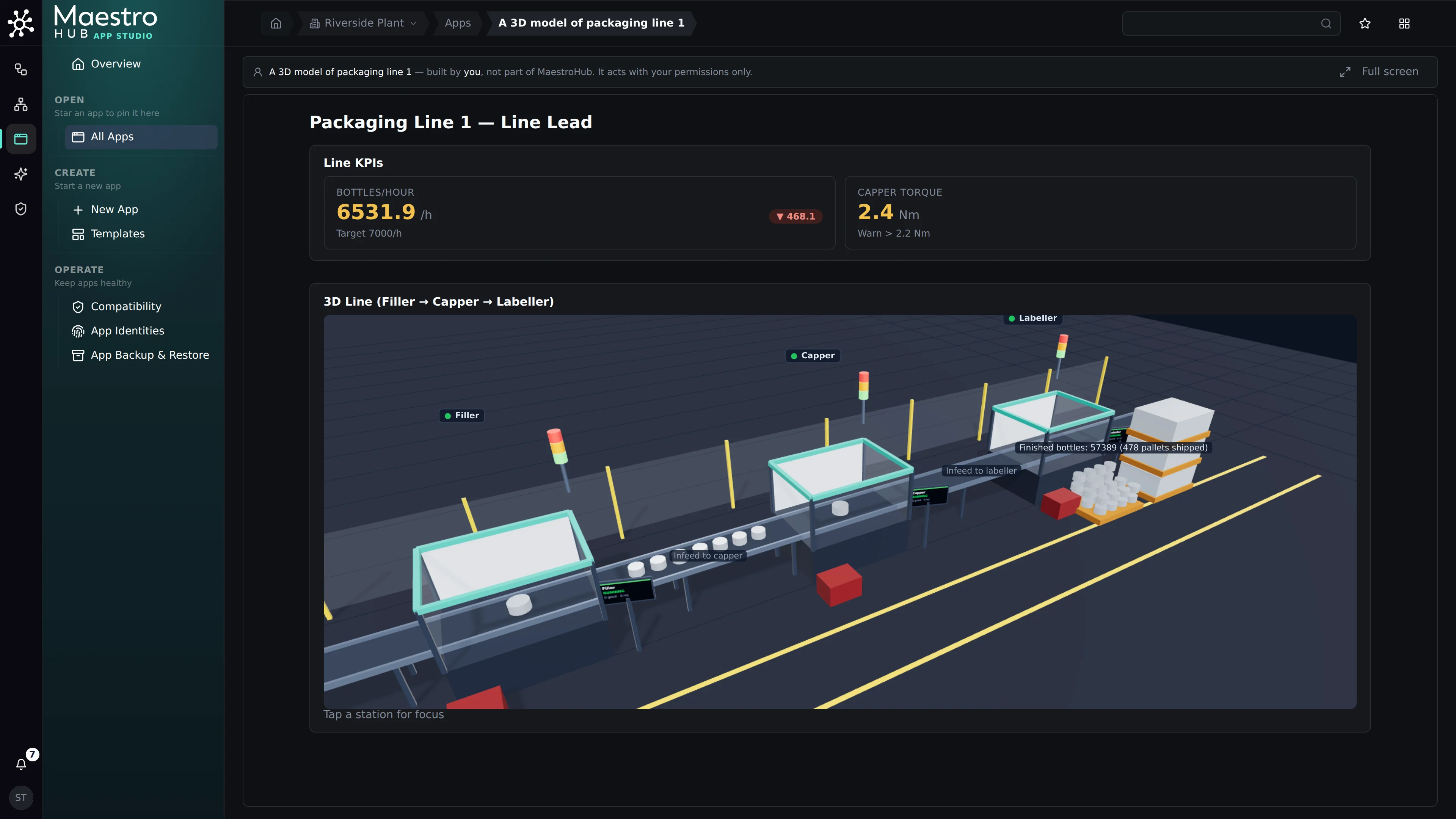
In the dark theme: the warning sign, before the jam
Tips
- Ask first, build second. Part 1 told you what the model should show. A 3D model of a line is nice to look at; one that shows the warning sign before a jam is worth putting on the wall.
- Describe the line in flow order. Name the machines in order, what sits between them (buffers, conveyors), and where finished goods end up. Maestro places them in that order.
- Say what is wrong, in plain words. "The labels crowd each other" and "show it in amber, not green" are enough. You don't need to know how the scene is built.
- Check the numbers against what you know. If a figure looks wrong, say so, and say why: "that is faster than the capper can run" gives Maestro what it needs to find the mistake.
- Use your own machine models. A station can draw a
.glbmodel stored with the app instead of the kit's shape. Apps can also use three.js directly. See the scene kit. - Prefer your own AI client? The same kind of 3D line can be built from an outside client such as Claude Code over MCP. See the MCP walkthrough.