Use case: build and maintain a pipeline
Beta, early access on request: describe a rule in one sentence, and Maestro builds, tests and saves the pipeline after your yes. Later, change it the same way.
- Goal
- An alarm when the line 1 oven runs too hot
- Model
- gpt-5 (OpenAI)
- Your part
- Three sentences, one choice, and Confirm on each change
Maestro is in release 3.0 as Beta and is not turned on by default. To use it, ask MaestroHub for early access: you get a licence that carries Maestro. A system administrator then connects an AI provider under Second Brain → Providers. This page records a session on a development build, so names and steps may differ in your version.
This walkthrough records one real session in the Riverside Plant workspace, where packaging line 1 publishes its oven temperature to mHv1.0/riverside/packaging/line1/oven/temperature every few seconds. The aim is an alarm on …/oven/alarm whenever the oven runs too hot. Nobody opened the node palette or wrote a node config.
What it saves you: the person never chose a node type, wrote a condition expression, or wired an edge. Each change took one sentence and a click on Confirm. Maestro checked its own draft and dry-ran it with sample readings before saying it was done.
Part 1: build it
1. Describe the rule
Open Second Brain → Ask and start a New session. Say what the pipeline should do, in plain words, with the topics it reads and writes:
Build a pipeline called "Oven over-temperature". Whenever a reading on mHv1.0/riverside/packaging/line1/oven/temperature is above 195 °C, publish an alarm with the reading to mHv1.0/riverside/packaging/line1/oven/alarm. Leave it off for now.
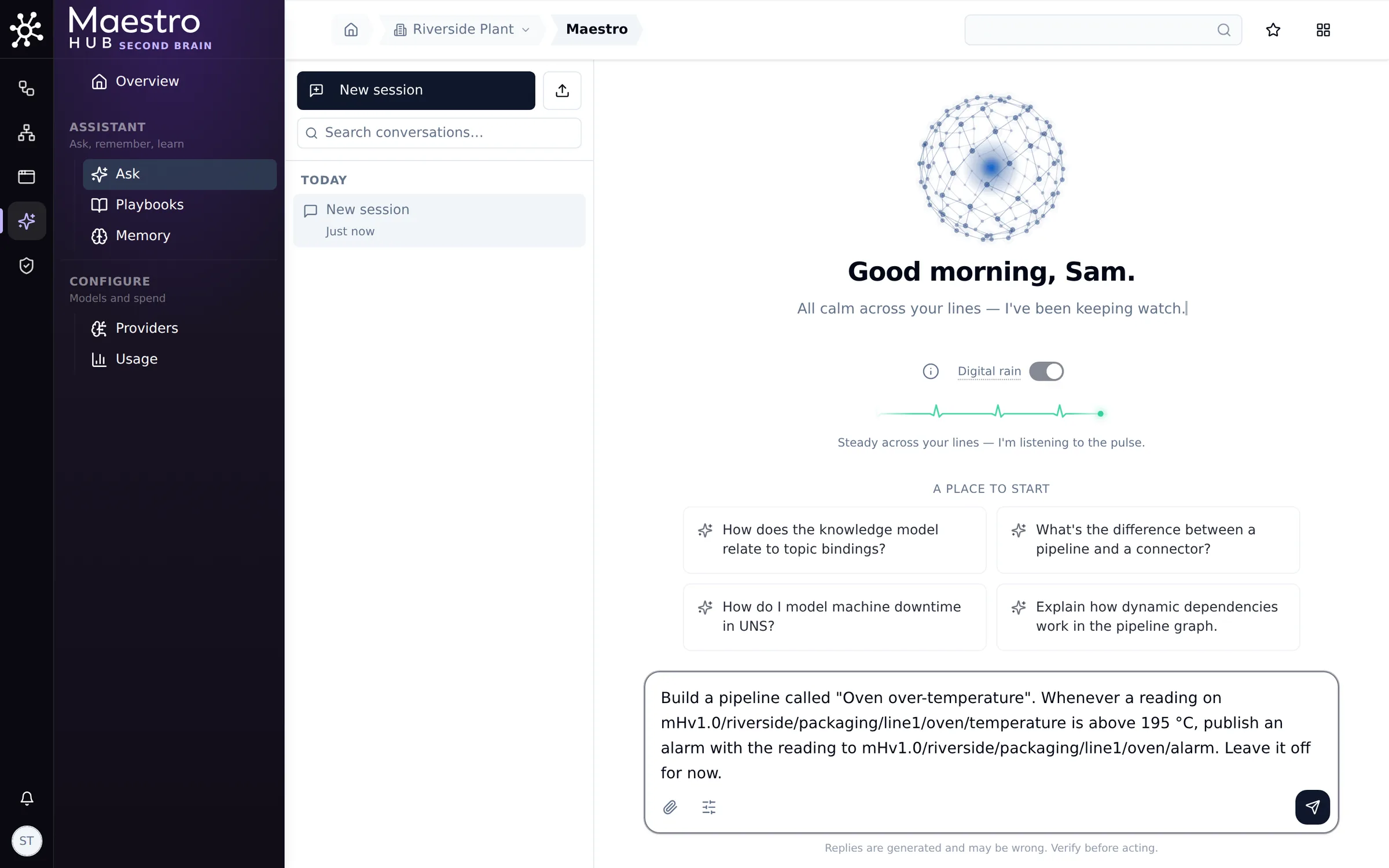
One sentence: the name, the rule, the topics, and that it should stay off
2. Maestro drafts it, then asks before saving
Maestro works through the steps as chips you can open:
- It lists the node types and reads the pipeline guide.
- It looks at the topic's latest reading.
- It checks its draft with validate_draft, and the answer comes back
"valid": true.
Checking a draft changes nothing, so it needs no confirmation. Saving the pipeline does, so Maestro stops and shows what it is about to do: pipelines · create · Oven over-temperature.
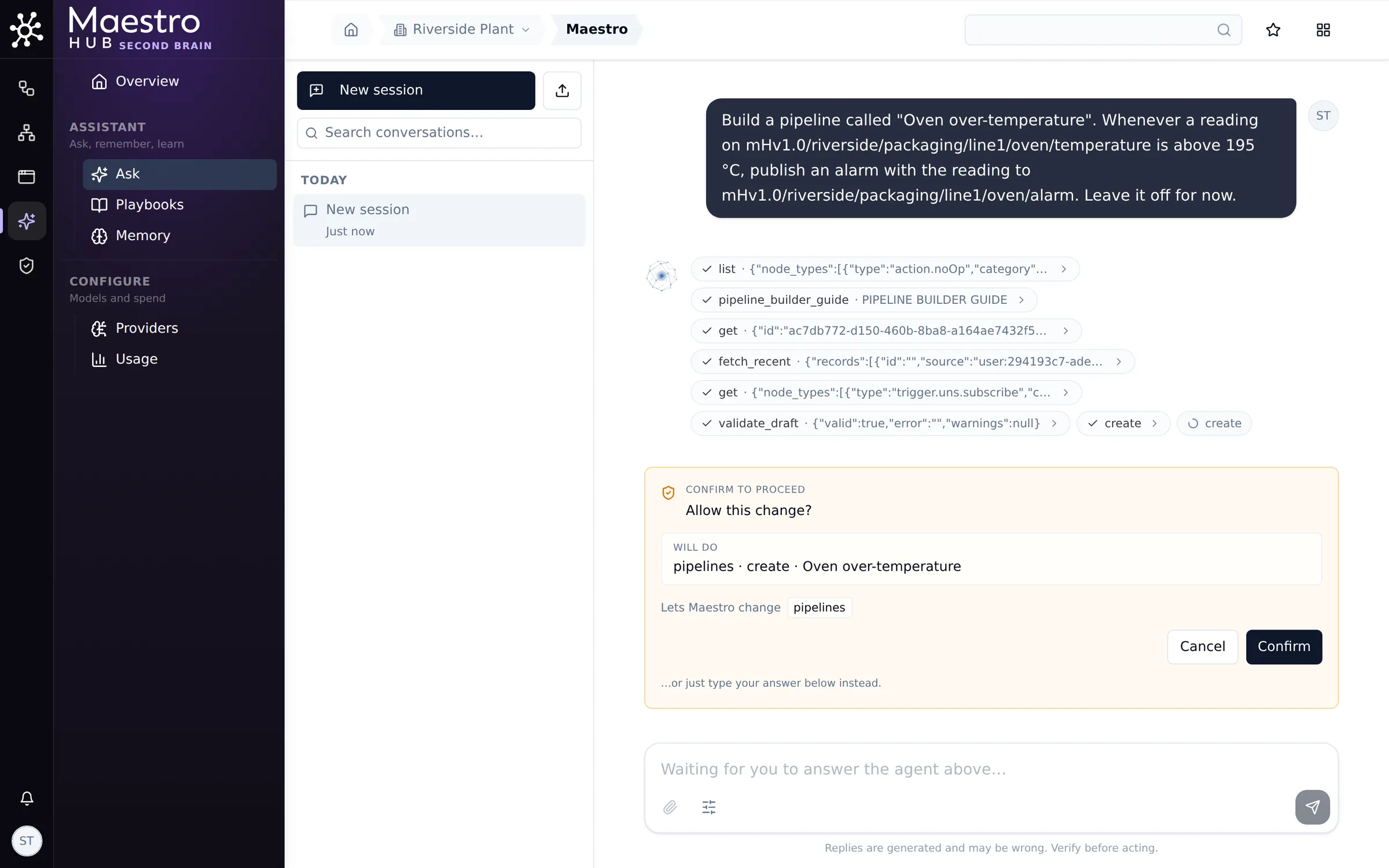
The card names the one change: creating the pipeline. Click Confirm.
3. It saves the pipeline and tests it
After Confirm, Maestro saves the pipeline (disabled, as asked) and shows it as three nodes:
- On Oven Temperature, a UNS trigger;
- Above 195 °C?, a condition;
- Publish Alarm.
Then it runs a dry run: a sandboxed test that publishes nothing. A reading of 200 would publish an alarm, and 190 would not. It ends by asking whether to turn the pipeline on.
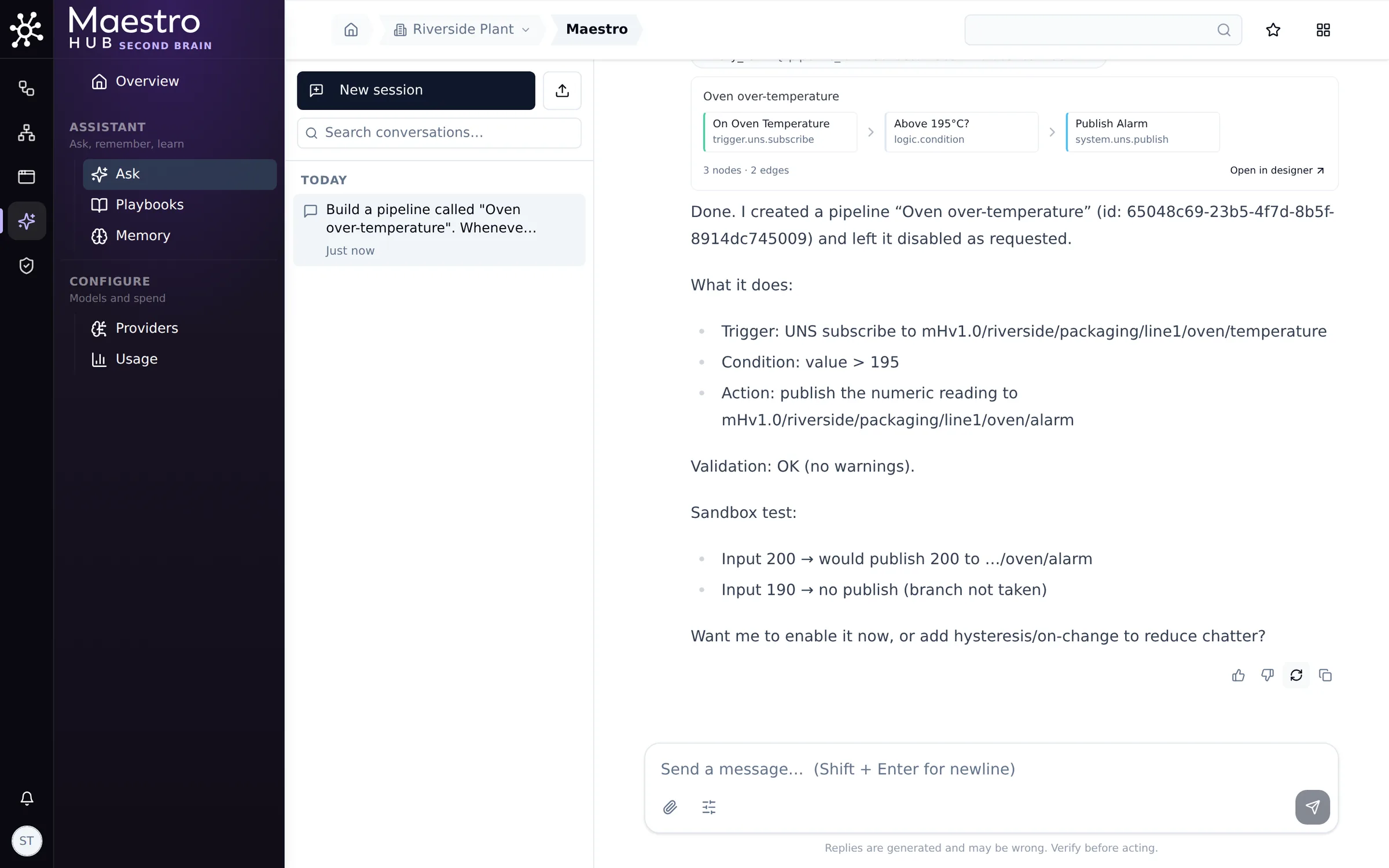
Saved, validated and dry-run tested, still off. Open in designer opens it.
4. Turn it on from the designer
Open in designer opens the pipeline. On the left edge of the canvas, the Maestro handle opens the Chat with Maestro panel, whose conversation is about this pipeline. Type Turn it on.
Turning a pipeline on changes it, so Maestro asks first. After Confirm, the pipeline is enabled and starts on the next oven reading.
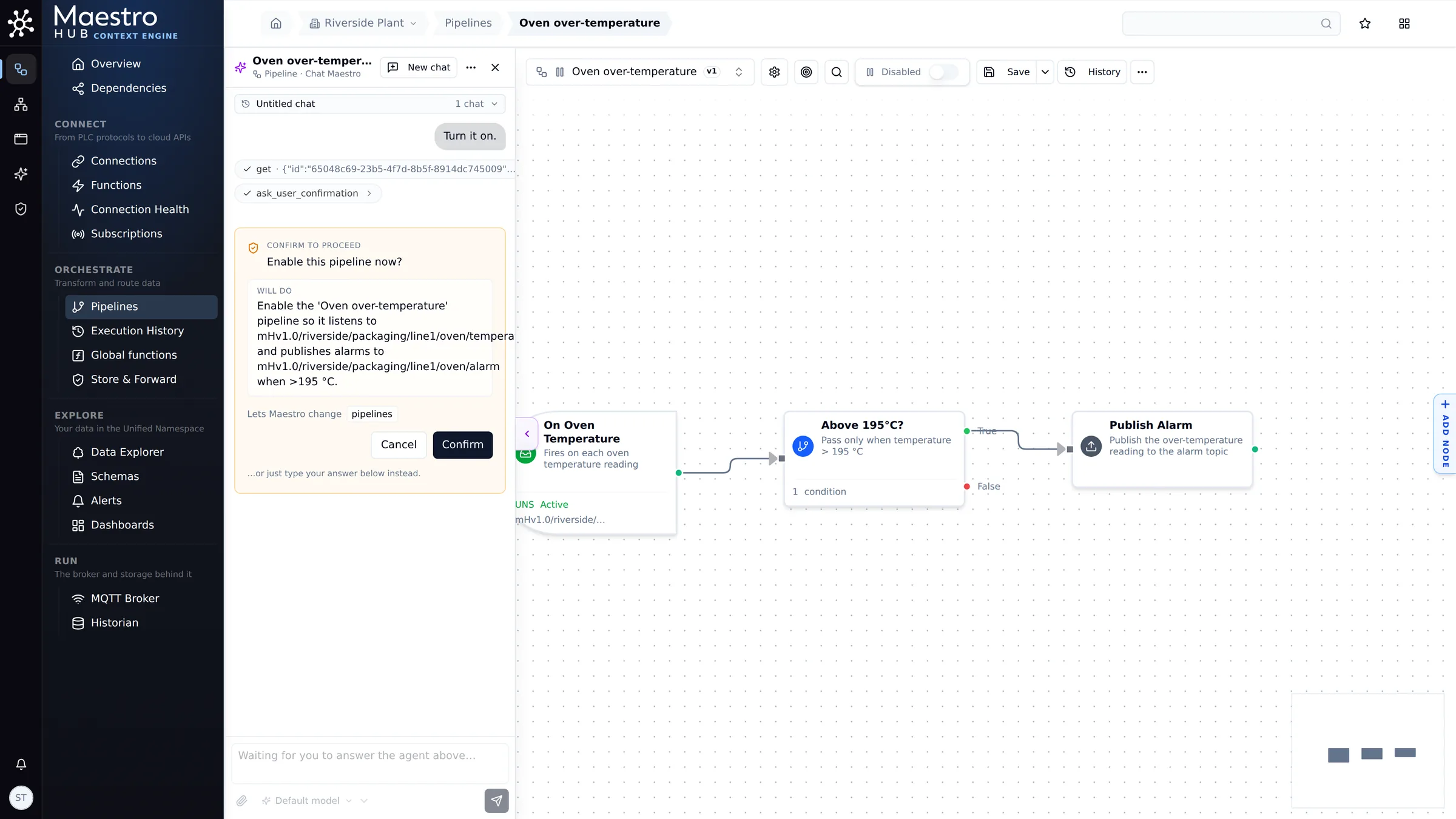
The panel beside the canvas: Maestro enables the pipeline after your yes
Part 2: maintain it
A week later, the line's engineer wants the limit at 200 °C, and the alarm should say which line it came from.
5. Ask for the change
Open the pipeline and the Chat with Maestro panel, and say what should change:
Raise the limit to 200 °C, and put the line name "Line 1" in the alarm next to the reading.
There is more than one sensible way to put a line name into an alarm, so Maestro asks. It recommends a structured value such as { line: "Line 1", temperature: …, unit: "°C" }, which dashboards and other systems can read field by field. Pick it, or type your own answer.
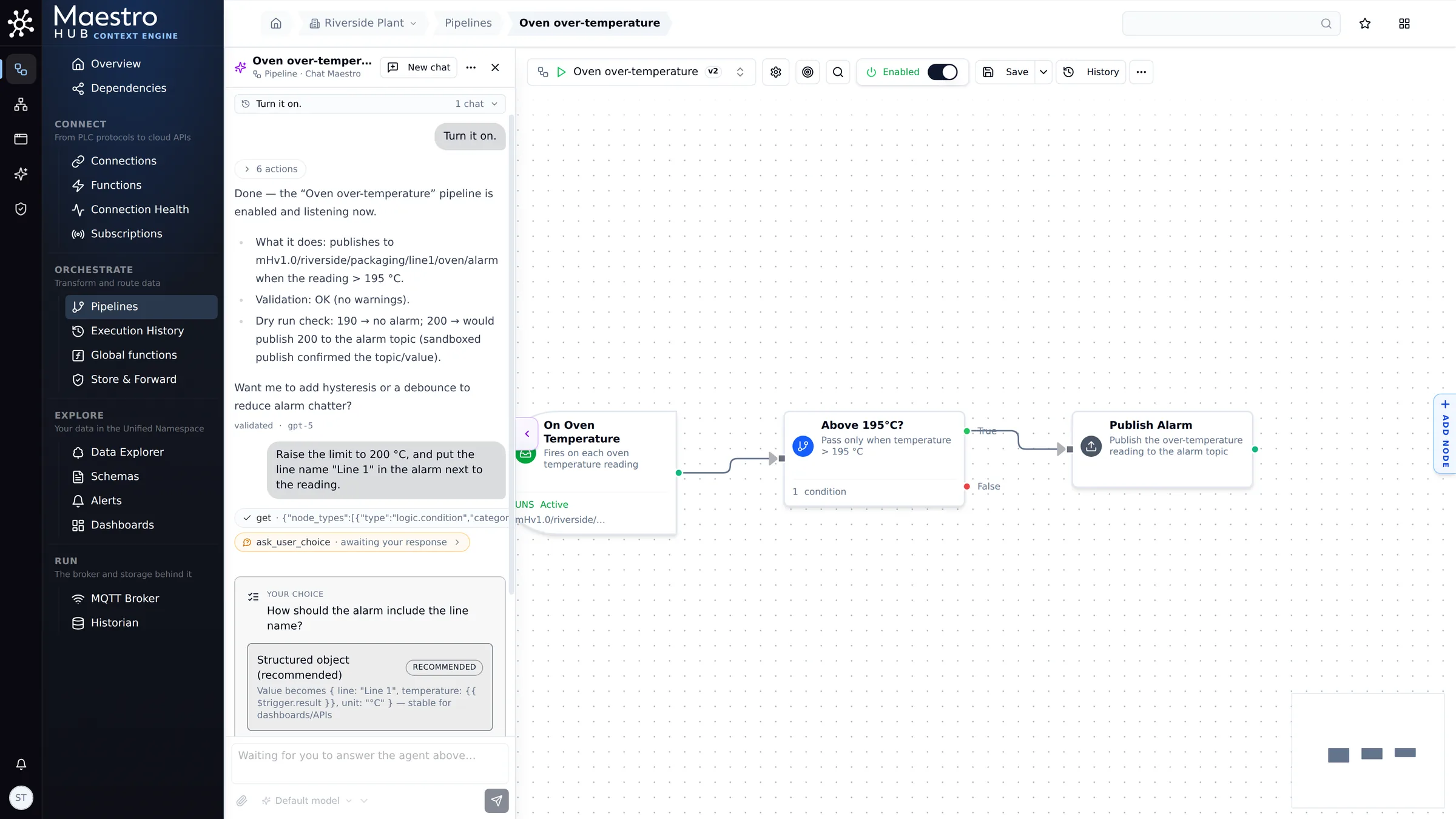
When there is a real choice, Maestro sets out the options and recommends one
6. Confirm the change
Maestro edits the saved pipeline in place: the condition becomes Above 200 °C? and the publish sends the structured alarm. It checks its own work as it goes, and here it caught that the alarm would have carried text instead of the reading, and asked to fix that too. Each change waits for Confirm.
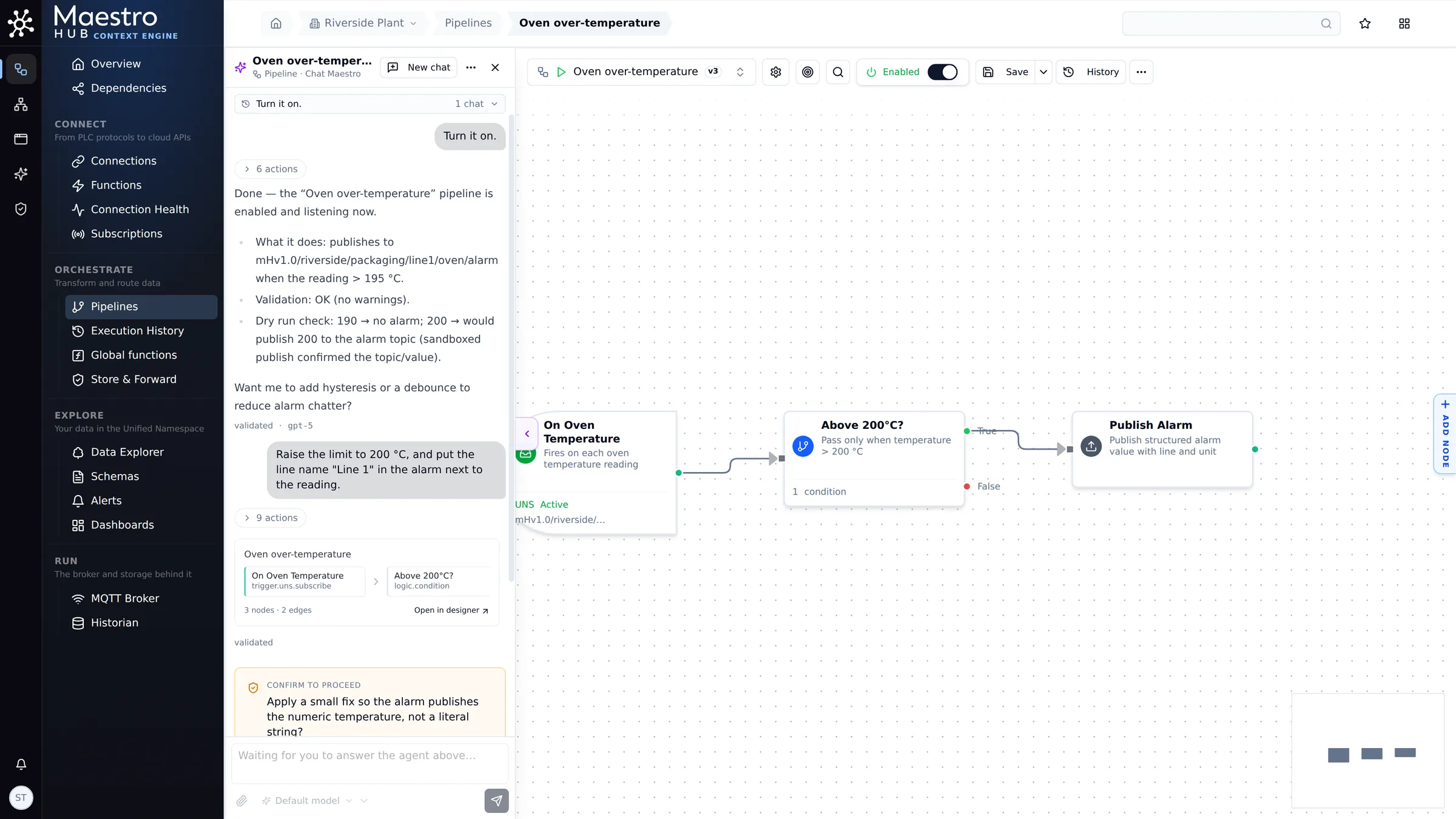
Maestro shows the change and asks before it saves it
7. The result
The pipeline is now at version 4. It is enabled, alarms above 200 °C, and publishes { line: "Line 1", temperature: …, unit: "°C" }. The designer's History lists each version Maestro saved.
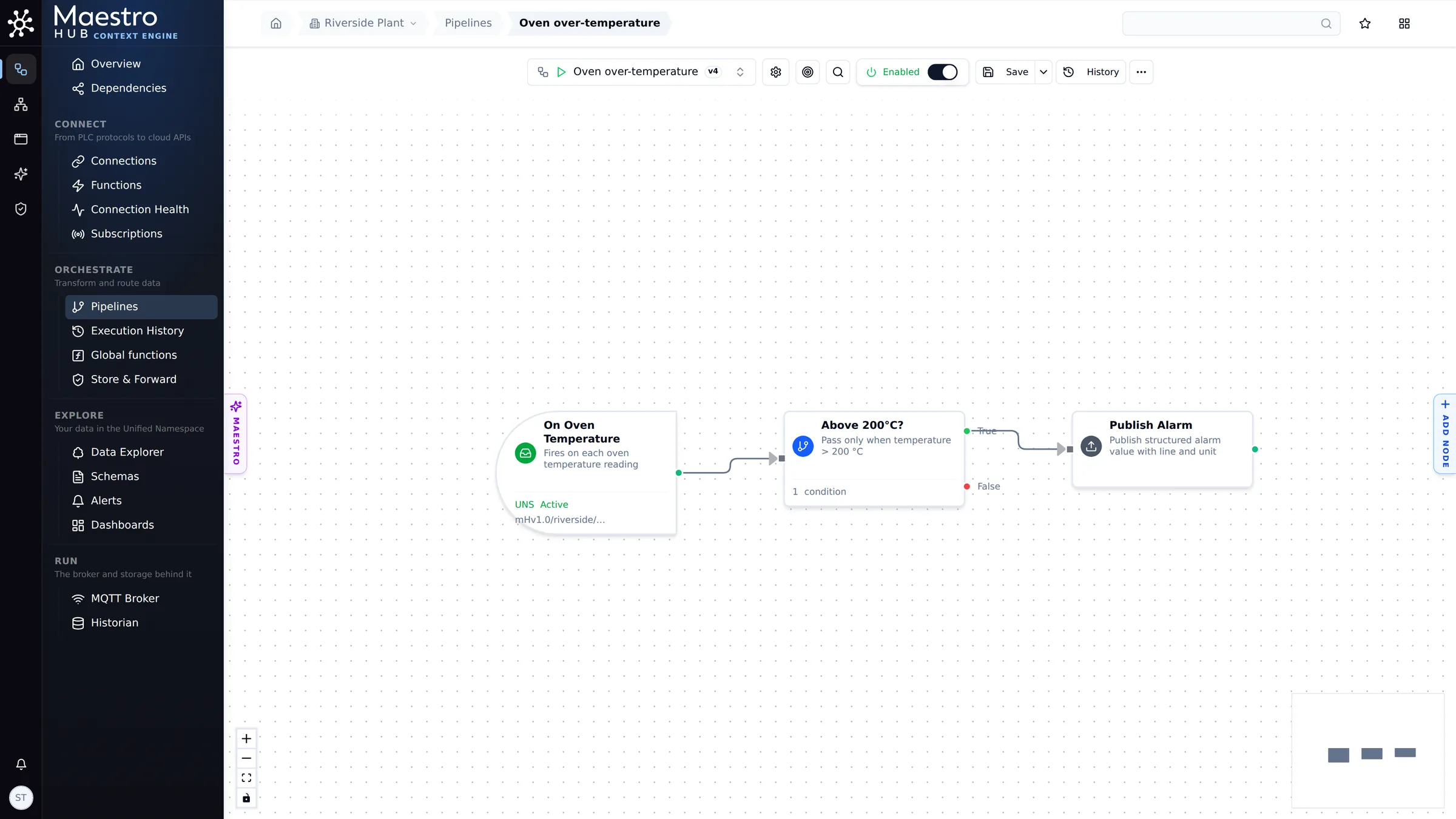
Enabled, version 4: the limit and the alarm changed, nothing else
Tips
- Name the topics. A full topic path, as here, saves Maestro a search and removes doubt. If you don't know it, ask first: Which topic has the line 1 oven temperature?
- Say what should not happen. "Leave it off for now" kept the new pipeline disabled until it had been tested.
- Ask it to test. Test it with a reading of 205 and one of 182 runs a dry run that publishes nothing.
- Ask why. Why did the last run fail? or Has the alarm fired today? reads the pipeline's runs for you.
- Use a strong model for building. This session used gpt-5. See Choosing a model.