SECS/GEM (HSMS) Integration Guide
Act as the GEM host of a tool: collection events and alarms as triggers, status variables and constants on demand, remote commands that are never sent twice.
- Status
- Beta
- Transport
- HSMS-SS over TCP (port set on the tool)
- Authentication
- None (HSMS has none)
- Triggers
- Collection Events · Alarms
- Operations
- Read Status Variables · Read Equipment Constants · List Variables · Remote Command · Set Equipment Constants
SECS/GEM is the equipment automation standard of semiconductor fabs, SMT lines and back-end assembly and test. It is three SEMI standards: E37 (HSMS, the TCP transport; E37.1 HSMS-SS, its single-session form), E5 (SECS-II, the messages) and E30 (GEM, the behaviour every GEM tool shares). MaestroHub acts as the host: it connects to the tool, establishes communication, defines the event reports it needs, and receives what the tool reports.
This connector is in beta. It is built from the SEMI standards and tested against Python secsgem (as the equipment) and MaestroHub's own in-process fake, but it has not yet been verified on a production tool. If a tool sends a message the connector cannot decode, it answers the tool (an abort, SxF0, when a reply is expected), keeps the connection up, counts it in the connection's error count and logs the message in hex (the first 4 KiB); please report it to support with the tool model.
An HSMS-SS tool accepts one host connection. In a front-end fab the MES usually holds it; then MaestroHub can only connect through a second GEM port or a vendor's SECS multiplexer. SMT, back-end and lab tools often have the port free. While another host is connected, the tool refuses MaestroHub's select and the connection keeps retrying.
Overview
What happens on connect
- TCP and select. MaestroHub opens the TCP connection and selects the HSMS session within T7. A tool that answers "already active" has another host.
- Establish communication (S1F13). Repeated every Establish Communications Delay while the tool answers "denied, try again", within the connection timeout.
- Request on-line (S1F17), when Request On-Line on Connect is on. A tool that stays off-line is logged once; many tools answer little else until they are on-line.
- Set the clock (S2F31), only when Set Equipment Clock on Connect is on (off by default: a fab's tool clocks usually belong to the MES or NTP).
- Reports. Every collection event an event trigger lists gets one report of MaestroHub's own, numbered from Report ID Base upward; an event keeps its report ID for as long as a trigger lists it. On a new connection MaestroHub first asks the tool for the event's report (S6F15): when the tool still has MaestroHub's report with every variable, the event is only enabled again (S2F37). Otherwise MaestroHub disables the event, deletes and redefines its report (S2F33), links it to the event (S2F35) and enables the event again, so the tool sends no event half defined in between.
- MaestroHub changes only its own reports: other reports linked to the same event (another host's, the tool's own) stay linked. Only a tool that refuses a second report on an event (LRACK 3) has the event's other links removed, so MaestroHub's can be made; this is logged, naming the event. It never sends the "delete every report" form of S2F33.
- When the last trigger listing an event is removed while the connection is up, MaestroHub disables the event on the tool (S2F37), then deletes its report. When the last trigger that takes every event is removed, MaestroHub disables every event (S2F37 with an empty list), then enables again, in one S2F37, the events other triggers still list. If another host needs an event enabled, it has to enable it again.
- A connect never takes anything back: it only sets up what the triggers want. Saving a connection's settings reconnects it before its triggers subscribe again, and a connect that withdrew would turn their events off in between. So a trigger deleted while the connection is down, or before a MaestroHub restart (nothing about the reports is stored), stays set up on the tool: its report and event enable remain there, one extra event the tool sends and nobody takes. MaestroHub forgets that report at the next connect and never takes it back later, so it stays until the tool's own setup changes; restarting or editing the connection does not remove it either. Its report ID may be given to a later trigger, which then redefines that report for its own event.
- Each trigger's events are judged against the variables that trigger asks for. When the event does not carry the report MaestroHub defined for it (the tool lost or changed the definition in the moment before MaestroHub could check it), or MaestroHub could not set the report up at all (the reason is kept from the setup), the trigger receives the event with
quality: uncertainand aqualityDetailsaying why, never as agoodevent with missing values. A trigger that lists no variables takes the event as the tool sent it. - A report that could not be set up is logged with its event IDs and counted in the connection's error count.
- Events the tool raises while the link is down are lost, unless the tool spools them. Spooling (S2F43) is the way to lose nothing over an outage; this connector does not set it up yet.
- Alarms (S5F3). When Enable Alarms on Connect is on, the alarms the alarm triggers list are enabled, at every connect and when a trigger subscribes. MaestroHub turns on the alarms its triggers need and never turns alarms off, because a tool's alarm settings are shared with the MES; a removed trigger simply stops receiving them.
Every primary the tool sends that wants a reply (an event, an alarm, "are you there", establish communication, the host's date and time with S2F17) is answered at once by the link itself, before anything is handed to a pipeline, so a slow pipeline never makes the tool wait out its reply timer and never stalls the link. When the pipelines fall behind by more than 256 messages, the newest are dropped (each was still answered), counted in the connection's error count, and logged once per burst. MaestroHub sends one request at a time on a connection (reads, commands, report setup and Ping take turns), as many GEM tools expect. A message the host does not handle is answered with an abort (SxF0); a message in a presentation type other than SECS-II, a data message before the session is selected, or one for another device ID is rejected (Reject.req), and the link stays up.
Connection health
Ping sends S1F1 and waits for the tool's answer. An idle link is probed with a linktest after Linktest Interval. When the link drops, every trigger fires once with quality: bad; the connection then reconnects, waiting at least T5 after the old link ended, and sets the reports up again. T5 counts from the end of every TCP connection MaestroHub made to the tool: an installed session, and also an attempt that selected or established communication and then failed, was refused, or was cancelled. A dial that fails before connecting is paced by the runtime's reconnect backoff, not T5. T5 is kept per equipment address, the host exactly as typed and the port, so saving an edit to a running connection, which reconnects it with the new settings, also waits out T5 (two spellings of one tool, such as a name and its IP address, are timed apart). The connect timeout must be longer than T5 plus T7.
Connection Configuration
Creating a SECS/GEM Connection
Open Connect → New Connection and choose SECS/GEM.
1. Profile Information
| Field | Description |
|---|---|
| Name | A name for the connection, such as die-bonder-07 |
| Description | Optional notes |
2. Connection
| Field | Default | Description |
|---|---|---|
| Address | (required) | The tool's host name or IP address |
| Port | 5000 | The tool's HSMS port, set in its GEM configuration. HSMS has no standard port |
| Device ID | 0 | The session ID the tool expects (its GEM device ID), 0 to 32767 |
| ID Format | U4 | The SECS-II format the tool uses for its IDs (SVID, ECID, CEID, RPTID, VID, ALID, DATAID), from its GEM manual |
| Equipment Time Zone | UTC | The zone of the tool's clock; equipment times are converted to UTC from it |
3. Startup
| Field | Default | Description |
|---|---|---|
| Request On-Line on Connect | On | Send S1F17 after communication is established |
| Set Equipment Clock on Connect | Off | Send the current time (S2F31) after every connect |
| Enable Alarms on Connect | On | Enable the alarms the alarm triggers ask for (S5F3); MaestroHub never turns alarms off |
| Report ID Base | 9000 | MaestroHub's report IDs start here, one per subscribed event. Pick a range the tool's other hosts do not use |
4. Timers
| Field | Default | Description |
|---|---|---|
| Connection Timeout | 30s | TCP connect, select and S1F13, plus any wait for T5 after the last connection to the tool ended; must be longer than T5 plus T7 |
| Reply Timeout (T3) | 45s | Wait for the tool's reply to a message; an expiry fails that request only |
| Connect Separation (T5) | 10s | Minimum time between the end of one connection and the next attempt |
| Control Timeout (T6) | 5s | Wait for the answer to a select or linktest; an expiry closes the connection |
| Not Selected Timeout (T7) | 10s | Maximum time from TCP connect to a selected session |
| Inter-Character Timeout (T8) | 5s | Maximum gap between the bytes of one message |
| Linktest Interval | 30s | Probe an idle link after this long; 0 turns it off |
| Establish Communications Delay | 10s | Wait between S1F13 attempts |
| Maximum Message Size (bytes) | 16777216 | A longer message closes the connection before it is read |
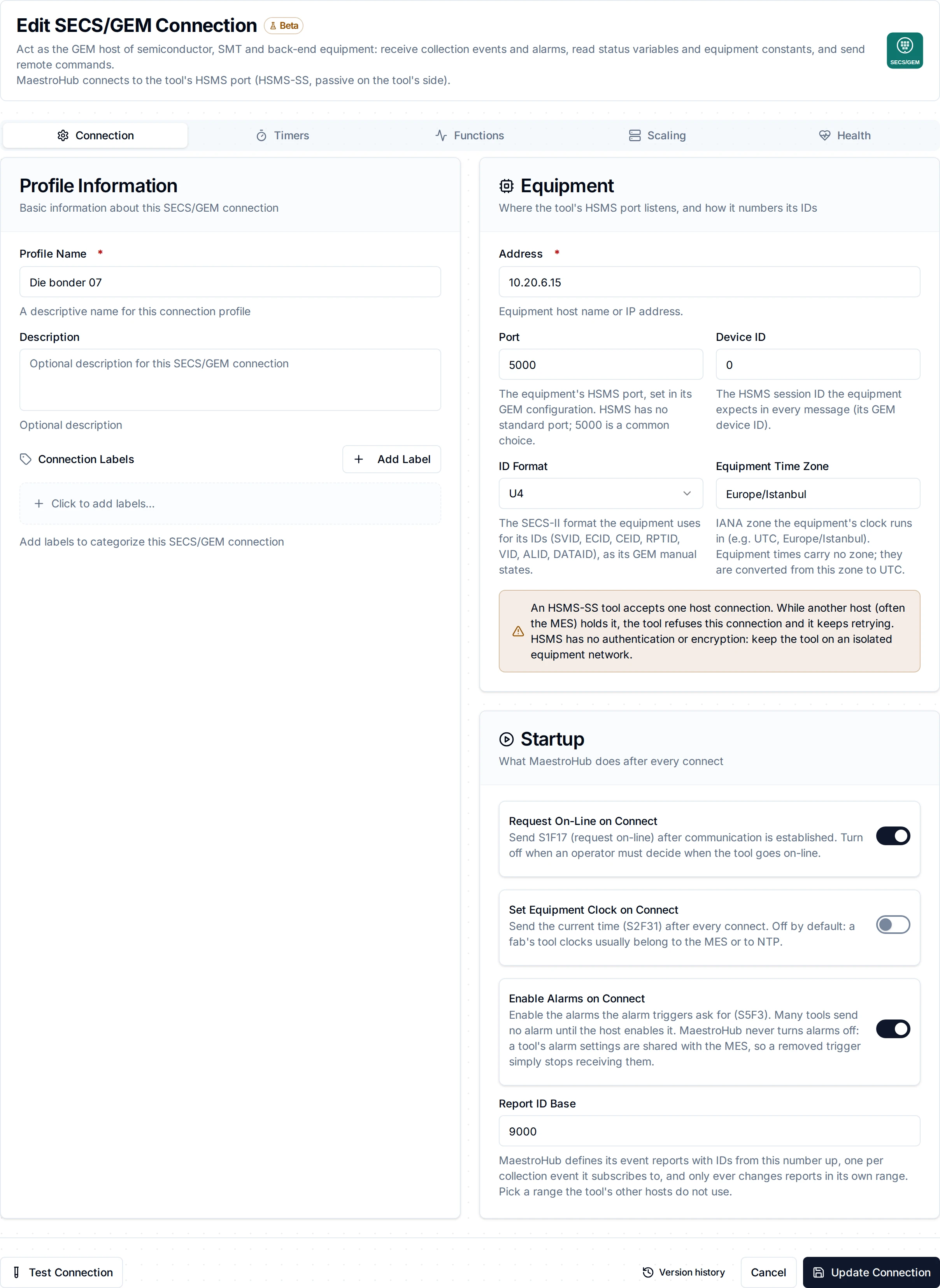
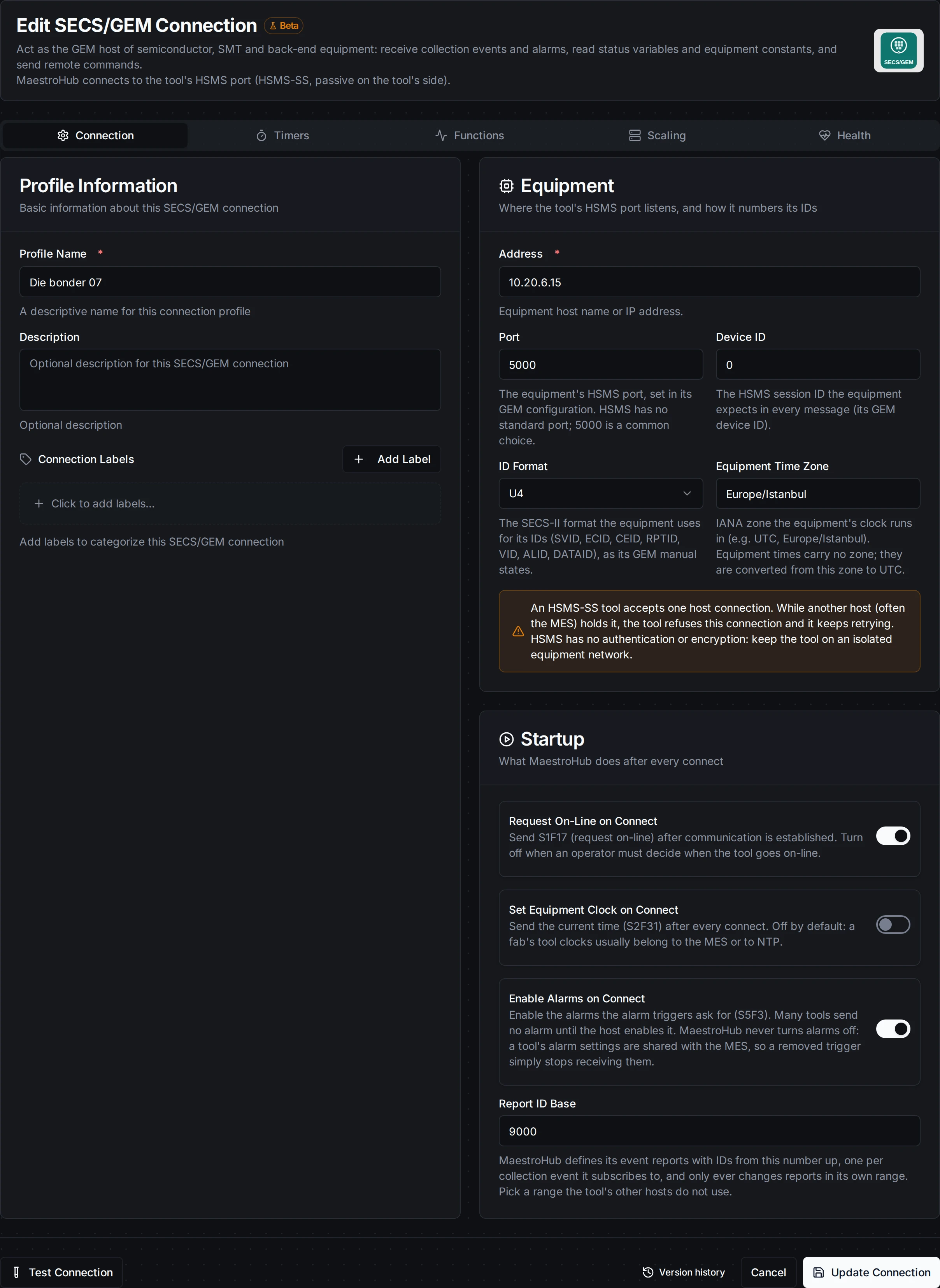
The Connection tab: the tool's address, port, device ID and ID format, and what MaestroHub does after every connect
Tool setup
- Set the tool's HSMS mode to passive (MaestroHub connects to it), and note its port and device ID.
- Make sure no other host holds its HSMS connection, or use a second GEM port.
- Look up the IDs you need in the tool's GEM manual: SVIDs, ECIDs, CEIDs and their data variables, ALIDs, and the remote commands with their parameters and formats.
Testing the Connection
Test Connection dials, selects and establishes communication (S1F13), and changes nothing on the tool: no on-line request, clock, report, event or alarm setting, so it is safe against a tool a running connection uses. A refusal names its reason: another host connected, communication denied, or the device ID unknown. Test Connection makes one attempt; a tool that refuses the first message after selecting fails it, and the running connection's retries bring it up. An HSMS-SS tool takes one host connection: a second connection record to the same tool, or a Test Connection while the connection runs, is refused ("a session is already active"), and the other host it names may be MaestroHub itself. Inside T5 after a connection to the same tool ended (including the one MaestroHub itself just closed), Test Connection waits out the rest of T5 when it fits the test's timeout; otherwise it fails at once and says how long until the tool can be connected again.
Function Builder
Creating SECS/GEM Functions
Open the connection's Functions tab and choose a function type. Each ID list takes numbers and ranges, such as 1001-1003, 2001.
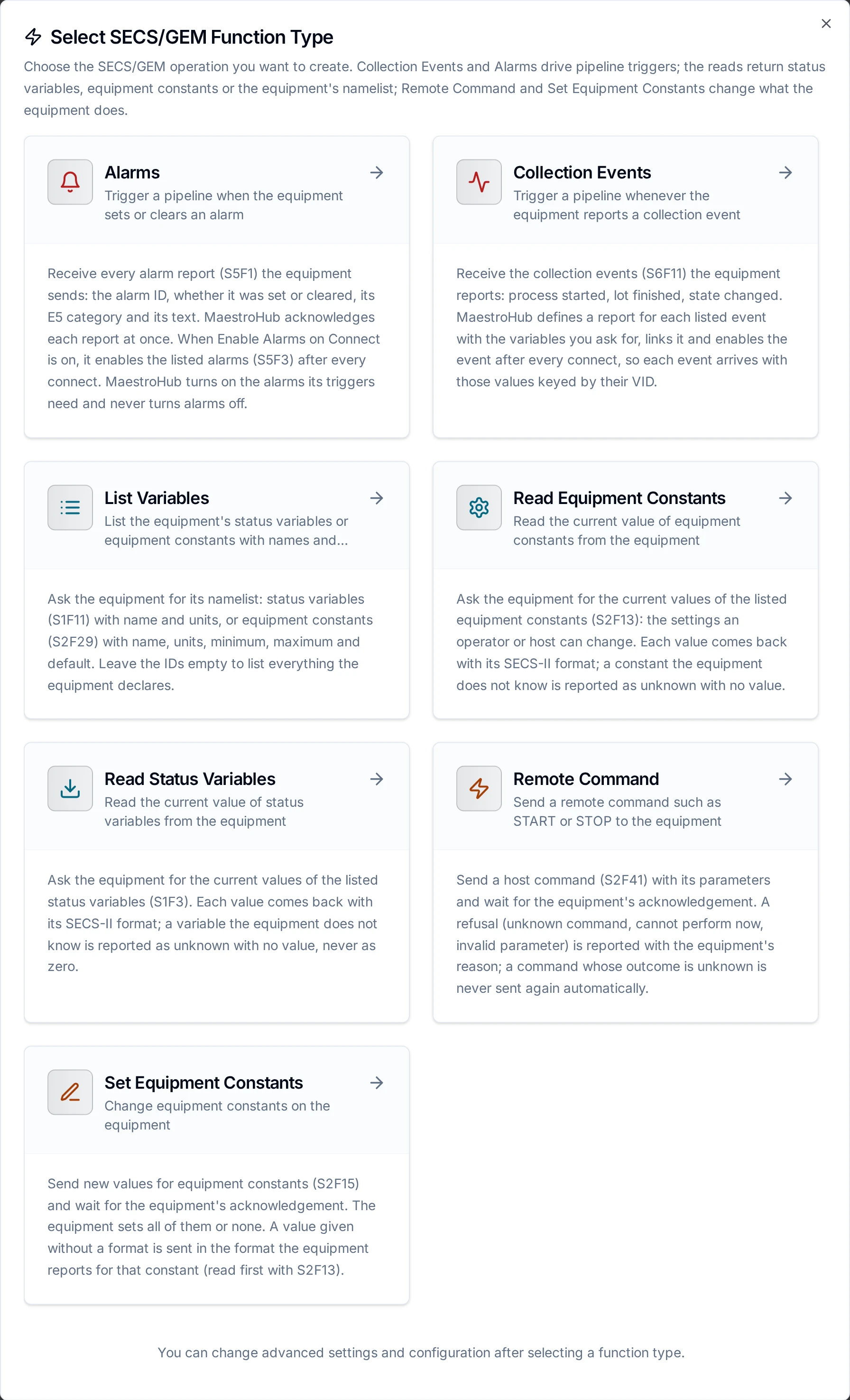
Two triggers, three reads and two writes
Collection Events (secsgem.events)
A trigger: one pipeline run per collection event (S6F11).
| Parameter | Description |
|---|---|
| Collection Event IDs | The CEIDs to receive. Empty = every event the tool reports, with no reports defined by MaestroHub |
| Variable IDs to Report | The VIDs reported with each listed event. They arrive under values, keyed by VID |
| Clock Variable ID | A reported VID that carries the tool's clock; its value becomes sourceTimestamp |
Alarms (secsgem.alarms)
A trigger: one pipeline run per alarm set or cleared (S5F1). Alarm IDs filters by ALID; empty takes every alarm. When Enable Alarms on Connect is on, the listed alarms are enabled (S5F3) after every connect. MaestroHub turns on the alarms its triggers need and never turns alarms off.
Read Status Variables (secsgem.readStatus)
Reads the listed SVIDs (S1F3), at most 1000 at a time. A variable the tool does not know comes back as known: false with a null value, never 0. The SVID list can be a ((parameter)), checked when the function runs.
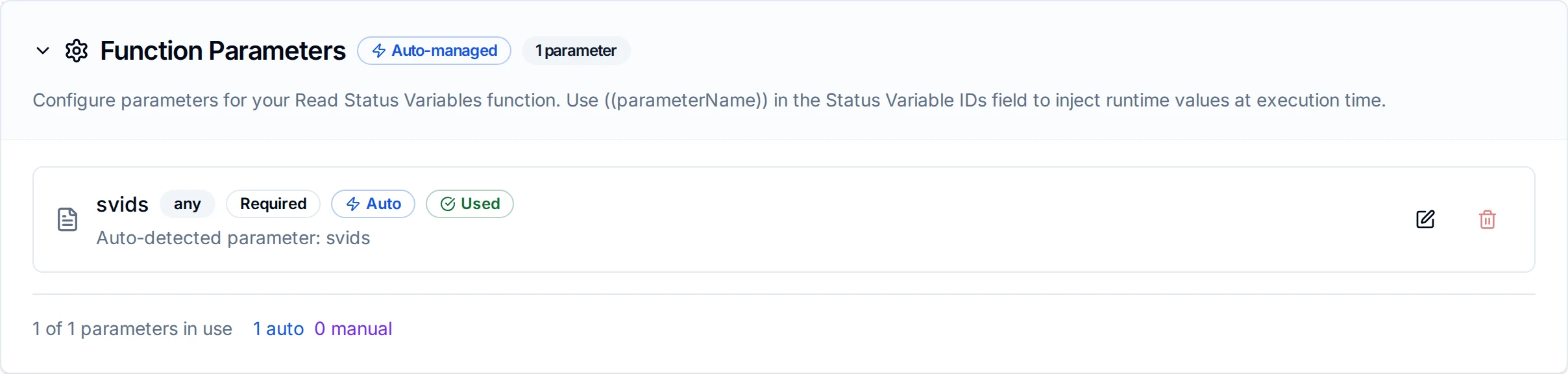
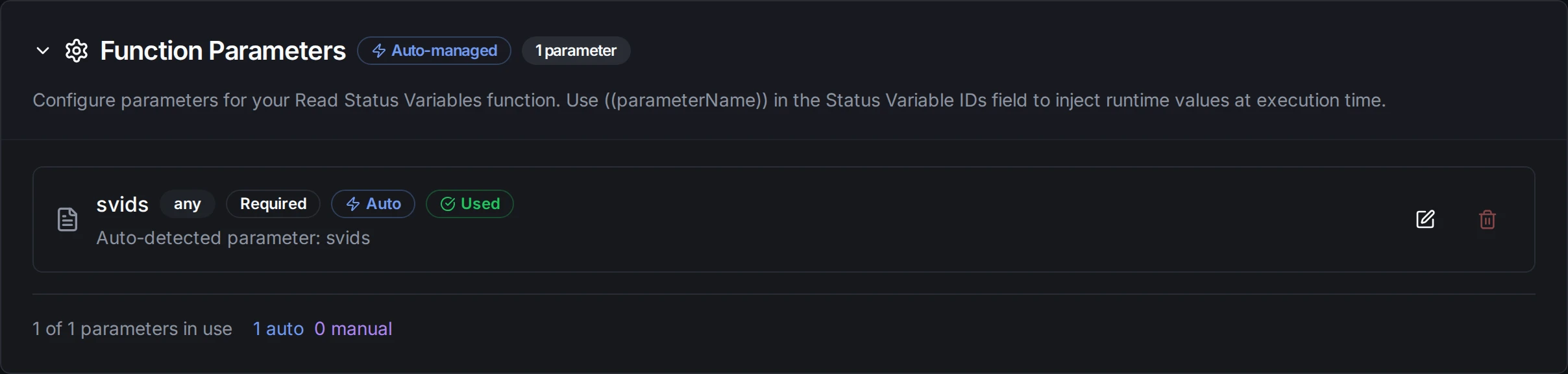
A Read Status Variables function whose SVID list is the ((svids)) parameter, filled by the pipeline
Read Equipment Constants (secsgem.readConstants)
Reads the listed ECIDs (S2F13), the same way.
List Variables (secsgem.listVariables)
The tool's namelist: status variables (S1F11) with names and units, or equipment constants (S2F29) with names, units, minimum, maximum and default. Leave the IDs empty to list everything.
Remote Command (secsgem.remoteCommand)
Sends a host command (S2F41) and waits for the tool's acknowledgement.
| Parameter | Description |
|---|---|
| Command | The command name (RCMD), such as START, STOP or PP-SELECT |
| Parameters | The command's parameters, in order, each {name, value, format}. The format is the SECS-II format the tool expects (A, U4, F4, BOOLEAN, …); A when absent |
| Tool's answer | Result | Sent again automatically? |
|---|---|---|
| HCACK 0 | Success, completion: done | n/a |
| HCACK 4 | Success, completion: later (completion follows as a collection event) | n/a |
| HCACK 5 | Success, completion: alreadyInCondition | n/a |
| HCACK 1, 2, 3, 6 | Refused, with the reason and the parameters the tool refused | No |
| Any other HCACK (outside E5's list) | Failed, outcome unknown: the code does not say the tool did not act | Never |
| S9 "not understood" | Refused | No |
| No answer within T3, an abort, a dropped link | Outcome unknown: the tool may have acted | Never |
A parameter that is missing or does not fit its format is refused before anything is sent.
Set Equipment Constants (secsgem.setConstants)
Sends new values (S2F15); the tool sets all of them or none. Each entry is {ecid, value, format}. A value without a format is sent in the format the tool reports for that constant (read first with S2F13). A refusal (EAC 1 to 3: unknown constant, busy, out of range) means nothing was set; any other EAC fails with the outcome unknown.
Pipeline Integration
- The SECS/GEM nodes read and write inside a pipeline.
- The SECS/GEM triggers start a pipeline from collection events and alarms.
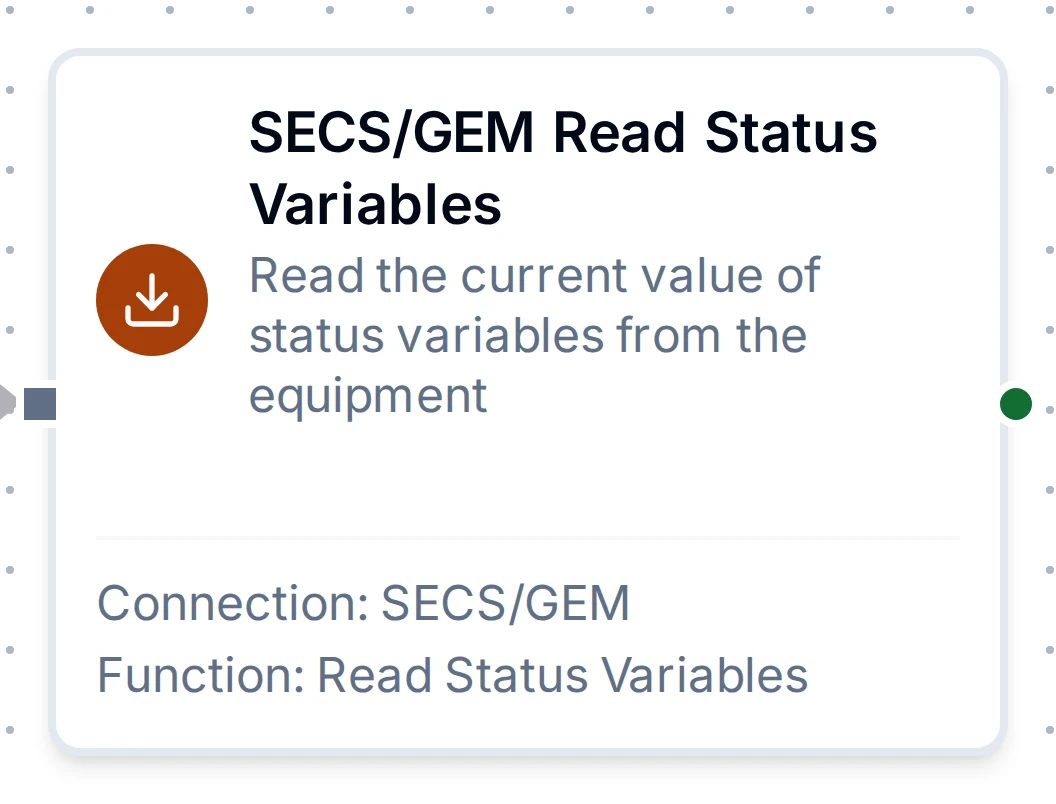
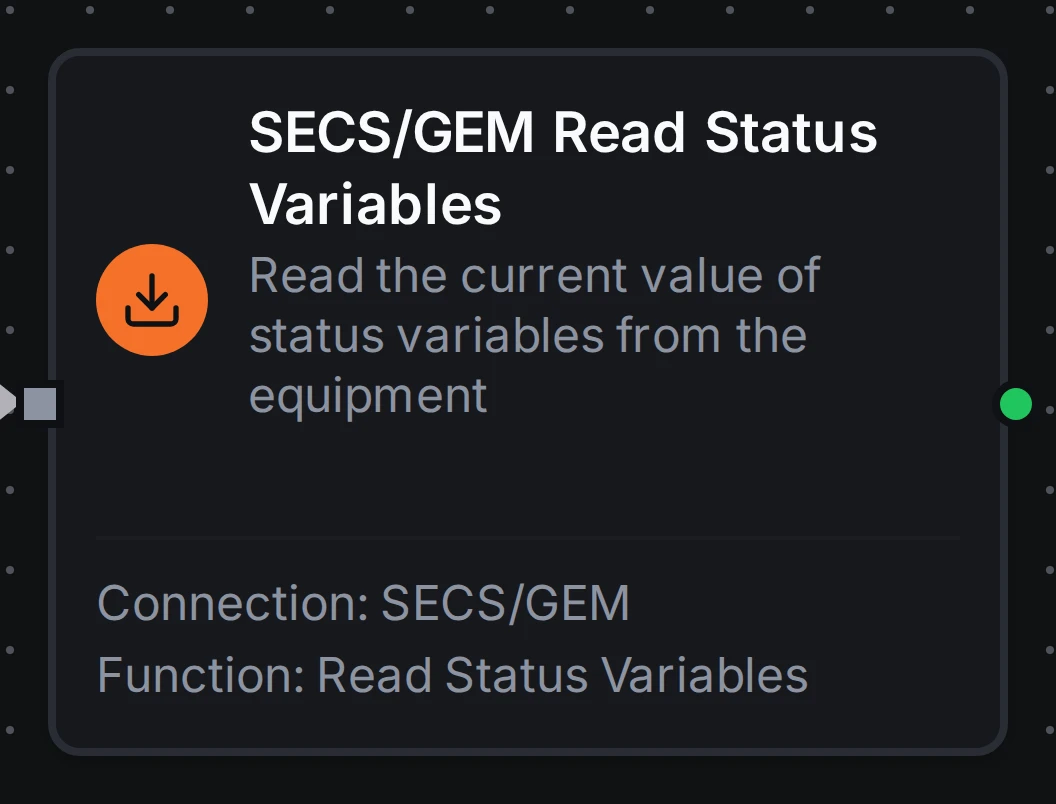
The Read Status Variables node with its connection and function
Common Use Cases
Equipment state and OEE
Subscribe to the tool's state-change events with the state and recipe variables, and write them to the UNS for availability and performance tracking.
Lot traceability
Report the lot ID, recipe and process values with the process-complete event, and store each event in the historian.
Alarm notification
Route equipment-safety alarms (category 2) to the maintenance channel as they are set, and log the clear.
Remote start from the line
Send START when the upstream station reports the next carrier is ready; the command is sent at most once.
Troubleshooting
Error Reference
| Message | Meaning | What to do |
|---|---|---|
equipment refused the HSMS select: a session is already active | Another host holds the tool's single HSMS-SS connection | Disconnect the other host, or use a second GEM port |
the equipment kept answering S1F14 "denied, try again" | The tool will not communicate yet | Check the tool's communication state on its console |
CEID 4040 is not an event this equipment reports | An event trigger lists an unknown CEID | Check the CEID in the tool's GEM manual |
the equipment refused report 9000 with VIDs …: at least one VID does not exist | A reported VID is unknown to the tool | Fix the VID list |
equipment refused S2F41 START: cannot perform now (HCACK 2) | The tool is not in a state that allows the command | Check the tool's control state (on-line remote) |
hsms: T3 reply timeout | The tool did not answer within T3 | Raise T3 for slow tools |
ID … does not fit the connection's ID format U2 | An ID is larger than the tool's ID format holds | Check the ID, or the connection's ID Format |
Connection Issues
- Connection refused: the tool is not listening on that port, or its HSMS mode is active (it would connect to the host). Set it to passive.
- Select refused: another host is connected.
- Connects, then drops after T6: the tool does not answer linktests; raise T6, or turn the linktest off.
- No events arrive: check that the event trigger is enabled, its CEIDs exist, and the tool is on-line; the connection's log names every report the tool refused.