 SMB / CIFS Integration Guide
The SMB connector lets MaestroHub read and write files on a remote Windows or Samba network share over TCP/445, without needing a privileged sidecar like mount.cifs. It is built for the common "industrial file drop" pattern: a PLC, MES, or third‑party tool drops CSV / JSON / XML / binary files onto a shared folder, and a MaestroHub pipeline picks them up, transforms them, and pushes the result somewhere else.
Overview
The SMB connector provides:
- Native SMB 2.1 / 3.0 / 3.1.1 over TCP/445, with no kernel mount required.
- NTLM and anonymous (guest) authentication, with optional domain / workgroup.
- Pattern‑based file discovery: literal names, glob wildcards (
*,?), or full regex. - Recursive search for fetching nested files by bare name.
- Atomic writes (temp‑file + rename) for safe hand‑off to other readers.
- BOM detection on read and encoding control on write (
utf-8,utf-8-bom,utf-16le,utf-16be,binary,auto). - SMB message signing enforcement: refuse the connection unless the server agrees to sign every message (integrity guarantee; not confidentiality).
- Idle reconnect: silently re‑mounts after long idle periods (Windows commonly drops sessions after ~15 min).
- Path‑traversal guard scoped to the configured base path;
..traversal is rejected. - Configurable size cap per call (default 25 MB, up to 124 MB).
Connection Configuration
Creating an SMB / CIFS Connection
Navigate to Connections → New Connection → SMB / CIFS. The form is organized into tabs: Connection, Authentication, Security, Advanced, Limits, Functions, and Health.
1. Profile Information
| Field | Default | Description |
|---|---|---|
| Profile Name | - | Descriptive name for this connection (required, max 100 chars, unique). |
| Description | - | Optional free‑text description. |
2. Connection Settings
| Field | Default | Description |
|---|---|---|
| Host | - | SMB server hostname or IP (e.g., file-server.corp.local or 192.168.1.10). Required. |
| Port | 445 | TCP port. The SMB standard is 445; only change for non‑standard installs. |
| Share Name | - | Share name to mount (e.g., shared, public, data). Required. |
| Base Path | (empty) | Optional path inside the share. All file operations are scoped under this path: paths typed in functions are interpreted relative to it, and .. cannot escape it. |
If a connection is intended for a single inbound folder, set Base Path to inbound (or similar). Functions on this connection then cannot read or write outside that subtree, even if a templated path tries to traverse up.
3. Authentication Settings
| Field | Default | Description |
|---|---|---|
| Username | - | NTLM username. Leave empty for anonymous / guest access. |
| Password | - | NTLM password (stored as a secret). Leave empty for anonymous access. |
| Domain / Workgroup | - | Optional NTLM domain or workgroup (e.g., CORP). |
4. Security
| Field | Default | Description |
|---|---|---|
| Require Message Signing | false | When on, the connection is rejected unless the server agrees to sign every SMB message. Signing protects against tampering on the wire; it is an integrity guarantee, not a confidentiality one. Supported by every modern SMB 2.x / 3.x server. |
Signing detects tampering but does not encrypt SMB payloads. The connector cannot enforce SMB 3 encryption today; the underlying library does not expose the negotiated encryption flag, so a toggle here would be unverifiable. If you need confidentiality, protect the network path with a VPN, IPsec tunnel, or segmentation, and track the project's follow-up for native encryption enforcement.
5. Advanced
| Field | Default | Description |
|---|---|---|
| Connect Timeout (s) | 10 | How long to wait for the initial TCP + SMB handshake before failing. Range 1-120. |
| Operation Timeout (s) | 60 | Default per‑call timeout when the function doesn't override it. Range 1-600. |
| Idle Reconnect Threshold (s) | 600 | If the connection has been idle longer than this, the next operation silently re‑mounts the share before running. Windows servers commonly drop idle sessions after ~15 min. Range 60-3600. |
6. Limits
| Field | Default | Description |
|---|---|---|
| Discovery Limit | 2000 | Maximum files scanned while resolving a wildcard / regex pattern. Range 1-100,000. |
| Max File Size (MB) | 25 | Maximum size for reads and writes. Files larger than this are rejected. Range 1-124. |
7. Health Check
Health checks periodically verify the server is reachable.
| Field | Default | Description |
|---|---|---|
| Enable Health Check | true | Periodically verify the connection is healthy. |
| Check Interval (ms) | 30000 | How often health checks run. |
| Retry Count | 1 | Number of retries for a failed health check before marking the connection unhealthy. |
8. Connection Labels
| Field | Default | Description |
|---|---|---|
| Labels | - | Key‑value pairs to categorize the connection (max 10). |
Example Labels
environment: productionpurpose: order-importpartner: acme-corpsite: plant-3
Function Builder
Creating SMB Functions
After saving the connection:
- Open the connection and switch to the Functions tab.
- Click New Function: the type picker shows five SMB function types.
- Fill the Basic tab (name, description, labels) and the Configuration tab.
- Click Test to run the function once against the live server.
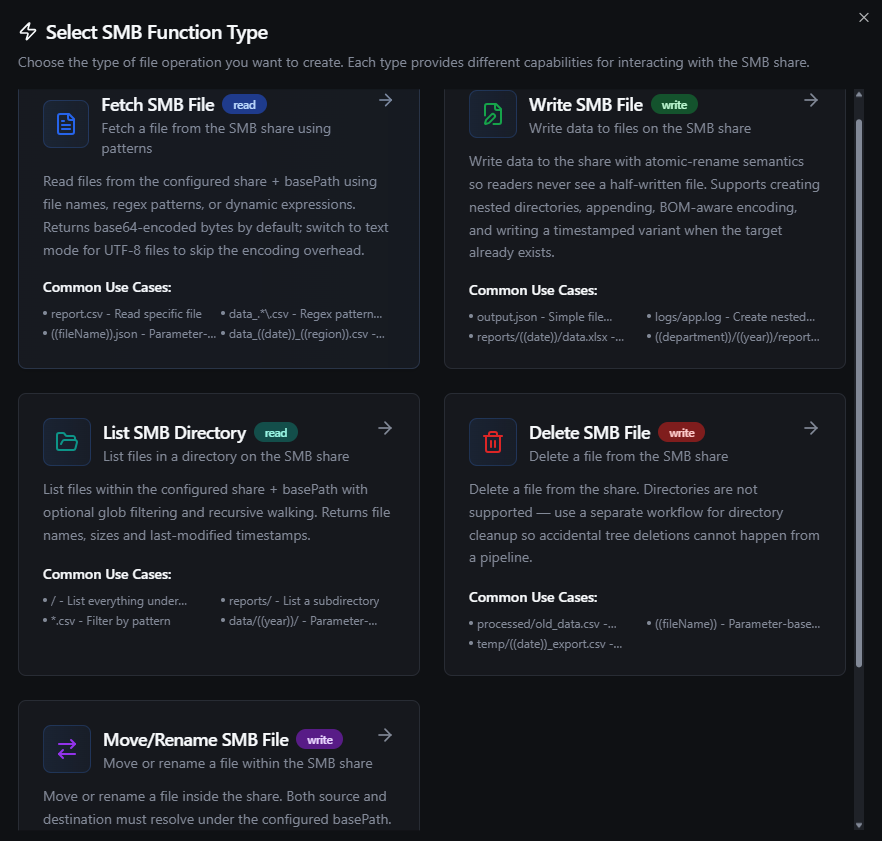
SMB function types: Fetch, Write, List, Delete, Move
The five function types are:
| Function | ID | Category | Purpose |
|---|---|---|---|
| Fetch File | smb.fetch.file | read | Read a file (literal, wildcard, or regex match). |
| Write File | smb.write.file | write | Create, append, or overwrite a file with optional encoding. |
| List Directory | smb.list.directory | read | List files / folders, optionally recursive, optionally pattern‑filtered. |
| Delete File | smb.delete.file | write | Delete a single file (directories are intentionally not supported). |
| Move / Rename File | smb.move.file | write | Server‑atomic move within the share. |
Fetch File (smb.fetch.file)
Purpose: Read one file from the share. Supports literal names, glob wildcards (*, ?), and regex. Returns the content as base64 (default) or as a UTF‑8 text string.
Configuration
| Field | Type | Required | Default | Description |
|---|---|---|---|---|
| File Name | string | Yes | - | File name or pattern relative to Base Path. Literal (report.csv), glob (data_*.csv), or regex (log_[0-9]{8}\.txt). Supports ((placeholder)) templates. |
| Recursive | boolean | No | false | When on, the walk descends into subdirectories. Bare names like nested.csv are matched by basename at any depth; patterns containing / are matched against the basePath‑relative path. |
| Output Format | enum | No | base64 | base64: safe for any file (CSV, JSON, binary). text: returns the decoded UTF‑8 string; fails if the file is not valid UTF‑8. Use text to save the 33% base64 inflation on CSV/JSON. |
| Timeout (ms) | int | No | 60000 | Per‑call override of the connection's operation timeout. Range 100-600,000. |
| Max File Size (MB) | int | No | (connection default) | Per‑call override. Range 1-124. |
| Discovery Limit | int | No | (connection default) | Per‑call override. Range 1-100,000. |
Pattern matching cheat sheet
| Pattern | Interpreted as | Matches |
|---|---|---|
report.csv | Literal | exactly report.csv under Base Path |
sub/report.csv | Literal with separator | exactly sub/report.csv under Base Path |
data_*.csv | Glob (wildcard) | any data_…csv at depth 0 (non‑recursive) or any depth (recursive) |
data_???.csv | Glob | matches data_001.csv, data_002.csv, … |
log_[0-9]{8}\.txt | Regex (any of [ ] ( ) ^ $ | + triggers regex mode) | files like log_20260115.txt |
nested.csv + Recursive | Bare literal + recursive | the first nested.csv found at any depth |
^sub/report\.csv$ + Recursive | Regex with / + recursive | only the file at exactly sub/report.csv |
When multiple files match, the alphabetically last is returned (the "latest‑by‑name" convention, which works well with date‑stamped filenames like data_2026-01-15.csv).
Output structure (function level)
{
  "data": "aWQsbmFtZSx2YWx1ZQoxLGFscGhhLDEwMAo...",
  "metadata": {
    "fileName": "data_2026-01-15.csv",
    "filePath": "inbound/data_2026-01-15.csv",
    "fileType": "csv",
    "sizeBytes": 2048,
    "lastModified": "2026-01-15T08:30:00Z",
    "discoveryPattern": "data_*.csv",
    "outputFormat": "base64",
    "encodingHint": "utf-8-bom"
  }
}
| Field | Type | Description |
|---|---|---|
data | string | File content. base64‑encoded when outputFormat=base64, raw UTF‑8 string when outputFormat=text. With text mode and a UTF‑8 BOM source, the BOM is stripped automatically. |
metadata.fileName | string | Basename of the resolved file (after pattern matching). |
metadata.filePath | string | Full share‑relative path of the resolved file. |
metadata.fileType | string | File extension without the leading dot (csv, json, txt, …). Empty string if the file has no extension. |
metadata.sizeBytes | number | File size on disk in bytes. |
metadata.lastModified | string | RFC 3339 / ISO 8601 UTC timestamp of the file's last modification. |
metadata.discoveryPattern | string | Effective pattern used during discovery (literal or compiled regex). Useful for debugging templated patterns. |
metadata.outputFormat | string | base64 or text: echoes the request so downstream nodes can branch on it. |
metadata.encodingHint | string | Optional. Present when the file begins with a recognized BOM: utf-8-bom, utf-16le-bom, utf-16be-bom. Absent otherwise. |
Use cases
- Fetch the latest daily export by date pattern:
data_*.csv→ "latest by name". - Pull a fixed report by name:
report.csv. - Find a file dropped in a deep folder by name only:
report.csv+ Recursive. - Validate file format with regex:
log_[0-9]{8}\.txt.
Write File (smb.write.file)
Purpose: Write content to the share. Supports create, overwrite, append, and binary writes. Writes are atomic when not appending: content lands in a temp file and is renamed onto the target, so concurrent readers always see either the old file or the new file, never a partial.
Configuration
| Field | Type | Required | Default | Description |
|---|---|---|---|---|
| File Name | string | Yes | - | Destination file path relative to Base Path. Subdirectories are created on demand (see Create File). Supports ((placeholder)) templates. |
| Data | string | Yes | - | File content. Written verbatim by default; set Input Format to base64 if the field carries a base64-encoded payload. Supports ((placeholder)). |
| Input Format | enum | No | text | How Data is interpreted. text (default) writes the string verbatim as UTF-8 bytes. base64 strict-decodes the string first; pick this for binary files. Invalid base64 fails the call rather than silently writing the literal text. |
| Create File | boolean | No | true | When on, parent directories and the file are created if missing. When off, the call fails if the file doesn't already exist. |
| Append to File | boolean | No | false | When on, appends to the existing file (or creates it if Create File is on). Mutually exclusive with Overwrite Existing. |
| Append Newline | boolean | No | true | When appending, insert a \n before the new data if the file is non‑empty. |
| Overwrite Existing | boolean | No | false | When on, an existing target is replaced. When off and the file exists, a timestamped variant is written (e.g., report-20260115T083000Z.csv) so nothing is lost. |
| Encoding | enum | No | utf-8 | Output encoding / BOM prefix. utf-8, utf-8-bom, utf-16le, utf-16be, binary (no transformation), or auto (sniff from the content). |
| Timeout (ms) | int | No | 60000 | Per‑call timeout override. |
| Max File Size (MB) | int | No | (connection default) | Per‑call size cap override. |
The form enforces that Append to File and Overwrite Existing cannot both be on. If both are off and the file exists, the connector preserves the existing file and writes a timestamped variant instead of failing; this is a safety net for batch jobs that re‑run.
Output structure
{
  "filePath": "inbound/output/2026-01-15/orders.csv",
  "bytesWritten": 4096,
  "encoding": "utf-8",
  "created": true,
  "appended": false,
  "duration": 87
}
| Field | Type | Description |
|---|---|---|
filePath | string | Share‑relative path actually written. May differ from the input fileName when overwrite is off and a timestamped variant was created. |
bytesWritten | number | Bytes written (after encoding transformation, UTF‑16 strings are larger than their UTF‑8 source). |
encoding | string | Encoding applied. When Encoding was set to auto, this is the encoding the connector picked. |
created | boolean | true if the file did not exist before the call. |
appended | boolean | true if the call appended (rather than wrote whole). |
duration | number | Server‑side write duration in milliseconds. |
Use cases
- Export a CSV produced by an upstream pipeline node.
- Stream log lines to a shared text log with append mode.
- Drop a JSON metadata file alongside a binary file using
binaryencoding.
List Directory (smb.list.directory)
Purpose: Enumerate files and folders under a directory, with optional pattern filtering and recursive descent. Use it to discover what's available before fetching or as the source for a For‑Each loop in a pipeline.
Configuration
| Field | Type | Required | Default | Description |
|---|---|---|---|---|
| Directory Path | string | No | / | Directory path relative to Base Path. / lists the Base Path itself. Supports ((placeholder)). |
| File Pattern | string | No | - | Optional glob pattern applied to basenames (e.g., *.csv, report_*). Leave empty to list everything. Supports ((placeholder)). |
| Recursive | boolean | No | false | When on, descends into subdirectories. The pattern still matches basenames at every depth. |
| Timeout (ms) | int | No | 60000 | Per‑call timeout override. |
Output structure
{
  "path": "/",
  "count": 3,
  "files": [
    {
      "name": "data_2026-01-15.csv",
      "path": "inbound/data_2026-01-15.csv",
      "size": 2048,
      "isDir": false,
      "modified": "2026-01-15T08:30:00Z"
    },
    {
      "name": "archive",
      "path": "inbound/archive",
      "size": 0,
      "isDir": true,
      "modified": "2026-01-14T12:00:00Z"
    },
    {
      "name": "nested.csv",
      "path": "inbound/archive/nested.csv",
      "size": 512,
      "isDir": false,
      "modified": "2026-01-12T10:00:00Z"
    }
  ]
}
| Field | Type | Description |
|---|---|---|
path | string | The directory listed, relative to Base Path. / means Base Path root. |
count | number | Number of entries returned (after pattern filtering). |
files[].name | string | Basename of the entry. |
files[].path | string | Share‑relative path of the entry. |
files[].size | number | File size in bytes (always 0 for directories). |
files[].isDir | boolean | true if the entry is a directory. |
files[].modified | string | RFC 3339 / ISO 8601 UTC timestamp of last modification. |
The recursive walk is capped at 32 levels deep to avoid runaway symlink loops. Operators who hit this limit should narrow Base Path or restructure the share rather than raise the cap.
Use cases
- Discover new files for a For‑Each loop.
- Inventory a partner drop folder before pulling.
- Confirm an upload landed by listing the parent folder.
Delete File (smb.delete.file)
Purpose: Delete a single file. Directories are intentionally not supported: RemoveAll has surprising semantics across SMB dialects, and tree deletion deserves a separate, deliberate feature.
Configuration
| Field | Type | Required | Default | Description |
|---|---|---|---|---|
| File Name | string | Yes | - | File path relative to Base Path. Supports ((placeholder)). |
| Timeout (ms) | int | No | 60000 | Per‑call timeout override. |
Output structure
{
  "filePath": "inbound/processed/old.csv",
  "deleted": true
}
| Field | Type | Description |
|---|---|---|
filePath | string | Share‑relative path of the deleted file. |
deleted | boolean | Always true on success. |
Use cases
- Clean up files after a successful processing run.
- Remove temp / staging files in a finalization step.
Move / Rename File (smb.move.file)
Purpose: Server‑atomic move within the share. Use it to rotate files between staging / inbound / processed folders, or to rename in‑place.
Configuration
| Field | Type | Required | Default | Description |
|---|---|---|---|---|
| Source Path | string | Yes | - | Source file path relative to Base Path. Supports ((placeholder)). |
| Destination Path | string | Yes | - | Destination file path relative to Base Path. Parent directories are created on demand. Supports ((placeholder)). |
| Overwrite | boolean | No | false | When on, replaces the destination if it already exists. When off and the destination exists, the call fails. |
| Timeout (ms) | int | No | 60000 | Per‑call timeout override. |
Source and destination must both resolve under the connection's Base Path. SMB Rename is atomic on the server but doesn't span shares; to move across shares, use Fetch + Write + Delete instead.
Output structure
{
  "sourcePath": "inbound/orders.csv",
  "destinationPath": "inbound/processed/2026-01-15/orders.csv",
  "moved": true
}
| Field | Type | Description |
|---|---|---|
sourcePath | string | Resolved source path. |
destinationPath | string | Resolved destination path. |
moved | boolean | Always true on success. |
Use cases
- Move a file from
inbound/toprocessed/after a pipeline finishes. - Rotate logs by renaming
current.log→current-YYYYMMDD.log. - Rename a downloaded file in place.
Using Parameter Placeholders
Any string field that shows the ((parameterName)) icon accepts templated values, which are filled in at execution time (or from a pipeline node's expression):
| Pattern | Use it for |
|---|---|
data_((date)).csv | Date‑stamped daily filenames |
inbound/((partner))/orders.csv | Per‑partner subfolders |
((fileName)) | Pass through a name picked by an upstream node |
In the Function Builder, declare each parameter's type, whether it's required, and a default. When the function is wired into a pipeline node, parameters bind to upstream outputs or constants.
Testing Functions
Every function type has a Test button next to the Save action. The Test dialog:
- Shows the resolved configuration (with placeholders filled in from your test inputs).
- Lets you override any parameter for this run.
- Executes against the live SMB server.
- Shows the full result: success / error, full output JSON, duration, and timestamp.
Use Test before saving when you're iterating on a pattern or path; use the Function Logs tab afterwards to see real pipeline executions.
Pattern Matching Reference
The fileName field in Fetch is the most flexible pattern field in the connector. It's worth understanding how the connector classifies what you typed:
| You typed | Connector treats it as | Recursive matches against |
|---|---|---|
report.csv (no metacharacters) | Literal: single Stat call, no directory walk | n/a |
sub/report.csv (literal with /) | Literal with path: single Stat call at that exact path | n/a |
data_*.csv or data_???.csv | Glob: wildcards * and ? are converted to regex | basename at any depth |
log_[0-9]{8}\.txt, ^logs/.*\.log$, anything with [ ] ( ) ^ $ | + | Regex: used verbatim | basePath‑relative path when the pattern contains /, basename otherwise |
The Recursive toggle interacts with these rules:
- Recursive OFF + literal: single
Statat<basePath>/<name>. - Recursive ON + bare literal (no
/): walks the tree and matches on basename at any depth:nested.csvfindssub/nested.csv. - Recursive ON + literal with
/: still resolved as a singleStatat the exact path (no walk needed). - Recursive ON + glob / regex with no
/: walks the tree and matches each entry's basename. - Recursive ON + glob / regex with
/: walks the tree and matches the basePath‑relative path; use this when you want to scope by directory, e.g.,^logs/.*\.log$.
Pipeline Integration
SMB connection functions are exposed as nodes in the Pipeline Designer under the Storage category. See the SMB Pipeline Nodes guide for the per‑node parameter reference and output shapes.
The five SMB node types are:
| Node | Function | Use it for |
|---|---|---|
| SMB Fetch File | smb.fetch.file | Read a file as part of a pipeline. |
| SMB Write File | smb.write.file | Write a file as part of a pipeline. |
| SMB List Directory | smb.list.directory | Discover files to iterate over (For‑Each). |
| SMB Delete File | smb.delete.file | Clean up after processing. |
| SMB Move File | smb.move.file | Rotate files between folders (inbound → processed). |
Drag a node into your pipeline, pick the SMB connection and a function, bind parameters to upstream outputs or constants, and wire it into the rest of the flow.
Common Use Cases
File‑Drop Ingest
A partner / PLC / MES drops a daily CSV onto the share; the pipeline picks it up, parses it, pushes the rows to UNS, and archives the original.
[Schedule Trigger] → [SMB List (pattern *.csv)] → [For Each]
                                                    → [SMB Fetch] → [File Extractor] → [UNS Publish]
                                                    → [SMB Move (→ processed/)]
Daily Export
A pipeline aggregates today's data, formats it as CSV, and writes it to a share so an external system can pick it up.
[Schedule Trigger] → [SQL Query] → [Data Serializer (CSV)] → [SMB Write]
Cross‑System Hand‑Off
Move files from an "inbound" staging folder into a "processed" folder once an analytics step succeeds, leaving a timestamped trail for audit.
[SMB List] → [For Each] → [SMB Fetch] → [Process] → [SMB Move (inbound → processed/((date)))]
Find Files Anywhere
A vendor drops files into arbitrary subfolders. A bare‑name fetch with Recursive on locates the file without knowing the exact path.
fileName: ((reportName))
recursive: true
Troubleshooting
Connection problems
| Symptom | Likely cause | Fix |
|---|---|---|
connection refused | Wrong port or SMB blocked at the firewall | Confirm the server listens on 445; check inter‑VLAN firewall rules. |
connect timeout | Host unreachable or DNS misconfigured | Verify hostname and route from the MaestroHub host. |
STATUS_LOGON_FAILURE / authentication failed | Wrong credentials or wrong domain | Re‑check username, password, domain. For local accounts on a workgroup machine, leave Domain empty. |
signing required but the server did not agree (smb session setup failed) | Server has SMB signing disabled or the dialer's negotiator could not agree | Either disable Require Message Signing on the connection or re-enable signing on the server. |
| Health check flaps every few minutes | Idle session being killed by the server | Lower Idle Reconnect Threshold (e.g., 300 seconds). |
Fetch / pattern issues
| Symptom | Likely cause | Fix |
|---|---|---|
no files found matching pattern: <name> with a file you know exists | File lives in a subfolder; Recursive is off | Enable Recursive, or qualify the path: subfolder/<name>. |
no files found matching pattern: <pattern> | Pattern doesn't actually match | Use List Directory with no pattern to see the real filenames; then refine. |
discovery limit exceeded | Walk visited more files than Discovery Limit allows | Narrow Base Path / pattern, or raise the limit. |
file size … exceeds maximum allowed size | File is larger than Max File Size (MB) | Raise the per‑call cap (up to 124 MB) or the connection default. |
file is not valid UTF-8; use outputFormat=base64 | The file is binary but you asked for text output | Switch Output Format to base64. |
Write issues
| Symptom | Likely cause | Fix |
|---|---|---|
file already exists and overwriteExisting is false | Target exists, both flags off | Turn on Overwrite Existing, or change the filename, or let the connector write a timestamped variant by leaving Create File on. |
file does not exist and createFile is false | Wrote with Create File off and no existing file | Turn Create File on, or write to a path that exists. |
permission denied | The user can read the share but not write | Check share / NTFS ACLs for the user. |
Move / Delete issues
| Symptom | Likely cause | Fix |
|---|---|---|
destination file already exists (set overwrite=true to replace) | Target exists, Overwrite off | Set Overwrite = true or pick a different destination. |
cannot move directories, only files | Source is a directory | Use Delete + Write of individual files instead, or open an issue if directory moves are required. |
source path is outside base directory / destination path is outside base directory | Path traversal attempt (../…) | Keep paths relative to Base Path; the connector's traversal guard is intentional. |
After the connection is saved, use the Test Connection button. It runs the same handshake an operation would and surfaces auth / encryption / reachability errors before functions start failing.
Related Documentation
- SMB Pipeline Nodes: per‑node parameter reference and output shapes for the pipeline designer.
- FTP / SFTP: for remote file servers that don't expose SMB.
- Local File: for files on the MaestroHub host's filesystem.
- File Extractor: parse CSV / Excel content returned by SMB Fetch.