 MongoDB Integration Guide
Connect to MongoDB to read, write, and transform document data in your pipelines. This guide covers connection setup, function configuration, and pipeline integration for MongoDB deployments.
Overview
The MongoDB connector enables integration with MongoDB document databases, commonly used for flexible data storage, real-time analytics, IoT data, and application backends. It provides:
- Flexible querying with MongoDB query syntax for filtering, projecting, and sorting documents
- Aggregation pipelines for complex data transformations, grouping, and analytics
- Document write operations including insert, update, and delete for full data lifecycle management
- Dual connection modes with support for both connection URI strings and individual field configuration
- TLS encryption with client certificate and CA certificate support for secure connections
- Connection pooling with configurable pool sizes and connection timeouts
- Template parameters for dynamic queries and documents based on runtime input
Connection Configuration
Creating a MongoDB Connection
Navigate to Connections → New Connection → MongoDB and configure the following:
MongoDB Connection Creation Fields
1. Profile Information
| Field | Default | Description |
|---|---|---|
| Profile Name | - | A descriptive name for this connection profile (required, max 100 characters) |
| Description | - | Optional description for this MongoDB connection |
2. Connection Settings
MongoDB supports two connection modes: URI or Individual Fields.
URI Mode
| Field | Default | Description |
|---|---|---|
| URI | - | Full MongoDB connection string (mongodb:// or mongodb+srv://) – required when URI mode is selected |
Individual Fields Mode
| Field | Default | Description |
|---|---|---|
| Host | localhost | MongoDB server hostname or IP address – required |
| Port | 27017 | MongoDB server port (1–65535) |
| Database | - | Target database name – required |
| Username | - | MongoDB user for authentication |
| Password | - | MongoDB user password. Masked on edit; leave empty to keep stored value |
| Auth Source | - | Authentication database (e.g., admin) |
| Auth Mechanism | - | Authentication mechanism (e.g., SCRAM-SHA-256) |
Use URI mode when you already have a connection string from MongoDB Atlas or your infrastructure team. Use Individual Fields when you need explicit control over each parameter or are connecting to a local instance.
3. TLS/Security Settings
| Field | Default | Description |
|---|---|---|
| Enable TLS | false | Enable TLS encryption for the connection |
(Only displayed when Enable TLS is checked)
| Field | Default | Description |
|---|---|---|
| Client Certificate & Key | - | Combined client certificate and private key in PEM format |
| CA Certificate | - | Trusted CA certificate in PEM format for server validation |
4. Advanced Settings
| Field | Default | Description |
|---|---|---|
| Max Pool Size | 100 | Maximum number of connections in the pool (1–1000) |
| Min Pool Size | 0 | Minimum number of connections maintained in the pool (0–1000) |
| Connect Timeout (sec) | 10 | Timeout for initial connection (1–600 seconds) |
| Replica Set | - | Name of the replica set to connect to (leave empty for standalone deployments) |
5. Connection Labels
| Field | Default | Description |
|---|---|---|
| Labels | - | Key-value pairs to categorize and organize this MongoDB connection (max 10 labels) |
Example Labels
env: prod– Environmentteam: data-platform– Responsible teamcluster: us-east-1– Cluster location
- Required Fields (URI mode): Profile Name and URI must be provided.
- Required Fields (Individual mode): Profile Name, Host, and Database must be provided.
- Authentication: Username and Password are optional. If your MongoDB instance requires authentication, provide credentials along with the Auth Source (typically
admin). - Connection Pool: The connector maintains a connection pool for efficient resource usage. Adjust Max Pool Size based on your workload; higher values allow more concurrent operations but consume more server resources.
- Replica Set: When connecting to a replica set, specify the replica set name. The driver will automatically discover all members and handle failover.
Function Builder
Creating MongoDB Functions
Once you have a connection established, you can create reusable document operation functions:
- Navigate to Functions → New Function
- Select the desired function type (Find, Aggregate, Insert One, Update One, or Delete One)
- Choose your MongoDB connection
- Configure the function parameters
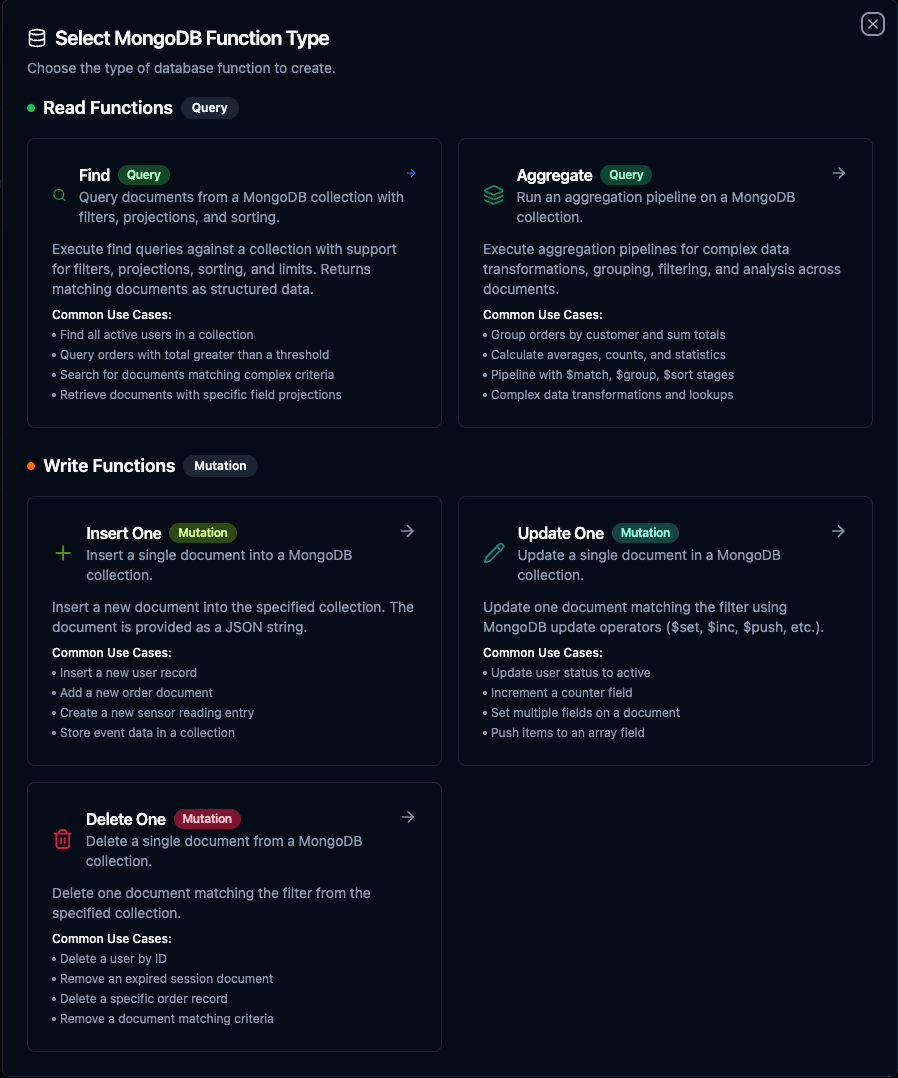
Select from five MongoDB function types: Find, Aggregate, Insert One, Update One, and Delete One
Find Function
Purpose: Query documents from a MongoDB collection with filters, projections, and sorting. Use this for retrieving data based on specific criteria.
Configuration Fields
| Field | Type | Required | Default | Description |
|---|---|---|---|---|
| Collection | String | Yes | - | Name of the MongoDB collection. Supports template parameters. |
| Filter | JSON | No | {} | JSON filter document using MongoDB query syntax. Supports template parameters. |
| Projection | JSON | No | - | JSON projection to include or exclude fields from results. Supports template parameters. |
| Sort | JSON | No | - | JSON sort document (1 ascending, -1 descending). Supports template parameters. |
| Limit | Number | No | 0 | Maximum number of documents to return (0 = no limit) |
Example Configurations
// Filter: Find active users over age 18
{"status": "active", "age": {"$gte": 18}}

// Projection: Return only name and email fields
{"name": 1, "email": 1, "_id": 0}

// Sort: Newest first
{"createdAt": -1}
Use Cases:
- Retrieve sensor readings filtered by device ID and time range
- Query production orders by status for dashboards
- Search for documents matching complex criteria with field projections
- Paginate through large collections with limit and sort
Aggregate Function
Purpose: Run an aggregation pipeline on a MongoDB collection for complex data transformations, grouping, and analytics.
Configuration Fields
| Field | Type | Required | Default | Description |
|---|---|---|---|---|
| Collection | String | Yes | - | Name of the MongoDB collection. Supports template parameters. |
| Pipeline | JSON Array | Yes | [] | JSON array of aggregation pipeline stages. Supports template parameters. |
Example Pipeline
[
  {"$match": {"status": "active"}},
  {"$group": {"_id": "$category", "total": {"$sum": "$amount"}}},
  {"$sort": {"total": -1}}
]
Use Cases:
- Group orders by customer and calculate totals
- Calculate averages, counts, and statistics across collections
- Perform multi-stage data transformations with
$match,$group,$sort,$lookup - Build real-time analytics from raw document data
Insert One Function
Purpose: Insert a single document into a MongoDB collection. Use this for creating new records from pipeline data.
Configuration Fields
| Field | Type | Required | Default | Description |
|---|---|---|---|---|
| Collection | String | Yes | - | Name of the MongoDB collection. Supports template parameters. |
| Document | JSON | Yes | {} | JSON document to insert into the collection. Supports template parameters. |
Example Document
{
  "name": "((name))",
  "email": "((email))",
  "status": "active",
  "createdAt": "((timestamp))"
}
Use Cases:
- Store incoming sensor data as documents
- Create audit log entries from pipeline events
- Insert transformed records into destination collections
- Archive processed data points
Update One Function
Purpose: Update a single document in a MongoDB collection. Supports all MongoDB update operators ($set, $inc, $push, etc.).
Configuration Fields
| Field | Type | Required | Default | Description |
|---|---|---|---|---|
| Collection | String | Yes | - | Name of the MongoDB collection. Supports template parameters. |
| Filter | JSON | Yes | {} | JSON filter to match the document to update. Supports template parameters. |
| Update | JSON | Yes | {} | JSON update document with MongoDB operators. Supports template parameters. |
Example Configuration
// Filter: Match by document ID
{"_id": "((documentId))"}

// Update: Set status and timestamp
{"$set": {"status": "((status))", "updatedAt": "((timestamp))"}}
Use Cases:
- Update device status based on incoming telemetry
- Increment counters or metrics fields
- Push new items to array fields
- Set multiple fields on a document based on pipeline results
Delete One Function
Purpose: Delete a single document from a MongoDB collection that matches a given filter.
Configuration Fields
| Field | Type | Required | Default | Description |
|---|---|---|---|---|
| Collection | String | Yes | - | Name of the MongoDB collection. Supports template parameters. |
| Filter | JSON | Yes | {} | JSON filter to match the document to delete. Supports template parameters. |
Example Filter
{"_id": "((documentId))"}
Use Cases:
- Remove expired session or token documents
- Delete processed queue items after handling
- Clean up temporary records based on criteria
- Remove specific documents matched by pipeline logic
Using Parameters
The ((parameterName)) syntax creates dynamic, reusable functions. Parameters are automatically detected from your configuration fields and can be configured with:
| Configuration | Description | Example |
|---|---|---|
| Type | Data type validation | string, number, boolean, datetime, json, buffer |
| Required | Make parameters mandatory or optional | Required / Optional |
| Default Value | Fallback value if not provided | users, 0, {} |
| Description | Help text for users | "Target collection name", "Document filter criteria" |
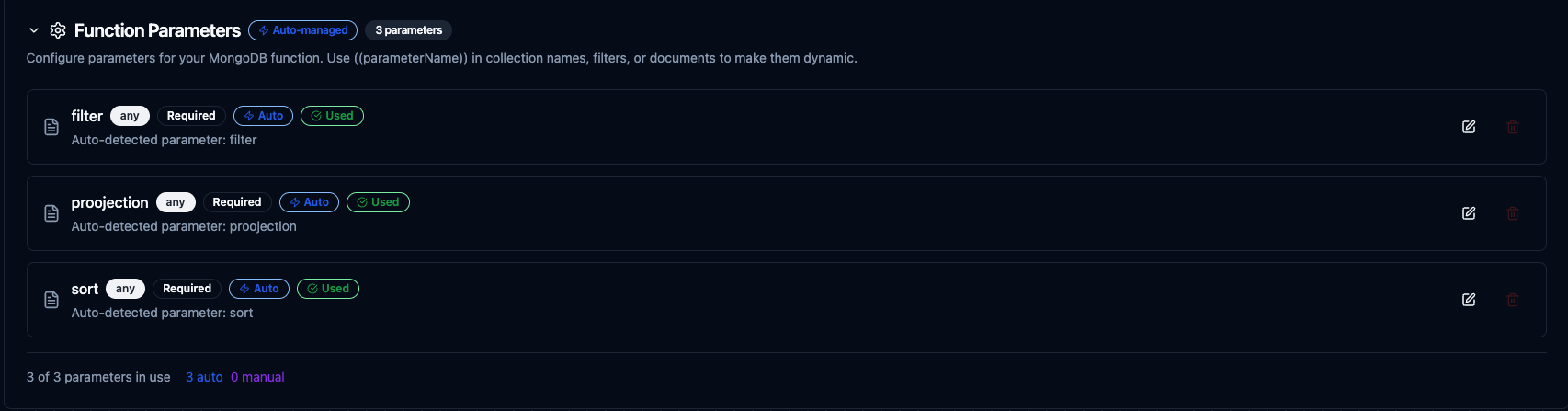
Configure dynamic parameters for MongoDB functions with type validation, defaults, and descriptions
Pipeline Integration
Use the MongoDB functions you create here as nodes inside the Pipeline Designer. Drag the function node onto the canvas, bind its parameters to upstream outputs or constants, and configure error handling as needed.
Common patterns include:
- Collect → Store: Gather data from OPC UA, MQTT, or Modbus and insert documents into MongoDB
- Query → Transform → Write: Read documents, process them, and write results to another system
- Event → Update: React to pipeline events by updating document state in MongoDB
- Query → Alert: Monitor collection data and trigger notifications based on conditions
For broader orchestration patterns that combine MongoDB with SQL, REST, MQTT, or other connector steps, see the Connector Nodes page.
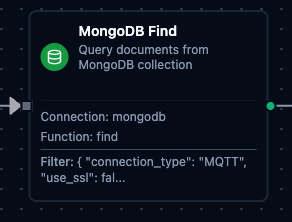
MongoDB function node with connection, function, and parameter bindings in the pipeline designer
Common Use Cases
Storing IoT Sensor Data
Scenario: Collect temperature, humidity, and pressure readings from factory equipment and store them as MongoDB documents for flexible querying and analysis.
Insert Configuration:
{
  "name": "((sensorId))",
  "type": "environmental",
  "readings": {
    "temperature": "((temperature))",
    "humidity": "((humidity))",
    "pressure": "((pressure))"
  },
  "location": "((location))",
  "timestamp": "((timestamp))"
}
Pipeline Integration: Connect after OPC UA or Modbus read nodes to continuously store equipment telemetry as rich documents.
Querying Production Orders
Scenario: Retrieve active production orders filtered by line and status for dashboard visualization and reporting.
Find Configuration:
// Filter
{"line": "((productionLine))", "status": "active"}

// Projection
{"orderId": 1, "product": 1, "quantity": 1, "startTime": 1, "_id": 0}

// Sort
{"startTime": -1}
Pipeline Integration: Use in scheduled pipelines that feed visualization dashboards or MES integrations.
Aggregating Metrics
Scenario: Calculate hourly production totals grouped by product category for shift reports.
Aggregate Configuration:
[
  {"$match": {"timestamp": {"$gte": "((shiftStart))", "$lt": "((shiftEnd))"}}},
  {"$group": {
    "_id": "$category",
    "totalProduced": {"$sum": "$quantity"},
    "avgCycleTime": {"$avg": "$cycleTime"}
  }},
  {"$sort": {"totalProduced": -1}}
]
Pipeline Integration: Combine with scheduled triggers and SMTP or MS Teams nodes to deliver automated shift summary reports.
Data Synchronization
Scenario: Sync equipment status changes from an external system into MongoDB, updating existing records or inserting new ones.
Update Configuration:
// Filter
{"equipmentId": "((equipmentId))"}

// Update
{"$set": {
  "status": "((status))",
  "lastSeen": "((timestamp))",
  "metrics": "((metrics))"
}}
Pipeline Integration: Connect after REST or MQTT trigger nodes to keep MongoDB in sync with external data sources as changes arrive.