Google Pub/Sub Integration Guide
Connect to Google Cloud Pub/Sub to publish messages to topics and trigger pipelines from subscriptions. This guide covers connection setup, function configuration, and pipeline integration for Google Pub/Sub deployments.
Overview
The Google Pub/Sub connector enables integration with Google Cloud's fully managed messaging service, commonly used for event streaming, microservice communication, and real-time data pipelines. It provides:
- Message publishing to Pub/Sub topics with support for ordering keys, custom attributes, and dynamic payload templates
- Subscription-based pipeline triggers that start pipeline execution when messages arrive on a configured subscription
- At-least-once delivery guarantees with manual acknowledgment for reliable message processing
- Message ordering with ordering keys to ensure sequenced delivery within the same key
- Flow control with configurable maximum outstanding messages to prevent consumer overload
- Service account authentication using JSON key files for secure, automated access
Google Cloud Pub/Sub is a serverless messaging service — no infrastructure provisioning is required. Connections are established via the Google Cloud API using a project ID and service account credentials.
Connection Configuration
Google Pub/Sub Connection Creation Fields
1. Profile Information
| Field | Default | Description |
|---|---|---|
| Profile Name | - | A descriptive name for this connection profile (required, max 100 characters) |
| Description | - | Optional description for this Google Pub/Sub connection |
2. Google Cloud Settings
| Field | Default | Description |
|---|---|---|
| Project ID | - | Google Cloud project ID that contains your Pub/Sub topics and subscriptions (required) |
| Connection Timeout (seconds) | 30 | Timeout for establishing the connection (1–300 seconds) |
Your project ID can be found in the Google Cloud Console at the top of the page or by running gcloud config get-value project in Cloud Shell. It is the unique identifier for your Google Cloud project (e.g., my-messaging-project-123).
3. Service Account Key
| Field | Default | Description |
|---|---|---|
| Service Account Key JSON | - | JSON key file for a Google Cloud service account with Pub/Sub access. Leave empty when using the Pub/Sub Emulator or default application credentials. |
You can provide the service account key by either uploading a JSON key file (drag-and-drop or file picker) or pasting the JSON content directly into the field.
To create a service account and generate a key:
Step 1: Create a Service Account
- Open the Google Cloud Console IAM → Service Accounts
- Select your project
- Click + Create Service Account
- Enter a name (e.g.,
maestrohub-pubsub) and an optional description - Click Create and Continue
Step 2: Grant Pub/Sub Permissions
Assign one of the following roles to the service account depending on your use case:
| Role | Permissions | Recommended For |
|---|---|---|
| Pub/Sub Publisher | Publish messages to topics | Publish-only pipelines |
| Pub/Sub Subscriber | Consume messages from subscriptions | Subscribe-only pipelines |
| Pub/Sub Editor | Publish and subscribe | Pipelines that both publish and consume |
| Pub/Sub Admin | Full management of topics and subscriptions | Administrative use cases |
For most use cases, assign Pub/Sub Editor. This grants both publish and subscribe permissions without allowing topic/subscription management. If your pipelines only publish, use Pub/Sub Publisher; if they only subscribe, use Pub/Sub Subscriber.
Step 3: Generate a JSON Key
- In the service account list, click on your newly created service account
- Navigate to the Keys tab
- Click Add Key → Create new key
- Select JSON as the key type
- Click Create — the key file will download automatically
The downloaded JSON key file contains credentials that grant access to your Pub/Sub resources. Store it securely and never commit it to version control. In MaestroHub, the key is encrypted and stored securely. On edit, it is displayed as masked — leave it unchanged to keep the stored value, or upload a new key to replace it.
4. Connection Labels
| Field | Default | Description |
|---|---|---|
| Labels | - | Key-value pairs to categorize and organize this Google Pub/Sub connection (max 10 labels) |
Example Labels
env: prod– Environmentteam: data-engineering– Responsible teamregion: us-central1– GCP region
Function Builder
Creating Google Pub/Sub Functions
Once you have a connection established, you can create reusable publish and subscribe functions:
- Navigate to Functions → New Function
- Select the desired function type (Publish or Subscribe)
- Choose your Google Pub/Sub connection
- Configure the function parameters
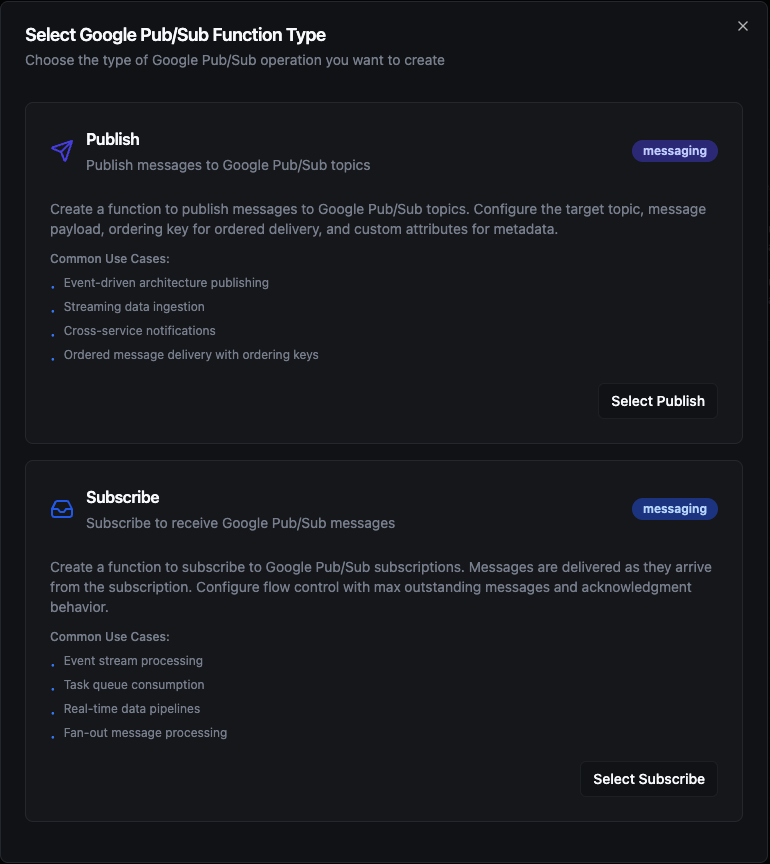
Select from two Google Pub/Sub function types: Publish for sending messages and Subscribe for receiving messages
Publish Function
Purpose: Publish messages to Google Pub/Sub topics with support for ordering keys, custom attributes, and dynamic payload templates. Use this for event broadcasting, data pipeline ingestion, and inter-service messaging.
Configuration Fields
| Field | Type | Required | Default | Description |
|---|---|---|---|---|
| Topic | String | Yes | - | Pub/Sub topic name to publish to (e.g., my-topic). Do not include the full resource path. Supports ((parameter)) syntax. |
| Payload | String | Yes | - | Message payload content (JSON or text). Supports ((parameter)) syntax for dynamic content. |
| Ordering Key | String | No | - | Key for ensuring ordered delivery. Messages with the same ordering key are delivered in order. Supports ((parameter)) syntax. |
| Attributes | JSON | No | - | Custom message attributes as key-value string pairs for filtering or metadata (e.g., {"source": "iot-gateway", "version": "1.0"}). Supports ((parameter)) syntax. |
Use Cases:
- Stream IoT sensor events to downstream analytics consumers
- Broadcast application events to multiple subscriber services
- Ingest time-series data into cloud data pipelines
- Forward operational alerts and notifications across services
To use ordering keys, your Pub/Sub topic must have message ordering enabled at creation time. Enabling ordering on an existing topic is not supported. When ordering is enabled for a key, Pub/Sub guarantees sequential delivery for all messages sharing the same key.
Subscribe Function
Purpose: Subscribe to a Google Pub/Sub subscription to receive messages as they arrive. Subscribe functions are used as pipeline triggers — when a message arrives on the configured subscription, a new pipeline execution starts with the message payload and metadata.
Configuration Fields
| Field | Type | Required | Default | Description |
|---|---|---|---|---|
| Subscription | String | Yes | - | Pub/Sub subscription name to consume from (e.g., my-subscription). Do not include the full resource path. |
| Max Outstanding Messages | Number | No | 100 | Maximum number of unprocessed messages held in memory at once (flow control). Set to 0 for no limit. |
| Auto Acknowledge | Boolean | No | false | When enabled, messages are acknowledged immediately upon delivery regardless of processing outcome (at-most-once). When disabled, messages are acknowledged only after successful pipeline execution (at-least-once, recommended). |
- Auto Acknowledge disabled (recommended): MaestroHub acknowledges the message only after the pipeline completes successfully. If processing fails, the message is requeued and redelivered — ensuring at-least-once delivery. Use this for reliable event processing.
- Auto Acknowledge enabled: The message is acknowledged immediately upon delivery regardless of whether the pipeline succeeds. Faster, but messages may be lost if processing fails — at-most-once delivery. Use this only when occasional message loss is acceptable.
Use Cases:
- Trigger pipelines on incoming cloud events and notifications
- Process real-time data streams from IoT devices
- React to application events published by upstream services
- Consume task queues for asynchronous workload processing
Using Parameters
The ((parameterName)) syntax creates dynamic, reusable functions. Parameters are automatically detected from your configuration fields and can be configured with:
| Configuration | Description | Example |
|---|---|---|
| Type | Data type validation | string, number, boolean, datetime, json, buffer |
| Required | Make parameters mandatory or optional | Required / Optional |
| Default Value | Fallback value if not provided | sensor-telemetry, us-central1, {} |
| Description | Help text for users | "Target topic name", "Device identifier" |
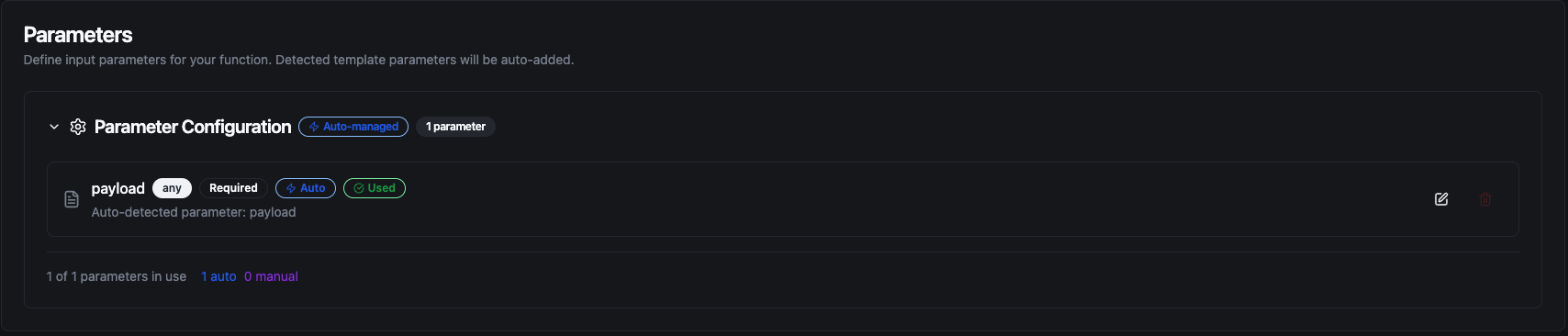
Configure dynamic parameters for Publish functions with type validation, defaults, and descriptions
Template parameters are available for Publish functions (in topic, payload, ordering key, and attributes). Subscribe functions are event-driven triggers and do not accept runtime parameters — their subscription name is fixed at configuration time.
Pipeline Integration
Use the Google Pub/Sub functions you create here as nodes inside the Pipeline Designer. Drag them onto the canvas, bind parameters to upstream outputs or constants, and build event-driven cloud messaging flows without leaving the designer.
- Google Pub/Sub Trigger — Automatically start a pipeline when a message arrives on a Pub/Sub subscription
- Google Pub/Sub Publish — Publish a message to a Pub/Sub topic as a step within a running pipeline
For broader orchestration patterns that combine Google Pub/Sub with databases, REST, MQTT, or other connector steps, see the Connector Nodes page.
Common Use Cases
IoT Telemetry Ingestion
Scenario: Collect sensor readings from factory equipment and publish them to Google Pub/Sub for fan-out distribution to analytics, storage, and alerting consumers.
Publish Configuration:
- Topic:
factory-telemetry - Ordering Key:
((machineId))— guarantees per-machine message order - Payload:
{
  "machineId": "((machineId))",
  "temperature": ((temperature)),
  "vibration": ((vibration)),
  "timestamp": "((timestamp))"
}
- Attributes:
{"plant": "chicago", "line": "assembly-1"}
Pipeline Integration: Connect after OPC UA or Modbus read nodes to continuously stream equipment telemetry into Google Pub/Sub.
Event-Driven Microservice Communication
Scenario: Trigger pipeline executions in response to application events published by upstream services (e.g., order created, payment processed, user registered).
Subscribe Configuration:
- Subscription:
order-events-maestrohub - Max Outstanding Messages:
50 - Auto Acknowledge:
false
Pipeline Integration: Use the Subscribe trigger node to start a pipeline when an order event arrives, then route the event to an ERP system via REST, log it to PostgreSQL, and send a confirmation via SMTP.
Real-Time Stream Processing
Scenario: Consume raw events from a Pub/Sub subscription, enrich and transform the payload, and publish the result to a different topic for downstream analytics consumers.
Subscribe Trigger Configuration:
- Subscription:
raw-events-subscription - Trigger Mode:
Always - Auto Acknowledge:
false
Publish Configuration (downstream node):
- Topic:
enriched-events - Ordering Key:
((sourceId)) - Payload: Transformed payload from upstream pipeline nodes
Pipeline Integration: Chain the Pub/Sub trigger with transform and enrichment nodes, then publish the result to a new topic — building a fully managed stream processing pipeline without dedicated infrastructure.
Cross-Service Notification Routing
Scenario: Consume alert events from a Pub/Sub subscription and route them to the correct notification channel based on severity.
Subscribe Configuration:
- Subscription:
alerts-subscription - Trigger Mode:
Always - Auto Acknowledge:
false
Pipeline Integration: Connect to condition nodes that branch by severity — critical alerts route to MS Teams with full context, warnings are sent via SMTP, and all events are logged to MongoDB for audit purposes.
Deduplication with On Change Mode
Scenario: A Pub/Sub topic delivers sensor readings at a high frequency but you only want to act when the reading actually changes — avoiding redundant pipeline executions and downstream writes.
Subscribe Trigger Configuration:
- Subscription:
temperature-readings-sub - Trigger Mode:
On Change - Max Tracked Keys:
500— track up to 500 distinct sensor IDs - State TTL:
24h(Enterprise) — reset state for sensors silent for more than a day
Pipeline Integration: The trigger fires only when the incoming payload differs from the last processed payload for the same key, reducing unnecessary executions and downstream load.