Databricks Storage Integration Guide
Connect to Databricks Unity Catalog Volumes to read and write files through the Databricks Files API. This guide covers connection setup, authentication, function authoring, and pipeline integration.
Overview
The Databricks Storage connector enables file operations on Unity Catalog Volumes via the Databricks Files API. It supports:
- Read files from Unity Catalog Volumes with automatic encoding detection
- Write files to Unity Catalog Volumes with overwrite control
- Use parameterized paths with
((parameterName))syntax for dynamic file operations - Default volume path configuration for simplified function setup
- Two authentication methods: Personal Access Token (PAT) and OAuth machine-to-machine (M2M)
- File size limits to protect pipelines from oversized transfers
This connector operates on Unity Catalog Volumes. Ensure your Databricks workspace has Unity Catalog enabled and that the target volumes exist before configuring functions.
Connection Configuration
Creating a Databricks Storage Connection
Navigate to Connections → New Connection → Databricks Storage and configure the following:
Databricks Storage Connection Creation Fields
1. Profile Information
| Field | Default | Description |
|---|---|---|
| Profile Name | - | A descriptive name for this connection profile (required, max 100 characters) |
| Description | - | Optional description for this Databricks Storage connection |
2. Connection Settings
| Field | Default | Description |
|---|---|---|
| Workspace URL | - | Your Databricks workspace URL (required). Must start with https:// (e.g., https://myworkspace.cloud.databricks.com) |
| Connect Timeout (sec) | 30 | Maximum time to wait for connection establishment (1–300 seconds) |
3. Authentication
Databricks Storage supports two authentication methods:
| Field | Default | Description |
|---|---|---|
| Auth Type | Personal Access Token | Authentication method: Personal Access Token or OAuth M2M |
Personal Access Token (PAT)
| Field | Default | Description |
|---|---|---|
| Access Token | - | Databricks personal access token (required when using PAT auth) |
OAuth Machine-to-Machine (M2M)
| Field | Default | Description |
|---|---|---|
| Client ID | - | OAuth application client ID (required when using OAuth M2M) |
| Client Secret | - | OAuth application client secret (required when using OAuth M2M) |
In your Databricks workspace, go to User Settings → Developer → Access Tokens → Generate New Token. Copy the token value immediately — it cannot be viewed again after creation.
4. Volume Settings
| Field | Default | Description |
|---|---|---|
| Default Volume Path | - | Optional base path for all file operations. Must follow the format /Volumes/<catalog>/<schema>/<volume>/ (e.g., /Volumes/my_catalog/my_schema/my_volume/). When set, function paths are resolved relative to this base. |
| Max File Size (MB) | 25 | Maximum allowed file size for read and write operations (1–124 MB) |
All volume paths must follow the Unity Catalog naming convention: /Volumes/<catalog>/<schema>/<volume>/[optional/sub/path]. The connector validates this format on both the connection default path and individual function paths.
5. Connection Labels
| Field | Default | Description |
|---|---|---|
| Labels | - | Key-value pairs to categorize and organize this connection (max 10 labels) |
Example Labels
env: production– Environmentteam: data-engineering– Responsible teamcatalog: iot_data– Target catalog
- Required Fields: Workspace URL is always required. Authentication credentials depend on the selected auth type.
- Default Volume Path: When configured, functions can use relative paths within the volume, simplifying function setup. If omitted, each function must specify the full volume path.
- File Size Limits: The
Max File Sizesetting protects pipelines from attempting oversized transfers. Individual functions inherit this limit from the connection. - Security: Credentials are stored encrypted and displayed as masked on edit. Leave fields empty to keep stored values.
Function Builder
Creating Databricks Storage Functions
Once you have a connection established, you can create reusable functions:
- Navigate to Functions → New Function
- Select the function type (Read or Write)
- Choose your Databricks Storage connection
- Configure the function parameters
Read Function
Purpose: Read files from Unity Catalog Volumes. Returns the file content with metadata including size, encoding, and file name.
Configuration Fields
| Field | Type | Required | Default | Description |
|---|---|---|---|---|
| Volume Path | String | Yes | - | Path to the file within a Unity Catalog Volume. Supports parameterized paths with ((parameterName)) syntax. Must follow /Volumes/<catalog>/<schema>/<volume>/path format, or relative path if default volume path is configured. |
| Timeout (seconds) | Number | No | 30 | Per-execution timeout in seconds (1–300). |
Output: Returns file content as text (for text-based files) or base64-encoded data (for binary files), along with metadata including file name, size, and content encoding.
Use Cases:
- Read configuration files from shared volumes
- Retrieve CSV or JSON data for pipeline processing
- Download model artifacts or reference data
- Read log files for monitoring and analysis
Using Parameters
The ((parameterName)) syntax creates dynamic, reusable file paths. Parameters are automatically detected and can be configured with:
| Configuration | Description | Example |
|---|---|---|
| Type | Data type validation | string, number, date |
| Required | Make parameters mandatory or optional | Required / Optional |
| Default Value | Fallback value if not provided | latest, config.json |
| Description | Help text for users | "Date partition folder (YYYY-MM-DD)" |
Write Function
Purpose: Write files to Unity Catalog Volumes. Supports both text and binary (base64-encoded) data with overwrite control.
Configuration Fields
| Field | Type | Required | Default | Description |
|---|---|---|---|---|
| Volume Path | String | Yes | - | Target path within a Unity Catalog Volume. Supports parameterized paths with ((parameterName)) syntax. Must follow /Volumes/<catalog>/<schema>/<volume>/path format, or relative path if default volume path is configured. |
| Data | String | Yes | - | Content to write. Supports plain text and base64-encoded content. Use ((parameterName)) for dynamic data from pipeline input. |
| Overwrite | Boolean | No | true | If true, overwrites existing files. If false, the operation fails when the target file already exists. |
| Timeout (seconds) | Number | No | 30 | Per-execution timeout in seconds (1–300). |
Use Cases:
- Export pipeline results to shared volumes
- Write processed data files for downstream consumers
- Store generated reports and artifacts
- Archive pipeline outputs for auditing
Pipeline Integration
Use the Databricks Storage functions you create here as nodes inside the Pipeline Designer to move files between systems. Drag a read or write node onto the canvas, bind parameters to upstream outputs or constants, and configure timeout or error-handling options without leaving the designer.
For broader orchestration patterns that combine Databricks Storage with SQL, REST, MQTT, or other steps, see the Connector Nodes page.
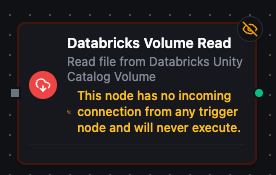
Databricks Volume read node with connection, function, and parameter bindings
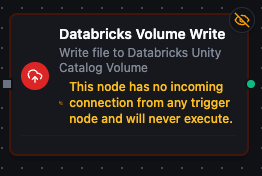
Databricks Volume write node for uploading files to Unity Catalog Volumes
Common Use Cases
Reading Partitioned Data
Scenario: Read daily data exports from a date-partitioned volume structure.
Configure a read function with a parameterized path:
/Volumes/analytics/exports/daily_reports/((date))/summary.csv
Use with a schedule trigger to automatically pull the latest daily report and feed it into transformation or notification nodes.
Writing Pipeline Outputs
Scenario: Store processed pipeline results as JSON files in a Unity Catalog Volume.
Configure a write function with a dynamic path and data:
- Volume Path:
/Volumes/iot_catalog/processed/device_reports/((deviceId))_((timestamp)).json - Data:
((pipelineOutput)) - Overwrite:
false
Connect this to the end of a data processing pipeline to persist results for downstream analytics.
Configuration File Management
Scenario: Read application configuration from a shared volume and use it to drive pipeline behavior.
Configure a read function pointing to:
/Volumes/shared/config/app_settings.json
Use the output in a Code node to parse the configuration and branch pipeline logic based on the values.
Data Exchange Between Systems
Scenario: Export data from one system, write it to a Databricks Volume, then have another pipeline read and load it into a different destination.
- Pipeline A: Query data from PostgreSQL → Transform → Write to Databricks Volume
- Pipeline B: Schedule trigger → Read from Databricks Volume → Load into target system
This pattern decouples producers and consumers while using Unity Catalog Volumes as the shared data layer.