Start from your data
Your plant already sends a hundred signals. Giving each one a name and a unit by hand takes days, and nobody wants a model editor. Let MaestroHub read them once, answer the few real doubts, and apply the rest with one press.
- Where
- Explore › Libraries › Start from your data
- Time
- Minutes
- Undo
- One press, while you stay on the page
- Editions
- Foundation, Enterprise, free trial
The problem
The bottling plant sends 101 signals from four PLCs, an MES and a CMMS. Some report a unit and most do not. Line 4 came from another vendor and sends °F where the other lines send °C. Before anyone can set one alarm or draw one chart across the lines, every signal needs to say what it is and in which unit.
What you will get
Every signal MaestroHub recognises gets one name and one unit, across all lines, in one step. Where a signal reports no unit and two units are possible, you are asked once per line. Then the page offers the next steps: one alarm for similar machines, two lines on one scale, and the sensors that went quiet.
Before you start
- Role. Applying names and units takes a Data Admin or a Workspace Admin, or someone who looks after that part of the topic tree. Anyone else sees the page with the buttons disabled and who can do it. Someone who may propose but not approve gets Propose this instead, and the signals go for approval.
- Edition. Foundation, Enterprise, and the free trial. On the free trial the number of topics with a meaning is capped (the evaluation licence's cap, counted across the whole instance): a step that would pass it is refused and says how many places are left. See Your licence.
- Data arriving. Only topics that have sent values are read.
Steps
1. Open Start from your data
Open Explore › Libraries. A workspace with no meanings yet opens on Start from your data; later, the button sits in the page header. MaestroHub reads each topic once: its name, any unit it reports and its recent values. Nothing is changed.
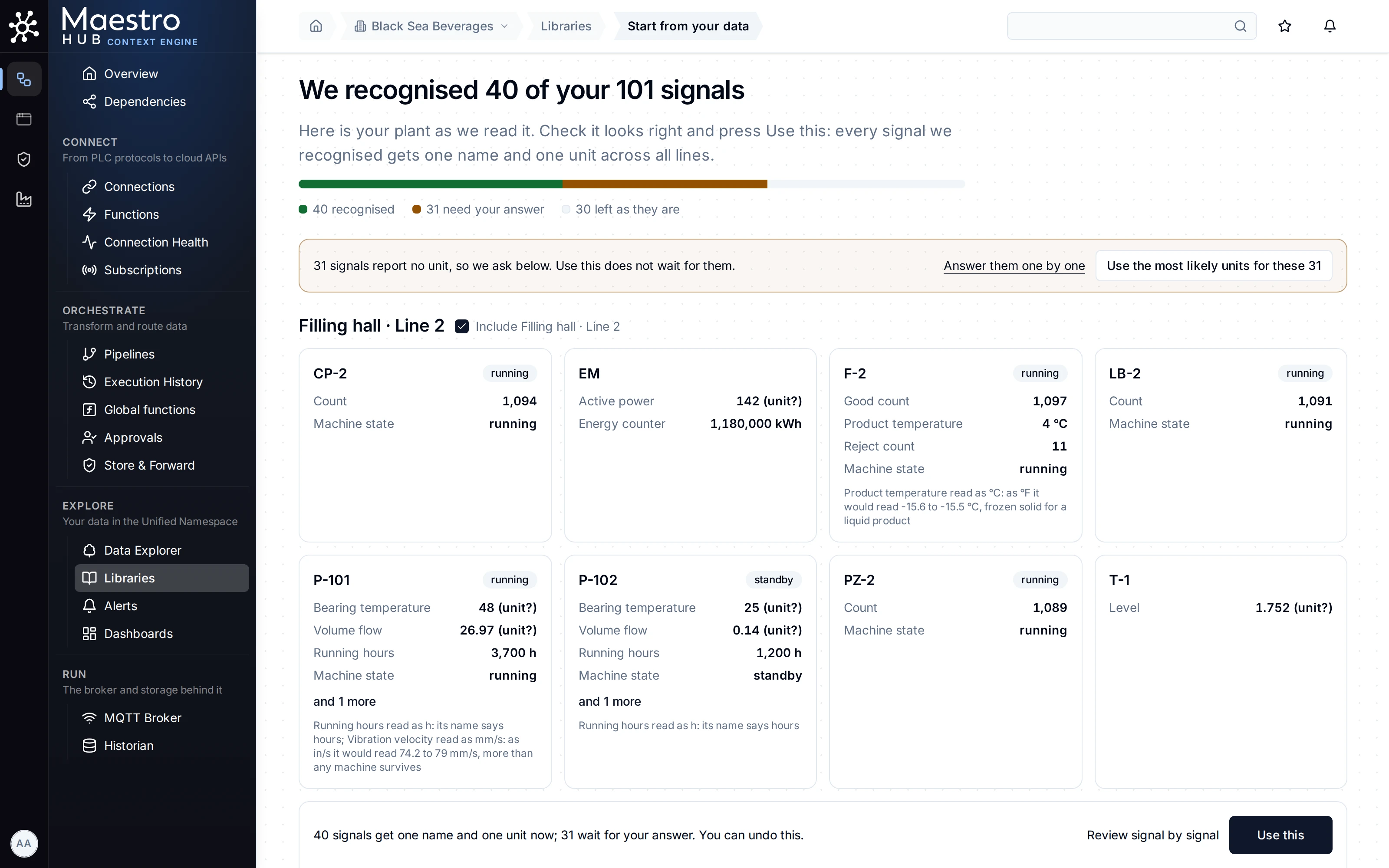
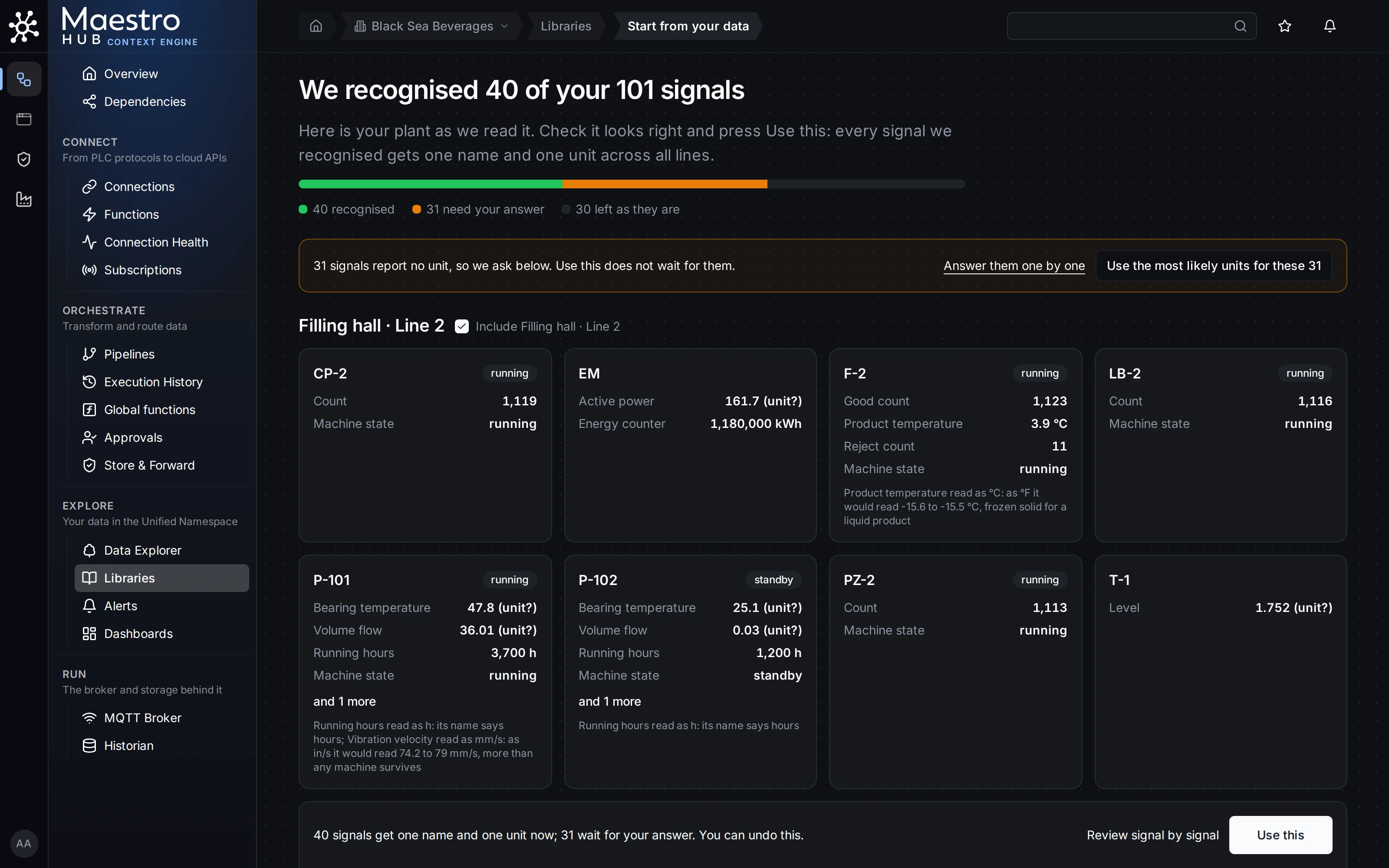
The plant by line and machine. A card says why a unit was chosen when only one fits.
The headline says how many signals were recognised, with a bar of three parts: recognised, waiting for your answer, and left as they are. Each line is a section, each machine a card with its live values in the unit they will read in. A value with no unit yet shows (unit?). When only one unit is plausible, the card says why: "Product temperature read as °C: as °F it would read -15.6 to -15.5 °C, frozen solid for a liquid product".
2. Answer the unit questions
Under the plant, the questions ask once per line, wherever both units are plausible. The likely one is marked most likely, with what the values read as. MaestroHub never picks for you.
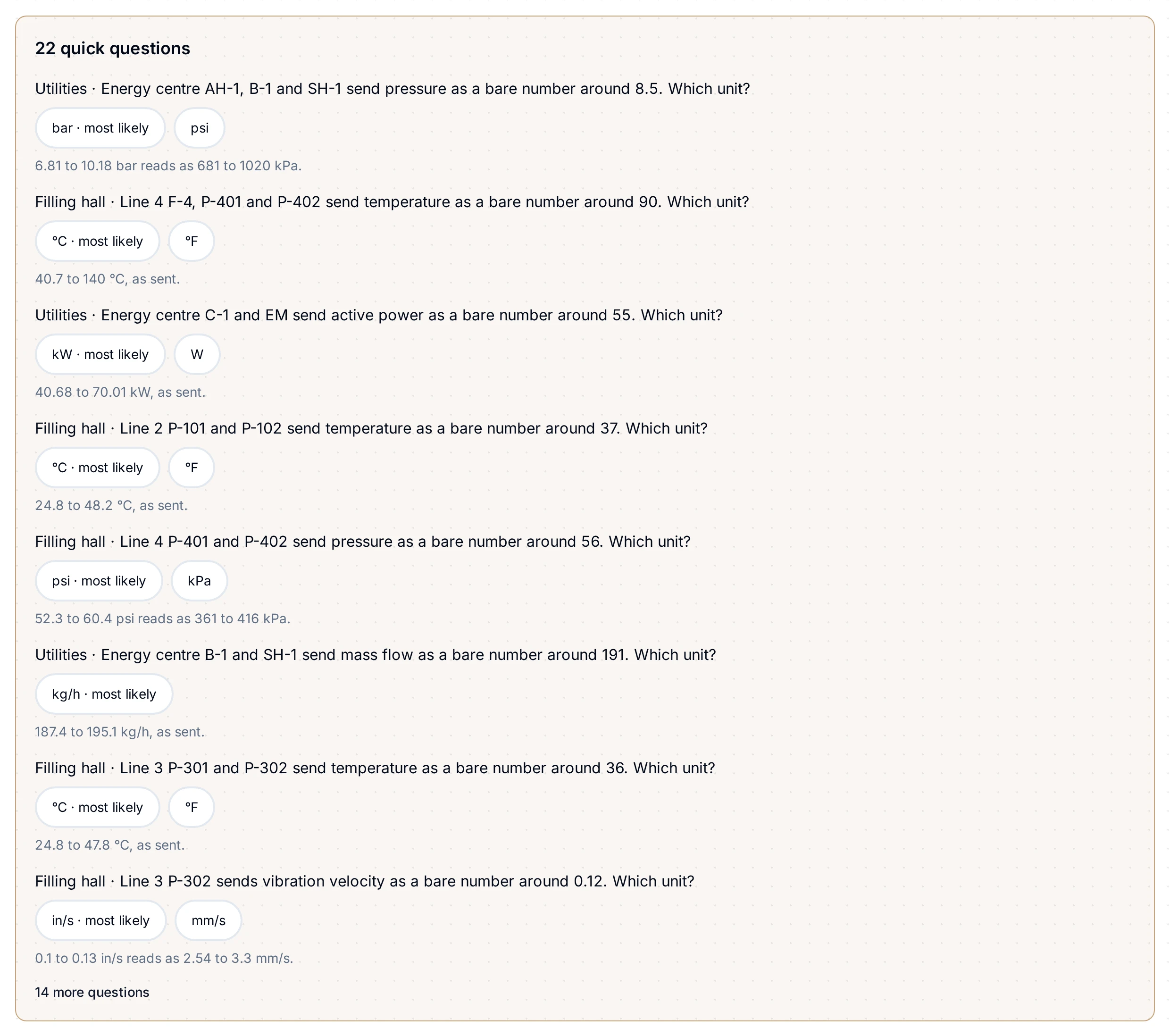
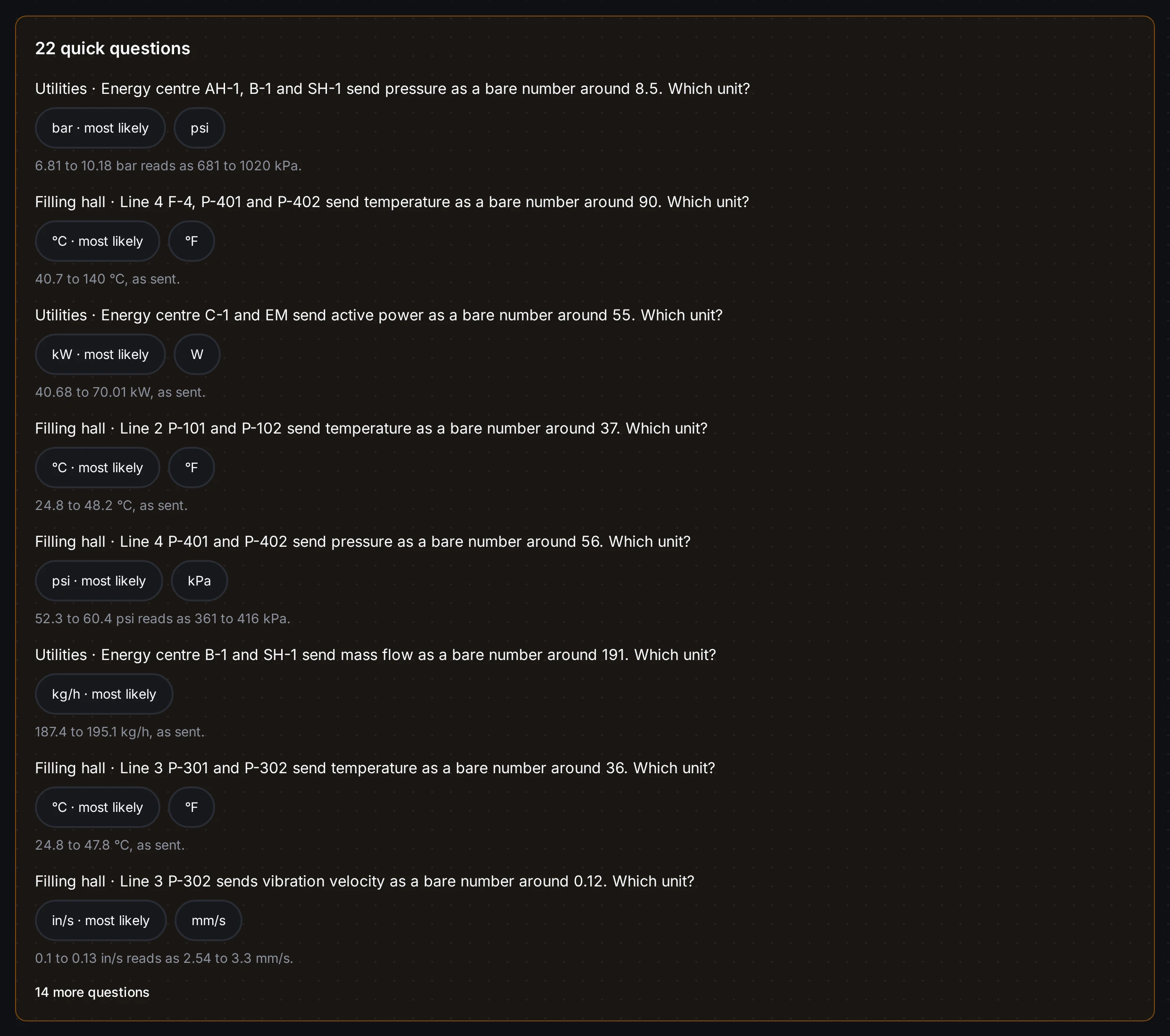
Line 4's temperatures: the page marks °C as most likely. You know the vendor sends °F, so you pick °F.
Tap the unit you know. Use the most likely units for these N lists every signal with the unit it would get and why, and applies nothing until you press Use these units. You can also leave questions for later: Use this does not wait for them.
3. Press Use this
The bar at the bottom says what will happen, for example "40 signals get one name and one unit now; 31 wait for your answer. You can undo this." Every step is checked first; if one would be refused, nothing is written and the bar names the signals and why. When a value will change for whoever reads it, one line above the button names the dashboards and pipelines that read it, and pressing Use this with that line on screen is your confirmation.
4. Pick what to do next
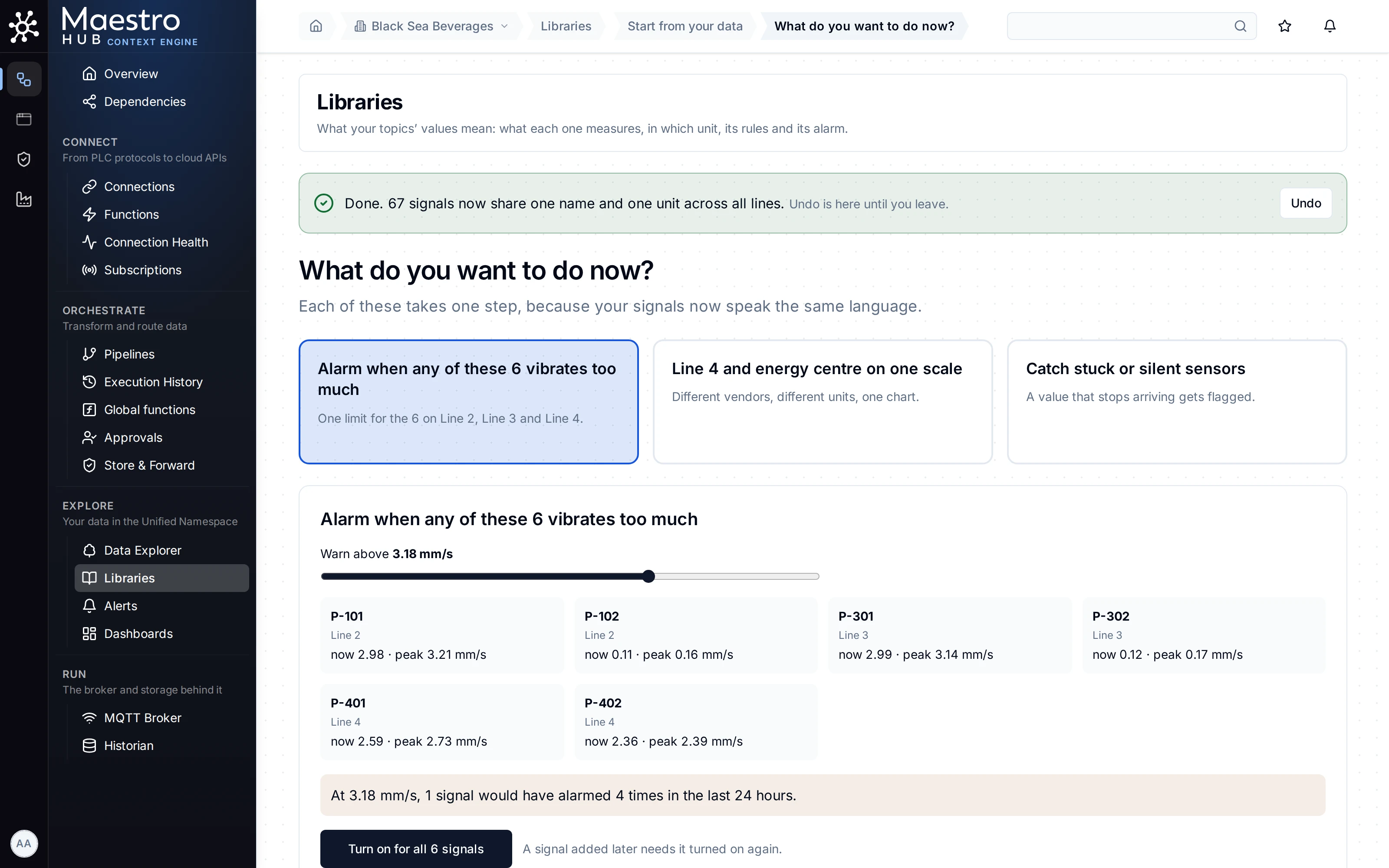
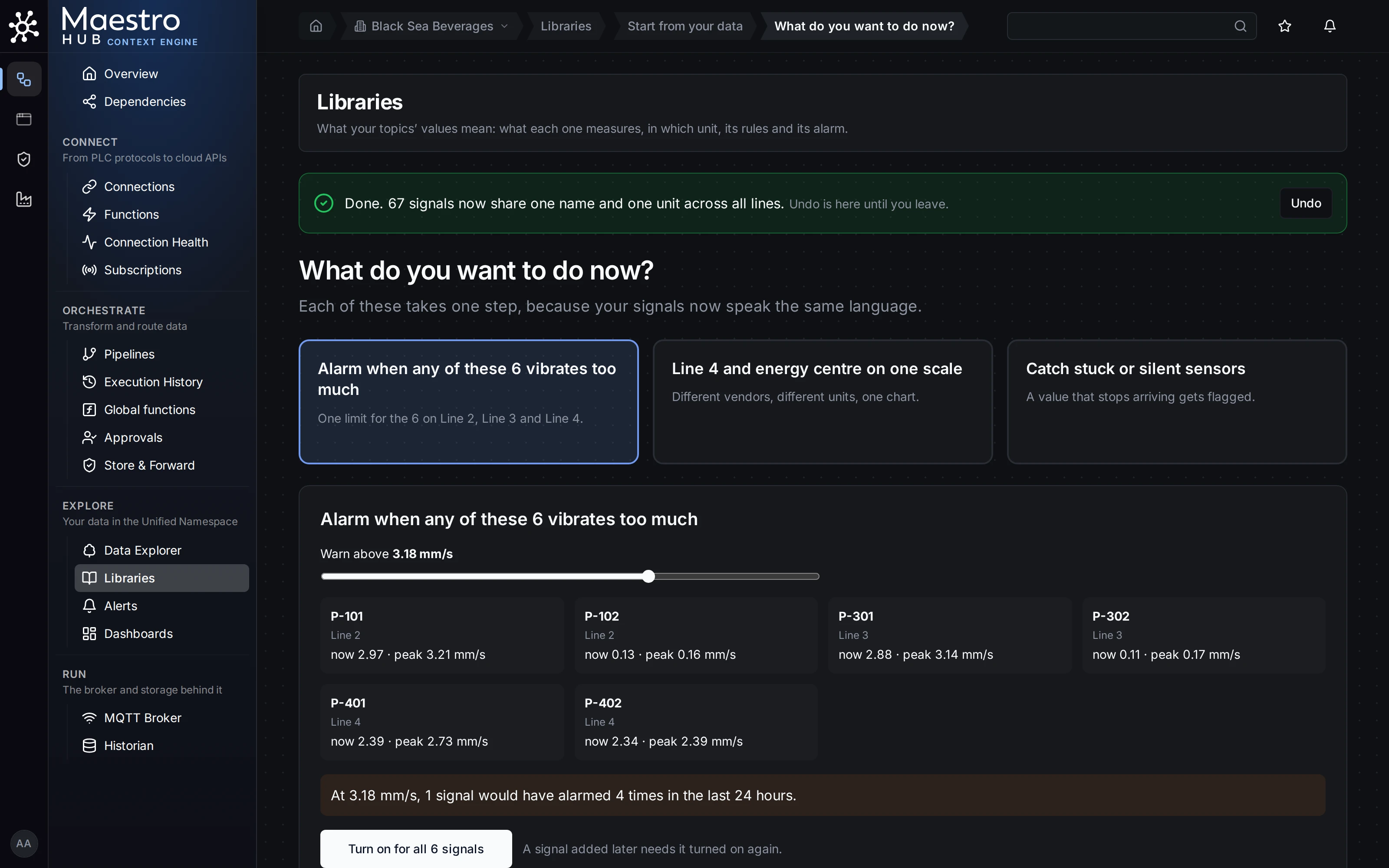
After Use this: Undo while you stay on the page, and up to three next steps.
- Alarm when any of these vibrates too much: see One alarm for every similar machine.
- On one scale: two lines that sent one value in two units, on one chart.
- Catch stuck or silent sensors: see Catch stuck and silent sensors.
Check the result
Open any of the signals in Explore › Data Explorer. The topic page says what it means, its unit, and the unit the device sends. Undo takes every name and unit off again in one step, all or none, while you stay on the page; after that, remove a meaning from its topic's page.
Good to know
- The most likely unit can be wrong. On the demo plant, in one run, some first guesses did not fit the plant: flows in m³/h were offered as L/s first, and a standby pump's small vibration as in/s. Read each question; answer from what you know about the device.
- A value that glitches can mislead it. A transmitter that once sent a fault value (3276.7) was asked about as running hours instead of temperature.
- Large trees take time. The page reads every topic once and says how far it is; on a busy machine that can take minutes.
- Use this applies the built-in meanings (Temperature, Pressure and so on from the built-in library). To give a group a meaning of your own, use Review signal by signal: see One measurement, many tag names.
- Machine state codes are not translated. States sent as words read cleanly; a PLC that sends numbers for states keeps sending numbers.
- You see only the topics you can read, and only meanings from libraries you can read.
Related
- Libraries: Start from your data, every part of the page as a reference.
- Giving a topic a meaning, one topic at a time.
- Give your data meaning, the other problems.