 Snowflake Integration Guide
Connect to Snowflake cloud data warehouses to query and analyze data in your pipelines. This guide walks you through everything from basic setup to advanced configurations.
Overview
The Snowflake connector enables you to run SQL queries, execute DML/DDL statements, and load data into your Snowflake data warehouse from MaestroHub. It supports:
- Read data from tables, views, or custom queries
- Execute statements for INSERT, UPDATE, DELETE, CREATE, ALTER, DROP operations
- Write data with automatic schema detection, table creation, and batch inserts
- Use parameterized queries for dynamic, reusable data operations
- Key pair authentication with PEM-encoded RSA private keys
- Connection pooling for high-concurrency workloads
Snowflake is a cloud-native data warehouse. No host or port configuration is needed — connections are established via your Snowflake account identifier.
Connection Configuration
Creating a Snowflake Connection
Navigate to Connections → New Connection → Snowflake and configure the following:
Snowflake Connection Creation Fields
1. Profile Information
| Field | Default | Description |
|---|---|---|
| Profile Name | - | A descriptive name for this connection profile (required, max 100 characters) |
| Description | - | Optional description for this Snowflake connection |
2. Snowflake Configuration
| Field | Default | Description |
|---|---|---|
| Account Identifier | - | Snowflake account identifier (required). Use the format orgname-accountname or locator.region (e.g., xy12345.us-east-1) |
| Database | - | Database name to connect to (required) |
| Schema | PUBLIC | Snowflake schema name |
| Warehouse | - | Virtual warehouse for compute resources (optional) |
| Role | - | Snowflake role for access control (optional, e.g., SYSADMIN) |
| Connect Timeout (sec) | 30 | Maximum time to wait for connection establishment (1-300 seconds) |
Your account identifier can be found in the Snowflake web UI under Admin → Accounts. You can also run SELECT CURRENT_ORGANIZATION_NAME() in a Snowflake worksheet to find your organization name, then use the orgname-accountname format.
3. Authentication
Snowflake supports two authentication methods. You can use either a password or a PEM-encoded RSA private key for key pair authentication.
| Field | Default | Description |
|---|---|---|
| Username | - | Snowflake database user (required) |
| Password | - | Snowflake user password (optional if using Private Key) |
| Private Key | - | PEM-encoded RSA private key for key pair authentication (optional if using Password) |
To use key pair authentication, generate an RSA key pair and assign the public key to your Snowflake user. Paste the PEM-encoded private key (including -----BEGIN PRIVATE KEY----- and -----END PRIVATE KEY----- markers) into the Private Key field. Both PKCS#8 and PKCS#1 formats are supported.
4. Connection Pool Settings
| Field | Default | Description |
|---|---|---|
| Max Open Connections | 100 | Maximum number of simultaneous database connections (1-1000). Higher values increase concurrency but add load |
| Max Idle Connections | 25 | Idle connections kept ready for reuse to reduce latency (0-1000, 0 = close idle connections immediately) |
| Connection Max Lifetime (sec) | 900 | Maximum age of a connection before it is recycled (0-86400 seconds, 0 = keep connections indefinitely) |
| Connection Max Idle Time (sec) | 300 | How long an idle connection may remain unused before being closed (0-86400 seconds, 0 = disable idle timeout) |
Connection pool settings help optimize performance by balancing concurrency, resource usage, and latency across workloads.
5. Retry Configuration
| Field | Default | Description |
|---|---|---|
| Retries | 3 | Number of connection attempts (0-10, 0 = no retry) |
| Retry Delay (ms) | 200 | Delay between retry attempts in milliseconds (0-3600000 ms) |
| Retry Backoff Multiplier | 2 | Exponential factor for retry delay growth (1-10, e.g., 2.0 means each retry waits twice as long) |
Example Retry Behavior
- With
Retry Delay = 200msandRetry Backoff Multiplier = 2:- 1st retry: wait 200ms
- 2nd retry: wait 400ms
- 3rd retry: wait 800ms
6. Connection Labels
| Field | Default | Description |
|---|---|---|
| Labels | - | Key-value pairs to categorize and organize this Snowflake connection (max 10 labels) |
Example Labels
env: prod– Environmentteam: data– Responsible teamwarehouse: COMPUTE_WH– Snowflake warehouse
- Required Fields: Account identifier, database, and username are always required. Either password or private key must be provided for authentication.
- Connection Pooling: Manages concurrency with
Max Open Connections, reduces latency withMax Idle Connections, mitigates stale connections viaConnection Max Lifetime, and frees resources usingConnection Max Idle Time. - Retry Logic: Implements exponential backoff—initial connection attempts use the base delay and each retry multiplies the delay by the backoff factor; ideal for transient network issues.
- Timeout Values:
Connect Timeoutapplies to initial connection establishment; all timeout values are in seconds unless noted (Retry Delay uses milliseconds). - Security Best Practices: Use key pair authentication for production environments, and restrict access using Snowflake roles.
Function Builder
Creating Snowflake Functions
Once you have a connection established, you can create reusable functions:
- Navigate to Functions → New Function
- Select the function type (Query, Execute, or Write)
- Choose your Snowflake connection
- Configure the function parameters
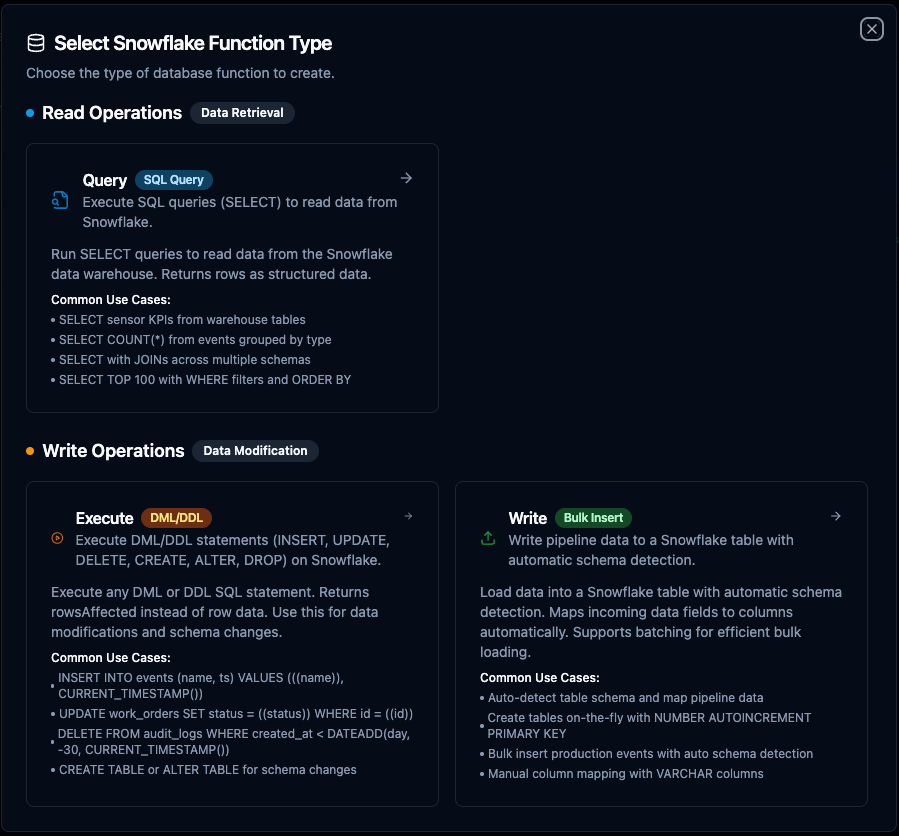
Snowflake query function creation interface with SQL editor and parameter configuration
Query Function
Purpose: Execute SQL SELECT statements on Snowflake. Run queries to read data from your Snowflake data warehouse.
Configuration Fields
| Field | Type | Required | Default | Description |
|---|---|---|---|---|
| SQL Query | String | Yes | - | SQL SELECT statement to execute. Supports parameterized queries with ((parameterName)) syntax. |
| Timeout (seconds) | Number | No | 30 | Per-execution timeout in seconds. Sets maximum time allowed for query execution. |
Use Cases:
- SELECT aggregated KPIs from warehouse tables for dashboards
- SELECT time-series data for trend analysis and reporting
- SELECT inventory, shipment, or production data for operational intelligence
- SELECT with JOINs across multiple schemas for cross-functional analytics
Using Parameters
The ((parameterName)) syntax creates dynamic, reusable queries. Parameters are automatically detected and can be configured with:
| Configuration | Description | Example |
|---|---|---|
| Type | Data type validation | string, number, boolean, date, array |
| Required | Make parameters mandatory or optional | Required / Optional |
| Default Value | Fallback value if not provided | NOW(), 0, active |
| Description | Help text for users | "Start date for the report" |

Parameter configuration interface showing type validation, required flags, default values, and descriptions
Execute Function
Purpose: Execute DML/DDL statements on Snowflake. Use this for data modifications (INSERT, UPDATE, DELETE) and schema changes (CREATE, ALTER, DROP).
Configuration Fields
| Field | Type | Required | Default | Description |
|---|---|---|---|---|
| SQL Statement | String | Yes | - | DML/DDL SQL statement to execute. Supports parameterized queries with ((parameterName)) syntax. |
| Timeout (seconds) | Number | No | 30 | Per-execution timeout in seconds. |
Use Cases:
- INSERT sensor readings or event data into warehouse tables
- UPDATE order statuses or configuration values
- DELETE old records based on retention policies
- CREATE or ALTER tables for schema management
Write Function
Purpose: Bulk-load data into a Snowflake table with automatic schema detection and batch inserts.
Configuration Fields
| Field | Type | Required | Default | Description |
|---|---|---|---|---|
| Table Name | String | Yes | - | Target table to insert data into. |
| Data | JSON/Template | Yes | - | Row data to write. Use ((data)) for dynamic pipeline input or provide static JSON. |
| Schema | JSON/Template | No | - | Type hints for table creation (field → type map). Only used when creating new tables. |
| Create Table If Not Exists | Boolean | No | false | Auto-create the table with inferred column types if it doesn’t exist. |
| Batch Size | Number | No | 100 | Number of rows per INSERT batch (1–10,000). |
| Timeout (seconds) | Number | No | 30 | Per-execution timeout in seconds. |
Use Cases:
- Load pipeline output data into warehouse tables for analytics
- Create destination tables on-the-fly from pipeline data
- Batch insert IoT sensor readings or log events
- Sync data from other sources into Snowflake
Pipeline Integration
Use the Snowflake functions you create here as nodes inside the Pipeline Designer to interact with your data warehouse alongside the rest of your operations stack. Drag a query, execute, or write node onto the canvas, bind its parameters to upstream outputs or constants, and configure connection-level options without leaving the designer.
For end-to-end orchestration ideas, such as combining database reads with MQTT, REST, or analytics steps, explore the Connector Nodes page to see how SQL nodes complement other automation patterns.
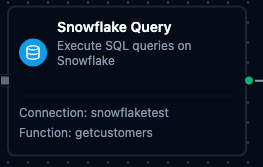
Snowflake query node in the pipeline designer with connection, function, and parameter configuration
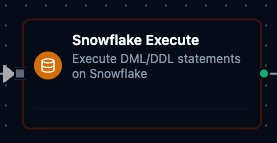
Snowflake execute node for running DML/DDL statements in pipelines

Snowflake write node for bulk data loading in pipelines
Common Use Cases
Querying Production Metrics
Scenario: Generate hourly production reports with efficiency metrics from your Snowflake warehouse.
SELECT
    DATE_TRUNC('hour', event_timestamp) AS hour,
    machine_id,
    COUNT(*) AS event_count,
    AVG(efficiency) AS avg_efficiency,
    MIN(efficiency) AS min_efficiency,
    MAX(efficiency) AS max_efficiency
FROM PRODUCTION_DB.PUBLIC.PRODUCTION_EVENTS
WHERE event_timestamp >= ((startDate)) AND event_timestamp < ((endDate))
GROUP BY hour, machine_id
ORDER BY hour DESC;
Pipeline Integration: Use in a pipeline to feed data to visualization dashboards, BI tools, or reporting nodes.
Cross-Schema Analytics
Scenario: Join data across multiple Snowflake schemas for cross-functional analysis.
SELECT
    o.order_id,
    o.order_date,
    c.customer_name,
    p.product_name,
    oi.quantity,
    oi.unit_price,
    oi.quantity * oi.unit_price AS line_total
FROM SALES.PUBLIC.ORDERS o
JOIN SALES.PUBLIC.ORDER_ITEMS oi ON o.order_id = oi.order_id
JOIN CUSTOMERS.PUBLIC.CUSTOMERS c ON o.customer_id = c.customer_id
JOIN PRODUCTS.PUBLIC.PRODUCTS p ON oi.product_id = p.product_id
WHERE o.order_date >= ((startDate))
ORDER BY o.order_date DESC
LIMIT ((maxRows));
Pipeline Integration: Combine with downstream transformation nodes to enrich or reshape the data before delivery.
Time-Series Sensor Data Analysis
Scenario: Aggregate IoT sensor readings stored in Snowflake for trend analysis.
SELECT
    DATE_TRUNC('minute', reading_timestamp) AS minute,
    sensor_id,
    AVG(temperature) AS avg_temp,
    AVG(pressure) AS avg_pressure,
    MAX(vibration) AS peak_vibration
FROM IOT_DB.RAW.SENSOR_READINGS
WHERE sensor_id = ((sensorId))
  AND reading_timestamp >= DATEADD('hour', -((lookbackHours)), CURRENT_TIMESTAMP())
GROUP BY minute, sensor_id
ORDER BY minute DESC;
Pipeline Integration: Connect this function after a schedule trigger to periodically pull sensor analytics into dashboards or alerting workflows.
Data Quality Checks
Scenario: Monitor data freshness and completeness in your warehouse.
SELECT
    table_name,
    MAX(ingested_at) AS latest_record,
    DATEDIFF('minute', MAX(ingested_at), CURRENT_TIMESTAMP()) AS minutes_since_last,
    COUNT(*) AS total_records,
    COUNT_IF(value IS NULL) AS null_count
FROM MONITORING.PUBLIC.DATA_QUALITY_VIEW
WHERE table_name = ((tableName))
GROUP BY table_name;
Pipeline Integration: Schedule this function to run periodically and trigger alerts when data freshness exceeds a threshold.