 QuestDB Integration Guide
Connect to QuestDB databases to query time-series data in your pipelines. This guide walks you through everything from basic setup to advanced configurations.
Overview
The QuestDB connector is your gateway to high-performance time-series database operations in MaestroHub. It enables you to:
- Query data from tables using standard SQL with QuestDB extensions
- Use parameterized queries for dynamic, reusable data operations
- Leverage time-series features like
SAMPLE BY,LATEST ON, andASOF JOIN - Secure connections with SSL/TLS encryption (QuestDB Enterprise)
QuestDB exposes a PostgreSQL wire protocol (pgwire) endpoint on port 8812 by default. The MaestroHub connector uses the same pgx driver as PostgreSQL, ensuring full compatibility with QuestDB's SQL engine.
Connection Configuration
Creating a QuestDB Connection
Navigate to Connections → New Connection → QuestDB and configure the following:
QuestDB Connection Creation Fields
1. Profile Information
| Field | Default | Description |
|---|---|---|
| Profile Name | - | A descriptive name for this connection profile (required, max 100 characters) |
| Description | - | Optional description for this QuestDB connection |
2. Database Configuration
| Field | Default | Description |
|---|---|---|
| Host | localhost | QuestDB server hostname or IP address - required |
| Port | 8812 | QuestDB PostgreSQL wire protocol port (1-65535) - required |
| Connect Timeout (sec) | 30 | Maximum time to wait for connection establishment (0-600 seconds) - required |
| Database | qdb | Database name to connect to - required |
QuestDB uses port 8812 for its pgwire endpoint, not the standard PostgreSQL port 5432. Make sure your firewall allows traffic on this port.
3. Basic Authentication
| Field | Default | Description |
|---|---|---|
| Username | admin | QuestDB database user (required) |
| Password | - | QuestDB user password |
4. SSL Settings
4a. SSL Configuration
| Field | Default | Description |
|---|---|---|
| Enable SSL | false | Use encrypted connection to QuestDB server |
4b. SSL Mode
(Only displayed when SSL is enabled)
When SSL is enabled, the connection uses sslmode=require which encrypts the connection without verifying the server certificate.
- QuestDB Open Source does not support native TLS on the pgwire endpoint. Use a TLS-terminating proxy like PgBouncer for encrypted connections.
- QuestDB Enterprise supports native TLS on all protocols including pgwire.
5. Connection Pool Settings
| Field | Default | Description |
|---|---|---|
| Max Open Connections | 100 | Maximum number of simultaneous database connections (0-1000). Higher values increase concurrency but add DB load |
| Max Idle Connections | 25 | Idle connections kept ready for reuse to reduce latency (0-1000, 0 = close idle connections immediately) |
| Connection Max Lifetime (sec) | 900 | Maximum age of a connection before it is recycled (0-86400 seconds, 0 = keep connections indefinitely). Helpful to avoid server-side timeouts |
| Connection Max Idle Time (sec) | 300 | How long an idle connection may remain unused before being closed (0-86400 seconds, 0 = disable idle timeout) |
Connection pool settings help optimize database performance by balancing concurrency, resource usage, and latency across workloads.
6. Retry Configuration
| Field | Default | Description |
|---|---|---|
| Retries | 3 | Number of connection attempts (0-10, 0 = no retry) |
| Retry Delay (ms) | 100 | Delay between retry attempts in milliseconds (0-3600000 ms) |
| Retry Backoff Multiplier | 2 | Exponential factor for retry delay growth (1-10, e.g., 2.0 means each retry waits twice as long) |
Example Retry Behavior
- With
Retry Delay = 100msandRetry Backoff Multiplier = 2:- 1st retry: wait 100ms
- 2nd retry: wait 200ms
- 3rd retry: wait 400ms
7. Connection Labels
| Field | Default | Description |
|---|---|---|
| Labels | - | Key-value pairs to categorize and organize this QuestDB connection (max 10 labels) |
Example Labels
env: prod- Environmentteam: data- Responsible team
- Required Fields: All fields described as "required" must be filled.
- SSL/TLS: When SSL is disabled, SSL Mode is automatically set to disable. Native TLS requires QuestDB Enterprise or a TLS proxy.
- Connection Pooling: Manages concurrency with
Max Open Connections, reduces latency withMax Idle Connections, mitigates stale connections viaConnection Max Lifetime, and frees resources usingConnection Max Idle Time. - Retry Logic: Implements exponential backoff; initial connection attempts use the base delay and each retry multiplies the delay by the backoff factor. Ideal for transient network issues or database restarts.
- Timeout Values:
Connect Timeoutapplies to initial connection establishment; all timeout values are in seconds unless noted (Retry Delay uses milliseconds).
Function Builder
Creating QuestDB Functions
Once you have a connection established, you can create reusable query functions:
- Navigate to Functions → New Function
- Select QuestDB Query as the function type
- Choose your QuestDB connection
- Write your SQL query with parameters
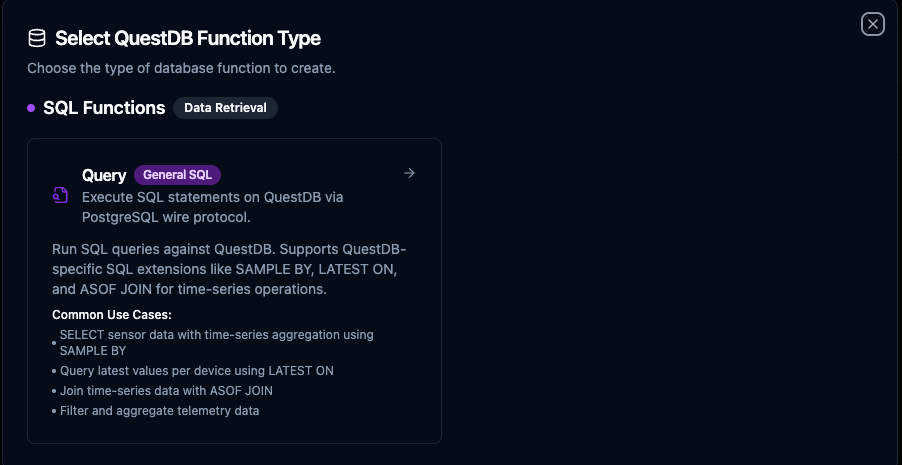
QuestDB query function creation interface with SQL editor and parameter configuration
Query Function
Purpose: Execute SQL statements on QuestDB. Run standard SQL queries enhanced with QuestDB's time-series extensions to read data from your time-series database.
Configuration Fields
| Field | Type | Required | Default | Description |
|---|---|---|---|---|
| SQL Query | String | Yes | - | SQL statement to execute (SELECT). Supports parameterized queries with QuestDB SQL extensions. |
| Timeout (seconds) | Number | No | 10 | Per-execution timeout in seconds. Sets maximum time allowed for query execution. |
Use Cases:
- SELECT sensor readings with time-based filtering
- Aggregate metrics using
SAMPLE BYfor downsampling - Retrieve latest values per device using
LATEST ON - Perform time-series joins with
ASOF JOIN
Using Parameters
The ((parameterName)) syntax creates dynamic, reusable queries. Parameters are automatically detected and can be configured with:
| Configuration | Description | Example |
|---|---|---|
| Type | Data type validation | string, number, boolean, date, array |
| Required | Make parameters mandatory or optional | Required / Optional |
| Default Value | Fallback value if not provided | NOW(), 0, active |
| Description | Help text for users | "Start date for the report" |

Parameter configuration interface showing type validation, required flags, default values, and descriptions
Pipeline Integration
Use the QuestDB query functions you create here as nodes inside the Pipeline Designer to query time-series data alongside the rest of your operations stack. Drag the query node onto the canvas, bind its parameters to upstream outputs or constants, and configure connection-level options without leaving the designer.
For end-to-end orchestration ideas, such as combining database reads with MQTT, REST, or analytics steps, explore the Connector Nodes page to see how SQL nodes complement other automation patterns.
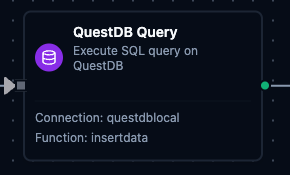
QuestDB query node in the pipeline designer with connection, function, and parameter configuration
Common Use Cases
Real-Time Sensor Monitoring
Scenario: Query the latest sensor readings across all devices.
SELECT * FROM sensors
LATEST ON timestamp PARTITION BY sensor_id
WHERE timestamp > dateadd('h', -1, now());
Pipeline Integration: Use in a pipeline to feed real-time dashboards or trigger alerts based on threshold breaches.
Time-Series Downsampling
Scenario: Generate hourly averages of sensor data for reporting.
SELECT
    timestamp,
    sensor_id,
    avg(temperature) as avg_temp,
    avg(pressure) as avg_pressure,
    min(temperature) as min_temp,
    max(temperature) as max_temp
FROM sensors
WHERE timestamp BETWEEN ((startDate)) AND ((endDate))
SAMPLE BY 1h
ALIGN TO CALENDAR;
Pipeline Integration: Schedule this function to run periodically and push aggregated data to BI tools, dashboards, or downstream databases.
Cross-Stream Time-Series Joins
Scenario: Correlate temperature readings with production events using time-based joins.
SELECT
    t.timestamp,
    t.sensor_id,
    t.temperature,
    p.event_type,
    p.machine_id
FROM sensors t
ASOF JOIN production_events p ON (t.sensor_id = p.sensor_id)
WHERE t.timestamp > dateadd('d', -1, now());
Pipeline Integration: Combine with data transformation nodes to enrich sensor data with production context for analytics.
Data Retention Queries
Scenario: Query data within a retention window for archiving or cleanup workflows.
SELECT count(*) as record_count,
    min(timestamp) as oldest_record,
    max(timestamp) as newest_record
FROM sensors
WHERE timestamp < dateadd('d', -((retentionDays)), now());
Pipeline Integration: Schedule this function to run daily or weekly via pipeline triggers (cron jobs) to monitor data retention.