Workspaces
A workspace is an isolated part of a Context Engine, with its own connections, pipelines, topics, dashboards and people. Nothing is shared between workspaces. Every Context Engine has at least one workspace, created at first boot. Add more where people and equipment really must not see each other. Two teams at the same plant are usually better served by one workspace with different roles or groups.
Open the page from Admin → Workspaces in the sidebar (/workspaces).
Who can use this page
The page needs the workspace:create permission, which by default only System Administrators have. Everyone else gets an access-denied page. Workspace Administrators manage their own workspace from its Overview instead.
Running more than one workspace needs the Multiple Workspaces (multi_tenancy) license feature, and the license sets how many workspaces you can have.
Without it, Workspaces is not in the sidebar. Opening /workspaces directly shows a Multiple workspaces are not enabled notice above the single workspace. You can still edit that workspace and copy its ID, but you can't create, suspend, delete or restore workspaces; the server refuses those requests too.
Workspace seats
With Multiple Workspaces, the Workspace seats band at the top of the page shows how much of the license you have used, for example 1 of 3 workspace seats used · 2 free. The license edition is shown on the right.
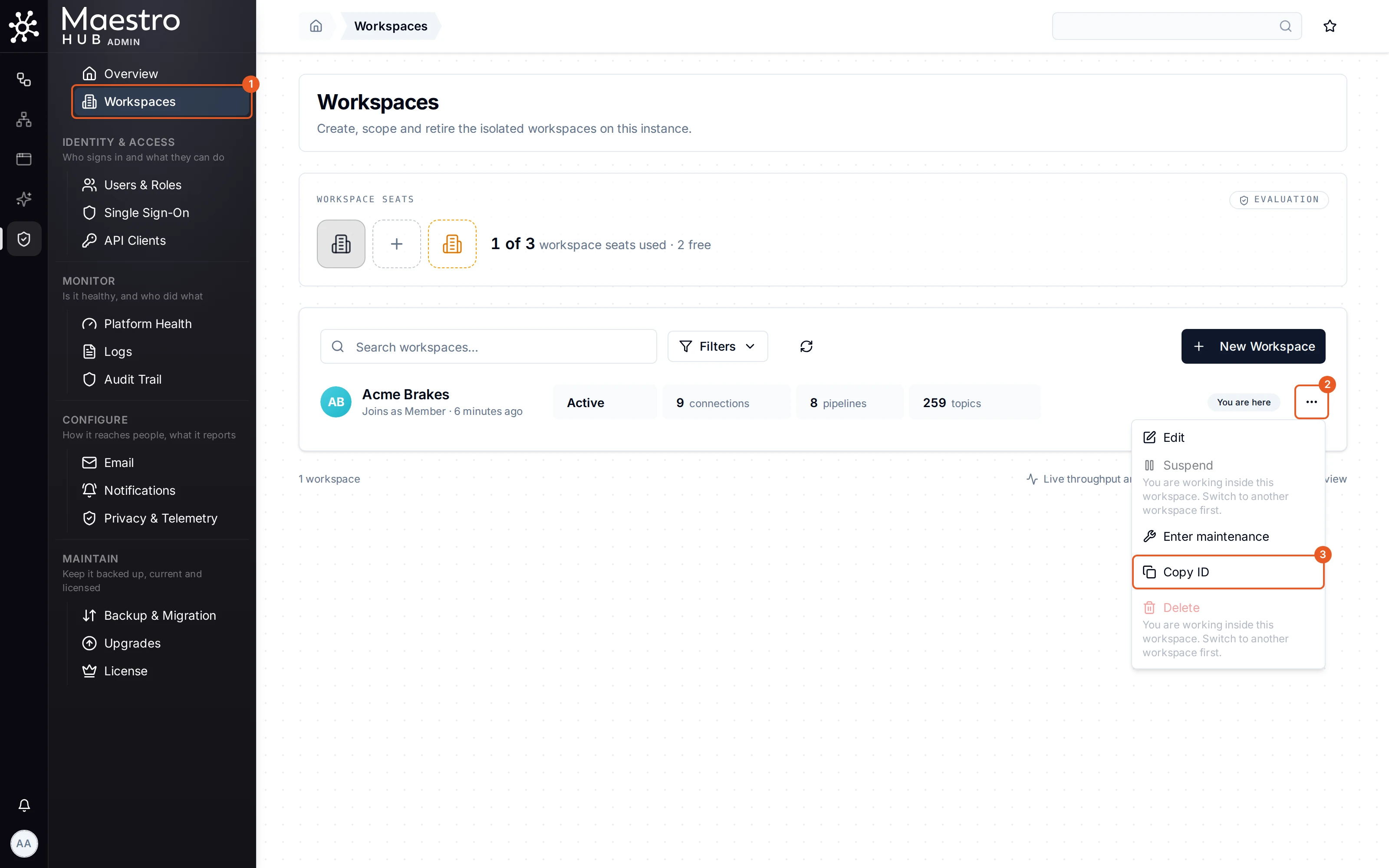
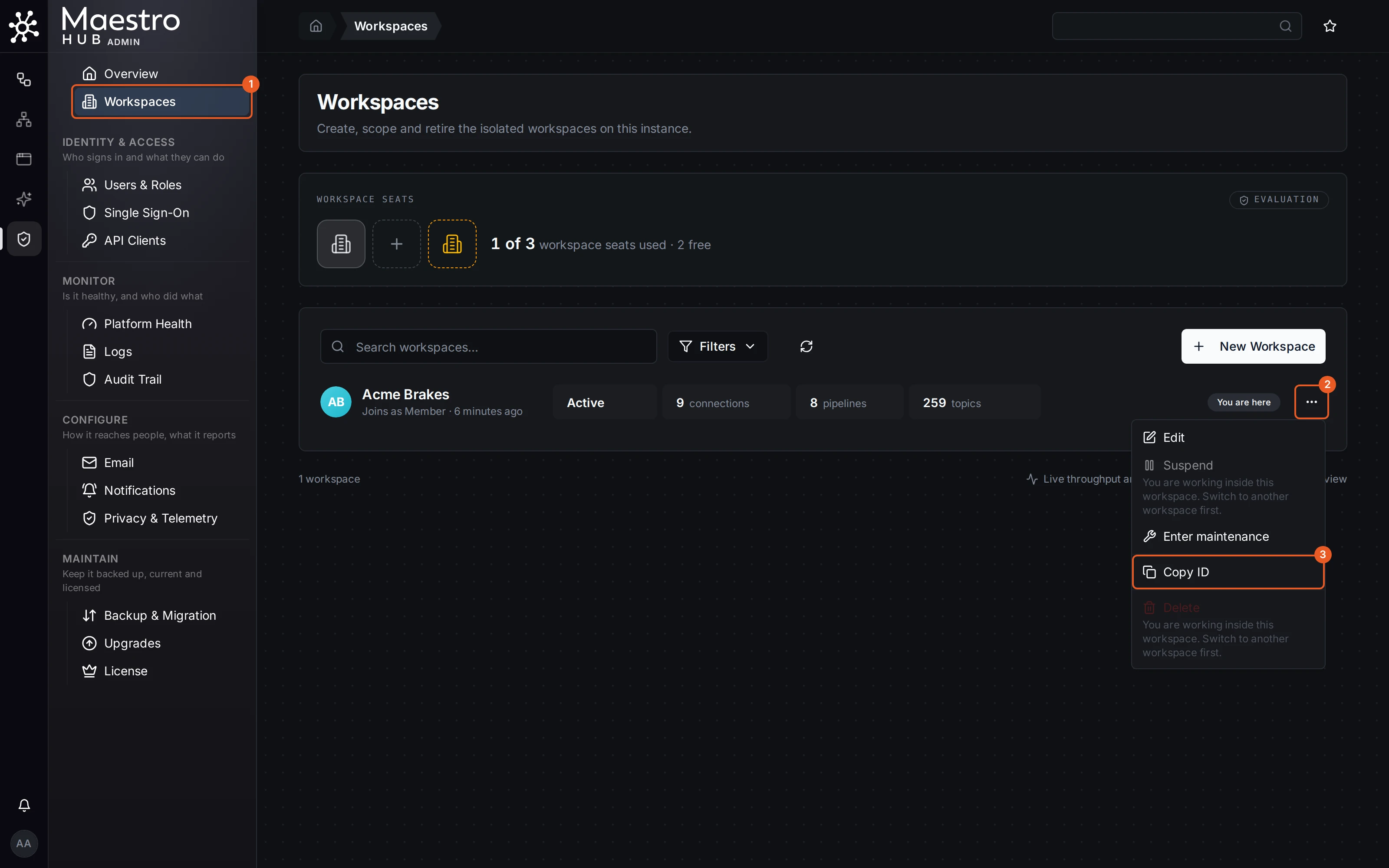
- Only active workspaces use a seat. Suspended and deleted workspaces don't.
- Each seat is drawn as a tile. Click the first free tile to create a workspace in it. When only one seat is left, the band says it is the last seat.
- When the seats are used up, the band reads no seats left, New Workspace is disabled (hovering it gives the reason), and a View licence link opens the License page. If an active workspace holds a seat but has no connections, pipelines or members, the band offers to Suspend it to free the seat.
- If the license allows fewer seats than are in use (for example after a smaller license was applied), the band shows how many you are over. Existing workspaces keep running, but you can't create or restore another until the license covers them.
- With an unlimited license, the band shows the count with no seat limit.
If MaestroHub runs under Fleet Manager, the license counts workspaces across every Context Engine in the fleet. See Licensing and Trial.
The workspace list
Each row shows:
- the logo and name (click the name to open that workspace; suspended and deleted ones are not links);
- the slug: hover it to see the namespace root
mHv1.0/<slug>/…under which all the workspace's topics live; - which role new members get when they join (Joins as …), and when the workspace was created;
- its status: Active, In maintenance, Suspended or Deleted;
- how many connections, pipelines, topics and members it has;
- an Empty note when it holds nothing, and the maintenance reason when it is in maintenance;
- You are here on the workspace you are currently working in.
Use the search box, the Status filter under Filters (All Statuses, Active, Suspended, Deleted) and the sort control to find a workspace. All Statuses does not include deleted workspaces; choose Deleted to see them.
Live throughput and failures per workspace are on the instance Overview, linked at the bottom of the list.
Create a workspace
-
Click New Workspace (or a free seat tile).
-
Fill in the form:
Field Description Name Required, up to 100 characters. Must be unique on the installation. Slug Generated from the name as you type; you can change it. 2 to 63 characters: lowercase letters, digits and single hyphens, for example acme-corp. Must be unique.Description Optional, up to 500 characters. Logo Optional. JPEG, PNG or WebP, up to 3 MB. You crop it to a square after choosing it. -
Click Create Workspace.
The slug becomes the root of every topic path in the workspace (mHv1.0/<slug>/…), so it can never be changed after the workspace is created. Choose it carefully. To use a different slug later, you have to create a new workspace.
Creation is refused when no seat is free, or when the name or slug is already used by another workspace that isn't deleted.
Edit a workspace
Choose Edit in the row's actions menu (⋯). This opens the workspace's details: logo, name, slug, description, Workspace ID, and when and by whom it was created and last updated. Click the logo or the name to open the Edit workspace dialog, where you can change the logo, name and description.
- A new logo is uploaded as soon as you finish cropping it; Remove deletes it at once. Name and description are saved with the dialog's save button.
- The dialog also shows a Slug field, but the slug can't be changed: saving a different slug fails with an error. Leave it as it is.
- Renaming a workspace is safe. Its slug, topics and ID don't change.
- A deleted workspace can't be edited. Restore it first.
Copy the workspace ID
Many API and MCP setups need the workspace's ID in the X-Workspace-ID header. To get it:
- choose Copy ID in the row's actions menu, or
- open Edit and click the copy button next to Workspace ID.
The ID is copied to your clipboard. It never changes, even if you rename the workspace.
Maintenance
Enter maintenance in the actions menu pauses one workspace's work: no new pipeline work starts, running pipeline executions are cancelled and its connections are suspended. Enter a reason (required) and confirm. Exit maintenance resumes it. You can do this from here for any active workspace without switching to it.
If the item is greyed out with Maintenance state not reported yet, wait a moment and open the menu again. Read Maintenance Mode before using it: cancelled executions are not resumed.
Suspend and activate
Suspend (actions menu of an active workspace) sets the workspace's status to Suspended and frees its seat. Everything in the workspace is kept. Suspend runs immediately; there is no confirmation step.
In this version, a suspended workspace keeps working. It can still be opened, its connections and pipelines can still be listed, created and deleted, in the UI and through the API, and its connections keep running. Suspend only frees the seat. To stop a workspace's work, use Maintenance.
Activate (actions menu of a suspended workspace) returns it to Active. It uses a seat again.
Delete and restore
Delete soft-deletes a workspace after a confirmation. The workspace and its namespace are kept so that it can be restored, but it is no longer active and doesn't use a seat.
To bring it back, open Filters, set Status to Deleted, and choose Restore in its actions menu. Restoring is refused when:
- no seat is free, or
- another workspace now uses the same name or slug.
Deleted workspaces offer only Restore and Copy ID.
Protections
- You can't suspend or delete the workspace you are working in. On that row, Suspend and Delete are greyed out with You are working inside this workspace. Switch to another workspace first. The server refuses the same requests.
- Concurrent changes. If another administrator changed the workspace's status while you acted, nothing is written and you see an error. Refresh the list and try again.
Permissions
| Action | Permission |
|---|---|
| Open the page, create a workspace | workspace:create |
| Edit, change the logo, suspend, activate, enter or exit maintenance | workspace:update |
| Delete or restore | workspace:delete |
System Administrators have all of them.