Notifications
The Notifications page sends platform events to Slack, Microsoft Teams or any web address that accepts a JSON POST. Each destination is a channel. Events come from many parts of MaestroHub: alarms firing, Store & Forward buffers getting stuck, connections failing, approvals waiting, the audit log's integrity, licensing and more. Each channel picks which of them it hears and how severe they must be.
Open the page from Admin → Configure → Notifications in the sidebar (the address is /<workspace-slug>/system-management/notifications).
Channels belong to the workspace you have selected. Each workspace sets up its own channels and sees only its own delivery log.
You need the notification_channel:manage permission, even to view the page. A channel's webhook address works like a password: anyone who has it can post to that Slack or Teams channel. Workspace Administrators and System Administrators hold this permission by default.
Add a channel
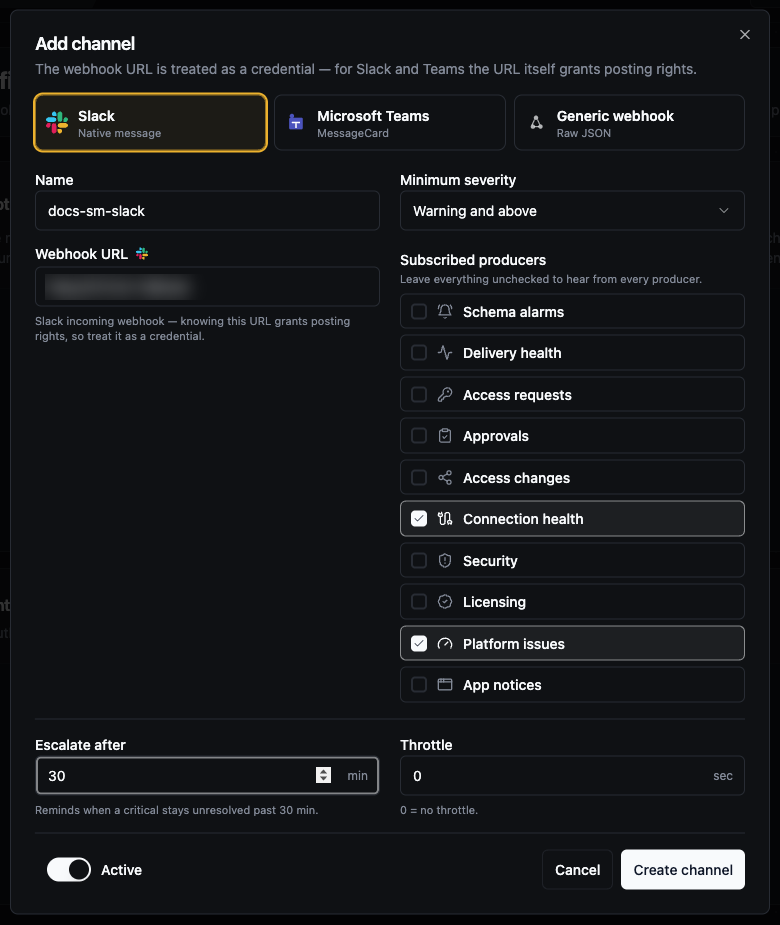
- Click Add channel.
- Pick the format: Slack, Microsoft Teams or Generic webhook. See Message formats.
- Enter a Name.
- Enter the Webhook URL. It must be a full
http://orhttps://address.- Slack: the incoming-webhook address,
https://hooks.slack.com/services/…. - Teams: the address of the channel's Incoming Webhook connector.
- Generic: any endpoint that accepts a JSON
POST.
- Slack: the incoming-webhook address,
- Set the Minimum severity: Info and above, Warning and above (the default) or Critical only.
- Under Subscribed producers, tick the sources this channel should hear. If you leave every box unticked, the channel hears every producer except App notices. See Producers.
- Optionally set Escalate after (minutes) and Throttle (seconds). See Escalation and Throttle.
- Leave the switch at the bottom on Active, or set it to Paused.
- Click Create channel.
If a value is not accepted, the error message names the field and the allowed values.
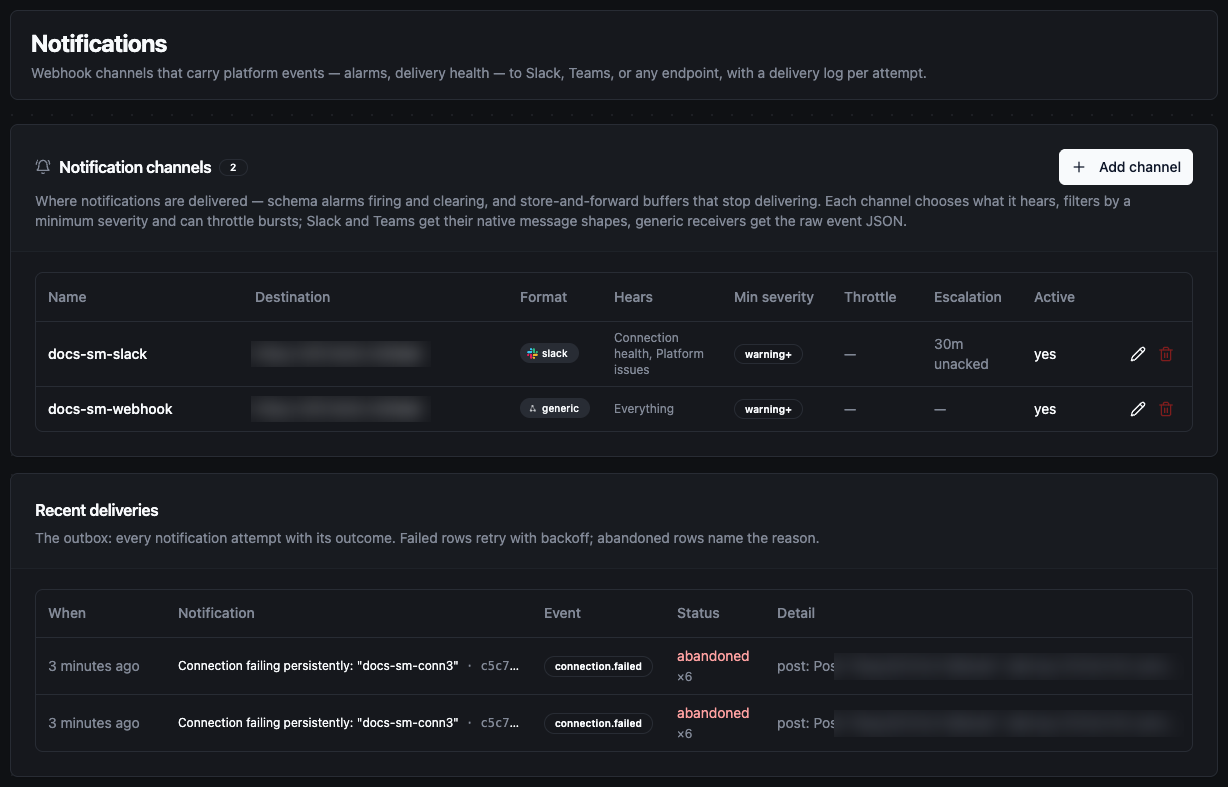
The channels table shows each channel's name, destination address, format, what it Hears (Everything when no producer is ticked), minimum severity, throttle, escalation window and whether it is active. Use the pencil icon to edit a channel and the bin icon to delete it.
Delete removes the channel at once, without asking for confirmation. Notifications still waiting to be sent to it are given up.
To stop a channel for a while without losing its settings, edit it and set it to Paused. A paused channel receives no new notifications, and anything still waiting to be sent to it is given up.
Producers
A producer is the part of MaestroHub that raises a kind of event. Each notification carries an event name, such as alert.fired, which appears in the delivery log and in the X-MaestroHub-Event header.
| Producer | Label on the page | Events | Severity |
|---|---|---|---|
uns.alerts | Schema alarms | alert.fired, alert.cleared, and alert.escalate reminders. See Alerts. | The alarm's own severity. A clear uses the severity of the alarm it clears. |
engine.delivery | Delivery health | A Store & Forward buffer becoming delivery.stalled, delivery.blocked or delivery.starved, and delivery.recovered. delivery.deadletter when messages are moved to Failed messages automatically. | Blocked and dead-lettered: critical. Stalled and starved: warning. Recovered: info. |
engine.approvals | Approvals | A pipeline or AI agent waiting for a decision (approval.requested, agent_write.requested), reminders while it waits (approval.escalate, agent_write.escalate), questions that expire unanswered, decisions, and agent writes whose outcome is unknown. See Approvals. | Requests, reminders and expiry: warning. Decisions: info. An agent write with an unknown outcome: critical. |
authz.access | Access requests | Access requests filed and the decisions on them, and break-glass access. | Requests: warning. Decisions: info. Break-glass: critical. |
authz.grants | Access changes | Access granted, revoked or about to lapse, and roles or group memberships added or removed. | Info. A grant about to lapse: warning. |
connectors.health | Connection health | connection.failed when a connection keeps failing and needs someone to look at it, and connection.recovered. One notification per incident. | Failed: warning. Recovered: info. |
audit.security | Security | audit.tampered when the Audit Trail hash chain breaks, and abuse.suspected for suspected brute force or enumeration. | Critical. |
license.state | Licensing | License and trial starting, expiring or expired, reminders before a license expires, and the grace-period steps when a fleet-managed instance loses its hub. | Info to critical. Expiry reminders become more severe as the date gets closer. |
monitoring.issues | Platform issues | Items entering and leaving the Overview's needs-attention list, crashed processes, executions left orphaned by a crash, event handlers moving messages to the dead-letter queue, and node resource pressure. | Info to critical. |
appstudio.apps | App notices | Notices that App Studio apps (coming soon, not part of release 3.0) send to their own users, such as a handover posted. | Info or warning. |
App notices reach a channel only when you tick it. The "hear everything" default leaves it out, so an app can't post into a channel you set up for platform events.
A channel receives every notification from the producers it hears, whoever the event is about. For example, a channel that hears Access changes receives a message each time someone's access changes.
Minimum severity
Notifications have one of three severities: info, warning or critical. A channel receives a notification only when its severity is at or above the channel's minimum. Critical only therefore also drops the reminders that are sent at warning severity, such as approval reminders.
Escalation
Escalate after turns on reminders for problems nobody has dealt with. 0 (the default) turns them off. The longest window is 10,080 minutes (7 days).
Two producers send reminders:
- Schema alarms: a critical alarm that is still active, not acknowledged and not shelved after the window. The channel receives one reminder each time the alarm fires.
- Approvals: a question that is still waiting for a decision after the window. The channel receives one reminder for each question.
A reminder must still pass the channel's minimum severity. Reminders are never throttled.
Throttle
Throttle sets the minimum gap, in seconds, between two notifications on the channel. 0 (the default) turns it off. The largest value is 604,800 seconds (7 days); to silence a channel for longer, pause it instead.
The throttle applies to every notification on the channel, from every producer, not only to repeats of the same event. A notification that arrives within the gap is dropped. It is not queued for later and does not appear in the delivery log. Escalation reminders are never throttled.
Message formats
Slack receives a message with a coloured marker, the title in bold and the text below it: 🔴 critical, 🟠 warning, 🔵 info, 🟢 something recovered or cleared.
Microsoft Teams receives a MessageCard with the title, the text and an accent colour for the severity.
Generic webhook receives JSON. Three producers send their own event body:
- Schema alarms: the alarm event, with fields such as
topicPath,attributePath,level,direction,cleared,severity,value,threshold,unit,messageandfiredAt. See Alerts. - Delivery health:
bindingId,workspaceId,pipelineId,pipelineName,outputNodeId,destinationConnectorId,destinationHealthy,health,reasonCode,reason,queueDepth,since,observedAtandrecovered. - Approvals:
decisionId,workspaceId,pipelineId,pipelineName,nodeId,decisionKind,title,state,requestedBy,deadline,createdAtandpendingFor.
Every other notification, including dead-letter notices from Delivery health, sends this body:
{
  "producer": "connectors.health",
  "kind": "connection.failed",
  "severity": "warning",
  "title": "…",
  "text": "…",
  "subject": "…",
  "occurredAt": "2026-10-02T08:15:00Z"
}
Every request, in every format, has these headers:
| Header | Value |
|---|---|
Content-Type | application/json |
X-MaestroHub-Producer | The producer, for example uns.alerts |
X-MaestroHub-Event | The event, for example alert.fired |
X-MaestroHub-Severity | info, warning or critical |
X-MaestroHub-Subject | What the notification is about, such as a topic path. Sent only when there is one. |
Requests are not signed. If your endpoint is reachable from outside your network, protect it with a secret in its address or put it behind your own gateway.
Recent deliveries
Recent deliveries lists the 50 newest send attempts across all of the workspace's channels and refreshes every 15 seconds. Each row shows when it was created, the notification's title and subject, the event, the status and the detail.
| Status | Meaning |
|---|---|
queued | Waiting to be sent. |
sending | Being sent now. |
sent | The destination answered with a 2xx code. |
failed | The attempt failed. It will be tried again. A number such as ×3 shows how many attempts have been made. |
abandoned | It will not be sent. The detail says why. |
How MaestroHub retries:
- No answer, a network error, or a
5xxcode: tried again after 1, 2, 4, 8 and 16 seconds (with a little random spread), up to 6 attempts in total, then abandoned. Each attempt waits up to 10 seconds for an answer. - A
4xxcode: abandoned at once, because sending the same message again would fail the same way. The detail says the receiver rejected the message with that code and asks you to check the channel URL and format. This usually means a wrong or revoked webhook address, or the wrong format for the destination. Create a new webhook on the other side and update the channel. - The channel was deleted or paused: abandoned.
Sent and abandoned rows are removed after 30 days.
The same notification is never delivered twice to one channel, even when its producer reports the event again. In rare cases, such as a server stopping in the middle of a send, the destination can receive the same message twice.
The Admin overview page also warns when notifications could not be delivered in the last 24 hours, or are being retried, and names the channels involved.
Check a new channel
The page has no test button. To check a channel, cause an event it hears and watch Recent deliveries. For example, a channel that hears Schema alarms receives the next alarm that fires.
Your own notification feed
Channels are for team destinations. Separately, each person has a notification feed in MaestroHub, opened from the bell at the bottom of the left rail. The bell shows how many items are unread. Opening it shows the latest items, and View all opens the full feed.
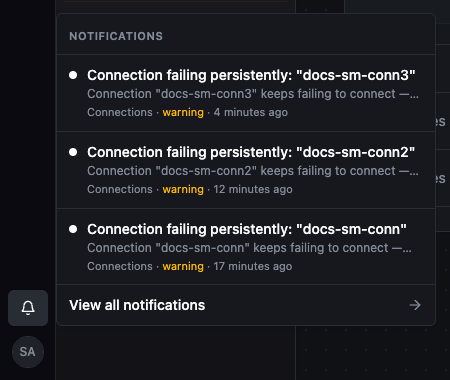
Each item goes to the people it concerns, based on their user, groups and roles. For example, alarms go to people who can acknowledge them (alert:ack), and approval requests go to people who can decide them. Clicking an item opens the page where you can act on it. Items are kept for 30 days.
On the feed's Preferences tab you can mute producers. Muting affects only your own feed and bell, not other people and not the workspace's channels.
Permissions
| Permission | Allows | Held by default by |
|---|---|---|
notification_channel:manage | Viewing the page, creating, editing and deleting channels, and reading the delivery log | System Administrator, Workspace Administrator |
Your own notification feed needs no permission. Each person can see only their own feed.
Every channel that is created, changed or deleted is recorded in the Audit Trail as notification_channel.created, notification_channel.updated or notification_channel.deleted. The record includes the channel's settings but not its webhook address.
Related
- Alerts: sending UNS alarms to Slack, Teams or a webhook.
- Store & Forward: the buffers behind Delivery health notifications.
- Approvals: approval requests, reminders and expiry.
- Audit Trail: the record of who changed what.