Sizing and protecting the buffer disk
During an outage, everything an output cannot send piles up on one disk. Size it for the outage you want to survive, choose what happens when it is full, and watch the room.
- Audience
- Platform administrators and plant engineers
- Formula
- Readings per second × bytes per reading × outage length
- Warnings
- Amber under 1 h of room · red under 15 min
- Applies to
- MaestroHub 3.1
1. Work out what an outage needs
A buffer grows by what its output writes while the destination is away:
Disk for one output = readings per second × bytes per reading on disk × outage length in seconds
Add up the outputs that would be cut together, usually every output on one connection.
Bytes per reading on disk is larger than the payload: each buffered write carries its write key, its headers and the message store's own record. Measure it on your own data rather than guess. During any outage, or a drill, the Buffers tab shows each buffer's Waiting count and its size; divide one by the other. Two small JSON readings measured on 3.1:
| Setup | Waiting | Size | Per reading |
|---|---|---|---|
| Kafka produce, one sensor value per record | 14,987 | about 25 MB | about 1.7 KB |
| Kafka produce, tag, value and time per record | 7,598 | 16.4 MB | about 2.2 KB |
A worked example. A line has 50 tags, each sending one reading a second to one Kafka output, at about 2.2 KB per reading:
- 50 × 2.2 KB = 110 KB a second, about 400 MB an hour;
- a 6-hour outage needs about 2.4 GB;
- the default pool of 50 GiB holds about 5 days of it.
That last figure is what the Room column showed for an output like this during a real cut: about 5 days at this rate. On Enterprise with the chart's defaults, where the buffers get about 16 GiB (step 2), the same output holds about a day and a half.
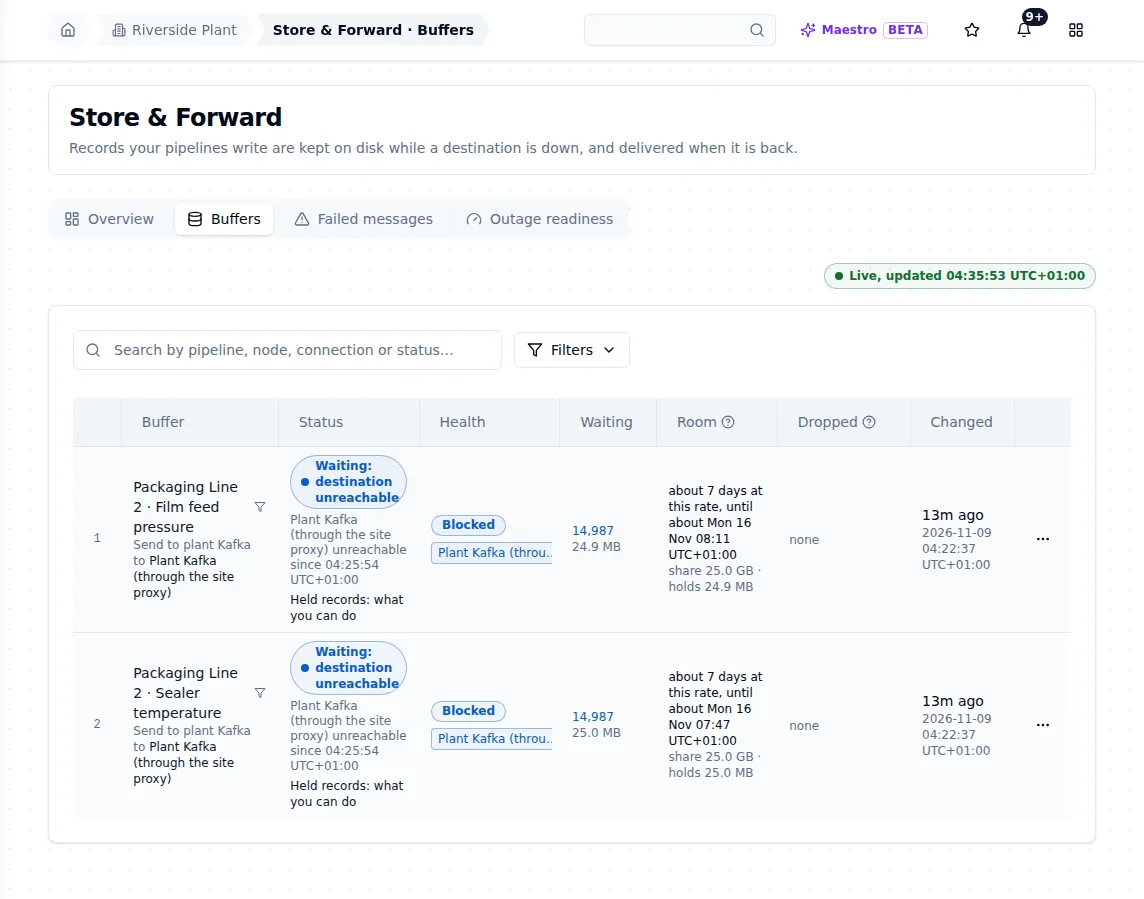
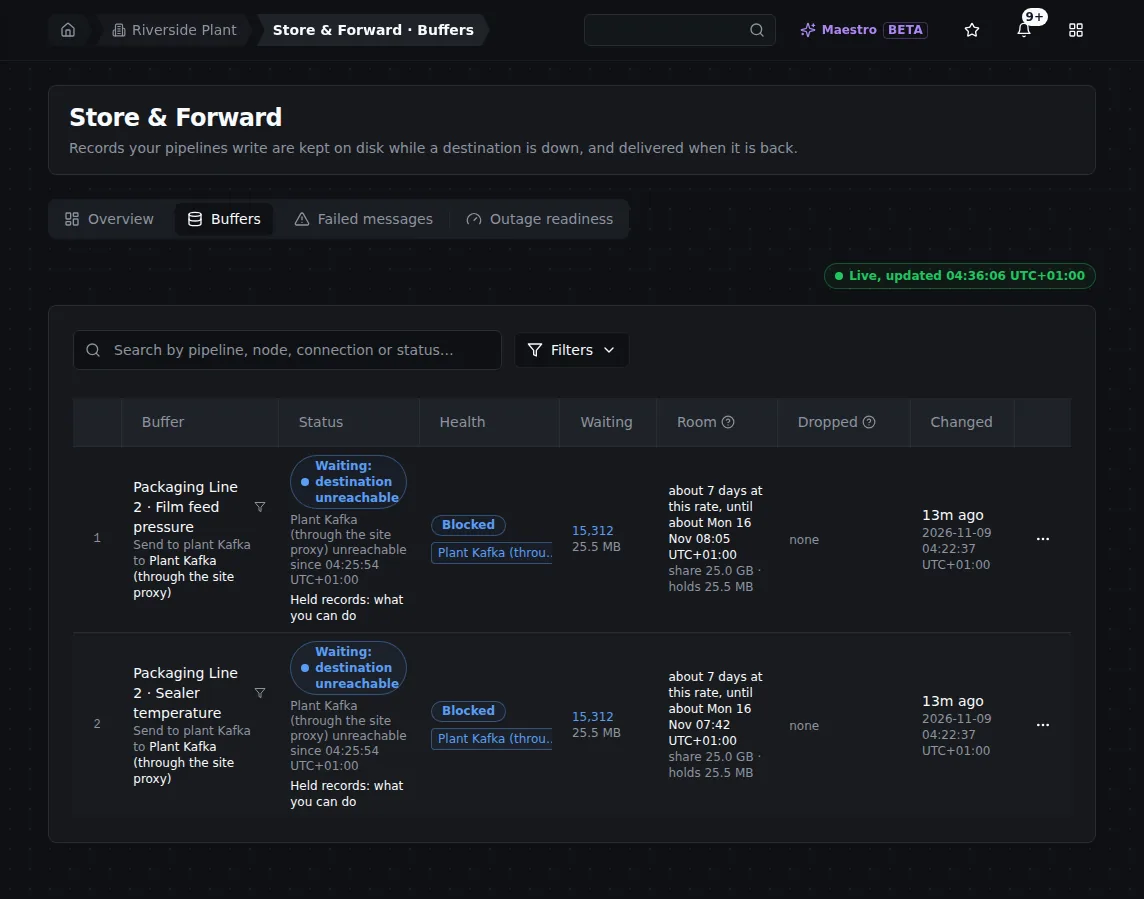
Another setup, ten minutes into a cut: two sensors at 25 readings a second, 14,987 waiting each (about 25 MB), with about 7 days of room each because two buffers share the pool. Waiting and size give you the bytes per reading.
Let MaestroHub do the sum. Orchestrate › Store & Forward › Outage readiness takes the outage you want to survive (which connections, for how long) and forecasts each output from its busiest hour of the last 7 days, under the same rules buffers fill by. It answers, for example, a 6 h cut of every connection fits, and names the output that runs out first. See Outage readiness.
2. Know what bounds the buffers
The buffers' room is the smallest of three numbers.
The pool
All buffers share one instance-wide pool, 50 GiB by default. A buffer reserves nothing and holds only what it holds. Only when the pool runs short does each buffer's share count: its guarantee plus an equal part of the free room. Give a critical output a guarantee so other buffers never squeeze it. A platform administrator sets the pool on System Management › Store & Forward capacity. See Capacity.
The store limit
The buffers live in MaestroHub's message store (NATS JetStream), next to its other streams (audit, events, executions, telemetry). The pool can never be larger than what the store can give the buffers.
- Single node (Docker, single binary, single-node chart). The store runs inside MaestroHub on the data volume. The buffers' room is the free space above the disk floor, less what the other streams need. A disk filled by something else shrinks it.
- Enterprise (Helm). Each NATS server holds a full copy of every buffer. The chart hands the engine the servers' file-store size,
nats.config.jetstream.fileStore.maxSize(default30Gi), so the two cannot differ. Leaveengine.durability.storeLimitBytesat0: the chart derives it frommaxSize, and refuses a different non-zero value. Set it only with an external NATS (nats.enabled: false), to the servers' own cap. - On Enterprise, the services' fixed streams reserve about 14 GiB of each server's store (telemetry alone 10 GiB), plus 256 MiB per workspace with persistent MQTT sessions. What is left is what the buffers can hold: about 16 GiB with the defaults.
To give the buffers more room on Enterprise, raise maxSize and the NATS volume nats.config.jetstream.fileStore.pvc.size together (the chart refuses a maxSize above 75 % of pvc.size), then restart the engine:
nats:
  config:
    jetstream:
      fileStore:
        maxSize: 60Gi
        pvc:
          size: 80Gi
The disk floor
MaestroHub never fills its data volume. It keeps a floor of free space: by default 5 % of the volume, at least 2 GiB and at most 10 GiB. Set your own with storage.minFreeBytes (bytes; a value above half the volume is logged as an error and the automatic floor is used instead). Free space below twice the floor is a warning; at the floor, new values and new buffered writes are refused and counted, until free space is back above the floor plus a quarter of it.
So on a single node, plan the data volume as:
Volume = floor + what the platform and historian keep + the outage sizing from step 1 + a margin
3. Choose what happens when a buffer is full
When a write arrives and its buffer has no room left, the buffer's drop policy decides. It is set per buffer: on the Buffers tab, open the buffer's ⋯ menu, choose Buffer settings, and pick one under When the buffer is full. Each choice is explained there in one line. The change takes effect without a restart, needs durability:write, and is written to the audit log. A buffer whose policy sends evicted messages to Failed messages cannot use Drop oldest, so that choice is disabled there, with the reason.
To set it from a script, send PATCH /api/v1/engine/durability/bindings/{pipelineId}/{outputNodeId}/drop-policy with the X-Workspace-ID header and the body {"dropPolicy": "drop_oldest"} (or reject_new, dead_letter_new). It changes the drop policy and nothing else.
| Drop policy | What happens to the new write | Use it for |
|---|---|---|
| Drop oldest (default) | Kept; the buffer's oldest messages are evicted to make room, each counted. | Readings, where the newest value matters most. |
| Reject new | Refused and not kept; the run that wrote it fails, and it is counted. | When the oldest data must survive and the sender can retry. |
| Dead-letter new | Kept in Failed messages instead of the buffer, to replay later. | When every write must be kept somewhere while the pool has room. |
Every eviction and refusal is counted in the buffer's Dropped column and the Overview's evidence, and none is called message too large. A Reject new or Dead-letter new buffer is never evicted by another buffer's writes. See What happens when the pool fills up.
At the disk floor, the policy is no longer asked: the volume itself is protected, and new writes are refused and counted as Not kept: disk at its floor. A Failed-messages entry would use the disk being protected.
4. Watch the room
While a buffer holds an outage, MaestroHub watches how long it can keep taking writes at the current rate:
- under 1 hour of room, the buffer is marked Running out of room in amber;
- under 15 minutes, in red.
Each crossing sends one Action needed: notification with the clock time the room runs out. Route it on Notifications. Change the thresholds in the engine configuration:
modules:
  pipelineEngine:
    durability:
      roomWarning:
        amber: 1h
        red: 15m
A platform administrator sees the whole volume on System Management › Store & Forward capacity: the volume to scale, what every workspace's buffers hold, the free space above the floor, the largest holders, and a line that says whether it is safe to restart.
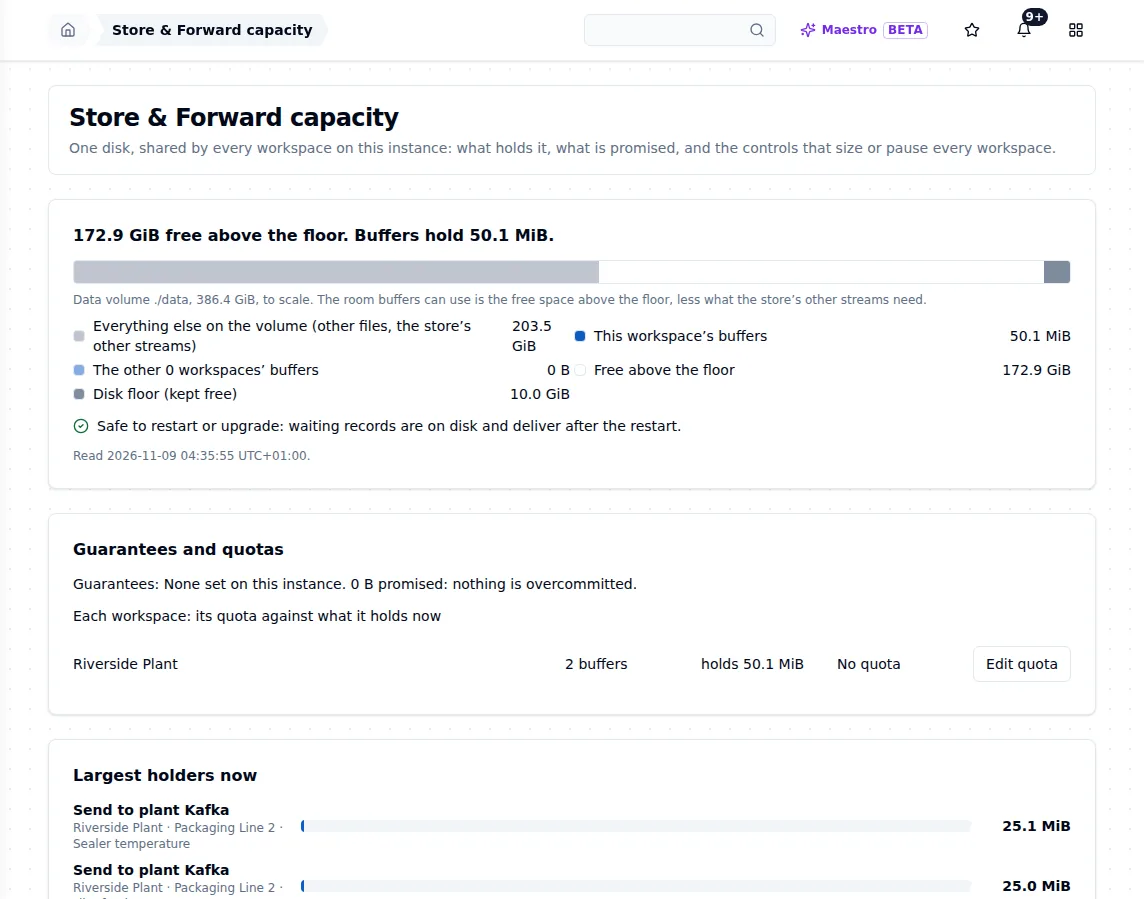
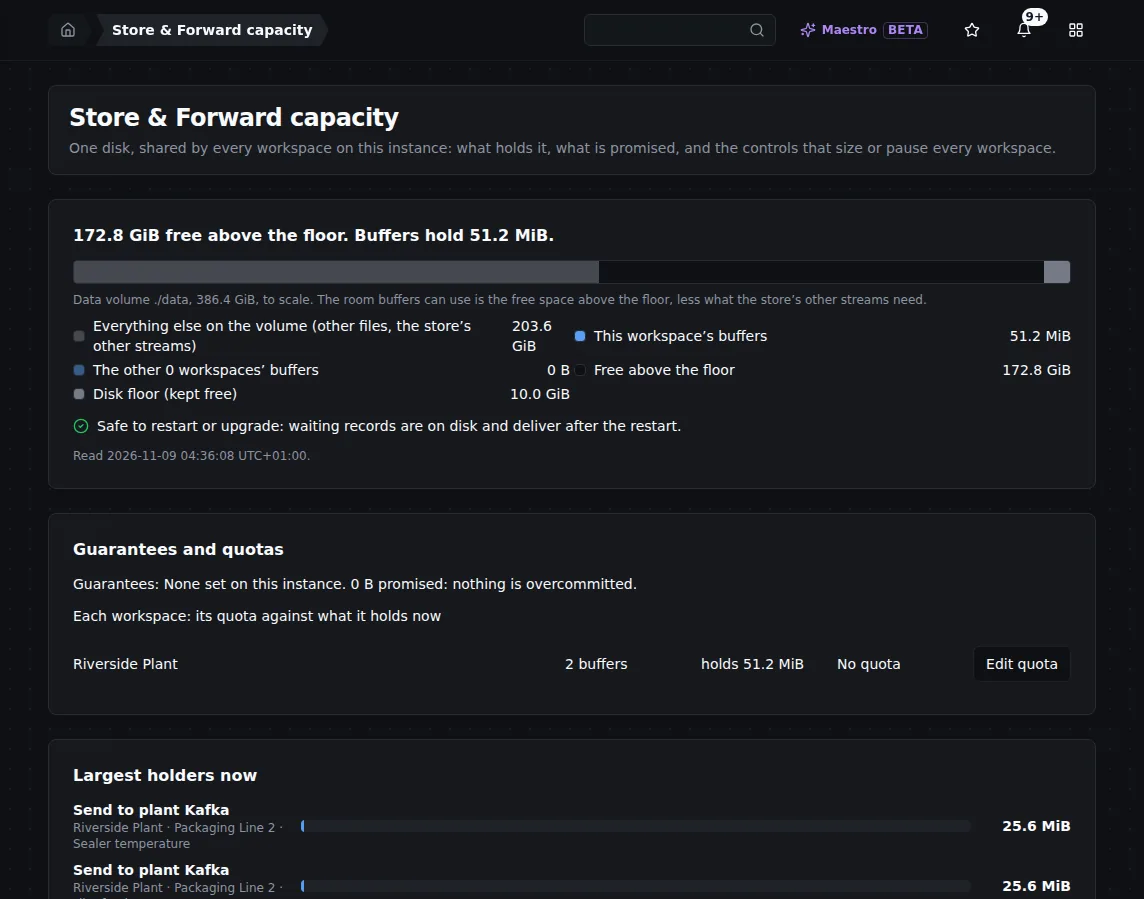
Store & Forward capacity during a cut: what the buffers hold, the free space above the disk floor, and whether it is safe to restart.
5. What a full disk looks like, and how it recovers
A volume fills in three steps, and each one says so:
- The room runs out. The drop policy acts: Dropping oldest or Rejected: buffer full on the buffer, counted.
- The floor. The Overview leads in red with Not kept: disk at its floor; Lost executions on the Pipelines page shows Refused at the disk floor; the capacity page shows Free, below the floor and Restarting will not free disk space; a Data loss: notification goes out. Store & Forward pauses itself.
- Zero bytes, when another program takes the rest. The engine's health (
GET /api/v1/engine/health) showsjetstream-storedown, naming the streams that cannot be written.
Recovery needs no restart. Free space on the volume, or grow it. Once free space is back above the floor, the pause lifts by itself; after a zero-bytes episode, MaestroHub also reopens its message store from its files, in the running process, and the health component goes back up. Then replay anything that went to Failed messages.
Do not restart to make room: the held records are on the same disk, and a restart frees nothing. If jetstream-store stays down a minute after the space is back, restart MaestroHub: that is the last resort.
In a test that filled the volume to zero bytes during an outage and then freed it, every write missing at the destination was counted (refused by the policy, refused at the floor, evicted or kept in Failed messages), none was copied, and every write sent after the space came back landed. The full results are on How MaestroHub behaves when things fail.
6. What a frozen disk looks like
A storage snapshot, a failing drive or a busy virtual disk can stop finishing writes without failing them. Only what writes to the volume waits:
- the engine's health answers at once, with
data-volumedown: the data volume has not finished a write for …; - sign-in answers
503with the reason (sessions already signed in keep working), and pages that read keep answering; - buffered writes wait; one whose publish runs out of time is kept in Failed messages as Outcome unknown (possibly delivered).
Check the storage. After the thaw, check Outcome unknown entries at the destination before you replay them. See A frozen data volume.
7. Booting on a small or nearly full volume
MaestroHub starts even when the volume is nearly full, so it can show you the floor. Its message store is given the room above the floor and never less than 2.5 GiB, because the platform's own streams reserve about 1.9 GiB of it; the start log says so in a warning when the room is smaller. In tests, volumes of 1, 3, 4 and 5 GiB all booted. Free space, or grow the volume, before you rely on the buffers.
8. Monitor it
On the Store & Forward pages and in notifications, without any setup:
- Running out of room (amber, red) and its Action needed: notification;
- Data loss: for any message dropped, by reason;
- the disk floor on the Overview and the capacity page.
With Prometheus, every number on the Store & Forward pages is also a metric. The Store & Forward ones are labelled by workspace (and saf_loss_total also by reason), never per buffer; the storage_disk_* ones describe the instance's data volume. The ones for sizing:
| Metric | What it says |
|---|---|
saf_room_min_seconds | The least room any buffer in an outage has left, in seconds |
saf_room_level_buffers | How many buffers are at each room level |
saf_waiting_messages | Messages waiting in buffers |
saf_loss_total | Messages dropped, by reason |
saf_capacity_total_bytes, saf_capacity_used_bytes | The pool, and what buffers hold |
storage_disk_state | The data volume: 0 ok, 1 below twice the floor, 2 at the floor |
storage_disk_floor_bytes | The floor in effect |
MaestroHub exports them with the maestrohub_ prefix (for example maestrohub_saf_loss_total). The Helm chart ships alert rules for them (MaestroHubSAFRunningOutOfRoom, MaestroHubSAFDataLoss, MaestroHubSAFHeartbeatMissing, MaestroHubSAFHeartbeatStale, MaestroHubSAFLedgerOpen): see Heartbeat and alerts. For the data volume, add a rule of your own, for example:
groups:
  - name: maestrohub.data-volume
    rules:
      - alert: MaestroHubDataVolumeNearFloor
        expr: maestrohub_storage_disk_state >= 1
        for: 10m
        labels:
          severity: warning
        annotations:
          summary: "The data volume is within twice its floor"
      - alert: MaestroHubDataVolumeAtFloor
        expr: maestrohub_storage_disk_state == 2
        for: 1m
        labels:
          severity: critical
        annotations:
          summary: "The data volume is at its floor: new buffered writes are refused"
Related
- Store & Forward: capacity, the drop policies and every loss counted
- Store & Forward capacity: the volume, quotas and the pool
- Outage readiness: forecast an outage before it happens
- How MaestroHub behaves when things fail
- Riding out a broker outage