Outage readiness
Pick what goes down and for how long. See how long each output holds, which one runs out first, and what would change the answer.
- Where
- Orchestrate › Store & Forward › Outage readiness
- Answers
- Can this workspace survive an outage?
- Computed by
- The server, from the same rules buffers fill by
- Permission
- durability:read to look
What it answers
Can this workspace survive an outage? You pick the outage. MaestroHub forecasts each output that writes during it.
Navigation Path: Orchestrate > Store & Forward > Outage readiness
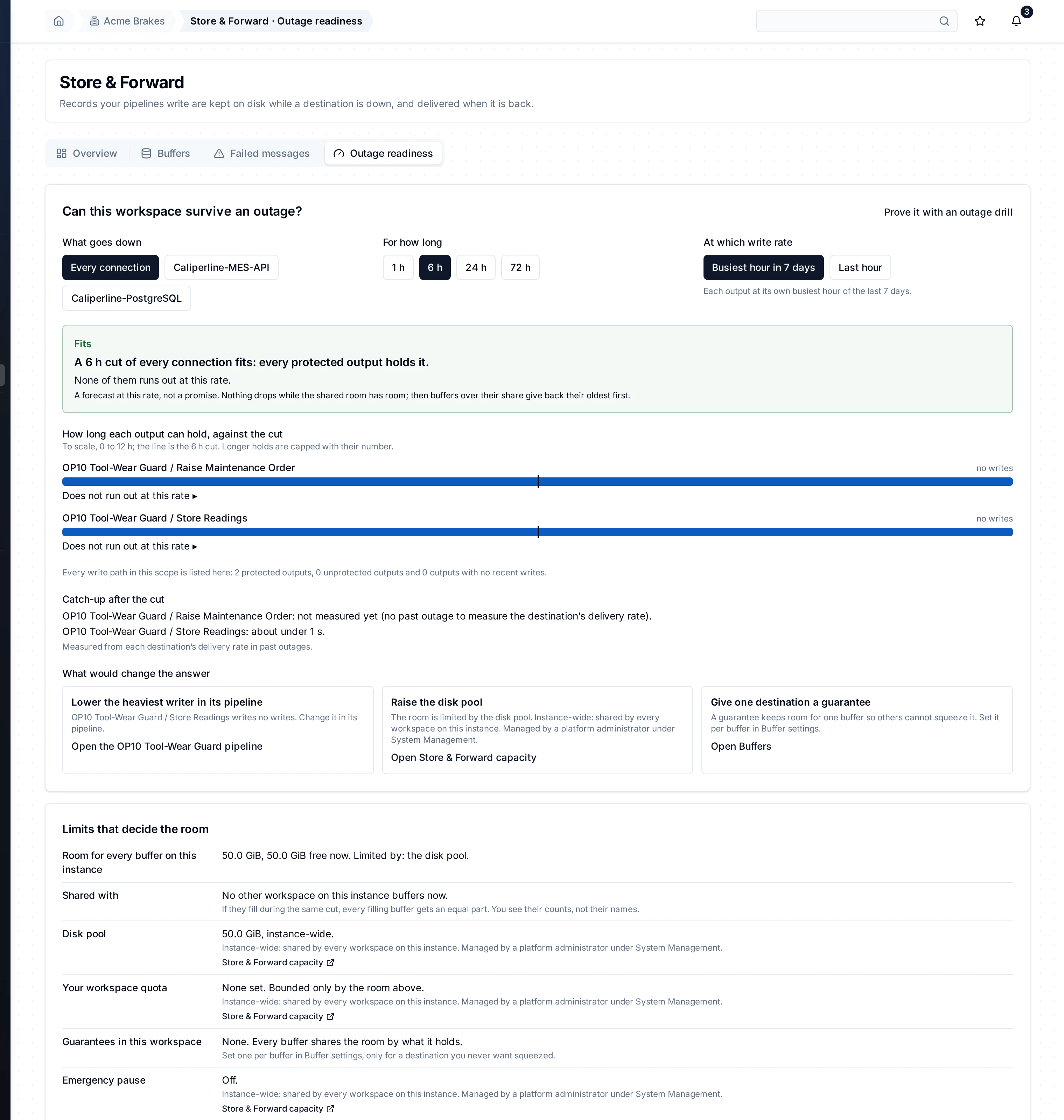
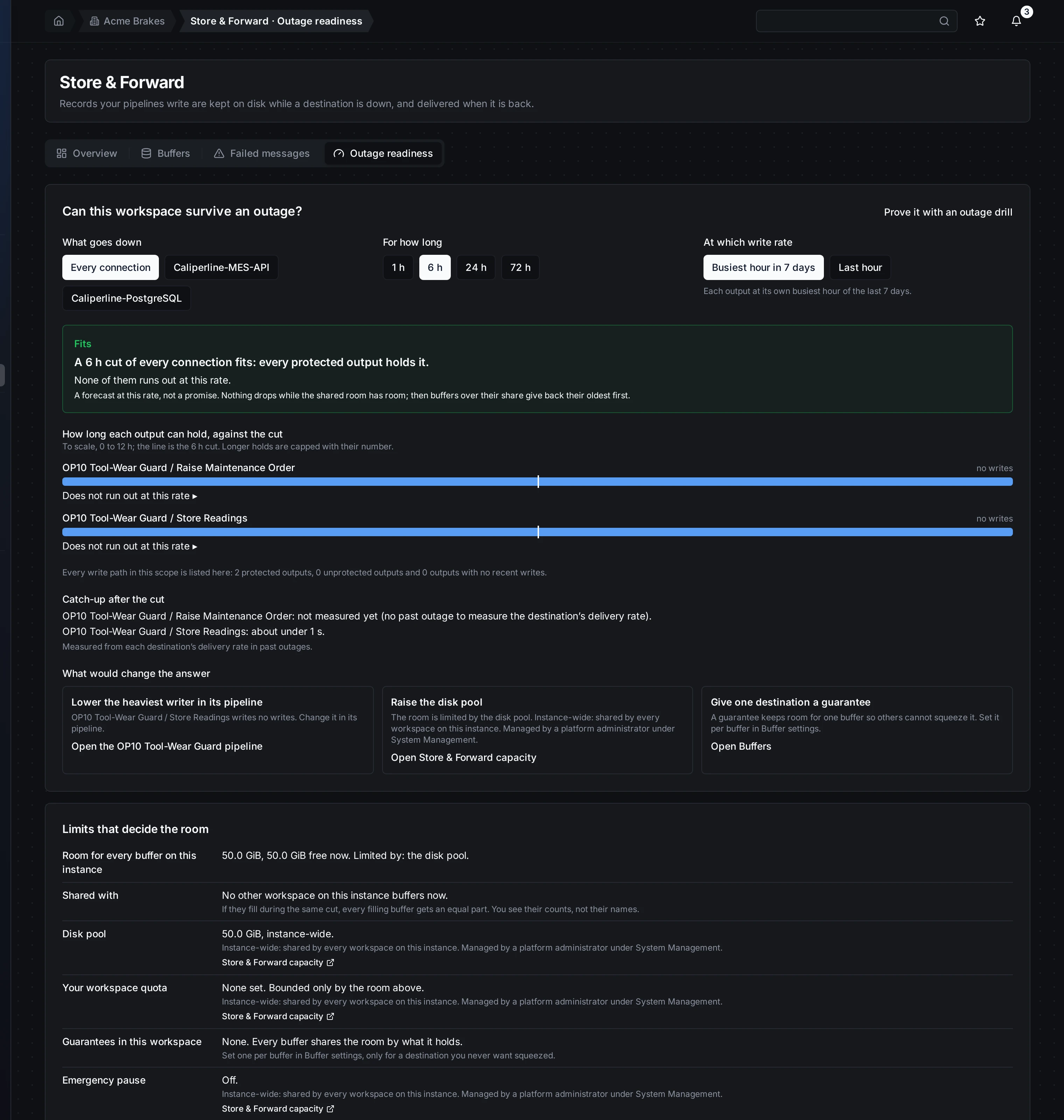
A 6 h cut at the busiest hour. Each output has a bar to scale; the line is the cut. The tightest output is first.
The tab was called Capacity & Limits before. Old links to it open this tab.
Pick the outage
Three choices set the question.
| Choice | What it means |
|---|---|
| What goes down | Every connection, or one or more connections. Only outputs that write to them fill a buffer. |
| For how long | 1 h, 6 h, 24 h or 72 h. |
| At which write rate | Busiest hour in 7 days: each output at its own busiest hour. Last hour: each output at its rate over the last full hour. |
Each change asks the server again. Nothing is computed in your browser.
Read the answer
The answer leads with one line:
- Fits: every protected output holds the whole cut. It names the tightest one and how long it holds.
- Your decision is needed: at least one output runs out before the cut ends. It names the first one and when it starts dropping its oldest records (or refusing new ones, if that is its policy).
It is a forecast at that rate, not a promise. Nothing drops while the shared room has room. Once it is full, buffers over their share give back their oldest records first.
One bar per output
Each output that writes has a bar, drawn to scale from 0 to twice the cut. The line in the middle is the cut. Bars are sorted, tightest first. A hold longer than the scale is capped at the end, with its number written next to it.
Under each bar: how long it holds, and the clock time it runs out if the cut started now. A bar that does not hold the cut is orange. It turns red when it holds under 15 minutes. Under one hour of room is the amber level; these are the same levels as the room warning on the Overview.
Every write path is listed
The tab lists every output of the workspace's enabled pipelines:
- Protected outputs, with a bar.
- Unprotected outputs (Do not buffer) that write: every write during the cut is lost. The answer names them.
- Outputs with no recent writes: nothing to hold.
Catch-up after the cut
For each output, how long its destination takes to deliver the backlog once it is back. This comes from that destination's delivery rate in past outages. An output with no past outage says it is not measured yet. A catch-up longer than the cut is flagged.
What would change the answer
Under the answer, three pointers. Each says where the change is made. None of them changes anything here.
| Lever | Where |
|---|---|
| Lower the heaviest writer | The output that writes the most, with a link to its pipeline. |
| Free disk, raise the pool or the store cap | Whichever limits the room now. A platform administrator changes it on Store & Forward capacity. |
| Give one destination a guarantee | Buffer settings, on the Buffers tab. |
Limits that decide the room
Under the planner, the limits in force:
| Limit | What it says |
|---|---|
| Room for every buffer on this instance | The room, what is free now, and what limits it: the disk, the disk pool or the buffer store's cap. |
| Shared with | How many buffers in how many other workspaces share the room, and what they hold. You see their counts, not their names. |
| Disk pool | Its size. Instance-wide. |
| Your workspace quota | The quota, or None set. |
| Guarantees in this workspace | What is promised to this workspace's buffers. |
| Emergency pause | On, off, or paused by MaestroHub at the disk floor. |
The disk pool, the quota and the emergency pause are instance-wide: they are shared by every workspace on this instance. A platform administrator manages them under System Management › Store & Forward capacity. Each row links there.
The Store & Forward Activity sits at the bottom of the tab.
On a phone
The pickers wrap, the bars stack, and each limit takes one row. Nothing scrolls sideways.


The same answer at phone width.