Settings
Two pages configure the infrastructure behind the Unified Namespace: Historian chooses where topics' history is stored, and MQTT Broker chooses the broker that hands the namespace to outside systems. Both start with embedded defaults, so the system works out of the box, and both can be switched to an external product at any time without restarting the application.
Open them from Context Engine > Run in the sidebar: MQTT Broker for the broker, Historian for storage.
Zero-configuration start: MaestroHub starts with an embedded Pebble historian and an embedded MQTT broker by default. You can begin ingesting and exploring data immediately and move to external infrastructure later when your scale or availability requirements grow.
Who can open these pages
There is one broker and one historian per installation, shared by every organization. Both pages need the uns_settings:update permission, which only a platform administrator (System.Admin) holds. The two sidebar entries are hidden from everyone else, and an organization administrator who opens one of the pages by link is told to ask their platform administrator.
Choosing a backend
Each page lists the supported backends as cards:
- The active card is the backend that runs now. It shows the live connection state (Active or Down) and its key facts, such as the address or how much history it keeps.
- Click another card's Switch to open its settings below the cards. The card then reads Configure below, then Save to switch. Nothing changes until you save.
- The external cards (TimescaleDB and EMQX) need the External UNS Brokers feature in your license. Without it they are shown disabled with that reason, and a notice on the page lists what the feature adds.
Historian
The historian stores the history of UNS topics. Topic definitions, dashboards, retained values and settings are not kept here: they live in the platform's system database and are not affected when you change the historian.
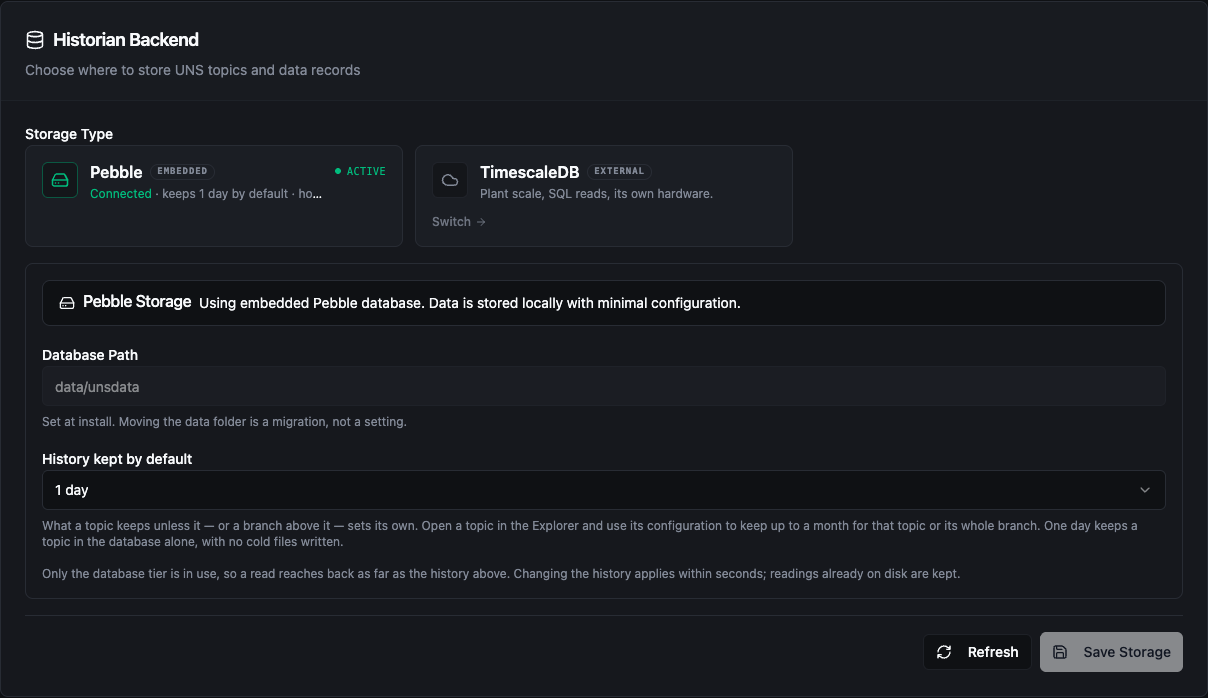
Historian: backend cards with Pebble active, and the Pebble settings
Pebble (embedded) — default
Pebble is an embedded key-value database (CockroachDB Pebble) that runs inside MaestroHub. No external database is required.
| Field | Description | Default |
|---|---|---|
| Database Path | Directory where time-series data files are stored. Set at install; moving the data folder is a migration, not a setting. | unsdata in the data directory |
| History kept by default | How far back a read reaches for a topic that sets nothing of its own: 1 day, 7 days, 14 days or 32 days. A topic, or a whole branch, can keep a different length from its configuration in the Data Explorer. More than a day keeps the recent hours in the database and seals older days into Parquet files beside it; every reader spans both tiers. One day keeps a topic in the database alone, with no cold files written. | 1 day |
| Hot — in the database / Cold — in files | Read-only. Shown when history is longer than a day and cold files are on: how long readings stay in the database, and when sealed files are deleted. | — |
| Cold files | Shown only on an installation that predates the cold tier, where it is off: turn it on to let topics that keep more than a day seal days older than the hot window into files. | on |
A change to the history applies within seconds: the historian is reopened with the new setting, and readings already on disk are kept. Thirty-two days is the ceiling for both historians, so a full calendar month is always covered.
Pebble suits single-node deployments, edge gateways and evaluation environments, where simplicity and fast startup matter more than scale.
TimescaleDB (external)
TimescaleDB is a PostgreSQL extension built for time-series data. Select the TimescaleDB card to connect to a database you run.
| Field | Description | Default |
|---|---|---|
| Host | Hostname or IP address of the database server | localhost |
| Port | TCP port | 5432 |
| Database | Database name | uns |
| SSL Mode | Disable (No Encryption) or Require (Encrypted) | Disable |
| Username | Database user | — |
| Password | Database password, stored encrypted | — |
| Chunk Interval | How data is partitioned: 1 Day, 3 Days or 7 Days. Changes apply to new data only. | 1 Day |
| Retention Policy | Data older than this is deleted automatically: 1 day, 7 days, 14 days or 32 days, the same choices as the embedded historian | 7 days |
| Max Open Connections | Upper limit on simultaneous connections from MaestroHub to the database. Keep it below PostgreSQL's max_connections, with room for maintenance and admin sessions. | 50 |
Click Test Connection before saving to check that MaestroHub can reach the database with these credentials. The result shows success or the error, and the measured latency.
Changing Chunk Interval, Retention Policy or Max Open Connections on the running TimescaleDB is applied in place: nothing is switched and no data moves.
TimescaleDB is recommended for production installations with high-volume ingestion or SQL-based analytics. Both historians keep at most 32 days.
Saving a historian change
Click Save Storage. If the save points the historian at a different store — another backend type, or for TimescaleDB another host, port, database, user or SSL mode — a Change Historian Storage dialog asks you to confirm first:
- The history in the current historian is not copied to the new one. It stays in the old database, where you can recover it by hand, but MaestroHub no longer reads it.
- Topic configurations, dashboards, retained values and settings are kept.
Tick the acknowledgement and click Confirm Change.
The switch then runs in the background, while the page shows what it is doing: checking the connection, opening the new historian (the current one keeps serving meanwhile), waiting for reads and writes in progress to finish, and switching over. New reads and writes wait during the short final step. If the reads and writes in progress do not finish within 30 seconds, the switch is abandoned and the current historian stays in use.
When it finishes, the page shows whether the switch succeeded and how long it took, or the error. Dismiss the message with its close button. A failed switch is not saved: the stored settings keep describing the historian that is running.
If the active historian is disconnected, the save button reads Save & Reconnect even with no changes: saving rebuilds the connection from the settings shown, without a restart.
MQTT Broker
Inside MaestroHub, data travels on an internal stream, and every reading is stored first. The broker then republishes it so outside systems such as SCADA, MES or any MQTT client can subscribe live, and MQTT devices can publish in through the MQTT write endpoint. Topic permissions are checked in both directions.
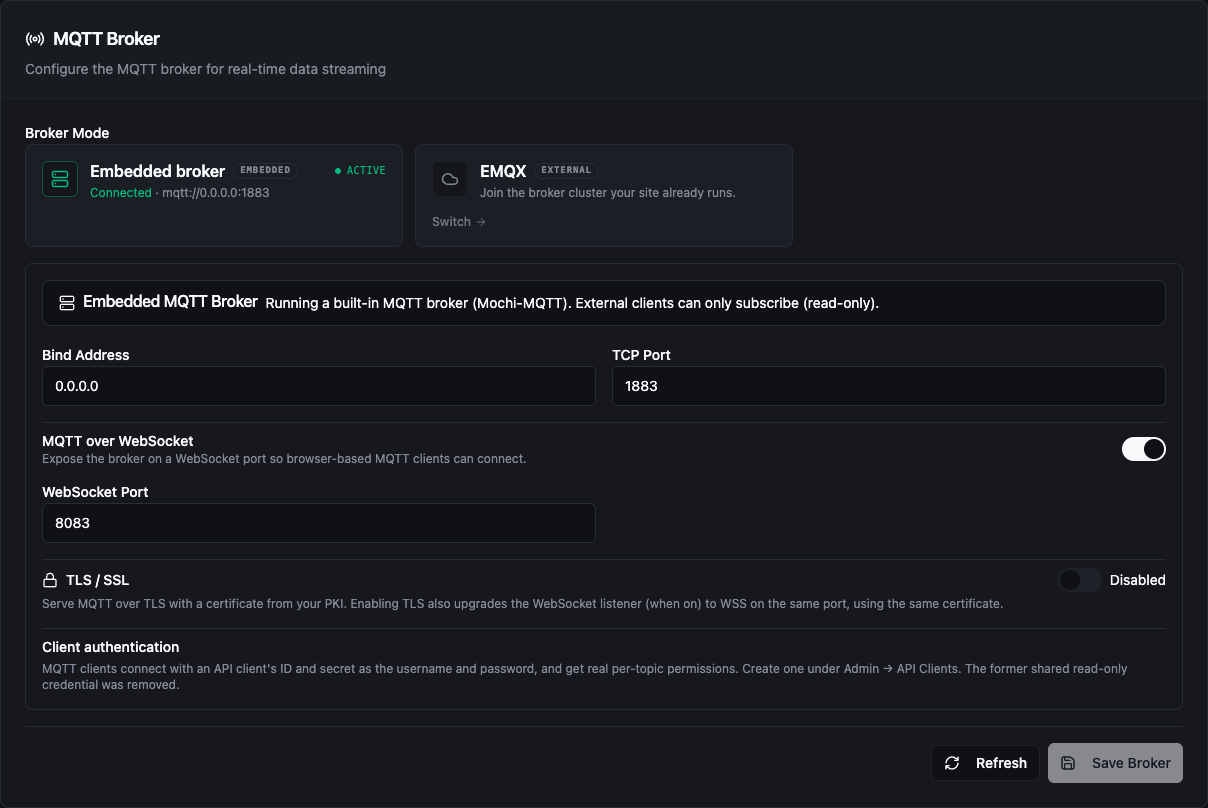
MQTT Broker: backend cards with the embedded broker active, and its settings
Embedded broker — default
MaestroHub ships with a built-in MQTT broker (Mochi-MQTT). It runs inside the application process and needs no external infrastructure.
| Field | Description | Default |
|---|---|---|
| Bind Address | Network interface the broker listens on | 0.0.0.0 (all interfaces) |
| TCP Port | MQTT listener port | 1883 |
| MQTT over WebSocket | Also listen on a WebSocket port, for browser-based MQTT clients | off |
| WebSocket Port | Shown when WebSocket is on | 8083 |
TLS
Turn on TLS / SSL to serve MQTT over TLS with a certificate from your PKI. When WebSocket is on, it is upgraded to WSS on the same WebSocket port, with the same certificate.
| Field | Description | Default |
|---|---|---|
| TLS Port | MQTT over TLS listener port | 8883 |
| Server Certificate | PEM certificate (or chain). It must cover the hostname or IP your clients use to reach the broker. | — |
| Server Private Key | PEM private key, stored encrypted and never returned after saving | — |
| Client CA Bundle (mutual TLS) | Optional. When set, every TLS client must also present a certificate signed by one of these CAs, in addition to its username and password. | — |
| Disable unencrypted listener | Close the plain TCP port so the broker is reachable only over TLS. Clients still on the plain port lose their connection when you save. | off |
EMQX (external)
Select the EMQX card to use an EMQX broker you run, for example a cluster other systems at your site already depend on. EMQX is the only supported external broker: it is the one that can ask MaestroHub for every authentication and topic decision, so your topic permissions keep applying to MQTT clients.
| Field | Description | Default |
|---|---|---|
| Broker | The broker product: EMQX | EMQX |
| Version | 5.7 or 5.8. The generated broker configuration depends on it. | 5.8 |
| Host | Hostname or IP of the broker | — |
| TCP Port | MQTT port | 1883 |
| Client ID Prefix | Prefix for MaestroHub's MQTT client IDs; a unique suffix is appended | maestrohub-uns |
| Keep Alive (sec) | MQTT keep-alive interval | 60 |
| Auto Reconnect | Reconnect automatically when the connection drops | on |
| Shared Subscription Group | Two MaestroHub installations sharing one broker must use different groups, or they consume each other's messages | — |
| Admin API URL, API Key, API Secret | Optional. A key from the EMQX dashboard that lets MaestroHub clear the broker's cached decisions as soon as a grant is revoked or a deny is added. Without it, policy changes apply once the broker's cache entry expires. | — |
| Username, Password | Credentials MaestroHub's own connection uses. The password is stored encrypted. | — |
Generate broker credential creates these credentials in one step: it registers an API client for the broker, grants it the access its connection needs, and fills in both fields. The secret is shown only once, so copy it then.
Turn on TLS / SSL to encrypt MaestroHub's connection to the broker. You can then set a CA Certificate, a Client Certificate and Private Key for mutual TLS, and Skip certificate verification, which is insecure and not recommended in production.
Delegate authorization to MaestroHub
EMQX must be configured to ask MaestroHub before it lets any client connect, publish or subscribe. The Delegate authorization to MaestroHub panel gives you everything for that:
- The two endpoints EMQX calls:
POST /api/v1/authz/mqtt/authenticateonce per connection, andPOST /api/v1/uns/mqtt/aclfor each publish or subscribe. - A ready-made EMQX configuration to copy into the broker. Right after you generate a broker credential, it already contains that credential.
- The broker settings that matter and why, and the traps to avoid before you deploy.
- An Enforced or Not enforced badge: whether the broker is actually asking MaestroHub for its decisions.
Test Connection checks that MaestroHub can reach and log in to the broker. Check enforcement checks that the broker really asks MaestroHub and obeys the answer: it opens three short-lived connections, one with an invalid credential and one that subscribes to a topic MaestroHub always denies, so expect a rejected login and a refused subscription in the broker's log.
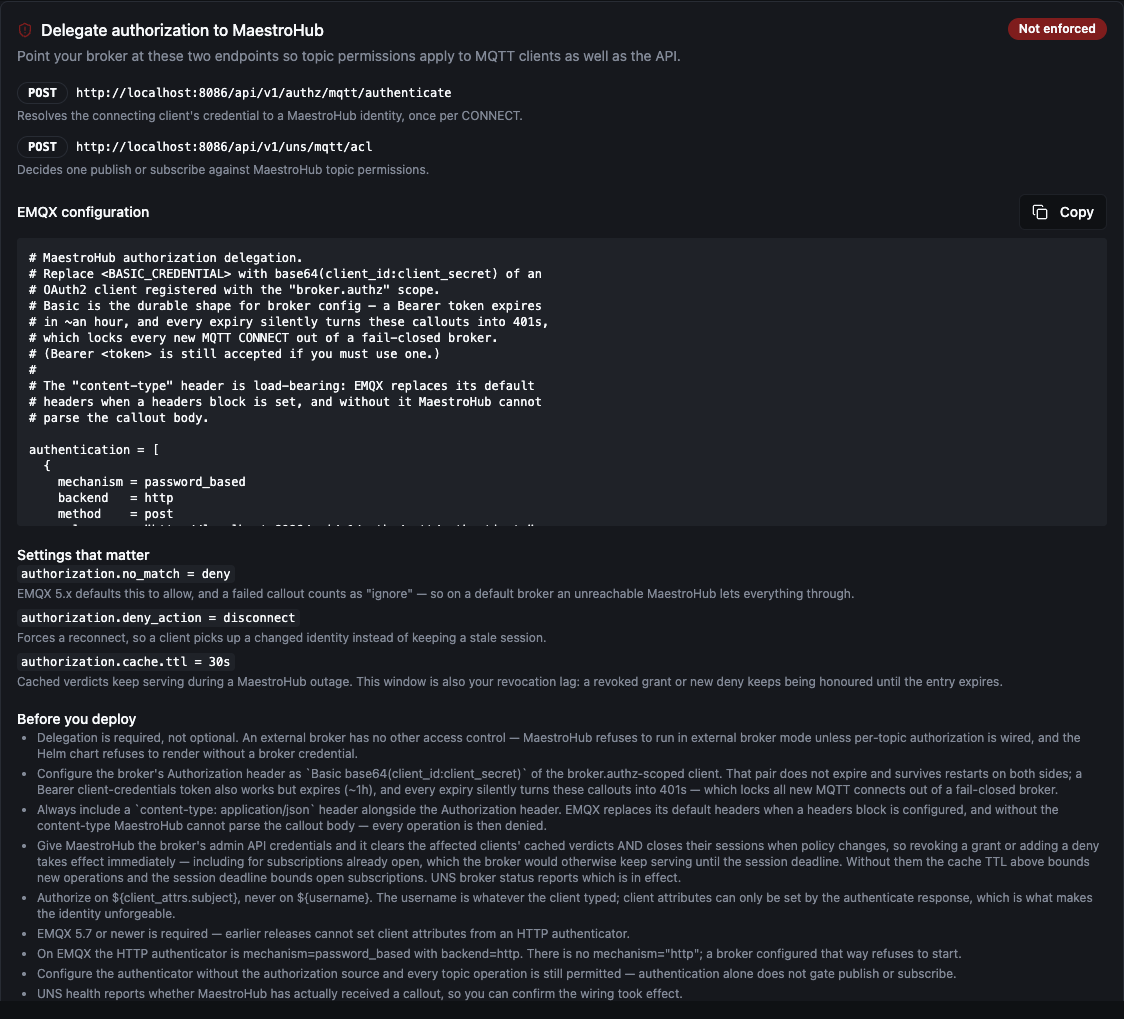
Delegate authorization to MaestroHub, shown after choosing EMQX
Saving a broker change
Click Save Broker. Every broker change restarts the broker, so an Apply Broker Change dialog states the effect first:
- Every connected MQTT client is disconnected and must reconnect. Clients without automatic reconnect have to be restarted.
- Pipelines publishing during the switch may see brief publish errors.
- If the new broker fails to start, the previous broker is restored with its previous settings and the change is not saved.
Tick the acknowledgement and click Apply Broker Change. A switch to EMQX is refused unless the broker passes the same enforcement check, so a save can never leave MQTT without access control.
How MQTT clients connect
Each MQTT client signs in as its own API client: the client ID as the MQTT username and the client secret as the MQTT password. An OAuth2 access token from that client is also accepted as the password, but it expires after about an hour. The client then gets exactly the topic permissions its API client has. A read-only subscriber needs the Data Stream Viewer role, or subscribe access shared on only the topics it needs.
The same credentials work on the embedded broker and on an EMQX broker that delegates to MaestroHub.
2.6's shared read-only login, uns_reader, no longer exists. See The shared uns_reader MQTT login is gone if you upgrade from 2.6.
Hot-swap: switching without a restart
Both the historian and the broker can be changed while the application runs.
How a historian switch works
- The new historian's connection is validated.
- The new historian is opened while the current one keeps serving.
- New reads and writes are held, and the ones in progress are allowed to finish (up to 30 seconds).
- The new historian is installed and the held operations continue on it.
- The old historian is closed.
A change to the embedded historian's own settings, such as the history kept, reopens the same database in place instead, and keeps its data.
How a broker switch works
- When the target is EMQX, MaestroHub connects to it to validate the settings.
- The new broker is started while the old one keeps running.
- MaestroHub's own topic subscriptions are moved to the new broker.
- The old broker is stopped.
Switching the embedded broker to new embedded settings is the exception: both use the same ports, so the old broker stops first and MQTT is unavailable until the new one is up. Retained messages are not moved: each broker keeps its own.
A historian switch briefly holds writes while it completes, and a broker switch disconnects every MQTT client. Plan both for a quiet period.
Settings persistence and startup
On the very first start of a new installation, the historian and broker settings are taken from the configuration file (config.yaml) and environment variables, and saved to the application database. From then on, the saved settings are what runs, and the pages edit them.
After the first start, changing the historian or broker in config.yaml or in environment variables has no effect on a running installation. Change them on these pages.