Panel Library
The Panel Library is a workspace-wide collection of reusable dashboard panels. Once a panel lives in the library you can drop it into any dashboard, and visualisation changes you make in the library propagate everywhere it's used — without copying configuration by hand.
The library lives alongside dashboards on the UNS Dashboards screen. Switch to it with the Panel Library tab at the top of the page; the dashboard list and the library share the same route, so the sidebar stays uncluttered.
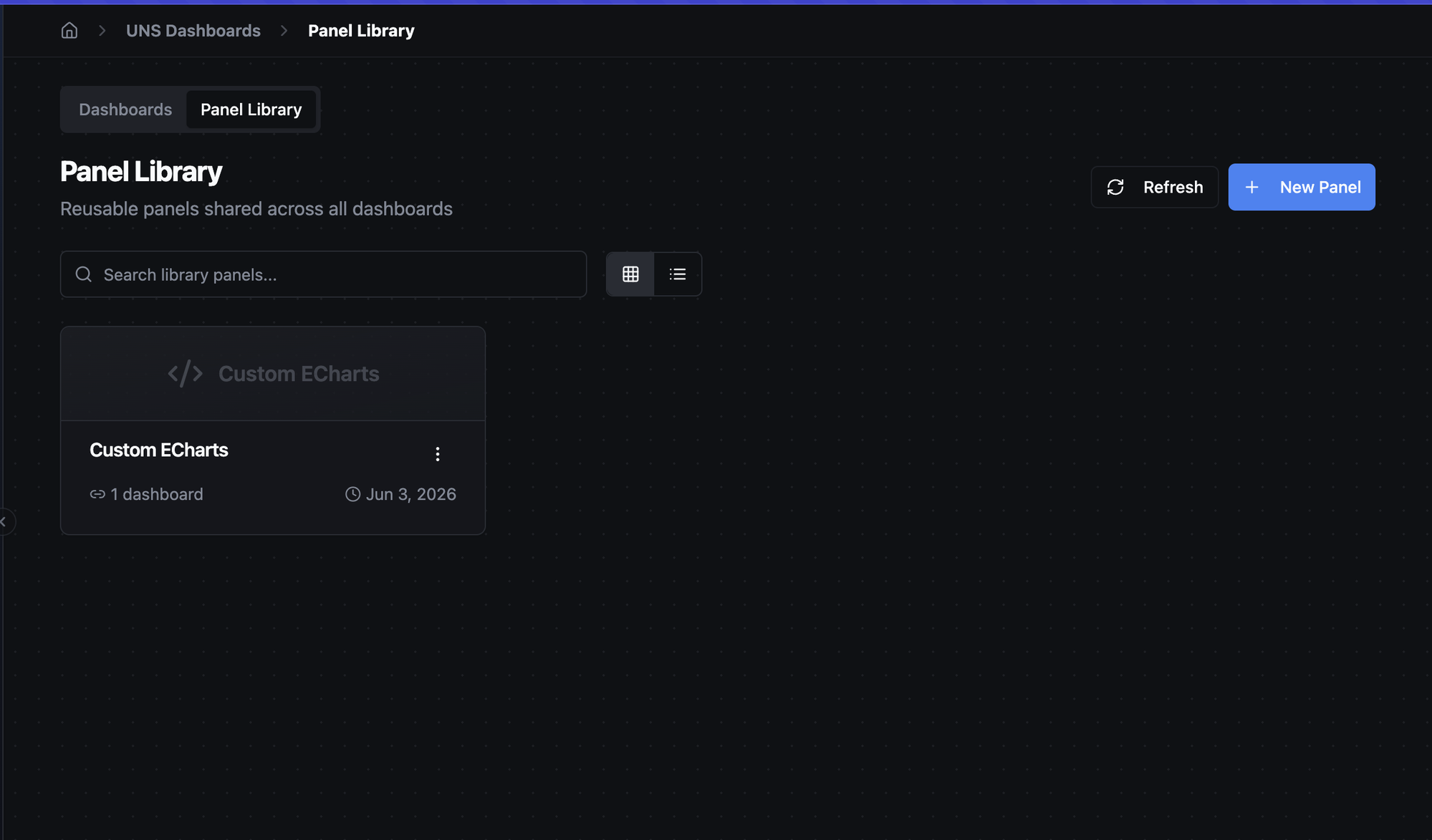
The Panel Library tab on the UNS Dashboards screen. Each card represents a reusable panel that can be added to any dashboard.
When to use a library panel? If you find yourself rebuilding the same KPI tile, the same threshold-banded line chart, or the same custom ECharts view across multiple dashboards, promote it once and reuse it. One edit in the library updates every instance.
What is Shared, What is Not
A library panel shares its visualisation contract with every dashboard that uses it. Data queries stay local.
| Shared from the library | Local to each dashboard |
|---|---|
| Panel type (line, stat, gauge, custom, …) | Topic selection — every instance picks its own topics |
| Panel options — colours, thresholds, axes, formatting, series overrides | Field selection per query |
| Custom ECharts code for custom panels | Time range and refresh interval (from the dashboard) |
| Default title and description | Variable bindings (from the dashboard) |
This split is intentional: a "vibration trend" library panel can be reused on the Line A dashboard pointing at mHv1.0/plant/lineA/motor/vibration and on the Line B dashboard pointing at mHv1.0/plant/lineB/motor/vibration, while both stay in lock-step on styling, thresholds, and units. Editing the colour or the threshold band in the library updates both at once; switching topics in one dashboard doesn't affect the other.
Browsing the Library
The library list supports grid and list views, free-text search across name, description, and panel type, and per-row actions (edit, delete) through the three-dot menu. Clicking a card opens the panel editor in library mode.
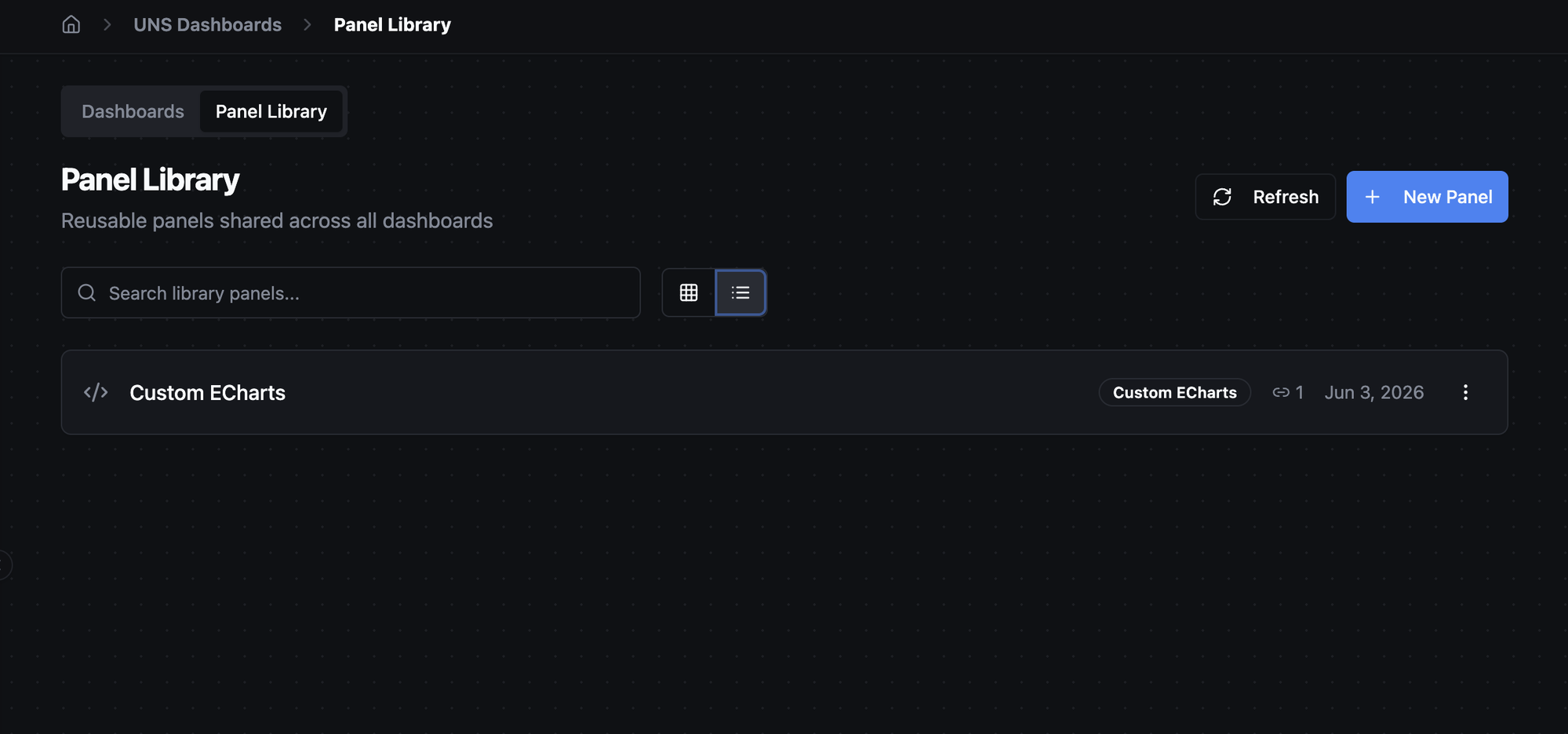
List view shows panel type, the number of dashboards each library panel is used in, and the last-updated date.
Each card displays:
- Panel type — both as an icon at the top and as a label.
- Usage count — "Used in N dashboards". Click a panel to see which dashboards consume it (in the editor) or open the delete dialog to see the explicit list.
- Last updated — the date the library panel was last modified.
- Folder badge — if a folder is assigned, it appears below the metadata row.
Creating a Library Panel
There are two ways to add a panel to the library.
Create directly in the library
Click + New Panel in the library toolbar to open the panel editor in library mode. Build the visualisation exactly as you would on a dashboard — pick a sample topic, choose a panel type, configure options — then click Save Library Panel.
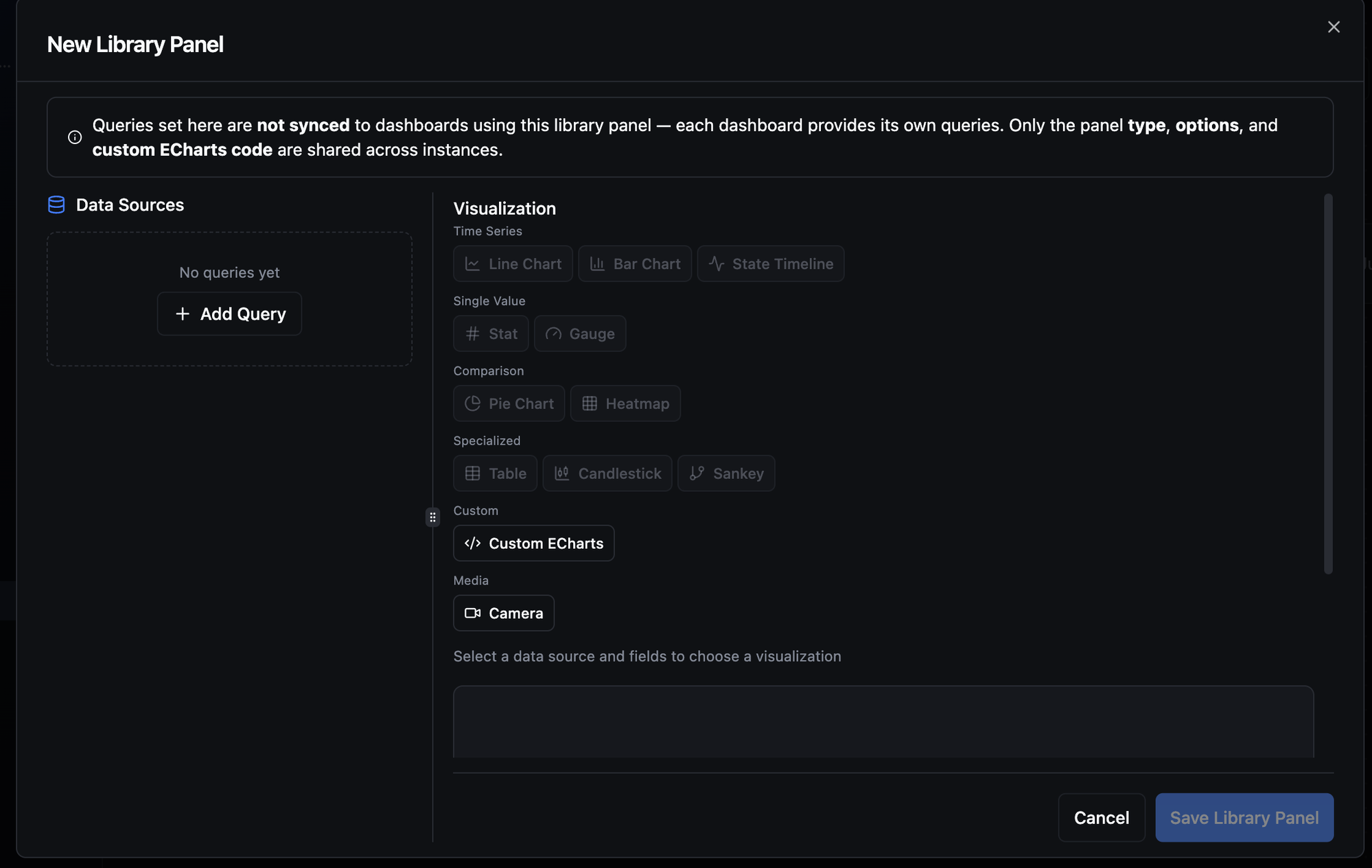
The panel editor in library mode. The header banner reminds you that queries chosen here are not synced to dashboards — only the panel type, options, and custom ECharts code are shared.
A banner at the top of the editor calls out the contract: queries you set in the library are defaults / samples — they are not pushed to dashboards that consume this panel. Each dashboard instance provides its own queries.
The panel name is required and acts as the library identifier; the description is optional and shown on the card.
Promote an existing dashboard panel
If you already built a panel on a dashboard and want to share it:
- Open the dashboard.
- Switch the dashboard to edit mode (the lock icon in the toolbar).
- Hover the panel you want to share and open its three-dot menu.
- Click Promote to Library.
The panel keeps rendering on the original dashboard, but it is now linked to the library — a small library icon appears next to its title, and future visualisation changes propagate to every other dashboard that adopts it.
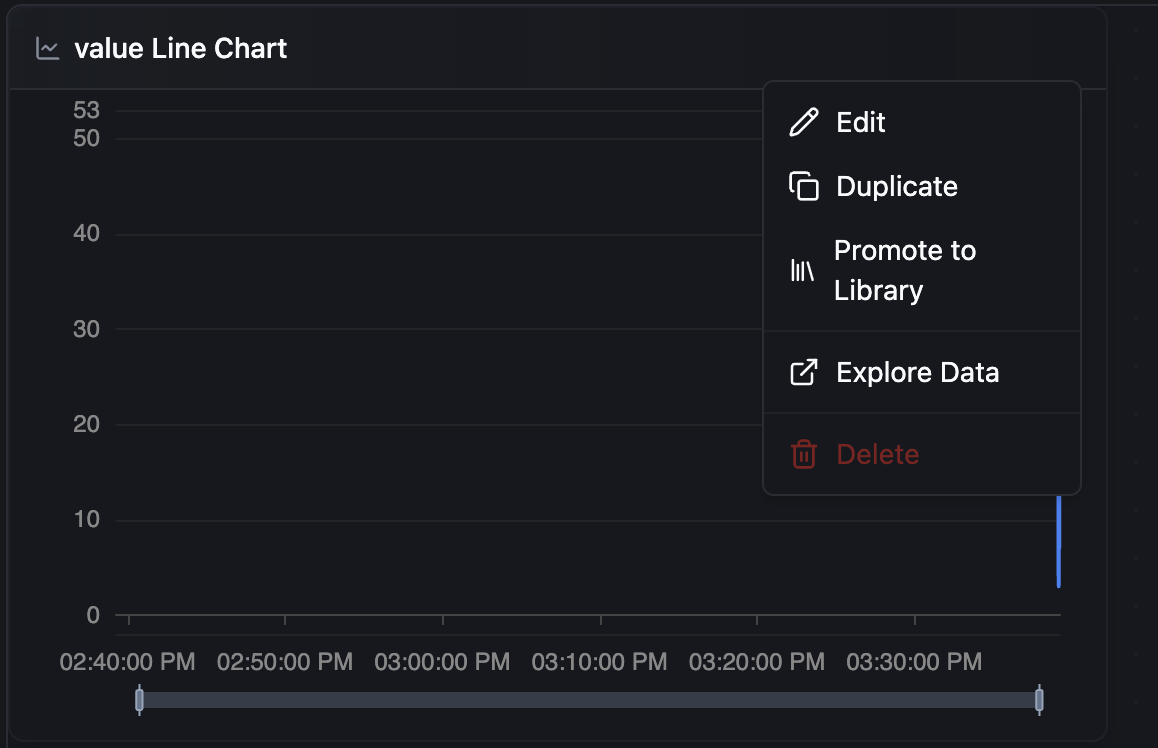
Promote a dashboard panel to the library directly from its three-dot menu. The panel stays where it is, but its visualisation config becomes shared.
Adding a Library Panel to a Dashboard
On a dashboard in edit mode, click the Add Panel dropdown and choose From Library. The picker dialog lists available library panels with type, last-updated, and description; use the search box to narrow by name, description, or type.
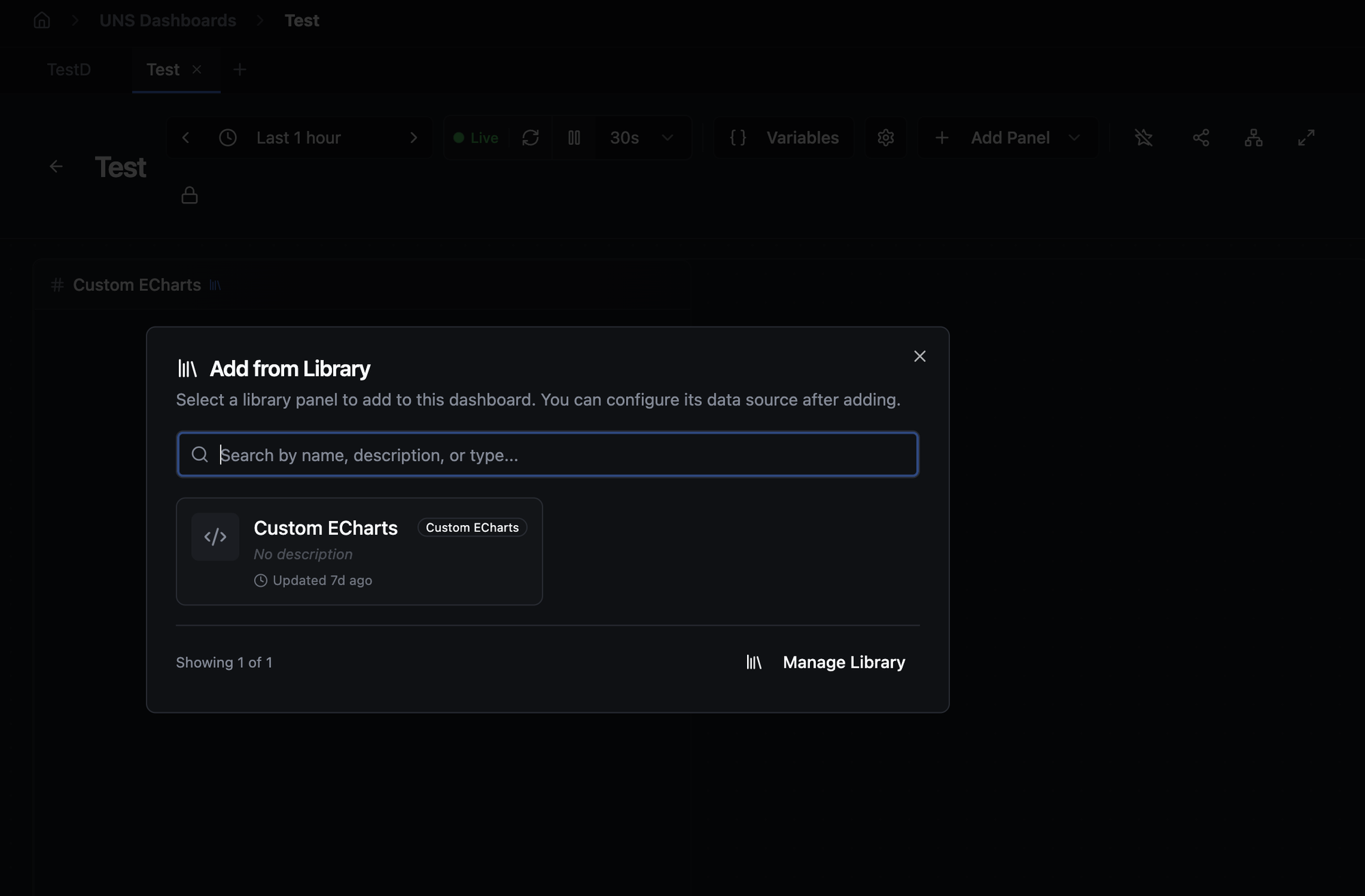
The Add from Library picker. Search by name, description, or type; pick a panel to drop it onto the dashboard as a linked instance.
When you select a panel, it is added to the dashboard's grid and inherits the library's type, options, and (for custom panels) ECharts code. The data source is empty by default — open the panel editor on the dashboard to configure the topics and fields for this instance.
A library-linked panel is marked with a small library icon next to its title in both edit and view modes, and a tooltip on hover explains that the panel syncs with the library.
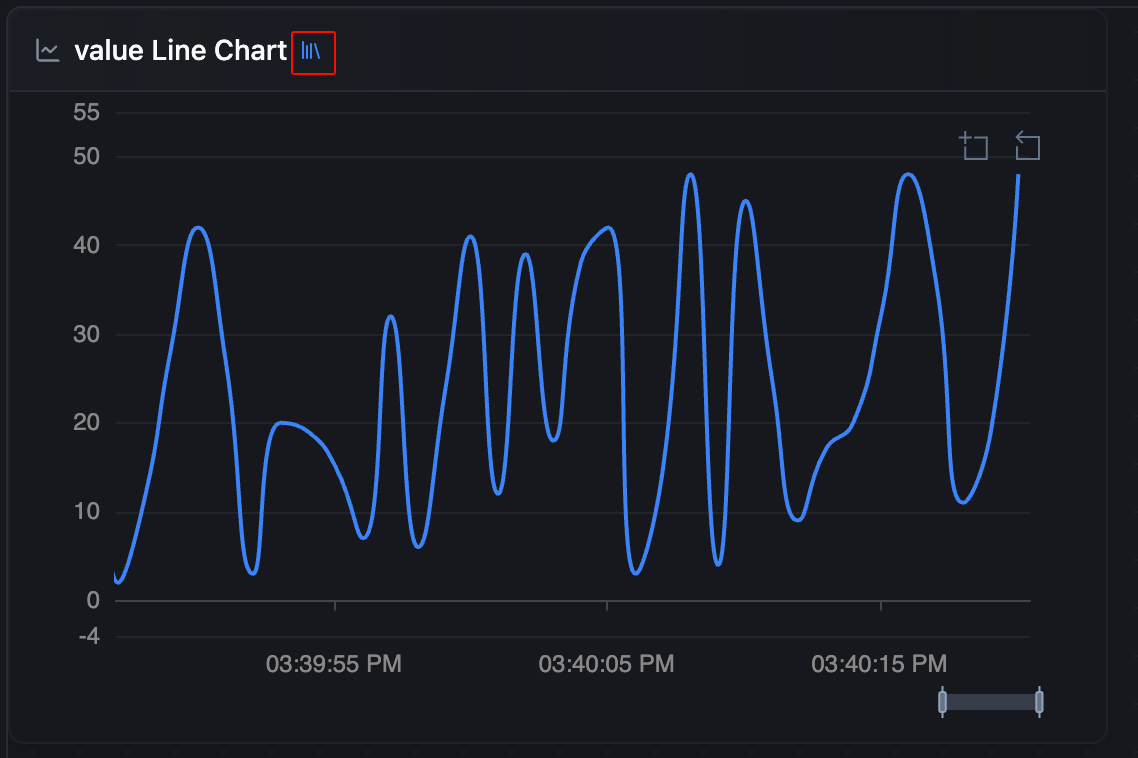
Library-linked panels show a small library icon next to the title. Hovering it explains that the panel's visualisation config is shared across dashboards.
Editing a Library Panel
Open the library, click a panel card (or use Edit in the three-dot menu) to edit it. Changes to type, options, or custom code are saved to the library and applied to every dashboard that consumes the panel the next time it loads.
You can also reach the library editor from any dashboard panel: open the panel editor on a library-linked panel and use the Edit in Library action. This navigates to the Panel Library tab with the editor pre-opened on that panel, using the deep link ?view=library&edit=<libraryPanelId> — handy for switching workspaces without losing context.
Detaching a Panel from the Library
A dashboard panel that is linked to the library can be detached at any time. Detaching makes the panel an independent copy on that dashboard: it keeps its current type, options, and queries, but it stops following library updates.
Detach is reached from the panel editor on a library-linked panel. Use it when one dashboard needs a one-off variation that shouldn't propagate (for example, a tweaked colour palette for a specific shift report).
Detach is a per-dashboard operation — it doesn't affect the library panel or other dashboards that use it.
Deleting a Library Panel
Delete a library panel from the library card's three-dot menu. If the panel is currently used by one or more dashboards, the confirmation dialog lists the affected dashboards and explains what happens on delete:
Deleting will detach those dashboard panels: they keep rendering with the current title, type, and options copied into each dashboard, but they stop syncing with the library. This action cannot be undone.
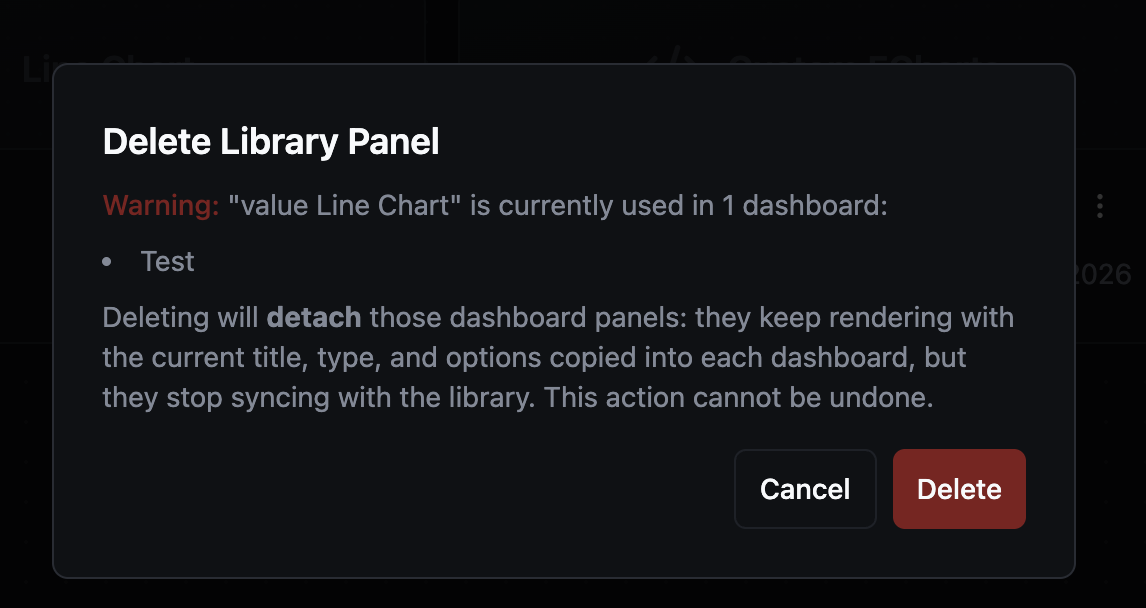
The delete dialog enumerates dashboards using the library panel and explains that those panels will be detached, not removed, when the library entry is deleted.
Dashboards continue to render normally after deletion; the linked panels simply become local copies frozen at the configuration they had when you deleted the library entry.
Permissions
The library uses its own permission set, separate from dashboard permissions. The relevant capabilities are:
| Permission | Allows |
|---|---|
library_panel:create | Creating new library panels and promoting dashboard panels |
library_panel:update | Editing existing library panels (also required for the Edit in Library action) |
library_panel:delete | Deleting library panels |
When the current user lacks library_panel:update, library cards still render — but they are read-only, and the Edit action is hidden. The same applies to delete. Promotion and "Add from Library" require library_panel:create and read access respectively.
Tips
- Start narrow, share later. Build a panel on the dashboard where you first need it. When a second dashboard wants the same view, promote it then — there's no penalty for delaying.
- Name for the visualisation, not the topic. "Vibration Trend with 5 g threshold" travels better than "Line A motor vibration"; the topic changes per instance, the visualisation contract doesn't.
- Keep custom ECharts code in the library. Custom panels benefit the most from library sharing — one place to maintain a bespoke chart, many places to reuse it.