Pipeline Version History
Overview
MaestroHub automatically tracks every change made to your pipelines, creating a complete audit trail that lets you review, compare, and revert to any previous version. Every time a pipeline is created, updated, or reverted, a new version is recorded with a full snapshot — including all nodes, edges, configuration, and metadata.
Pipelines evolve constantly as you add nodes, tweak configurations, and adjust logic. Version history gives your team the confidence to iterate freely — if a change breaks something, you can compare versions to pinpoint the difference and instantly roll back.
You can access version history in two ways:
- From the pipeline list:
Orchestrate > Pipelines > ⋮ (Actions) > Version History— opens the full-screen Version History Dialog - From the canvas: Click the Versions button in the canvas toolbar — opens the Canvas Version History Mode for an immersive, inline experience
Canvas Version History Mode
Version History Mode lets you browse versions, see diff overlays, compare changes, and revert — all without leaving the pipeline editor. It is the recommended way to review version history while actively working on a pipeline.
Entering Version History Mode
- Open a pipeline in the canvas editor
- Click the Versions button (branch icon, amber highlight) in the canvas toolbar
- A Version History Sidebar opens on the right
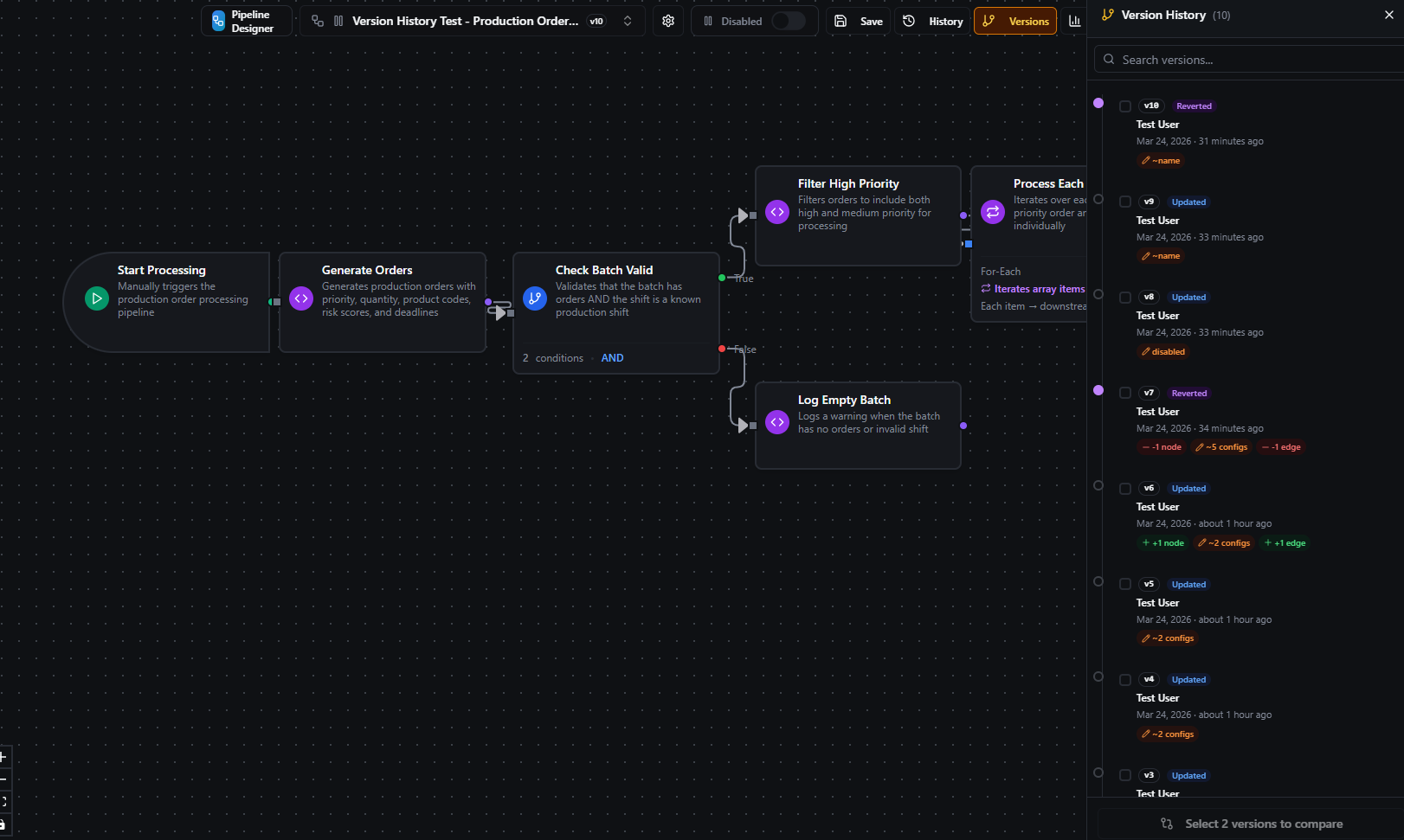
The Version History sidebar opens from the canvas toolbar, showing the version timeline
- Click any version in the timeline to enter Version History Mode
Version History Mode Layout
When you enter version history mode, the canvas switches to an immersive, read-only layout:
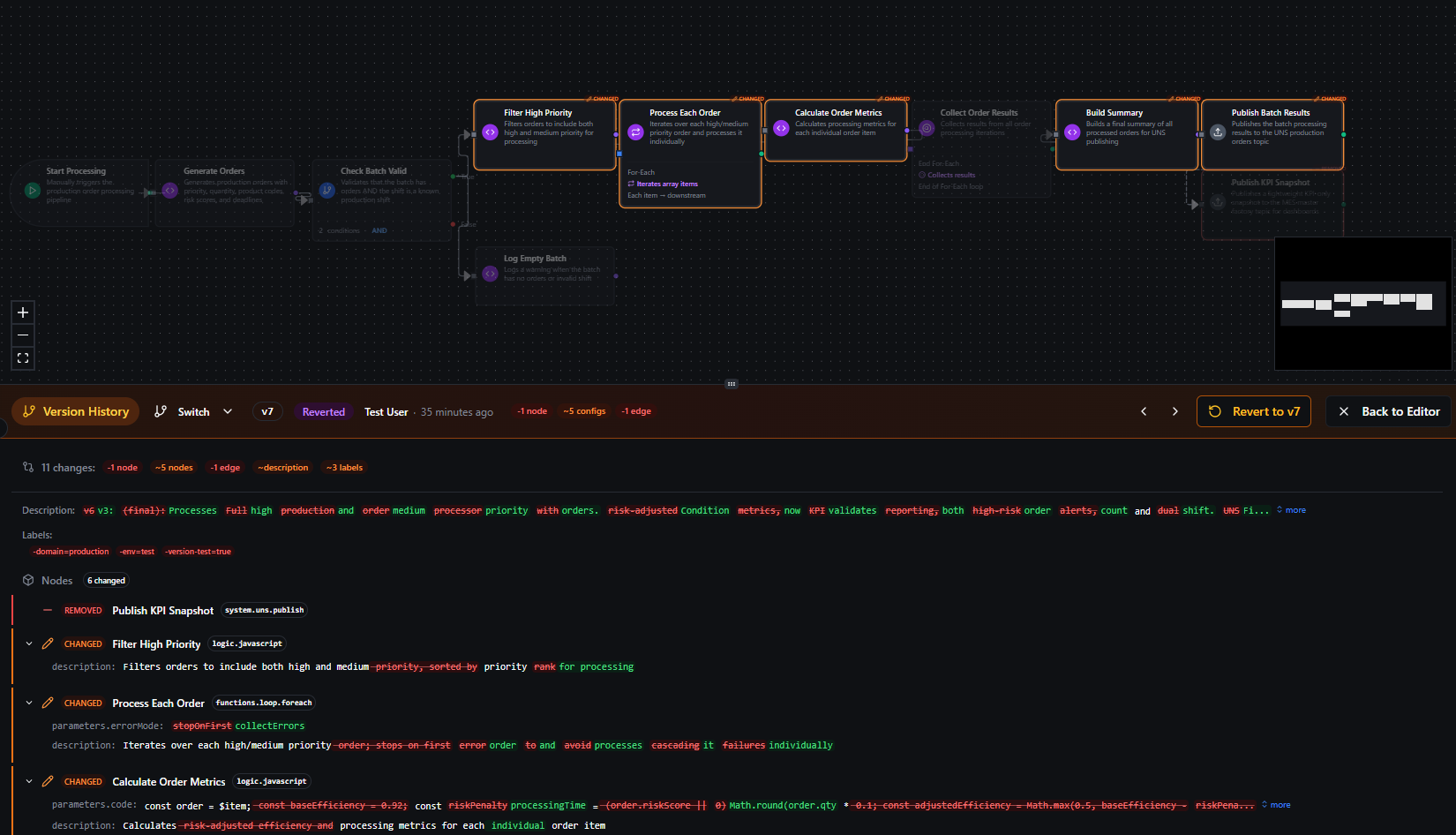
Version History Mode showing the read-only canvas with diff overlays (top) and the changes inspector panel (bottom)
The layout consists of two resizable panels stacked vertically:
| Panel | Description |
|---|---|
| Top — Canvas | A read-only view of the pipeline at the selected version, with color-coded diff overlays on nodes and edges |
| Bottom — Changes Inspector | The amber header bar with version info and navigation, plus a detailed breakdown of all changes |
Amber Header Bar
The header bar at the top of the bottom panel provides version context and controls:
| Element | Description |
|---|---|
| Mode Badge | Amber "Version History" badge confirming you are in version history mode |
| Switch Button | Reopens the version sidebar to jump to a different version |
| Version Number | The currently viewed version (e.g., v5) |
| Current Badge | Green badge shown when viewing the latest version |
| Change Type | Color-coded badge — Created, Updated, Deleted, or Reverted |
| Author & Time | Who made the change and when (with tooltip for exact timestamp) |
| Summary Chips | Quick-glance colored chips summarizing what changed |
| Prev/Next Arrows | Navigate to the adjacent older or newer version |
| Revert Button | Revert the pipeline to this version (hidden for the current version) |
| Back to Editor | Exit version history mode and return to the normal canvas |
Switching Versions
There are two ways to switch to a different version while in version history mode:
- Prev/Next arrows — Navigate sequentially through adjacent versions using the arrow buttons in the header
- Switch button — Click the Switch button in the header to reopen the version sidebar, then click any version in the timeline. The canvas and changes panel update in-place without leaving the mode
Diff Overlays on the Canvas
The read-only canvas uses the same visual diff system as the Version History Dialog:
| Indicator | Visual | Meaning |
|---|---|---|
| Added Node | Green ring with NEW badge | Node was added in this version |
| Removed Node | Red dashed ring with REMOVED badge, dimmed | Node was removed (shown as a ghost node) |
| Modified Node | Orange ring with CHANGED badge | Node configuration was changed |
| Unchanged Node | Dimmed (40% opacity) | No changes to this node |
| Added Edge | Green solid line, thicker | Connection was added |
| Removed Edge | Red dashed line, dimmed | Connection was removed |
Click any node on the canvas to highlight it in the changes panel below.
Comparing Two Versions
You can compare any two versions directly from the canvas:
- Click the Versions button (or the Switch button in the header if already in version mode)
- In the sidebar timeline, check the checkbox on two versions
- Click Compare selected
The canvas shows the newer version with diff overlays computed against the older version, letting you see the cumulative effect of all changes between those two points.
Reverting from the Canvas
To revert the pipeline to a previous version without leaving the editor:
- Navigate to the version you want to restore (using prev/next or the sidebar)
- Click the Revert to vN button in the amber header bar
- A confirmation dialog appears explaining that a new version will be created
- Click Revert to confirm
After reverting, the mode exits automatically and the pipeline refreshes to reflect the restored state.
Mutual Exclusion with Execution Replay
Version History Mode and Execution Replay Mode are mutually exclusive — entering one automatically exits the other. This ensures the canvas always shows a single, unambiguous context.
Version History Dialog
The Version History Dialog provides a full-screen experience for browsing and comparing pipeline versions from the pipeline list page. It remains fully functional alongside the new canvas-integrated mode.
Navigation Path: Orchestrate > Pipelines > ⋮ (Actions) > Version History
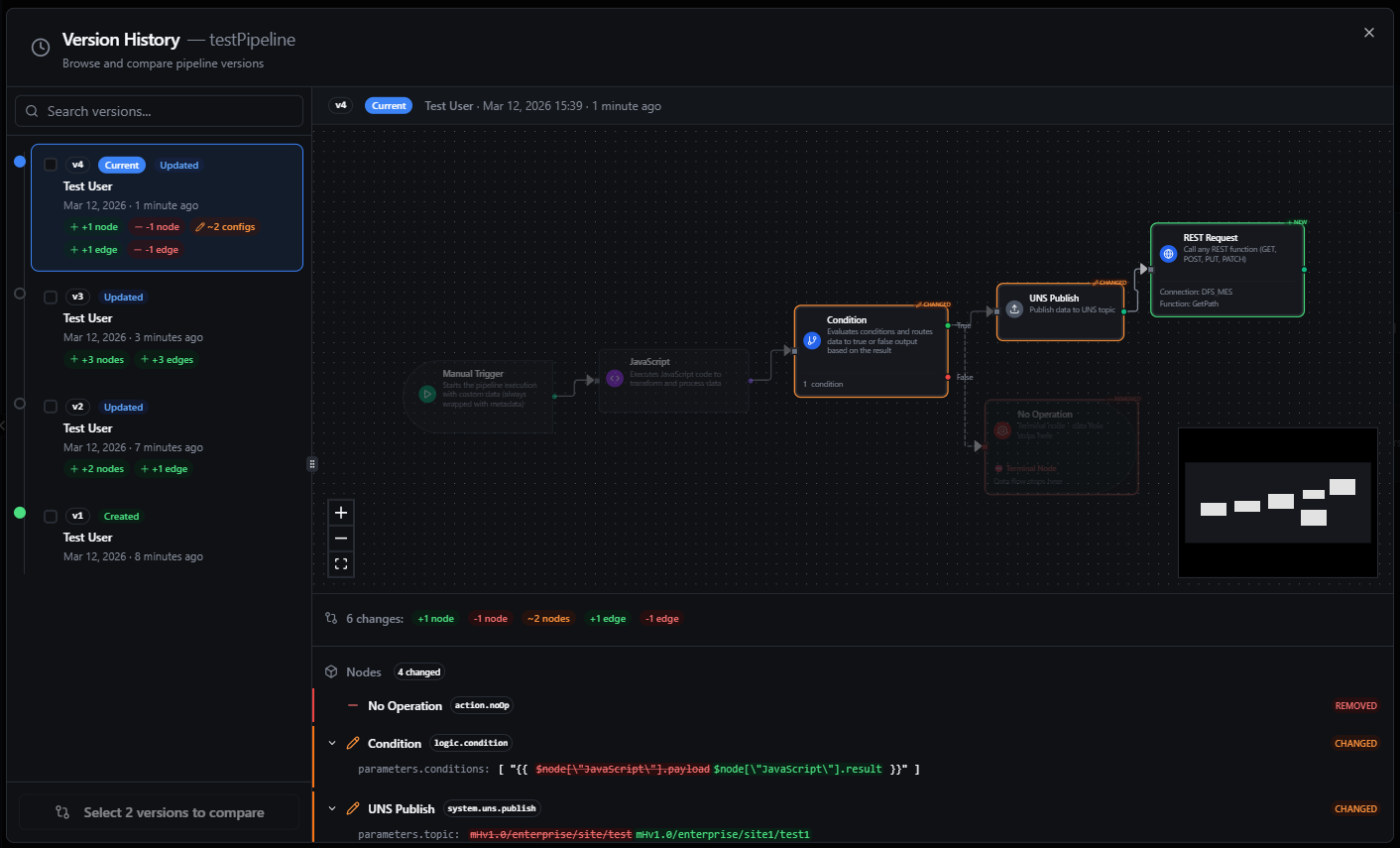
Pipeline Version History dialog showing the timeline, canvas visualization, and changes panel
Dialog Layout
The Version History dialog uses a resizable three-panel layout:
Left Panel — Version Timeline
A vertical timeline listing all versions in reverse chronological order (newest first). Each timeline entry displays:
| Element | Description |
|---|---|
| Version Number | Sequential badge (v1, v2, v3, etc.) in monospace font |
| Current Badge | Indicates the active version of the pipeline |
| Change Type | Color-coded badge — Created, Updated, Deleted, or Reverted |
| User | The user who made the change |
| Timestamp | Date and time in "MMM d, yyyy" format |
| Relative Time | Human-readable offset (e.g., "3 days ago") |
| Change Summary Chips | Quick-glance chips showing what changed |
| Checkbox | Select up to two versions for side-by-side comparison |
Change Summary Chips
Each timeline entry shows automatically computed chips that summarize the changes at a glance:
| Chip | Color | Meaning |
|---|---|---|
+N node(s) | Green | Nodes added |
-N node(s) | Red | Nodes removed |
~N config(s) | Orange | Node configurations modified |
+N edge(s) | Green | Connections added |
-N edge(s) | Red | Connections removed |
~name | Orange | Pipeline name changed |
~mode | Orange | Execution mode changed |
enabled / disabled | Orange | Pipeline toggled on/off |
Search: Use the search box at the top to filter versions by pipeline name.
Pagination: Versions are loaded 25 at a time. Use the Previous / Next controls to navigate through older versions.
Right Upper Panel — Canvas Visualization
An interactive, read-only view of the pipeline canvas at the selected version. When comparing versions or viewing a version with changes, the canvas uses visual overlays to highlight differences directly on the workflow diagram.
Right Lower Panel — Changes Summary
A collapsible panel below the canvas that shows a detailed breakdown of all differences. This panel can be expanded or collapsed by dragging the resize handle.
Comparing Two Versions (Dialog)
To compare any two versions side by side:
- Check the checkbox on the first version in the timeline
- Check the checkbox on the second version
- Click the Compare selected button at the bottom of the timeline
The compare button shows helper text as you select:
- 0 selected: "Select 2 versions to compare"
- 1 selected: "Select 1 more version"
- 2 selected: "Compare selected" (active)
Compare View
When comparing, the dialog automatically orders the versions (older → newer) and shows:
- A header displaying the version range (e.g.,
v2 → v5) - The canvas renders the newer version with diff overlays showing all changes since the older version
- The changes panel lists every difference between the two selected versions
- A Back button to return to single-version detail view
This is especially useful for reviewing the cumulative effect of multiple changes — for example, comparing the version from last week to the current version.
Canvas Visualization
Both the canvas-integrated mode and the dialog use the same diff overlay system for visualizing changes.
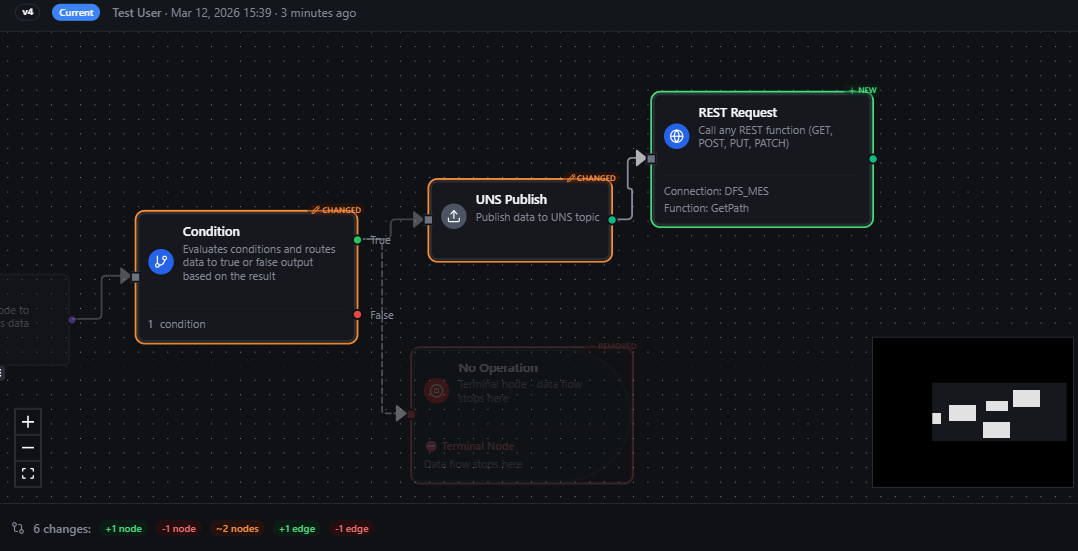
Canvas visualization highlighting added, removed, and modified nodes with color-coded rings and badges
Node Indicators
| Indicator | Visual | Meaning |
|---|---|---|
| Added | Green solid ring with +NEW badge | Node was added in this version |
| Removed | Red dashed ring with -REMOVED badge, dimmed | Node existed in the previous version but was removed |
| Modified | Orange solid ring with ~CHANGED badge | Node's configuration, name, or type was changed |
| Unchanged | Dimmed (40% opacity) | Node exists in both versions with no changes |
Removed nodes appear as "ghost nodes" on the canvas — they are semi-transparent and offset from their original position to avoid overlapping with current nodes. This lets you see both the current state and what was removed.
Edge Indicators
| Indicator | Visual | Meaning |
|---|---|---|
| Added | Green solid line, slightly thicker | Connection was added |
| Removed | Red dashed line, dimmed | Connection was removed |
| Unchanged | Dimmed (40% opacity) | Connection exists in both versions |
Canvas Controls
- Zoom and pan to navigate large pipelines
- Minimap for orientation in complex workflows
- Click a node in the changes panel to automatically pan and focus the canvas on that node
Changes Panel
The changes panel provides a structured, detailed breakdown of every difference between the selected version and its predecessor. It is used in both the dialog and the canvas-integrated mode.
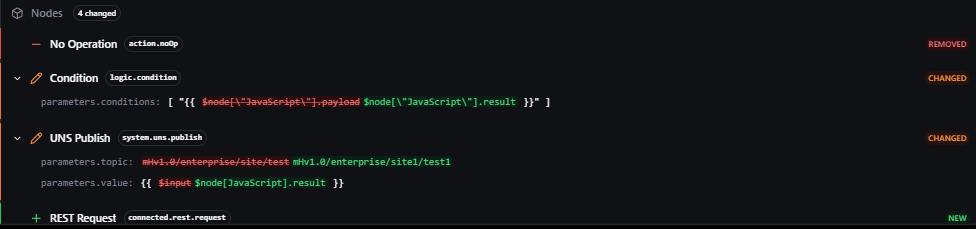
Changes panel showing metadata, node, and edge differences with inline diffs
Summary Bar
A horizontal bar at the top showing the total number of changes, broken down by type with colored badges.
Metadata Changes
If any pipeline-level properties changed, they are listed with inline word-level diffs showing old and new values:
| Property | Description |
|---|---|
| Name | Pipeline name |
| Description | Pipeline description |
| Mode | Execution mode (Sequential or Parallel) |
| Priority | Execution priority (High, Normal, or Low) |
| Enabled | Whether the pipeline is active |
| Labels | Added, removed, or modified key-value labels |
Node Changes
A collapsible section listing all node differences. Each entry shows:
- Status badge (NEW, REMOVED, or CHANGED) next to the node name
- Node name and type badge
- Expandable details revealing:
- Name changes (old → new)
- Type changes (old → new)
- Configuration changes listed by path (e.g.,
parameters.url,settings.retryCount)
Click any node name to focus the canvas on that node.
Show/Hide unchanged: A toggle button lets you show or hide unchanged nodes to reduce noise when reviewing large pipelines.
Edge Changes
A collapsible section listing connection differences in the format:
sourceNode:port → targetNode:port
Each edge shows a status badge next to the connection path indicating whether it was added or removed.
Position-only changes (moving a node on the canvas without changing its configuration) are intentionally ignored — they are cosmetic and do not create noise in the changes panel.
Reverting to a Previous Version
If you need to restore a pipeline to a previous state, you can revert from either the canvas mode or the dialog:
- Select the version you want to revert to in the timeline
- Click the Revert button in the version detail header
The Revert button is disabled for the current version since the pipeline is already at that state.
-
A confirmation dialog appears:
"This will create a new version that restores the pipeline to the state it was in at version N. This action cannot be undone, but you can always revert to another version later."
-
Click Revert to proceed or Cancel to abort
On success, a toast notification confirms the action:
Pipeline "MyPipeline" reverted successfully (v12)
How Revert Works
Reverting is a non-destructive operation:
- A new version is created containing the full configuration from the selected historical version
- The new version is marked with a Reverted change type (purple badge)
- All previous versions remain intact — no history is lost
- The pipeline immediately reflects the restored configuration, including all nodes, edges, and settings
Because revert creates a new version rather than overwriting history, you can always "undo a revert" by reverting again to the version before the revert. Your full audit trail is always preserved.
Change Types
Every version is tagged with a change type that explains how it was created:
| Change Type | Badge Color | Description |
|---|---|---|
| Created | Green | The pipeline was initially created (always version 1) |
| Updated | Blue | The pipeline was modified (nodes, edges, metadata, or labels changed) |
| Reverted | Purple | The pipeline was reverted to a previous version's configuration |
| Deleted | Red | The pipeline was soft-deleted |
What Gets Versioned
A new version is automatically recorded whenever any of the following change:
Pipeline Metadata
- Name, description
- Execution mode (Sequential / Parallel)
- Priority (High / Normal / Low)
- Enabled / Disabled status
- Labels (key-value pairs)
Nodes
- Adding or removing nodes
- Changing a node's name or type
- Modifying node configuration (parameters, settings)
Edges (Connections)
- Adding or removing connections between nodes
- Changing connection source or target ports
Each version stores a complete snapshot of the pipeline — not just the delta. This means any version can be viewed, compared, or restored independently without needing to reconstruct from a chain of changes.
Best Practices
- Use the canvas mode for active development — When you're working on a pipeline and want to quickly check what changed, the canvas-integrated Versions button is the fastest path. No need to navigate away from the editor
- Use the dialog for auditing — For reviewing the full history of a pipeline or performing bulk comparisons, the full-screen dialog from the pipeline list provides more screen real estate
- Review the canvas before reverting — The visual canvas overlay makes it easy to spot exactly what will change. Use it to verify you're reverting to the right version
- Use compare for debugging — If a pipeline starts failing, compare the current version with the last known-good version to pinpoint exactly which node or configuration change caused the issue
- Leverage change summary chips — The timeline chips give you a quick way to scan through history and find versions where significant structural changes occurred
- Coordinate with execution history — Cross-reference version numbers in the Execution History table to correlate pipeline changes with execution outcomes
- Share version links — Copy the URL while in version history mode (it includes
?version=N) to share a direct link to a specific version with teammates - Ignore cosmetic changes — Node position changes are intentionally excluded from version diffs, so you can freely rearrange your canvas without cluttering the history