Users & Roles
The Identity & Access module provides two tabs — Users and Roles — for managing user accounts and controlling what each person can do on the platform.
Users
User List
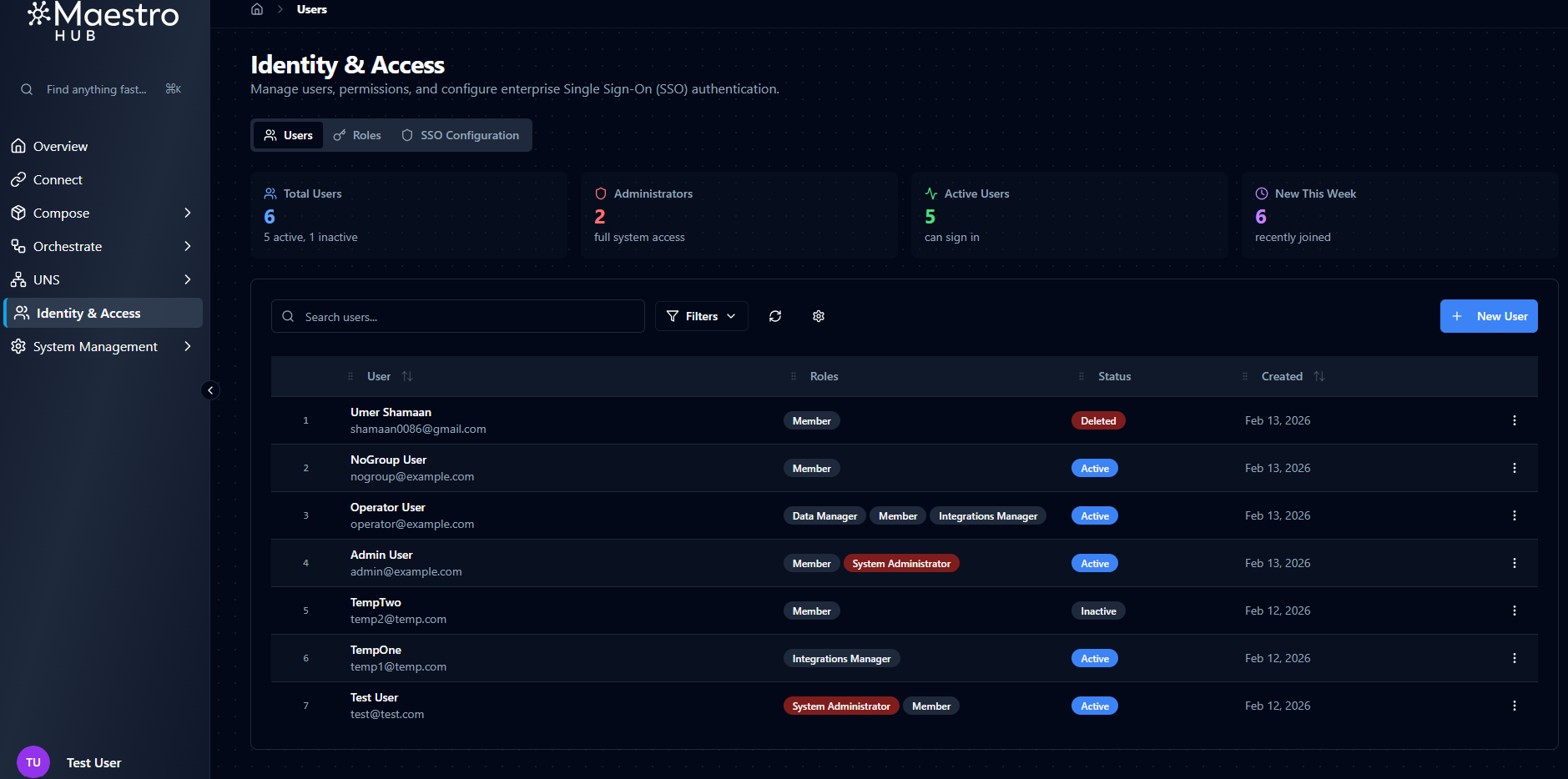
Navigate to Identity & Access → Users to see every user account in the system.
Four overview cards appear at the top of the page:
| Card | Description |
|---|---|
| Total Users | Total number of non-deleted user accounts |
| Administrators | Number of users with the System Administrator role (visible only when RBAC is enabled) |
| Active Users | Number of accounts with Active status |
| New This Week | Users created in the last seven days |
Below the cards, a table lists all users with the following columns:
| Column | Description |
|---|---|
| User | Avatar, full name, and email address |
| Roles | Assigned role badges (visible only when RBAC is enabled) |
| Status | Active, Inactive, or Deleted |
| Created | Account creation date |
| Actions | Row action menu |
Search, Filters, and Sorting
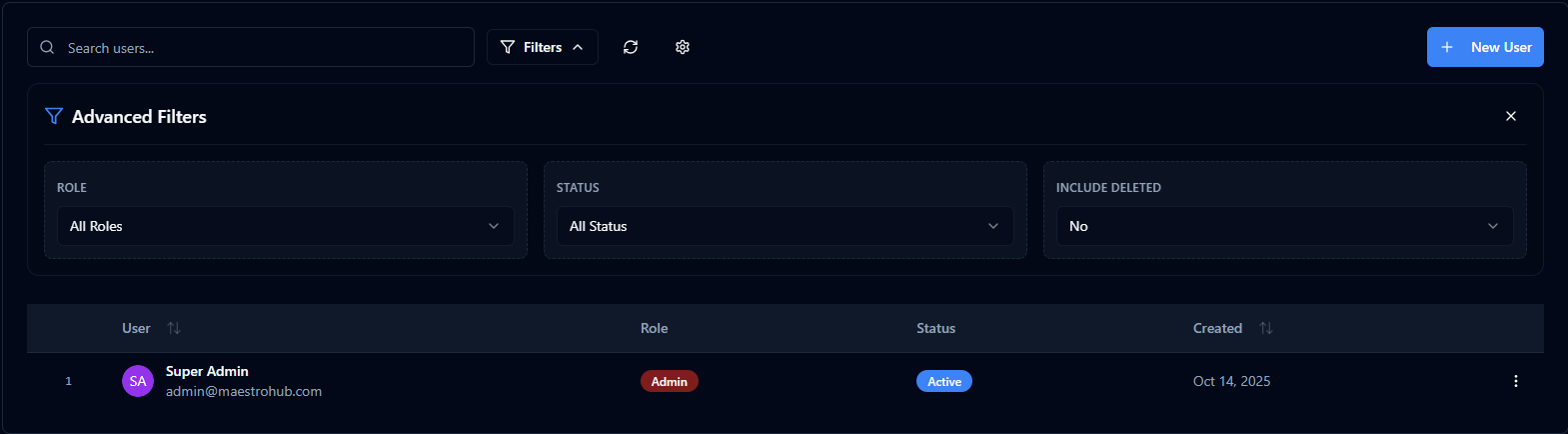
Use the controls above the table to narrow down the user list:
- Search — Filter by name or email address in real time.
- Status filter — Show
All,Active, orInactiveusers. - Include Deleted — Toggle to surface soft-deleted accounts alongside active ones.
- Sort — Order the list by Name, Email, Created Date, or Last Login (ascending or descending).
- Table Settings — Customize column visibility, column order, column widths, and page size.
Creating a New User
Click New User to open the creation form. The form is split into two columns: Basic Information on the left and Security on the right.
| Field | Type | Required | Description |
|---|---|---|---|
| First Name | Text | Yes | Minimum 2 characters. Accepts Unicode letters, spaces, dots, and hyphens. |
| Last Name | Text | No | Same character rules as First Name. |
| Yes | Must be a valid email format (max 254 characters). The system checks uniqueness in real time — a duplicate email is rejected. Email cannot be changed after creation. | ||
| Password | Password | Yes | Minimum 8 characters. Must contain at least one uppercase letter, one lowercase letter, and one number. A strength indicator shows Weak / Fair / Good / Strong feedback as you type. Only shown when creating a user — not displayed when editing. |
There is no role field on the create-user form. Roles are managed separately through the Manage Roles dialog after the user has been created. When RBAC is disabled, all users have full access regardless of role assignments.
Editing a User
Click a user's name or select Edit from the row action menu to open the edit form. The same fields are shown with two differences:
- Email is displayed but disabled — it cannot be changed after creation.
- Password is not displayed. Use the separate password-reset flow if needed.
When RBAC is enabled, an Assigned Roles section appears below the form fields, showing the user's current roles and a Manage Roles button to open the role-assignment dialog.
Managing User Status
The row action menu on each user provides the following actions:
| Action | Description |
|---|---|
| Edit | Open the user edit form |
| Manage Roles | Open the role-assignment dialog (RBAC only) |
| Activate / Deactivate | Toggle the user between Active and Inactive status |
| Delete | Soft-delete the user account |
- You cannot delete your own account.
- You cannot change your own status (activate/deactivate).
- Deactivating a user immediately invalidates all of their active sessions.
- Deleting a user invalidates all of their active sessions and marks the account as
Deleted.
Restoring Deleted Users
Soft-deleted users can be brought back:
- Enable the Include Deleted toggle in the user list.
- Find the deleted user — they appear with a
Deletedstatus badge. - Select Restore from the row action menu.
Restored users return with Active status and all their previous profile details intact.
Roles
Overview
The Roles tab is only visible when RBAC is enabled for your organization.
Role-Based Access Control requires the basic_rbac or enterprise_rbac feature to be enabled in your license. When neither feature is licensed, RBAC is disabled and all authenticated users have unrestricted access. Enterprise-only roles (Operator and Viewer levels) require the enterprise_rbac feature. Similarly, SSO-based role mapping (automatically assigning roles from identity provider groups) requires both an active SSO license feature and the appropriate RBAC tier.
RBAC has three levels:
| RBAC Level | Roles | Behavior |
|---|---|---|
| None | — | RBAC is disabled. All authenticated users have unrestricted access to every feature. |
| Basic (Lite edition) | 7 built-in roles | Feature-based access control with Manager-level roles per feature area. |
| Enterprise | 14 built-in roles | Adds Operator and Viewer capability levels for finer-grained control. |
Built-in Roles
Base Roles
These three roles exist at every RBAC level:
| Role | Display Name | Description |
|---|---|---|
System.Admin | System Administrator | Unrestricted access to all resources and settings across every organization. Can manage organizations, users, roles, and all platform features. |
Organization.Admin | Organization Administrator | Full access to all resources within their organization — connections, pipelines, models, topics, dashboards, users, and SSO. Cannot create or delete organizations. |
Member | Member | Default role for all users. Can view all resources, create pipelines, models, and dashboards, manage their own resources, and publish data to UNS topics. Cannot manage connections, users, or organization settings. |
Feature Manager Roles (Basic RBAC)
Four Manager roles are available in the Basic (Lite) tier, one per feature area:
| Role | Display Name | Feature Area | Managed Entities | Description |
|---|---|---|---|---|
Integrations.Manager | Integrations Manager | Integrations | Connections, Functions | Create, configure, edit, and delete connections and functions. Can test connections and execute functions. |
Automation.Manager | Automation Manager | Automation | Pipelines, Models | Create, configure, edit, and delete pipelines and models. Can run, test, and retry pipeline executions. |
Data.Manager | Data Manager | Data | UNS Topics, Dashboards | Create, configure, edit, and delete UNS topics and dashboards. Can publish data to topics. |
IAM.Manager | IAM Manager | IAM | Users, Identity Providers | Create, edit, and delete users and identity provider configurations. Full control over identity and access management. |
Enterprise-Only Roles
Enterprise RBAC adds seven more roles with Operator and Viewer capability levels:
| Role | Display Name | Description |
|---|---|---|
Integrations.Operator | Integrations Operator | View all connections and functions, test connections, and execute functions — cannot create, edit, or delete. |
Integrations.Viewer | Integrations Viewer | View all connections and functions in read-only mode. |
Automation.Operator | Automation Operator | View all pipelines and models, run and test executions — cannot create, edit, or delete. |
Automation.Viewer | Automation Viewer | View all pipelines and models in read-only mode. |
Data.Operator | Data Operator | View all UNS topics and dashboards, publish data to topics — cannot create, edit, or delete. |
Data.Viewer | Data Viewer | View all UNS topics and dashboards in read-only mode. |
IAM.Viewer | IAM Viewer | View all users and identity provider configurations in read-only mode. |
IAM does not have an Operator role because there is no "operate" concept for users and identity providers.
Feature Areas and Permissions
Each feature area maps to specific platform entities:
| Feature Area | Entities | Supports Operate |
|---|---|---|
| Integrations | Connections, Functions | Yes — test connections, execute functions |
| Automation | Pipelines, Models | Yes — run, test, retry pipelines |
| Data | UNS Topics, Dashboards | Yes — publish data to topics |
| IAM | Users, Identity Providers | No |
Five actions can be granted per entity:
| Action | Description |
|---|---|
| Create | Add new resources |
| Read | View resources and their details |
| Update | Modify existing resources |
| Delete | Remove resources |
| Operate | Runtime actions (test, execute, publish) — only available for features that support it |
Capability Levels
Capability levels determine which actions a role grants within its feature area:
| Level | Actions | Available In |
|---|---|---|
| Manager | Create, Read, Update, Delete, Operate | Basic + Enterprise |
| Operator | Read, Operate | Enterprise only |
| Viewer | Read | Enterprise only |
Viewing Roles
Navigate to Identity & Access → Roles to see the role list. The page shows a stat card with the total number of roles and a search bar to filter by name.
Each role in the list displays its name, display name, and a badge indicating its tier. Enterprise-only roles are shown with a lock badge when the current license is Basic.
Click a role to open its detail view, which shows:
- Header — Role name, display name, description, and tier badge.
- Permissions — Grouped by entity, showing which actions (Create, Read, Update, Delete, Operate) are granted.
- Users — A list of users who currently have this role assigned.
Assigning Roles to Users
You can access the Manage User Roles dialog in two ways:
- Click Manage Roles in the user edit form (under Assigned Roles).
- Select Manage Roles from the row action menu in the user list.
The dialog shows:
- User info — The user's name and email at the top.
- Add Role — A dropdown to select and assign a new role. Only roles available at your current RBAC level are shown.
- Current Roles — A list of the user's assigned roles with assignment date and who assigned them.
Role badges use visual indicators:
| Badge | Meaning |
|---|---|
| Red System | The System.Admin role |
| Default | The Member role (assigned automatically) |
Each role entry has a Remove button to unassign it from the user.