 Slack Integration Guide
Send messages to Slack channels and users directly from your pipelines. This guide covers Slack App setup, connection configuration, and function creation for automated notifications.
Overview
The Slack connector enables you to:
- Send channel messages to notify teams about production events, alerts, and workflow updates
- Send direct messages to individual users for targeted notifications
- Authenticate via OAuth tokens using Bot Tokens (xoxb-) or User Tokens (xoxp-)
- Customize bot appearance with custom display names and emoji icons (Bot Token only)
- Thread replies to keep conversations organized with threaded messages
- Dynamic recipient selection with searchable channel and user dropdowns
The Slack connector supports both Bot Tokens (xoxb-) and User Tokens (xoxp-). Bot tokens are recommended for most use cases — they support username and icon customization and operate independently of any user account.
Prerequisites
Before creating a Slack connection in MaestroHub, you need to:
- Slack Workspace: Have access to a Slack workspace where you want to send messages
- Slack App: Create a Slack App at api.slack.com/apps
- OAuth Scopes: Configure the required API scopes for your app
- App Installation: Install the app to your workspace and obtain an OAuth token
Slack App Setup
Step 1: Create a Slack App
- Go to api.slack.com/apps
- Click Create New App
- Choose From scratch
- Enter an app name (e.g.,
MaestroHub Notifications) - Select the workspace where the app will be installed
- Click Create App
Step 2: Configure OAuth Scopes
Navigate to OAuth & Permissions in the left sidebar and add the following scopes:
Required Scopes
| Scope | Purpose |
|---|---|
chat:write | Send messages to channels and users |
Conditional Scopes
| Scope | Purpose |
|---|---|
channels:read | List public channels (for dropdown selection in MaestroHub) |
groups:read | List private channels (for dropdown selection in MaestroHub) |
users:read | List workspace users (for direct message recipient selection) |
Optional Scopes
| Scope | Purpose |
|---|---|
chat:write.customize | Custom bot display name and icon emoji |
- Without conditional scopes: You can still send messages by manually entering Channel ID or User ID
- With conditional scopes: MaestroHub can populate searchable dropdown lists of channels and users for easier configuration
Step 3: Install the App
- Navigate to OAuth & Permissions
- Click Install to Workspace
- Review and authorize the requested permissions
- Copy the Bot User OAuth Token (
xoxb-...) or User OAuth Token (xoxp-...)
Copy the OAuth token immediately after installation. If you add new scopes later, you must reinstall the app to your workspace and copy the updated token.
Connection Configuration
Creating a Slack Connection
Navigate to Connections → New Connection → Slack and configure the following:
Slack Connection Creation Fields
1. Profile Information
| Field | Default | Description |
|---|---|---|
| Profile Name | - | A descriptive name for this connection profile (required, max 100 characters) |
| Description | - | Optional description for this Slack connection |
2. OAuth Token
| Field | Default | Description |
|---|---|---|
| OAuth Token | - | Bot Token (xoxb-...) or User Token (xoxp-...) from your Slack App (required, stored encrypted) |
- Bot Token (
xoxb-): Recommended. Supports custom bot name and icon emoji. Operates independently of user accounts. - User Token (
xoxp-): Messages are sent as the authenticated user. Does not support username/icon customization.
3. Connection Labels
| Field | Default | Description |
|---|---|---|
| Labels | - | Key-value pairs to categorize and organize this Slack connection (max 10 labels) |
Example Labels
env: prod– Environmentservice: notifications– Connection purposeteam: operations– Responsible team
- Required Fields: Profile Name and OAuth Token must be filled.
- Security: The OAuth token is stored encrypted and masked on edit. Leave the field empty to keep the stored value.
- Rate Limit: Slack allows approximately 1 message per second (short bursts are permitted).
Function Builder
Creating Slack Functions
After saving the connection:
- Go to Functions → New Function (or use the Functions tab in the connection editor)
- Select the function type (Send Message, Get Channels, Get Users)
- Choose the Slack connection profile
- Configure function parameters
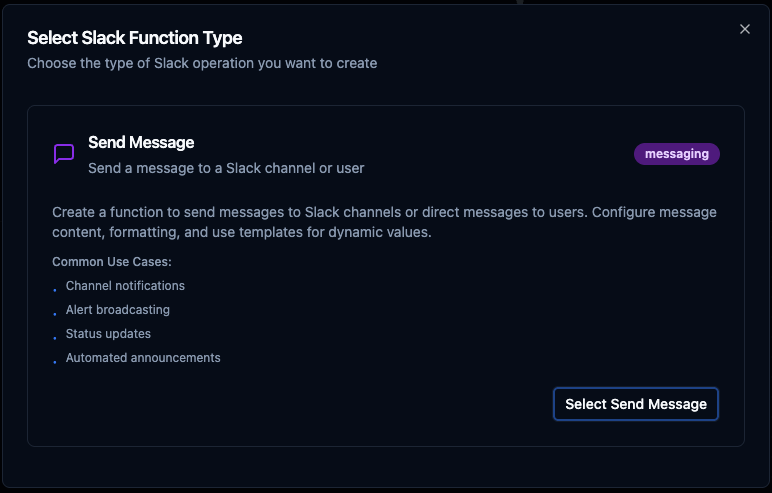
Create reusable Slack functions for channel and direct messaging
Send Message Function
Purpose: Send a text message to a Slack channel or directly to a user. Ideal for automated notifications, alerts, production updates, and status messages from your pipelines.
Configuration Fields
| Field | Type | Required | Default | Description |
|---|---|---|---|---|
| Function Name | String | Yes | - | A descriptive name for this function (e.g., notify-production-alerts). Max 100 characters |
| Send Message To | Select | Yes | Channel | Choose whether to send the message to a Channel or a User (direct message) |
| Channel | String | Conditional | - | Slack channel to send the message to. Use the searchable dropdown or enter a Channel ID manually. Supports parameters: ((channelId)) |
| User | String | Conditional | - | Slack user to send a direct message to. Use the searchable dropdown or enter a User ID manually. Supports parameters: ((userId)) |
| Message Text | String | Yes | - | Message content to send. Supports template parameters: ((message)), ((alertDetails)) |
| Bot Username | String | No | - | Override the bot display name (Bot Token only). Requires chat:write.customize scope |
| Icon Emoji | String | No | - | Override the bot icon with an emoji, e.g., :robot_face: (Bot Token only). Requires chat:write.customize scope |
| Thread Timestamp | String | No | - | Reply in a thread by specifying the parent message timestamp. Supports parameters: ((threadTs)) |
- Channel is required when "Send Message To" is set to Channel
- User is required when "Send Message To" is set to User
- Bot Username and Icon Emoji are only available with Bot Tokens (
xoxb-)
Use Cases: Channel notifications, alert broadcasting, status updates, automated announcements, direct user alerts
Using Parameters
Use ((parameterName)) in supported fields to create dynamic, reusable messaging functions with content injected at runtime from your pipeline data.
| Field | Supports Templating |
|---|---|
| Channel (manual mode) | Yes |
| User (manual mode) | Yes |
| Message Text | Yes |
| Bot Username | Yes |
| Icon Emoji | Yes |
| Thread Timestamp | Yes |
| Configuration | Description | Example |
|---|---|---|
| Type | Validate incoming values | string, number, boolean, datetime, json, buffer |
| Required | Enforce presence | Required / Optional |
| Default Value | Provide fallbacks | 'default-channel', 'Alert' |
| Description | Document intent | "Target channel for notifications", "Alert message body" |
Pipeline Integration
Use the Slack messaging functions you configure here as nodes inside the Pipeline Designer to send notifications and integrate team communication into your automation workflows. Drag function nodes onto the canvas, bind parameters to upstream outputs or constants, and route messages based on your business logic.
For end-to-end orchestration ideas, such as combining Slack notifications with database queries, MQTT events, REST API calls, or OPC UA data, explore the Connector Nodes page.
Common Use Cases
Production Alert Notification
Scenario: Notify the operations team immediately when a machine fault is detected.
Pipeline Flow:
- OPC UA Read node monitors machine status tag
- Filter node detects status = "fault"
- Slack Send Message node sends alert to
#production-alertschannel
Function Configuration:
Function: Send Message
Send To: Channel
Channel: #production-alerts
Message Text: ⚠️ *Machine Fault Detected*
  Machine: ((machineName))
  Status: ((status))
  Error Code: ((errorCode))
  Action Required: Immediate inspection
Quality Threshold Breach
Scenario: Send a direct message to the quality manager when a measurement goes out of tolerance.
Function Configuration:
Function: Send Message
Send To: User
User: ((qualityManagerId))
Message Text: 🔴 Quality Alert — ((partNumber))
  Measurement: ((measuredValue)) (Tolerance: ((minTolerance)) – ((maxTolerance)))
  Line: ((productionLine))
  Time: ((timestamp))
Shift Handover Summary
Scenario: Post an automated shift summary to a dedicated Slack channel at the end of each shift.
Function Configuration:
Function: Send Message
Send To: Channel
Channel: #shift-handover
Message Text: 📋 *Shift Summary — ((shiftName))*
  Total Production: ((totalUnits)) units
  Defects: ((defectCount))
  OEE: ((oeePercent))%
  Notes: ((operatorNotes))
Bot Username: ShiftBot
Icon Emoji: :clipboard: