Schemas
A schema is a reusable contract for the data on a UNS topic. It describes what a value is — its type, unit, valid range, and alert thresholds — so MaestroHub can validate, alert on, and chart the data instead of treating it as an anonymous number.
Schemas live in their own registry, are versioned, and are attached to topics through Topic Bindings. Once a topic is bound, the schema is enforced on every publish.
Why schemas? A bare UNS topic carries …/OP10-CNC/energy/temperature → 73.2 — but is that °C, % load, or RPM? Is 73.2 healthy or a fault? A schema turns that into 73.2 °C (0–120, warn ≥ 70, crit ≥ 85): typed, ranged, and alertable. The same contract applied across a hundred machines keeps every team reading the same numbers the same way.
The Schemas page
Open UNS › Schemas to reach the registry. The left panel is a searchable catalogue grouped by the first segment of each schema name (for example cnc.temperature and cnc.spindle_load sit under cnc). The right panel shows the full definition of the selected schema.
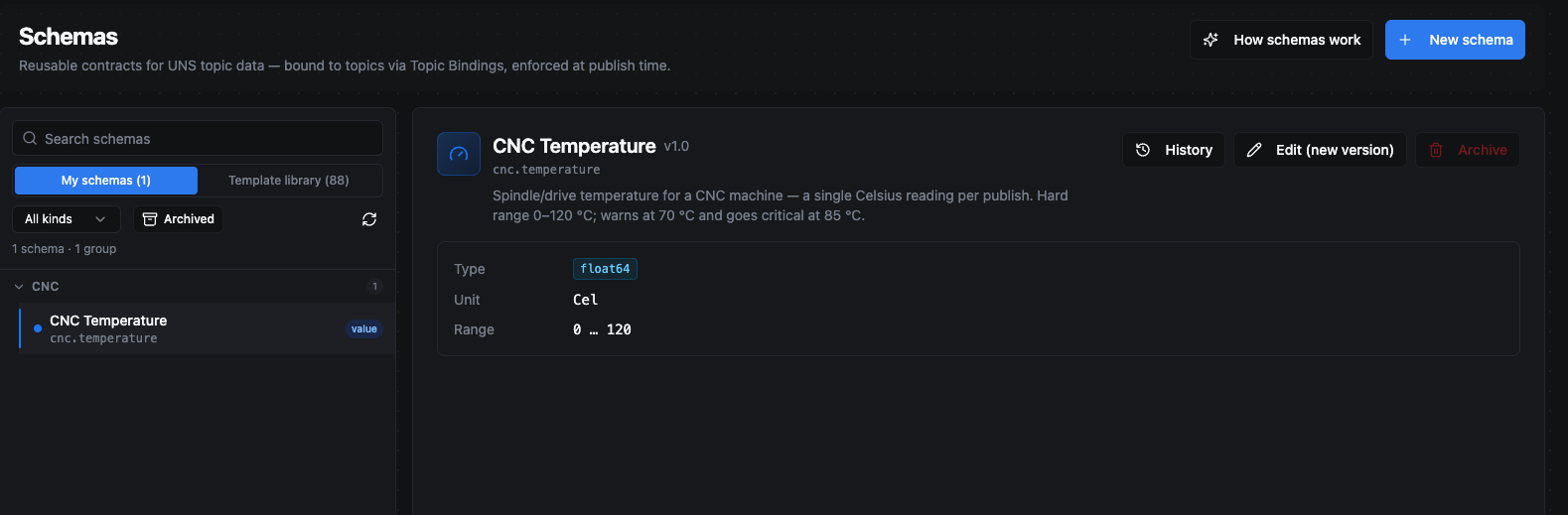
The Schemas registry. The selected CNC Temperature (cnc.temperature) value schema shows its type, unit, and hard range on the right, with History, Edit, and Archive actions.
Two tabs split the catalogue:
- My schemas — schemas your organisation owns and uses. These carry your thresholds, sampling expectations, and units. Only your own schemas can be referenced by a Topic Binding.
- Template library — a curated, read-only inventory of schema shapes maintained by MaestroHub (88 templates covering pumps, energy meters, OEE rollups, CNC tool wear, ISA-95 area profiles, and more). Templates deliberately carry no plant-specific thresholds or units — those belong on your copy.
A kind filter, an Archived toggle (visible on My schemas), and a search box narrow the list. Schemas with at least one active Topic Binding show an in use badge, so you can see usage before you archive or version anything.
Schema kinds
Every schema is one of three kinds, chosen on the Definition tab. The kind determines the shape a publish must take.
| Kind | What it represents | Example payload |
|---|---|---|
| Value | A single primitive reading — one sensor wire, one number per message. | 73.2 |
| Object | A bag of named attributes published together — one connector publishes the whole frame at once. | { "rpm": 1480, "state": "run", "temp": 73.2 } |
| Enum | A closed set of allowed string values — anything outside the set is rejected on publish. | "running" (of running | idle | fault) |
Creating a schema
Click New schema (or Use this template on a library schema) to open the editor. The editor is organised into tabs.
General
| Field | Notes |
|---|---|
| Name | The stable machine identity. Dot-separated, lowercase — e.g. cnc.temperature. The UI groups schemas by the first segment. The name cannot be changed after creation. |
| Display name | Optional, human-friendly label shown in lists and pickers — e.g. Pump Telemetry. |
| Description | Free text explaining what the schema represents. |
Definition
Pick the kind, then fill in the kind-specific fields:
- Value — choose the data type (e.g.
float64), an optional unit (UCUM, such asCel,bar,1/min), optional min/max hard bounds, and optional alert thresholds and sampling hints. - Object — add one attribute per field. Each attribute has a name, type, optional unit, a required flag, and its own optional alert thresholds, sampling hints, and semantic ID.
- Enum — list the allowed values. Each value has a canonical string (e.g.
running), an optional display label, an optional semantic ID, and a description.
Min/Max are hard bounds; alert thresholds are soft bounds within the valid range. A value outside min/max is a range violation; a value past a warn/critical threshold (but still inside the range) fires an alert. See Alerts.
For numeric value schemas and numeric object attributes, the Definition tab has two further collapsible sections: Alert thresholds and Sampling hints. Both are optional.
Alert thresholds
Warning/critical thresholds fire alerts to the in-app Alerts feed. They are soft bounds inside the valid range — crossing one raises an alert but the value is still valid and stored. (The schema's min/max are the hard bounds; a value outside those is a range violation instead.)
| Field | Meaning | Example |
|---|---|---|
| warn_min / warn_max | Warning band. A value past either edge raises a warning alert. | warn_min 10, warn_max 80 |
| crit_min / crit_max | Critical band (wider than warning). A value past either edge raises a critical alert. | crit_min 5, crit_max 90 |
| Deadband | Hysteresis that stops a value hovering near a threshold from flapping: the alert fires when the value crosses a threshold and only clears when it returns inside by the deadband amount. | 0.5 |
| Message | Optional remediation hint shown on every alert this threshold produces. | Pressure out of operating range |
Set warn/crit on the side(s) you care about — an asymmetric band (only warn_max, for example) is fine. For the full deadband state machine and how alerts behave once they fire, see Alerts › How an alert fires.
Sampling hints
Sampling hints describe how often the topic is expected to update. One part is enforced; the rest is documentation for dashboards.
| Field | Meaning | Enforced? |
|---|---|---|
| Kind | How the value is produced: Unspecified, Sampled (periodic reading from a sensor), or Event (irregular, on state change). | No — descriptive. |
| Expected period (ms) | The cadence you expect, e.g. 1000 for roughly 1 Hz. A hint for dashboards and operators. | No — not enforced. |
| Staleness threshold (ms) | How old a publish may be before it counts as stale. When set, a publish whose timestamp is more than this many milliseconds behind now is flagged as a stale violation. | Yes — produces a stale violation. |
For example, Staleness threshold = 5000 flags any value that arrives more than 5 seconds late, surfacing it on the Violations feed with degraded quality.
Advanced
- Semantic ID — an optional URI for cross-vendor semantic alignment (AAS Submodels, IEC CDD, eCl@ss). Surfaced in the registry and asset-graph queries.
- Traits — compose this schema from other schemas to reuse common attribute bundles.
Starting from a template
The fastest way to a working schema is to instantiate one from the library:
- Open the Template library tab and select a shape close to your equipment (e.g. Energy Meter).
- Click Use this template. The editor opens pre-filled with the template's shape, with the name cleared so you can name your own copy.
- Set the plant-specific details a template never carries: warn/critical thresholds, sampling expectations, and units for your machines.
- Save. You now own an org-scoped schema ready to bind.
The same template can be instantiated more than once with different thresholds — one copy for the line that runs hot, another for the cooling loop. They share the shape but not the limits.
Versioning
Schema bodies are immutable. Editing a schema never rewrites the existing version — it creates a new one. Versions are a major.minor pair, and every version stays queryable forever.
| Bump | When to use | Rule |
|---|---|---|
Minor (v1.0 → v1.1) | Additive, backward-compatible changes. | Add an attribute, widen a min/max range, add an enum value. MaestroHub rejects a minor bump that would break a publisher. |
Major (v1.x → v2.0) | Breaking changes. | Remove an attribute, change a type, narrow a range. Allowed, but never applied automatically. |
A Topic Binding pins the major version and floats the minor: a binding on v1.x automatically picks up v1.1's new optional attribute on the next publish, with zero coordination. A v2.0 is never applied behind your back — you move each binding to it deliberately, and the catalogue shows v1 and v2 side by side until every binding has migrated.
History
The History action (top-right when a schema is selected) opens a time machine for that schema: pick any past instant and see the schema exactly as it was then.
In the Schema history dialog:
- Set As of (local time) to the moment you want to inspect.
- Click Look up.
- The dialog shows the full schema body as it stood at that instant, labelled Body at picked instant — version X.Y. If the schema had been archived at that moment, it adds (soft-deleted at that instant).
If nothing matches, you'll see "No version of this schema existed at that instant — it either hadn't been created yet, or had been hard-deleted."
Where it looks. Every change to a schema — its creation, each edit, every version bump, and any archive or restore — is recorded automatically in a database history trail. You don't enable anything; the trail is always complete. History reads that trail to reconstruct the schema's state at the instant you pick.
This is broader than the version list. The catalogue shows one entry per schema name (its latest version), and the published versions (v1.0, v1.1, v2.0…) stay reachable through History. But an as-of lookup also captures changes that don't bump the version — a description or display-name edit, an archive, a restore — answering "what did this contract look like at 3:45 pm last Tuesday?" rather than just "which versions exist?". That makes it the tool for reproducing why a topic failed validation three weeks ago: pull up the exact schema that was in force then.
Binding a schema to a topic
A schema does nothing until a Topic Binding connects it to a topic. Bindings are created and managed from the topic in Data Explorer — not from the Schemas page, which is the registry where schemas are authored. There are two ways to open the binding dialog for a topic:
- From the topic header — select the topic in Data Explorer and click the + Bind schema button next to its path. Once bound, the button becomes a pill showing the bound schema and version; click it to manage or unbind.
- From the topic tree — right-click the topic in the tree and choose Manage schema binding.
Both open the binding dialog:
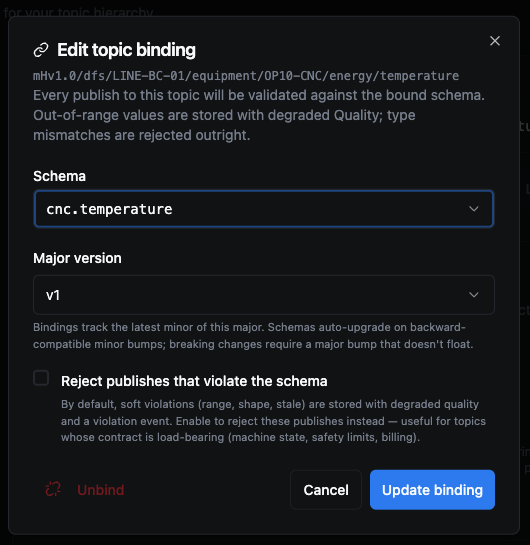
The binding dialog for a topic: choose the schema and its major version, optionally enable strict mode, then Bind. Reopening it on a bound topic shows the Unbind action.
- Schema — pick the schema from the dropdown (Choose a schema…). Only your organisation's own schemas appear here; library templates must be instantiated first. Don't have one yet? Click Suggest from samples to have MaestroHub infer a draft schema from the topic's recent payloads as a starting point.
- Major version — once a schema is chosen, select which major version to pin. The binding tracks the latest minor of that major automatically.
- Reject publishes that violate the schema — the optional strict mode checkbox (see below).
- Click Bind. To change or remove a binding later, reopen the dialog and update the schema, or use Unbind.
Key points:
- One binding per topic. A topic resolves to exactly one schema.
- Pin the major, float the minor — the binding tracks the latest minor of the chosen major.
- Strict mode — the Reject publishes that violate the schema toggle. By default, soft violations (range, shape, stale) are stored with degraded quality and a violation event; with strict mode on, those publishes are rejected instead. Use it for topics whose contract is load-bearing — machine state, safety limits, billing.
Once a topic is bound, its Alerts and Violations tabs in Data Explorer come alive — see Data Explorer › Alerts and Violations.
Enforcement at publish time
Once a topic is bound, every publish is checked. There are three outcomes across two surfaces:
| Outcome | Trigger | Result | Surfaces on |
|---|---|---|---|
| Rejected | Wrong type, missing required attribute, or an enum value outside the allowed set. | Publish is rejected (or dead-lettered). | Alerts › Violations |
| Stored + flagged | Within the type but outside the valid range, missing an optional attribute, stale beyond the freshness window, or a unit mismatch. | Data is stored but stamped with degraded quality. | Alerts › Violations |
| Alert fires | A warn/critical threshold defined on the schema is crossed. | An alert is raised with deadband anti-flapping. | Alerts |
If there is no binding on a topic, nothing is validated — the publish is accepted as-is.
Validation and alerting run in order
On every publish, two independent steps run in sequence: validation first (producing violations), then alert evaluation (producing alerts). A gate connects them:
- A rejected publish never fires an alert. A type mismatch — or any violation when the binding is in strict mode — rejects the publish before it is stored, so alert evaluation is skipped entirely. The publish surfaces only as a violation.
- A soft violation can produce both. A value outside the hard min/max is stored with degraded quality (a range violation) and, because warn/critical thresholds sit inside that range, the same value also crosses a threshold and fires an alert. One publish, two records — one on each tab.
- Most alerts have no violation. A perfectly valid value that simply crossed a warn/critical threshold produces an alert and no violation.
Published value (range 0–120, warn ≥ 70, crit ≥ 85) | Result | Violation | Alert |
|---|---|---|---|
"ERR" (text where a number is expected) | Rejected, not stored | Yes | No |
92 | Stored, critical threshold crossed | No | Yes (critical) |
130 (outside hard range) | Stored with degraded quality | Yes | Yes (critical) |
26 | Healthy | No | No |
See Alerts › Alerts vs violations for the full breakdown.
Archiving a schema
Archiving soft-deletes a schema: it disappears from the registry, but Topic Bindings that reference it continue to resolve, so live data keeps flowing. Use the in use badge to see whether any bindings still point at a schema before you archive it. Archived schemas can be restored from the Archived view.
Permissions
Schema management and topic binding are gated by separate permissions, because their blast radius differs:
| Action | Permission | Scope |
|---|---|---|
| Create / edit / archive a schema | schema:* | Affects every topic bound to that schema. |
| Create / edit / remove a Topic Binding | topic:* | A single topic's decision. |
| Suggest a schema from a topic's samples | topic:read | Reads the data plane. |
A schema is the contract; a Topic Binding puts it to work; enforcement keeps publishers honest. Define the shape first — thresholds and extra attributes can follow in the next minor version once you have seen real data flow. From there, Alerts covers what happens when a threshold is crossed.