UNS Integrations
The Integrations feature is your strategic control center for connecting MaestroHub with external systems. It enables seamless data exchange across your digital ecosystem, whether you're receiving data from remote factories or forwarding insights to cloud analytics platforms.
Overview
UNS Integrations provides two fundamental capabilities:
Ingoing Integrations bring external data into MaestroHub's Unified Namespace. Use these to receive data from suppliers, remote production sites, legacy systems, or any external source that needs to contribute to your unified data fabric.
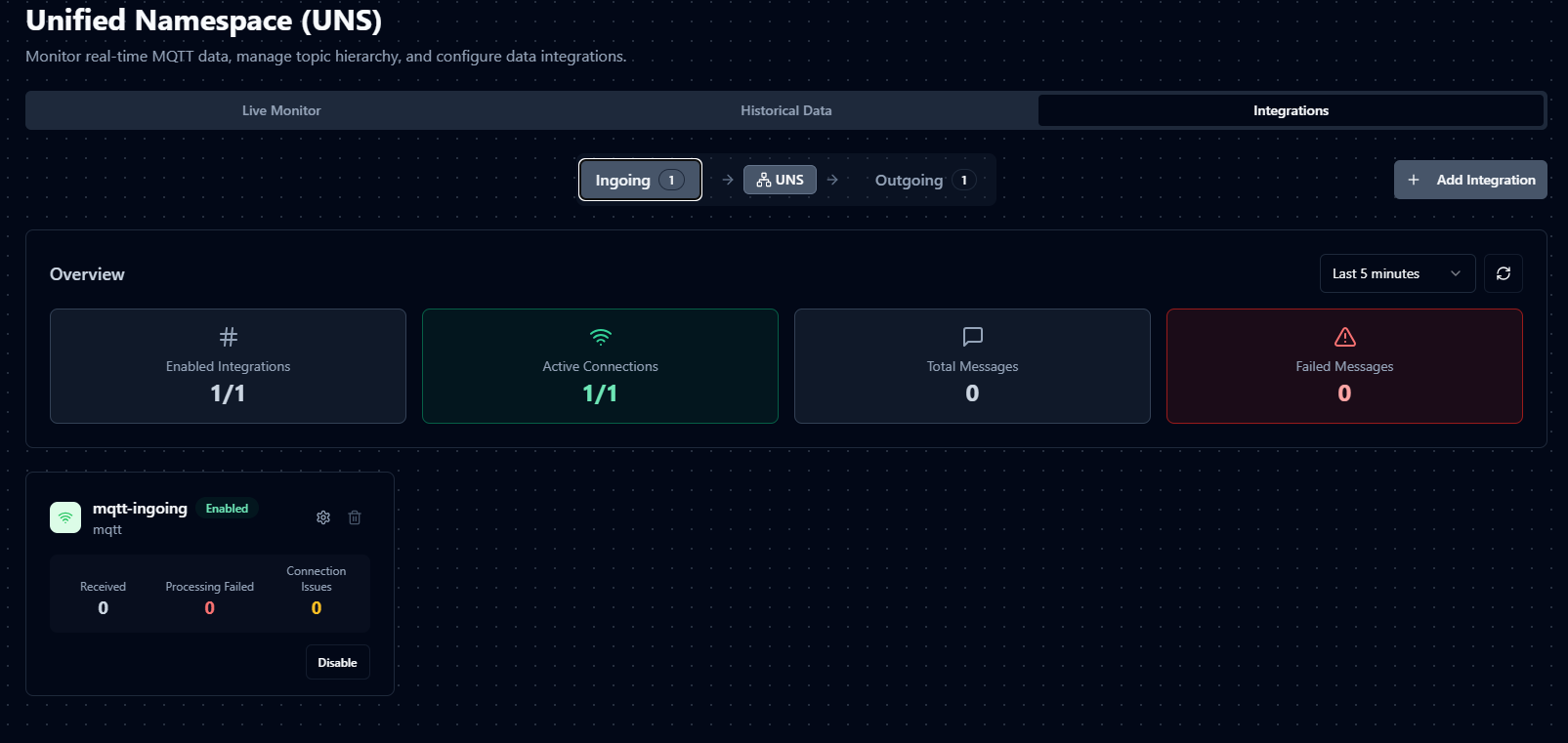
Outgoing Integrations send MaestroHub data to external destinations. Forward your processed, enriched UNS data to business applications, analytics platforms, data lakes, or partner systems in real-time.
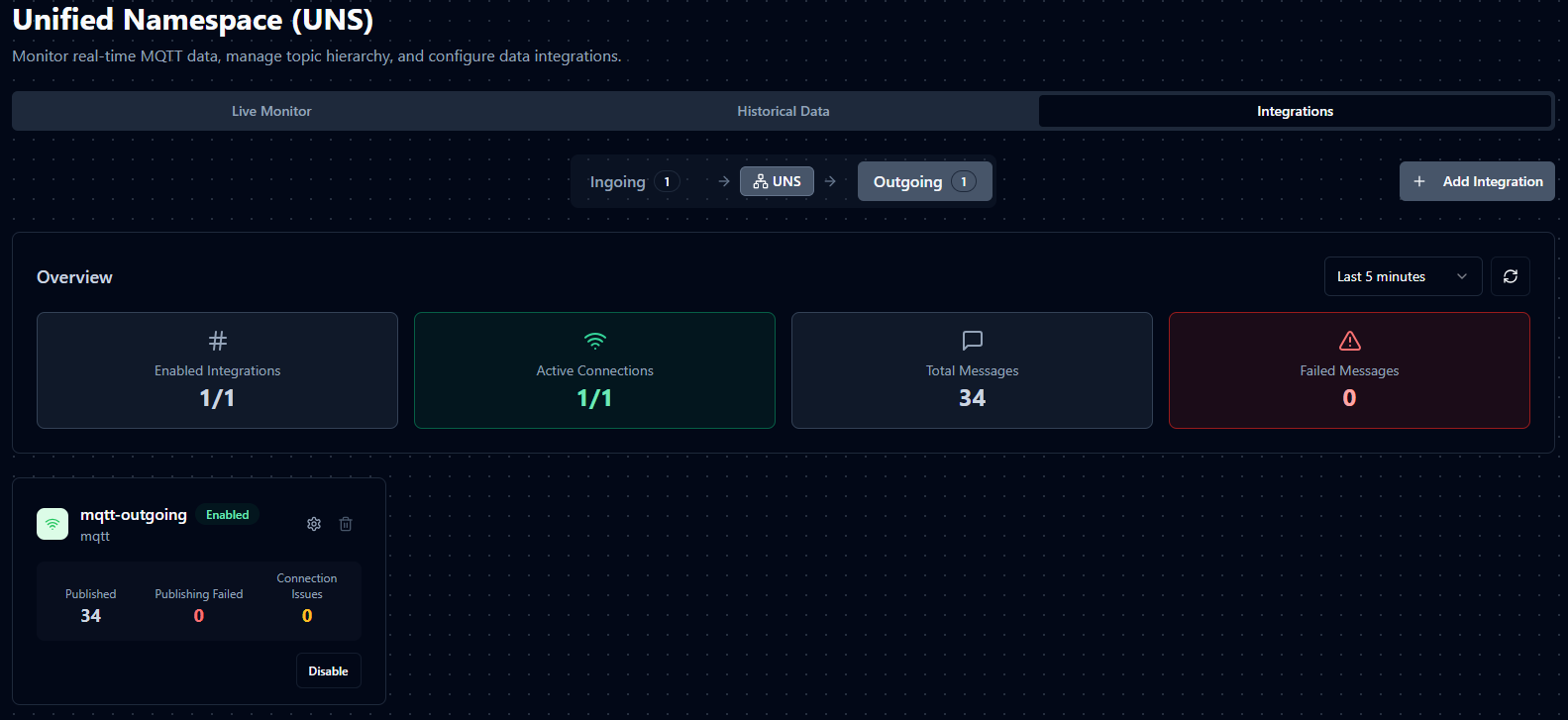
The Integrations interface is organized into three tabs:
- Overview Tab provides a comprehensive dashboard with health metrics and status indicators for all integrations
- Ingoing Tab manages data flows coming into MaestroHub
- Outgoing Tab controls data flows leaving MaestroHub
Getting Started
Accessing Integrations
Navigate to the UNS module in MaestroHub and select the Integrations tab. The Overview dashboard displays immediately, showing real-time metrics and status for all configured integrations.

Creating Your First Integration
Click the Create Integration button in either the Ingoing or Outgoing tab. The creation wizard guides you through four essential steps:
Ingoing Integrations
Ingoing integrations act as receivers, pulling data from external sources into MaestroHub's Unified Namespace. This capability is essential for multi-site operations, supplier integration, and legacy system modernization.
MQTT Receiver
Connect to external MQTT brokers and subscribe to specified topics. The MQTT Receiver is ideal for factory-to-factory communication and IoT device integration.
Essential Configuration
| Setting | Description |
|---|---|
| MQTT Broker URL | Connection endpoint for the external broker. Use mqtt:// for standard connections or mqtts:// for secure connections |
| Client ID | Unique identifier for this connection. Leave empty for auto-generation |
| Username / Password | Authentication credentials when required by the broker |
| Topics | MQTT topics to subscribe to. Supports wildcards: + for single level, # for multi-level |
| Quality of Service | Message delivery guarantee level. Choose 0 for speed, 1 for reliability, or 2 for critical data |
| Clean Session | When enabled, the broker discards session state between connections |
Security Configuration
| Setting | Description |
|---|---|
| Use SSL | Enable encrypted communication using SSL/TLS |
| CA Certificate File | Certificate authority file for verifying broker identity |
| Client Certificate File | Client certificate for mutual TLS authentication |
| Client Key File | Private key for client certificate authentication |
Filtering Options
The Keywords to Ignore field allows you to filter out unwanted topics automatically. Any topic containing specified keywords will be excluded from ingestion. This is particularly useful for removing system topics, debug messages, or test data.
Security Best Practices
Production environments should always use SSL/TLS encryption. Provide valid certificates and use strong authentication credentials. Avoid disabling TLS verification except in controlled development environments.
Outgoing Integrations
Outgoing integrations function as forwarders, pushing MaestroHub data to external systems. They enable real-time data distribution across your enterprise architecture.
MQTT Forwarder
Send data to external MQTT brokers. This forwarder is perfect for sharing production insights with remote teams or feeding data to cloud IoT platforms.
Core Settings
| Setting | Description |
|---|---|
| MQTT Broker URL | Target broker endpoint |
| Client ID | Unique client identifier |
| Username / Password | Authentication credentials |
| Quality of Service | Message delivery guarantee level |
| Use SSL | Enable encrypted transmission |
| Clean Session | Start fresh without session state |
| Connect Timeout | Maximum seconds to wait for connection establishment |
Kafka Forwarder
Stream data to Kafka clusters for high-throughput scenarios and event-driven architectures.
Configuration Parameters
| Setting | Description |
|---|---|
| Kafka Brokers | List of broker addresses. Multiple brokers provide redundancy and load distribution |
| Username / Password | SASL authentication credentials |
| Use TLS | Enable transport layer security |
| SASL Mechanism | Authentication method: none, plain, scram-sha-256, or scram-sha-512 |
| Topic Cache TTL | Seconds to cache topic metadata before refreshing |
| Auto-create Topics | Automatically create topics when they don't exist |
| Default Partitions | Partition count for new topics |
| Replication Factor | Number of replicas for data durability |
| Topic Separator | Character replacing forward slashes in topic names |
SASL Authentication
Choose the appropriate mechanism for your security requirements:
- none - No authentication; only suitable for trusted internal networks
- plain - Username and password; always use with TLS
- scram-sha-256 - Secure password authentication with SHA-256 hashing
- scram-sha-512 - Maximum security password authentication with SHA-512 hashing
Mapping Rules
Mapping rules control how topic names transform as data flows through integrations. They enable you to maintain consistent naming conventions, add organizational context, and route data appropriately.
Why Mapping Rules Matter
Topic Namespacing distinguishes data from different sources by adding identifying prefixes.
Normalization standardizes topic naming across diverse systems with varying conventions.
Access Control routes specific topics to appropriate destinations based on content or source.
Organization restructures topic hierarchies to match your enterprise architecture.
Rule Types Overview
The following table summarizes all available mapping rule types:
| Rule Type | Use Case | Required Configuration | Example Transformation |
|---|---|---|---|
| Direct | Preserve original topic structure | Type only | factory/line1/temperature → factory/line1/temperature |
| Global | Aggregate all data into single topic | Integration Topic | factory/line1/temperature → central/aggregated |
| Prefix | Add organizational identifiers | Source Topic pattern, Integration Topic prefix | factory/line1/temperature → external/supplier-a/factory/line1/temperature |
| Rewrite | Replace specific topic names | Source Topic (exact match), Integration Topic | legacy/sensor/reading → modern/sensor/measurement |
| Regex | Complex pattern-based transformations | Regex pattern, Integration Topic template | factory/line1/temperature → plant/line1/temperature |
| Template | Wrap topics with prefix/suffix | Source Topic pattern, Template string | factory/line1/temperature → external/factory/line1/temperature/processed |
Rule Type Details
Direct Mapping
Forwards messages without transformation. The original topic name passes through unchanged.

When to use: You want to preserve the exact topic structure from the source system.
Configuration:
Type: direct
Additional fields: None required
Transformation:
Input: factory/line1/temperature
Output: factory/line1/temperature
Global Mapping
Routes all messages to a single fixed topic regardless of original topic names.

When to use: Aggregating diverse data streams into one centralized topic for unified monitoring or logging.
Configuration:
Type: global
Target Topic Name: Target topic name
Transformation:
Target Topic: central/aggregated
Input: factory/line1/temperature
Output: central/aggregated
Input: production/line2/pressure
Output: central/aggregated
Prefix Mapping
Adds a new prefix to topics matching a specified starting pattern.

When to use: Adding organizational identifiers, site names, or source system identifiers to incoming data.
Configuration:
Type: prefix
Source Topic: Pattern to match
Add Prefix: Prefix to add
Transformation:
Source Topic: factory/line1/
Add Prefix: external/supplier-a/
Input: factory/line1/temperature
Output: external/supplier-a/factory/line1/temperature
Rewrite Mapping
Completely replaces an exact topic match with a new topic name.

When to use: Renaming specific topics to meet external system requirements or standardizing legacy topic names.
Configuration:
Type: rewrite
Source Topic: Exact topic to match
Rewrite To Topic: Replacement topic name
Transformation:
Source Topic: legacy/sensor/reading
Rewrite To Topic: modern/sensor/measurement
Input: legacy/sensor/reading
Output: modern/sensor/measurement
Input: legacy/sensor/reading/extra
Output: legacy/sensor/reading/extra (no match, unchanged)
Regex Mapping
Uses regular expressions to match patterns and transform topics using capture groups.
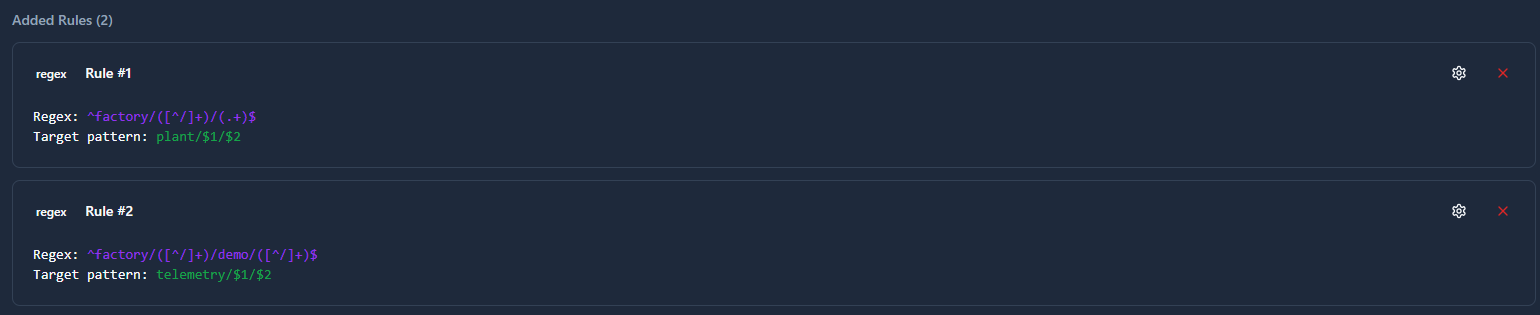
When to use: Complex restructuring scenarios requiring pattern-based transformations and dynamic topic generation.
Configuration:
Type: regex
Regular Expression: Regular expression with capture groups
Target Topic Pattern: Target pattern using capture group placeholders
Transformation Examples:
Extract subdirectory structure:
Regular Expression: ^factory/([^/]+)/(.+)$
Target Topic Pattern: plant/$1/$2
Input: factory/line1/temperature
Output: plant/line1/temperature
Reorganize hierarchy:
Regular Expression: ^factory/([^/]+)/demo/([^/]+)$
Target Topic Pattern: telemetry/$1/$2
Input: factory/boston/demo/temperature
Output: telemetry/boston/temperature
Template Mapping
Creates dynamic topics by inserting the original topic into a template string.

When to use: Wrapping topics with consistent prefixes and suffixes while preserving the original topic path.
Configuration:
Type: template
Source Topic Pattern: Prefix pattern to match
Template: Template string with topic placeholder
Transformation:
Source Topic Pattern: factory/
Template: external/$topic/processed
Input: factory/line1/temperature
Output: external/factory/line1/temperature/processed
Working with Multiple Rules
A single integration can have multiple mapping rules. Each rule evaluates independently against the original topic. When a message matches multiple rules, it produces separate outputs for each match, creating a fan-out pattern.
Evaluation Order: Rules are evaluated in the sequence they appear. The first matching rule does not prevent subsequent rules from evaluating.
Best Practice: Organize rules from most specific to most general. Place exact match rules first, followed by pattern-based rules, with catch-all rules last.
Example Scenario:
Rule 1 (Rewrite): Specific topic factory/critical/alert becomes urgent/notification
Rule 2 (Prefix): Topics starting with factory/ get prefix standard/
Rule 3 (Direct): All remaining topics pass through unchanged
Message: factory/critical/alert
Outputs: urgent/notification (from Rule 1) and standard/factory/critical/alert (from Rule 2)
Metrics and Monitoring
Overview Dashboard
The Overview tab provides real-time visibility into integration health and performance.
Summary Metrics
Enabled Integrations shows how many integrations are currently active out of total configured integrations.
Active Connections displays the count of integrations with established, healthy connections to their external systems.
Total Messages aggregates all messages processed across all integrations within the selected time window.
Failed Messages highlights problematic messages that encountered errors during processing or transmission.
Time Range Selection
Adjust the observation window to match your monitoring needs:
- Last 5 minutes for real-time operational monitoring
- Last 1 hour for recent trend analysis
- Last 24 hours for daily pattern review
Metrics refresh automatically every 5 seconds to maintain current awareness.
Integration Cards
Each integration appears as an individual card displaying:
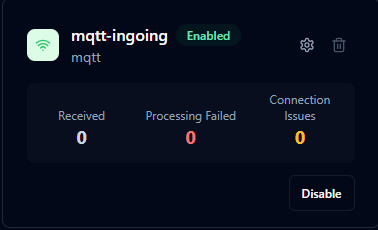
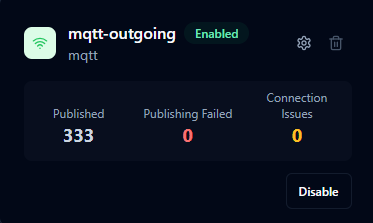
Connection Status indicates whether the integration is successfully connected to its external system. A healthy connection shows active status, while disconnected integrations display the disconnection reason and timestamp.
Enable/Disable State shows whether the integration is actively processing messages or is configured but inactive.
Integration Details include the integration name, protocol type, and descriptive purpose.
Performance Counters track operational metrics:
For Ingoing Integrations:
- Received - Messages successfully received from external sources
- Processing Failed - Messages that encountered processing errors
- Connection Issues - Connection failures and reconnection attempts
For Outgoing Integrations:
- Published - Messages successfully sent to external systems
- Publishing Failed - Messages that failed to send
- Connection Issues - Connection failures and reconnection attempts
Available Actions enable quick management:
- Edit configuration settings
- Toggle enabled state
- Delete the integration
Understanding Connection States
Connected integrations have active, healthy connections to their external systems and are processing messages normally.
Disconnected integrations have lost connection or cannot establish connection. The system automatically attempts reconnection using exponential backoff, gradually increasing wait times between attempts to avoid overwhelming systems.
When disconnected, the card displays the last status update time and the specific error or reason for disconnection.
Troubleshooting
Integration Shows Disconnected
Verify External System Status ensuring the target system is running and accessible from MaestroHub's network.
Check Network Connectivity using ping or telnet to confirm network path and port accessibility.
Review Firewall Rules ensuring traffic is permitted on required ports between MaestroHub and external systems.
Validate Credentials confirming usernames, passwords, and certificates are current and correctly configured.
Examine Certificates checking expiration dates on SSL/TLS certificates and certificate authority chains.
View Detailed Errors by clicking the integration card to see specific disconnection reasons and error messages.
No Messages Flowing
For Ingoing Integrations:
Confirm the external system is actively publishing to subscribed topics. Check external system logs and monitoring.
Verify Keywords to Ignore settings are not filtering desired topics unintentionally.
Review mapping rules to ensure they are not rejecting messages. Temporarily simplify rules to isolate issues.
Confirm the integration enabled state. Disabled integrations appear connected but do not process messages.
For Outgoing Integrations:
Verify MaestroHub has data on topics the integration expects to forward. Use Live Monitor to confirm data availability.
Review mapping rules to ensure they match topics you expect to forward.
Check external system capacity and health. Full queues or overloaded systems may reject messages.
Confirm the integration enabled state.